
How Can We Help?
Functions
Digital Twin Template Management
In Designer, you can configure appearance, properties, preset structures, inputs/outputs, behavior tree logic, and other content for digital twin templates. After a template is used to create a digital twin, the digital twin instance inherits the relevant configuration from the template.
It is recommended to configure the shared appearance, properties, and default capabilities for the same type of digital twin in the template, and adjust the position, property values, or connection relationships of individual digital twin instances in the scene according to actual business needs.
Notes:
- Template deletion must be performed in the FactVerse platform. Designer does not provide a delete function for templates.
Create a New Template
In addition to using preset templates from the FactVerse resources, you can also create a brand-new digital twin template from scratch to meet specific device or space modeling and data-driven needs.
Steps
1. Open the “New Template” window using either of the following methods:
- Click + New Template on the home page
- In the template editor, click File > New
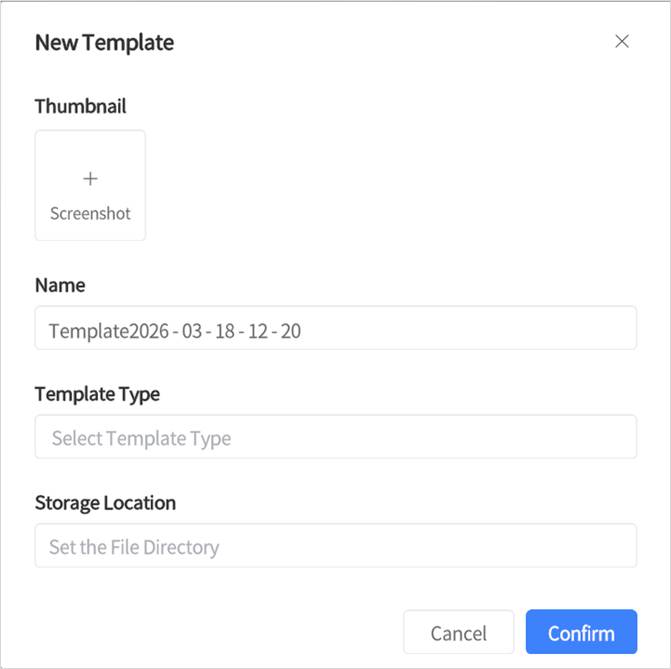
2. Fill in the template information in the pop-up window and click Confirm. The system will then open the new template in the template editor.
3. Click the toolbar “Save” button to save the template to the platform repository and complete the template creation.
New Template Window Field Description
- Thumbnail (optional): Used for quick identification of the template.
- Name: Template name.
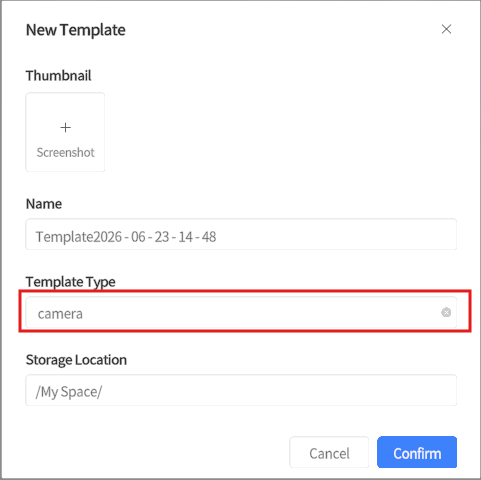
- Template Type (optional): A system preset type that includes predefined attribute groups and default values.
- After selecting a template type, you can quickly inherit the attribute structure of that type.
- It is also used for categorized display and management of “Space Class / Equipment Class” in the Inspector.
- Cannot be modified after creation, and inherited attribute groups/ attributes cannot be removed from the template.
- Storage Location: Choose the directory in the platform repository where the template will be saved.
Description
Creating a template only sets up the structure. To use it in your workflow, you must configure its content further, such as:
- Add or adjust attribute groups and attributes (such as device information, posture, operational data, etc.).
- Add model resources, configure data bindings or behavior trees (as required).
Edit Template Attribute Groups
In a digital-twin template, attribute groups are used to categorize and manage attributes (for example, “Posture,” “Device Information,” “Operational Data,” etc.). You can add, rename, or adjust attribute group types and add attributes under an attribute group.
Add an attribute group
In the digital-twin template pane, click the ︙ next to “Metadata” and choose “Add Structure.”
Rename an attribute group
- In the digital-twin template pane, select the target attribute group.
- Click the edit icon
 in the right-hand attribute area to change the structure name.
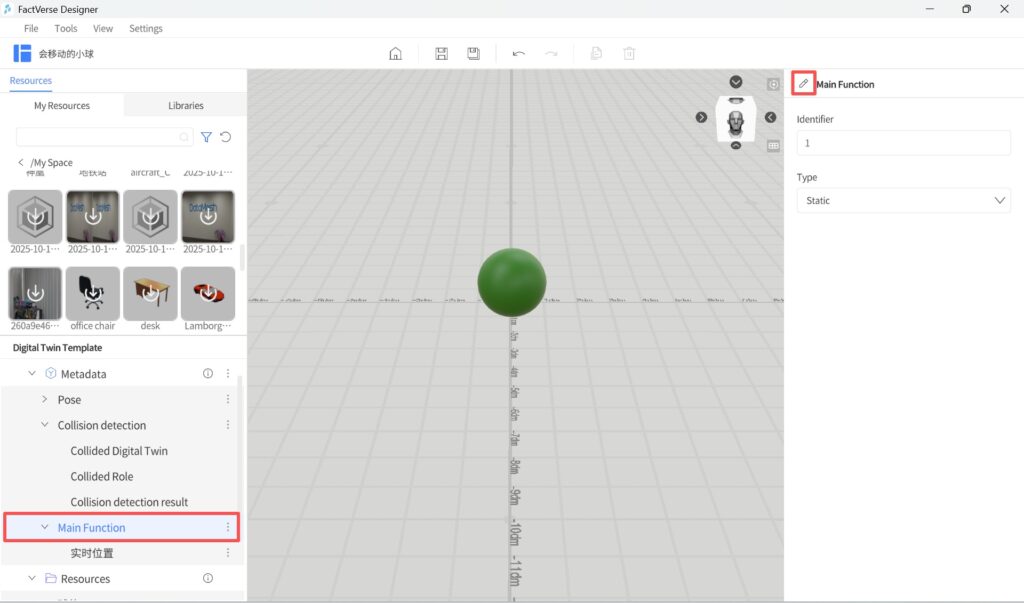
Edit attribute group type (static/dynamic)
- In the digital twin template pane, select the target attribute group.
- In the right-hand attribute area, choose static or dynamic from the Type dropdown.
Add attribute
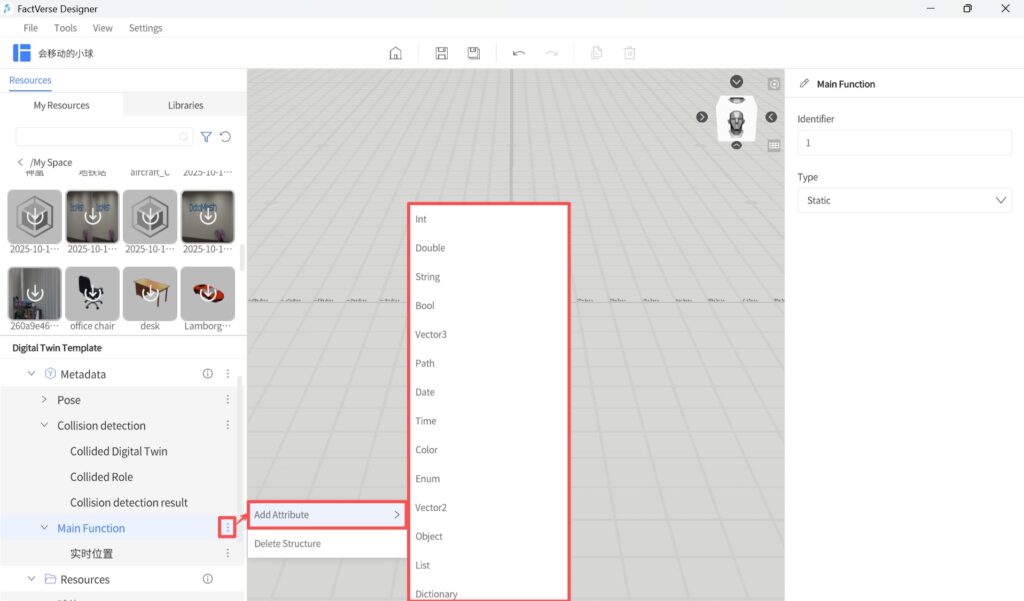
- In the digital twin template pane, click the ︙ next to the target attribute group and select “Add attribute”.
- From the popped-up list of property types, choose the required type, and the system will create the corresponding attribute under that attribute group.
- After selecting the attribute, you can modify the attribute name, identifier, default value, and other parameters in the right-hand attribute area.
Tip: Click Save after editing attribute groups. Changes will not take effect until they are saved.
Allow AI Access to Digital Twin Properties
Allow AI Access specifies which template properties can be provided to FactVerse AI. When this option is enabled, FactVerse AI can reference the property when answering questions, analyzing scenes, or assisting with operations. When this option is disabled, the property is not provided to FactVerse AI.
When you want FactVerse AI to understand information about certain devices or objects, you can enable Allow AI Access for the related properties. For example:
- Properties such as device temperature, operating status, and runtime that AI needs to use for Q&A or analysis.
- Production line status, device capabilities, business parameters, and other properties that AI needs to reference.
Keep Allow AI Access disabled for internal debugging fields, temporary calculation fields, or properties that you do not want AI to use.
Steps
- Open the target digital twin template.
- In the Digital Twin Template pane, select the property to provide to AI.
- In the right Attribute Pane, enable Allow AI Access.
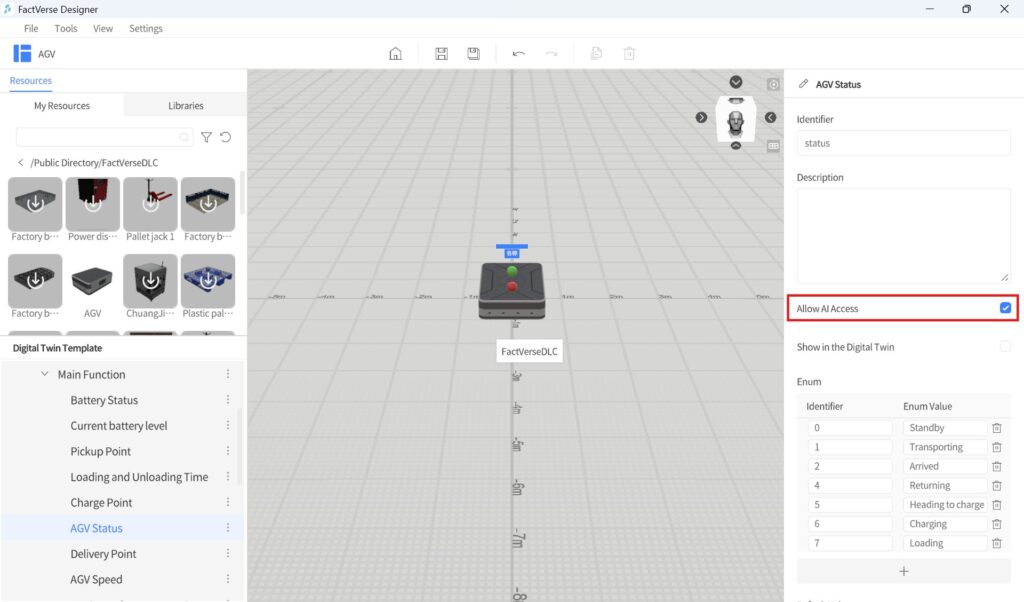
- Save the template.
Notes:
- Allow AI Access can be set individually for each property. Different properties under the same template can be enabled or disabled separately.
- The template must be saved for changes to take effect.
- Digital twins created from the template inherit the Allow AI Access setting of the corresponding property.
- It is recommended to enable Allow AI Access only for business properties that FactVerse AI needs to reference.
Manage behavior trees in the template
Behavior trees are used to define the behavioral logic of digital twins. In the template, you can create new behavior trees, add existing behavior trees, and view, edit, or remove them.
Create a new behavior tree
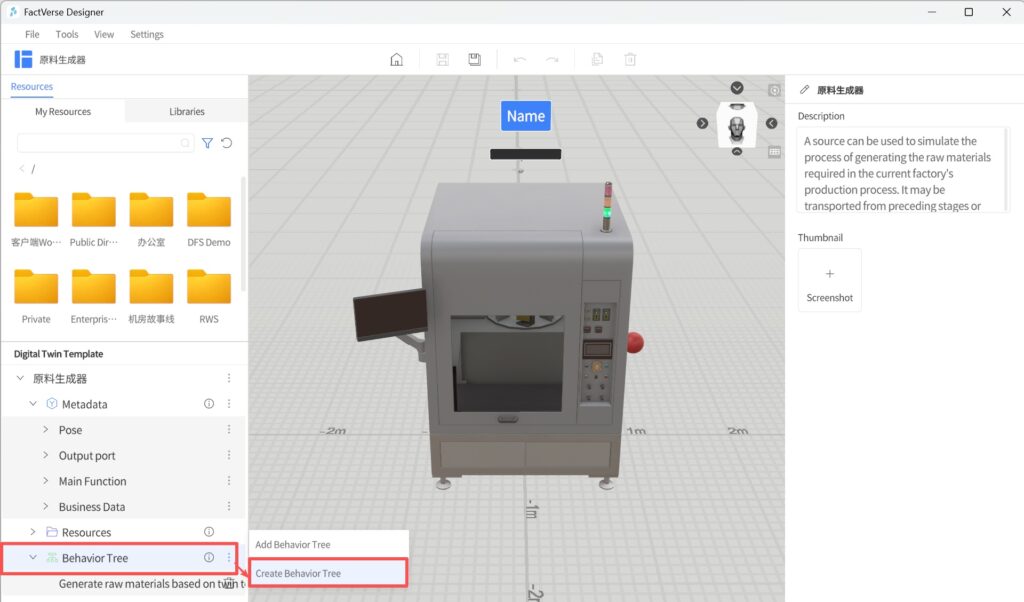
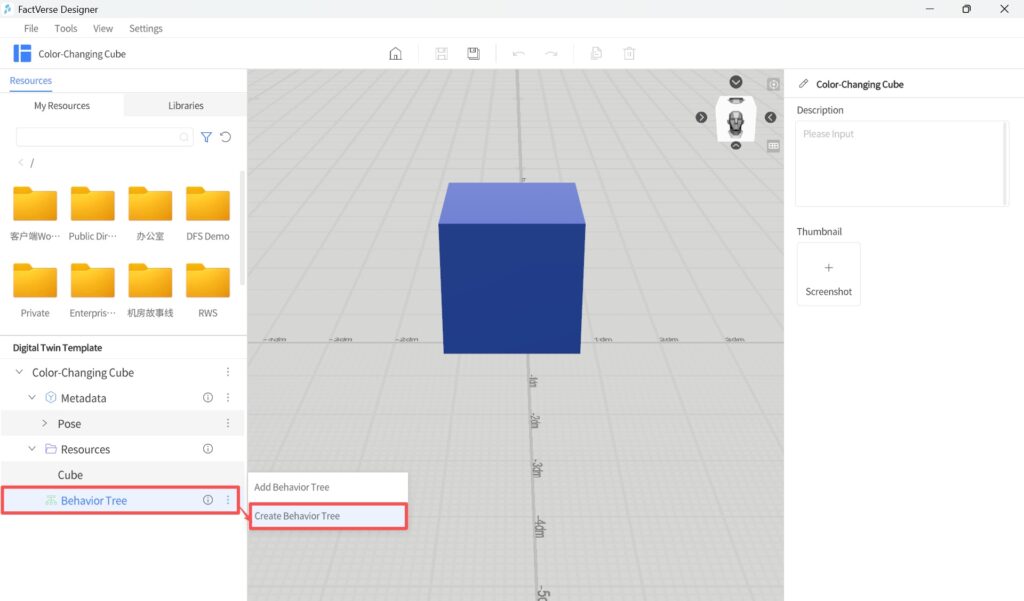
1. In the digital twin template pane, click the icon ︙ to the right of “Behavior Trees” and select “Create behavior tree”.
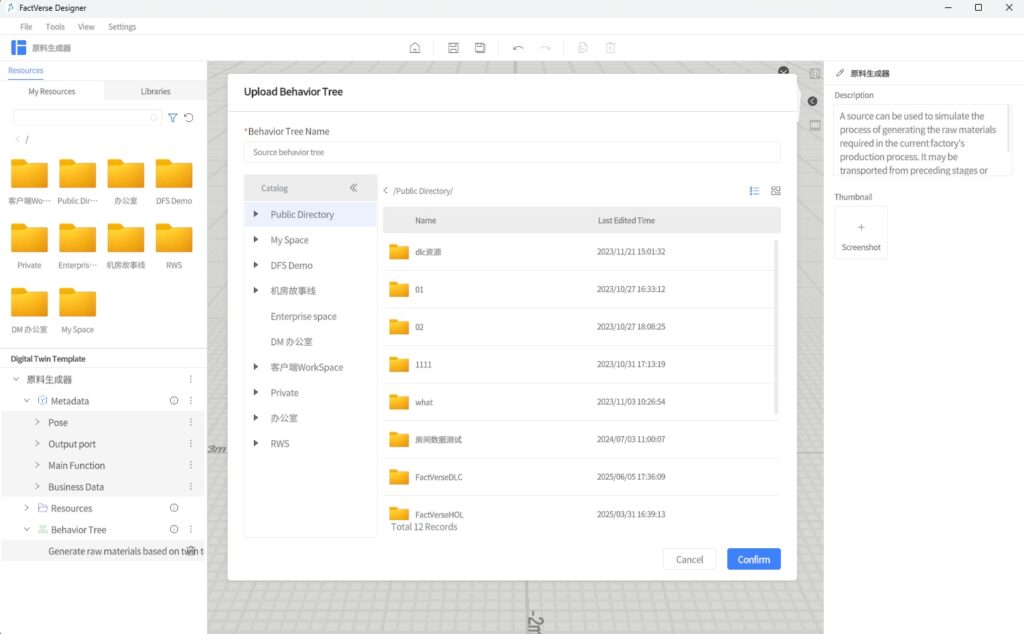
2. In the pop-up window, choose the storage path and enter the behavior tree name.
Add an existing behavior tree
In the digital twin template pane, click the ︙ to the right of the “Behavior Trees” section, choose “Add behavior tree,” and select the target behavior tree.
View and edit behavior trees
In the Twin Template pane, double-click the target behavior tree under the Behavior Tree column to open and edit it in the Behavior Tree Editor.
Remove Behavior Tree
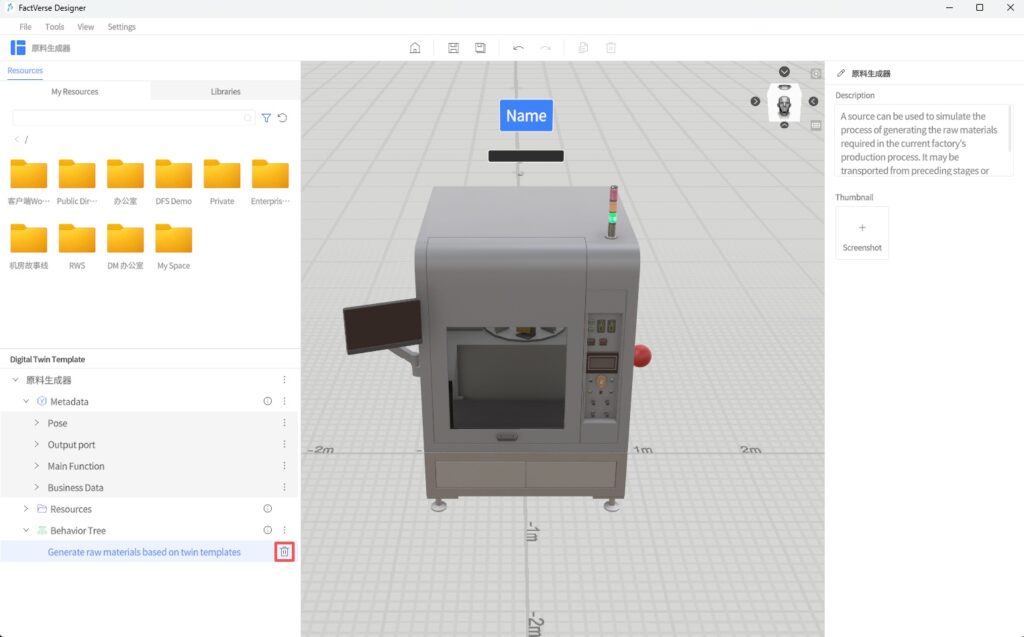
Click the Delete button next to the behavior tree name to remove it from the template.
Note: Removal only disassociates the behavior tree from the template and does not delete the behavior tree saved in the cloud. To permanently delete it, please log in to the FactVerse platform and delete it there.
Configure Template Inputs/Outputs
Digital twin inputs/outputs define how goods, materials, or objects flow between different digital twins. In production line, logistics, and warehousing scenarios, if a type of digital twin needs to receive or output goods, it usually needs an input or output.
For example, a raw material generator usually requires an output, a conveyor usually requires both an input and an output, and a buffer area usually requires an input. If a digital twin is only used for display or decoration, or does not participate in material flow, inputs/outputs are not required.
Steps
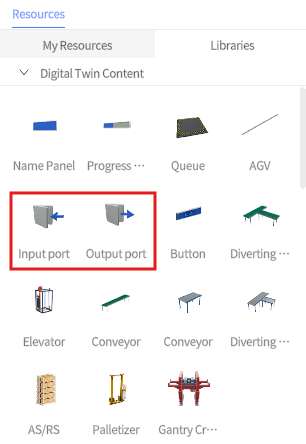
In Libraries, select an Input or Output model and add it to the template.
Notes:
The input/output model is mainly used to identify an input or output, making it easier for users to recognize, select, and configure connection relationships. Its placement in the model is not the same as the actual position where goods enter or leave the digital twin.
After adding an input or output resource, you need to add the related properties so that the system can identify the input/output position, owning digital twin, and connection relationship.
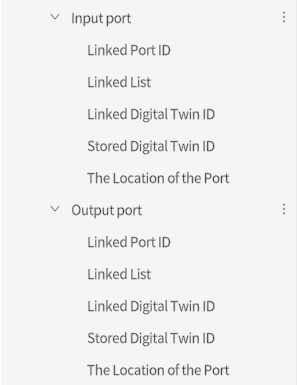
Common input/output properties are as follows:
Property | Description |
Linked Port ID | Indicates the peer input/output connected to the current input/output. For an Output, it indicates the input of the downstream digital twin. For an Input, it indicates the output of the upstream digital twin. |
Linked List | Displays the peer input/output information connected to the current input/output. For an Output, it indicates the connected downstream input. For an Input, it indicates the connected upstream output. This value is usually generated automatically after input/output connections are completed in the scene and is not recommended for manual modification. |
Linked Digital Twin ID | Indicates the peer digital twin connected to the current input/output. For an Output, it indicates the downstream digital twin. For an Input, it indicates the upstream digital twin. |
Stored Digital Twin ID | Indicates the digital twin to which the current input/output belongs. |
The Location of the Port | Indicates the position of the input or output model in the current digital twin. This position records the actual placement of the input/output model, making it easier to recognize, select, and adjust the input/output in the scene. |
After configuration, users can connect the output of one digital twin to the input of another digital twin in the scene so that goods flow along the specified path. For details, see Adjust Digital Twin Inputs/Outputs.
Configure Preset Structures
Preset structures are system-provided preset property groups used to quickly add property configurations required for specific functions to a digital twin template. Users can add the corresponding preset structures in the Template Editor based on business needs. After the template is used to create a digital twin, the digital twin instance inherits the relevant property configuration from the template.
When a template is created, the system usually includes the Pose preset structure by default. It records the basic status and runtime information of the digital twin in the scene. Other preset structures can be added as needed.
Common Preset Structures
Preset Structure | Description | Applicable Object |
Pose | Used to record the basic status and runtime information of a digital twin in the scene, such as position, rotation, speed, movement path, bounding box, statistics tag, and mass. It is usually included by default when a template is created. | All digital twins |
Autonomous Pathfinding | Used to support path planning and movement of digital twins in the scene based on a target position. See the Autonomous Pathfinding section for details. | AGVs, mobile robots, and other digital twins that need to move automatically. |
Center of Gravity | Used to define the center of force of a digital twin in physics simulation. When gravity simulation is enabled, the system calculates falling, tilting, and stacking effects based on the center of gravity. See the Gravity Simulation section for details. | Boxes, pallets, construction materials, vehicles, and other digital twins that need to participate in gravity simulation or stacking validation. |
Collision Detection | Used to output collision detection results between digital twins for subsequent logic judgment or behavior tree use. See the Collision Detection section for details. | Digital twins that need to determine whether objects collide, overlap, or interfere spatially. |
Steps
Open the digital twin template to configure.
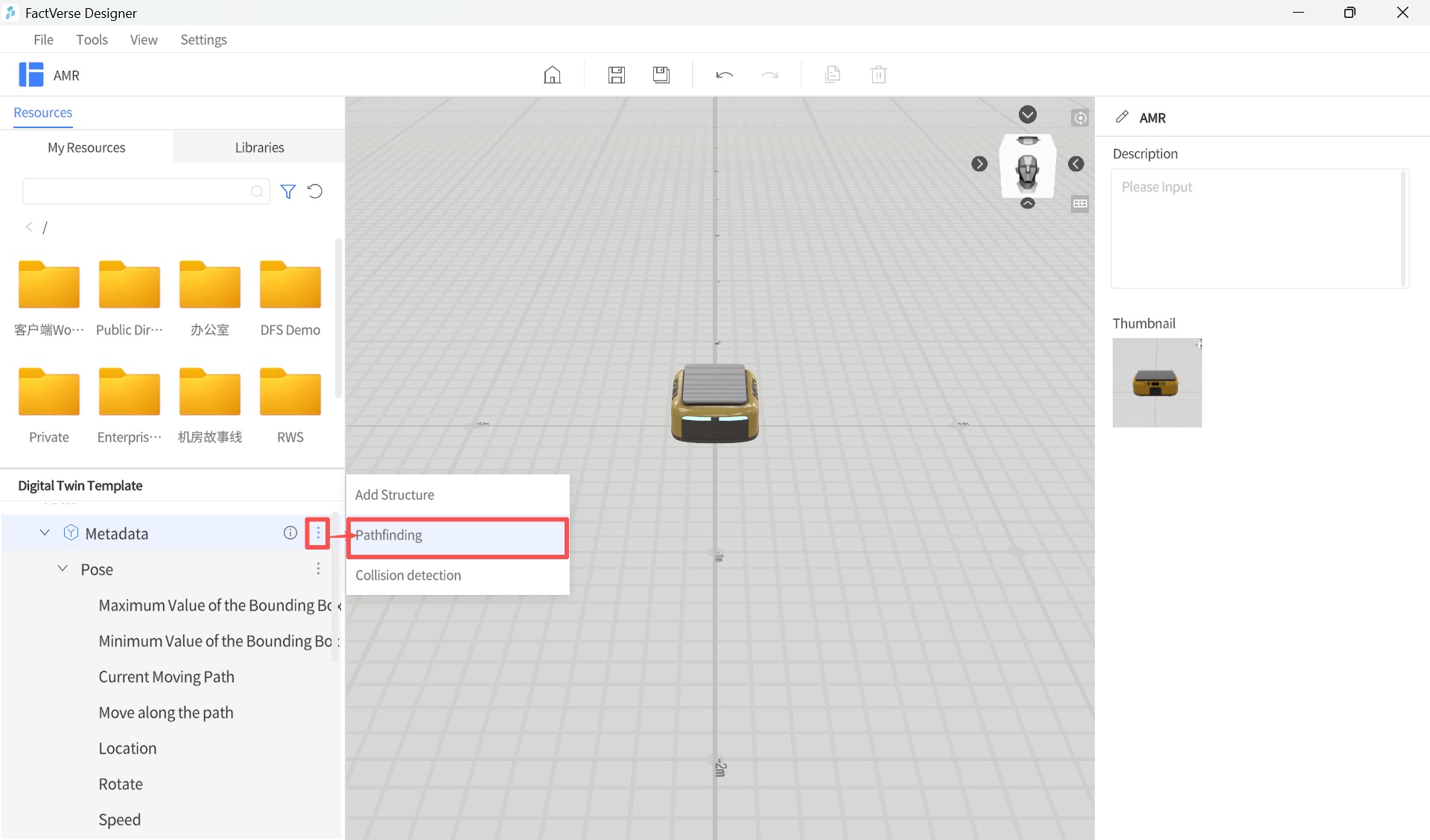
Click the vertical ellipsis ︙next to Metadata and select the preset structure to add.
Configure the related parameters of the preset structure in the right Attribute Pane.
Edit the properties in the preset structure based on business needs.
Save the template configuration.
Note: Different digital twin templates require different preset structures. Add a preset structure only when the digital twin needs the corresponding capability. For example, a digital twin used only for display usually does not need Center of Gravity or Collision Detection. A digital twin that needs to participate in gravity simulation, collision detection, or behavior tree control should be supplemented with the corresponding preset structures based on business needs.
Example
Create Camera Template
The camera template is used to create camera digital twins in a scene and display their monitoring coverage. By configuring the camera’s position, orientation, field of view, visible distance, and video stream information, users can view the approximate camera coverage in the scene, determine whether the camera covers the target space, and assist with spatial coverage analysis and blind spot checks.
After configuration, users can view the camera model and its monitoring coverage in Inspector, and click the camera to view the real-time monitoring video.
Prerequisites
Before creating a camera template, it is recommended to complete the following preparations:
Prepare camera model resources.
To accurately align the monitoring coverage with the camera lens direction, it is recommended to set an empty node in the camera model as the Lens Reference Point. This node should be located at the center of the lens and aligned with the actual camera direction.
To reproduce the on-site monitoring effect, it is recommended to obtain parameters such as the camera installation position, direction, aspect ratio, field of view, and visible distance in advance.
Parameter Description
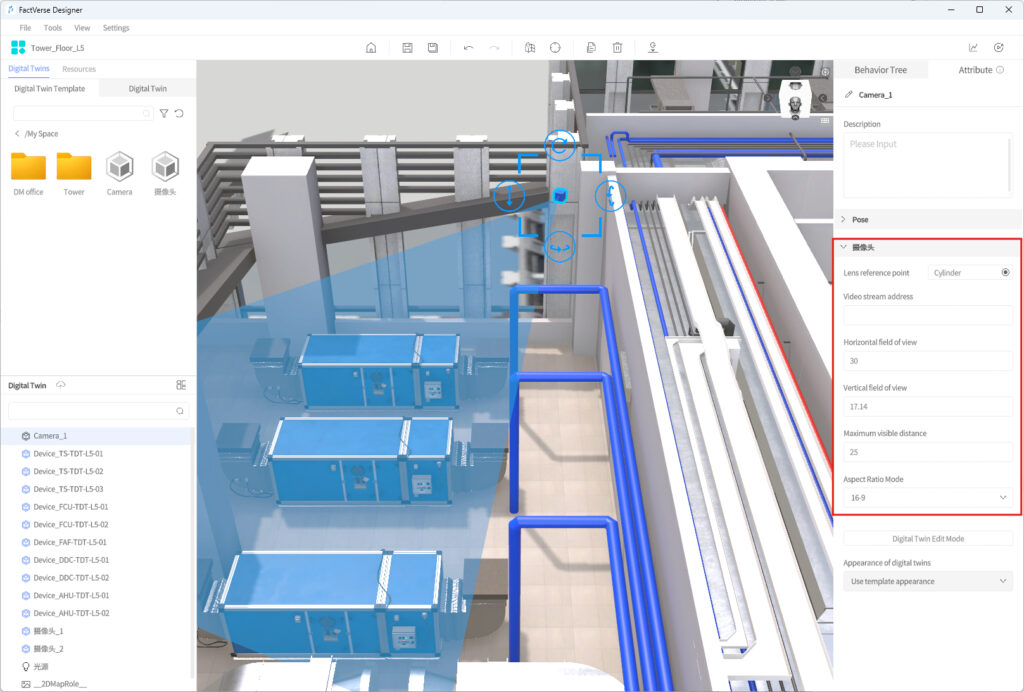
When creating or editing a Camera-type template, you can configure the following parameters in the Attribute Pane:
Parameter | Description |
Aspect Ratio Mode | Sets the camera image aspect ratio. Supported options include 16:9, 4:3, 9:16, and Custom. |
Horizontal Field of View (°) | Sets the horizontal visible range of the camera and affects the monitoring coverage width. |
Vertical Field of View (°) | Sets the vertical visible range of the camera. This is required only when Aspect Ratio Mode is set to Custom. |
Maximum Visible Distance (m) | Sets the maximum distance of the camera’s visible range, indicating how far the camera can see. |
Video Stream Address | Enter the access URL for the camera’s real-time video. This URL is usually provided by project implementation personnel or a system integrator and must be complete, clear, and available. If it is not configured or unavailable, the runtime end cannot display the monitoring video. |
Lens Reference Point | Specifies where the camera monitoring coverage starts and in which direction it is displayed. It is recommended to select an empty node at the center of the camera lens in the camera model. If no camera model has been added, the system uses the template origin as the reference position. |
Create Camera Template
Create a Camera-type template.
After creation, the system displays a preview of the camera’s visible range based on the default parameters.
It is recommended to add a camera model to the template and configure the lens reference point so that the visible range preview is accurately aligned with the actual camera position.
Set camera parameters in the Attribute Pane.
After adjusting parameters such as aspect ratio, field of view, and maximum visible distance, you can view the camera visible range preview in the template and adjust it repeatedly as needed until the coverage and direction meet expectations.
Save the template.
Add Camera Device to a Scene
Use this template to create a camera digital twin in the scene.
Place the camera digital twin in the corresponding position and adjust its angle based on the actual installation direction.
Adjust the property values of the camera digital twin as needed, such as visible distance and video stream URL.
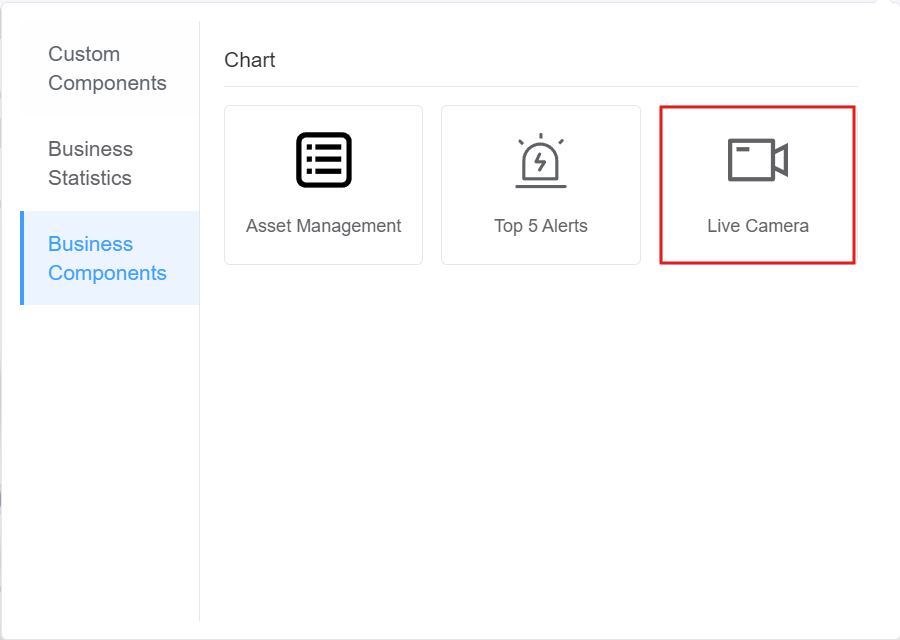
To view real-time monitoring video in Inspector, configure a video stream component for the related space-level or device-level dashboard in the Data Dashboard module of the FactVerse platform.
Description
If no camera model is added, the system can still generate a visible range preview, but the camera appearance is not displayed.
If a camera model has been added but the lens reference point is not configured, or the specified node does not exist in the model, the visible range preview may deviate from the actual lens position.
After a digital twin is created from this template, the template properties are visible in the digital twin and can be adjusted separately based on instance requirements.
Vertical Field of View takes effect only when Aspect Ratio Mode is set to Custom. In other aspect ratio modes, the system automatically calculates the vertical visible range based on the aspect ratio.
Create a Color-Changing Cube Template
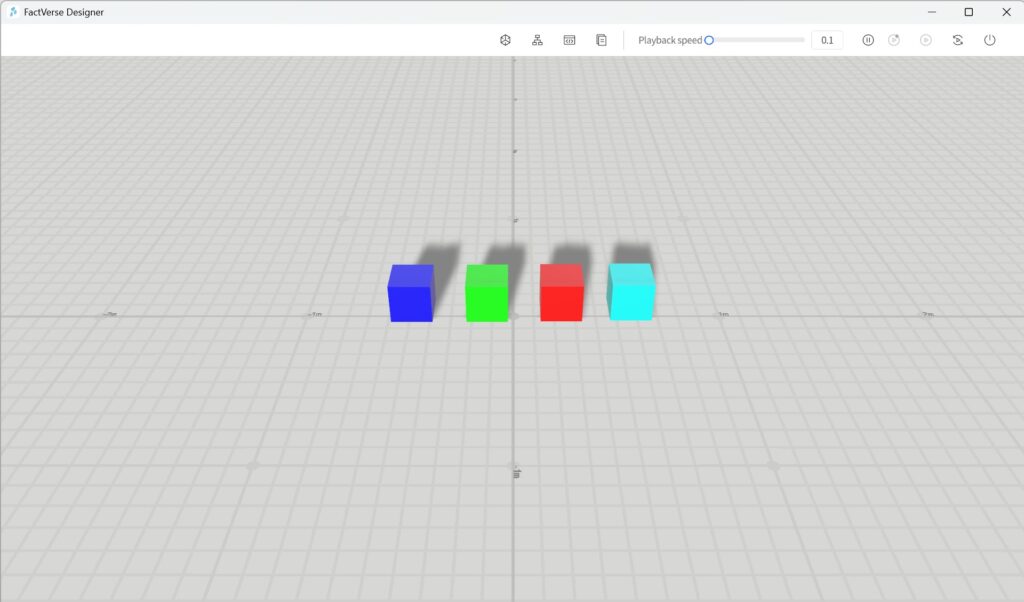
In this example, we will create a “Color-Changing Cube” that automatically changes its color when it receives different signal values.
Objective
Logic implementation: When the Signal attribute value is 1–4, the cube changes its color to blue, green, red, or cyan, respectively.
Create a Cube Template
a) Create a brand-new blank template named “Color-Changing Cube.”.
b) Place a cube in the scene area.
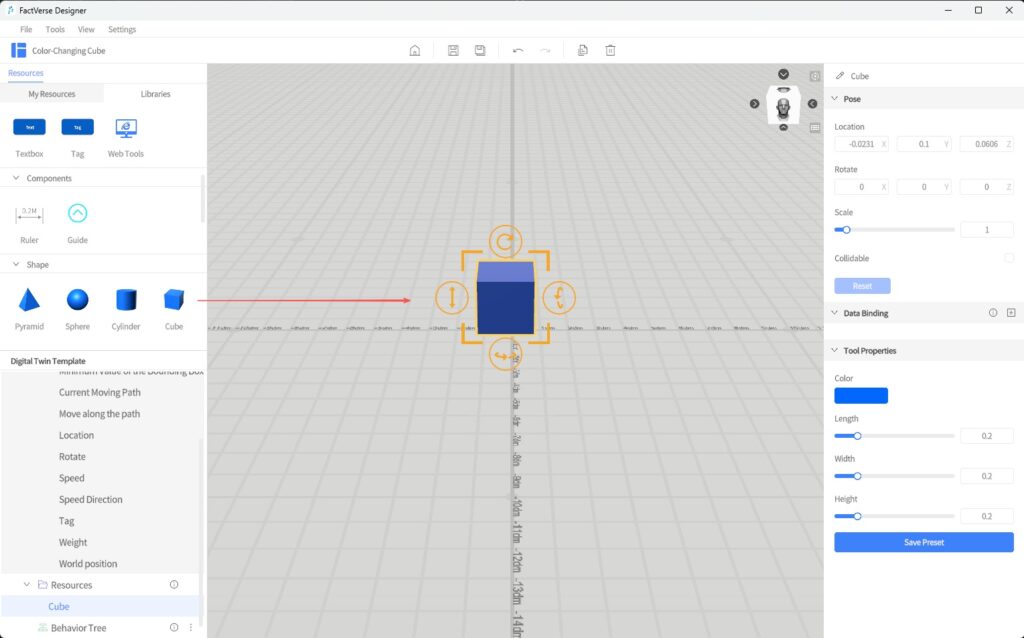
c) After placement, right-click to exit placement mode.
Add the Main Function Structure
a) In the Digital Twin Template Pane, click ︙ next to Metadata and select Add Structure.
b) Scroll down to locate the new structure Part_1. Click Part_1 and in the Attribute Pane rename it to Main Function.
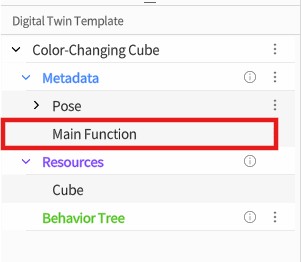
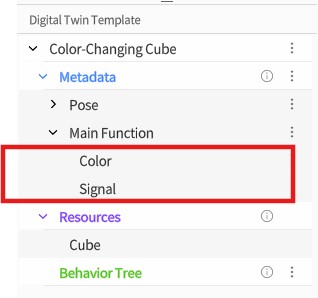
c) Under the Main Function structure, add two attributes: Color (type: Color) and Signal (type: Int).
Bind Data to the Color Attribute
a) In the scene area, select the cube model.
b) In the Attribute Panel on the right, next to Data Binding, click Add and select the Color
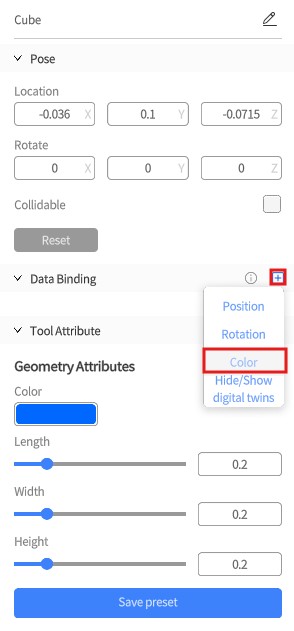
c) In the binding window for the Color attribute, click the selection button  and choose the Color attribute under the Main Function
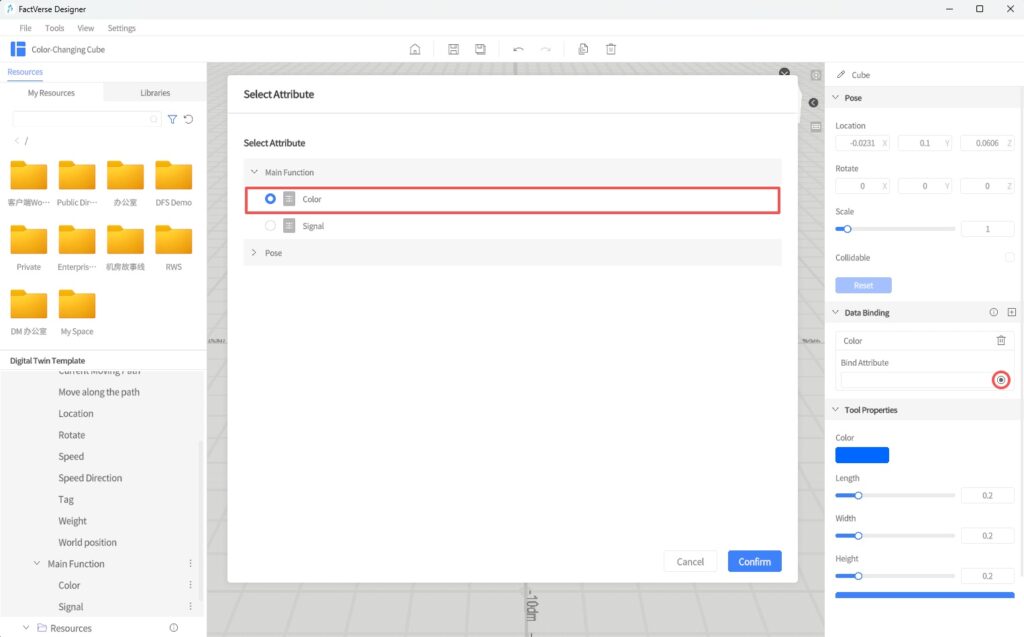
d) Click Confirm to complete the binding.
This step ensures that the digital twin’s “Color” attribute can drive changes to the model’s color.
Create a Behavior Tree: Create a behavior tree for the cube named “Listen for Signal to Change Color.”
Edit Behavior Tree Logic
a) Double-click Listen for Signal to Change Color to open it in the Behavior Tree Editor.
b) Under the root node, add a Selector
c) Under the Selector node, add 4 Sequence Nodes. For each, configure a condition using Compare Two Attribute Values.
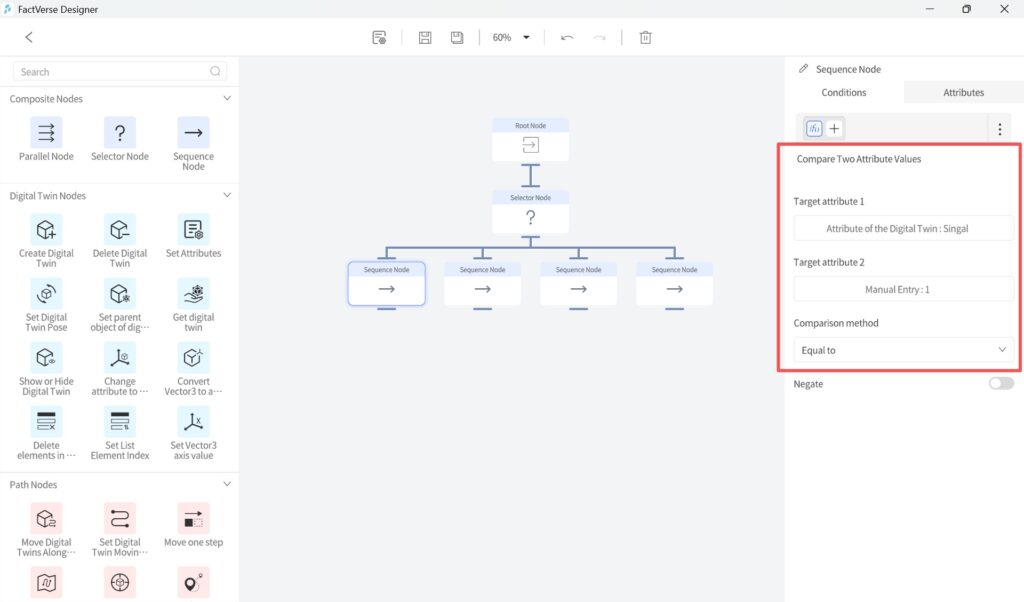
Condition Configuration (Compare Two Attribute Values)
Sequence Node | Attribute 1 | Signal Value (Attribute 2) | Comparison |
Sequence 1 | Attribute of Digital Twin: Signal | 1 | Equal to |
Sequence 2 | Attribute of Digital Twin: Signal | 2 | Equal to |
Sequence 3 | Attribute of Digital Twin: Signal | 3 | Equal to |
Sequence 4 | Attribute of Digital Twin: Signal | 4 | Equal to |
Each sequence node defines a “If Signal = X, then set Color = Y” logic.
d) Under each Sequence Node, add a Set Attributes node to change the cube’s color.
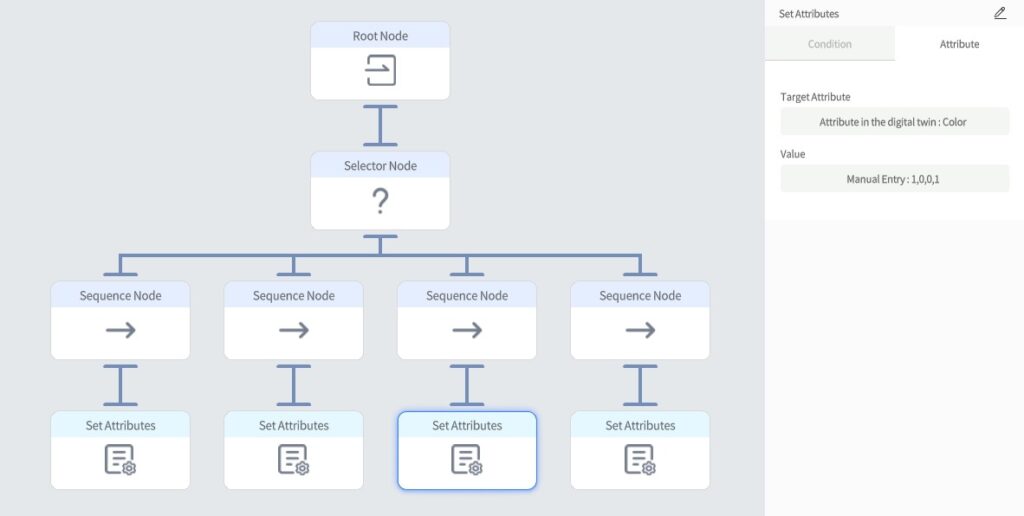
Set Attribute Node Configuration
Node | Attribute | Value (RGBA) | Color |
Set 1 | Attribute of Digital Twin: Color | 0,0,1,1 | Blue |
Set 2 | Attribute of Digital Twin: Color | 0,1,0,1 | Green |
Set 3 | Attribute of Digital Twin: Color | 1,0,0,1 | Red |
Set 4 | Attribute of Digital Twin: Color | 0,1,1,1 | Cyan |
Save the Behavior Tree
a) In the toolbar, click the Save button to save the behavior tree.
b) Click < Exit to leave the Behavior Tree Editor.
Save the Template
Click the Save button in the toolbar to save the template.
Exit the Template Editor
Click the Home button to exit the Template Editor. The custom template is now complete.
By following these steps, you can create a digital twin template for a cube that changes color based on its Signal attribute. Create a cube instance using this template, set different signal values, and observe the cube change color accordingly.
Digital Twin Management
Create Digital Twins
FactVerse Designer provides three methods for creating and managing digital twins, supporting flexible construction, batch creation, or full-scene imports to meet different needs.
| Creation Method | Suitable Scenarios |
| Manual Creation | Quickly add a small number of digital twins or make local adjustments |
| Template Excel Import | Batch add/modify multiple twins under a single template |
| Scene Excel Import | Restore an entire scene structure in one step; useful for migration or global management |
Manually Create a Digital Twin
Steps
- Create a new scene or open an existing scene.
- In the Digital Twins> Digital Twin Template directory, click the target template to enter placement mode.
- By left-clicking the scene area, confirm the location of the digital twin.
- After placement, a new digital twin is automatically created and named according to the rule: TemplateName_Index.
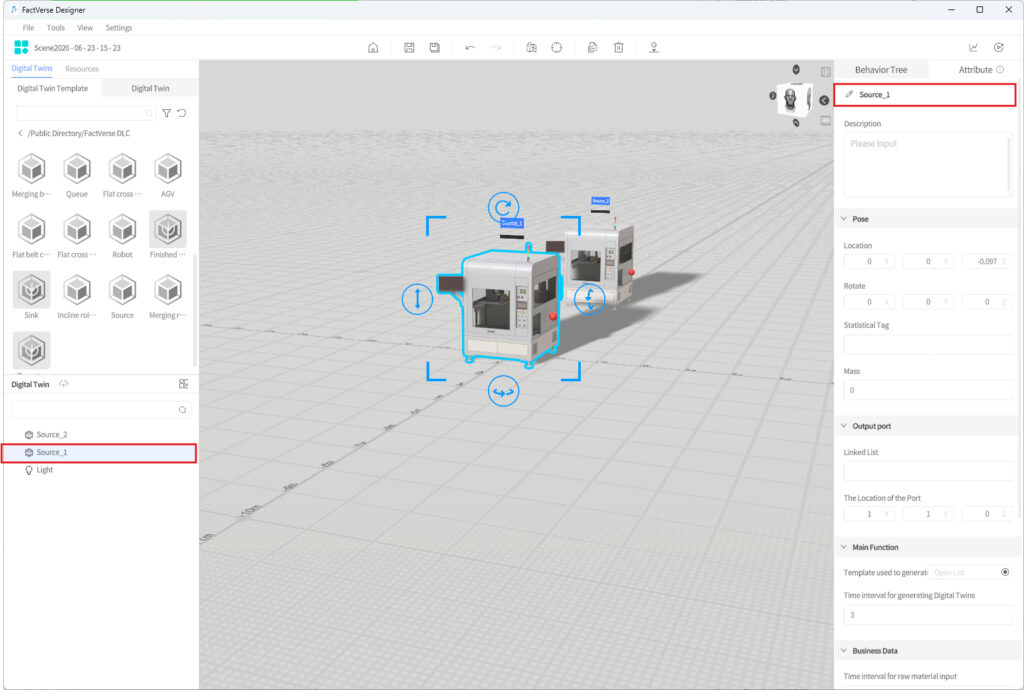
5. Click the Save button  to save the scene and the newly created digital twin.
Import Digital Twins via Template Excel Spreadsheet
This method is suitable for batch creation or maintenance of multiple digital twins under the same template.
Function Overview:
- You can choose to export an empty template structure or a template file containing instance data.
- Supports adding, modifying, and deleting digital twins directly in the Excel spreadsheet.
- Supports full editing of configuration items such as attributes and positions.
- After importing the spreadsheet, the platform will automatically generate or update all related twins.
Steps
1. Open the digital twin template: Open the digital twin template you use to batch-create digital twins.
2. Export Spreadsheet
a) In the Template Editor menu bar, click File > Export as Spreadsheet.
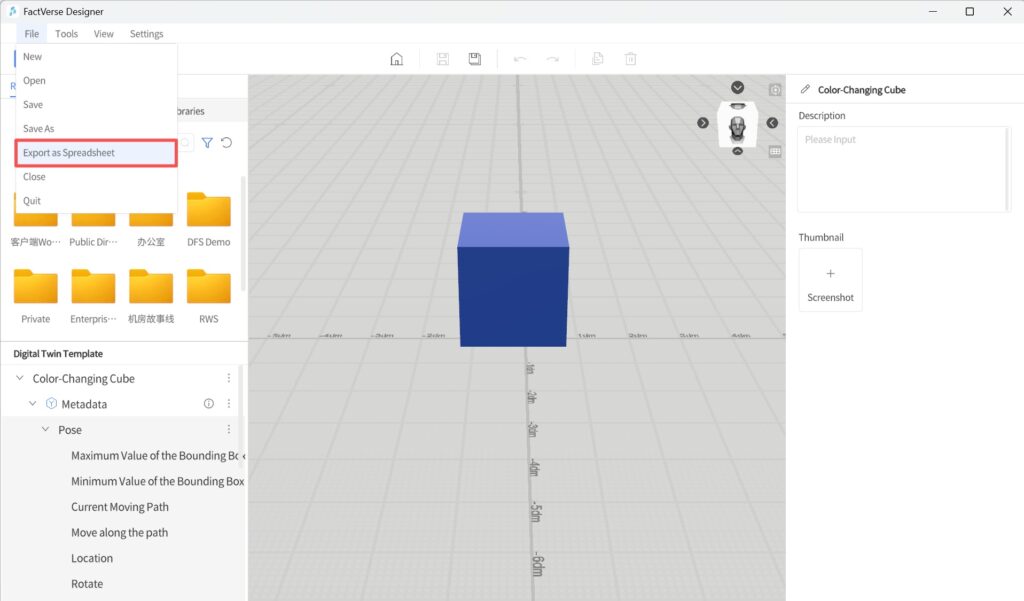
b) In the pop-up window, choose the export content:
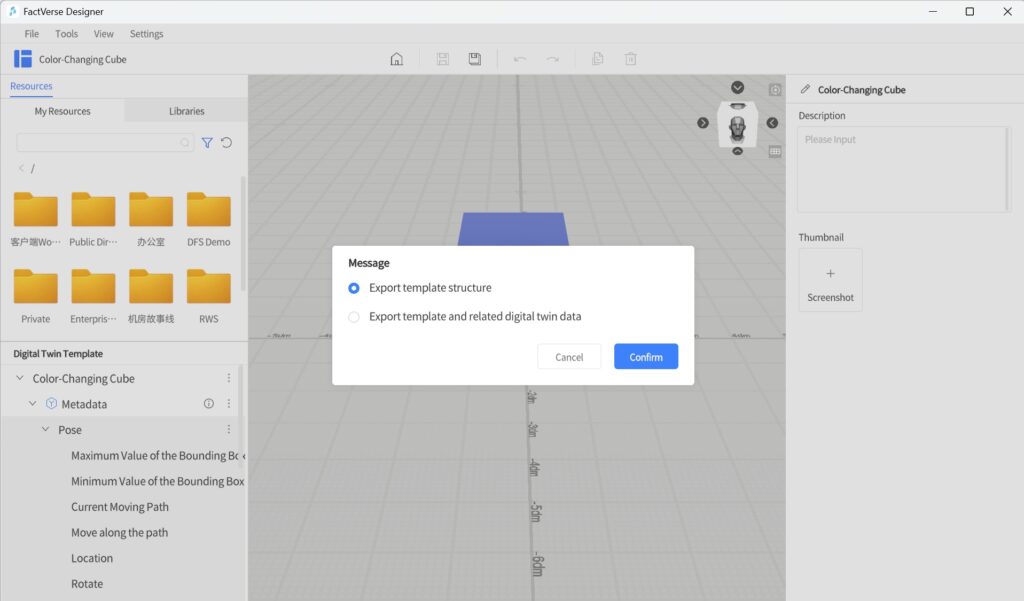
- Export template structure (default): Exports a lightweight spreadsheet with only template field definitions, without any instance data.
- Export Template and related digital twin data: Exports a complete spreadsheet containing both the template structure and all associated twin instance data. This file can be used for batch modification or addition of twin data.
c) Click Confirm to save the Excel file locally.
3. Edit the Excel Spreadsheet
In the exported Excel file, you can edit or add digital twin data.
- Each row represents one digital twin.
- Digital Twin ID:
- If you enter the ID of an existing digital twin, the system will update that twin’s data.
- If left blank, a new digital twin will be created upon import.
Field Structure Reference
| Field | Data Type | Format | Example |
| Digital Twin ID | String | Unique identifier of the digital twin | 12345-abcde |
| Digital Twin Name | String | User-defined name | Red Cube 1 |
| Identifier | String | Custom code | abcde-67890 |
| Storage Path | String | Path where the digital twin is stored | /My Space |
| Parent Object ID | String | ID of the parent digital twin (if any) | 12345 |
| Pose Location | vector3 | 3D coordinates of the digital twin in the scene | 1.0, 2.5, 0.0 |
Notes:
- To update an existing digital twin, the ID field must be filled.
- To create a new digital twin, leave the Digital Twin ID field blank.
- Before importing, make sure to close the Excel file after editing.
- For more details, see FactVerse Platform User Manual – Attribute Data Types.
4. Import Spreadsheet
a) Click the Home button  to return to the Home Page.
b) On the Home Page, click the Import Spreadsheet button.
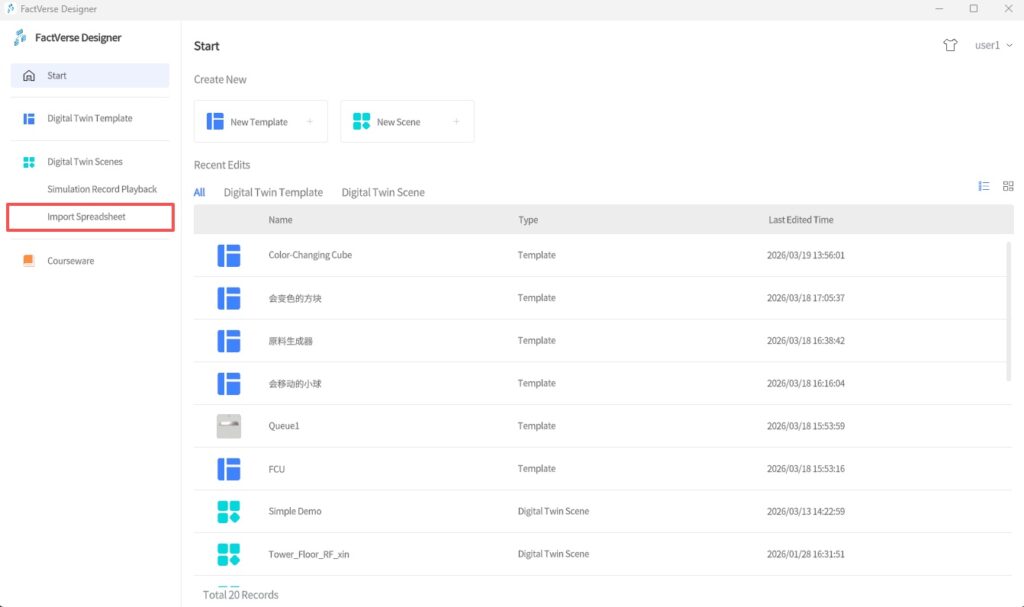
c) Upload the edited Excel file. The system automatically creates or updates all related digital twins.
Import Digital Twins via Scene Excel Spreadsheet
This method is suitable for exporting or importing an entire scene structure, including multiple templates and all associated digital twins.
Function Overview:
- Supports centralized editing of digital twins across multiple templates.
- Allows quick restoration of the entire scene structure.
- Useful for project migration and batch configuration of attributes.
Spreadsheet Structure
| Worksheet Tab | Description |
| Rules | Instructions and formatting requirements |
| Scene_[SceneName] | List of template information used in the current scene |
| Template_[TemplateName] | Configuration of all twins under the template (one sheet per template) |
Note: For local digital twins, the Storage Path field will be empty.
Steps
- Open the target scene.
- Export the scene to an Excel spreadsheet: In the menu bar, click File > Export as Spreadsheet.
- Edit the spreadsheet: Add or modify attributes and positions of twins under any template. After editing, save and close the spreadsheet.
- Import the Excel spreadsheet: On the Home Page, click Import Spreadsheet. The system will automatically create or update the scene structure and all associated twins.
Mark as Cloud Digital Twin
By default, newly created digital twins are local digital twins, existing only within the current scene and stored in a hidden path on the platform. Other users cannot view or reuse them.
To enable resource sharing and cross-scene reuse, you can mark digital twins as Cloud Digital Twins and upload them to the cloud directory. If a digital twin is not referenced by any scene, users with access permissions can view and use it from the digital twin list.
Steps
1. In the scene, select one or more twins.
2. Click the Mark as Cloud Digital Twin button .
.
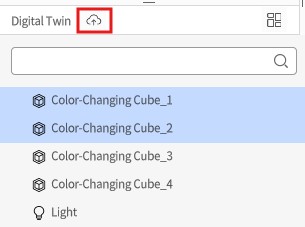
3. In the pop-up window, select the desired option:
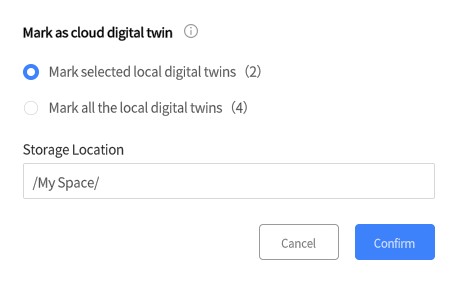
| Option | Description |
| Mark selected local digital twins (X) | Upload only the selected local digital twins. If the selection includes non- local digital twins or other resources, the system filters them out. X indicates the number of selected local digital twins. |
| Mark all local digital twins (X) | Upload all local digital twins in the current scene. X indicates the total number of local digital twins in the scene. |
4. Click Confirm:
- The icons of the marked digital twins change from gray to blue
 .
. - The digital twins are in a pre-marked state and are not uploaded until the scene is saved.
5. Save Scene:
- All pre-marked twins are uploaded to the cloud directory.
- After upload, users with permission can view and use them from the cloud directory.
Undo Instructions:
- Before saving the scene, you can cancel the pre-marked state.
- Even after saving, you can undo the public state with Undo, but you must save the scene again for changes to take effect.
Delete Digital Twins
In FactVerse Designer, the result of deleting a twin depends on whether it is a private twin (only exists in the current scene) or a cloud digital twin (uploaded to the cloud).
Steps
- Perform Delete:
- Select the target digital twin, then press the Delete key or choose Delete from the right-click menu.
- If deleted by mistake, click the Undo button in the toolbar to restore it.
- Deletion Result:
| Digital Twin Type | Result |
| Local Digital Twin | Permanently deleted, including attributes and behavior logic. Effective immediately. |
| Cloud Digital Twin | Only the scene reference is removed. The twin instance remains in the cloud resource directory. |
- Save the scene to make the deletion effective.
💡 Note:
- A twin can only be referenced by one scene. Deleting the reference removes its binding.
- Deleting a cloud digital twin from a scene does not delete it from the cloud. To completely delete a cloud digital twin from the platform, ensure that it is not referenced by any scene.
Rename Digital Twins
In FactVerse Designer, you can name or rename digital twins in a scene.
Note: Preset digital twins from FactVerse DLCs cannot be renamed.
Steps
1. Select the target digital twin in the scene.
2. In the Attribute Pane, click the Edit icon next to the digital twin name.
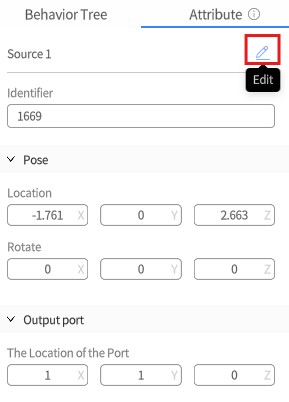
3. Enter a new name, then press Enter or click a blank area in the scene to confirm.
4. Click the Save button in the toolbar to save the scene and apply the change.
Configure Digital Twin Appearance
Digital twin appearance configuration includes common display model settings and appearance editing capabilities specific to certain types of digital twins.
Configure Digital Twin Display Model
You can add a display model separately for the current digital twin without redefining the template. This feature can be used to add additional models such as nameplates and labels to a device, or to set a different appearance model for a specific device.
Steps
- In the scene, select the digital twin object for which you want to configure a display model.
- In the right Attribute Pane, click Digital Twin Edit Mode to enter Digital Twin Editing Mode.
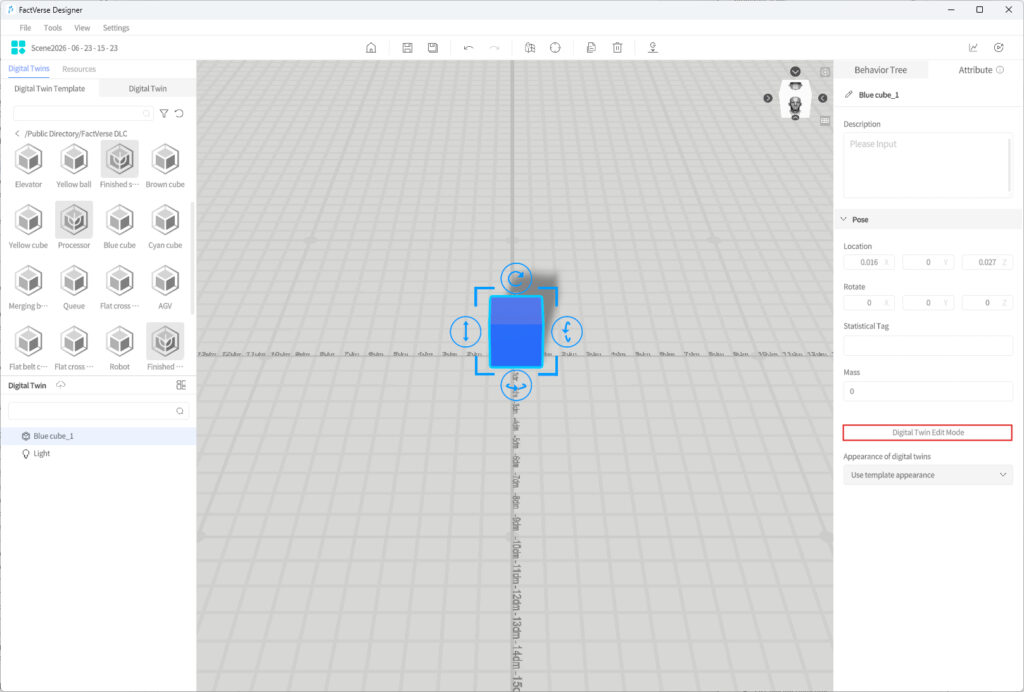
After entering Digital Twin Editing Mode, the left resource area displays only the Resources Library, and the digital twin list displays only the current digital twin.
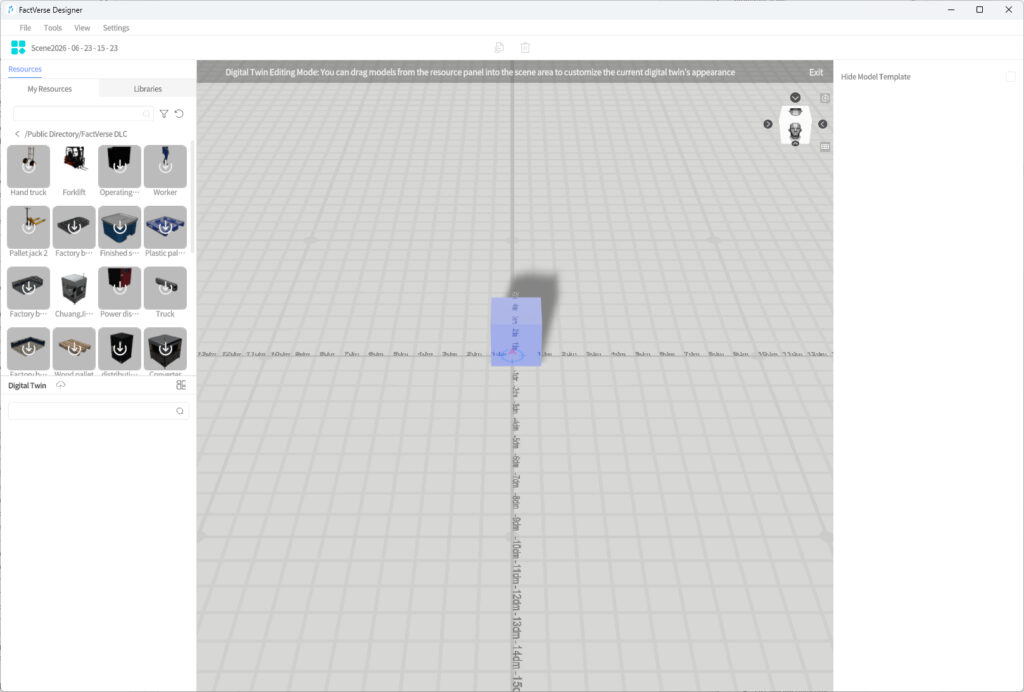
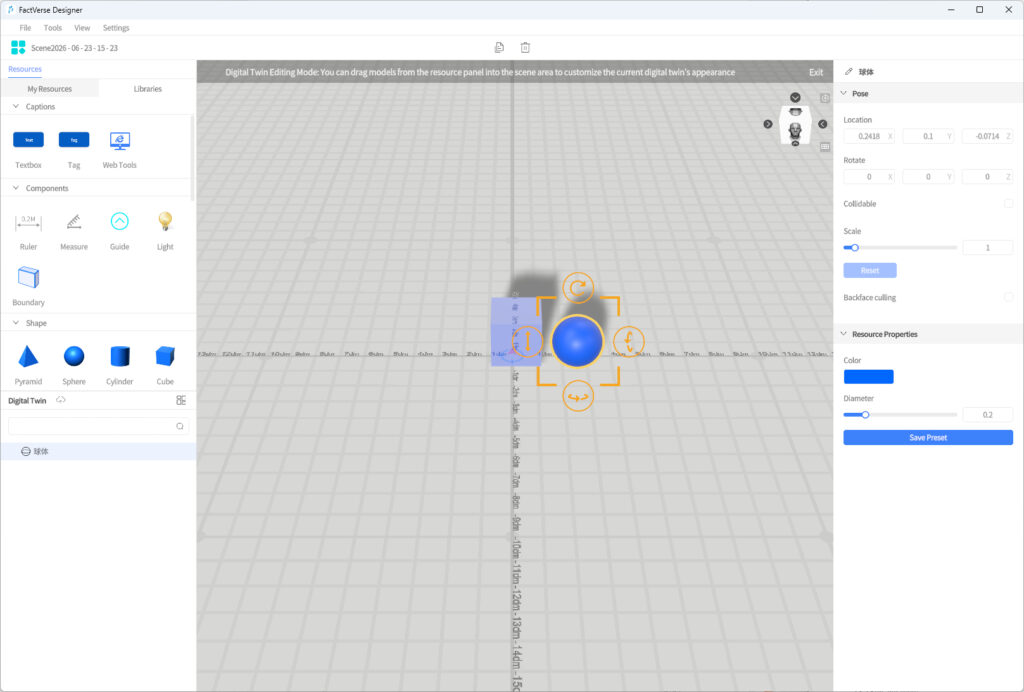
- Select the model to add from the Resource Library and configure it as the display model for the current digital twin. Multiple models are supported.
- Click Back to exit Digital Twin Editing mode.
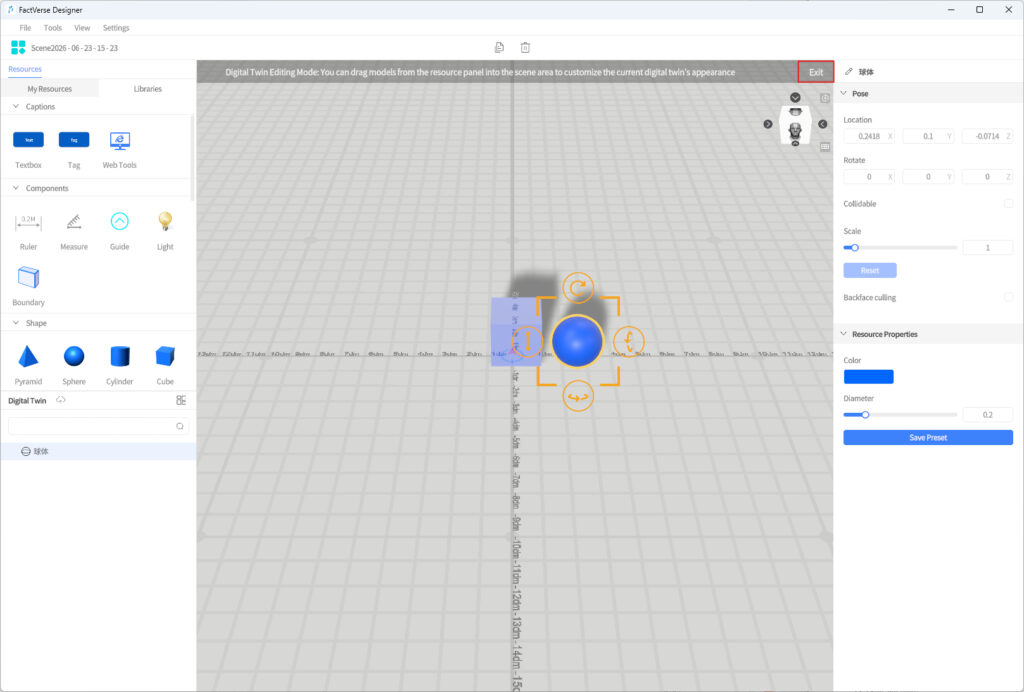
After you exit, the digital twin display mode switches to Use customized appearance by default. If no digital twin model has been added, the Appearance of digital twins drop-down list cannot be expanded and displays Use template appearance by default.
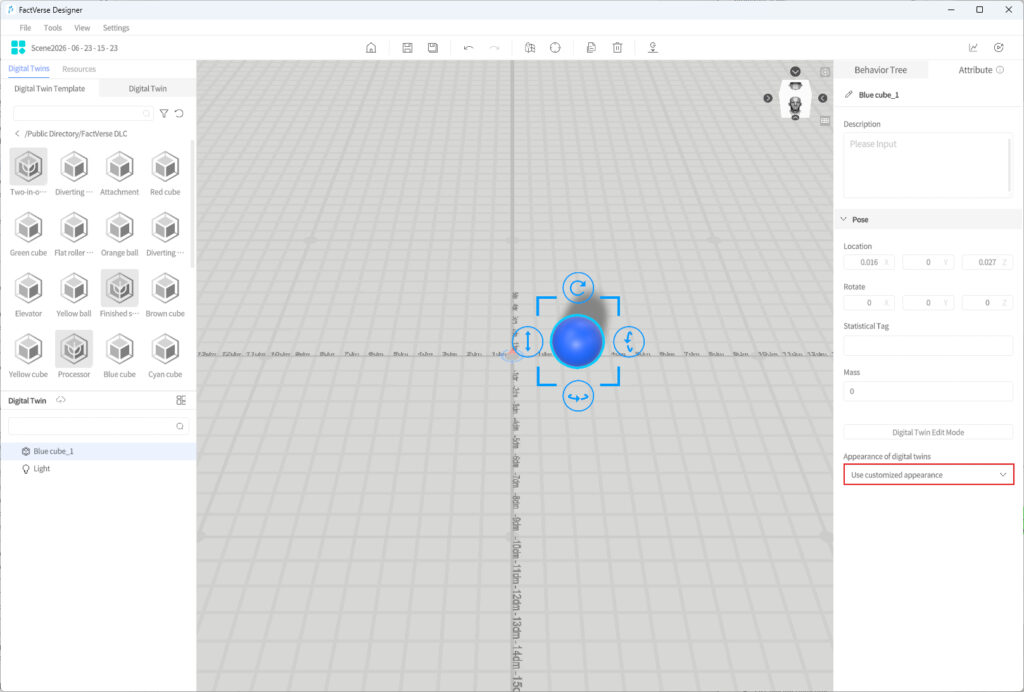
Appearance of digital twins
You can switch between the following display modes in the Digital Twin Display Mode drop-down list:
- Use template appearance: Displays the original model in the digital twin template.
- Use customized appearance: Displays the model newly added in Digital Twin Editing mode.
- Use hybrid appearance: Displays both the template model and the digital twin model.
Notes
- This operation only applies to the current digital twin object and does not affect the original template definition.
- Other digital twin objects that reference the same template are not affected by this operation.
Edit a Flat Conveyor Digital Twin
Flat conveyors support dedicated editing functions. You can extend or shorten the conveyor in the scene and adjust the height, length, and width of conveyor sections.
A flat conveyor can consist of multiple conveyor sections connected end to end. Conveyor sections support two types: straight sections and arc sections.
After selecting a flat conveyor digital twin, click the Edit button above the conveyor to enter conveyor editing mode.
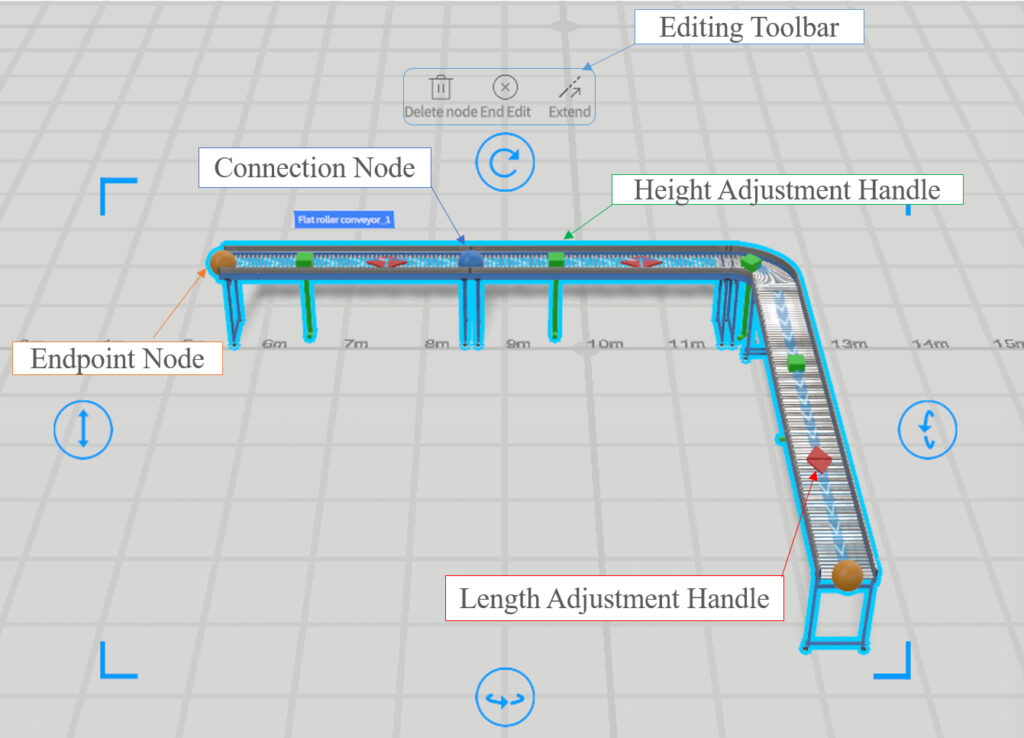
Editing Element Description
Editing Element | Description |
Editing Toolbar | Includes operations such as Delete Node, End Editing, and Extend. |
Conveyor Section | The basic component of a conveyor, which can be straight or arc-shaped. |
Endpoint Node | Located at both ends of the conveyor, indicating the start and end of the conveyor. |
Connection Node | Located between adjacent conveyor sections and used to connect different conveyor sections. |
Height Adjustment Handle | Used to adjust the height of the related conveyor section. |
Length Adjustment Handle | Used to adjust the length of the current straight section. |
Create Conveyor Sections
- Click Extend to enter conveyor extension mode.
- Click at the end of the conveyor to place a node. The system automatically generates a new straight conveyor section. By default, it is drawn along a fixed axis. Hold Shift to draw freely.
- To create an arc section, press Ctrl in extension mode to switch to arc editing mode, and set Curve Angle in the Attribute
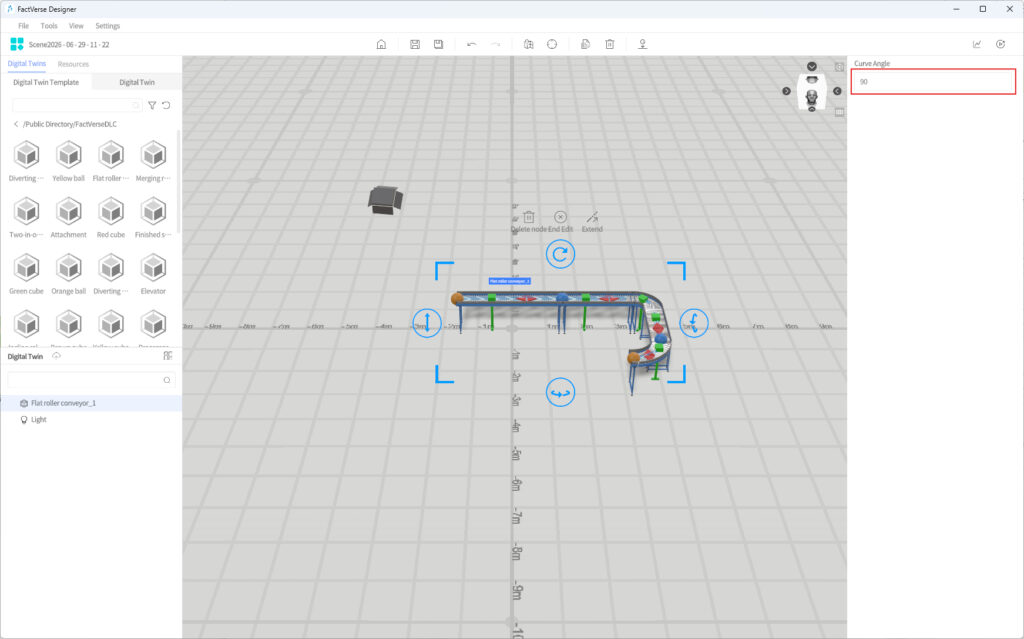
- Right-click to exit extension mode.
Adjust Conveyor Sections
- Adjust height: Click a node and drag it up or down to adjust the node height. Hold Shift to select multiple nodes.
- Adjust length: Drag the red double arrow on a straight conveyor section to adjust its length.
- Delete conveyor section: Click Delete Node. The system deletes the last created conveyor section.
Note: Nodes at both ends of an arc section cannot be selected and do not support height adjustment.
Manage Conveyor Sections Using a Table
After you click the Edit button above the conveyor to enter editing mode, the conveyor section table is displayed in the right Attribute Pane. The table lists all conveyor sections in the current conveyor, with each row representing one conveyor section.
A flat conveyor that has not been edited contains one initial straight conveyor section by default. You can use the table to add conveyor sections, switch section types, and edit parameters such as length, angle, radius, elevation, and height difference for each section.
The steps are as follows:
- Select the flat conveyor digital twin and click the Edit button above the conveyor. After entering editing mode, the conveyor section table is displayed in the right Attribute
- Edit the conveyor section type and parameters in the table:
- Click + at the bottom of the table to add a conveyor section. The added section is a straight section by default.
- Click the straight or arc icon in the Type column to switch the conveyor section type.
- After confirming the table changes, click Apply to synchronize the changes in the table to the conveyor in the scene.
- When you finish editing or need to exit, click End Editing to exit editing mode. After exit, the conveyor section table is automatically hidden.
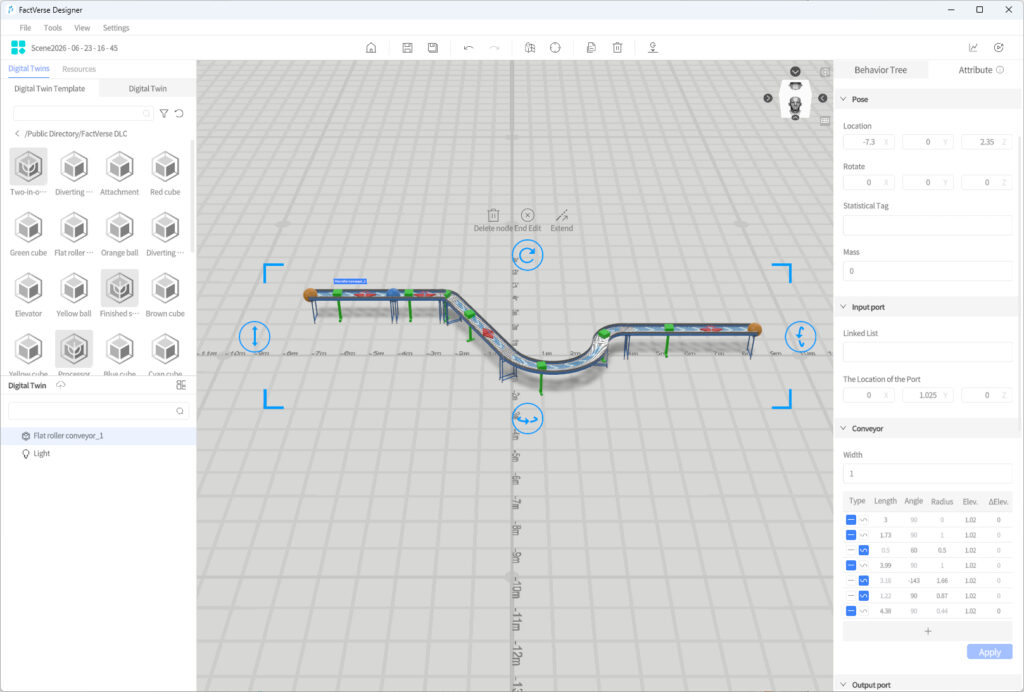
Conveyor Section Table Description
Header | Applicable Type | Description |
Type | Straight / Arc | Sets the shape of the current conveyor section. It supports switching between Straight and Arc. |
Length | Straight | Sets the length of a straight conveyor section. When the current type is Arc, this field is disabled and the value is automatically calculated. |
Angle | Arc | Sets the turning angle of an arc conveyor section. When the current type is Straight, this field is disabled; the value is retained but does not take effect. |
Radius | Arc | Sets the turning radius of an arc conveyor section. When the current type is Straight, this field is disabled; the value is retained but does not take effect. |
Elevation | Straight / Arc | Sets or displays the height of the current conveyor section endpoint relative to the conveyor digital twin’s own position. For example, if the conveyor position height is 10 and the endpoint height is 20, the endpoint elevation is 10. |
ΔElev. | Straight / Arc | Sets the height change of the current conveyor section from start to end. A positive value indicates upward movement, a negative value indicates downward movement, and 0 indicates horizontal movement. |
Adjust Digital Twin Inputs/Outputs
After a digital twin is created from a template, the digital twin instance inherits the inputs and outputs configured in the template. You can adjust the positions of the inputs and outputs of the digital twin instance based on the placement and flow requirements in the current scene, and configure connection relationships with other digital twins.
The steps are as follows:
- Find and select the input or output to adjust on the digital twin.
- Move the input or output to a suitable position based on the actual flow position.
- To configure a connection, click the output to connect, then select Connect.
- Move the mouse over the input of the target digital twin and left-click to complete the connection.
- Click Save in the toolbar to save the current configuration.
Notes:
- Input/output adjustments in a digital twin instance only apply to the current digital twin and do not affect the original template or other digital twins created from that template.
- Connections are usually made from the output of one digital twin to the input of another digital twin.
- One output can be connected to multiple inputs.
- An output and input of the same digital twin do not need to be connected.
- If the digital twin does not display an input or output, first check whether the corresponding input/output resource has been configured in its template.
Configure Digital Twin Storage Area
A storage area defines the positions and quantity of goods that can be stored in a digital twin. By setting the counts in the X, Y, and Z directions, the storage area can be divided into a regular grid of storage slots, and the system automatically calculates the coordinates of each slot based on the configuration.
This function is suitable for digital twins that need to store goods in fixed positions, such as buffer areas, shelves, cache areas, and pallet areas.
Steps
- Select a digital twin that contains a storage structure in the scene.
- Find the Storage property group in the Attribute Pane.
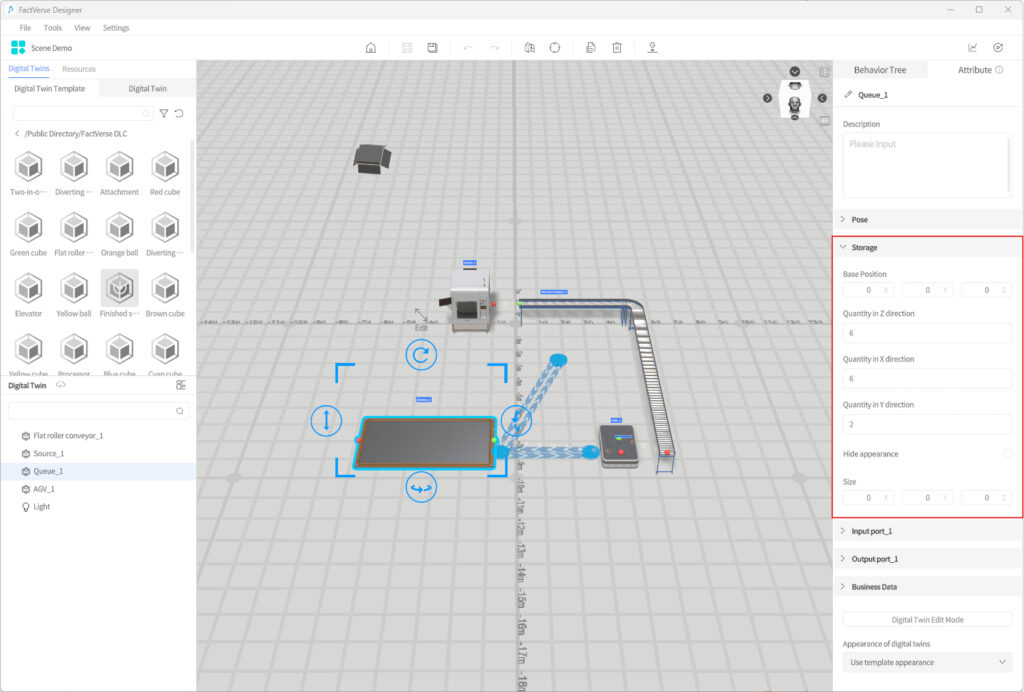
- Set the storage counts in the X, Y, and Z directions respectively.
After the settings are complete, the system automatically generates the corresponding storage slot coordinates based on the counts.
- To hide the storage area’s auxiliary outline in the scene, select Hide Appearance.
After it is selected, the semi-transparent reference frame of the storage area is no longer displayed in the scene, but the goods storage logic is not affected.
Property | Description |
Quantity in X-direction | Sets the number of storage slot columns along the length direction. A larger value allows more storage slots to be placed horizontally. |
Quantity in Y-direction | Sets the number of storage slot layers along the height direction. This controls how many layers of goods can be stacked vertically. |
Quantity in Z-direction | Sets the number of storage slot rows along the width direction. A larger value allows more storage slots to be placed in the depth direction. |
Hide Appearance | Controls whether the storage area reference frame is displayed. When enabled, the semi-transparent frame is hidden and only the storage logic is retained. |
Notes:
The counts in the X, Y, and Z directions together determine the total number of storage slots in the storage area. For example, when the Quantity in X-direction is 3, the Quantity in Y-direction is 2, and the Quantity in Z-direction is 4, the storage area can generate up to 3 × 2 × 4 = 24 storage slots.
Scene Management
This section explains how to create, open, and delete twin scenes, as well as guidelines for working with scenes that have specific binding relationships.
Create a New Scene
You can create a new scene by any of the following methods:
- Click the “New Scene” button on the homepage
- In the Scene Editor interface, click File > New
The system will create a new blank digital twin scene and enter the scene editor interface.
Open a Scene
You can open an existing digital twin scene in the following ways:
- On the home page, select and open the target digital twin scene from the FactVerse platform’s digital twin library.
- In the Scene Editor interface, click File > Open and choose a cloud scene.
Instructions for Use
When opening a scene that has spatial digital twins already bound:
- The origin of that scene in 3D space is not the global coordinate (0, 0, 0), but rather the relative position within its parent “large-space scene”.
- If you place a device digital twin in the scene that already has large-space coordinates configured in the Brick Schema:
- The device will be displayed correctly in the current scene at a relative position.
- However, in the Attribute Pane, the device’s Position and Rotation still display as large space coordinates.
- Therefore, the coordinate values shown in the Attribute Pane may differ from the positions observed directly on the scene canvas.
Delete a Scene
Scenes can be deleted from the FactVerse digital twin library:
- Only users with the corresponding delete permissions can perform this operation.
- After deletion, the scene will be permanently removed from the platform, so please proceed with caution.
Import and Export Scenes
Scene import and export are used to back up, migrate, share, or reuse digital twin scenes.
Export Scene
You can export a scene in either of the following ways:
- In the Digital Twin Scenes module on the home page, select the scene to export and click Export Scene.
- After opening a scene, choose File > Export Scene from the top menu bar.
If the current scene contains acceleration attachments, the system displays a confirmation window during export, asking whether to export the acceleration attachments as well.
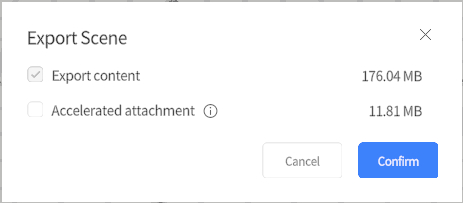
You can select one of the following options as needed:
Option | Description |
Export Acceleration Attachments | The exported .digpkg file includes scene-related resources and acceleration attachments. After import, the related resources can continue to use the attachments. |
Do Not Export Acceleration Attachments | Only exports the scene and basic resources, excluding acceleration attachments. After import, the scene can still be used normally. |
After export, the system generates a scene file in .digpkg format. This file can be used for scene backup, migration, or sharing.
Import Scene
In the Digital Twin Scenes module on the home page, click Import Scene and select the .digpkg file to import.
During import, the system attempts to restore the scene to the directory where it was located before export. Whether the scene is imported into the current tenant or another tenant, the current account must have access to that directory. If the scene is imported into another tenant, the system automatically creates directories with the same names as needed. You do not need to create the directory path in advance. However, if the same path already exists in the target tenant, the current account must have access to that path.
After the import is complete, the scene appears in the same directory location as the original scene. Users with access to that directory can open and continue editing or using it.
Notes:
- DLC scenes cannot be exported.
- The exported .digpkg file includes the scene, related resources, and thumbnail information. After import, the system automatically restores the original thumbnail display.
- The prompt asking whether to export acceleration attachments appears only when the scene contains acceleration attachments.
- When a scene is imported, it is saved to the directory location where it was before export. Therefore, the user performing the import must have access to that directory.
- The import and export functions require the enterprise tenant to have the corresponding permissions enabled. Administrators can view this on the License Management page.
Custom Tools
You can save tools with adjusted parameters as custom presets, making it easy to reuse them when building future scenes or editing digital twin templates. All custom tools appear in Resources > Libraries > Custom.
Add a Custom Tool
Steps
- In Resources > Libraries, select a tool and place it in the scene area.
- Adjust its attribute parameters as needed.
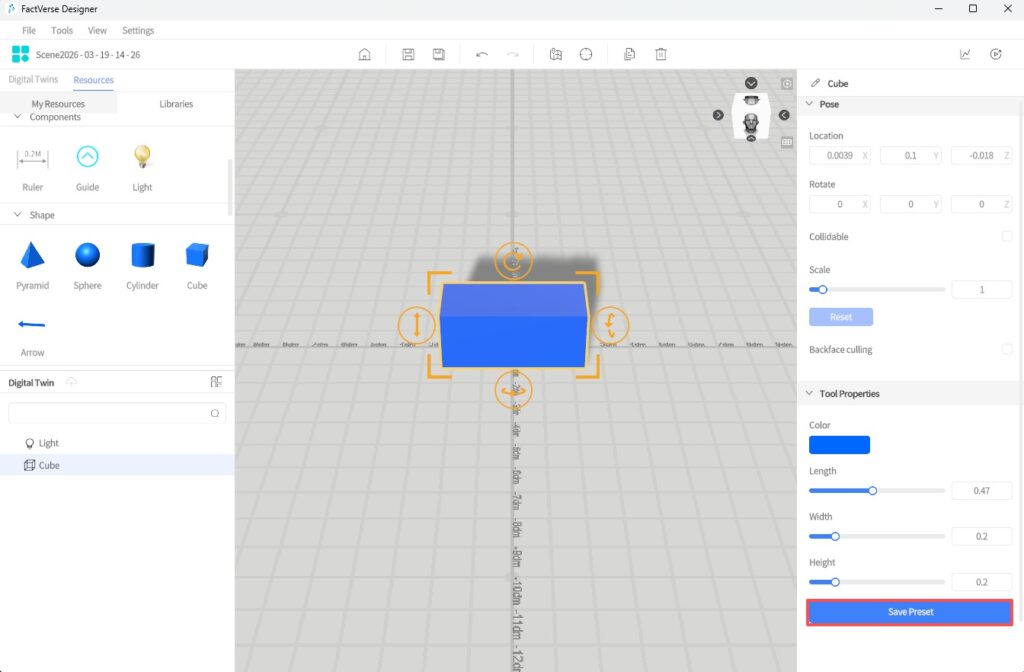
- After modifying the parameters, click the Save Preset button in the Attribute Pane.
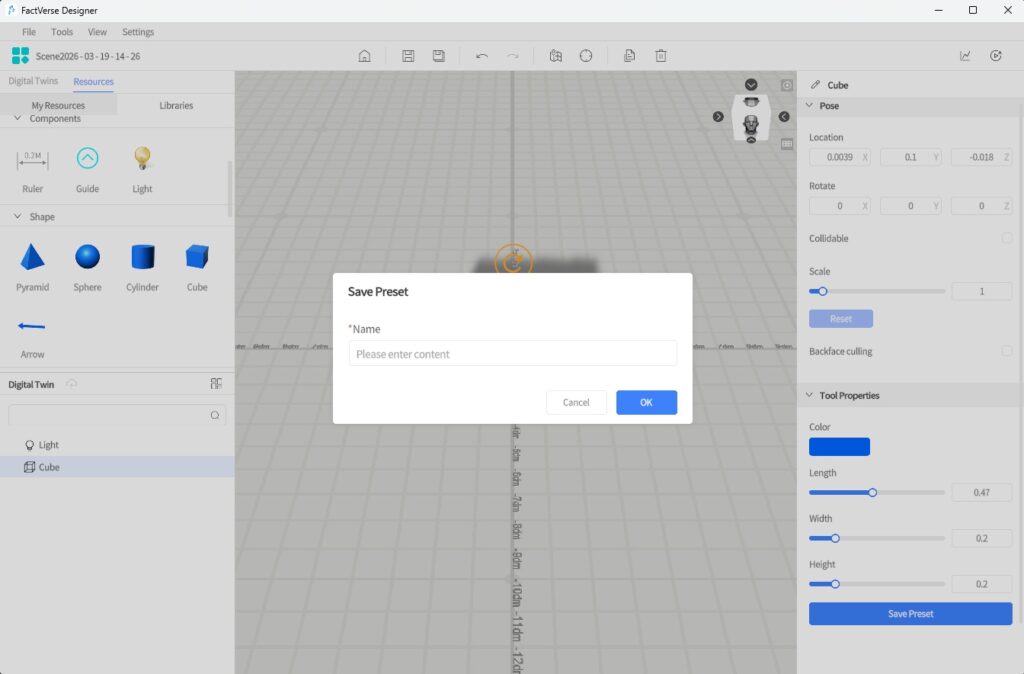
- In the pop-up naming window, enter a name and click OK.
- The tool will now appear under Resources > Libraries > Custom as a custom preset, with the same icon as the original tool.
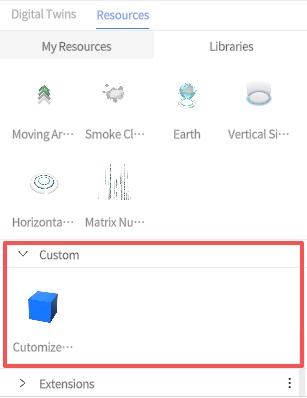
Edit and Manage Custom Tools
Update Existing Presets:
- From the Libraries, select a custom tool and place it in the scene area.
- Adjust its attribute parameters as needed.
- Click the Save Preset button.
- In the naming window, enter the same name as the existing preset.
- In the confirmation dialog, click Ok to overwrite the original preset.
Rename or Delete Custom Tools:
1. In Resources > Libraries > Custom, right-click the target tool to open the context menu.
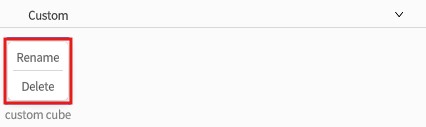
2. Select Rename or Delete to manage the custom tool.
Path Mode
Path Mode is a function for defining movement trajectories of digital twins in a scene. By setting key points and their connectivity, you can construct a directed graph that constrains the movement range and direction of digital twins in the scene.
Path Mode applies to the entire scene. The constructed path graph can be shared by multiple digital twins, enabling behaviors such as AGV driving and robot patrolling.
Key Concepts
Concept | Description |
Key Point | A path vertex created in the scene, representing a positional node |
Connectivity | The connection relationship between key points, with direction options (one-way / two-way) |
Path | A sequence of connected key points forming a route for twins to follow |
Construction Mode
Construction Mode is used to add new path key points in the scene and define connectivity.
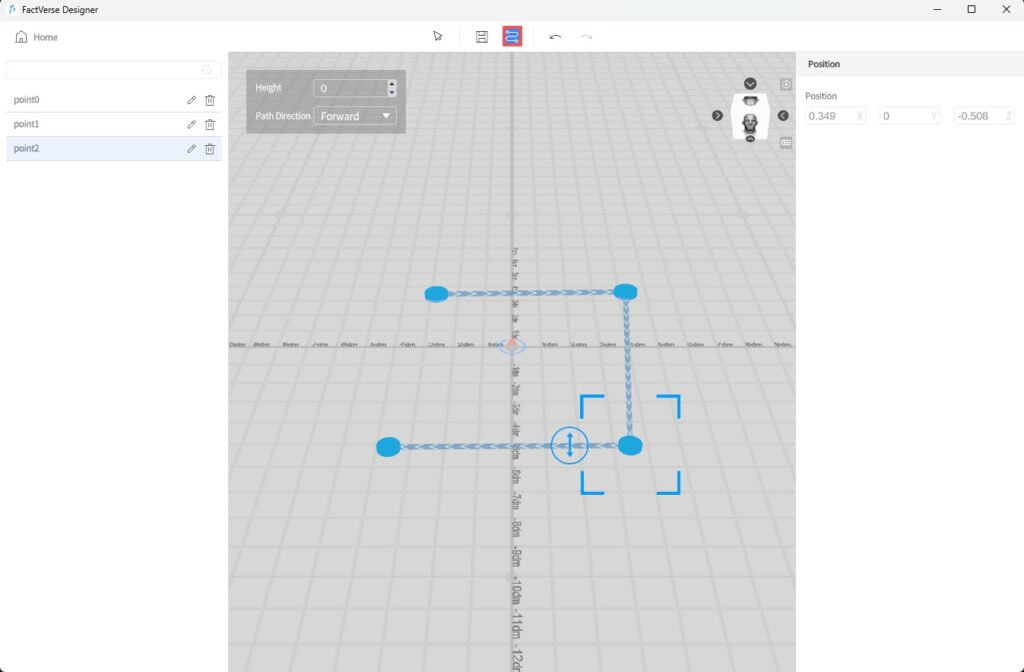
Steps
- After entering Path Mode, click the Path Mode button
 in the toolbar.
 - In the scene, click anywhere to add the first point. Move the mouse and click again to add the second point, automatically generating a connecting line.
- Continue adding key points, and the system will automatically connect them according to the default direction setting.
Path Mode Settings
To improve efficiency, you can configure default parameters in the upper-left corner of the scene:
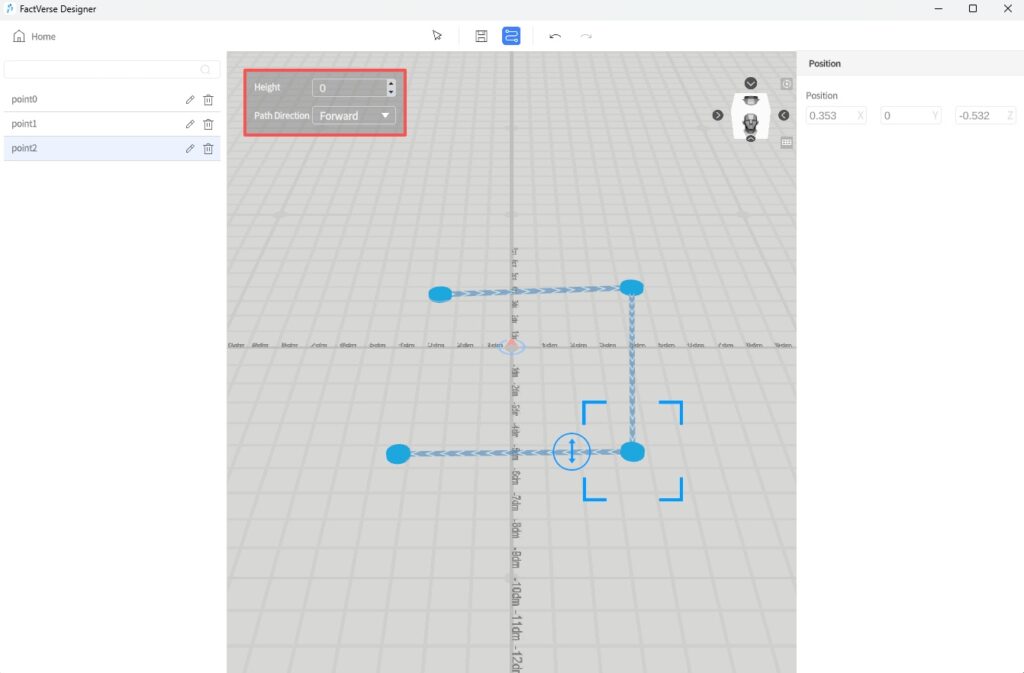
Parameter | Description |
Height | Default Z-axis height of all newly added points in the scene |
Path Direction | Set the direction between points: forward, reverse, or bidirectional |
Select Mode
Select Mode is used to adjust existing points or the overall view, without creating new points.
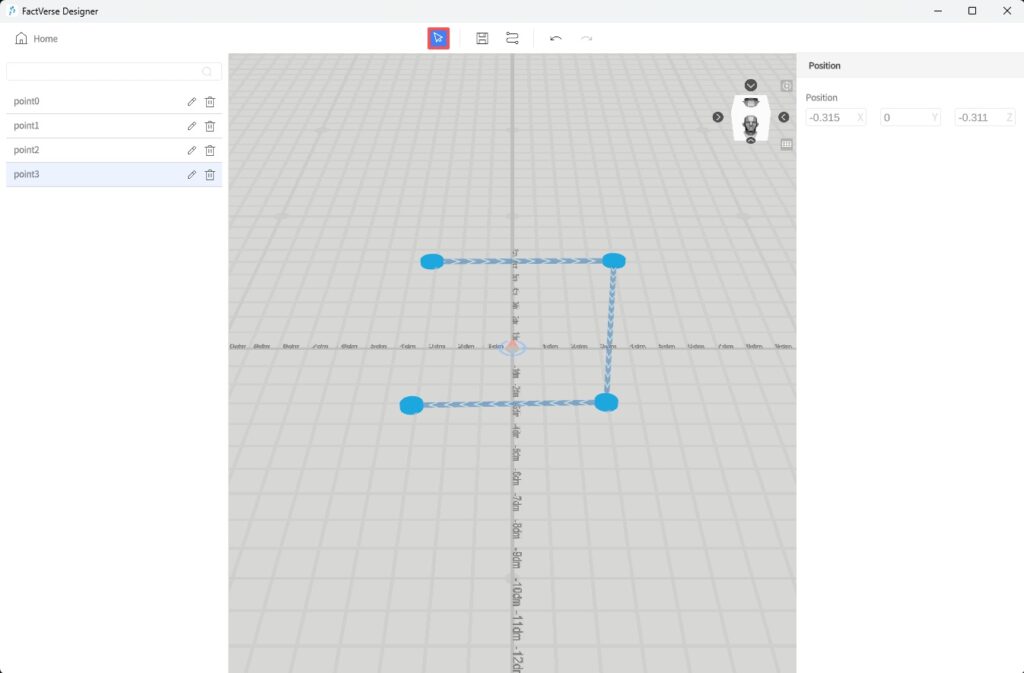
Instructions
- Adjust View: Drag the mouse to rotate or pan the scene view.
- Modify Key Point Position: Click an existing point to move it, or edit its coordinates in the Attribute Pane.
- Edit Connection Direction: Select a line between two points, then in the Attribute Pane click the direction icon to toggle between forward, reverse, and bidirectional.
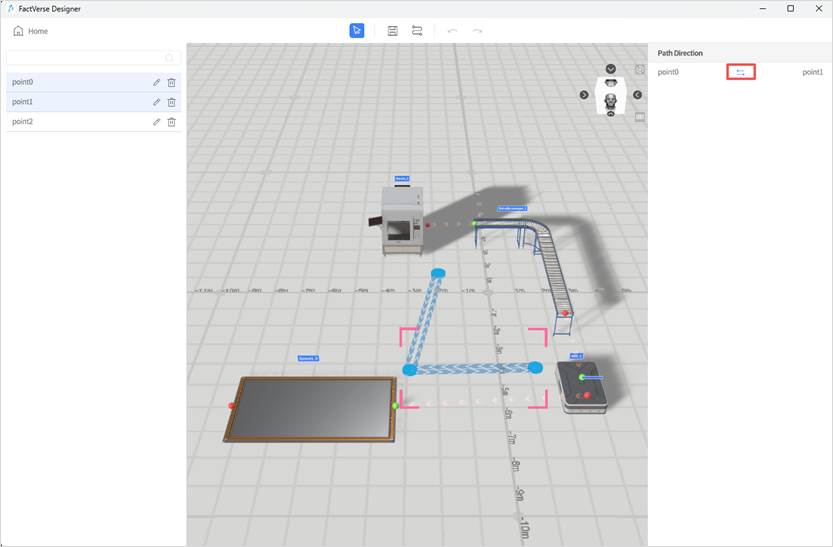
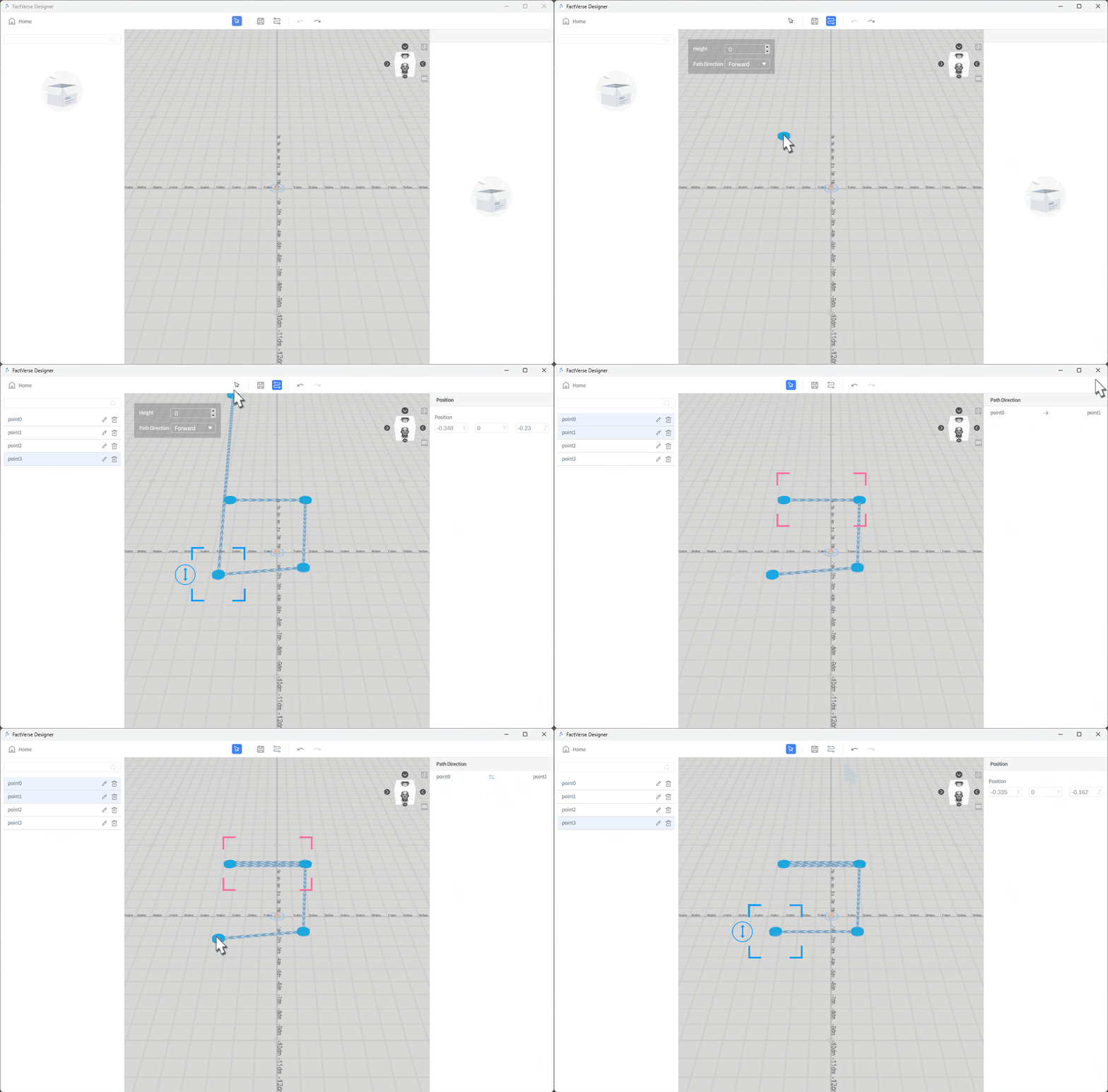
Basic Path Construction Workflow
- In the Scene Editor toolbar, click the Path Mode button
 to enter Path Mode.
 - Switch to Construction Mode, and click positions in the scene to add key points as needed.
- The system automatically connects the points based on default settings.
- Switch to Select Mode, then select key points or lines to adjust positions or directions.
- In Select Mode, clicking on points or lines lets you modify their position or connection direction.
Later, in the Behavior Tree, you can bind digital twin behaviors to path nodes to achieve complex motion control.
Positioning Mode
When creating a digital twin scene, FactVerse Designer automatically generates a marker at the (0, 0, 0) location in the scene. Users can scan this marker in DataMesh One while playing the scene to accurately place the digital twin scene at the target location in the physical environment.
FactVerse Designer offers positioning editing features, allowing users to modify, add, or delete markers as needed, or use reference models to assist in scene editing.
Edit Markers
In the Scene Editor, click the Positioning Mode button in the toolbar to enter the Positioning Mode.
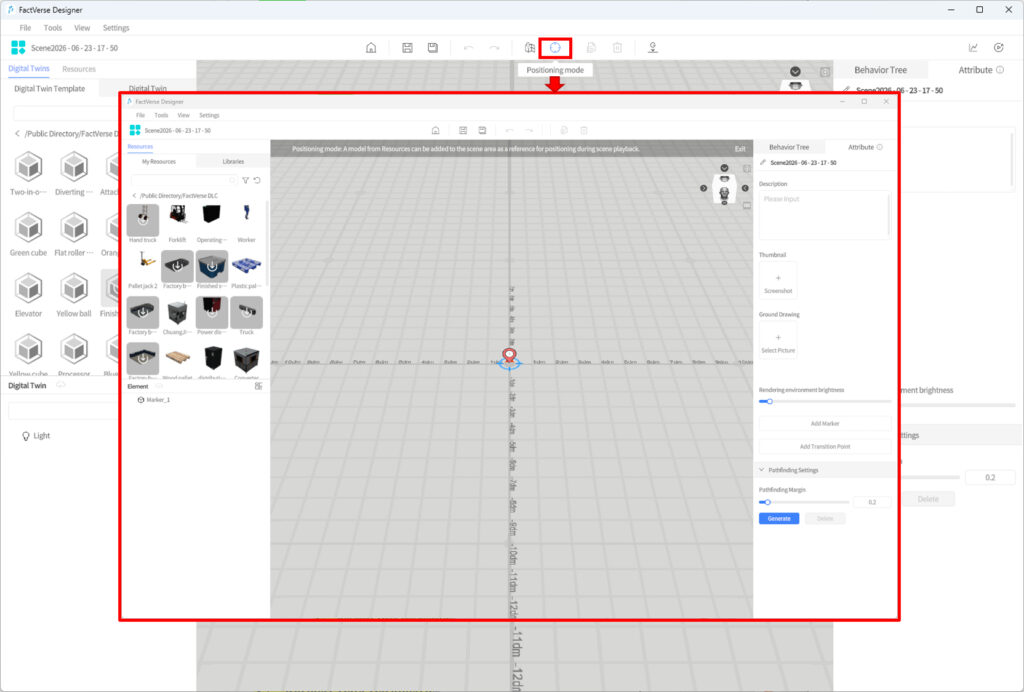
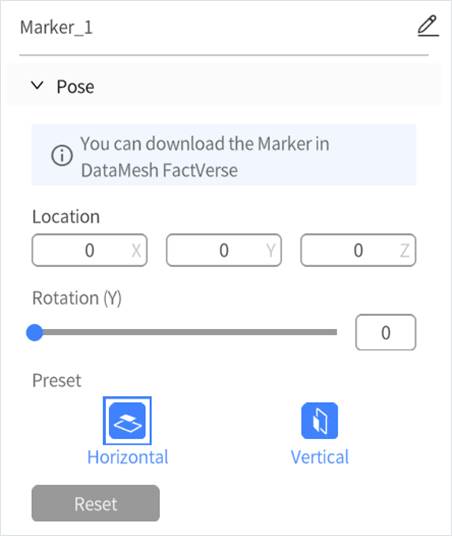
Edit Marker: In the element list (showing all markers and reference models), select the marker you want to edit. The attribute pane will display details such as:
- Position: Adjust the 3D location of the marker by modifying the position parameters.
- Rotation (Y): Change the rotation angle of the marker around the Y-axis.
- Preset: Use the attribute pane to quickly set the marker’s direction (horizontal or vertical).
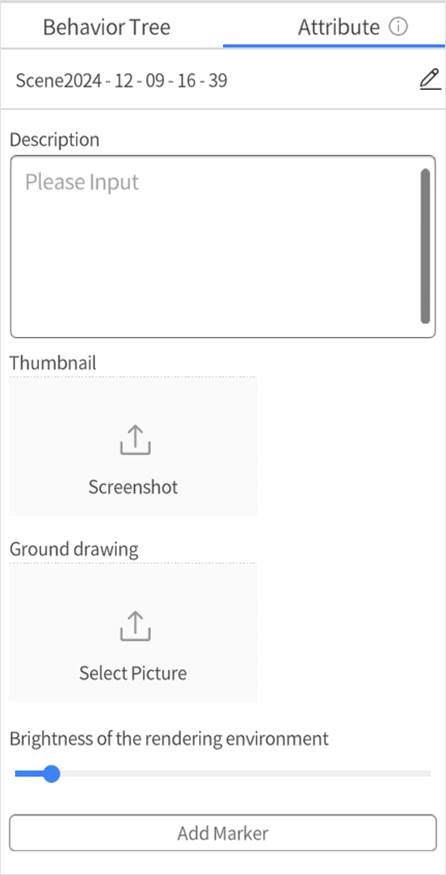
Add Marker: Without selecting any element, click the Add Marker button in the attribute pane to add a new marker to the scene. The marker will automatically be numbered. You can add up to 20 markers per scene.
Delete Marker: Select the marker you want to remove, then click the delete button in the element list to delete it.
Add Reference Model
In a digital twin scene, you can use a reference model to help with scene editing and positioning.
Here’s how to add a reference model:
- Enter Positioning Mode: In the scene editor, click the “Positioning Mode” button in the toolbar.
- Add Reference Model: Place a reference model in the scene to assist with scene editing and positioning.
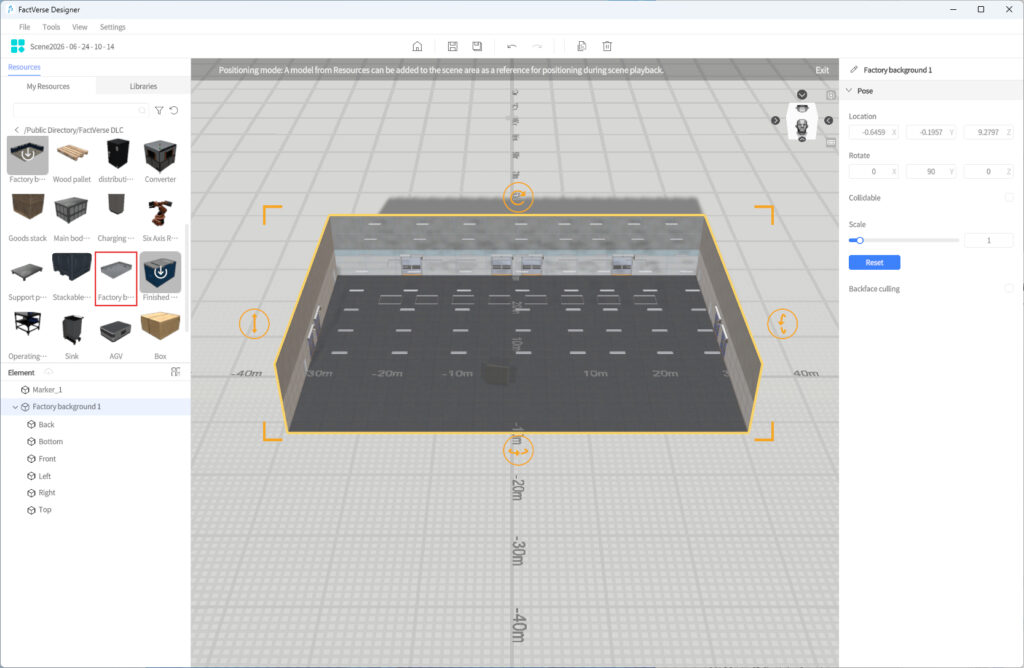
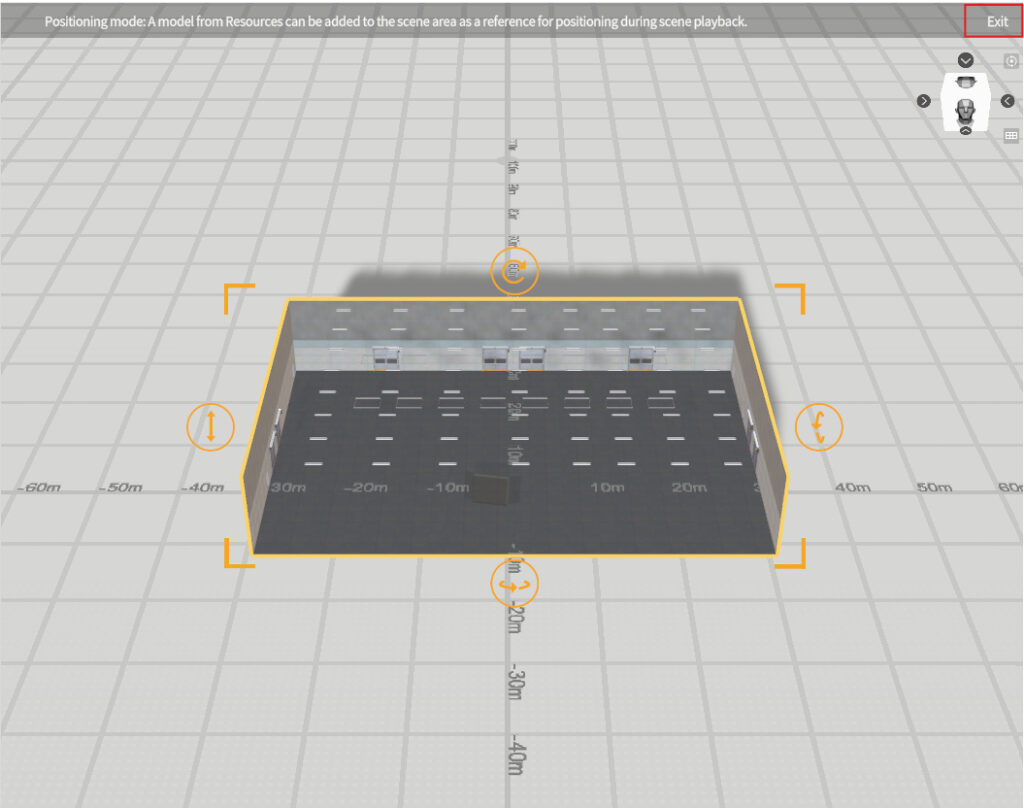
- Exit Positioning Mode: Click the “Exit” button to leave Positioning Mode.
- Assist in Positioning Other Elements: Use reference models to help align other digital twins or elements in the scene with the actual physical environment.
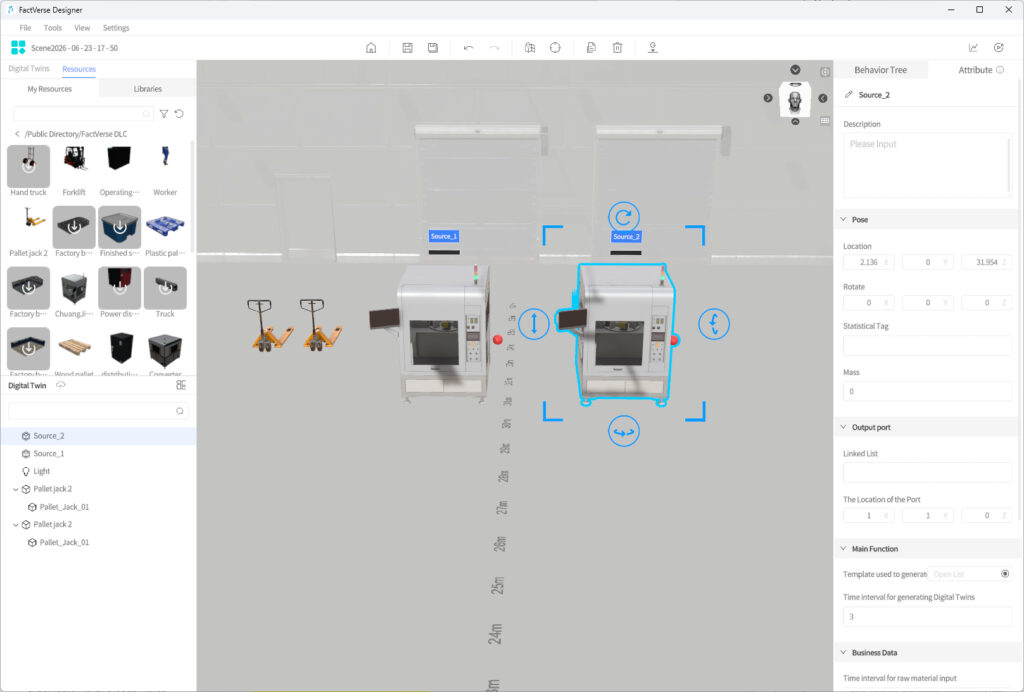
Business Data Dashboard
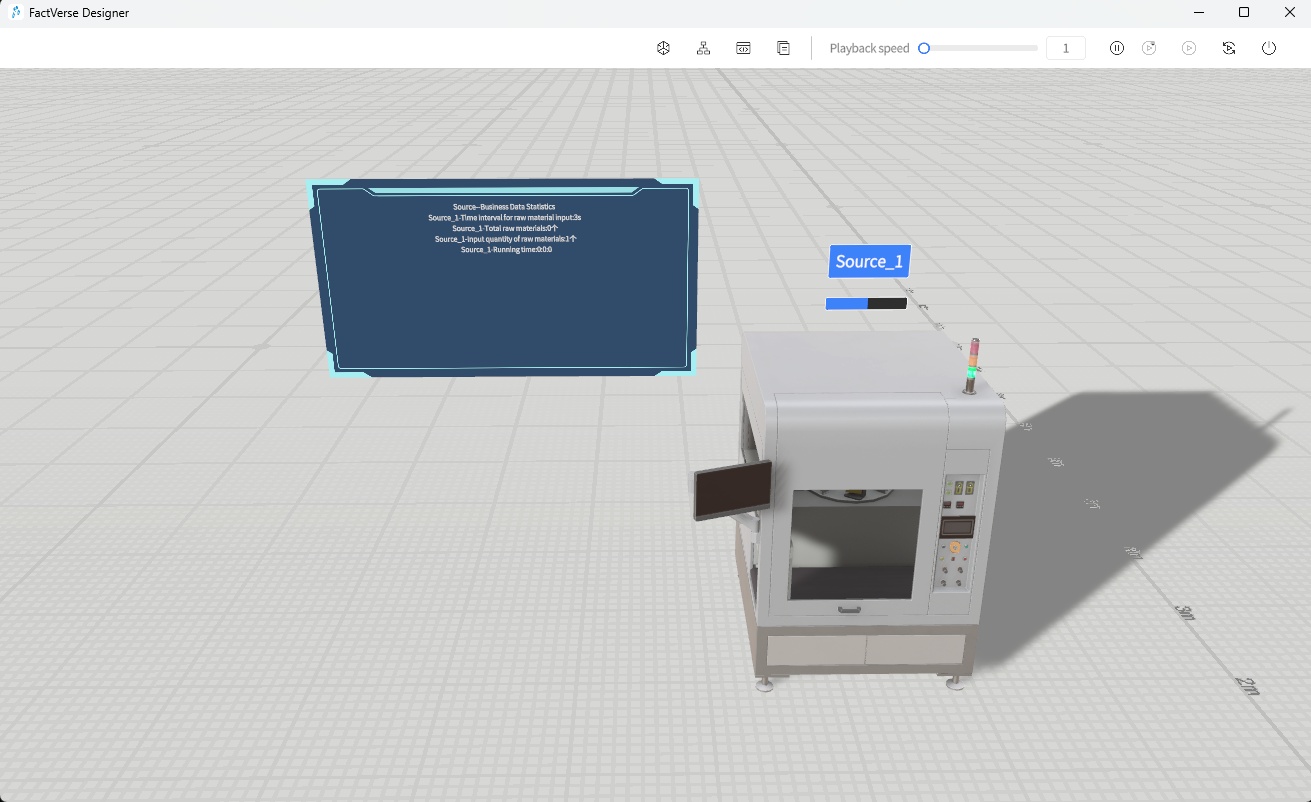
The Business data dashboard can be used to display real-time IoT data and simulated data. Users can select data in the attribute pane, and set text color, font size, and data prefix.
The following are the general steps to bind simulated data:
- Place the Business Data Dashboard tool into the scene.
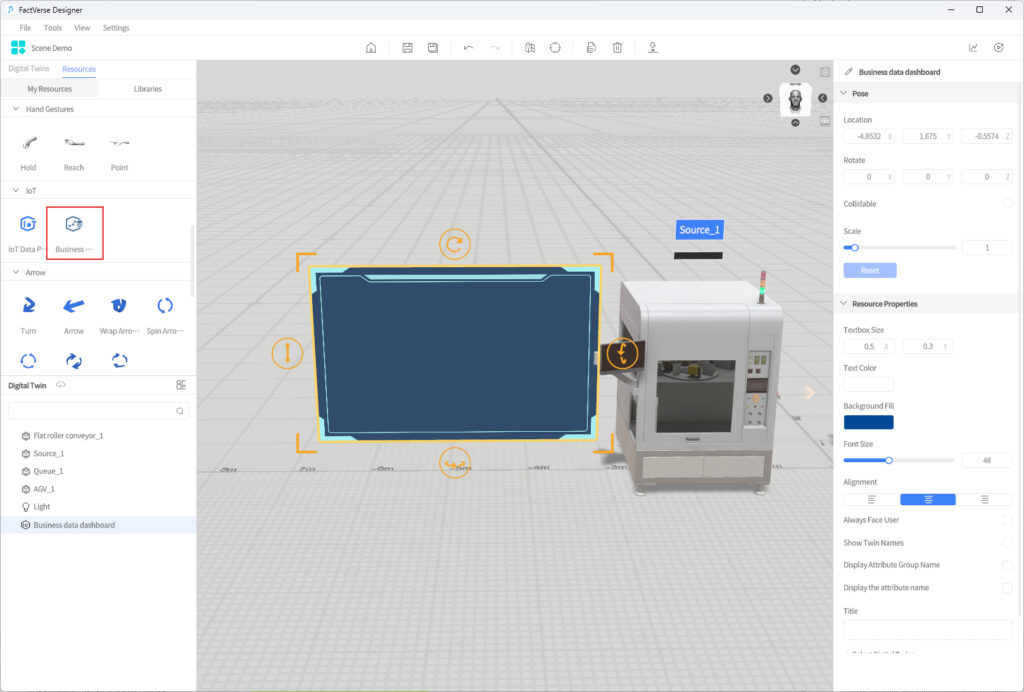
- Adjust the position and size of the dashboard.
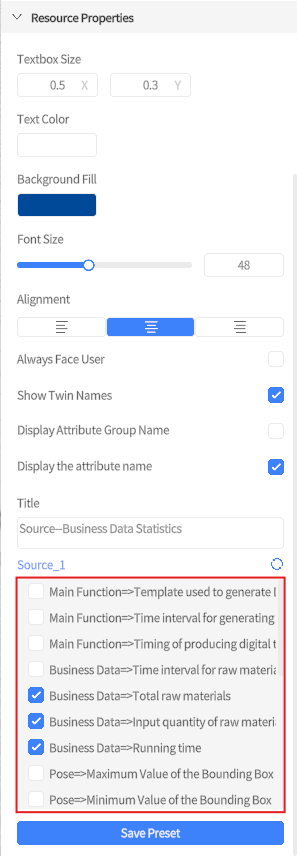
- Set the display style and content of the business data dashboard in the right Attribute Pane.
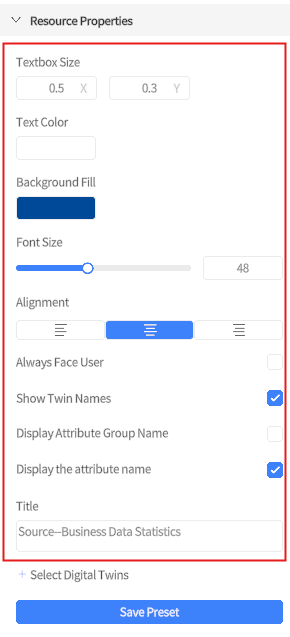
Setting | Description |
Textbox Size | Sets the display area size of the business data dashboard. Width and height can be adjusted. |
Text Color | Sets the display color of text in the dashboard. |
Background Fill | Sets the dashboard background style. Both solid-color backgrounds and image backgrounds are supported. When using an image background, you can use the system’s default Vision Pro / Quest UI-style background, or select a custom image from the resource directory. |
Font Size | Sets the text size in the dashboard. |
Alignment | Sets the alignment of dashboard content. Left, center, and right alignment are supported. |
Always Face User | When enabled, the dashboard always faces the user’s view, making it easier to read. |
Show Digital Twin Name | When enabled, the name of the associated digital twin is displayed in the dashboard. |
Display Attribute Group Name | When enabled, the name of the property group to which the property belongs is displayed in the dashboard. |
Display Attribute Name | When enabled, the property name is displayed in the dashboard. |
Title Content | Sets the dashboard title or description text. |
4. After clicking + Select Digital Twin, select the digital twin whose data you want to display from the pop-up digital twin list.
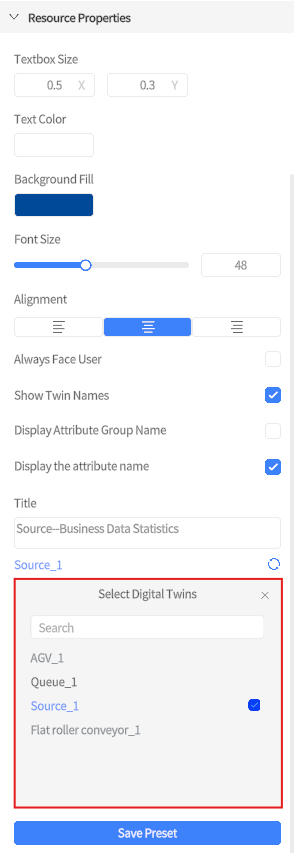
After selection, the selected digital twin name is displayed in the + Select Digital Twin position. To change the digital twin, click the name and select again.
5. In the property list below the selected digital twin, select the property data to display in the dashboard.
6. To save the current dashboard style as a custom tool, click Save Preset.
After saving, the dashboard appears under Resource Library > Libraries > Custom for later reuse.
7. Click the Debug Playback button in the upper right corner of the page to preview the effect.
Edit Scene Courseware
Target Users: Instructors in enterprises
Objective: In FactVerse Designer, bind courseware to a scene, assign digital twins to roles, and edit the logic of custom questions, including triggers, success/failure conditions, and scoring rules.
Courseware Editing Workflow Overview
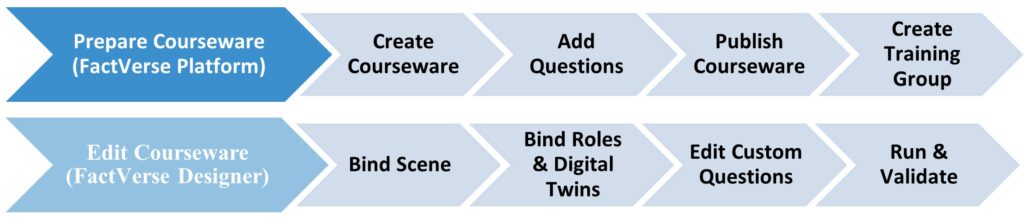
The process of editing scene courseware consists of two main phases:
Phase 1: Prepare Courseware (in FactVerse Platform)
- Create scene courseware and configure basic information (name, duration, passing score, etc.).
- Add questions (supports single-choice, multiple-choice, and custom questions).
- Publish the courseware for further binding and editing in Designer.
- Create a training group and assign learning and exam tasks to trainees.
Alternatively, training groups can be created later in the platform after courseware editing is completed in Designer.
For details on preparing courseware, see the Learning Management section of the FactVerse Platform User Manual.
Phase 2: Edit Courseware (in FactVerse Designer)
- Bind courseware to a scene.
- Bind roles to digital twins.
- Edit the logic of custom questions.
- Run and validate whether the question settings are correct.
Bind Courseware to Scene
Binding Rules:
- Each courseware can be bound to only one scene.
- Once bound, the scene cannot be changed.
Steps
Note: It is recommended to use the same version of Designer that was used when creating the courseware. Opening courseware created in a newer version with an older Designer may cause compatibility issues due to question structure updates, preventing some content from displaying or being edited properly.
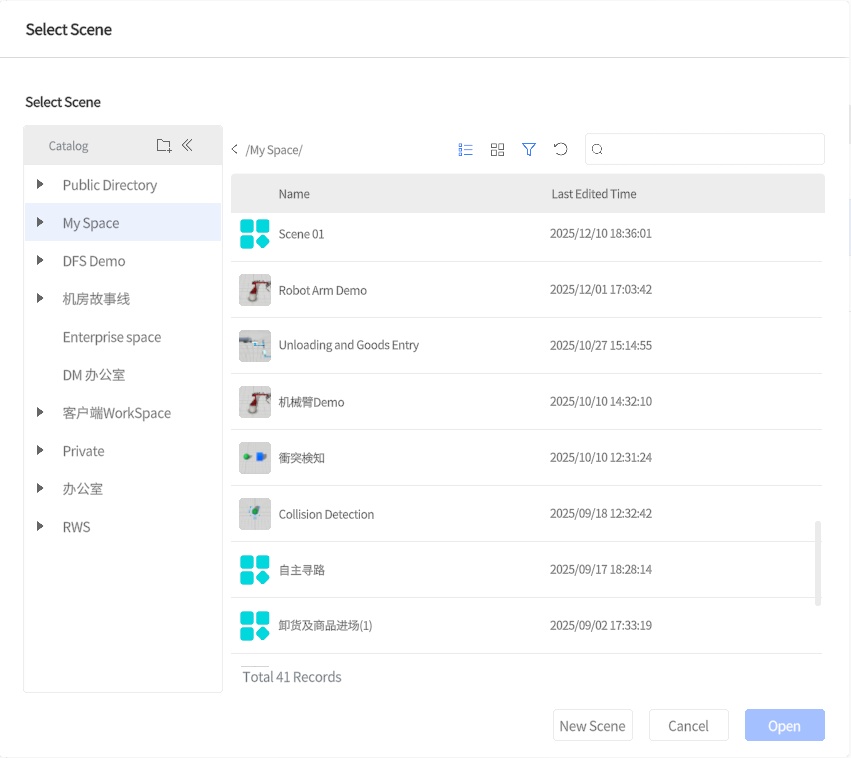
- In the Courseware module of the homepage, click to open the target courseware.
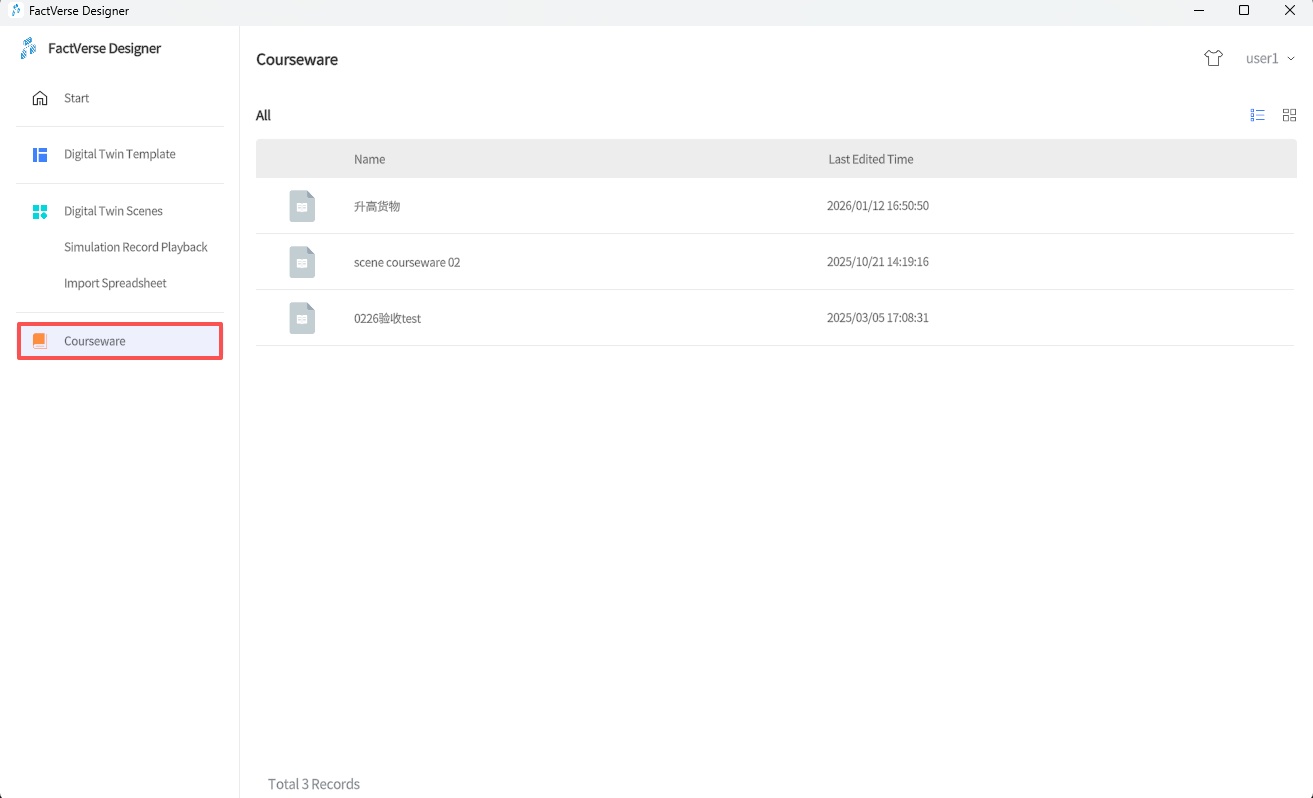
- If no scene is bound, choose a scene for binding, or click New Scene to create a scene and follow the digital twin scene building workflow before binding.
Bind Digital Twins to Roles
In exam courseware, you can bind a corresponding digital twin to a role. After binding, when a candidate selects that role to enter the exam scene, the system associates the role with the specified digital twin, and the candidate needs to complete the corresponding question operations around that digital twin.
Examples:
- When the role is Forklift Operator, a forklift digital twin can be bound to complete driving-related questions.
- When the role is Maintenance Technician, an equipment panel digital twin can be bound to complete equipment inspection or maintenance questions.
Steps
- In the Scene Area, select the digital twin to associate with the role.
- In the Attribute Pane, set Assign Role to Yes.
- Select the role to bind from the role list.
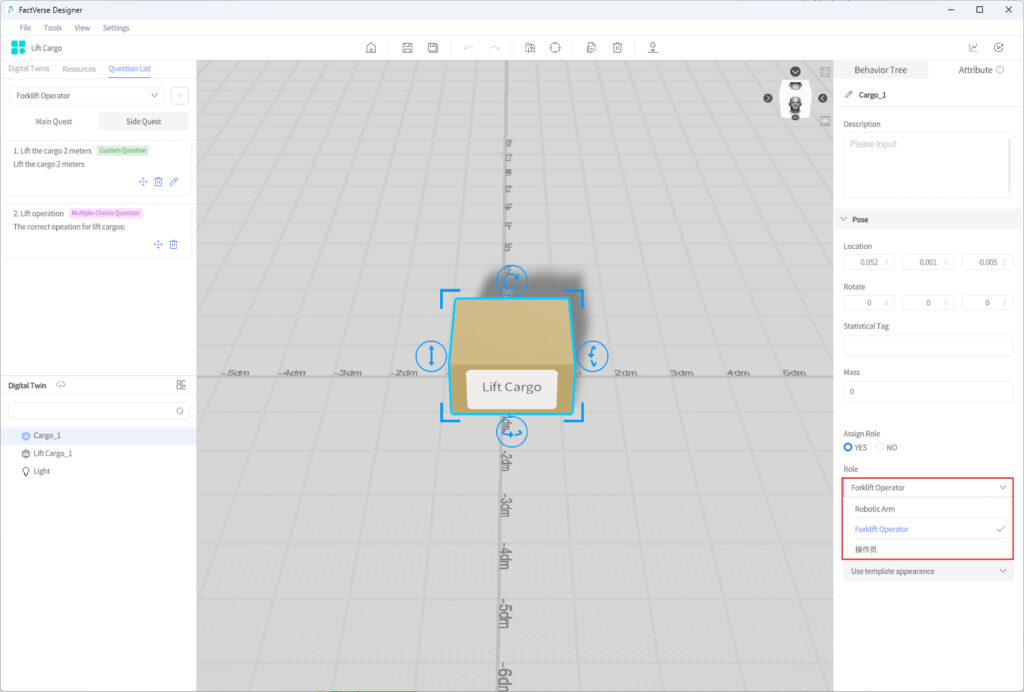
- Save the courseware.
Edit Custom Questions
Custom questions can be added in two ways:
- In FactVerse Platform: Only basic information (question stem, role, etc.) is created, without logic or scoring.
- In Designer: Create or edit to define triggers, success/failure conditions, scoring rules, etc.
Configure Custom Question Logic
- Set Judgment Logic
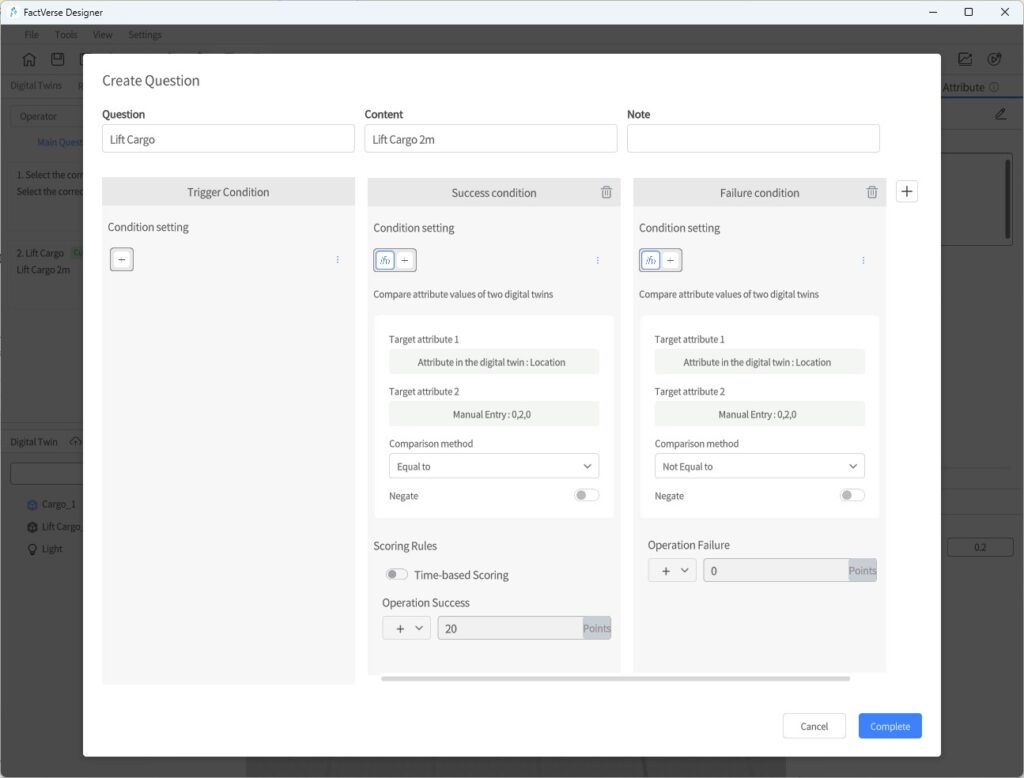
Custom questions support defining trigger, success, and failure conditions to enable automatic task initiation, completion checks, and violation detection.
| Condition Type | Description |
| Trigger Condition | Defines when the question starts, based on twin states, interactions, or external events. |
| Success Condition | Determines the standard for completing the task, usually based on results and twin states. |
| Failure Condition | Defines when the task fails or an error occurs, such as collisions or invalid operations. |
Example: Vehicle Obstacle Avoidance Training
- Scenario: The candidate drives a vehicle out of a parking lot while avoiding obstacles.
- Trigger Conditions:
- Vehicle approaches the exit: Use Compare Distance to check if the distance between the vehicle and the exit is less than 2m.
- Vehicle has not yet passed the exit: Use Compare Two Attribute Values with “Pass Status = 0”.
- Success Conditions:
- No collision: Use Compare Two Attribute Values with “Collision detection result = 0”.
- Vehicle successfully exits: Use Compare Two Attribute Values with “Pass Status = 1”.
- Failure Condition:
- Collision occurs: Use Compare Two Attribute Values with “Collision detection result = 1”.
- Trigger Conditions:
- Configure Scoring Method
After completing a custom question, the system calculates the score in the following ways:
| Scoring Type | Description |
| Direct Score | Award a fixed score upon task completion (e.g., 100 points). |
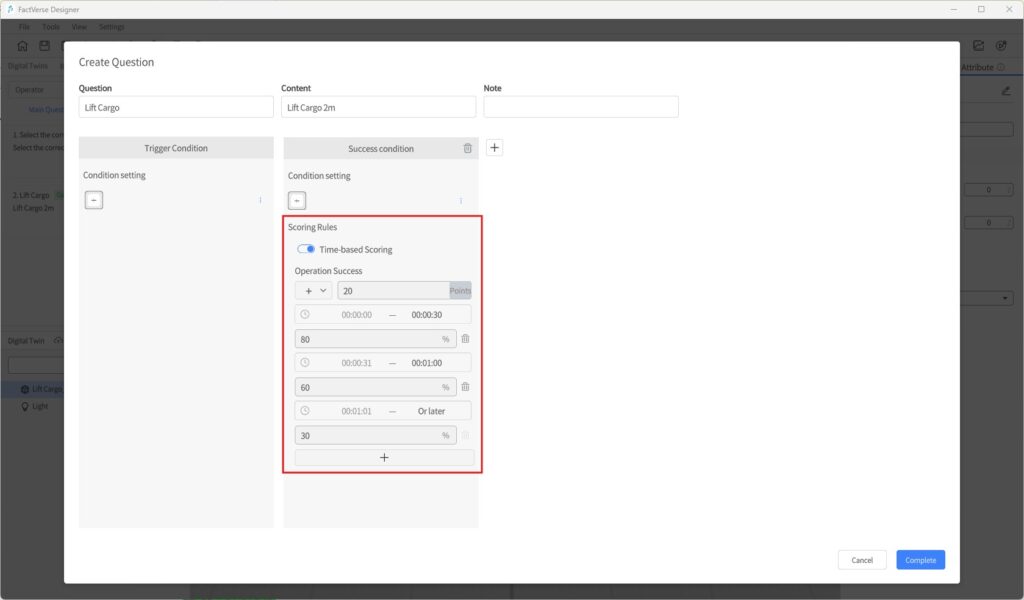
| Time-based Score | Score proportionally based on completion time within preset time segments. |
Example:
- Task success = 100 points.
- Time segment weight = 80%.
- Actual score = 100 × 80% = 80 points.
If Time-based Score is not enabled, Direct Score is used by default.
To enable Time-based Scoring, check the option in the configuration panel and define the percentage for each time segment.
Editing Steps
- Configure interaction logic: Before editing the question, ensure the scene includes relevant interactions (e.g., digital twin attribute changes, movements).
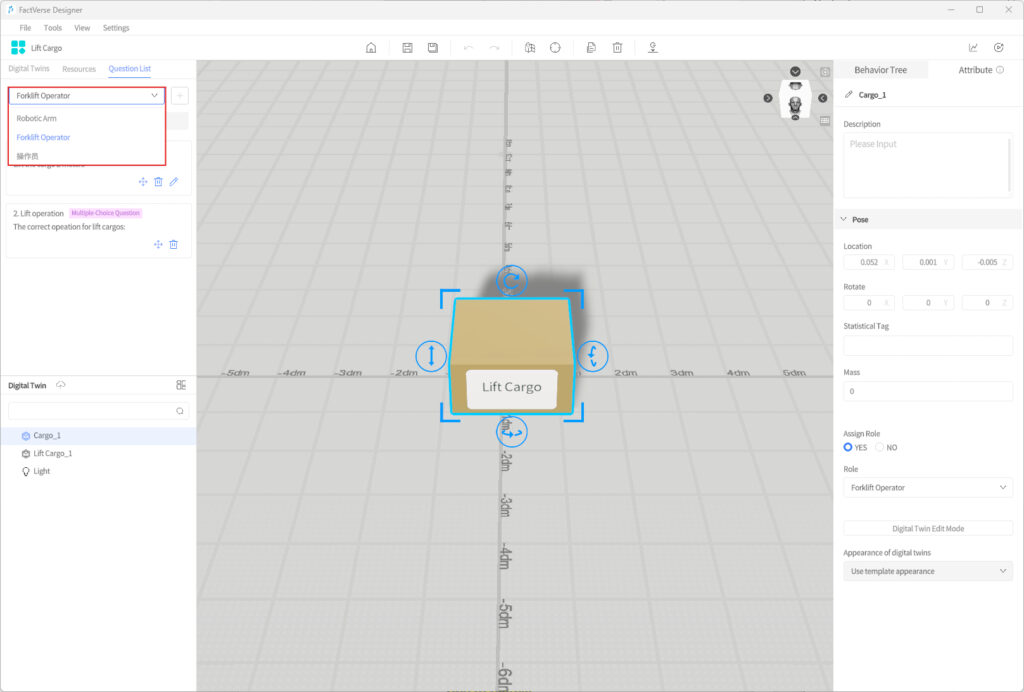
- Display role-related questions: In the left-side question list, select a role to expand its questions.
- Add a custom question:
- If not created in the platform, click + > Custom Question in Designer.
- If already created in the platform, skip this step.
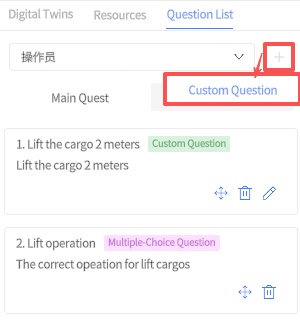
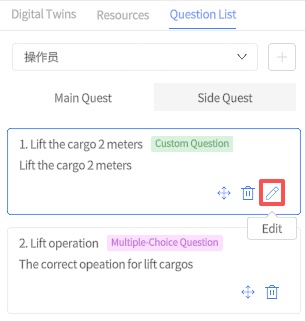
- Edit question logic: In the question list, click the Edit icon next to the question to open the editing window.
- Configure conditions and scoring rules: In the editing window, set trigger, success/failure conditions, and scoring methods (direct, time-based, etc.).
- Save the question: After configuration, click Complete to save the settings.
Run and Verify
You can simulate candidate operations to validate whether the logic and scoring mechanisms work as expected.
Steps
- Play Courseware: Click the Debug Playback button in the toolbar to enter courseware simulation mode. In the role list, select the answering role.
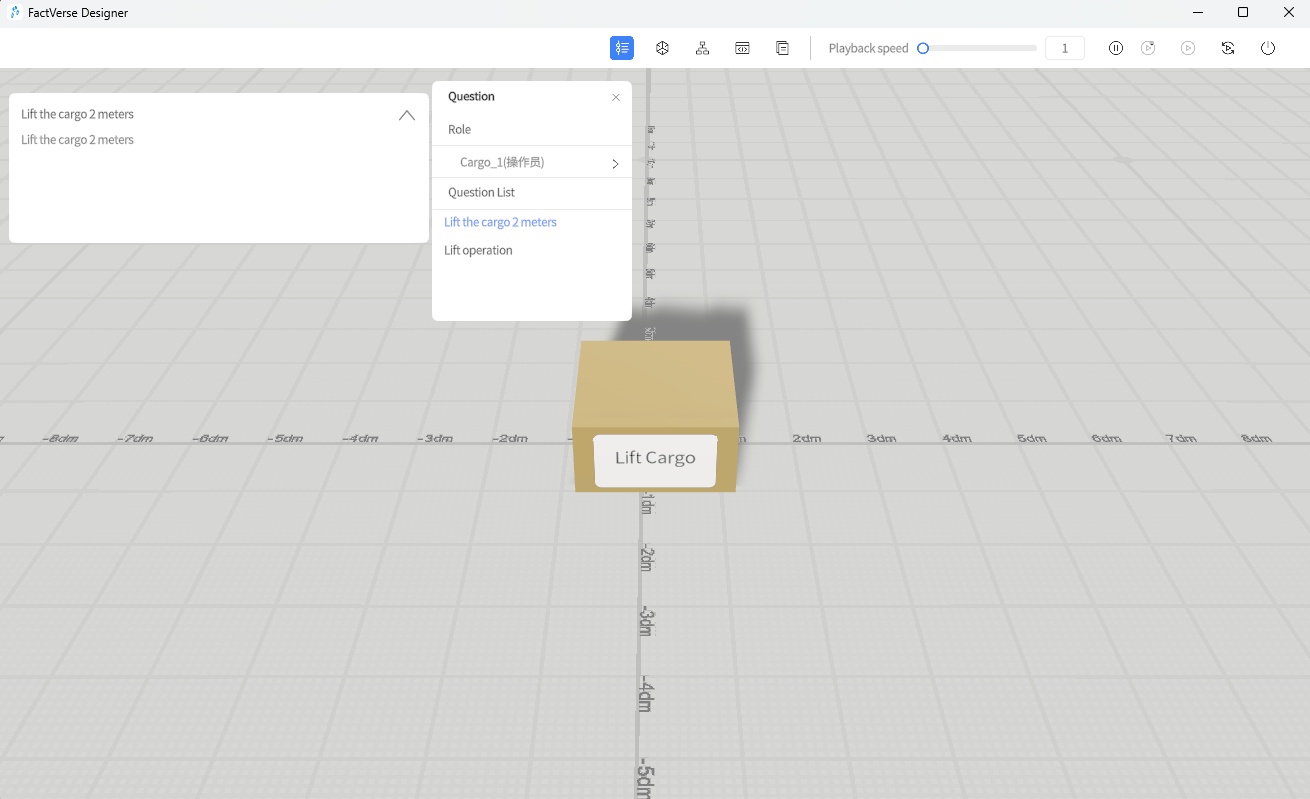
- Test the questions: In the playback interface, simulate answering and check if the settings are correct:
- Choice questions: Verify that single-choice and multiple-choice questions work correctly.
- Custom questions: Perform defined interactions (e.g., clicking or dragging a twin) to check triggers.
- Judgment logic:
- Correct operations should be judged as success.
- Incorrect or invalid operations should be judged as failure.
- Scoring validation: Ensure scores follow the defined rules (direct score, time-based score, etc.).
- Adjust in the editor if issues occur: If abnormal triggers, inaccurate judgments, or scoring errors are found, return to the editing interface, adjust the settings, and re-validate.
Collision Detection
Function Overview
The Collision Detection feature is used to determine whether digital twins physically contact each other during simulation. This helps validate the rationality of scene design and the safety of operation paths. By using collision detection, users can quickly identify potential design flaws, optimize equipment layout and movement paths, and reduce accident risks.
Key Steps
To implement collision detection, configure the following:
- Specify the digital twin responsible for outputting collision results
- Enable Collidable in its template.
- Add the Collision Detection preset structure in its template. This structure records real-time collision data, including collided object, role, and timestamp.
- Configure other objects (digital twins or models) to participate in collision
- In the scene, enable Collidable for these objects so they can interact with the reporting twin.
- Run simulation and analyze results
Notes:
- All objects (digital twins / models) must have Collidable enabled.
- Only digital twins with the Collision Detection preset structure can output and record collision results.
- Multiple detection objects can exist in a scene, but at least one twin must be responsible for recording the results.
Example
This example simulates a moving ball twin colliding with a stationary cube and cylinder, to verify that collision detection works and to observe how collision information is updated in the twin’s attributes.
Steps
- Create a movable ball template:
- Refer to the Moving Ball section and create a ball template with movement behavior.
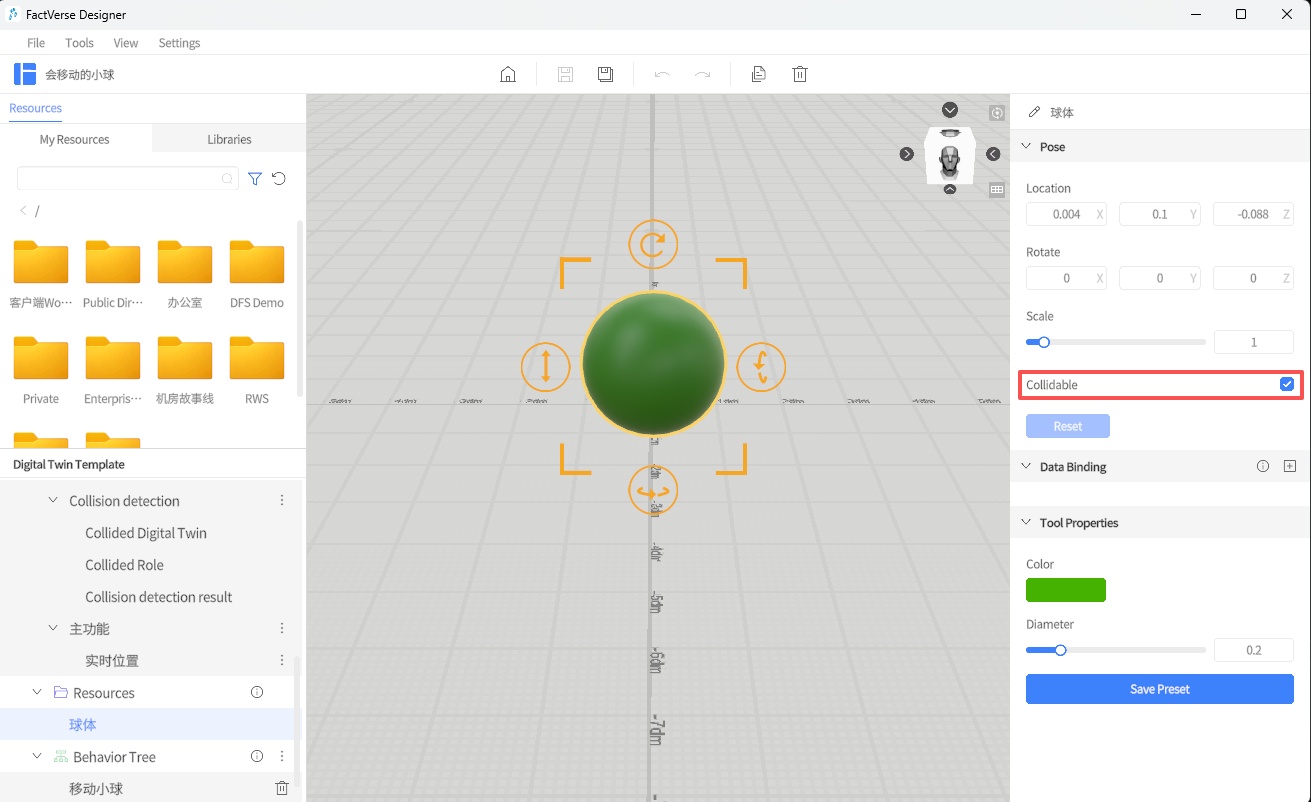
- Enable collision participation for the ball:
- Select the ball in the scene, and in the Attribute Pane, check Collidable. Once enabled, the ball will participate in collision detection handled by the physics engine.
- Add the Collision Detection preset structure to the ball template:
- In the ball template, add the system preset Collision Detection structure to capture collision states.
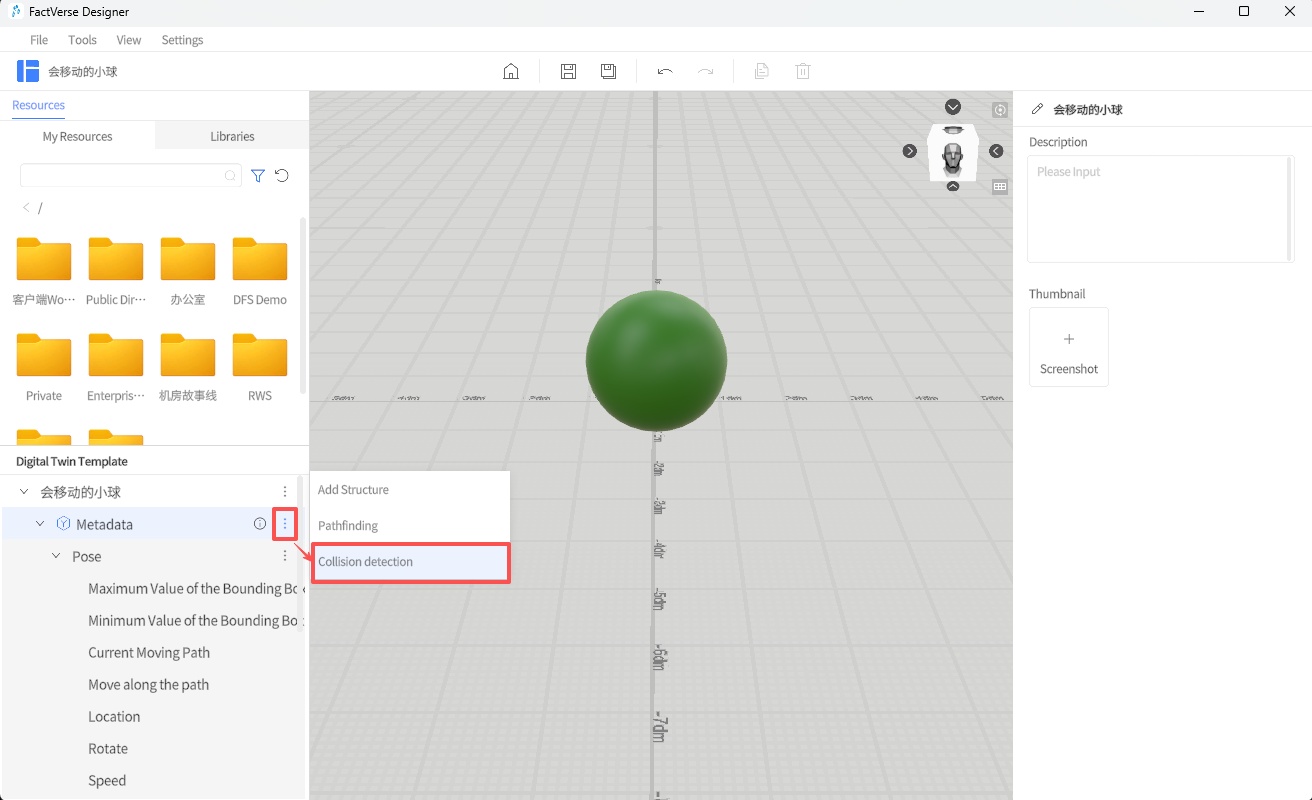
This preset structure includes the following attributes:
| Attribute Name | Type | Description |
| Collided Digital Twin | string | Records the name of the twin that collided with the current twin |
| Collided Role | string | Records the role bound to the collided twin |
| Collision Detection Result | bool | true if a collision occurs, false if no collision |
- Save the ball template: After configuration, click Save to store the template.
- Create a cube template and enable collision participation:
a) In the Template Editor, create a new cube template and place a cube model.
b) In the Attribute Pane, check Collidable.
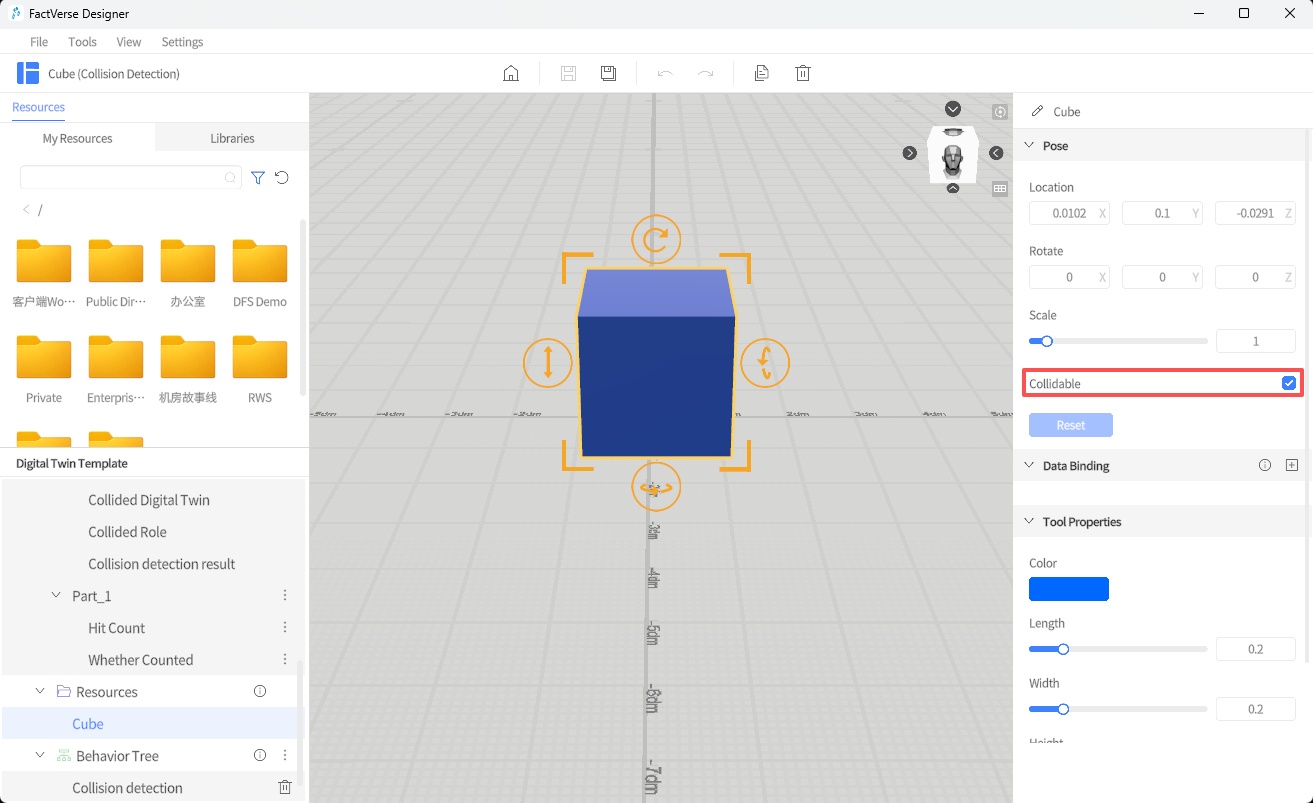
c) Click Save to store the template.
- Build the test scene:
a) Create a new test scene.
b) Place the Moving Ball and Cube twins in the scene.
c) Optionally add a static cylinder model to test multiple collision targets.
d) Adjust positions so that the cube and cylinder are placed along the ball’s movement path.
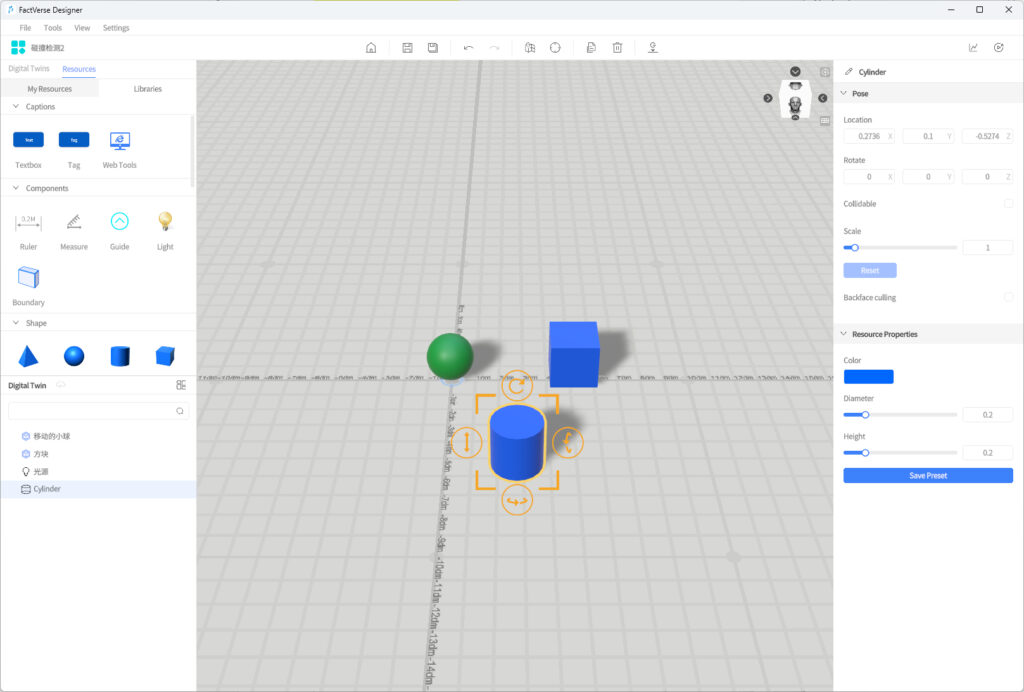
- Preview playback:
a) Click the Debug Playback button in the toolbar to run the scene.
b) Select the ball twin and open the Attribute Pane.
c) Observe whether the fields Collided Digital Twin and Collided Role correctly display the names of the collided objects.
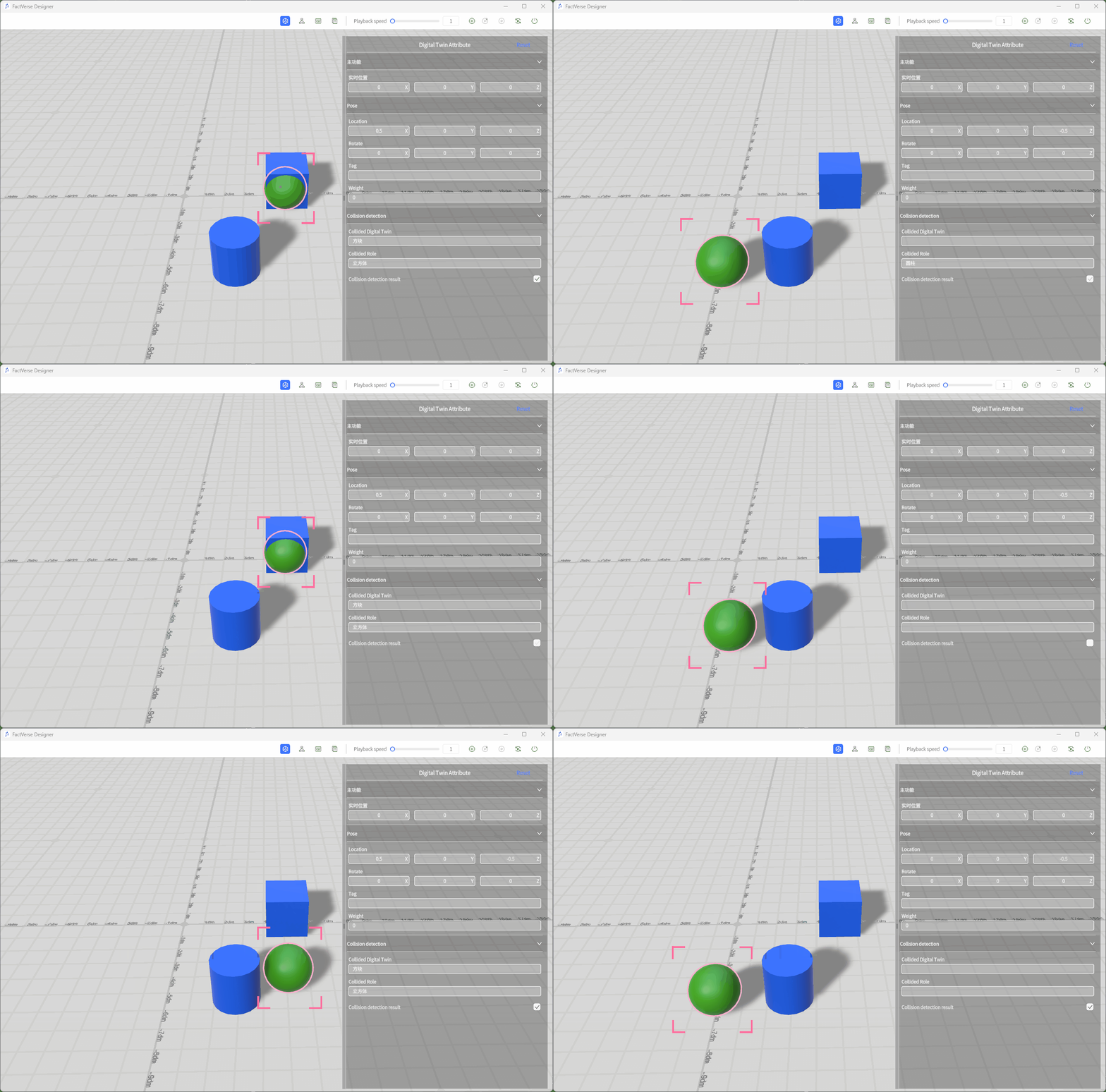
- Analyze simulation results:
- For detailed analysis, refer to the Collision Analysis Table.
Scene Editing Assistant Tools
Measurement Tool
The measurement tool is used to measure the distance between two positions in a scene and can also be used as a text annotation. You can use it to measure model spacing, height, horizontal span, or add notes such as reserved spacing, safety distance, and equipment maintenance aisle.
Steps
- Drag the Measure tool from Libraries > Components into the scene, and click in the scene to set the position of endpoint A. The endpoint can snap to the model surface, making it easier to start measurement from a model edge or specified position.
- Move the mouse to draw the measurement segment.
When drawing the measurement segment, press Shift to switch the measurement direction.
Each time Shift is pressed, the measurement direction cycles through the following modes:
Mode | Description |
Lock X Axis | Draws the measurement segment only along the X direction. Used to measure distance in the X direction. |
Lock Y Axis | Draws the measurement segment only along the Y direction. Used to measure height. |
Lock Z Axis | Draws the measurement segment only along the Z direction. Used to measure distance in the Z direction. |
Free Snapping | No direction is locked. You can freely select the endpoint position. |
- Click in the scene again to set endpoint B and complete the measurement.
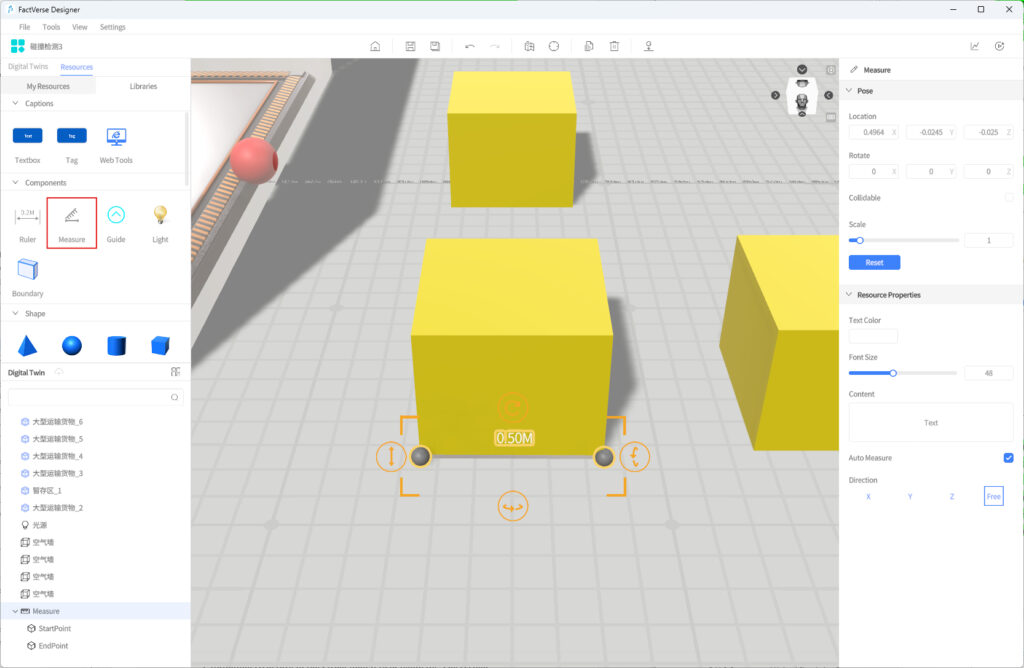
- To adjust the style of the measurement text, set properties such as text color and font size in the right Properties Pane.
- Set the measurement content display mode as needed.
- Automatic Measurement: After Automatic Measurement is selected, the measurement tool displays the distance between endpoint A and endpoint B in real time.
- Manual Note: After Automatic Measurement is cleared, you can enter note text in the Content input box. In this case, the scene displays the text entered by the user instead of the measurement value.
- To fine-tune the measurement position, select the endpoint child level and adjust endpoint A or endpoint B separately.
When dragging an endpoint, the endpoint moves with the axis locked or moves freely based on the Direction setting.
Description
- If the measurement point is not snapped to a model or the ground, the measurement tool is generated on the Z=0 plane by default.
- If the referenced model used for measurement is deleted, the measurement tool position remains unchanged and does not disappear automatically.
- The measurement tool can be used for both distance measurement and scene annotation. If you only need to display explanatory text, clear Automatic Measurement and enter note content.
Collision and Range Monitoring
Collision and range monitoring helps users check whether placed goods collide or exceed a specified stacking range during scene editing. This function is suitable for goods stacking, vehicle loading, warehouse placement, and other scenarios where object positions and boundaries need to be controlled.
Steps
- Configure Goods Template
In the Template Editor, add the Collision Detection preset structure to the goods template that needs to participate in detection, and enable Collidable as needed.
After configuration, goods digital twins created using the template can participate in subsequent collision and range monitoring.
- Create Goods Digital Twin
In the Scene Editor, create a goods digital twin using the goods template and place it in the scene.
- Add Range Detection Component
Add a Boundary component from the Libraries pane.
The Boundary component is used to define the boundary range where goods can be stacked. Users can add one or more Boundary components as needed to enclose the area where goods are allowed to be placed.
For example, when defining a stacking area, multiple Boundary components can be used as the front, back, left, right, and upper boundaries. The actual number used can be adjusted based on scene requirements.
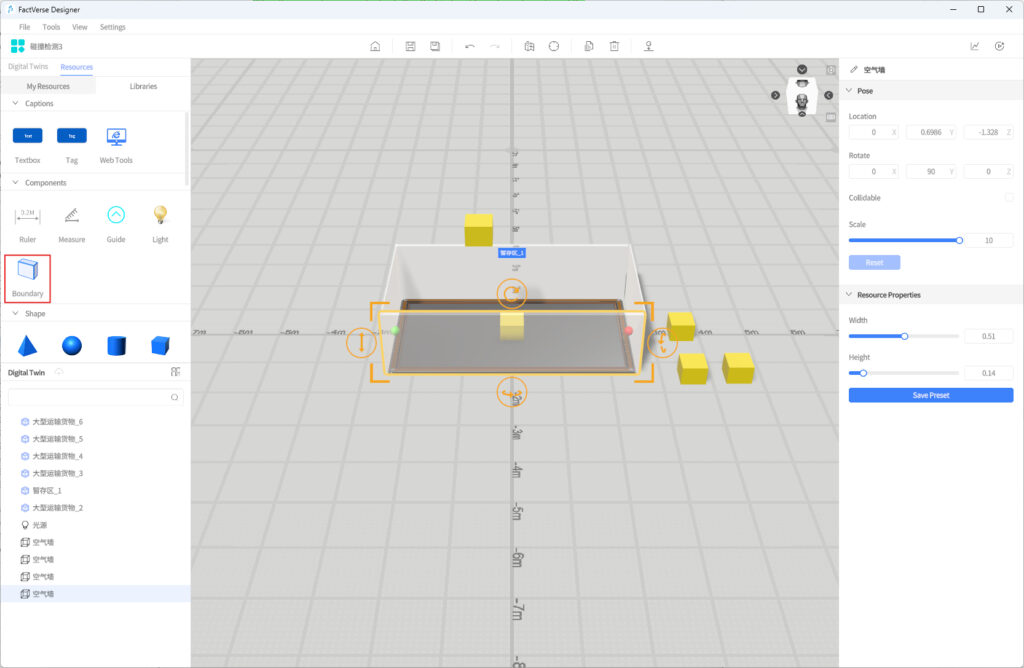
- Adjust Range Detection Area
After selecting a Boundary component, adjust its length, width, and height with the handles so that it covers or encloses the target goods stacking area.
- Place Goods and Check Range
Place or drag goods within the stacking range. If the goods collide with the Boundary component, the system displays a message in the scene: Out of range. Please adjust the position.
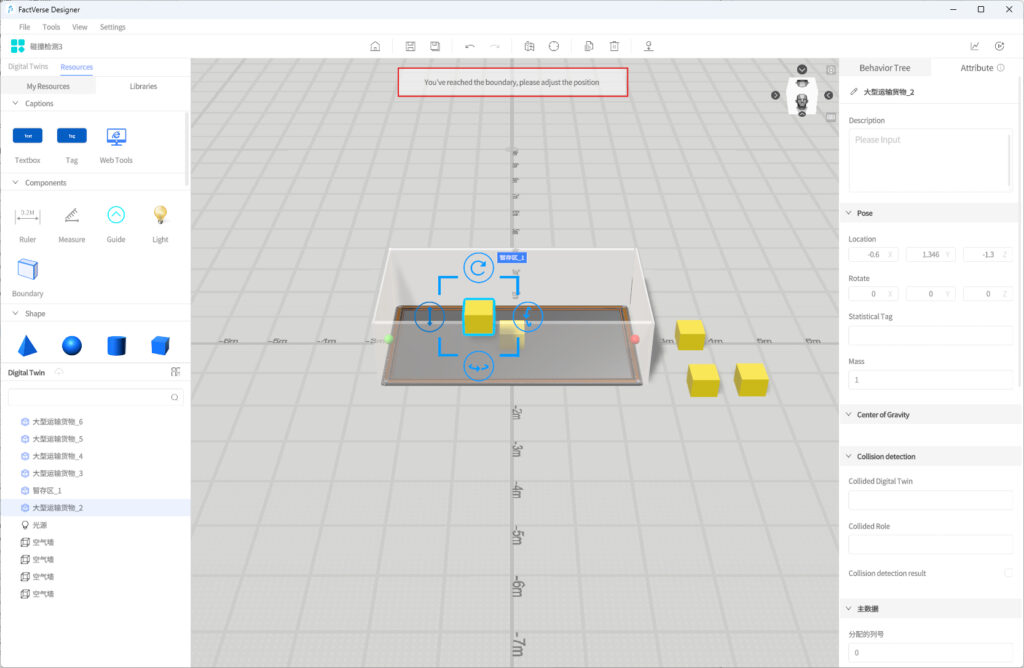
- Adjust Goods Position Based on Prompt
Move or rotate the goods based on the prompt so that they return to the allowed stacking range.
Prompt Rules
- When a collision or out-of-range event occurs, the system displays a prompt at the moment the collision occurs.
- If an object remains in a collision state, the system does not repeatedly display the same prompt to avoid prompt stacking.
- After the user adjusts the position and clears the collision, if another collision occurs, the system displays the prompt again.
Gravity Simulation
Gravity simulation helps users quickly place objects. Users can first use gravity simulation to obtain natural falling, stacking, or loading effects, and then choose whether to keep the simulation result as the initial placement state in the scene.
This function is suitable for scenarios that need to simulate natural stacking effects, such as goods stacking, vehicle loading, and construction material placement.
Prerequisites
Before using gravity simulation, complete the following configuration for related digital twins in the Template Editor:
- Select Collidable.
- Configure the Mass property in Pose.
- Add and configure the Center of Gravity preset structure.
- Add and configure the Collision Detection preset structure.
Configure Properties Related to Gravity Simulation
- Open the digital twin template that needs to participate in gravity simulation.
- In the Attribute Pane, select Collidable.
- Configure the gravity simulation-related properties in Pose.
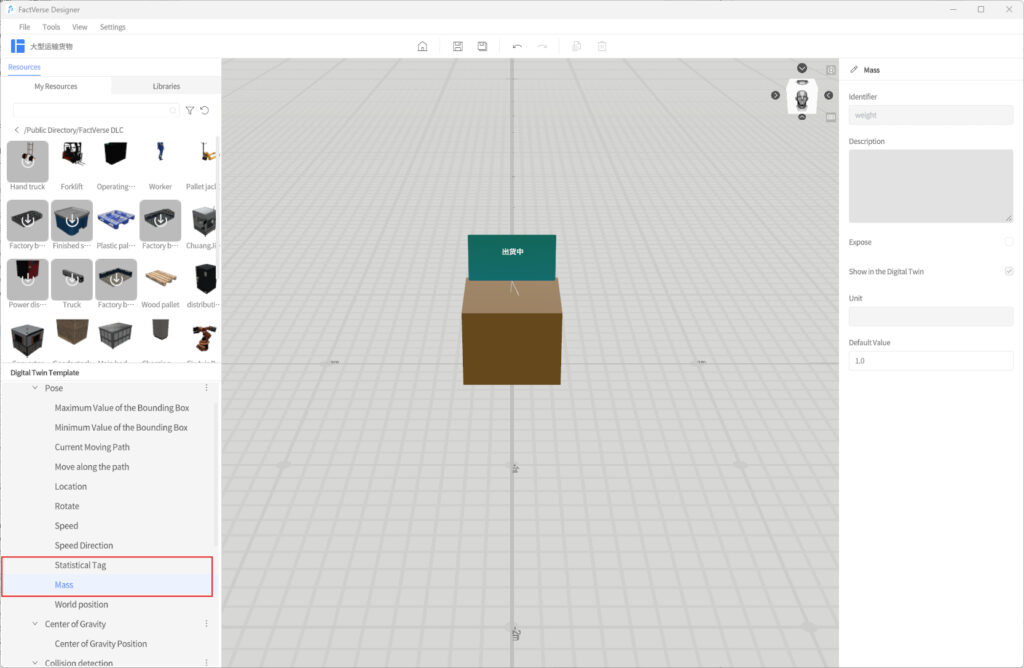
Property | Type | Description |
Mass | Double | Sets the mass of the digital twin, which affects gravity simulation and the stacking effect after collision. Unit: kg |
Statistics Tag | String | Optional configuration. Used to set a classification tag for digital twins so that behavior trees can batch filter or count objects of the same type. For example, if multiple boxes are all set to box, a behavior tree can find or count these boxes by box. This property is not required for gravity simulation. |
- Add the Center of Gravity preset structure from the Metadata pane.
Property | Type | Description |
Center of Gravity | Vector3 | Sets the center of force of the digital twin in gravity simulation. The center of gravity affects how the object falls, tilts, and stacks. |
- Set the center of gravity position.
You can set the center of gravity in the following ways:
- Manual input: Enter X, Y, and Z values in Default Coordinates, or drag the red center-of-gravity sphere in the scene to adjust its position.
- Select model: If the model resource already contains center-of-gravity information, select the corresponding model in Source Type. The system automatically sets the center-of-gravity position based on the model information.
If you are unsure of the center-of-gravity position, set it near the main body center of the object first, and then adjust it based on the gravity simulation effect.
Enable Gravity Simulation
- Enter the Scene Editor, create digital twins using the configured template, and place them where simulation is needed.
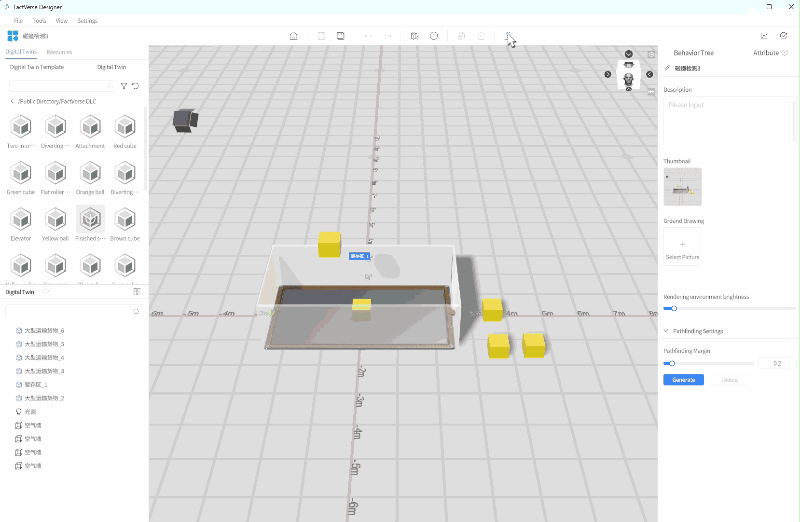
- Click Gravity in the toolbar to enable gravity simulation.
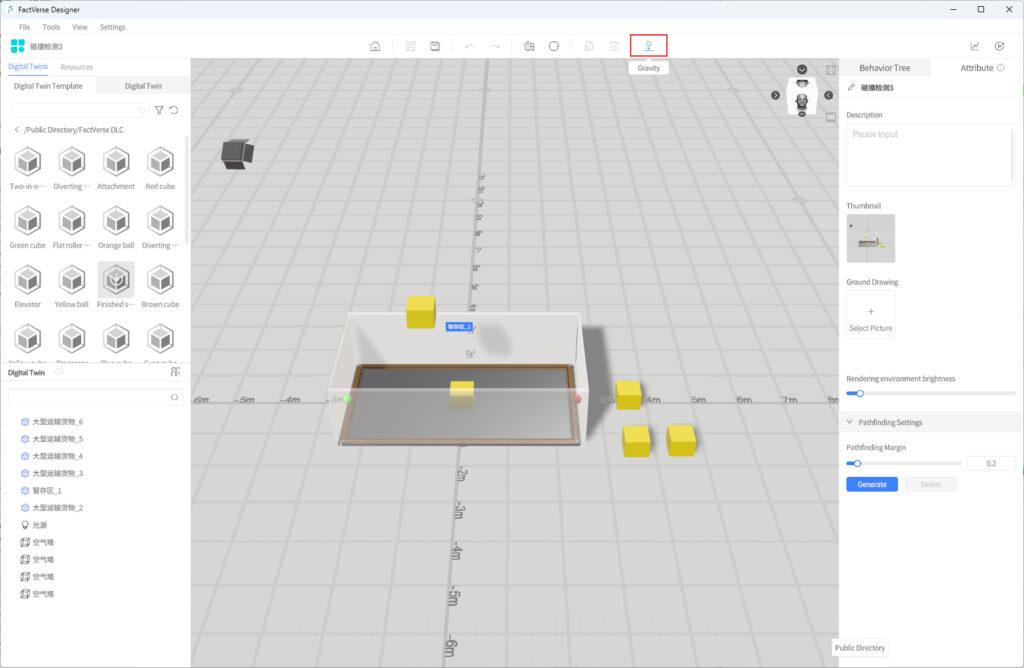
After enabled, digital twins with Mass configured and Collidable selected naturally fall under gravity until they contact the ground grid or other objects participating in collision.
Disable Gravity Simulation
- Click Exit or click Gravity again to disable gravity simulation.
- In the confirmation window that appears, choose whether to keep the current simulation result.
Option | Description |
Yes | Keep the simulation result. The digital twins remain in the state after falling or stacking. The system creates an undo record, so you can use Undo later to restore the positions before gravity was enabled. |
No | Do not keep the simulation result. All digital twins participating in the simulation return to their positions before gravity was enabled. |
Cancel | Return to the gravity simulation state and continue the simulation. |
Exception Reminder
If there are digital twins with abnormal center-of-gravity positions in the scene, the system displays the following prompt when gravity simulation is enabled:
Some digital twins in the scene have abnormal centers of gravity, which may cause overlapping objects to bounce away. Continue?
When this prompt appears, check whether the Center of Gravity configuration of the related digital twins is reasonable before enabling gravity simulation again. If you select Confirm, the system continues the simulation, but the result may be unstable. Select Cancel to return to the scene for adjustment.
Description
- During gravity simulation, Debug Playback, Undo, and Redo are unavailable to avoid physical state conflicts.
- During gravity simulation, modifying model pose parameters is not supported.
- If you are not satisfied with the position after choosing to keep the simulation result, you can use Undo in the toolbar to roll back to the state before keeping it.
- If a digital twin is not configured as collidable, Mass, or Center of Gravity, the gravity simulation effect may not meet expectations.
- If the center of gravity is unreasonable, the object may tilt abnormally, stack unstably, or bounce away. Adjust it as needed based on the simulation effect.
Pathfinding
The Pathfinding feature is based on 3D path simulation, collision detection, and safety range modeling. It provides digital twins with automated path planning and obstacle avoidance capabilities. It is suitable for complex scenarios such as AMR (Autonomous Mobile Robot) navigation and personnel safety path simulations.
Application Scenarios
Scenario Type | Description |
Logistics and Operation Optimization | Quickly plan the shortest path for equipment or personnel to reduce energy consumption and path waste. |
Risk Prediction and Avoidance | Detect potential risks such as collisions or deadlocks through path simulation, and optimize layouts and workflows. |
Terminology
Term | Description |
Pathfinding | Only digital twins with the Pathfinding preset structure can execute the Pathfinding behavior tree node. |
Safety Range Box | A cylindrical wireframe that represents the physical safety boundary of a twin during pathfinding, used for obstacle avoidance and path calculations. |
Safety Range Diameter/Height | Size parameters of the safety range box, configurable in the Autonomous Pathfinding structure (unit: meters). |
Pathfinding | A behavior tree node that drives a twin to follow the optimal path planned on the pathfinding surface. |
Pathfinding Surface | Defines the navigable area for digital twins; paths are planned only within this surface. |
Pathfinding Margin | The buffer distance between participating digital twins and the edge of the generated surface, preventing collisions along boundaries. |
Key Steps
Autonomous pathfinding usually consists of four stages:
- Configure the Digital Twin
- Add the Pathfinding structure to the target twin template.
- The system automatically generates a Safety Range Box, and its diameter and height can be set in the Attribute Pane.
⚠️ Note: Pathfinding and Collidable cannot be enabled simultaneously. To include a digital twin in pathfinding, enable only Pathfinding, otherwise the digital twin cannot move.
- Configure the Pathfinding Environment in the Scene
- Add a ground model for the pathfinding surface and enable Collidable.
- Place digital twins with Pathfinding into the scene.
- Add obstacles (also with Collidable enabled).
- Generate the Pathfinding Surface
- In Scene Properties → Pathfinding Settings, configure the offset distance (default: 0.2 m).
- Click Generate to automatically construct the navigable area.
- If the scene is modified, click Regenerate.
- Validate Pathfinding
- Use Simulation Review to generate and replay simulation records.
- In the dashboard, check the Path Analysis Table and Collision Analysis Table, overlaying paths in the scene.
- Verify whether collisions, failed avoidance, or abnormal detours occur.
- If necessary, adjust pathfinding settings, safety range, or obstacle positions, regenerate the pathfinding surface, and re-validate.
For details, see Simulation Review → Simulation Path Visualization.
Example
This example shows how to configure a twin for autonomous pathfinding:
- Open Template Editor: Open the target twin template in the Template Editor.
- Add Pathfinding Structure: Add the Pathfinding The system generates a fixed Safety Range Box at the template’s center.
- Set Safety Range Parameters: In the Attribute Pane, configure the safety range diameter and height.
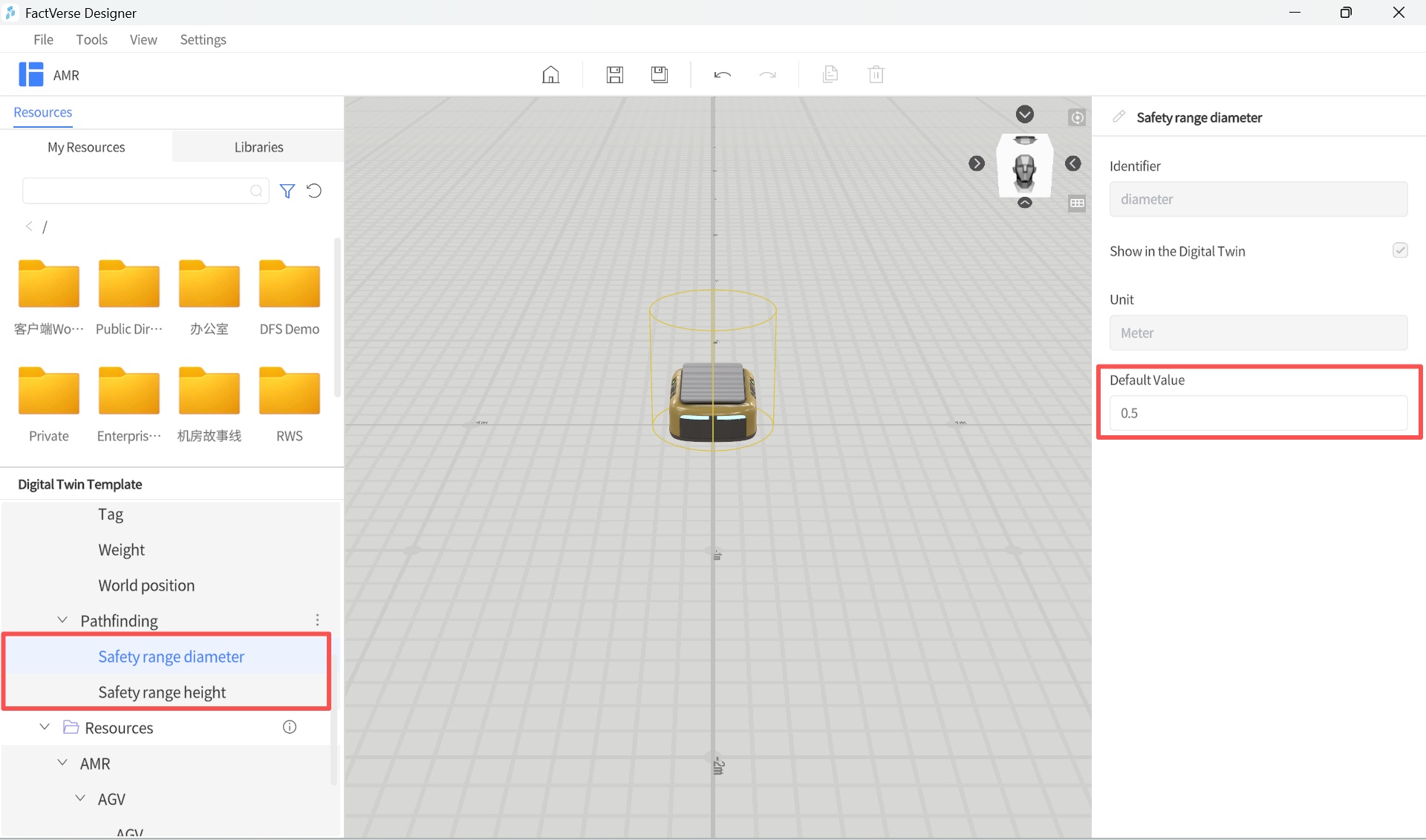
Attribute Name | Type | Default | Editable | Visible |
Safety Range Diameter | double | 0.5 m | Yes | Yes |
Safety Range Height | double | 0.5 m | Yes | Yes |
- Configure Behavior Tree Node:
a) Create a new behavior tree and add a Pathfinding node in the Behavior Tree Editor.
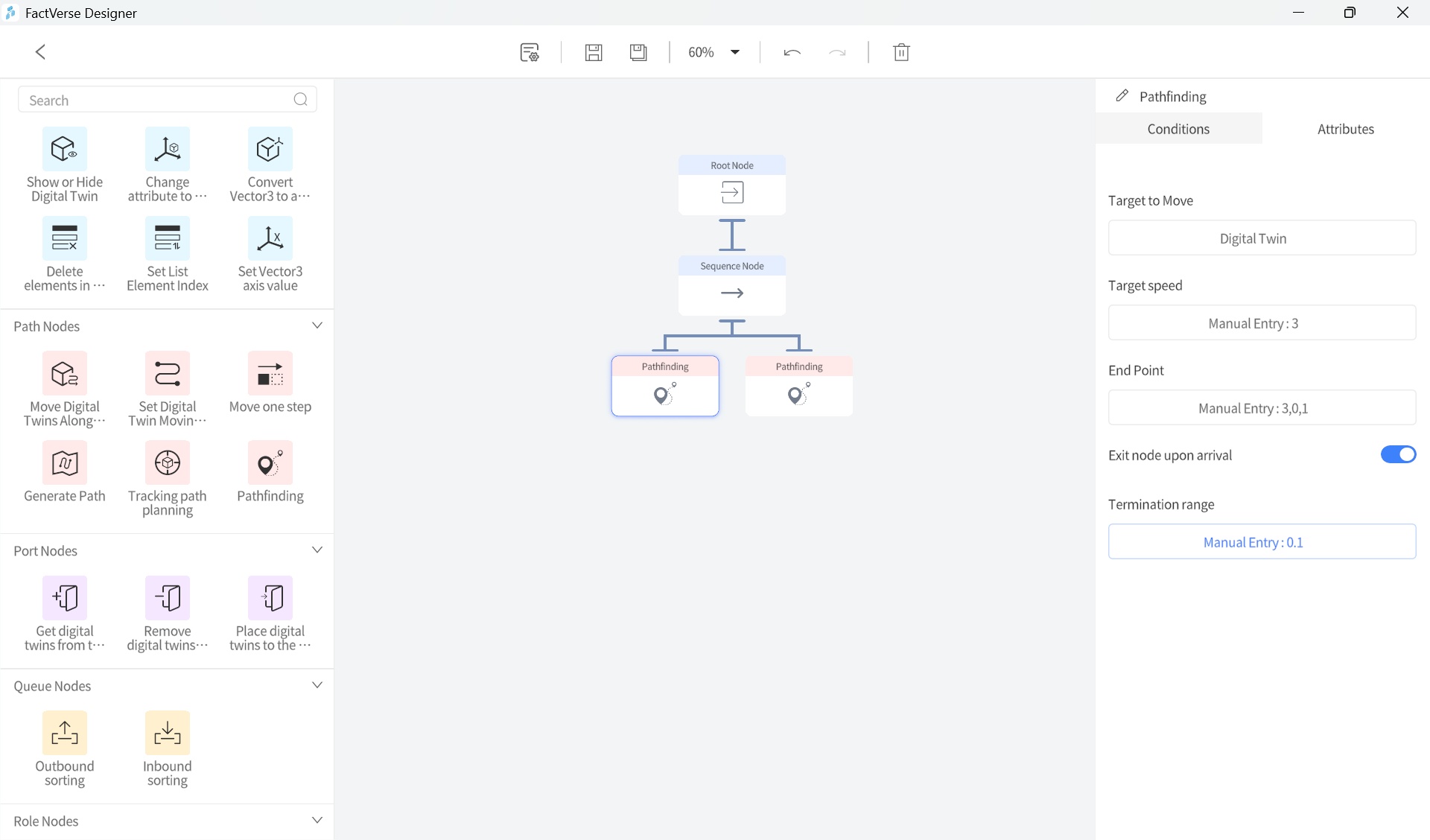
b) Configure the node’s attributes:
Setting | Description |
Target to Move | Select the digital twin that will run pathfinding |
Target Speed | Maximum movement speed (excluding acceleration/deceleration) |
End Point | Set the endpoint (supports digital twins, ports, or manual entry) |
Exit Node upon Arrival | Whether to automatically exit this node after reaching the endpoint: |
Termination Range | Distance threshold to consider the endpoint reached (unit: meters) |
- Save Template: Click Save to store the template and exit the Template Editor.
- Configure Pathfinding Environment in the Scene:
a) Add a ground model and enable Collidable.
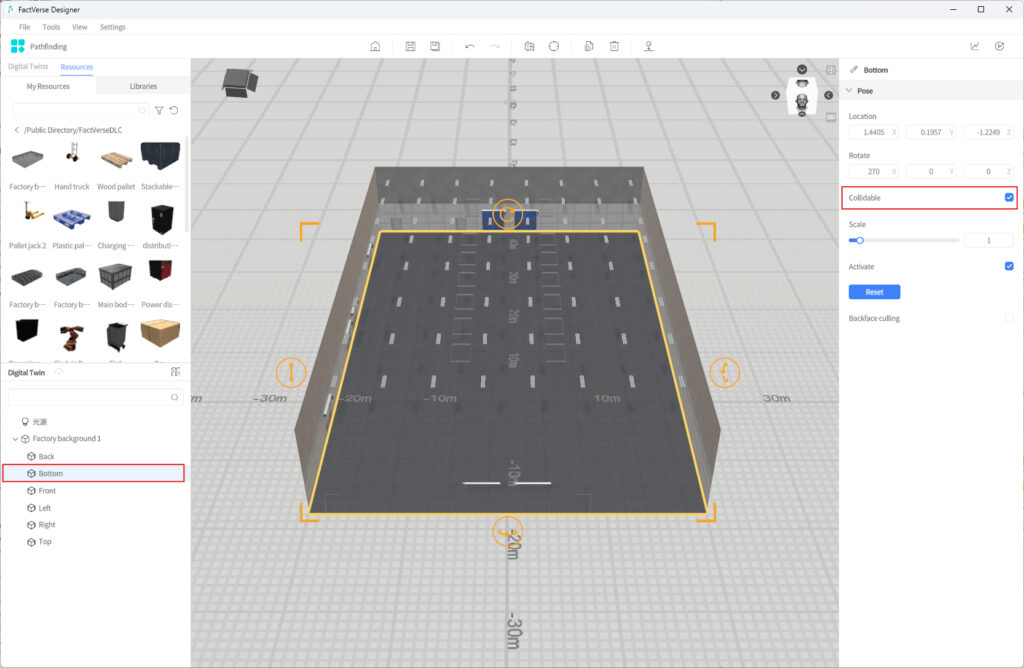
b) Place digital twins with Pathfinding into the scene.
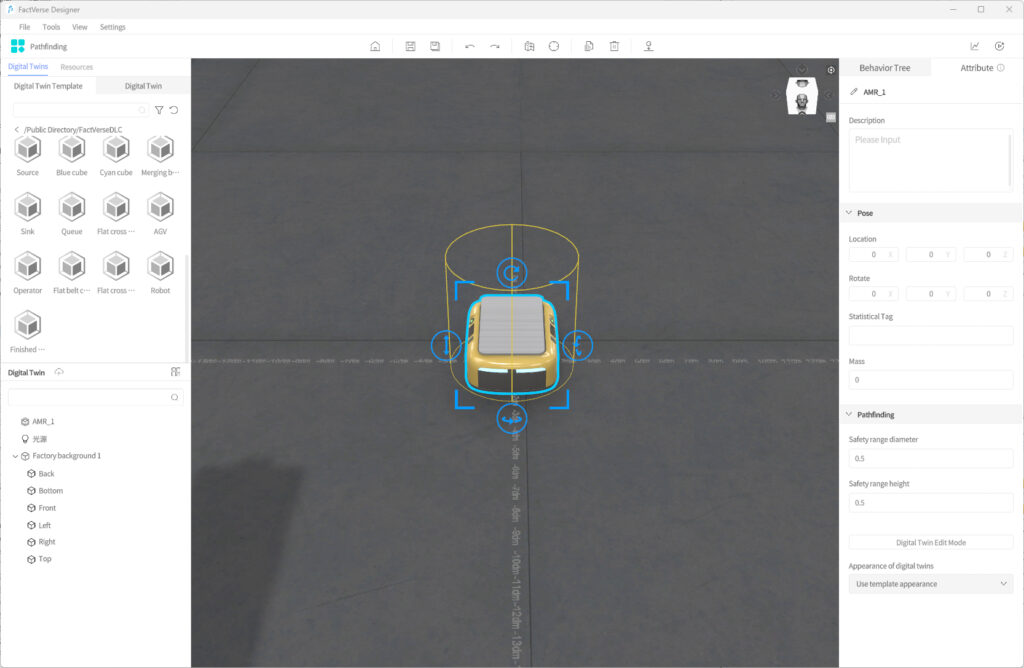
c) Add any obstacles and enable Collidable.
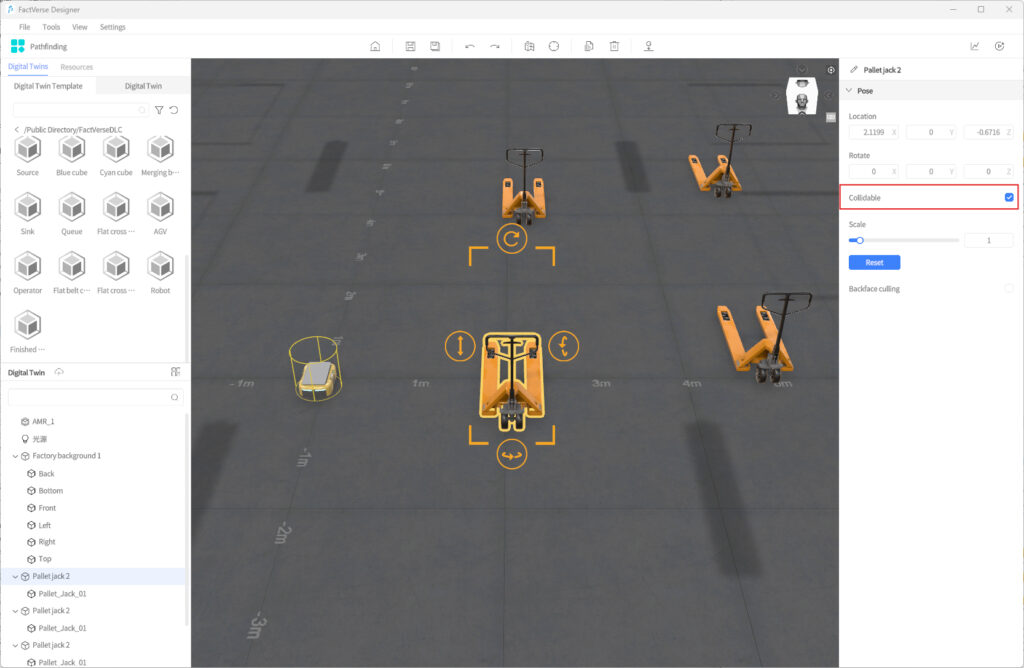
- Generate Pathfinding Surface:
a) Configure the offset distance in Scene Properties.
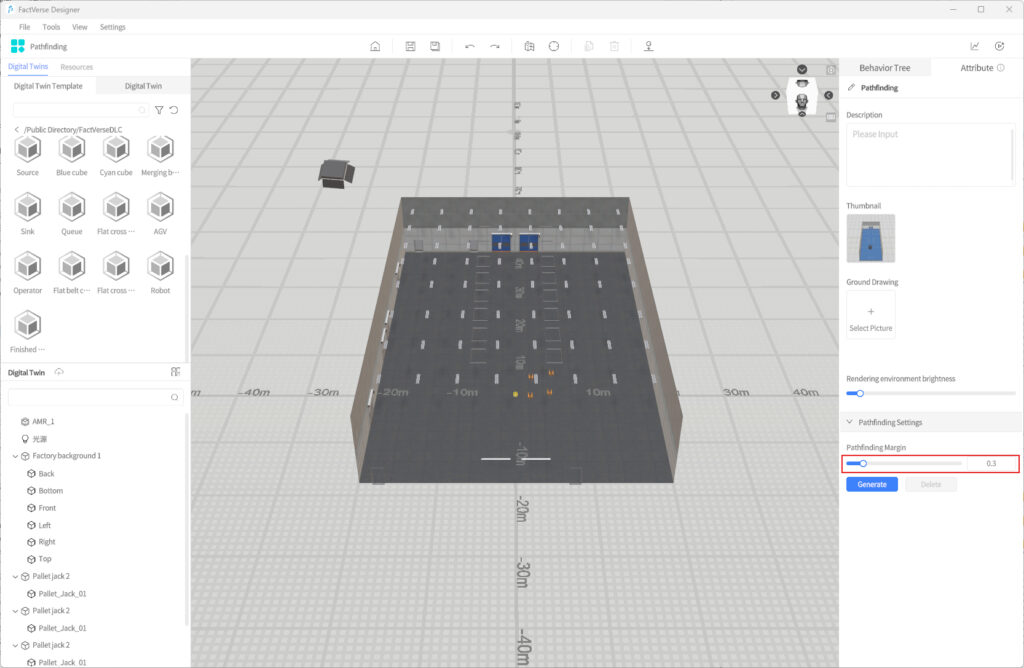
b) Click Generate to create the navigable area.
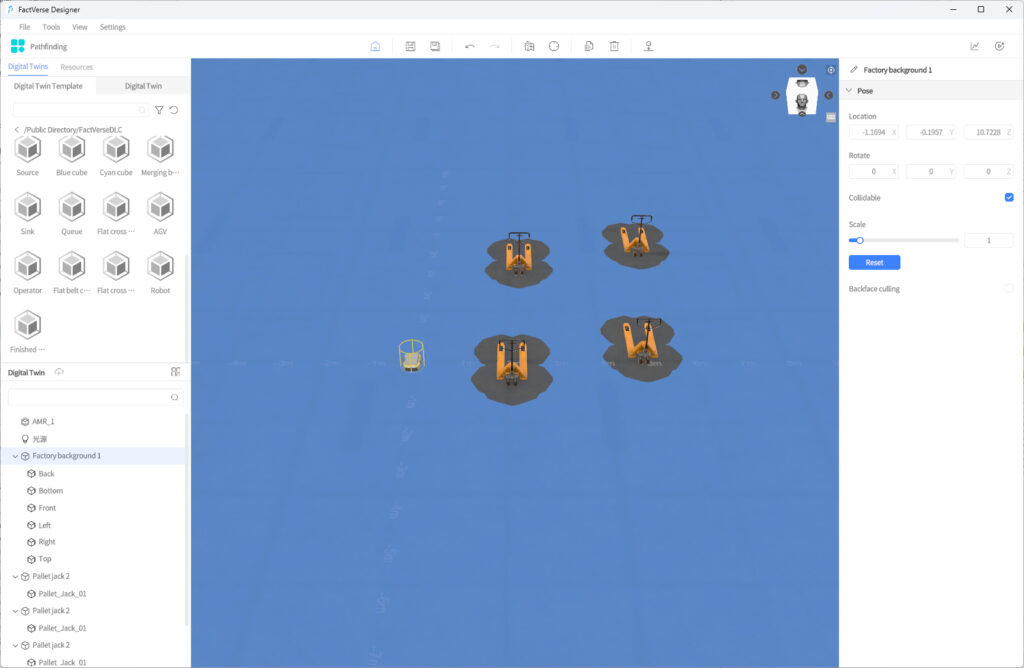
- Validate Pathfinding:
a) Generate and upload simulation records.
b) Review simulation paths.
c) Adjust parameters based on the results and optimize if needed.
Simulation Review and Data Analysis
In Designer, you can use Simulation Review together with the DFS Dashboard feature to collect and analyze simulation data of equipment under different operating conditions. Through 3D scene playback and multi-dimensional data visualization, you can better understand simulation processes, evaluate performance, and guide further optimization.
⚠️ Note: This feature is currently supported only on Windows systems.
Objectives supported by this feature:
- Collect operating parameters (e.g., speed, temperature, pressure), production progress (e.g., completed quantity, production time), and fault data.
- Generate visual charts to clearly present simulation results.
- Optimize parameter configuration based on analysis results to continuously improve process design.
- Improve equipment efficiency and resource utilization, reduce production costs, and enhance quality and delivery capability.
Basic Workflow
The complete workflow of simulation review and analysis consists of three stages:
- Build the scene: Construct a scene containing key logic such as collision detection, pathfinding, or production processes.
- Generate and upload simulation records: During simulation runs, generate simulation data and upload the records to the DFS platform.
- Conduct simulation analysis: In the Simulation Review interface, work with the DFS dashboard to:
- View multi-dimensional data charts.
- Replay 3D simulation processes to understand equipment behavior.
- Check the Collision Analysis Table to identify risk events.
- Visualize paths to optimize scheduling and layout.
- Generate a simulation analysis report via the AI analysis assistant
Generate and Upload Simulation Records
Simulation records preserve simulation run results and provide the basis for later analysis.
Steps:
- Open the target scene: Open the scene in which you want to generate a simulation record.
- Generate the simulation record:
a) Click the Generate Simulation Record button in the toolbar.
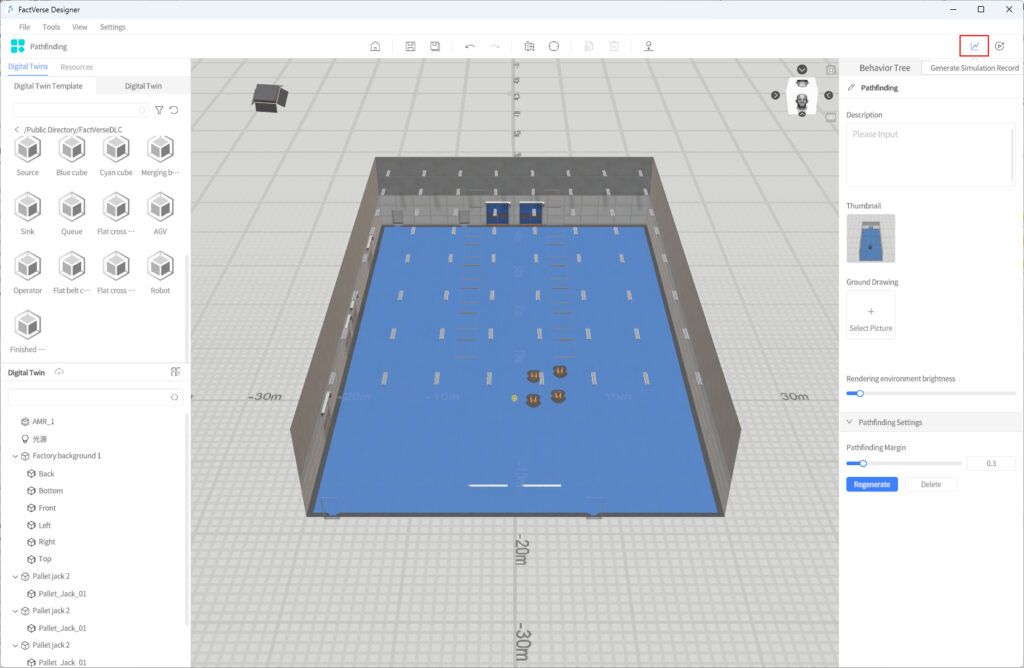
b) In the Generate Simulation Record window, configure the following:
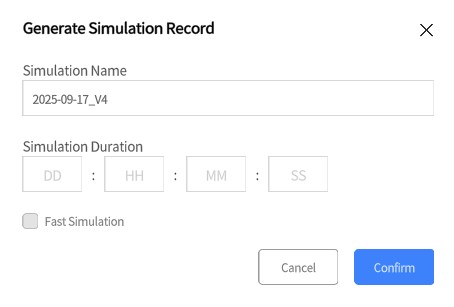
- Simulation Name: Default format YYYY-MM-DD_V1.
- Simulation Duration: Format DD:HH:MM:SS, max value 99 per field, integers only.
- Fast Simulation:
- If checked, Simulation Duration is required. The system will generate results quickly.
- If unchecked, Simulation Duration is optional. The system will run in real time (1× speed).
- Special case: For simulations involving collision or pathfinding, fast simulation cannot be selected. Duration may be left blank; the system defaults to 1× speed.
c) Click Confirm to start the simulation run.
(Tip: Close other large applications while running simulations for better performance)
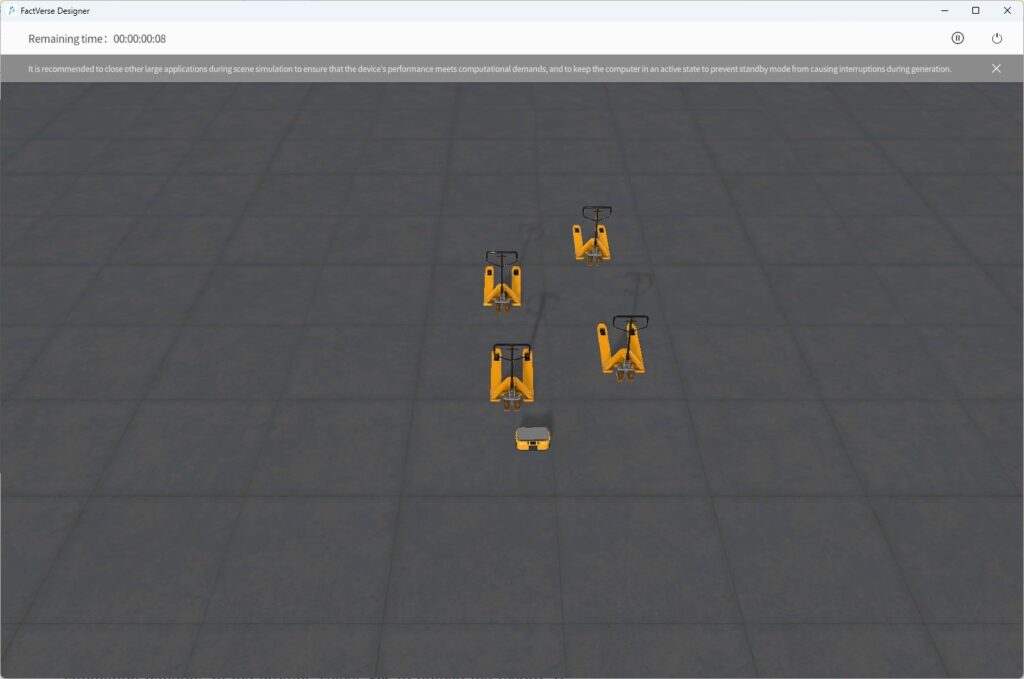
- Upload the simulation record:
- Auto upload: If a duration was set, the system automatically uploads the record after the run.
- Manual upload: If no duration was set, click the Exit button in the simulation window. In the prompt, select Yes to upload the record. If No is selected, after returning to the homepage you will see a reminder for unuploaded record. Click the reminder to upload.
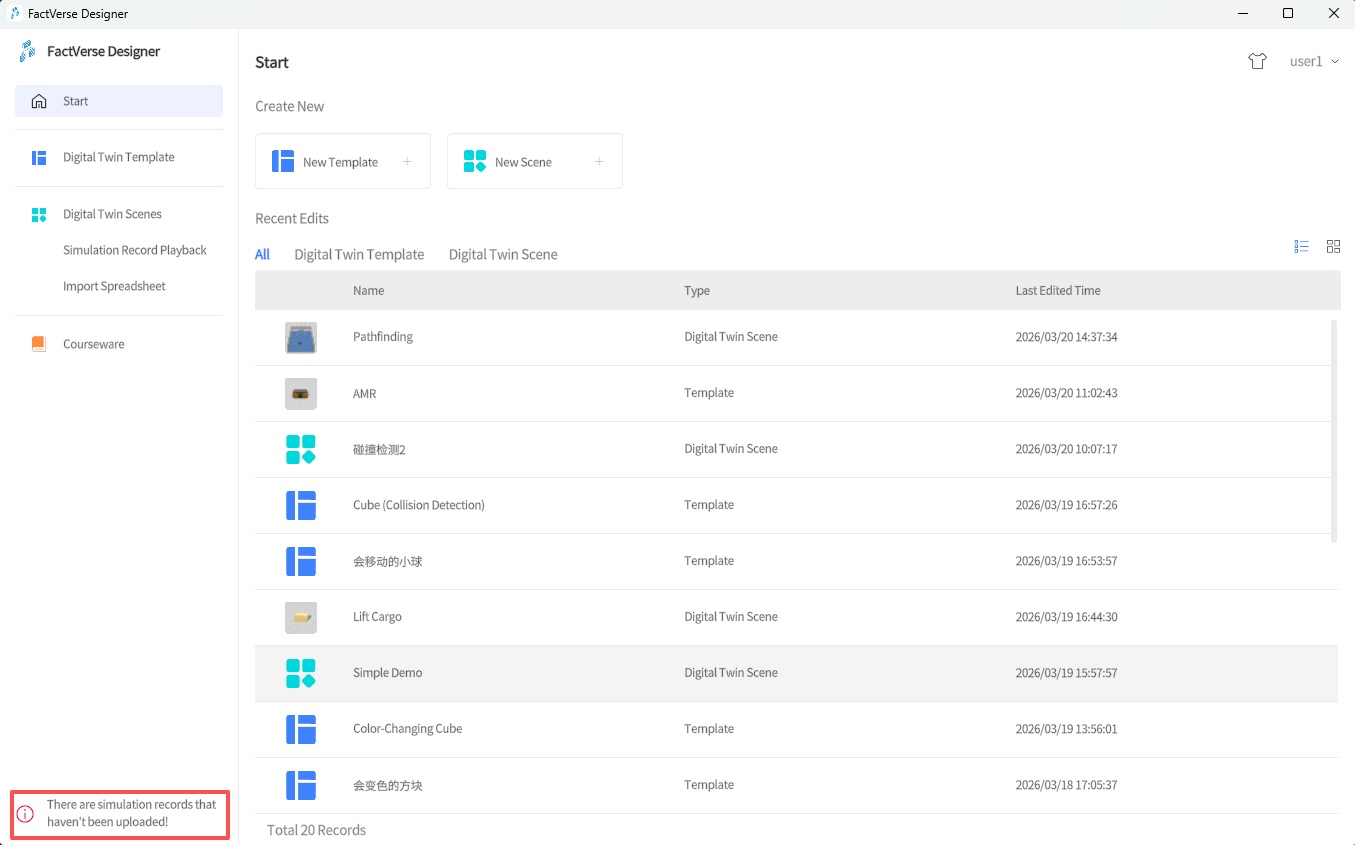
- Save location: Uploaded records are stored in DFS under the Designer_Scenes directory for the corresponding scene.
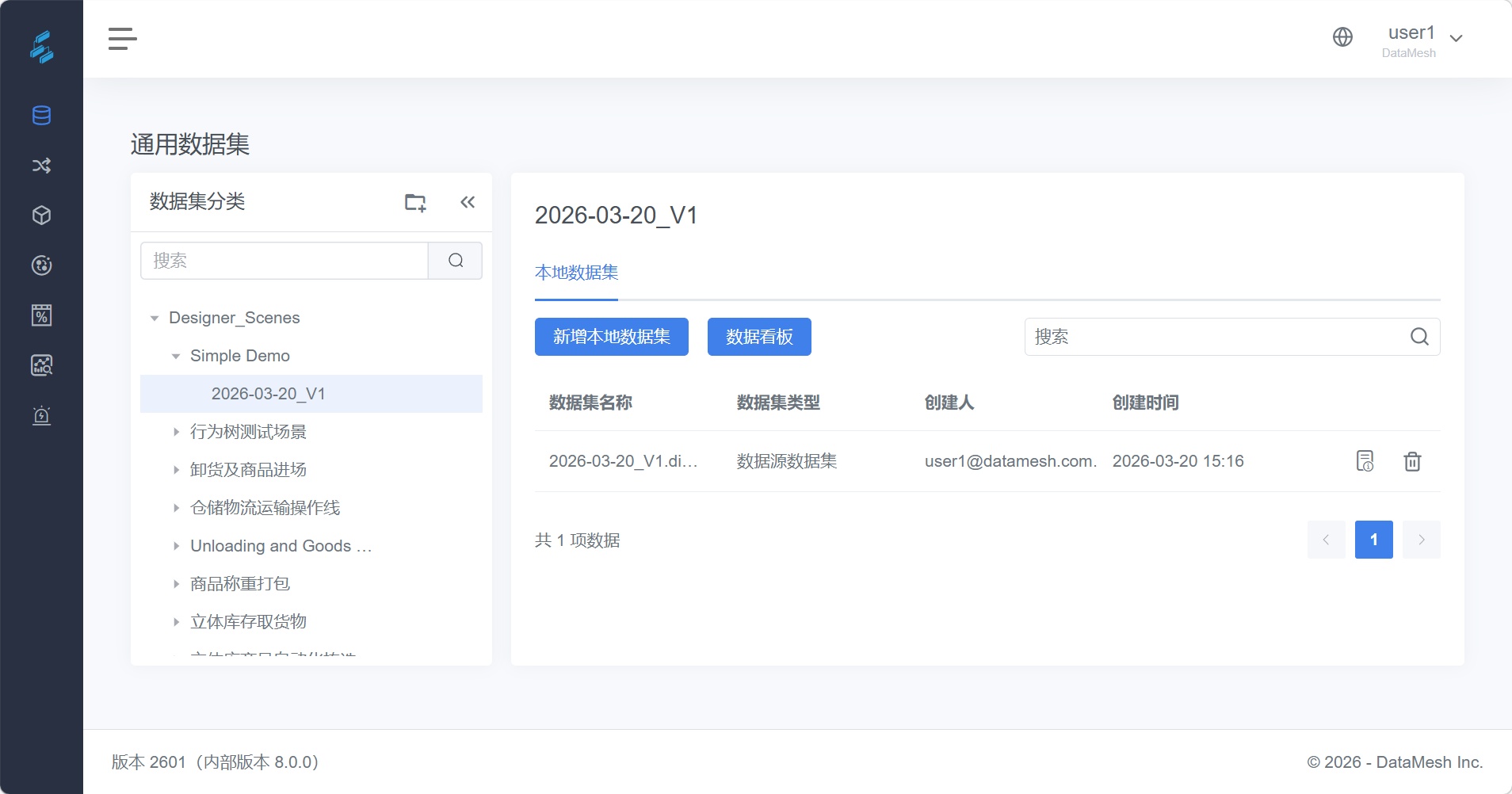
Notes (Insight edition subscription)
- Cloud Storage Limit for Simulation Records (50 records)
The Insight edition can store up to 50 simulation records, and this quota is shared by all users within the enterprise. If the limit is reached, no new records can be uploaded. Please go to the FactVerse platform to delete unneeded old records and try again.
Note: Please avoid accidentally deleting important records belonging to others.
- Single Data Analysis Limit (1,000,000 records)
If the amount of data generated during the process exceeds the single-run processing limit of the Insight subscription, the system will automatically pause and prompt you to choose: upload the partially generated results, or abandon the current simulation.
For higher capacity and larger single-run data processing, please contact DataMesh for private deployment solutions.
Simulation Review Interface
You can enter the Simulation Review interface in two ways:
Method 1: Directly after upload
- In the completion prompt after uploading, click OK. The system automatically opens the DFS page.
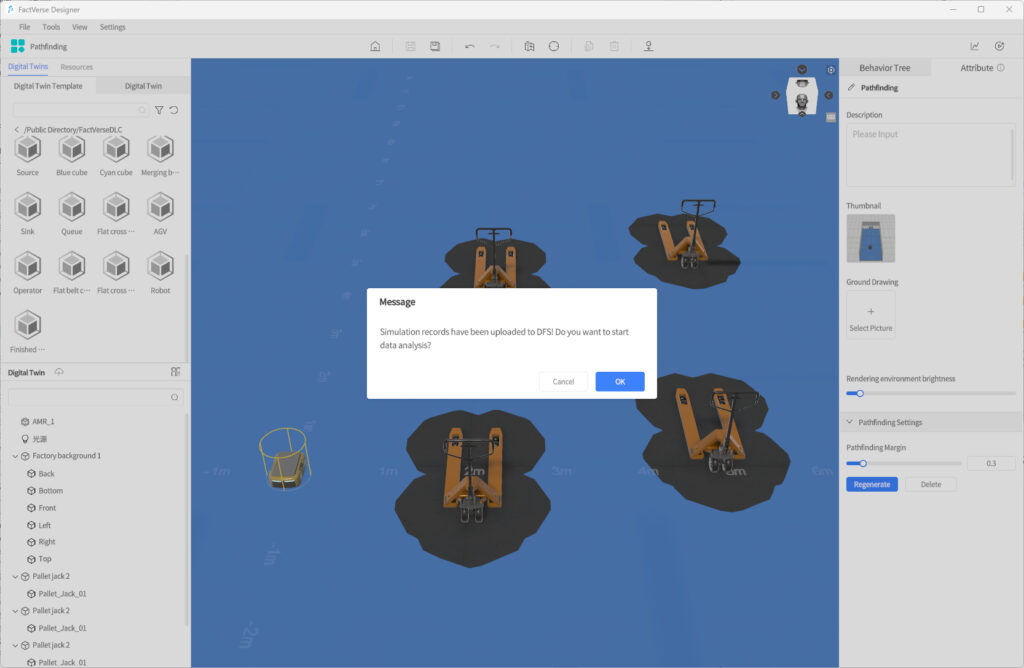
- The DFS page appears as a floating window above the Designer scene, maximized by default.
- If the scene has no dashboard configured: The page defaults to the newly uploaded dataset.
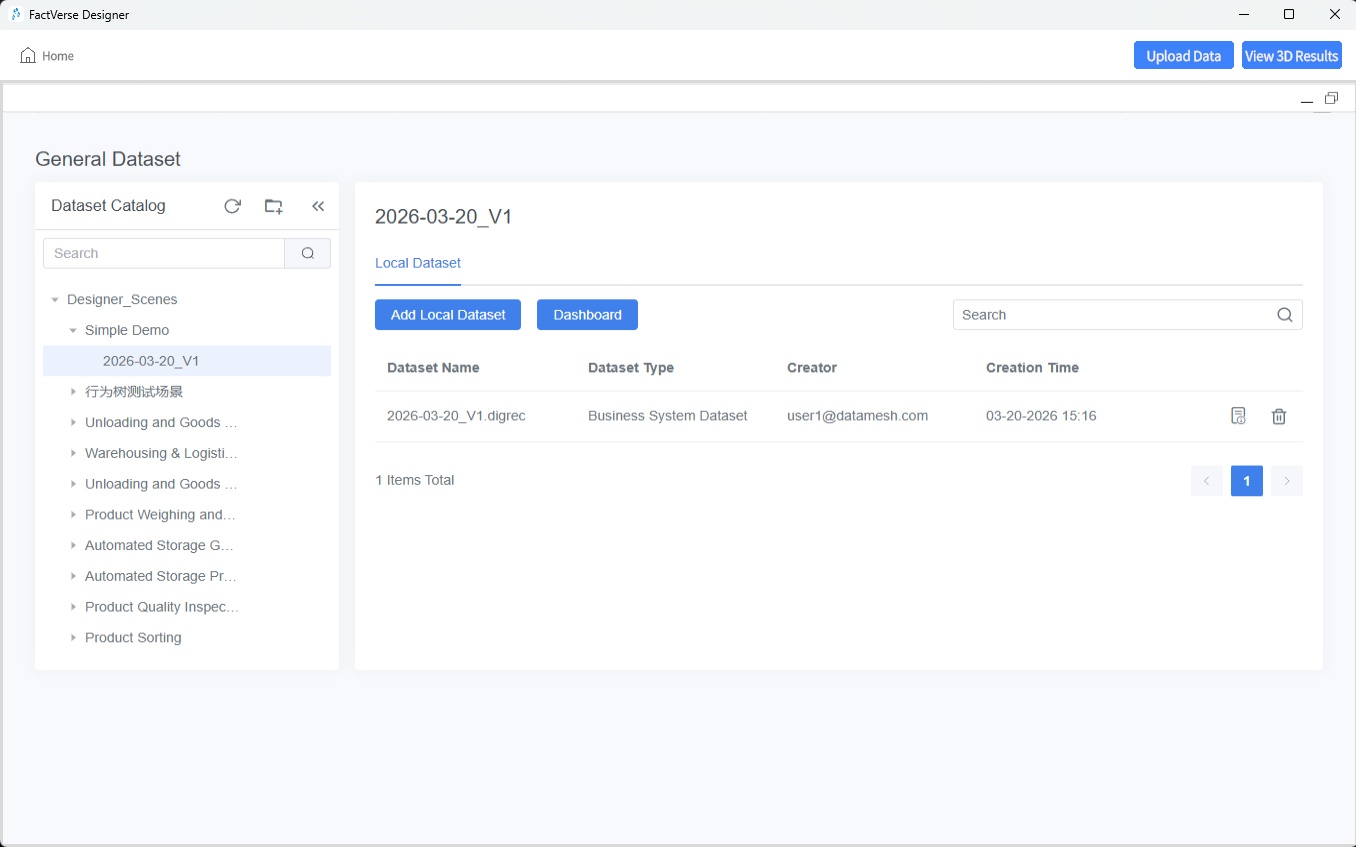
- If the scene has a dashboard configured: The page opens directly to the dataset’s dashboard.
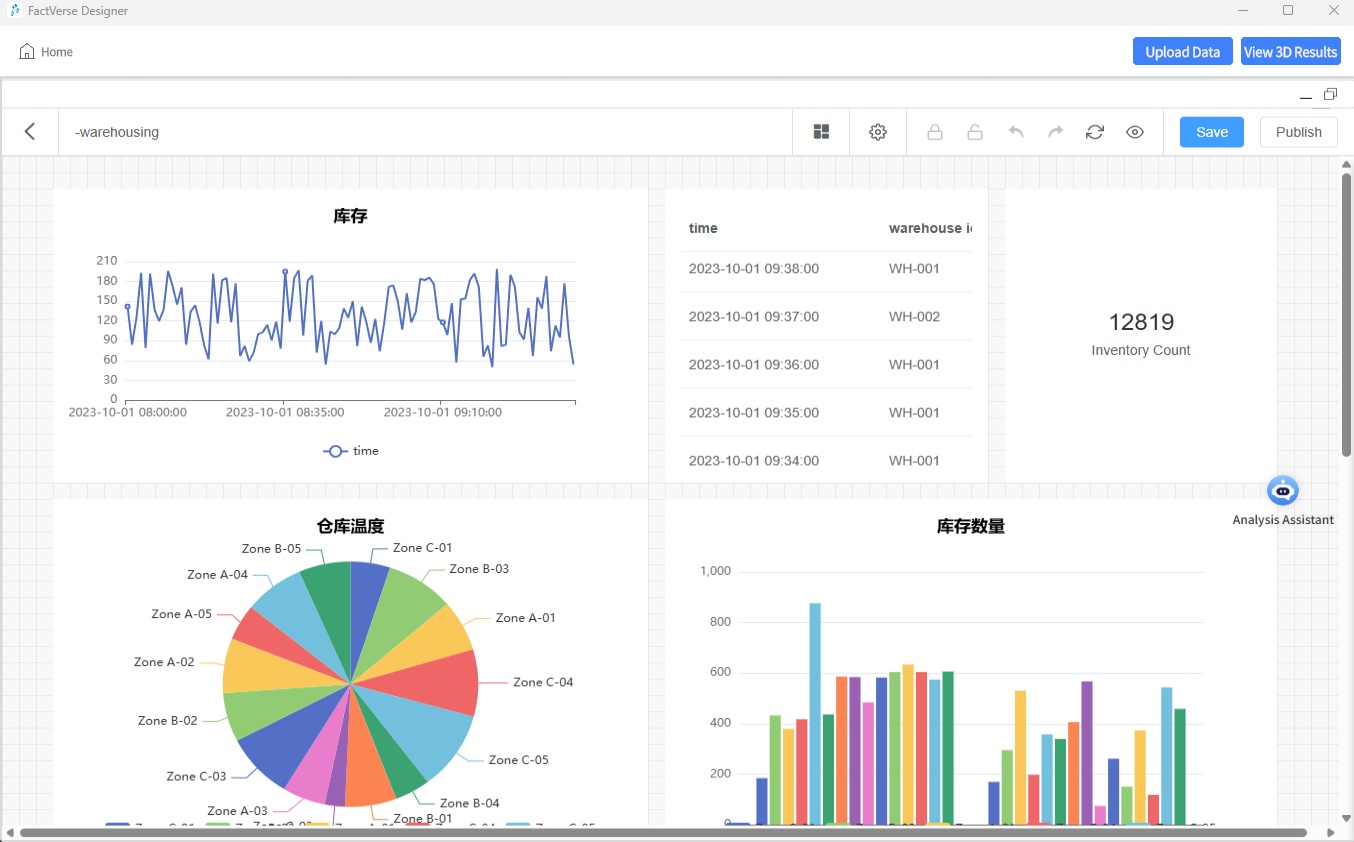
Method 2: From the homepage
- On the homepage, click the Simulation Record Playback button to open the DFS dataset page.
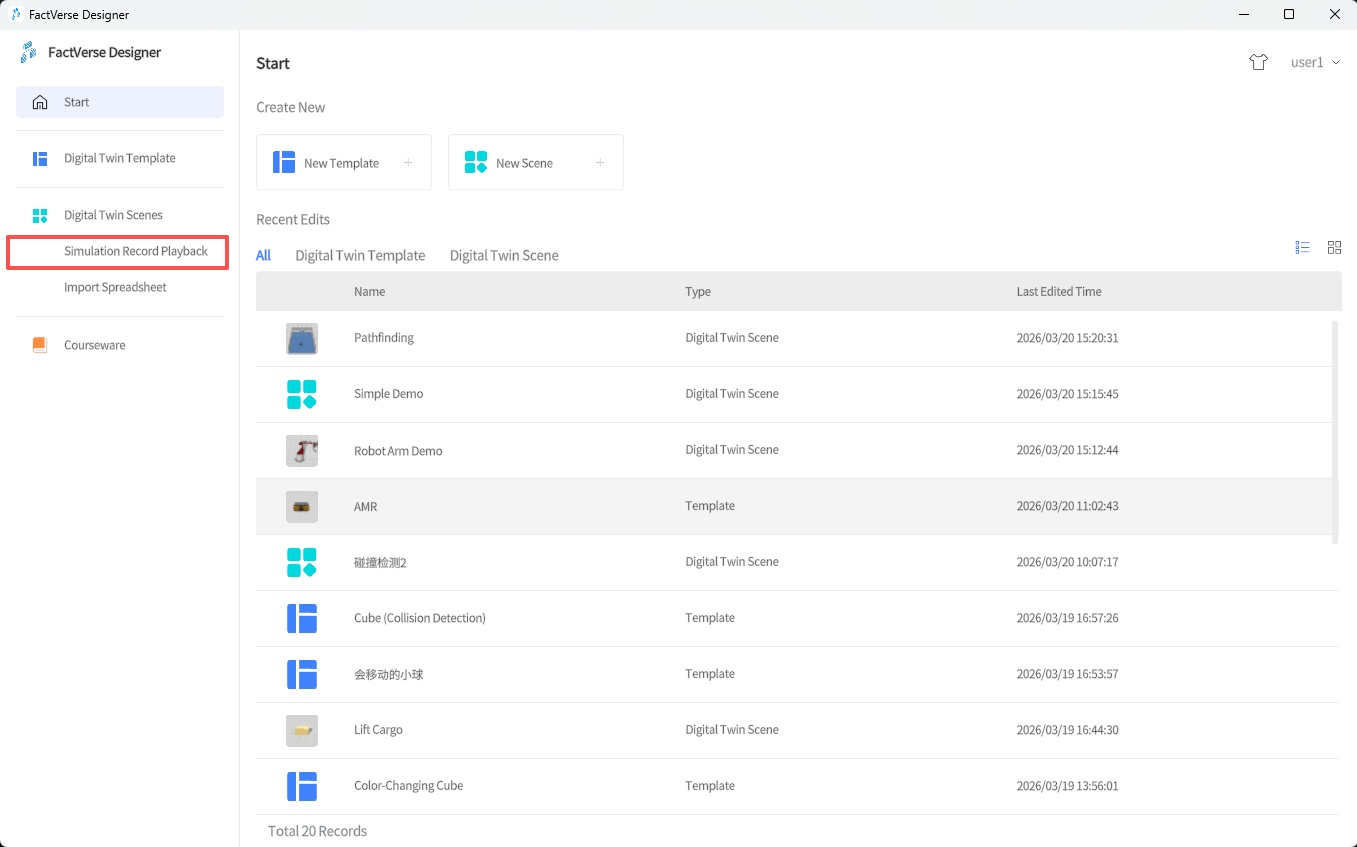
- Select a dataset to enter Simulation Review and perform actions such as viewing charts, dashboards, and 3D record playback.
View Data Analysis Charts
Charts provide an intuitive way to analyze simulation performance, identify bottlenecks, and find optimization opportunities.
Steps:
- Enter the Simulation Review interface.
- In the DFS window:
a) Click the target dataset to open its data page.
b) Configure and view generated charts and analysis results.
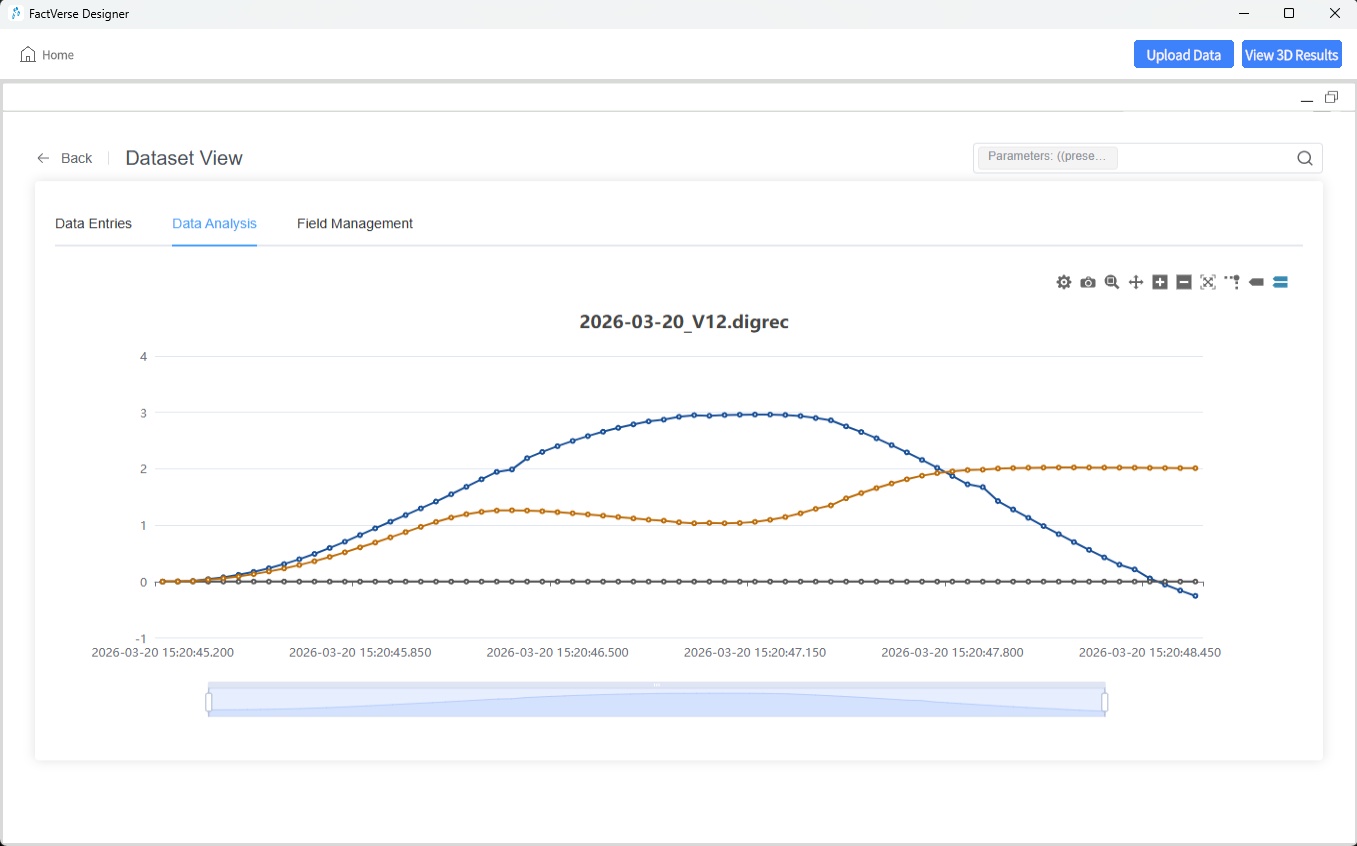
For details, see DataMesh FactVerse DFS User Manual → Dataset View.
Replay 3D Simulation Records
The replay function allows you to review the complete 3D simulation process for analysis and troubleshooting.
Steps
- Open the Simulation Review
- Click View 3D Results to load and replay the simulation record of the dataset.
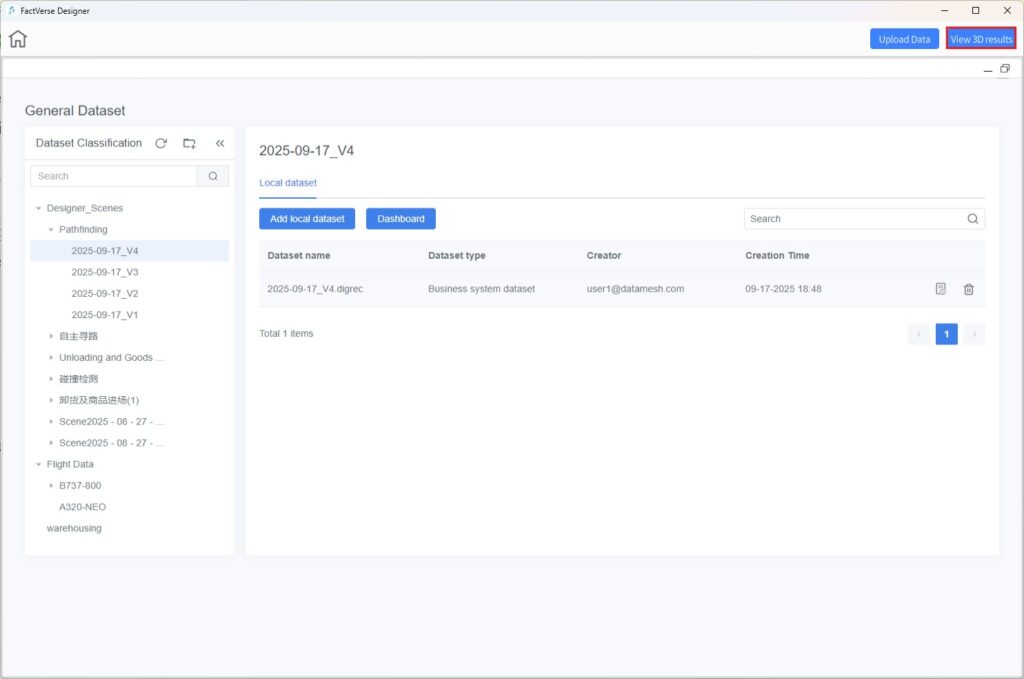
- Minimize the DFS window. The corresponding 3D simulation data will appear in the Designer
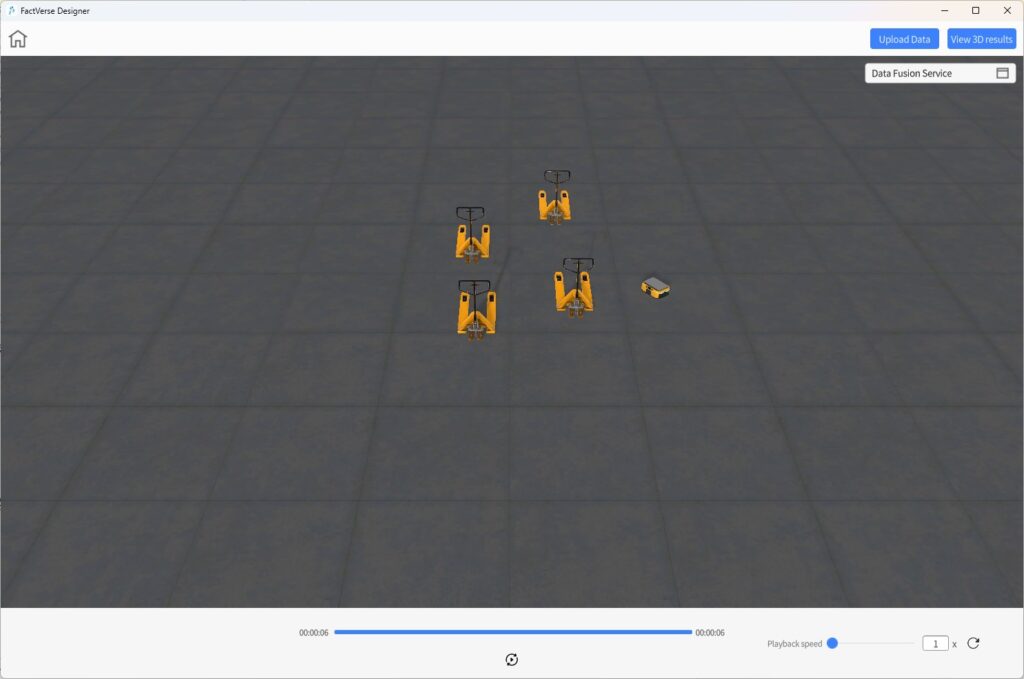
- Use the playback controls:
- Play
 / Pause
- Replay

- Speed: Up to 20× speed playback.
- Play
Dragging the progress bar or skipping to a specific time is not supported.
- Click on Data Fusion Services to reopen the DFS window for further data analysis or to switch datasets.
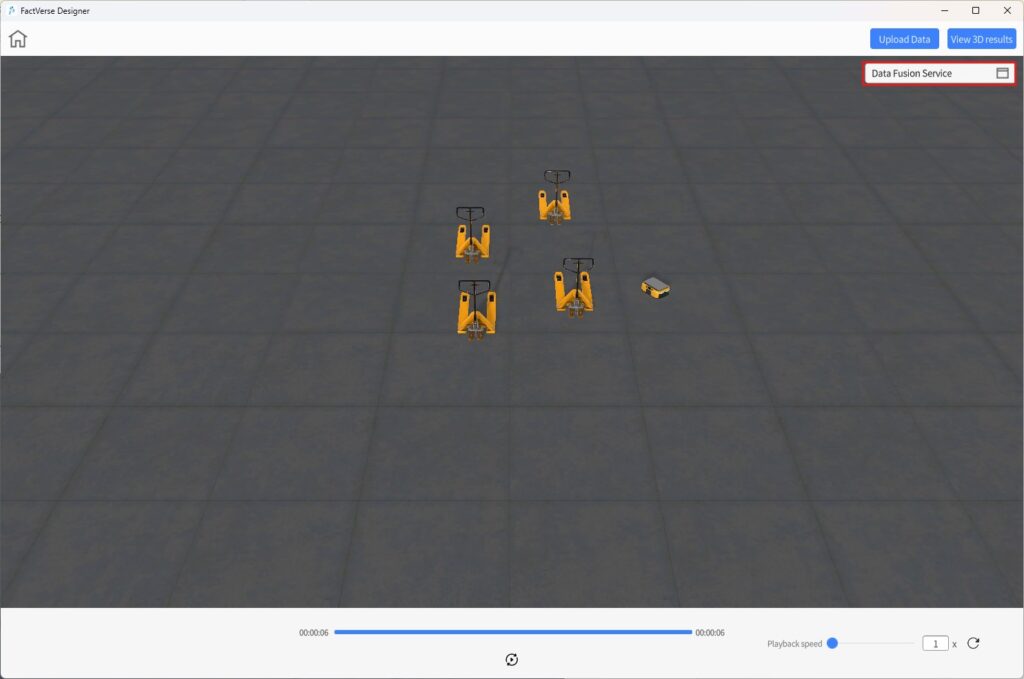
View Dashboards
Collision Analysis Table
The collision analysis table provides a quick overview of all collision events during the simulation. It helps users reproduce issues, optimize equipment layout, and refine motion paths.
Steps
- Open the Simulation Review interface.
- Configure the collision detection dashboard: In the DFS window, select the target dataset, configure the dashboard, and add the Collision Detection component. (See DFS User Manual → Configure Dashboard Components → Collision Detection.)
- View the Collision Analysis Table.
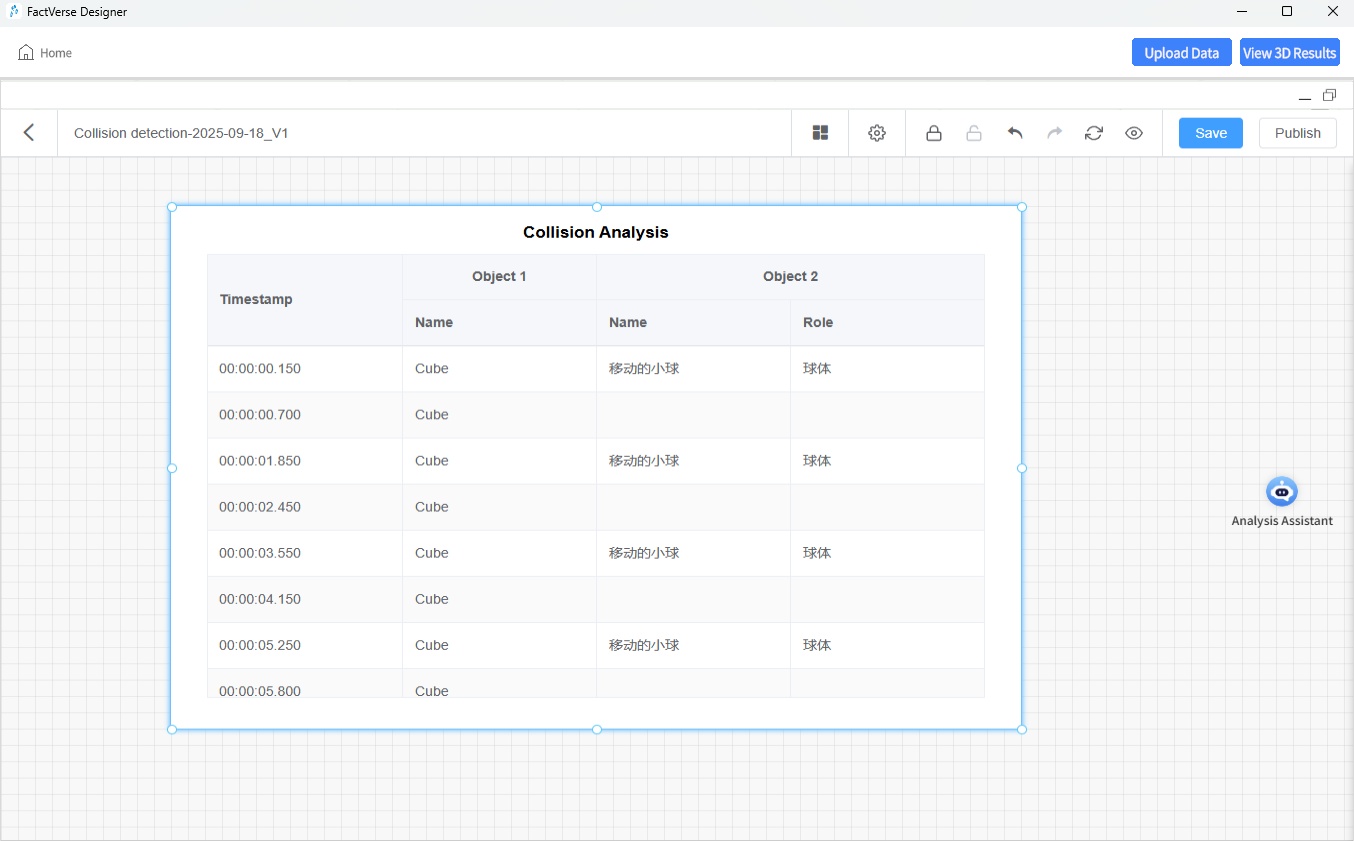
Table Description
The table records all collision events during the simulation, allowing quick identification of the time, objects, and roles involved.
| Timestamp (DD:HH:MM:SS) | Object 1 | Object 2 | Role of Object 2 |
| Specific time of collision | Name of the first colliding digital twin or model | Name of the second colliding object | Role of the object involved in the collisio |
Simulation Path Visualization
The simulation path visualization displays the full trajectories of moving equipment in the 3D scene. It helps users:
- Evaluate the efficiency and rationality of motion paths
- Identify potential areas for optimization
- Predict risks of collisions or congestion in advance
- Develop better scheduling strategies
Steps
- Open the Simulation Review interface.
- Configure the path analysis dashboard: In the DFS window, select the target dataset, configure the dashboard, and add the Path Analysis component. (See DFS User Manual → Configure Dashboard Components → Path Analysis.)
- In the Path Analysis Table, select the digital twins whose paths you want to display.
- Click 3D Scene View, minimize the DFS window, and view the overlaid paths in the scene.
Notes
- Paths are displayed as static trajectories: a complete track formed by connecting all recorded path points.
- Multiple paths can be displayed simultaneously for comparison and analysis.
Simulation Analysis Report
In the Simulation Record Playback data dashboard, you can invoke the AI Analysis Assistant to intelligently analyze the scene’s simulation results and generate an editable, downloadable simulation analysis report for result evaluation and presentation.
Generate Report
Designer supports automatic analysis of simulation results via the AI Analysis Assistant and generates a structured simulation analysis report.
Steps
- Enter simulation record playback: open the simulation record playback page for the target scene.
- Start AI Analysis Assistant: Click the Analysis Assistant in the data dashboard to open the AI Analysis Assistant window.
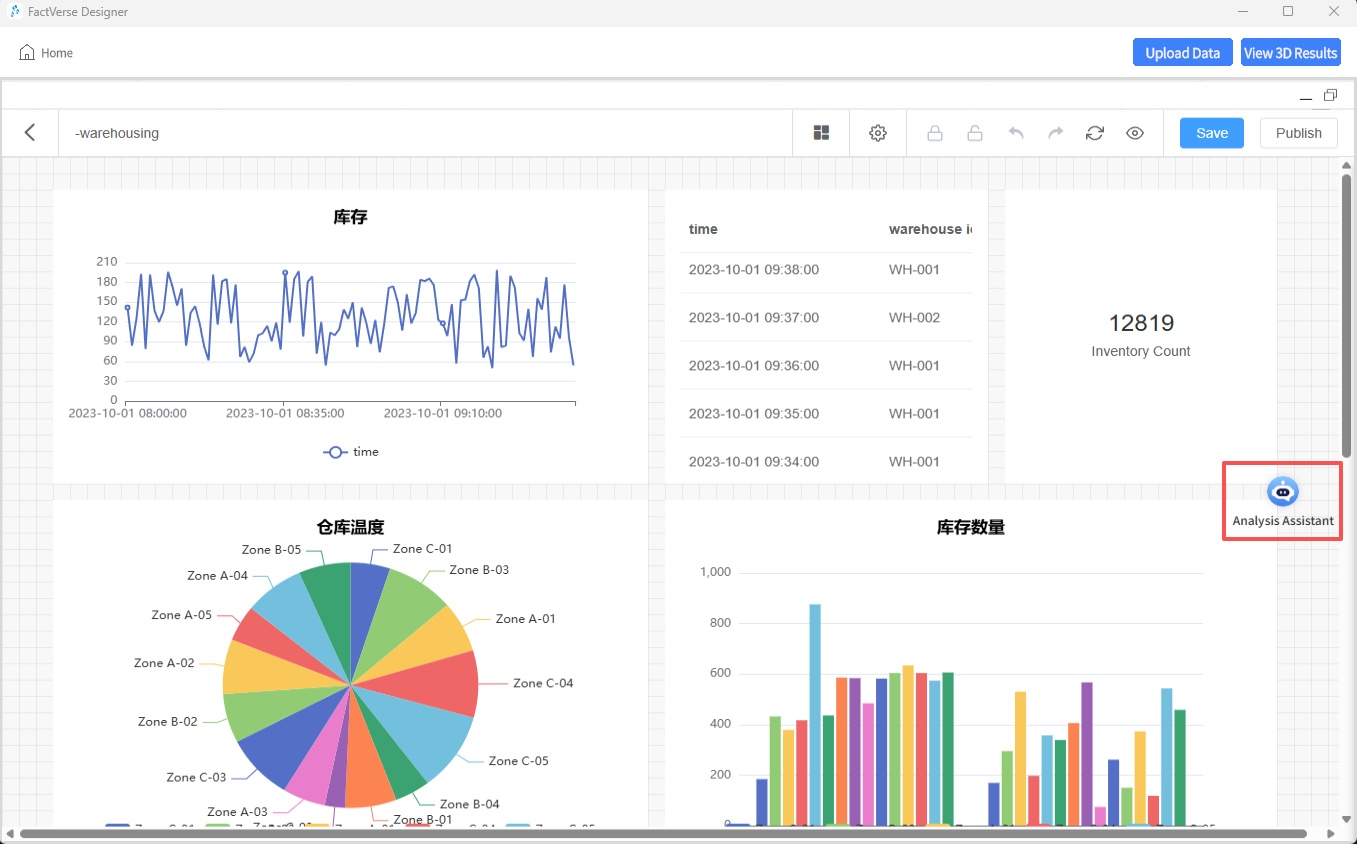
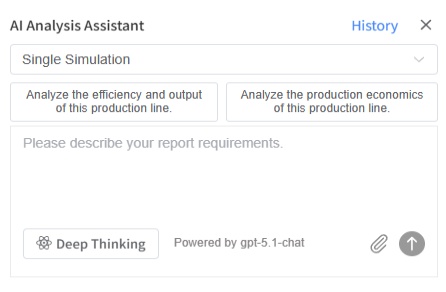
3. Configure Analysis Parameters
The following settings can be configured in the Analysis Assistant:
- History: View the most recent 10 analysis conversations; you can select a history item to continue the conversation.
- Analysis Type:
- Single Simulation Analysis
- Multiple Simulation Analyses (currently unavailable; supported in a future release)
- Deep Thinking: When enabled, a more in-depth analysis will be performed.
- Attachment Upload: Supports uploading PDF, DOC, XLSX, PPT, TXT, and other files, up to 5 files in total, with a combined size not exceeding 50 MB.
Note: The analysis model is configured by the administrator on the FactVerse platform. Currently, we support OpenAI and DeepSeek.
4. Generate analysis report
- Describe the analysis requirements in the input box and click Send.
- Or directly choose a system preset question (e.g., “Analyze the efficiency and output of this production line”, “Analyze the production economics of this production line”).
5. View and edit the report
The AI Analysis Assistant will automatically generate a structured draft analysis report, supporting:
- Manual content editing
- Continuing the conversation with the AI Analysis Assistant to supplement and optimize the report
- Download the report for the result presentation and analysis summary.
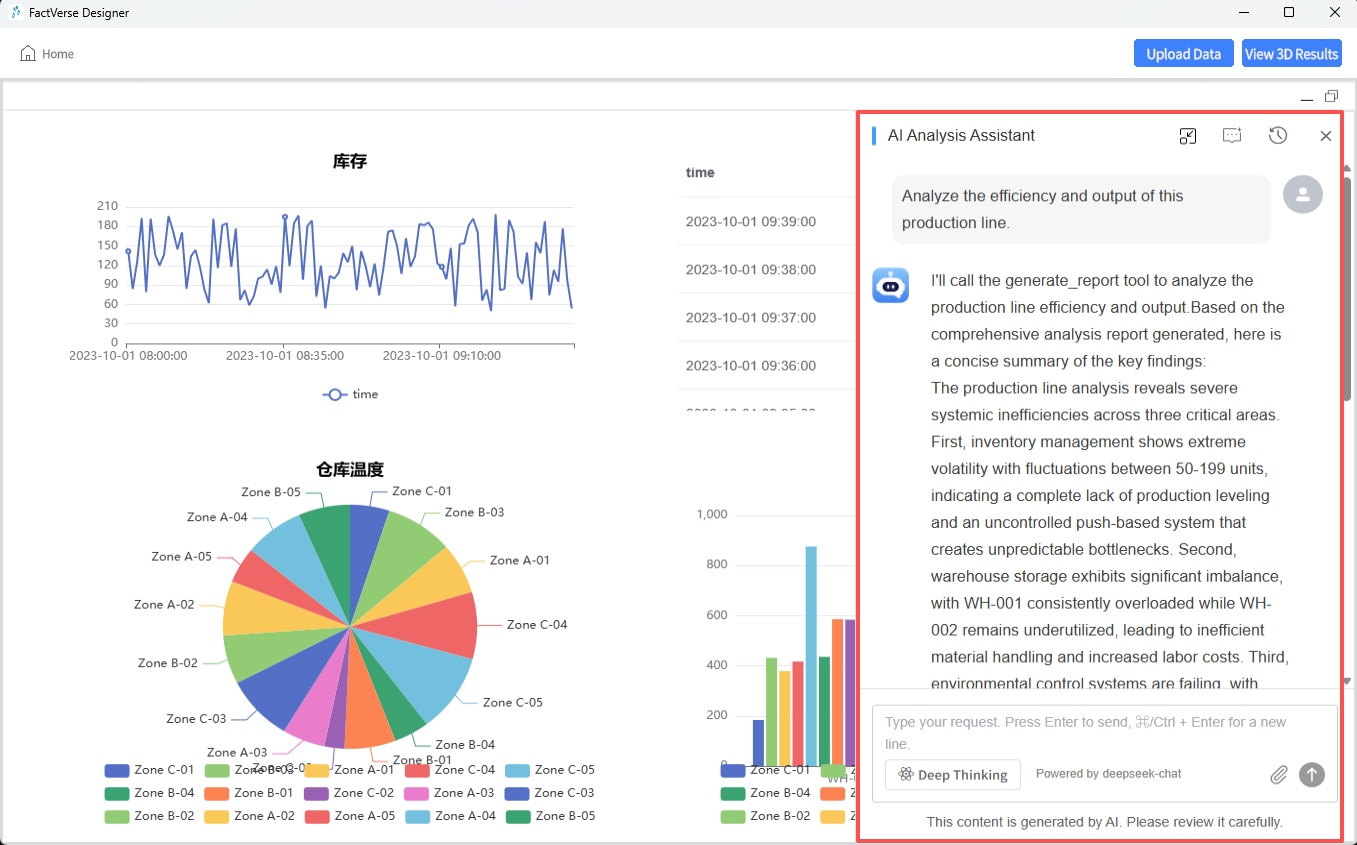
Preview report
After generating the report, you can preview its contents online. Click the Document Link in the conversation window to open the report preview. You can scroll to view the report content, with options to Download Report or Close Preview.
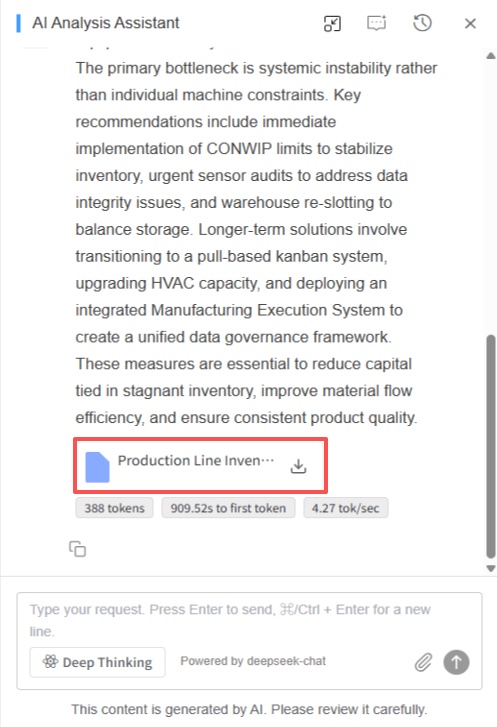
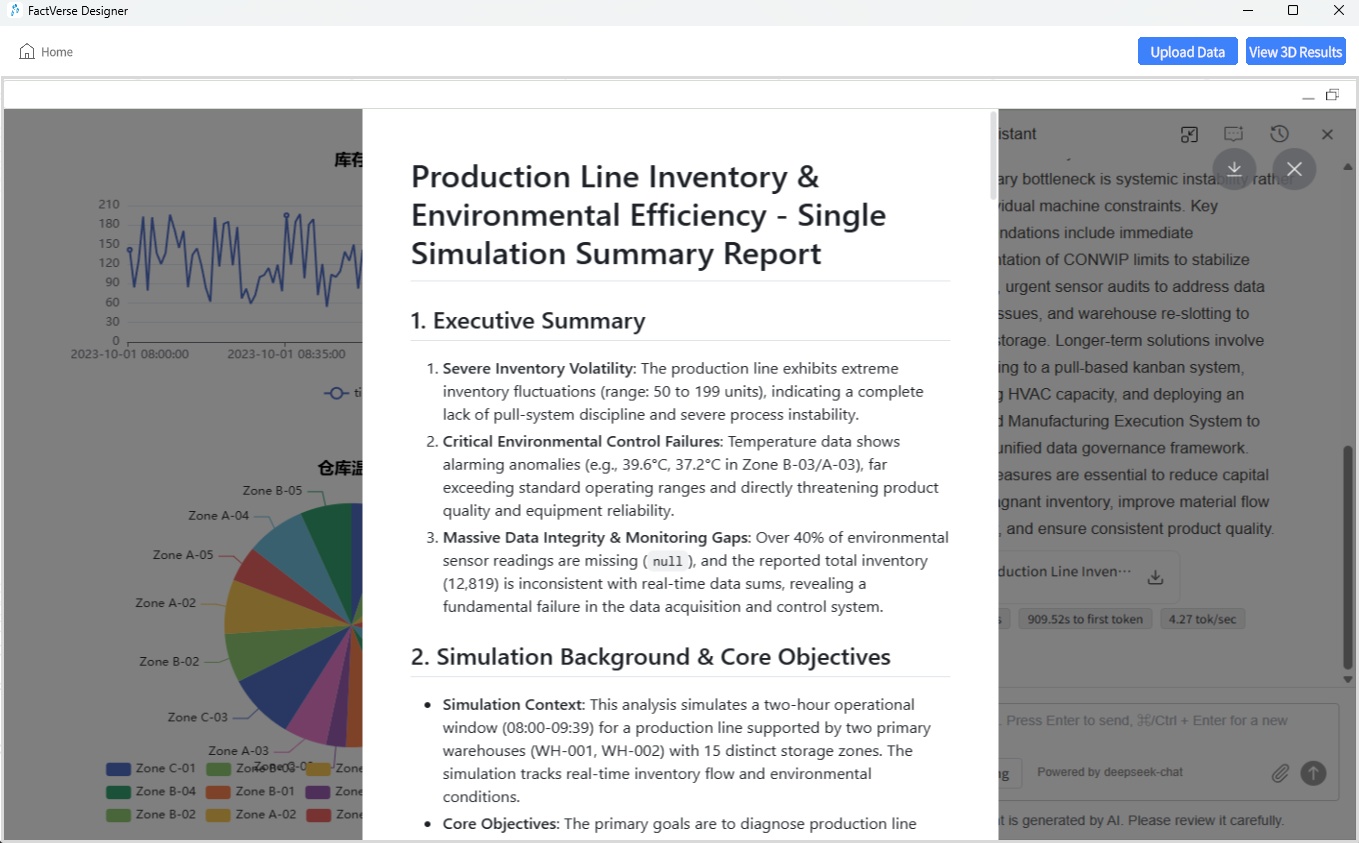
Download Report
- Click the Download Report button
 in the preview window or conversation window.
 - In the pop-up format selection window, choose the desired format.
- The AI Analysis Assistant will generate and download the report file in the selected format.
Scene Debugging and Testing
FactVerse Designer provides a Debug Playback mode for verifying scene logic, checking the execution of digital twin behavior trees, and supporting simulation data input and log output. This assists with development debugging and workflow optimization.
Debug Playback Interface
Click Debug Playback  on the Scene Editor toolbar to enter Debug Playback mode.
This mode allows you to run scene logic, debug behavior trees, send simulation data, and view real-time logs. It is designed for validating digital twin responses, behavior logic correctness, and interaction effects.
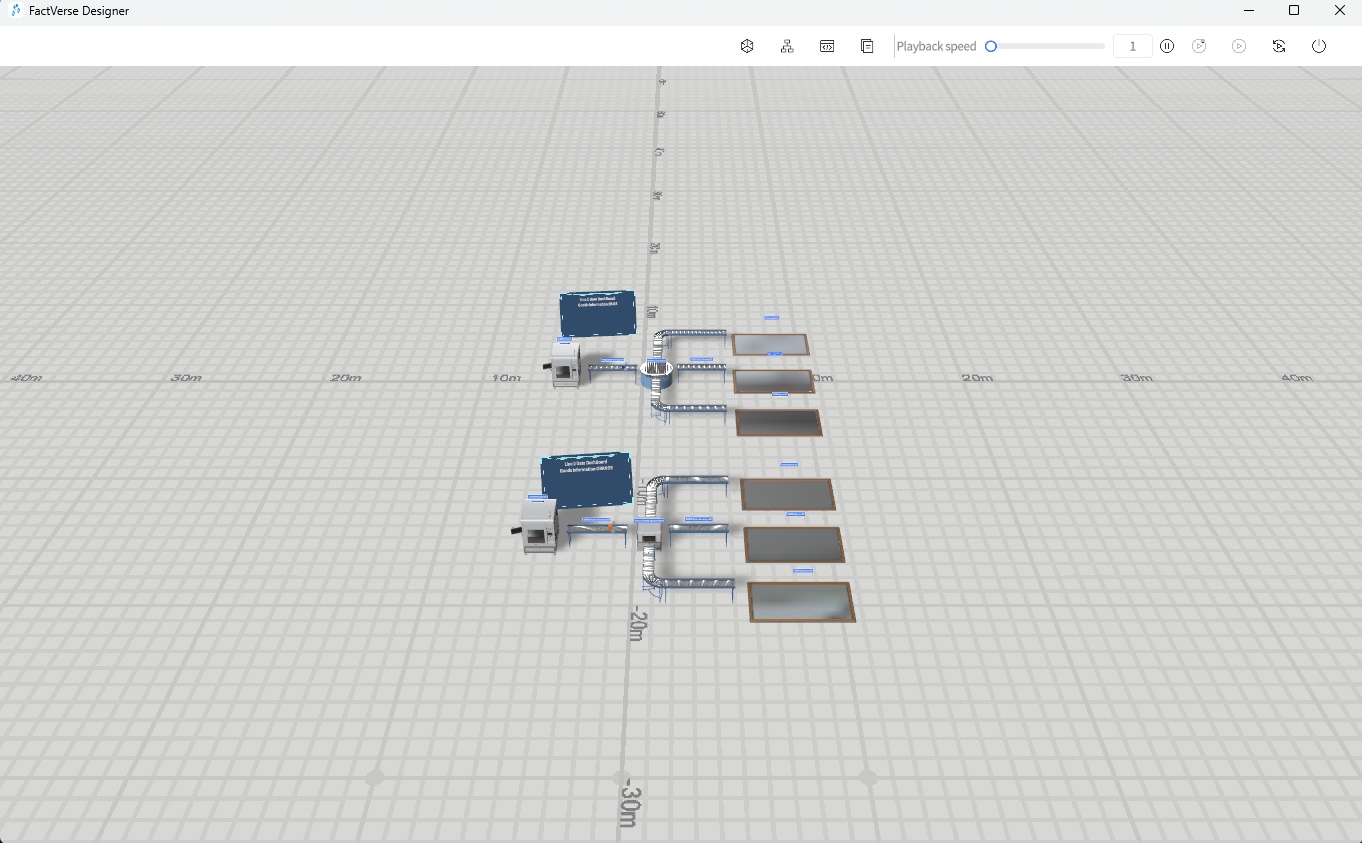
Toolbar Functions
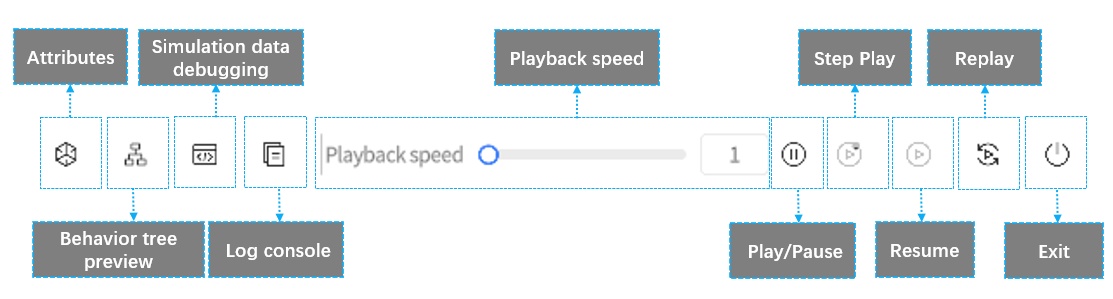
Button | Description |
Attributes | Displays attributes of the selected digital twin. Supports modifying values to verify data linkage. |
Behavior Tree Preview | Shows the execution state of the selected digital twin’s behavior tree. Supports adding breakpoints. |
Simulation Data Debugging | Opens the simulation data input panel. Allows manually pushing data to trigger twin behaviors. |
Log Console | Displays debug information output from the Log Record node in the behavior tree. |
Playback Speed | Sets scene playback speed (e.g., 1×, 2×). |
Play / Pause | Start or pause scene playback. |
Step Play | Execute one behavior tree node at a time for step-by-step debugging. |
Continue | Resume execution after a breakpoint until the next breakpoint or the end of the behavior tree. |
Replay | Reset scene state and restart execution. |
Exit | Exit Debug Playback mode and return to editing mode. |
Behavior Tree Breakpoint Debugging
You can set breakpoints on behavior trees to pause execution and check the current state. This helps locate logical errors or issues in condition evaluation.
Steps
- Enter Debug Mode: In the Scene Editor, click Debug Playback .
- Open Behavior Tree Panel: Select a digital twin and click Behavior Tree Preview
 to view its behavior tree.
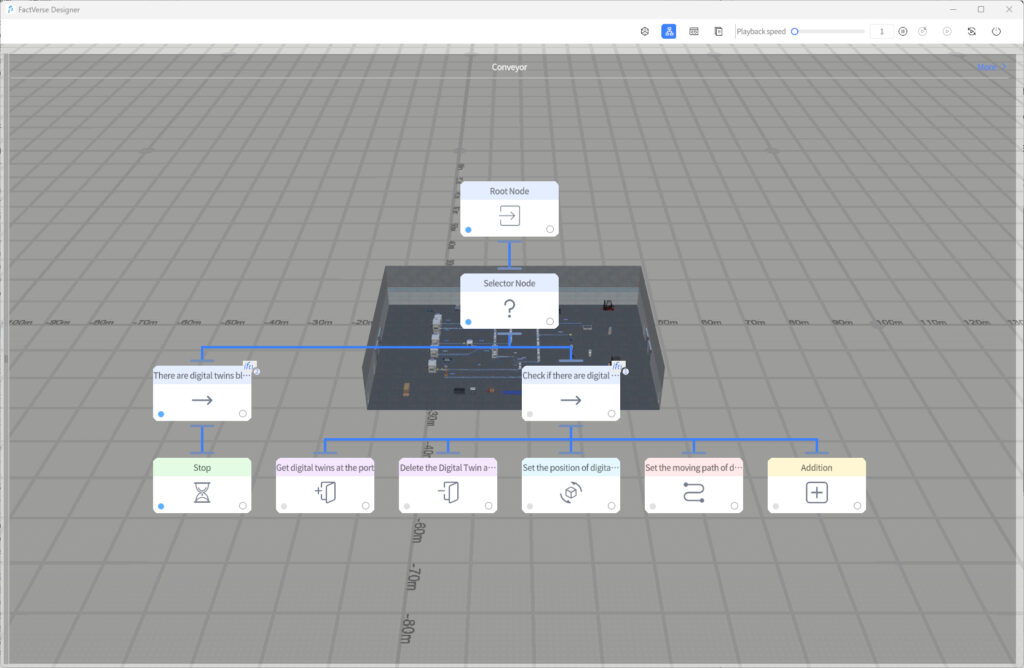
- Check Execution States:
- Blue
 : Node is currently executing
 - Gray
 : Node not yet executed
 - Green
 : Node executed successfully
 - Red
 : Node execution failed
- Blue
- Set Breakpoints: Click the bottom-right corner of a node to add a breakpoint.
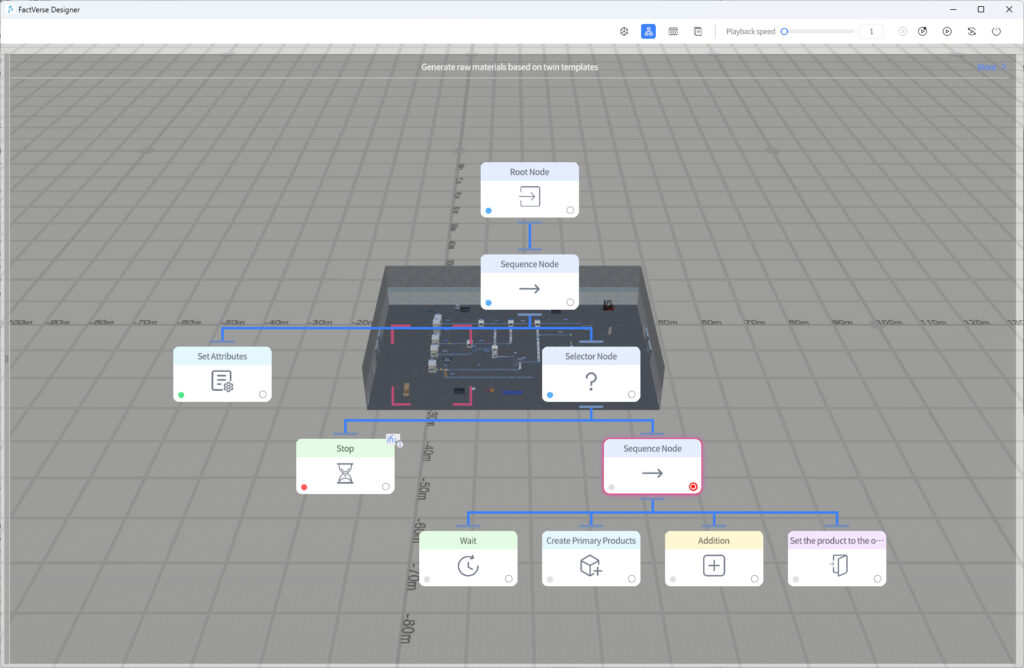
- Debug Behavior Tree:
- Execution pauses when reaching a breakpoint.
- Click the condition icon
 on the node to open the Condition Panel and check logic evaluation (green = passed, red = failed).
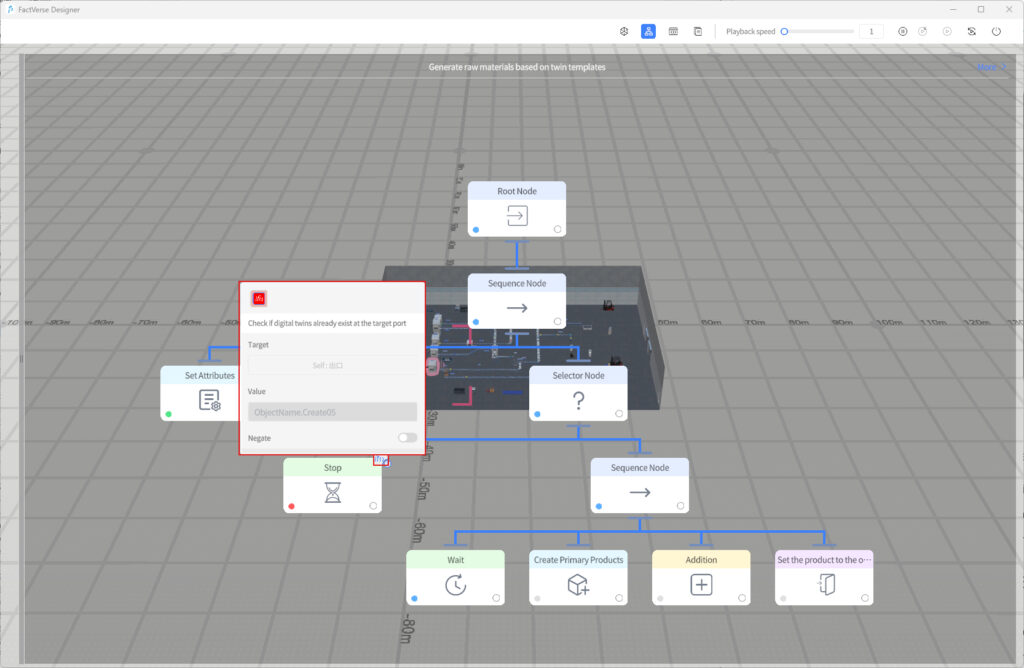
- Control Execution: Use Step Play or Continue from the toolbar to control execution flow.
- Exit Debug Mode: Click Exit to return to editing mode.
- Modify Problem Nodes: Select the digital twin, edit the behavior tree, and re-run debugging to verify the fix.
Simulation Data Debugging
In Debug Playback mode, you can directly modify digital twin attribute values to simulate data changes during runtime. This allows you to observe how behavior trees and scenes respond to input.
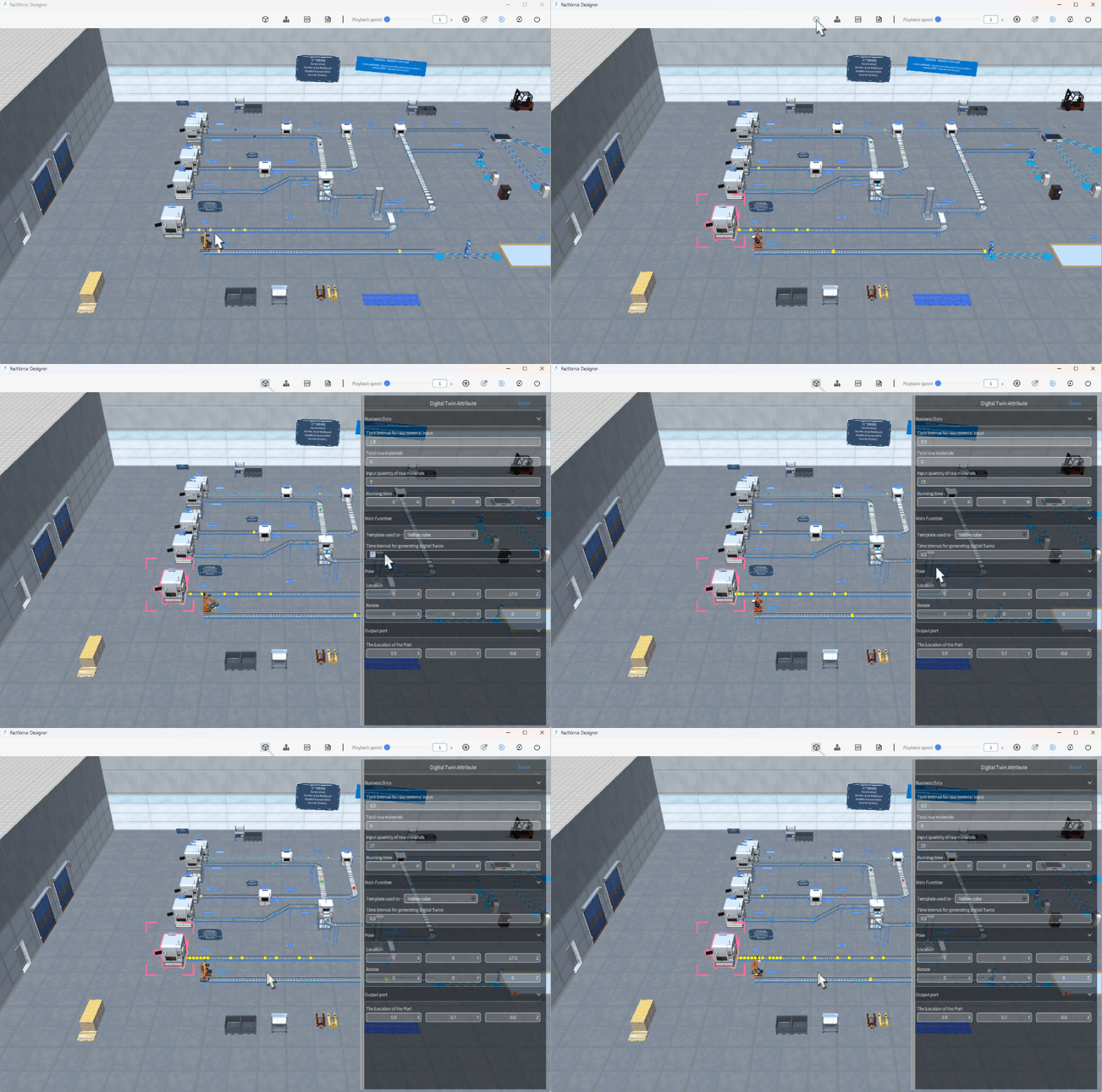
This feature is useful for validating the impact of a single attribute change on digital twin behavior.
Log Output and Issue Tracing
When the Log Record node is used in a behavior tree, the Log Console in Debug Playback mode displays real-time outputs. This helps developers monitor variable states and trace execution processes.

Typical Uses:
- Printing attribute changes
- Recording execution paths
- Checking condition results
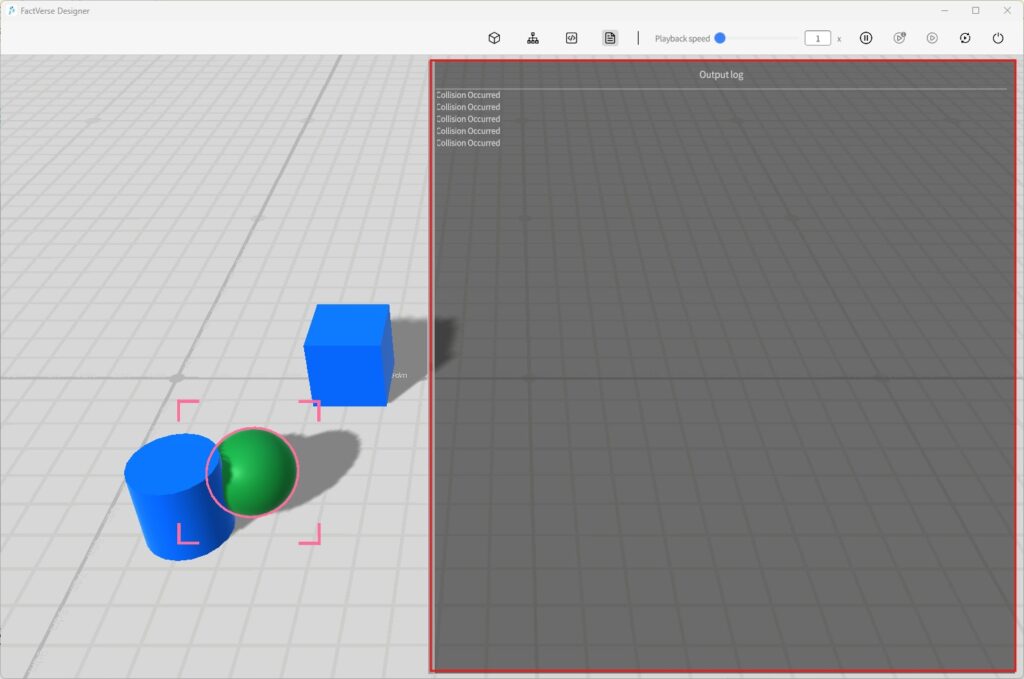
Set a 2D Floor Plan and Jump Points for a Building Space Scene
For a building space scene, you can configure a scene base map and set jump points on it. After the configuration is complete, users can click 2D Map in Inspector Command Center when entering the corresponding space level to open the floor plan for that scene.
If jump points have been configured for the scene, the corresponding jump point icons are displayed on the floor plan. Users can click a jump point to quickly switch to a specified location in the scene and view the surrounding space and equipment from a preset viewpoint.
Set the Scene Base Map
The scene base map is used to display the floor layout of the current space in Inspector’s 2D Map. After a base map is configured, users can quickly understand the spatial relationship between floors, rooms, or areas through the floor plan.
Steps
- In the base map configuration area, click Select Image.
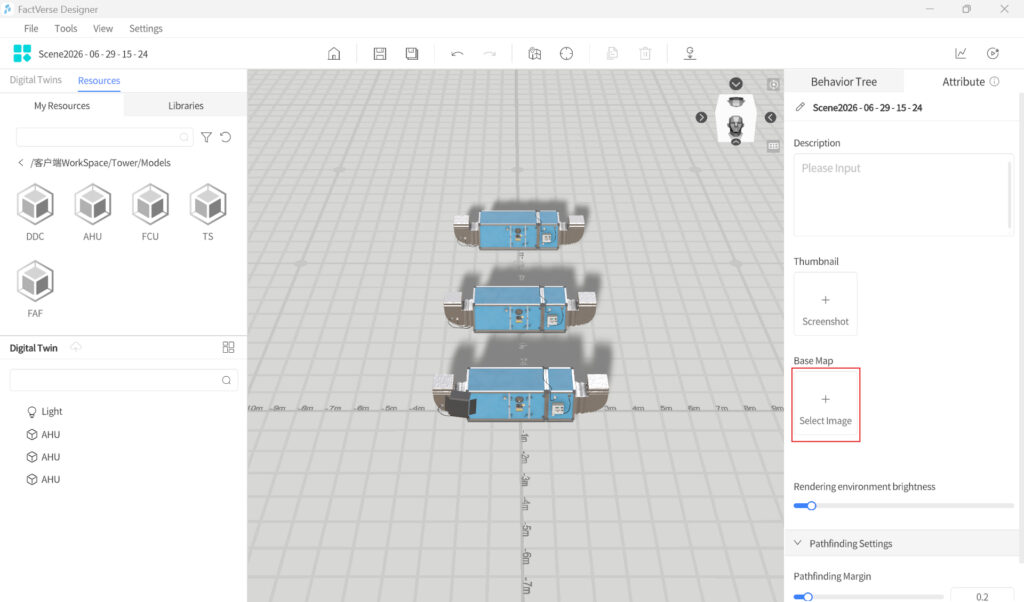
- In the window that opens, select the base map to upload and click Confirm.
- Click Edit Base Map to enter base map editing mode.
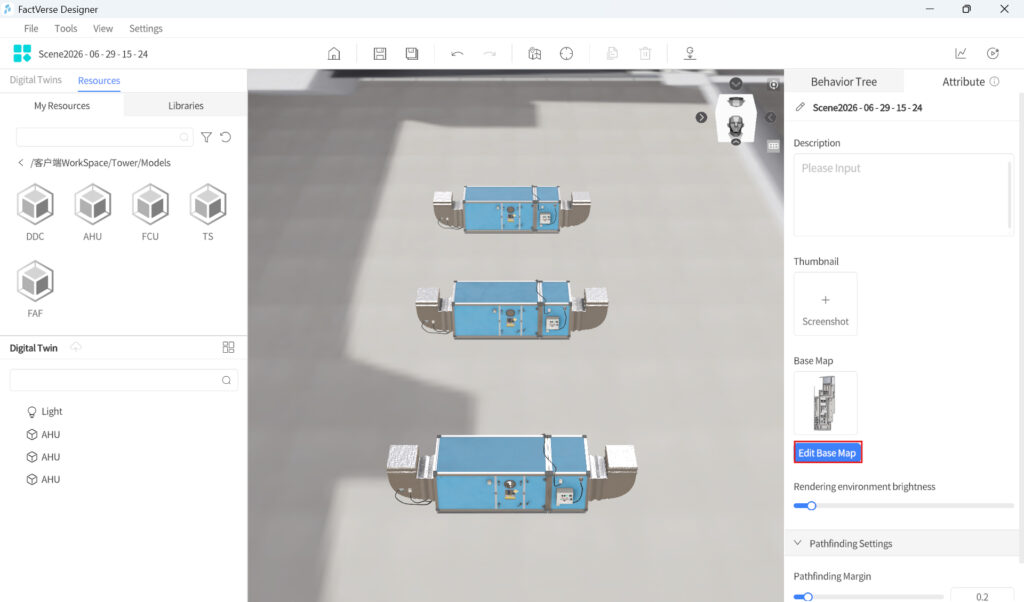
After entering base map editing mode, digital twins, roles, and other objects in the scene are displayed semi-transparently, making it easier to adjust the base map position against the 3D scene.
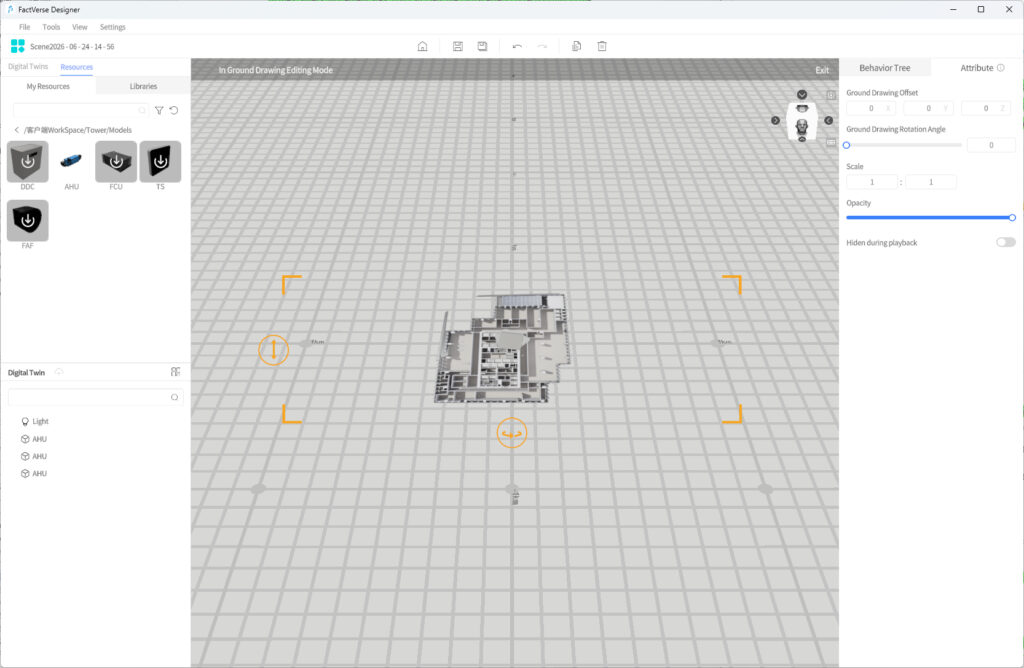
- Adjust the base map display as needed:
Setting | Description |
Base Map Offset | Adjusts the position of the base map in the scene. |
Base Map Rotation | Adjusts the orientation of the base map so that it aligns with the 3D scene. |
Scale | Adjusts the size of the base map so that the floor plan matches the scale of the 3D scene. |
Opacity | Adjusts the transparency of the base map, making it easier to check the alignment between the base map and the scene. |
Hide During Playback | When enabled, the base map will not be displayed during scene playback. If the base map is mainly used for Inspector’s 2D Map, it is recommended to enable this option. |
- To adjust the position or orientation of the base map, drag it directly on the canvas.
- After the adjustment is complete, click Exit to exit base map editing mode.
- To replace the base map, move the pointer over the base map configuration area, click Delete Image, and then select a new image.
Note: After deletion, the current base map and its related settings will be cleared. To continue using a base map, you need to upload and adjust it again.
- Save the scene.
Notes
- If no base map is manually added, Inspector’s 2D Map uses a top-view snapshot of the scene as the default base map.
- In base map editing mode, you cannot place or edit other resources. To edit scene objects, exit base map editing mode first.
- It is recommended to use a floor plan that matches the building space layout as the base map, and adjust its position, orientation, and scale so that it aligns with the 3D scene as closely as possible.
Set Transition Points
Transition points are used to mark locations that users can quickly view in Inspector’s 2D Map. After clicking a transition point, users can quickly enter the corresponding 3D viewpoint and view the surrounding space and equipment.
Steps
- In the Scene Editor, click the Positioning Mode button on the toolbar to enter positioning edit mode.
- Click Add Transition Point.
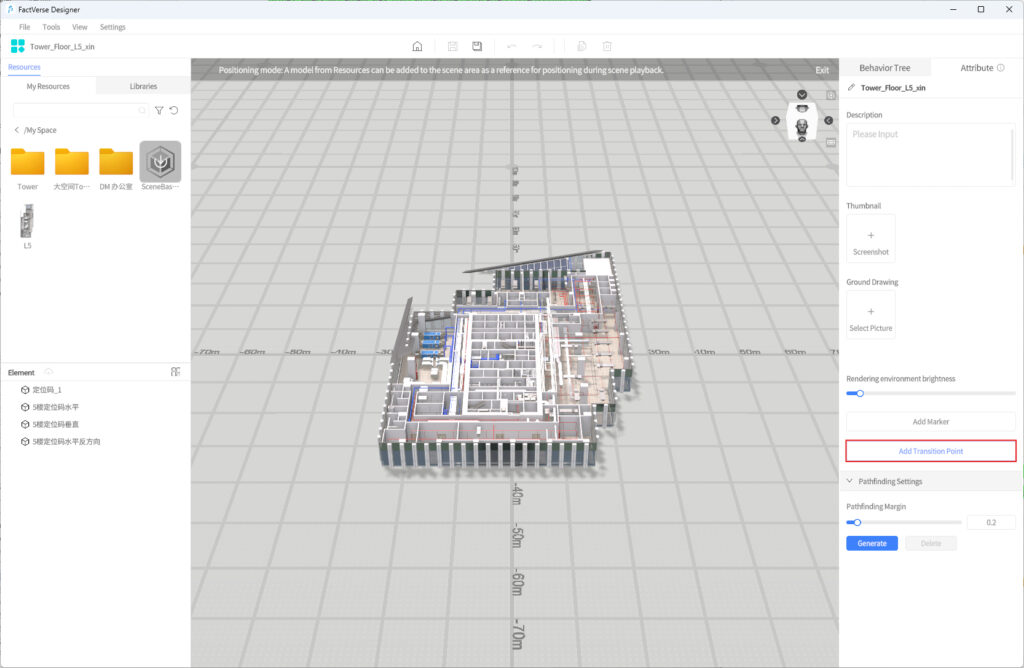
After it is added, a headset-view model appears in the scene to represent the viewing position and direction after the user enters the transition point.
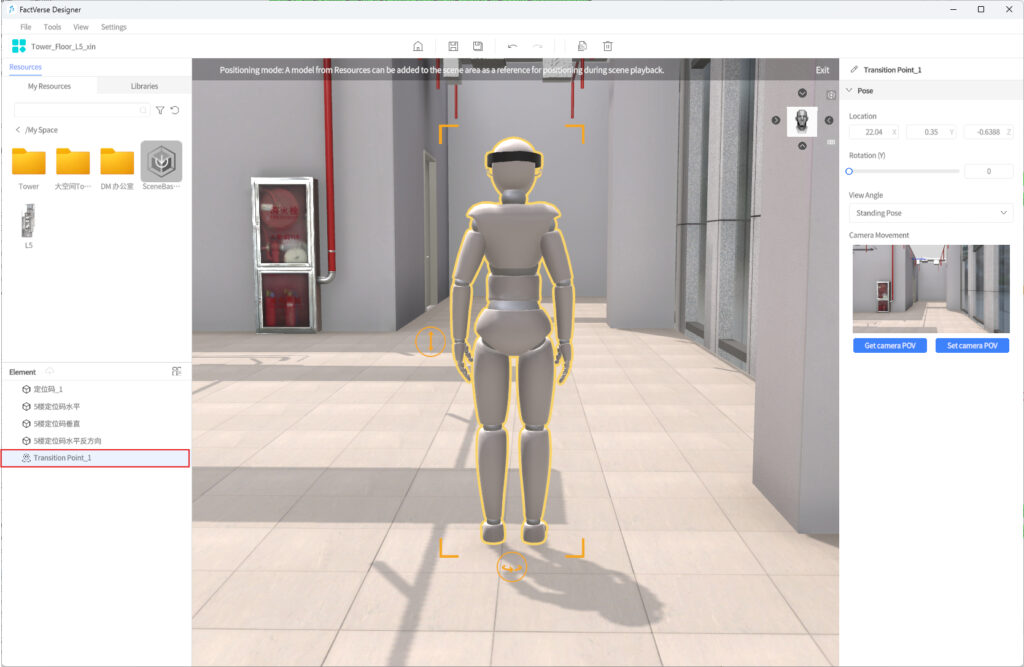
- Set the position and orientation of the transition point.
After selecting the headset-view model, you can drag it to adjust its position, or modify Location and Rotation (Y) in the right Attribute Pane.
- Location: Determines the position where the user enters the scene after clicking the transition point.
- Rotation: Determines the initial orientation after the user enters that position.
- Set view height.
Select Standing Pose or Sitting Pose from the View Angle drop-down list to set the view height after the user enters the position.
- Preview or quickly set the jump view.
In the Camera Movement area, you can view the visual effect corresponding to the current transition point.
- Get Camera View: Switches the current editing view to the preview view of the transition point, making it easier to check what users will see after clicking the transition point.
- Set Camera POV: Sets the current screen position and orientation as the transition point view. After this setting, the headset-view model moves to the position corresponding to the current view, making it easier to quickly set the transition point.
- Continue adding other transition points as needed.
- Click Exit to exit localization editing mode and return to the editing interface.
After exiting positioning editing mode, the headset-view model is displayed semi-transparently and cannot be selected.
- Save the scene.
Description
- Transition points are displayed in Inspector’s 2D Map.
- After users click a transition point, they enter the corresponding 3D preset view.
- It is recommended to place jump points at room entrances, main corridors, near key devices, and other locations that need to be viewed quickly.
- If no transition point is set, users can still view the 2D floor plan, but cannot quickly jump to a specified view by point.