How Can We Help?
Behavior Tree
Introduction to Behavior Trees
Definition
A Behavior Tree is a decision-making structure used to control the behavior of virtual characters or systems. It consists of multiple nodes, each representing a behavior or decision step. Behavior Trees decompose complex behaviors into simpler, manageable sub-behaviors through a hierarchical approach.
In FactVerse Designer, Behavior Trees can be utilized to manage digital twin behaviors (such as starting and stopping equipment) and to handle state transitions (like switching an AGV from “standby” to “working” mode), among other applications.
Execution Rules
- The execution order of a Behavior Tree is from top to bottom and from left to right.
- When the Behavior Tree reaches a terminal state, it will return to the root node and start executing again.
- The root node can only have one child node.
- When a node has child nodes, it executes its child nodes first, from left to right. After all the child nodes have been executed, it moves on to the next node.
- The behavior tree runs in a continuous loop according to the specified sequence unless it is in idle mode or has been deleted.
Node Type
Root Node
When creating a behavior tree, a root node is automatically generated, serving as the starting point for the execution of the behavior tree. The root node cannot be deleted and can only connect to one child node.
Composite Nodes
Composite nodes control the execution order and logical evaluation of their child nodes. They include parallel nodes, selector nodes, and sequence nodes. Composite nodes can have multiple child nodes, which can be either composite nodes or action nodes.
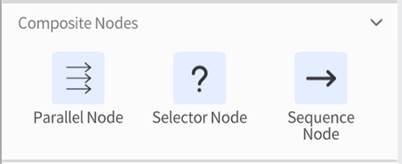
- Parallel Node: All nodes under a parallel node execute simultaneously. The success criteria for parallel nodes can be set to:
- Success if any one child node succeeds
- Success only if all child nodes succeed
- Selector Node: The child nodes under a selector node execute in left-to-right order. As soon as one child node returns success, the entire selector node returns success and the subsequent child nodes are not executed. If all child nodes fail, the selector node returns failure.
- Sequence Node: The child nodes under a sequence node execute in left-to-right order.
Traversal strategies
The sequence node supports two traversal strategies to determine when the execution flow should stop:
- Return failure if any child node fails: The child nodes are executed from left to right. If any child node fails, the entire sequence node immediately returns failure and stops executing the remaining child nodes.
- Return failure if all child nodes fail: All child nodes are executed in sequence. The sequence node will only return failure if all the child nodes fail. If any child node succeeds, the sequence node will return success.
Loop type
The sequence node supports several loop types for cases where child nodes need to be executed repeatedly in the scene:
- None: The child nodes under the sequence node are executed only once and are not repeated.
- All child digital twins: The sequence node will execute the child node operation for each child digital twin, completing a full cycle of operations for each digital twin.
- Container attributes: The sequence node will execute the child nodes for each element inside the container, based on the container’s attributes.
- Numeric incremental loop: The sequence node will execute the child nodes multiple times with incrementing values, according to a preset number of iterations, until a termination condition is met.
Exit the loop
The sequence node provides the following conditions to exit the loop during execution:
- Exit after completing the loop: The loop exits once the preset number of iterations is reached.
- Exit on success: The loop stops immediately and returns success as soon as any child node successfully executes.
- Exit on failure: The loop stops immediately and returns failure if any child node fails.
Action Nodes
Action Nodes represent specific behaviors or tasks of the digital twin, such as moving along a path or waiting. Action Nodes are the leaf nodes of the behavior tree, where complex logic can be implemented. When an action node is executed, it performs a specific action and returns one of the following three return values:
- Success: It indicates that the node has been executed successfully.
- Running: It indicates that the node is still running, and it will continue to run when the behavior tree is called again.
- Failure: It indicates that the node has failed to execute.
Node Configuration
Node Operations
- Add nodes: Drag and drop nodes from the Node Menu into the Editing area.
- Delete nodes: Select the node to be deleted in the Editing area and click the delete button on the toolbar.
- Rename nodes: Select the node to be renamed in the Editing area and enter the new name in the node name area above the Attribute Pane.
- Connect nodes: To connect Node A with Node B, drag a yellow connection line from the bottom of Node A and connect it to the top of Node B. Release the mouse to complete the connection.
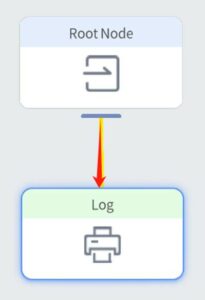
- Delete node connections: Hold down the right mouse button and drag over the connection line you want to delete to cut off the link between the two nodes.
- Organize nodes: Select the root node and press the L key to automatically organize the tree’s layout.
Common Configuration of Nodes
The behavior tree’s node conditions and attribute settings often require obtaining the attributes of digital twins, digital twins, and the positions of digital twins.
Select Attributes
Attribute Source
- Attribute of the digital twin: Select an attribute from the digital twin template.
- Get digital twin from
- Self: Select the digital twin that is executing the behavior tree currently.
- Temporary digital twin: Select a digital twin that was temporarily created or used during the execution process.
- Digital twin in the attribute: Select a specific digital twin based on the unique identifier stored in the attributes.
- All the digital twins in the scene: Search for digital twins throughout the entire scene.
- Behavior tree attribute: Retrieve the attribute value from the current behavior tree’s attributes.
- Current attribute: The attribute being traversed during the behavior tree’s traversal of the container’s attributes is referred to as the current attribute.
- Get digital twin from
Select Value
Get value from
- Manual entry
- Value
- Attribute of the digital twin
- Get digital twin from: Select digital twin
- Target attribute
- Behavior tree attribute
- Behavior tree attribute: Select a specific behavior tree attribute
- Current attribute: The attribute being traversed during the behavior tree’s traversal of the container’s attributes is referred to as the current attribute.
Select Digital Twin
Digital Twin Source
Source | Description |
Self | Uses the digital twin that is currently executing the behavior tree. |
Temporary Digital Twin | Uses a digital twin that is temporarily created or passed during behavior tree execution. For example, temporary cargo created by logic such as a material generator. |
Digital Twin from Attribute | Uses the digital twin ID stored in a specified property to find the corresponding digital twin. This is suitable for scenarios where the target digital twin has already been recorded in a property. |
All Digital Twins in the Scene | Searches for digital twins within the current scene. After selecting this source, you can further narrow the search scope by using filter conditions. |
Filtering Methods for All Digital Twins in the Scene
When Get Digital Twin from is set to All Digital Twins in the Scene, you can filter the target digital twins in the following ways:
Filtering Method | Description |
None | Does not use any filter condition and directly returns all digital twins in the scene. |
Specified Digital Twin |
|
Nearest Digital Twin | Finds the nearest digital twin based on the distance between each digital twin and the digital twin currently executing the behavior tree. |
By Digital Twin Name | Filters target digital twins by digital twin name. |
By Statistical Identifier | Filters target digital twins by statistical identifier. This is suitable for finding objects of the same type, such as all cargo boxes whose identifier is box. |
By Digital Twin Template | Filters target digital twins by the template used by the digital twin. |
By Template Type | Filters target digital twins by template type, such as conveyor, camera, or robotic arm. |
Advanced Selection Methods for Self, Temporary Digital Twin, and Digital Twin from Attribute
When Digital Twin Source is set to Self, Temporary Digital Twin, or Digital Twin from Attribute, the system first determines a base digital twin. You can then use an advanced selection method to find other objects related to that digital twin.
Selection Method | Description |
None | Does not use an advanced selection method and directly uses the currently selected digital twin. |
Parent Digital Twin | Finds the parent digital twin of the current digital twin. For example, the parent digital twin of cargo on a conveyor may be the conveyor. |
First Child Digital Twin | Finds the first child digital twin under the current digital twin. For example, the first item of cargo in a container. |
Last Child Digital Twin | Finds the last child digital twin under the current digital twin. For example, the last product in a group of generated products. |
All Child Digital Twins | Finds all child digital twins under the current digital twin. For example, all cargo on a conveyor. |
Previous Digital Twin | Finds the previous sibling digital twin of the current digital twin. For example, the product in front of the current product on a conveyor. |
Next Digital Twin | Finds the next sibling digital twin of the current digital twin. For example, the product behind the current product on a conveyor. |
Find the Type of Object: Select the target object to find. The target object can be the digital twin itself or a specific role within the digital twin.
- Digital Twin: Finds the entire digital twin object. This is used to operate on a digital twin as a whole or obtain its properties. For example, you can find and operate on a robot, a production line device, or a shelf unit.
- Element in the Digital Twin: Finds a specific role within a digital twin. This type is used to operate on a specific part inside a digital twin. For example, the digital twin template of a material generator may include several roles, such as the generator model, outlet, and progress bar.
Select Position
Methods to get the position
- Manual entry
- Directly input the 3D coordinates of a point in the format x, y, z.
- Example: Input “10,20,30” represents a specific spatial location.
- Location of digital twin: Use the current location of the digital twin.
- Digital twin attribute: Obtain the location from the digital twin’s attributes.
- Behavior tree attribute: Obtain the location from the attributes of the behavior tree.
- Path point in the attributes: Use attribute values to find points in the path map.
Coordinate Types
- Local coordinate: Coordinates relative to a reference point. For example, the local coordinates of goods on a conveyor belt are relative to the center point of the conveyor belt.
- Coordinate: Global coordinate, or world coordinate.
Digital Twin Nodes
Digital twin nodes are used for creating, deleting, and manipulating digital twins and digital twin attributes.
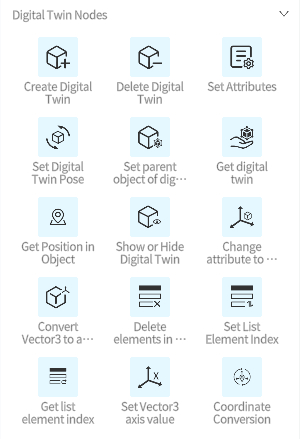
Create Digital Twin
Function: Create a digital twin corresponding to a specified digital twin template with a given pose (position, rotation angle).
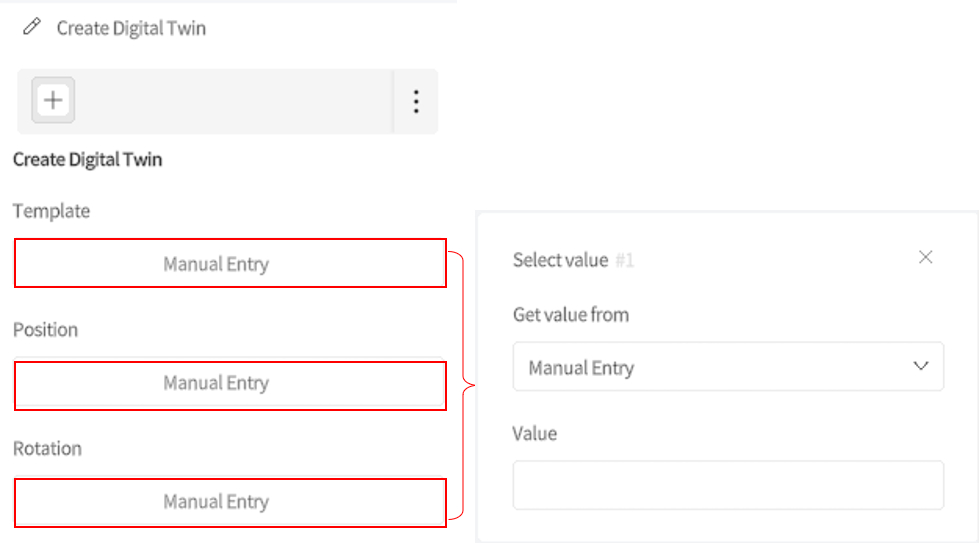
Parameter
- Template
Select the template for creating the digital twin.
- Position
Set the location where the new digital twin will be created in the scene.
- Rotation
Set the rotation angle of the new digital twin.
Example
This example demonstrates how to configure the “Create Digital Twin” node so that Digital Twin A creates a new digital twin at its output port:
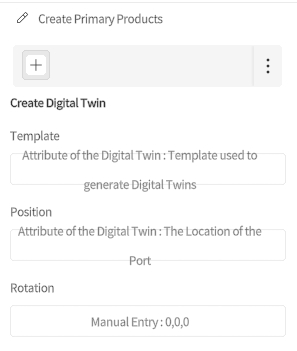
- Template
- Get value from: Select “Attribute of the digital twin”
- Get digital twin from: Select “Self”
- Target attribute: Select “Digital Twin A’s Template” > “Template used to generate digital twins” (This is the custom template identifier attribute defined in Digital Twin A’s template by the user.)
- Position
- Get value from: Select “Attribute of the digital twin”
- Get digital twin from: Select “Self”
- Target attribute: Select “Digital Twin A’s Template” > “Output port” > “The location of the port”
- Rotation
- Manual entry: Set the rotation angle to (0, 0, 0).
Delete Digital Twin
Function: Delete a specified digital twin. For example, automatically remove products from the production line that have expired or are no longer needed.
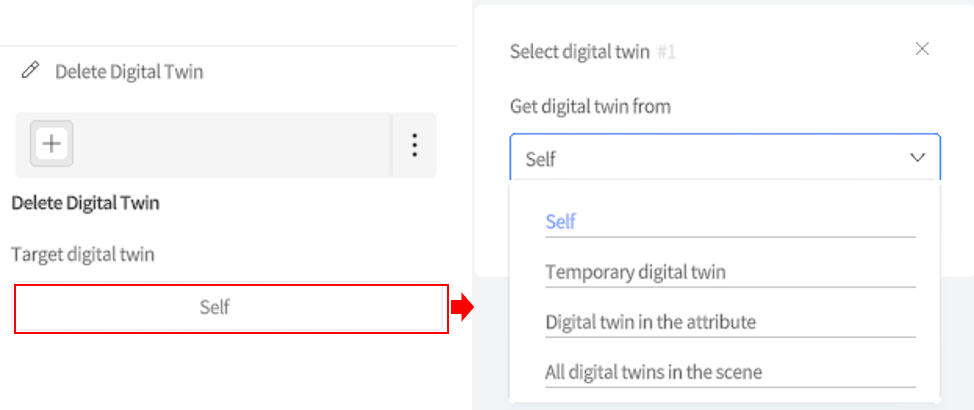
Parameter
- Target digital twin: Specify the digital twin object to be deleted.
- Get digital twin from
- Self: Delete the digital twin currently executing the behavior tree.
- Temporary digital twin: Delete the temporary digital twin that was automatically generated under specific conditions.
- Digital twin in the attribute: Find and delete a specific digital twin based on the identifier stored in the attributes.
- All the digital twins in the scene: Traverse all digital twins in the scene and delete those that meet the specified conditions.
Example
When using a destructor on a factory production line, you can configure the “Delete Digital Twin” node to automatically remove unwanted products. The specific configuration is as follows:
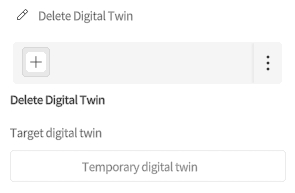
Target digital twin: Select “Temporary Digital Twin” to handle automatically generated temporary products or parts that need to be deleted during runtime.
Set Attributes
Function: Set any attributes of a digital twin or behavior tree. You can update product status, adjust production equipment parameters, or control specific behaviors in the process by configuring the Set attributes node.
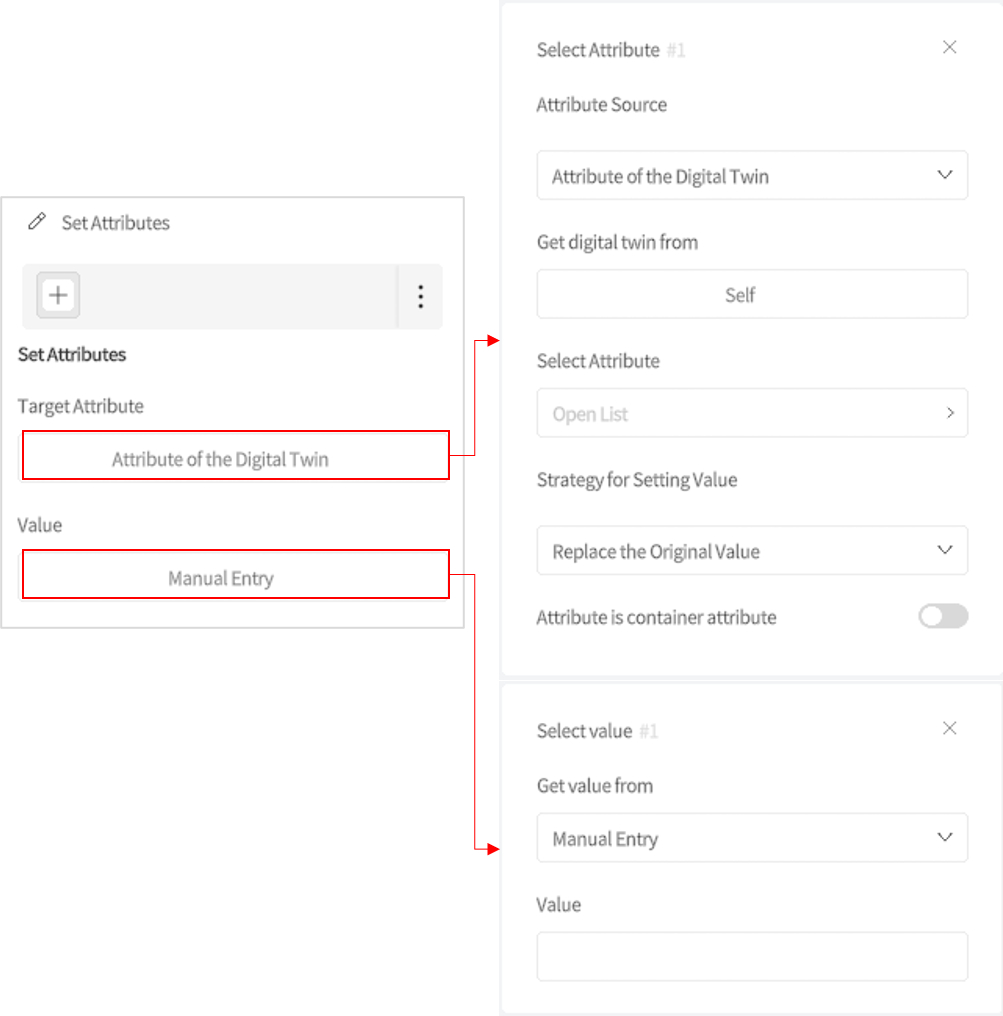
Parameter
- Target attribute
Specify the attribute to be set, which can be any attribute within a digital twin or behavior tree.
- Attribute Source
- Attribute of the digital twin: Select an attribute from a specific digital twin.
- Behavior tree attribute: Retrieve a value from the current behavior tree’s attributes.
- Current attribute: The attribute being traversed during the behavior tree’s traversal of the container’s attributes is referred to as the current attribute.
- Strategy for setting value
- Replace the original value: Directly replace the existing attribute value with the new one.
- Sum with original value: Add the new value to the current attribute value.
- Value:
The value to be set can be specified in one of the following ways:
- Manual entry: Directly enter the value.
- Attribute of the digital twin: Retrieve the value from the specified digital twin’s attributes.
- Behavior tree attribute: Retrieve the value from the behavior tree’s attributes.
- Current attribute: The attribute being traversed during the behavior tree’s traversal of the container’s attributes is referred to as the current attribute.
Set Digital Twin Pose
Function: Set the position and rotation of a digital twin or elements within the digital twin. For example, adjust the position and angle of a robot arm to perform a specific task.
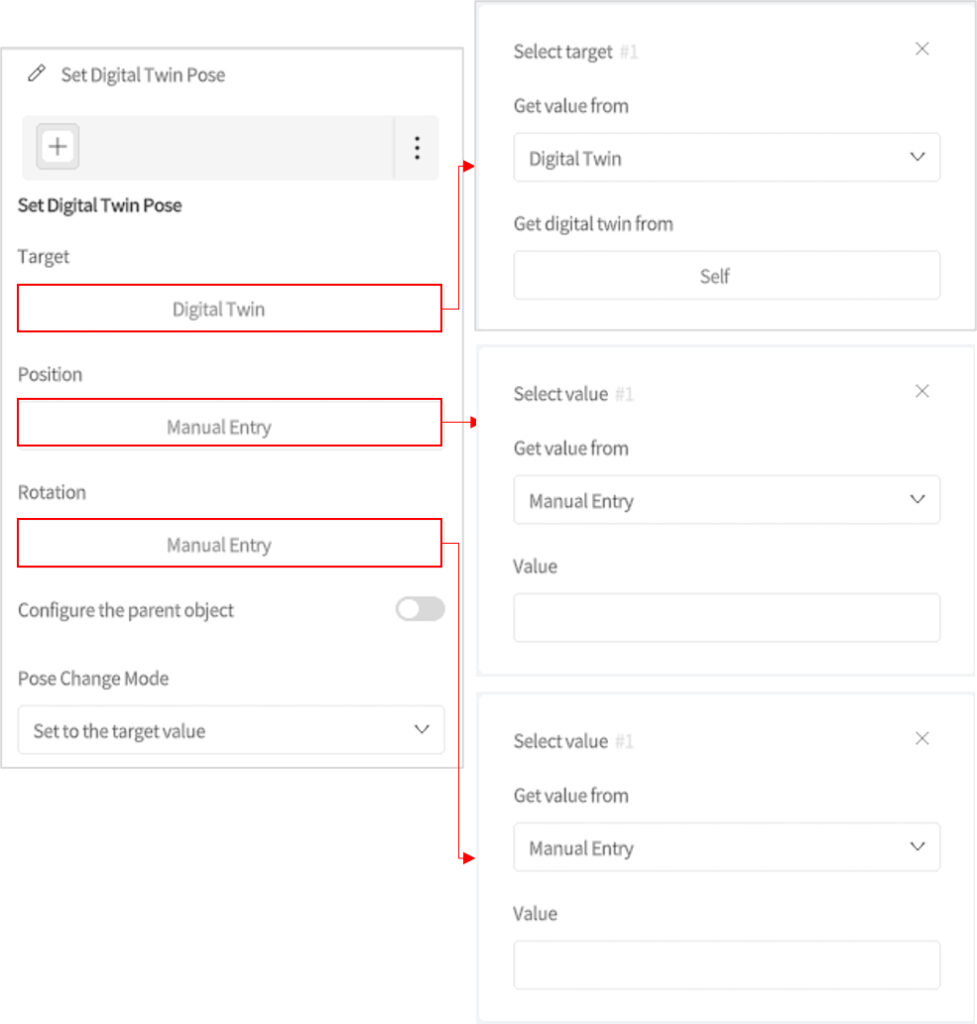
Parameter
- Target
Specify the object whose pose is to be adjusted. This can be the digital twin itself or a specific element within the digital twin.
- Digital Twin: Select the digital twin to adjust.
- Element in the digital twin: Select a specific element in the digital twin for pose adjustment.
- Position
Set the coordinates of the digital twin or element in the scene.
- Rotation
Set the rotation angle of the digital twin or element.
- Configure the Parent Object: When enabled, you can specify a new parent object for the current target object. After this is set, the target object is attached under the new parent object.
- Pose Change Method:
Specifies how the pose is calculated:
- Set the Target Value: Directly sets the position and rotation of the target object to the values specified in Position and Rotation.
- Perform Addition Operation with the Target Value: Adds the values specified in Position and Rotation to the current position and rotation of the target object.
Set parent object of digital twins
Function: Set a digital twin or one of its elements as a child object of another digital twin or its element. For example, in the assembly of production equipment, a component can be set as a child object of the machine.
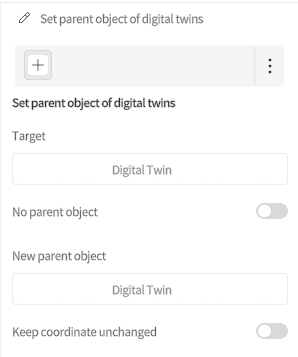
Parameter
- Target
Specify the object for setting the hierarchical relationship. This can be a digital twin or a specific element within the digital twin.
- Digital Twin: Select the digital twin as the target object.
- Element in the digital twin: Select a specific element in the digital twin as the target object.
- No parent object: Remove the parent-child relationship of the target object, making it no longer part of any parent object.
- New parent object
Select a new parent object to attach the target object to, establishing a new parent-child relationship.
- Digital twin: Select a new digital twin as the parent object.
- Element in the digital twin: Select a specific element within the digital twin as the new parent object.
Keep coordinate unchanged: Check this option to maintain the target object’s coordinates, even if its parent-child relationship is changed.
Get digital twin
Function: Set the specified digital twin as the current digital twin, or store the digital twin’s identifier in a designated attribute for easy reference and use in subsequent processes.
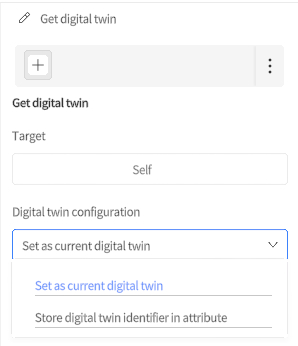
Parameter
- Target
Specify the source of the digital twin to be retrieved.
- Self: The digital twin currently executing the behavior tree.
- Temporary digital twin: A digital twin dynamically created during execution.
- Digital twin in the attribute: Retrieve the digital twin identifier from an attribute and locate the corresponding digital twin.
- All digital twins in the scene: Search for digital twins that meet the criteria across the entire scene.
- Digital twin configuration
Choose how to handle the retrieved digital twin.
- Set digital twin as current: Set the retrieved digital twin as the current one.
- Store digital twin identifier in attribute: Save the retrieved digital twin identifier to the target attribute for later use.
Get Position in Object
Function: Gets the coordinates of a specified point in the bounding box of the target object model, such as the center point of the top face or bottom face. This node is commonly used for object alignment, stacking, gripping, and handling.
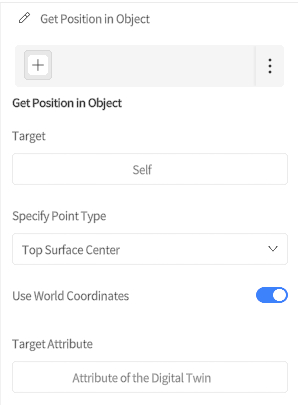
Parameter Description
Parameter | Description |
Target | Select the object whose point coordinates need to be obtained. |
Specified Point Type | Select the point type to get. |
Use World Coordinates | Sets the reference coordinate system of the output coordinates. When enabled, the output result is the world coordinates in the scene. When disabled, the output result is the coordinates in the target object’s own local space, that is, point coordinates relative to the target object’s own origin. |
Target Attribute | Select a Vector3 property used to save the obtained point coordinates. |
Specified Point Type
Type | Description |
Top Face Center Point | Gets the coordinates of the center point of the top face of the target object’s bounding box. |
Bottom Face Center Point | Gets the coordinates of the center point of the bottom face of the target object’s bounding box. |
Show or Hide Digital Twin
Function: Use this node to control the visibility of a digital twin or an element within it in the scene. For example, you can hide or show specific digital twins during certain steps to help users focus on the current task.
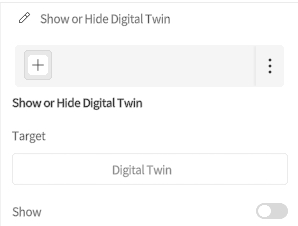
Parameter
Parameter | Description |
Target | Select the object to show or hide. You can select the entire digital twin or a specified actor in the digital twin. |
Show | Sets the display status of the target object. When enabled, the target object is visible in the scene. When disabled, the target object is not visible in the scene. |
Target Type
Type | Description |
Digital Twins | Performs show or hide operations on the entire digital twin. |
Element in Digital Twin | Performs show or hide operations only on the specified actor in the digital twin, without affecting other actors in that digital twin. |
Change Attribute to Vector3
Function: Combine three different values (such as the X, Y, and Z axis values of position or rotation) into a single three-dimensional vector (Vector3).
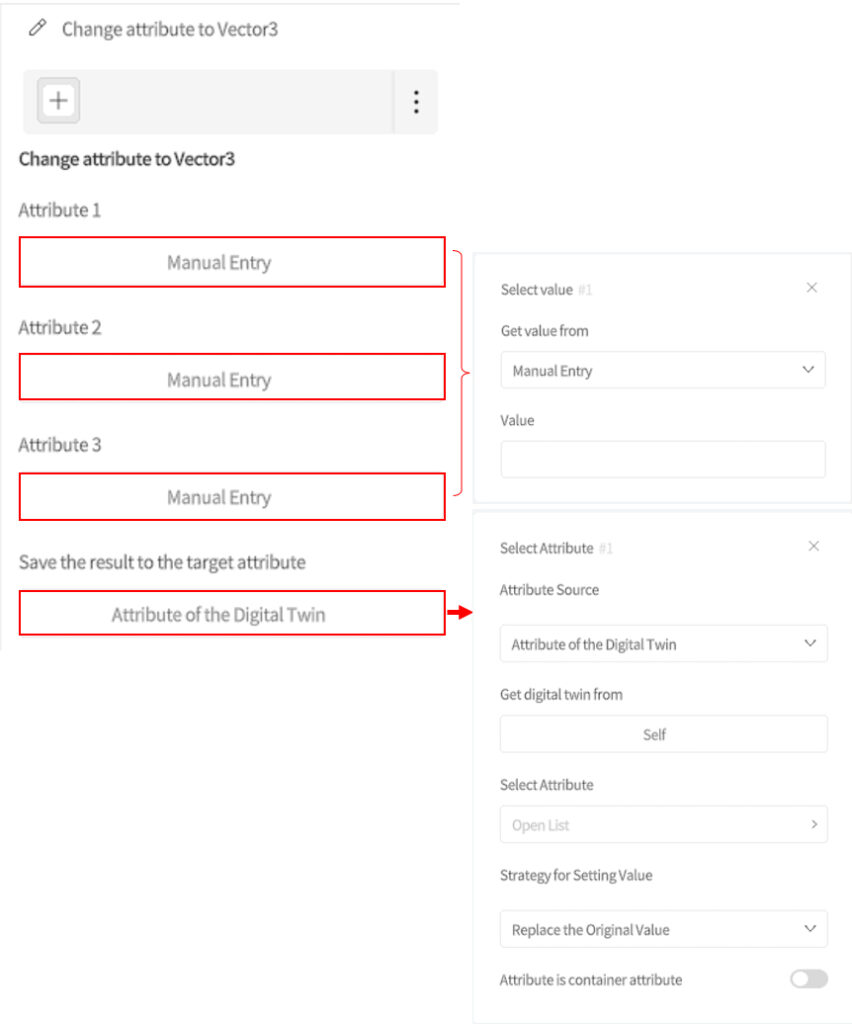
Parameter
- Attribute 1
The first component of the vector (typically the X-axis).
- Attribute 2
The second component of the vector (Y-axis).
- Attribute 3
The third component of the vector (Z-axis).
Convert Vector3 to Attribute
Function
Splits a 3D vector (Vector3) into three independent numeric values, corresponding to the X, Y, and Z axes. Commonly used to convert position or rotation vectors into individual axis values for further calculation or logic processing.
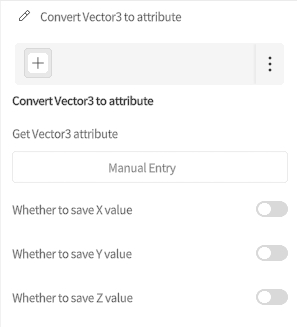
Parameters
- Source Vector3 Property: Specifies the Vector3 property to be converted (can be entered manually or selected from existing properties).
- Store X Value: When enabled, stores the X component of the Vector3 into a property.
- Store Y Value: When enabled, stores the Y component of the Vector3 into a property.
- Store Z Value: When enabled, stores the Z component of the Vector3 into a property.
Delete Elements in the Container
Function
This node removes an element from a specified container property. Supported container types include:
- List: Stores multiple elements in sequence, accessible by index.
- Dictionary: Stores elements as key–value pairs, suitable for identifier-based access.
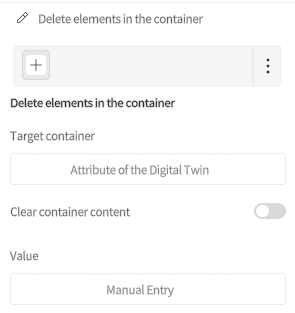
Parameters
Parameter | Description |
Target Container | The container property from which the element will be removed. Can be either a list or a dictionary. |
Clear container content | When selected, removes all elements from the container. Useful for resetting container state, such as “Initialize device list” or “Clear cache”. |
Value (Element to Remove) | Required if “Clear container content” is not selected. Defines the element to be removed: |
Set List Element Index
Function
This node reorders elements in a list. By specifying the element’s current index and target index, you can move it to the desired position, thereby changing the order of the list.
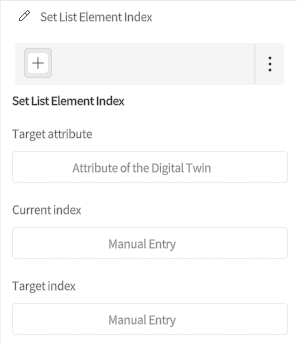
Parameters
- Target Attribute: The list property to be adjusted. List indices start at 0.
- Example: In the list [A, B, C], element A has index 0, and B has index 1.
- Current Index: The current index of the element.
- Target Index: The new index where the element should be moved.
Get List Element Index
Function: This node is used to search for a target value in a specified list property and return the index position of that value in the list. This node can be used to locate a specific element in a list during runtime, such as finding the position of a material in a production queue.
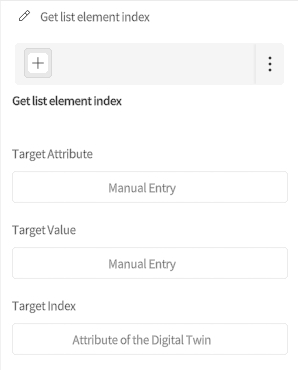
Parameter
- Target Attribute: Specifies the source list property on which the search operation is performed.
- Target Value: Specifies the target content to search for in the list, or the property value used for matching. If the list contains multiple identical values, the node returns the index position of the first matching item.
- Target Index: Specifies an integer property used to store the search result, that is, the index position of the target value in the list.
Set Vector3 Axis Value
Function
This node modifies a single axis (X / Y / Z) of a Vector3 property without affecting its other components. It is commonly used for local adjustments of position, rotation, or scale.
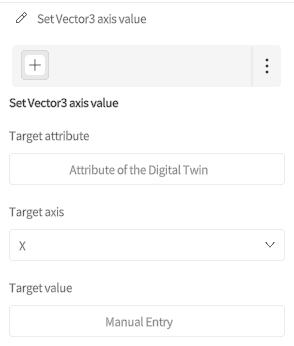
Parameters
- Target Attribute: The Vector3 property to be modified (e.g., position, rotation).
- Target Axis: The axis to modify, selectable from X, Y, or Z.
- Target Value: The new value to assign to the selected axis.
Coordinate Conversion
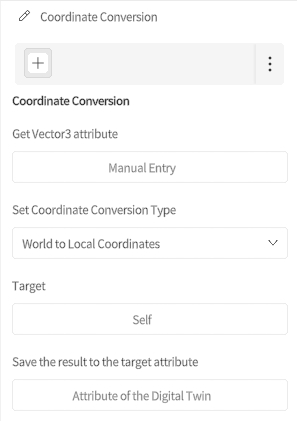
Function: This node is used to convert coordinates between world space and local space, making it easier to accurately calculate object positions under different hierarchy relationships.
Parameter
- Get Vector3 Attribute: Specifies the original coordinate data to be converted.
- Set Coordinate Conversion Type:
Specifies the direction of coordinate conversion. Available options are:- World to Local Coordinates
- Local to World Coordinates
- Target: Specifies the digital twin or role used as the reference for coordinate conversion. The default value is Self.
- Save Result to Target Attribute: Specifies a Vector3 property used to store the converted coordinate result.
Path Nodes
Path nodes are used for configuring and controlling the moving path of digital twins.
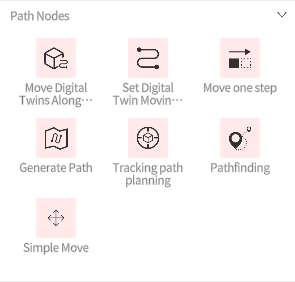
Move Digital Twins Along a Path
Function
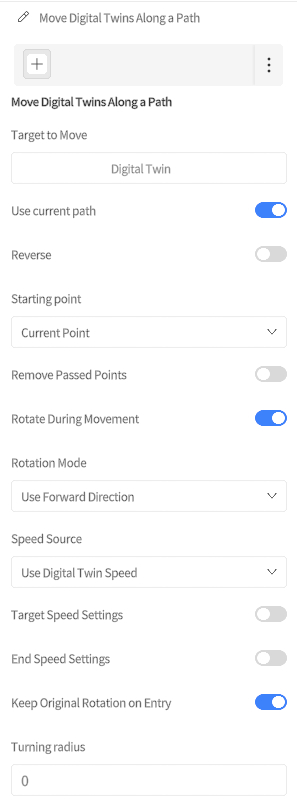
This node moves a digital twin or a role within the twin along a specified path.
Typical Use Cases
- Defining path and speed for AGVs (Automated Guided Vehicles)
- Controlling crane movements during material handling
Parameter Description
- Target and Path
Parameter | Description | Options |
Target to be Moved | Specifies the object to move along the path |
|
Use Current Path | Uses the “Current Path” attribute preset in the digital twin as the movement path | — |
Reverse | When enabled, the twin moves in the reverse direction along the path | — |
- Start Point Configuration
Parameter | Description | Options |
Starting Point | Defines where the twin enters the path |
|
- Path Point Management
Parameter | Description |
Remove Passed Points | When enabled, path points already passed will be removed |
- Rotation Control
Parameter | Description | Options / Notes |
Rotate During Movement | Controls whether the twin automatically adjusts its orientation during movement (enabled by default). Rotation behavior follows the Rotation Mode setting. | — |
Rotation Mode | Defines how the twin adjusts its rotation |
|
Keep Original Rotation on Entry | When enabled (default), keeps the twin’s original rotation upon entering the path. Rotation is still adjusted later according to the selected mode. | — |
- Speed Control
Parameter | Description | Options / Notes |
Speed Source | Determines how movement speed is set |
|
Target Speed Settings | Defines acceleration → constant speed transition. Defaults to the twin’s metadata speed if not configured. |
|
End Speed Settings | Defines constant speed → deceleration transition. Defaults to the twin’s metadata speed if not configured. |
|
- Smoothness
Parameter | Description |
Turning Radius | Defines the corner radius (in meters) for turns along the path. Larger values produce smoother turns. |
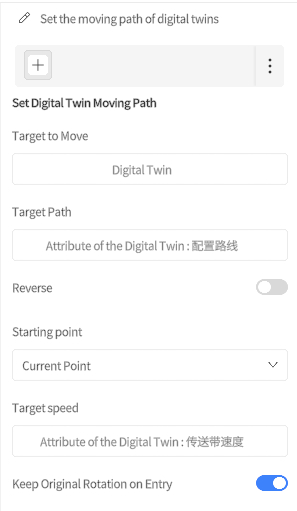
Set Digital Twin Moving Path
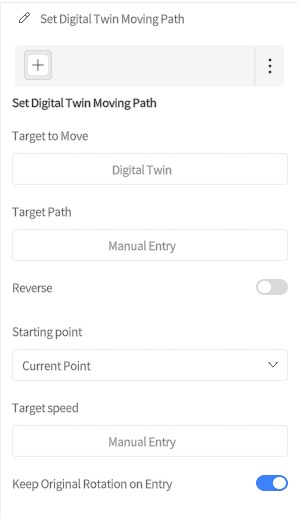
Function: Save a specified path to the digital twin or an element within it. By setting the path, speed, and starting point, the object can move along the path when needed, such as transporting goods on a conveyor belt.
Parameter
- Target to be moved
Choose the target to move along the path. This can be the entire digital twin or a specific element within it.
- Digital twin: Select the entire digital twin as the moving object.
- Element in the digital twin: Select an element within the digital twin to move.
- Target path
Define the path for the digital twin or element to follow. The path can be entered manually or selected from existing attributes.
- Reverse: Check this box to make the digital twin move in the opposite direction along the path.
- The starting point of the movement
Set the starting position for the digital twin’s movement.
- Target speed
Set the speed at which the digital twin moves. Speed can be entered manually or pulled from attributes.
- Keep the original angle when entering the path
Check this box to keep the digital twin’s original rotation angle when it enters the path, without adjusting it based on the path’s direction.
Example: The following example demonstrates how to use the “Set digital twin moving path” node to set a movement path for items on a conveyor belt.
Move One Step
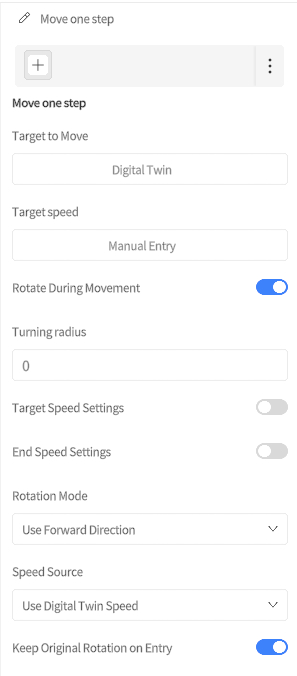
Function: Move the target digital twin one step at the configured speed. For example, move an object on a conveyor belt one step to simulate the process of gradual movement of the object on the conveyor belt.
Parameter
- Target to be moved: Select the object to move, which can be the entire digital twin or a specific element within it.
- Digital twin: Select the digital twin as the moving object.
- Element in the digital twin: Select an element within the digital twin as the moving object.
- Target speed: Set the target speed for movement.
- Rotate during movement: Check this option to have the object rotate along the movement direction while moving. This option is checked by default.
- Turn radius: Set the turn radius for the target object. A larger value results in smoother turns.
Generate Path
Function
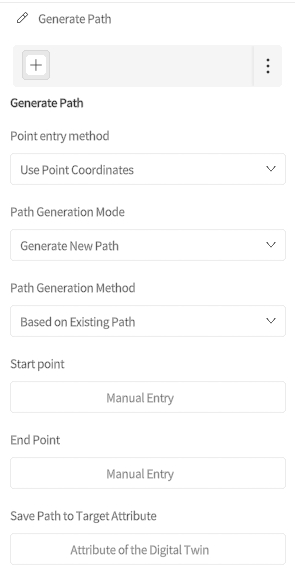
This node creates a path in the scene. You can define the start point, end point, or additional path points either by coordinates or by referencing existing path points. A completely new path can be generated, or an existing path can be extended.
Parameters
- Point Entry Method: Defines how to specify the start, end, or additional points.
- Use Point Coordinates: Input specific coordinates (Vector3), e.g., (1, 2, 3).
- Use Path Points: Input the name of an existing path point, e.g., point0.
- Path Generation Mode:
- Generate New Path: Creates a new path based on the defined start and end points.
- Append to Path: Extends an existing path by adding a new segment at the end.
- Path Generation Method:
- Based on Existing Path: Finds the shortest path along existing path points.
- Direct Connection by Coordinates: Generates a straight path based on the coordinates of the target points. Supports setting rotation and speed.
- Start Point: Specifies the starting point of the path.
- End Point: Specifies the endpoint of the path.
- Save Path to Target Attribute: Select a property to store the newly generated path for later use or reuse.
Track Path Planning
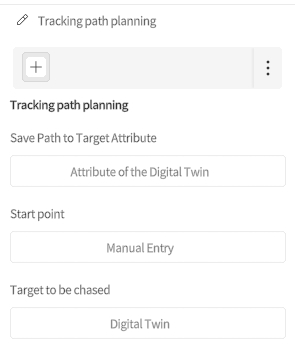
Function: Set the digital twin’s pursuit target, shortest path, and starting point to automatically navigate and chase the target digital twin. For example, a robotic arm grabbing a moving item on a conveyor belt.
Parameter
- Save the path to the target attribute: Specify where the generated path will be saved after planning.
- Starting point: Set the starting point for path tracking.
- Target to be pursued
- Digital twin: Select the target digital twin as the tracking object.
- Element in the digital twin: Select a specific element within the digital twin as the tracking object.
Pathfinding
Function
This node enables autonomous pathfinding. On a specified navigation surface, the system calculates the optimal movement path to a given destination and drives the target object to reach it.
Typical use cases include dynamic path planning and scheduling for devices such as AMRs (Autonomous Mobile Robots).
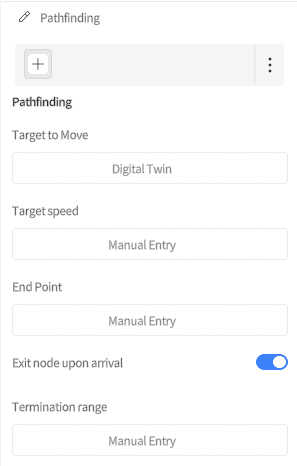
Parameter Description
- Target Settings
Parameter | Description | Options |
Target to Move | Specifies the object that will perform autonomous pathfinding movement |
|
Target Speed | Defines the movement speed in meters per second. If not set, the preset speed property of the twin will be used. | e.g., 1.5, 2.0 |
- Destination Configuration
Parameter | Description |
End Point | Specifies the target location for pathfinding. Supports multiple input methods: |
- Execution Control
Parameter | Description |
Exit Node Upon Arrival | Determines whether the node should exit when near the destination: |
Termination Range | Defines the threshold distance (in meters) considered as “arrival.” |
Simple Move
Function: Controls a digital twin or actor to move in a straight line by a specified direction and distance without configuring a complex path in advance. This is suitable for simple displacement and fine position adjustment.
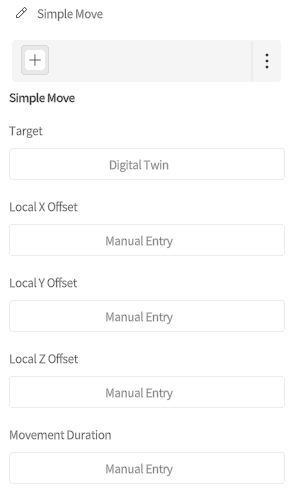
Parameter
- Target: Specifies the object to move. Digital Twin or Actor in Digital Twin can be selected.
- Local X Offset: Sets the distance the target object moves along its own local X-axis direction.
- Local Y Offset: Sets the distance the target object moves along its own local Y-axis direction.
- Local Z Offset: Sets the distance the target object moves along its own local Z-axis direction.
- Movement Duration: Sets the total duration required to complete the offsets above.
Port Nodes
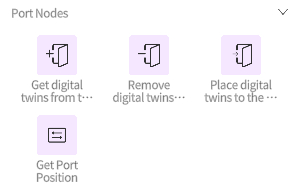
Get Digital Twins from the Input Port
Function: Get the digital twin from the specified input/output port and set it as the current digital twin or save it to a target attribute.
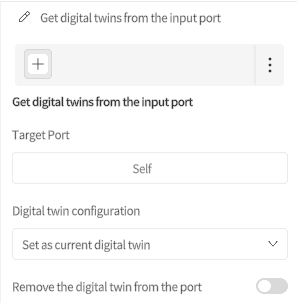
Parameter
- Target Port: Choose the input or output port from which to retrieve the digital twin.
- Digital twin configuration
- Set as current digital twin: Set the retrieved digital twin as the active one for the current operation.
- Store digital twin identifier in attribute: Save the retrieved digital twin to the selected attribute.
- Remove the digital twin from the port: Check this option to remove the digital twin from the specified port.
Remove digital twins from the input port
Function: Delete the digital twin at the input port.
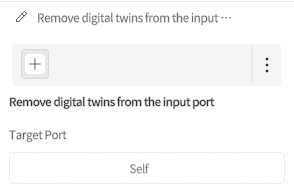
Parameter
- Target port: Select the port from which to remove the digital twin.
Place digital twins to the port
Function: Place the target digital twin at the specified port.
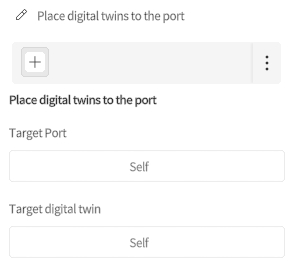
Parameter
- Target port: Select the port where the digital twin will be placed.
- Target digital twin: Specify the digital twin to be placed at the port.
Get Port Position
Function: Dynamically gets the three-dimensional coordinates of the specified input/output at runtime. It supports getting the position of the remote input/output directly connected to the current input/output.
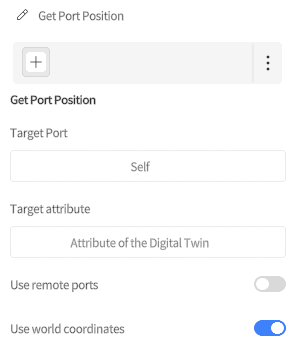
Parameter
- Target Port: Specifies the input/output object whose position needs to be obtained.
- Target Attribute: Specifies a property used to store the result, that is, the obtained input/output coordinate data.
- Use Remote Ports:
- Enabled: Returns the position of the input/output directly connected to the current input/output. If the current object is an output, it returns the position of the directly connected input. If the current object is an input, it returns the position of the directly connected output.
- Disabled (default): Returns the position of the currently selected input/output itself.
- Use World Coordinates
Sets the reference coordinate system of the returned coordinates:
- Enabled (default): Returns the absolute coordinates in the scene.
- Disabled: Returns relative coordinates.
Queue Nodes
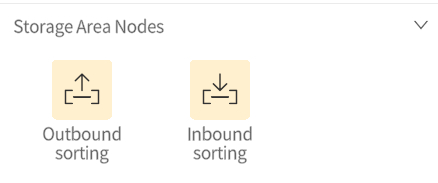
Outbound Sorting
Function: Takes digital twins out of a specified storage area to simulate goods outbound or object transfer from a storage area.
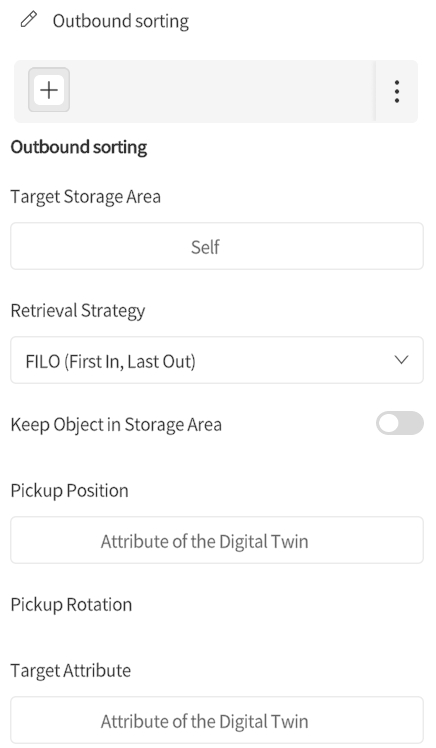
Parameter
- Target Storage Area: Select the storage area on which to perform the outbound operation.
- Retrieval Strategy: Defines how objects are retrieved from the storage area. The following strategies are supported:
- First In, Last Out (FILO): Prioritizes retrieving the object that entered the storage area most recently.
- Retrieve Nearest Object (XZ Plane Only): Prioritizes retrieving the object that is closest on the horizontal plane.
- Remove Specified Object: Retrieves the specified target object.
- Keep Object in Storage Area: When enabled, only the target object information is obtained, and the object is not actually removed from the storage area.
- Pickup Position: Specifies a property used to receive and store the coordinate data of the retrieved object’s current position.
- Pickup Rotation: Specifies a property used to receive and store the current rotation angle data of the retrieved object.
- Target Attribute: Specifies a property of the String or Object type used to receive and record the digital twin reference or identifier of the retrieved object.
Inbound sorting
Function: This node is used to place a specified digital twin into a target storage area, simulating the process of storing cargo or placing an object in a storage area.
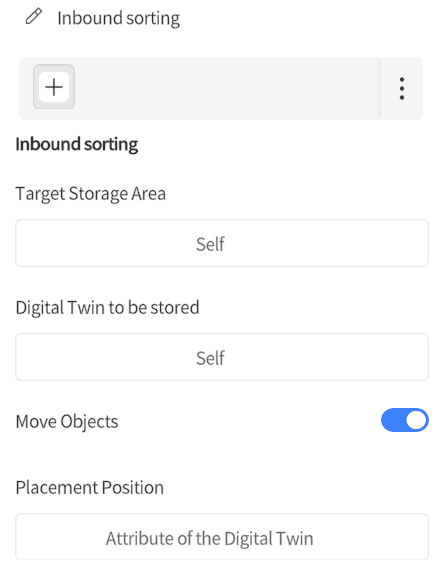
Parameter
- Target Storage Area: Select the storage area where the digital twin will be stored
- Digital Twin to Store: Specify the digital twin to be placed in the storage area.
- Move Object:
Sets whether the system automatically moves the digital twin into the storage area.
- Enabled (default): The system automatically moves the digital twin and places it in the storage area.
- Disabled: You need to manually specify the position of the digital twin after it is stored.
- Placement Position: When Move Object is disabled, this is used to manually set the coordinate position of the digital twin after it is stored.
Role nodes
Play animation
Function: Play a specified animation for a digital twin or a specific element within the digital twin, with the default setting to play it once.
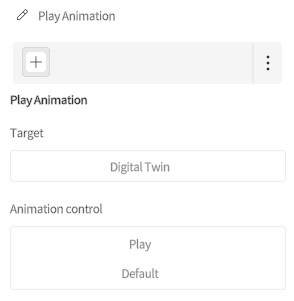
Parameter
- Target: Select the object for the animation playback.
- Digital twin: Choose the entire digital twin as the object for animation playback.
- Element in the digital twin: Choose a specific element in the digital twin as the object for animation playback.
- Animation control: Set the playback options for the animation.
- Animation Status
- Play: Start playing the animation.
- Pause: Pause the current animation.
- Resume: Continue playing the paused animation.
- Restart: Restart the animation from the beginning.
- Play mode
- Default: Read the loop mode from the animation clip (default is to play once).
- Play Once: Stop the animation when it reaches the end of the clip.
- Loop: Restart the animation from the beginning when it reaches the end.
- Ping Pong: When time reaches the end of the animation clip, time will ping pong back between the beginning and end.
- Clamp Forever: Plays back the animation. When it reaches the end, it will keep playing the last frame and never stop playing.
- Animation name: Manually input the name of the animation. The digital twin or element must contain this animation. You can view the animation names through DataMesh Importer.
- Animation speed: Set the speed of the animation playback, default is 1x speed
- Animation Status
Example: The following example shows how to use the “Play Animation” node to play the “Pick and Move Object” animation for the “Six-Axis Robotic Arm.”
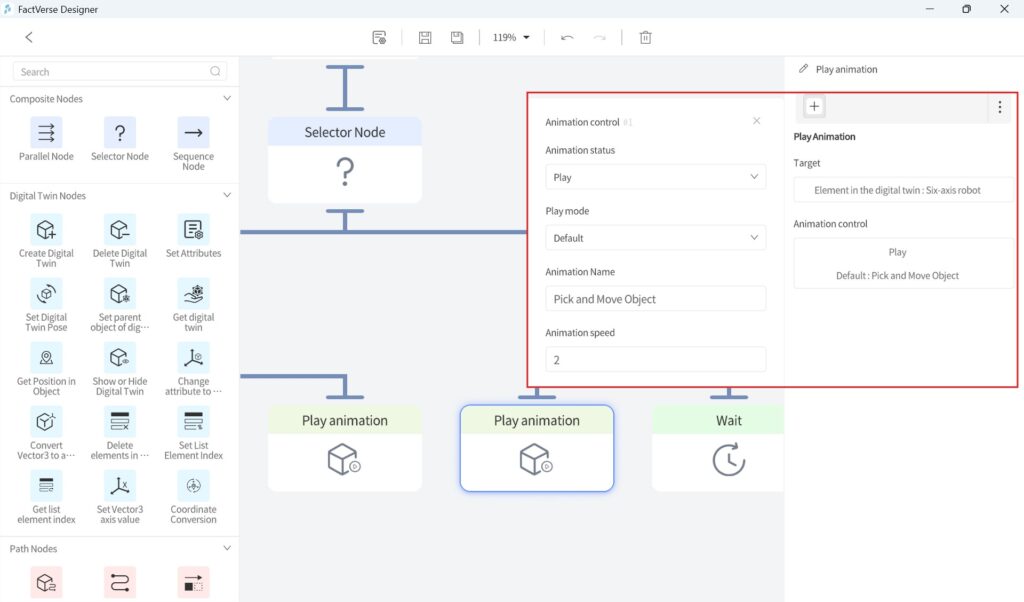
- Target: Element in the digital twin: Six-Axis Robotic Arm
- Animation control
- Animation status: Play
- Animation mode: Default
- Animation name: Pick and Move Object
- Animation speed: 2 (2x speed)
Tool nodes
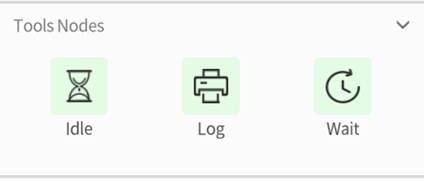
Idle
Function: Stop the execution of the behavior tree.
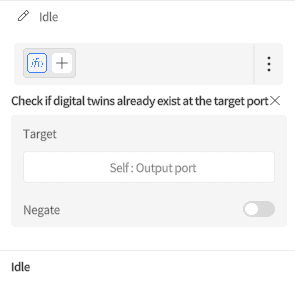
Example:
The following Idle node uses the condition “Check if digital twins already exist at the port” to determine when to stop the behavior tree. The behavior tree stops running when other digital twins are present at the port.
Log
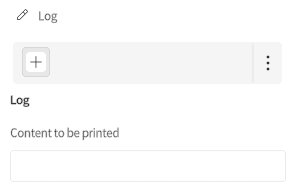
Function: The log node is used to output specified text content, which is displayed in the “Output Information” panel in the scene playback interface.
Parameter
- Content to be printed: Manually enter the text to be output.
Wait
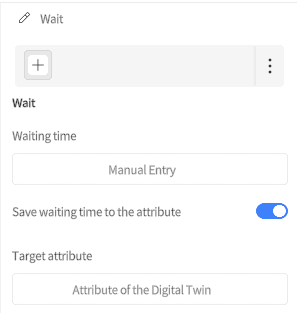
Function: The wait node is used to pause the execution of the behavior tree until the set waiting time has elapsed. Once the waiting time ends, the behavior tree will continue to execute the nodes following the wait node.
Parameter
- Waiting time: Set the duration for which the behavior tree will pause.
- Manual entry: Manually specify the waiting time (in seconds).
- Attribute of the digital twin: Use a digital twin attribute value as the waiting time.
- Behavior tree attribute: Use a behavior tree attribute to define the waiting time.
- Current attribute: The attribute currently being traversed by the behavior tree is treated as the “current” attribute.
- Save waiting time to the attribute: Check this option to save the waiting time to a specified target attribute for future use or recording.
- Target attribute: Select the attribute where the waiting time will be saved.
Behavior tree nodes
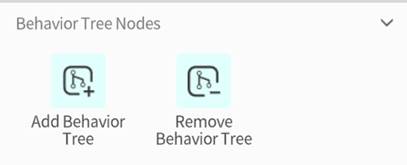
Add behavior tree
Function: Add the specified behavior tree to the target digital twin.
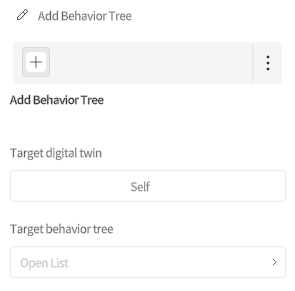
Parameter
- Target digital twin: Select the digital twin to which the behavior tree will be added.
- Target behavior tree: Choose the behavior tree to be added to the digital twin.
Remove behavior tree
Function: Remove the target behavior tree from the target digital twin.
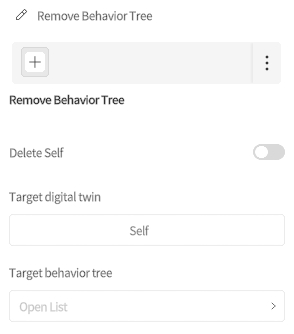
Parameter
- Target digital twin: Select the digital twin from which the behavior tree will be removed.
- Target behavior tree: Select the behavior tree to be removed.
- Delete Self: When enabled, the behavior tree containing the current node is removed after the behavior tree finishes running. This is suitable for one-time command behavior trees, such as trolley movement or equipment actions triggered on demand by FactVerse AI or an external system. After the action is completed, the behavior tree is automatically cleaned up to prevent it from continuing to remain and run on the digital twin.
Math nodes
Math nodes are used to perform various mathematical operations and apply the results to digital twin attributes.
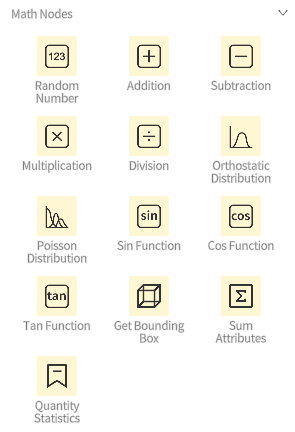
Radom number
Function: Output a random number.
Addition
Function: Select two attribute values of the digital twin for addition, and either replace a specific attribute value of the digital twin with the result or add the result to it.
Subtraction
Function: Select two attribute values of the digital twin for subtraction, and either replace a specific attribute value of the digital twin with the result or add the result to it.
Multiplication
Function: Select two attribute values of the digital twin for multiplication, and either replace a specific attribute value of the digital twin with the result or add the result to it.
Division
Function: Select two attribute values of the digital twin for division, and either replace a specific attribute value of the digital twin with the result or add the result to it.
Orthostatic Distribution
Function: Generate output values based on a normal distribution using the input value.
Poisson Distribution
Function: Generate output values based on a Poisson distribution using the input value.
Sin Function
Function: Convert the input value to the corresponding sine value and output it.
Cos Function
Function: Convert the input value to the corresponding cosine value and output it.
Tan Function
Function: Convert the input value to the corresponding tangent value and output it.
Quantity Statistics
Function: Counts the number of objects in the scene that match tags. Single-tag counting and multi-tag batch counting are supported.
Configuration Item Description
- Target
Specifies the object range that needs to participate in calculation. The following methods are supported:
- Single tag: Manually enter a tag name in the Properties Pane, or select a string property that stores the tag name.
- Multiple tags (batch): Select a List property. The system calculates all objects corresponding to the tags included in the list at the same time.
- Save Result to Target Attribute: Saves the counting result, that is, the total number of matching objects. The result type is integer (Int).
Event nodes
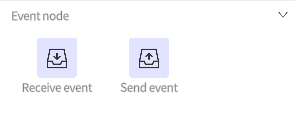
Receive event
Function: Used to listen for and respond to a specified event. Only one digital twin can listen for and respond to this event. For example, if two AGVs need to compete for the same cargo, the receive event node can be used to ensure that only one AGV responds to the cargo arrival event, avoiding conflicts.
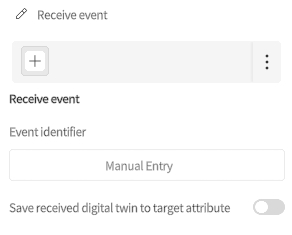
Parameter
- Event identifier: Specify the event identifier for which to listen.
- Save the received digital twin to the target attribute: Enable this option to save the detected event identifier to a target attribute for use in subsequent operations or logic checks.
Send event
Function: Send a specified event to trigger actions or behaviors in other digital twins. For example, on a production line, after one processing step is completed, an event can be sent to notify the next processing step’s digital twin to start working.
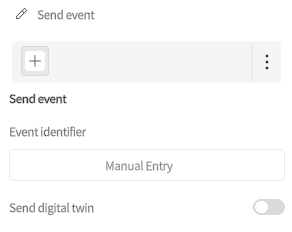
Parameter
- Event identifier: Specify the event identifier to send, used to notify other digital twins to perform related actions.
- Send digital twin: Send the digital twin along with the event, allowing other digital twins to use it when receiving the event.
Node Conditions
Definition
Node conditions can be applied to both composite nodes and action nodes to determine whether the node should be executed. The node will only be executed if the conditions are met; if the conditions are not met, the node will not execute and will return the result to the parent node.
- Conditions within a condition group are “AND” relationships: All conditions in a group must be met for the node to execute.
- Multiple condition groups are “OR” relationships: If a node has multiple condition groups, the node will execute if any one of the groups is met.
Condition Configuration Area
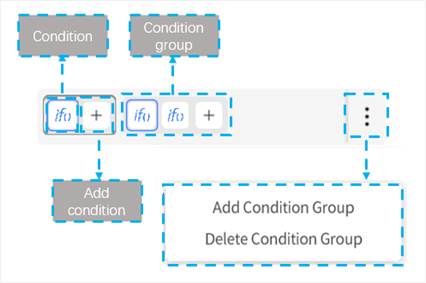
The condition configuration area is located above the Properties Pane on the right side of the behavior tree editing interface. It is used to add, edit, and manage execution conditions for the current node.
Add Condition
- Click the + button to open the condition list.
- Select the required condition type in the condition list and add it to the current condition group.
- After a condition is added, click the corresponding condition icon. The settings for that condition are displayed below, where you can further configure condition parameters.
Delete Condition
Right-click an added condition icon and select Delete to delete the condition.
Condition Group Management
Click the vertical ellipsis button on the right to manage condition groups. The following operations are supported:
- Add Condition Group: Adds a new condition group.
- Delete Condition Group: Deletes the currently selected condition group.
Common conditions
Check if digital twins already exist at the target port
This condition is used to determine whether other digital twins are present at the ports of a digital twin.
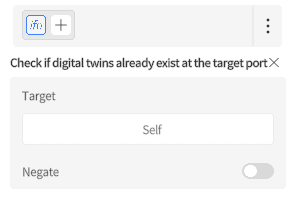
Parameters
- Target: Set the port to be checked.
Example
The following example checks whether there are other digital twins at the input port of the digital twin executing the behavior tree.
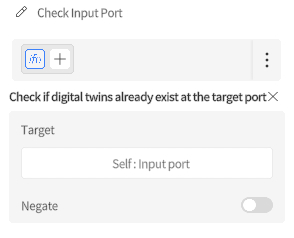
Compare attribute values of two digital twins
This condition is used to compare specific attribute values of two digital twins to determine if a particular condition is met. Perform corresponding behavior logic based on the comparison result.
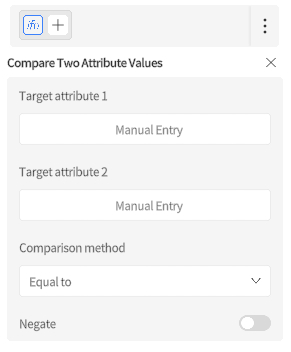
Parameter
- Target attribute 1: The first digital twin attribute value to compare.
- Target attribute 2: The second digital twin attribute value to compare.
- Comparison method: Defines how to compare the two attribute values.
- Equal to: The value of Target attribute 1 is equal to the value of Target attribute 2.
- Greater than: The value of Target attribute 1 is greater than the value of Target attribute 2.
- Less than: The value of Target attribute 1 is less than the value of Target attribute 2.
- Less than or equal to: The value of Target attribute 1 is less than or equal to the value of Target attribute 2.
- Greater than or equal to: The value of Target attribute 1 is greater than or equal to the value of Target attribute 2.
- Not equal to: The value of Target attribute 1 is not equal to the value of Target attribute 2.
Compare distance
This condition is used to compare the distance between two points and a reference value, and perform the corresponding logic based on the comparison result.
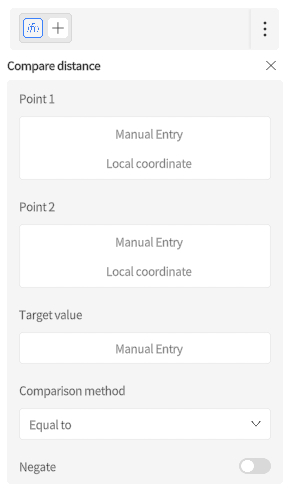
Parameter
- Point 1
- Method to get the position: Choose how to obtain the position of the first point. For more information on selecting a position, refer to Select Position.
- Coordinate type: Select the coordinate type to use, either local or global coordinates.
- Point 2
- Method to get the position: Choose how to obtain the position of the second point.
- Coordinate type: Select the coordinate type to use, either local or global coordinates.
- Target value: The reference distance for comparison.
- Comparison method: Choose the comparison method to evaluate the relationship between the distance of the two points and the target value.
- Equal to: The distance between the two points equals the target value.
- Less than: The distance between the two points is less than the target value.
- Greater than: The distance between the two points is greater than the target value.
- Less than or equal to: The distance between the two points is less than or equal to the target value.
- Greater than or equal to: The distance between the two points is greater than or equal to the target value.
- Not equal to: The distance between the two points is not equal to the target value.
Example
Suppose we need to check whether the conveyor belt output port is blocked. The condition is considered met if the distance between the first object and the output port is less than the preset safe distance, indicating a blockage. The setup is as follows:
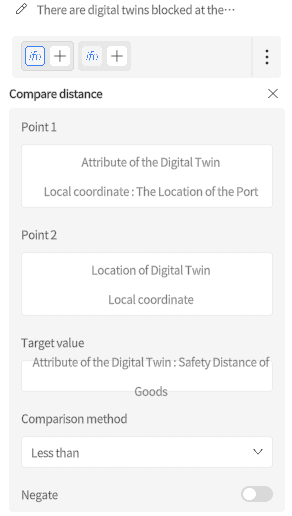
- Point 1
- Method to get the position: Select “Attribute of the digital twin”.
- Coordinate type: Select “Local coordinate.”
- Attribute in the digital twin: Select “Attribute of the digital twin” > “The position of the port”.
- Point 2
- Method to get the position: Select “Location of digital twin”
- Coordinate type: Select “Local coordinate”
- Method to find digital twins: Select “Self” > “First child digital twin”
- Target value:
- Get value from: “Attribute of the digital twin”
- Get digital twin from: Select “Self”
- Target attribute: Select safe distance of goods
- Comparison method: Select “Less than”
Check if there is a digital twin in the Queue
This condition is used to check whether an object exists in the specified Queue.
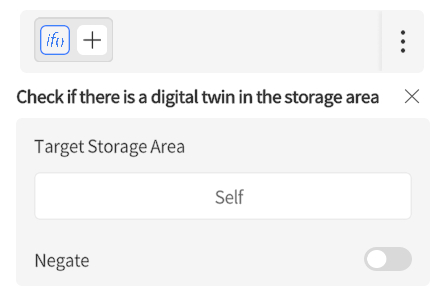
Parameter
- Target Storage Area: Set the storage area to check.
- Get digital twin from: Specify the digital twin to which the storage area belongs.
Check if the digital twin can be placed in the storage area
Determine if a certain digital twin can be placed in the specified storage area.
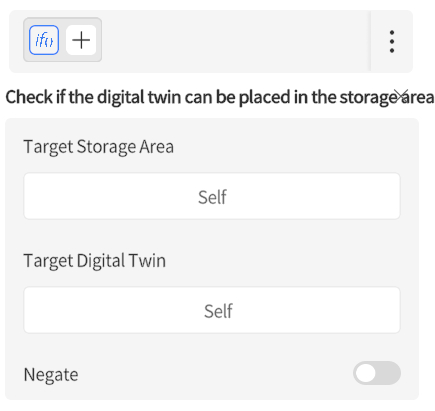
Parameter
- Target Storage Area: Specify the target storage area.
- Get digital twin from: Used to specify the digital twin that belongs to the storage area.
- Target digital twin: Specify the digital twin to be stored.
- Get digital twin from: Used to specify the digital twin to be placed in the storage area.
Example
Assuming we need to determine whether a certain item can be placed in the storage area of the Digital Twin A executing the behavior tree, the setup can be done as follows:
- Target Storage Area: Select “Self”
- Target Digital Twin: Temporary digital twin
Check if the digital twins are the same
This condition is used to determine whether two digital twins are the same.
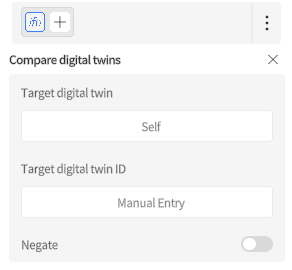
Parameter
- Target Digital Twin: Select the digital twin to compare.
- Target Digital Twin ID: Select the ID of the other digital twin for comparison.
Check if Attribute is Empty
Function
This condition checks whether a specified attribute value is empty. It is commonly used for flow control and exception handling.
Supported attribute types:
- String: An empty string “” is considered empty.
- Object: Considered empty when null or unassigned.
- List: Considered empty when the element count is 0.
- Dictionary: Considered empty when the number of key–value pairs is 0.
If the target attribute type is not one of the above (e.g., numeric, boolean), the condition will always return false.
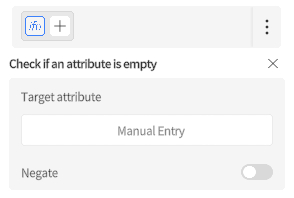
Parameter Description
- Target Property: The target property to check for emptiness. The String, Object, List, and Dictionary types are supported.
- Negate: Controls whether to invert the condition logic:
- Selected: The condition is met when the property is not empty.
- Not selected: The condition is met when the property is empty.
Configure External Capabilities of Behavior Trees
You can configure whether a behavior tree is allowed to be called externally, and whether tree properties are allowed to provide status information externally, based on business needs.
- Externally Callable controls whether a behavior tree can be triggered on demand by FactVerse AI or an integrated external system.
- Allow AI Access controls whether tree properties can be provided to FactVerse AI or an integrated external system as behavior tree runtime status for reading.
Configure External Behavior Tree Invocation
Externally Callable configures a behavior tree as behavior logic that can be triggered on demand. After it is enabled, the behavior tree does not run automatically when the scene starts. Instead, the system executes the behavior tree when FactVerse AI or an integrated external system initiates a call.
This feature is suitable for behavior logic that needs to be triggered by instructions, such as starting a section of device workflow on demand, executing a specified handling action, or triggering a business action in the scene.
Steps
- Open the target digital twin template.
- In the behavior tree list on the left, select the behavior tree to configure.
- In the right Attribute Pane, select Externally Callable.
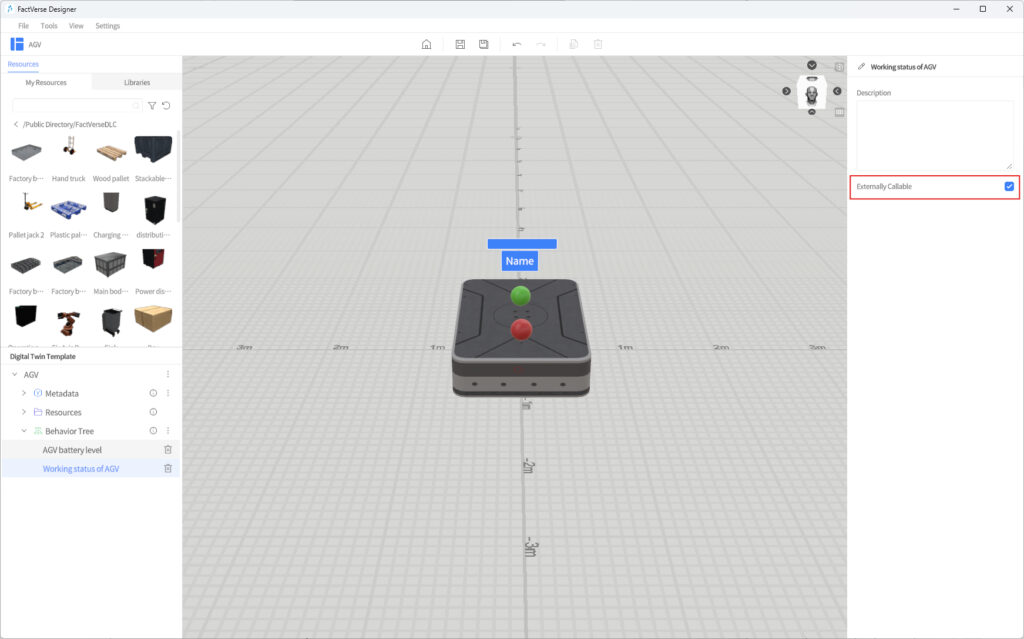
- Save the template.
Description
- After Externally Callable is selected, the behavior tree no longer runs automatically when the scene starts.
- It is recommended to enable Externally Callable only for behavior trees that need to be triggered on demand by FactVerse AI or an external system.
- For behavior trees that need to run automatically when the scene starts, it is recommended to keep Externally Callable disabled.
- Whether this capability can be used in a project depends on whether the project has configured the corresponding AI or external system calling capability.
Allow AI Access to Tree Properties
In the Behavior Tree Editor, you can enable Allow AI Access for tree properties. When this option is enabled, the tree property can be provided to FactVerse AI or an integrated external system as runtime status information of the behavior tree.
Steps
- Open the target behavior tree in the Behavior Tree Editor.
- In the tree properties panel, click the edit button corresponding to the tree property to configure and open the edit window.
- In the edit window, select Allow AI Access.
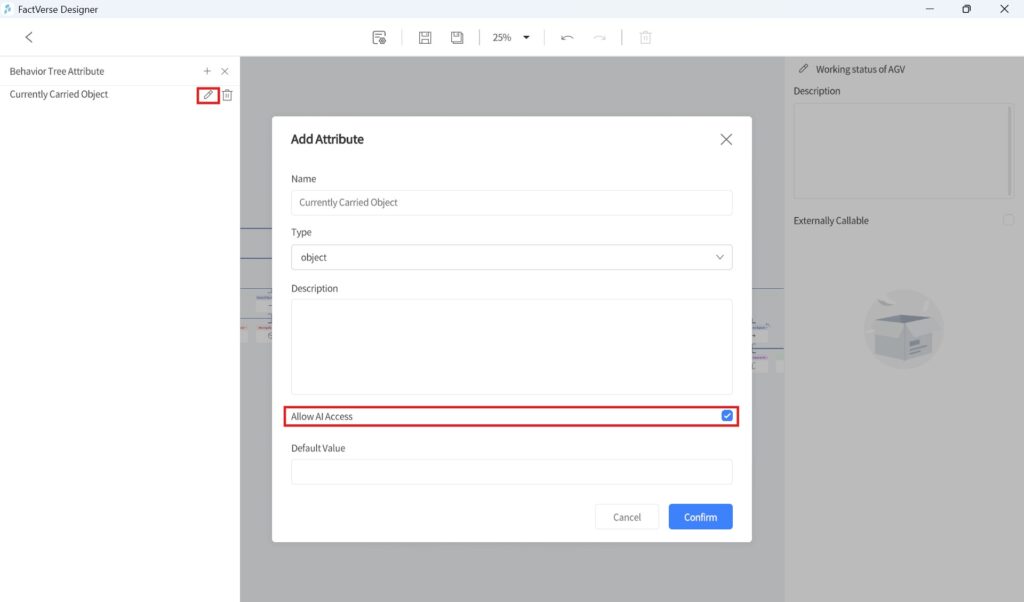
- Save the behavior tree.
Notes:
- Allow AI Access for tree properties is independent of Allow AI Access for digital twin properties.
- Allow AI Access for tree properties is independent of Allow AI Access for digital twin properties.
- Allow AI Access for digital twin properties provides property information about the digital twin itself. Allow AI Access for tree properties provides status information during behavior tree execution.
- It is recommended to enable Allow AI Access only for key status properties that need to be read by FactVerse AI or an external system.
Edit Behavior Tree
Basic method
The basic process of editing a behavior tree can be divided into the following steps:
- Function decomposition
Break down complex functions into multiple independent sub-functions. For example, a material generator can be decomposed into two sub-functions: “Production” and “Output.”
- Prepare digital twin templates
a) Create a digital twin template
b) Add resources: Based on the results of the function decomposition, add resources for each specific goal of the sub-functions. For example, the production function of the material generator requires an outlet to output the generated items.
c) Set attributes: Configure the relevant attributes for each sub-function. For example, for the production function of the material generator, set the production interval and the template required for producing items.
- Edit the Behavior Tree: Use the behavior tree editor to define the specific behavior logic for each sub-function. For instance, the production function of the material generator can be set to produce items at regular intervals (wait node) and create digital twins (create twin body node). The output function can use Set Digital Twins to the Port Node to send goods to the outlet.
Example
Basic functions of the Source
- Function decomposition: “Production” and “Output.”
- Prepare digital twin template:
a) Create a digital twin template: Create a digital twin template and add a Source model to the template (“/Public Directory/FactVerseDLC/ChuangJianQi_DLC”).
b) Add resources: Add an “Output” to the production function of the Source.
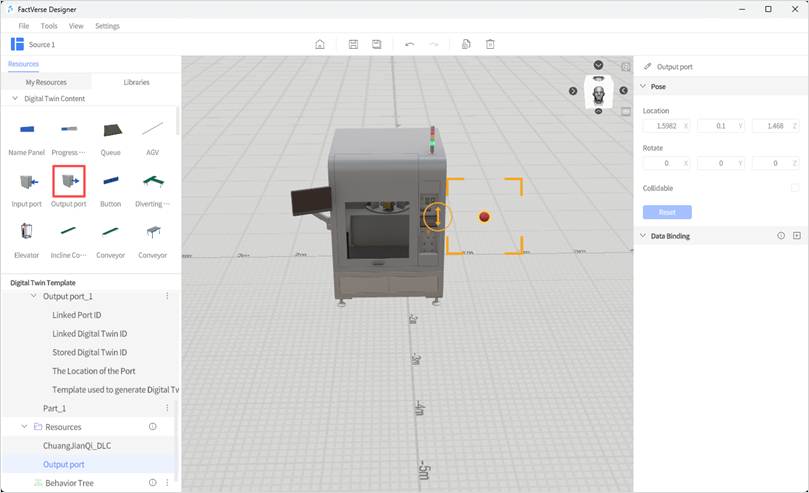
c) Set attributes:
i. Rename “Part_1” to “Main Function.”
ii. Set production interval attribute: Under “Main Function,” add a “Production Interval” (Double type) attribute with the following settings:
- Unit: “s”
- Default value: “3”
- Check the option “Show in the digital twin.” When checked, users can edit this attribute in the scene editor when using this template to generate digital twins.
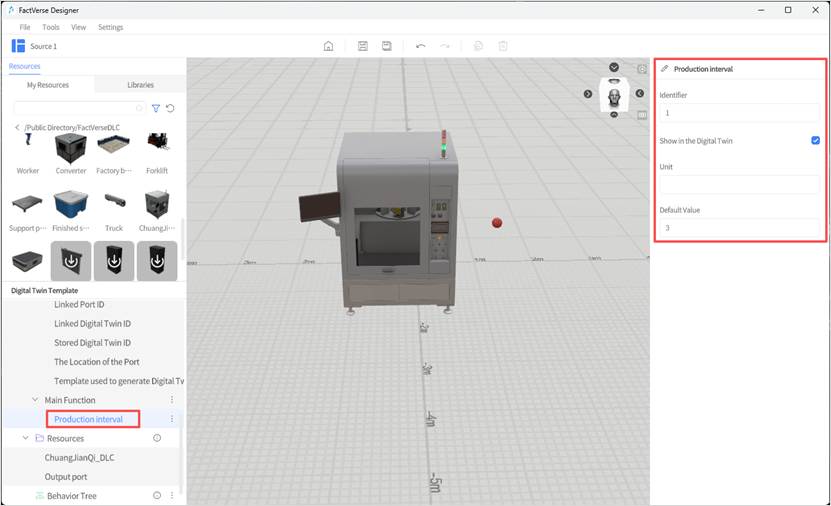
iii. Set template ID attribute for production items: Under “Part_1,” add a “Generated Digital Twin Identifier” (String type) property with the following settings:
- Purpose: Select “Digital twin template”
- Check the option “Show in the digital twin.”
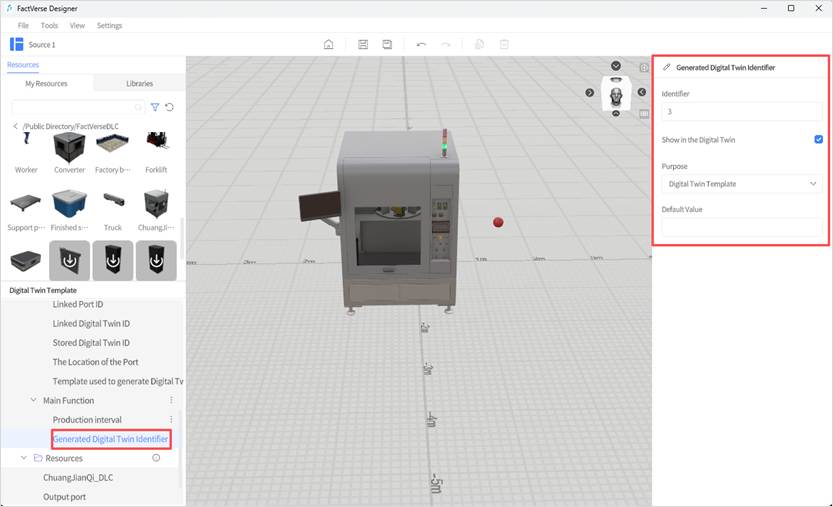
iv. Save template: Click the “Save” button on the toolbar to save the template.
- Edit behavior tree:
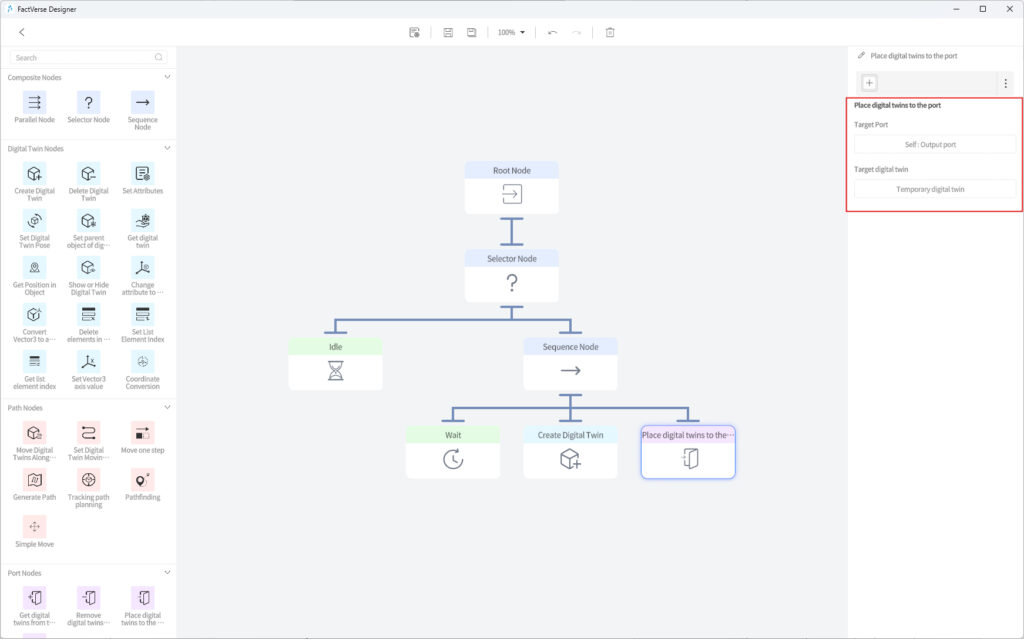
a) Create a behavior tree: Create a behavior tree named “Produce Materials According to Digital Twin Template.
b) Edit behavior tree: The newly created Behavior Tree “Behavior tree of Source” only contains a root node. The following steps will add nodes and running conditions to the “Behavior tree of Source.”
i. Double-click the “Produce Materials According to Digital Twin Template” behavior tree to open the behavior tree editor.
ii. Add a Selector node and connect the Root node with the Selector node. For connection methods, refer to the section Node Operations.
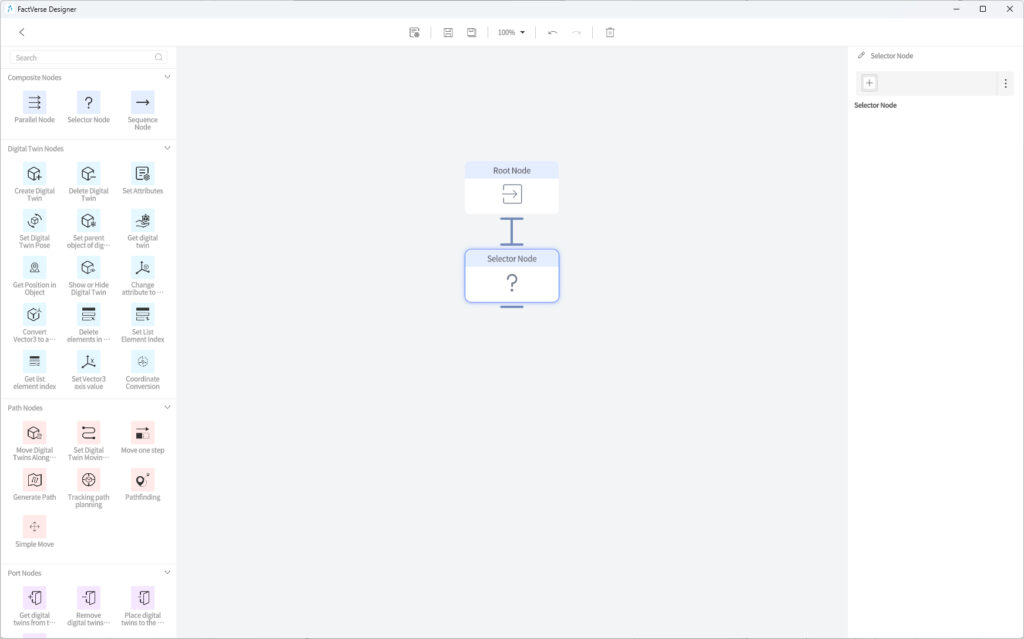
iii. Add an Idle node and connect the Selector node with the Idle node. Set the running conditions of the Idle node to stop when production items are present at the output.
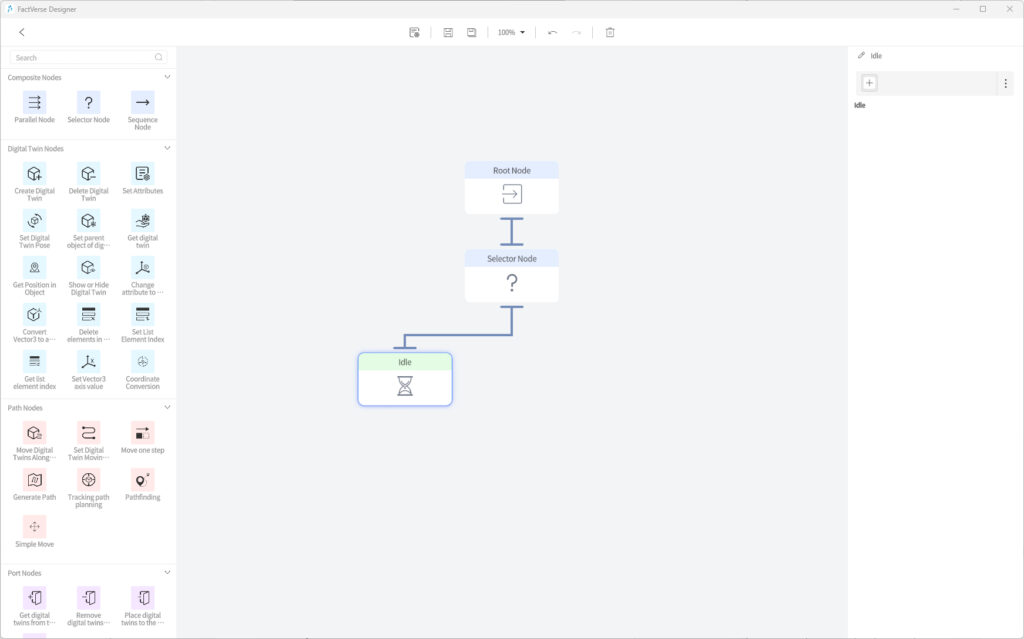
iv. Add a Sequence node and connect the Selector node with the Sequence node.
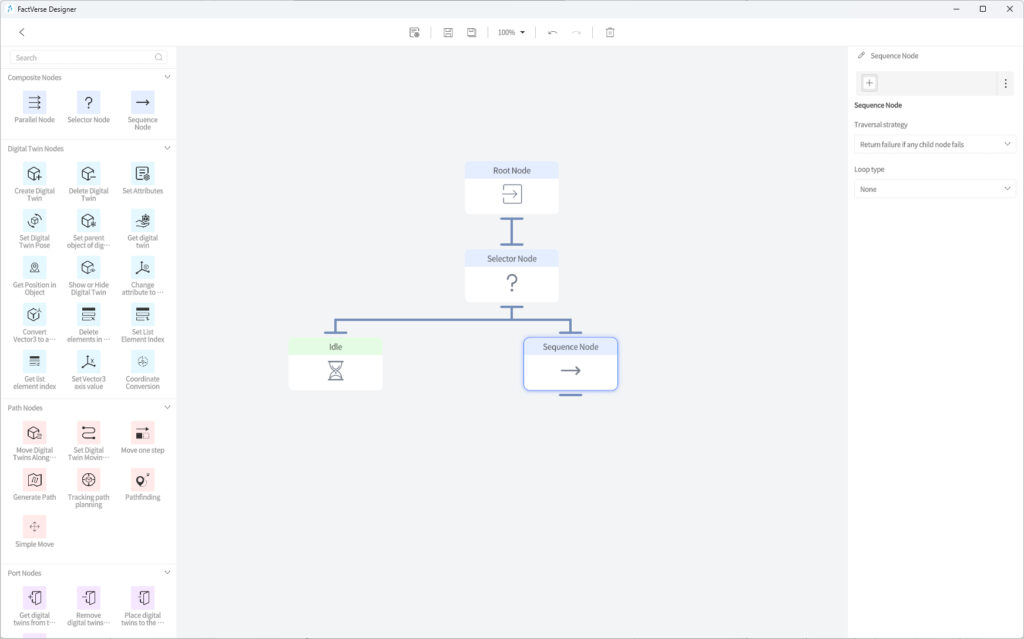
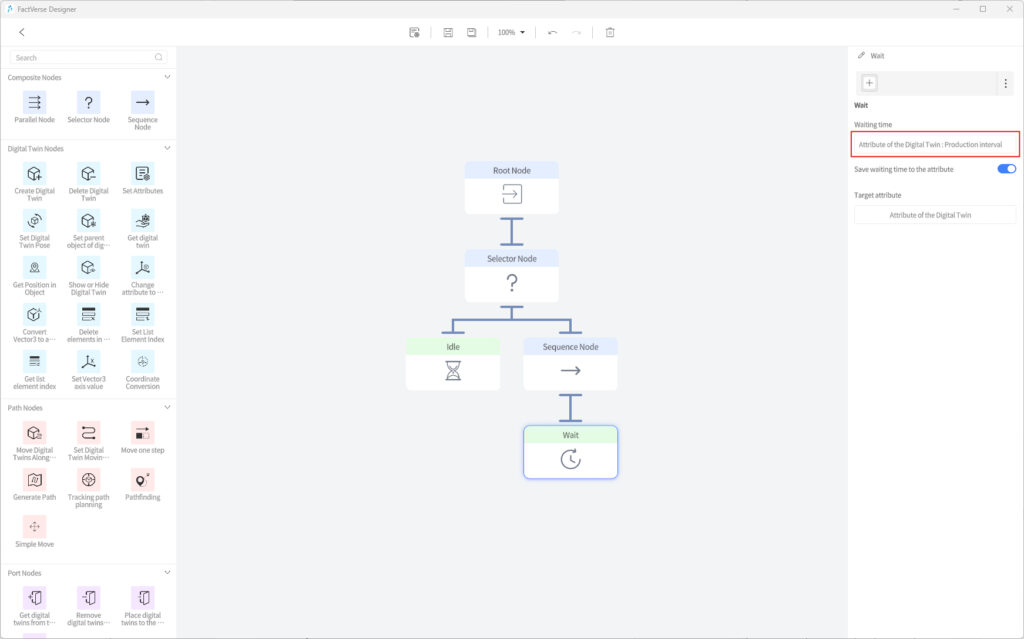
v. Add a Wait node and connect the Wait node with the Sequence node. Set the attributes of the Wait node:
- Waiting time: Attribute of the digital twin > Production interval
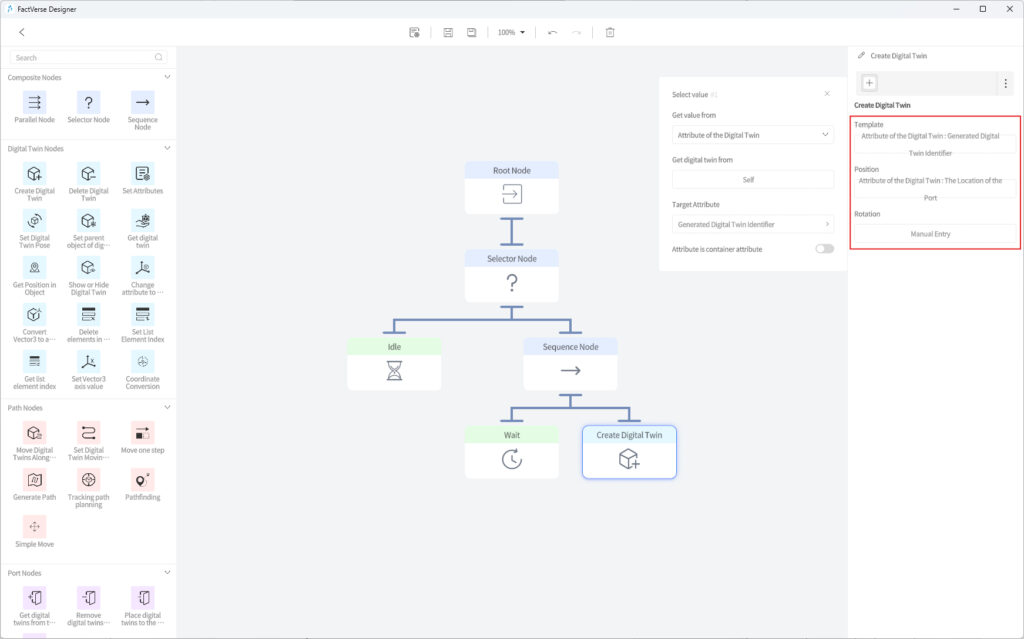
vi. Add a node for producing items: Add a Create Digital Twin node, connect the Sequence node with the Create Digital Twin node, and set the attributes of the Create Digital Twin node:
- Template: Select “Attribute of the digital twin” > “Generated Digital Twin Identifier”
- Position
- Get value from: Select “Attribute of the digital twin”
- Get digital twin from: Select “Self”
- Target attribute: The location of the port
vii. Add a Place Digital Twins to the Port node: Connect the Sequence node with the Place Digital Twins to the Port node, and set the attributes of the node:
- Target port
- Get digital twin from: Select “Self”
- Select port: Select “Output port_1”
- Target digital twin: “Temporary digital twin”
- Target port
viii. Click the “Save” button  on the toolbar to save the Behavior Tree.
Moving ball
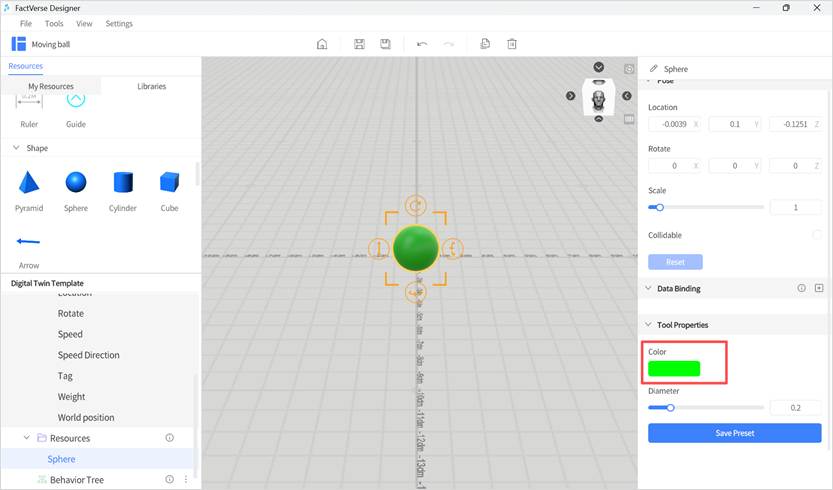
- Create a Ball Twin Template:
a) Create a digital twin template named “Moving Ball.”
b) Place a “Sphere” in the scene area and adjust it to the desired position.
c) Change the color of the ball to green.
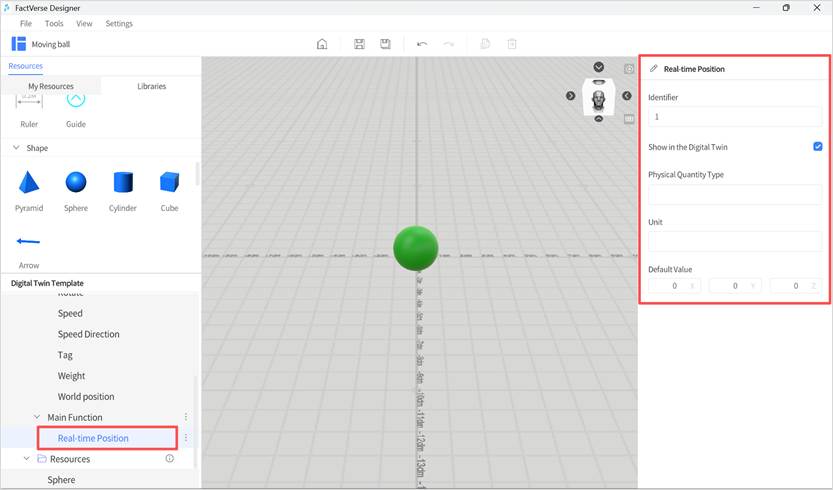
- Add an attribute group to the template: add a “Main Function” structure and add a “Real-time Position” (Vector3) attribute.
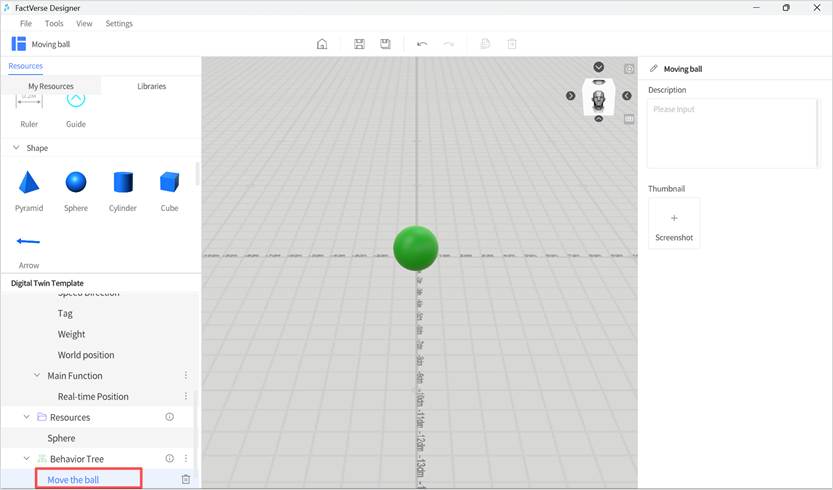
- Create a behavior tree: Add a behavior tree to the template to drive the ball’s movement, save the behavior tree, and name it “Move the ball.”
- Edit behavior tree logic
a) Double-click the “Move the ball” behavior tree to open the behavior tree editor.
b) Add a Sequence node under the Root Node.
c) Under the Sequence node, add a Set Digital Twin Pose node “Set Digital Twin Pose 1” and configure the attributes as follows:
Target
- Get value from: Digital twin
- Get digital twin from: Self
Position
- Get value from: Manual entry
- Value: 0.5,0,0
d) Add a Wait node “Wait 1” under the Sequence node and set the Manual Entry value for waiting time to “0.5.”
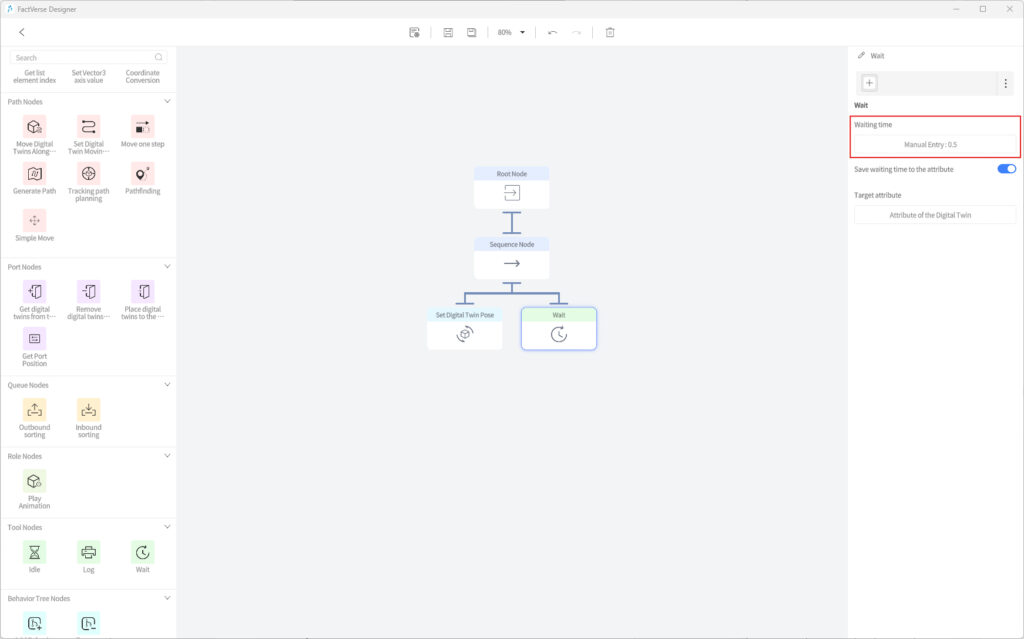
e) Add another Set Digital Twin Pose node:
i. Copy “Set Digital Twin Pose 1” using CTRL+C and paste it with CTRL+V under the Sequence node to create a new Set Digital Twin Pose node “copy_Set Twin Pose 1.”
ii. Rename it to “Set Digital Twin Pose 2.”
iii. Change the Manual entry for Position to “0.5,0,-0.5.”
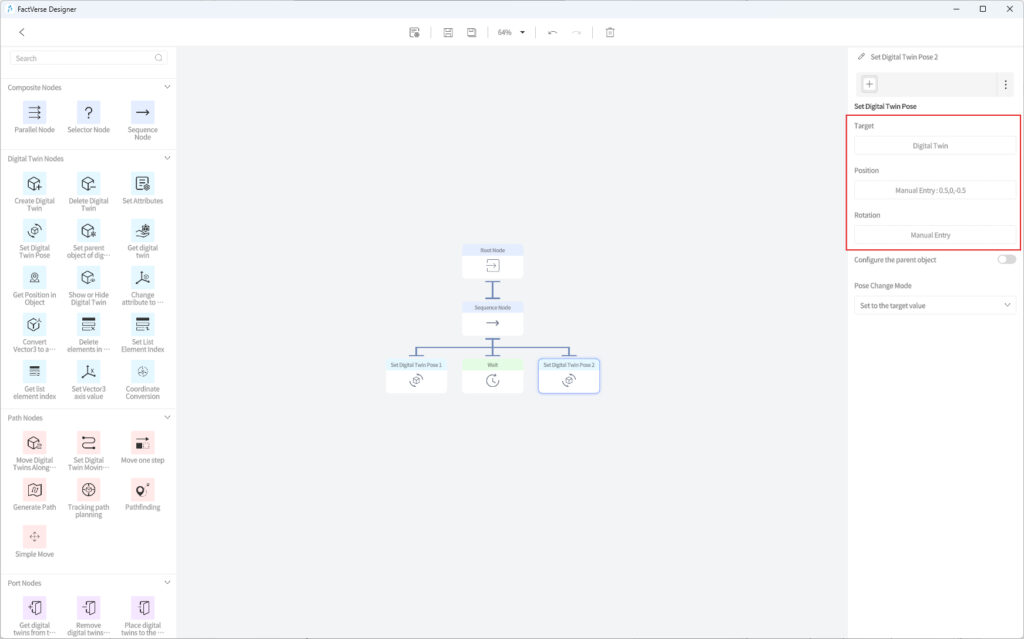
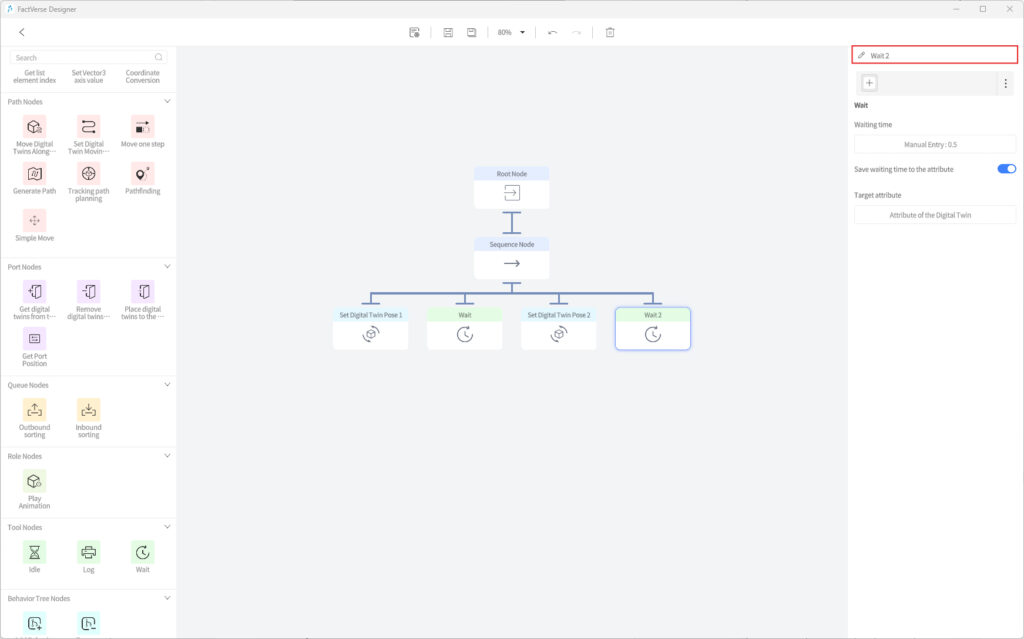
f) Copy “Wait 1” node using CTRL+C and paste it with CTRL+V to create a new wait node “copy_Wait 1,” renaming it to “Wait 2.”
g) Add a “Set Digital Twin Pose 3” node by copying “Set Digital Twin Pose 1,” changing the manual input for Position to “0,0,-0.5.”
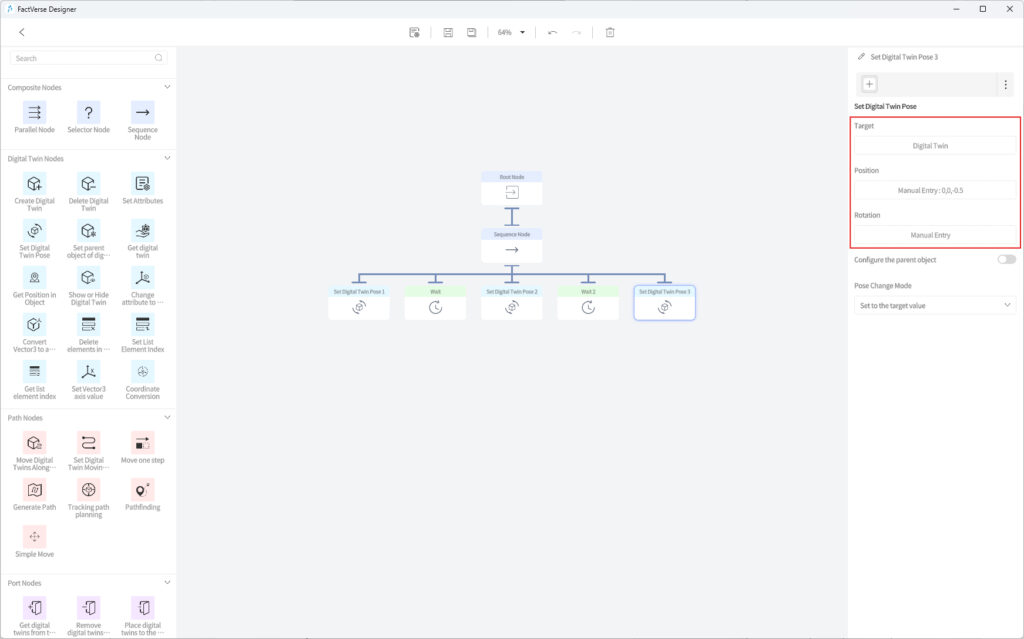
h) Copy “Wait 1” node again using CTRL+C and paste it with CTRL+V to create a new wait node “copy_Wait 1,” renaming it to “Wait 3.”
i) Save the behavior tree.
j) Click the < button to exit the behavior tree editor.
- Save the template and click the homepage button to exit the template editor.
- Create a scene and add a moving ball in the scene
a) Create a new scene.
b) Use the “Moving Ball” template to create a “Moving Ball 1” digital twin.
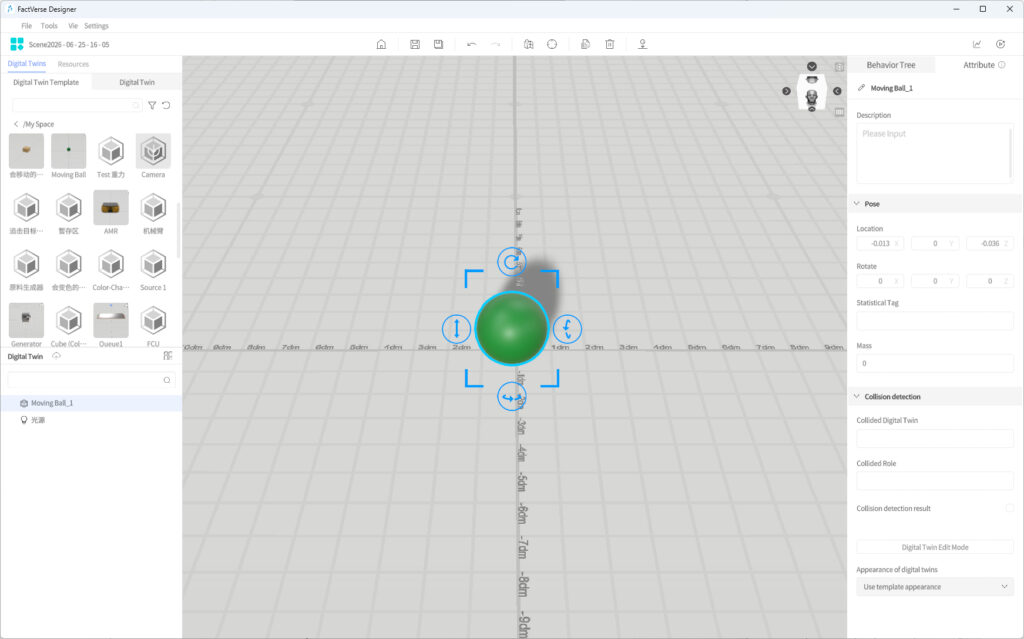
c) Play the scene to preview the ball’s movement.
d) Save the scene and name it “Moving Ball.”
Behavior Tree that Receives Signals and Changes Color
Create a behavior tree for the “Color-Changing Cube” template that receives signals and changes color.
Steps
- Open the template: open the “Color-changing Cube” template and change the cube’s color to white.
- Create a new behavior tree: Create a new “Event Response” behavior tree in the template.
- Edit the behavior tree:
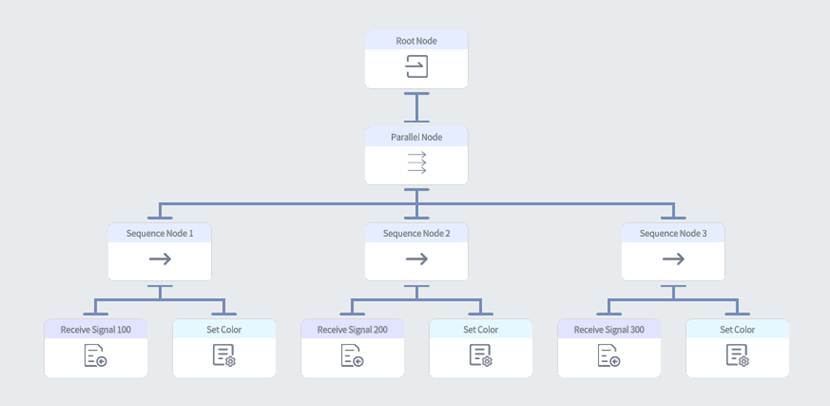
a) Add a Parallel node under the Root node.
b) Add a Sequence node “Sequence Node 1” under the Selector node.
c) Add a Receive event node “Receive Signal 100” under “Sequence Node 1” and set the attributes as follows:
- Event identifier
- Get value from: Manual Entry
- Value: 100
d) Add a Set attributes node “Set Color” under “Sequence Node 1” and set the attributes as follows:
- Target attribute
- Get attribute from: Attribute in the digital twin
- Get digital twin from: Self
- Select attribute: Singal (the “Signal” attribute of the “Color-Changing Cube” template)
- Strategy for setting value: Replace the original value
- Value
- Get value from: Manual entry
- Value: 255,254,145,10 (corresponding color is
 )
)
- Target attribute
e) Add a Sequence node “Sequence Node 2” under the Selector node.
f) Add a Receive event node “Receive Signal 200” under “Sequence Node 2” and set the attributes as follows:
- Event identifier
- Get value from: Manual entry
- Value: 200
g) Add a Set attributes node under “Sequence node 2”, rename it to “Set Color”, and set the attributes as follows:
- Target attribute
- Get attribute from: Attribute in the digital twin
- Get digital twin from: Self
- Select attribute: Singal (the “Signal” attribute of the “Color-Changing Cube” template)
- Strategy for setting value: Replace the original value
- Value
- Get value from: Manual entry
- 100,100,200,200 (corresponding color is
 )
)
- Target attribute
h) Add a Sequence node “Sequence Node 3” under the Selector node.
i) Add a Receive event node “Receive Signal 300” under “Sequence Node 3” and set the attributes as follows:
- Event identifier
- Get value from: Manual entry
- Manual entry: 300
j) Add a Set attributes node under “Sequence node 3”, rename it to “Set Color”, and set the attributes as follows:
- Target attribute
- Get attribute from: Attribute in the digital twin
- Get digital twin from: Self
- Select attribute: Singal (the “Signal” attribute of the “Color-Changing Cube” template)
- Strategy for setting value: Replace the original value
- Value
- Get value from: Manual entry
- 255,100,100,100 (corresponding color is
 )
)
- Target attribute
The following image shows the complete behavior tree structure:
4. Save the behavior tree and return to the template editor interface.
5. Save the template.
Response to the signal to change the color of the cube
In this example, we will use event nodes to listen for and respond to events, changing the color attribute of a cube.
Prerequisites
Please first follow the steps in “Create a Color-Changing Cube Template” and “Behavior Tre that Receives Signals and Changes Color” to prepare the “color-changing cube” template.
- Create a template:
a) Create a new template named “Signal-Sending Sphere.”
b) Click the “Sphere” in the toolbox, place it into the scene area, and adjust it to the desired position.
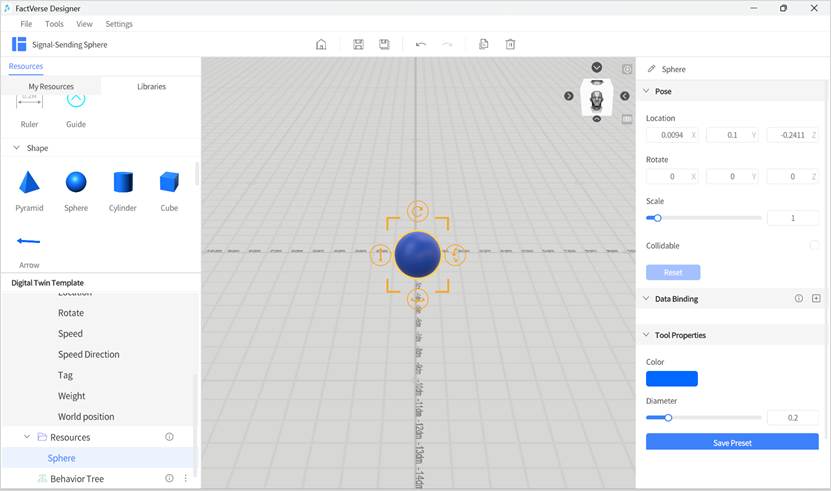
- Add an attribute group: Add a “Main Function” structure to the template, and add a “Signal” (Int) attribute under the “Main Function” structure.
- Create a behavior tree: Create a new behavior tree named “Send Signal.”
- Edit behavior tree: In this example, three signals “100,” “200,” and “300” will be sent.
a) Double-click on the “Send Signal” behavior tree to open the behavior tree editor.
b) Add a Sequence node under the Root node and use the default attributes.
c) Under the Sequence node, add a Send Event node “Send Signal 100,” and set its attributes as follows:
- Event identifier
- Get value from: Manual Entry
- Value: 100
d) Add a Wait node “Wait 1” under the Sequence node and set the manual entry wait time to “2.”
e) Add the “Send Signal 200” node:
i. Copy and paste the “Send Signal 100” node; it will automatically be added under the Sequence node.
ii. Rename it to “Send Signal 200.”
iii. Reconnect the Sequence node and the “Send Signal 200” node.
iv. Change the manual entry value for the Event identifier in the “Send Signal 200” node to “200.”
f) Add a Wait node “Wait 2” and set the manual entry wait time to “2”.
g) Add the “Send Signal 300” node:
i. Copy and paste the “Send Signal 100” node; it will automatically be added under the Sequence node.
ii. Rename it to “Send Signal 300.”
iii. Reconnect the Sequence node and the “Send Signal 300” node.
iv. Change the manual entry value for the Event identifier in the “Send Signal 300” node to “300.”
h) Add a Wait node “Wait 3” and set the manual entry wait time to “2”.
The following image shows the complete behavior tree structure:
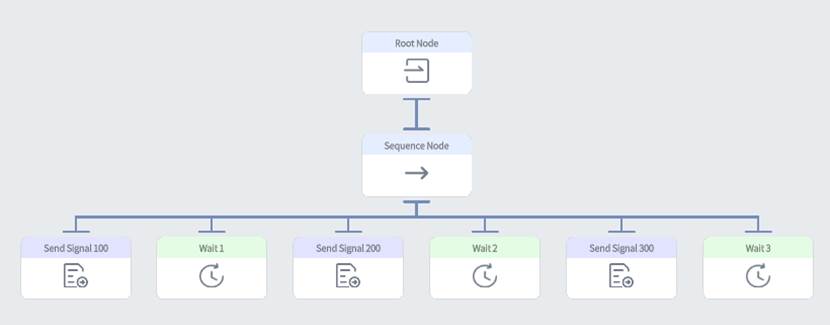
i) Save the behavior tree and exit the behavior tree editing interface.
j) Save the template and return to the homepage.
5. Create a New Scene Named “Event Response”.
6. Add a Sphere that can send events and two Cubes that can receive events in the scene:
a) Create two cubes “Cube 1” and “Cube 2” using the “Color-Changing Cube” template.
b) Create a “Signal Sending Sphere 1” using the “Signal-Sending Sphere” template.
c) Add “Cube 1”, “Cube 2”, and “Signal Sending Sphere 1” to the scene.
7. Save the scene.
8. Play the scene.
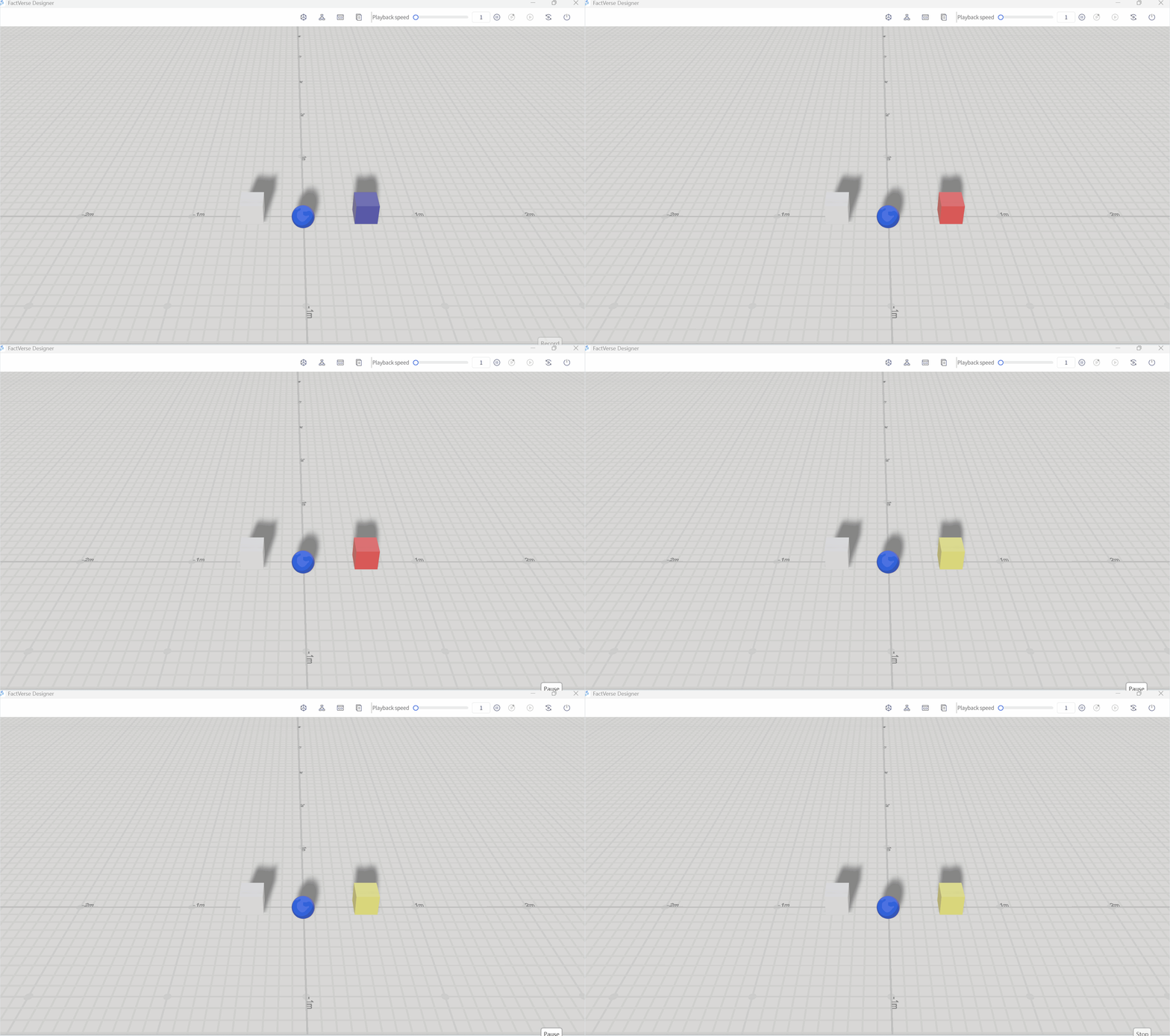
Chasing a moving ball
This example demonstrates how to create a cube digital twin in a virtual scene and implement behavior tree logic to have it automatically chase a moving ball.
- Create a cube digital twin template:
a) Create a new template named “Chasing Target Cube.”
b) Place a “Cube” in the scene area and adjust it to a suitable position.
- Create a behavior tree: Create a new behavior tree for the template and name it “Chasing Target Cube.”
- Edit behavior tree
a) Double-click the “Chasing Target Cube” behavior tree to open the behavior tree editor.
b) Add a Sequence node under the Root node.
c) Under the Sequence node, add a Track path planning node and configure the following attributes:
- Save the path to the target path
- Attribute Source: Attribute of the digital twin
- Get digital twin from: Self
- Select attribute: Current moving path(“Current moving path” attribute of “Chasing Target Cube”)
- Strategy for setting value: replace the original value
- Start point
- Get value from: Manual entry
- Value: point0
- Target to be pursued
- Select target
- Get value from: Digital twin
- Get digital twin from: All the digital twins in the scene
- Further configuration: Specify a digital twin
- Select method: Select digital twin
- Digital twin: Moving ball
- Save the path to the target path
d) Under the Sequence node, add a Move digital twins along a path node and configure the following attributes:
- Target to be moved
- Get value from: Digital twin
- Get digital twin from: Self
- Use current path: enabled
- Rotate during movement: Enabled
- Keep the original rotation angle when entering the path: Enabled
- Turning radius: 0
- The starting point of the movement: Current Point
- Set target movement speed: Enabled
- The position where acceleration changes to constant speed: 0
- Target speed: “10”
- Target to be moved
e) Save the behavior tree.
f) Click < to exit the behavior tree editor.
g) Save the template and return to the homepage.
- Create a Scene: Create a new scene named “Chasing Moving Ball.”
- Add a Chasing Target Cube and a Moving Ball to the scene:
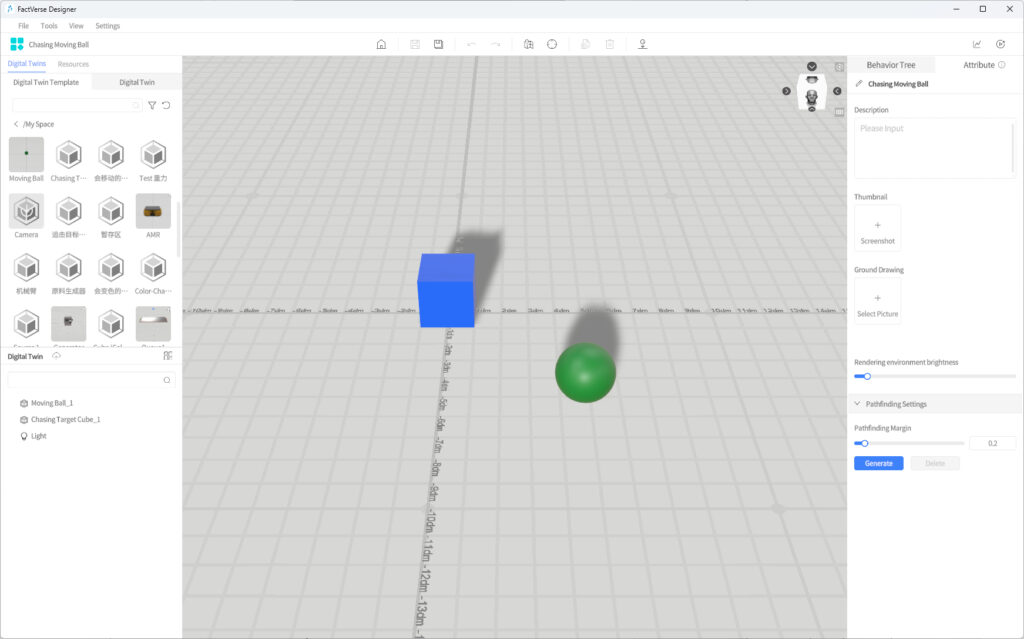
a) Create Chasing Target Cube 1 using the “Chasing Target Cube” template, and place it at (0, 0, 0).
b) Use the “Moving Ball” template to create “Moving Ball 1” and add it to the scene at position “0.5,0,-0.5.”
c) In the behavior tree of “Chasing Target Cube 1”, change the “Target to be pursued” of the Track Path Planning node to “Moving Ball 1”.
- Create a path connecting four points:
a) Hide “Chasing Target Cube 1” and “Moving Ball 1” to prevent obstruction while creating the path points, ensuring accurate placement.
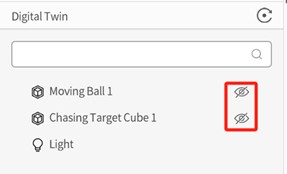
b) Enter Path Mode, use the construction mode to create the following four points and connect them. These points define the movement path for “Chasing Target Cube 1.” “point0” is the starting point. The cube will calculate the shortest path to chase “Moving Ball 1.”
- point0 (0,0,0)
- point1 (0.5,0,0)
- point2 (0.5,0,-0.5)
- point3 (0,0,-0.5)
c) Switch to selection mode and change the connection direction to bidirectional.
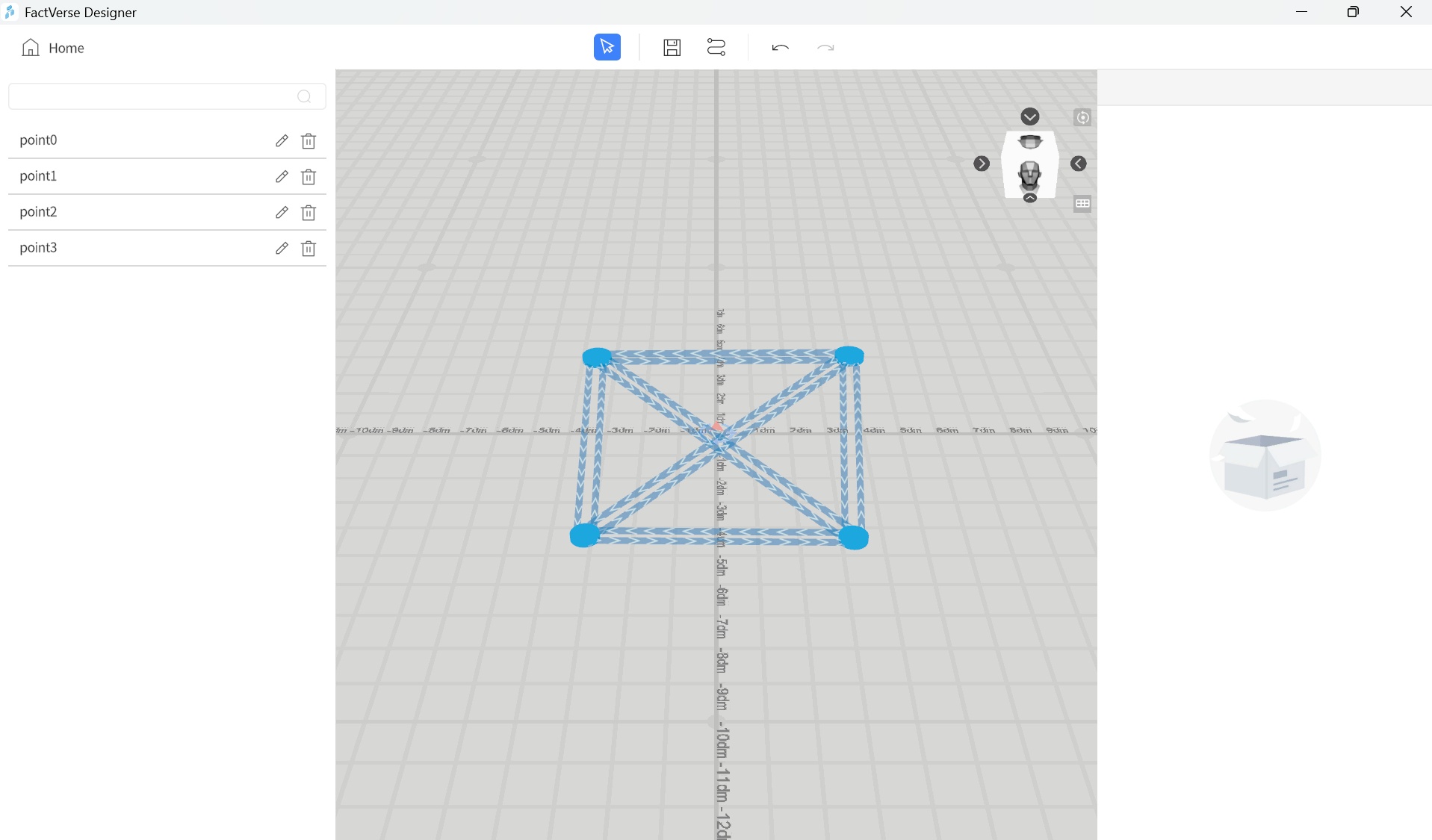
d) Save the path and exit Path Mode.
e) Make “Chasing Target Cube 1” and “Moving Ball 1” visible again.
- Save the Scene.
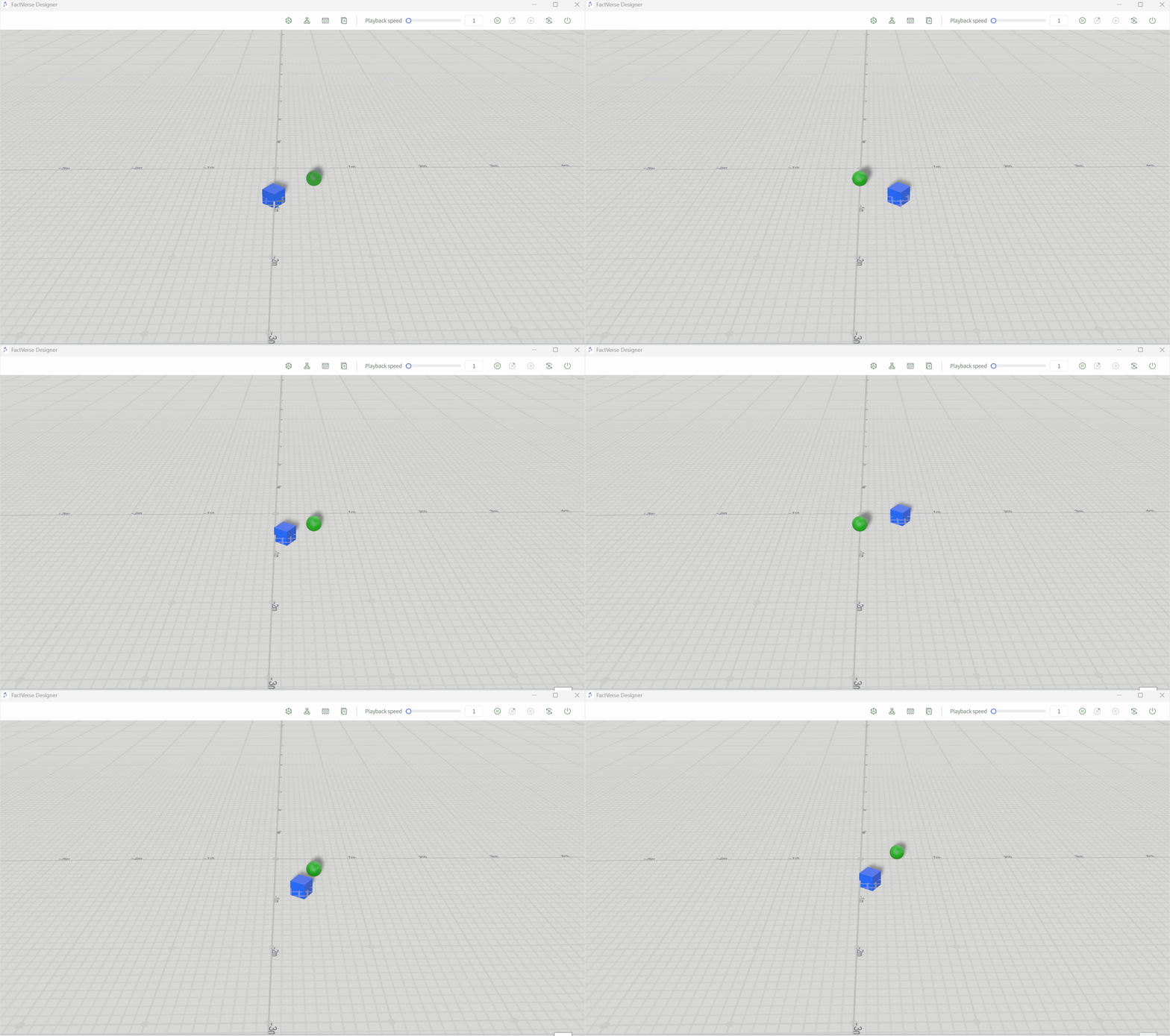
- Play the Scene: “Chasing Target Cube 1” will chase “Moving Ball 1” along the shortest path.