How Can We Help?
Quick Start: Build a Digital Twin Scene
This chapter will demonstrate the basic workflow of building a digital twin scene using FactVerse Designer through templates and models from FactVerse DLCs. Through the following examples, you will learn about the key steps in creating a digital twin scene.
Basic Workflow

- Create Digital Twin Templates
- Use Preset Templates: If you are using preset templates from a FactVerse DLC, this step can be skipped.
- Custom Templates: If you need to create a custom digital twin template, refer to the Create a New Template section for detailed guidance.
- Create Digital Twins
- Based on the selected template, you can manually create individual twins or generate multiple instances in batch to support large-scale production environments.
- Scene Layout and Connection Configuration
- Layout Planning: Arrange the positions and layout of twins to ensure collaboration within the scene.
- Configure Connections: Define connections between twins to determine the direction of product flow or logistics.
- Configure Operational Logic
- Attribute Settings: Configure twin attributes to accurately simulate their behavior in real-world factory operations.
- Path Planning: Assign movement paths to digital twins so they can operate and transport along predetermined routes.
- Behavior Tree Editing: Use the Behavior Tree Editor to define twin interactions and actions.
- Debug and Playback
- Run and Inspect: Run the configured digital twin scene in FactVerse Designer to observe the overall operation.
- Debug Scene Behavior: Use pause, step-by-step playback, and other tools to check interaction logic, path movement, and state changes between twins, identifying potential issues.
- Validate Simulation: Verify whether the simulation meets design objectives by observing attribute changes, color changes, and triggered actions.
Create Digital Twins Using Templates from the Virtual Factory DLC
This section demonstrates how to use templates from the Virtual Factory DLC to quickly create the following common digital twins:
- A flat roller conveyor
- A source
- An AGV
- A queue
Through this example, you will learn the key steps for creating digital twins.
1. Create a New Scene
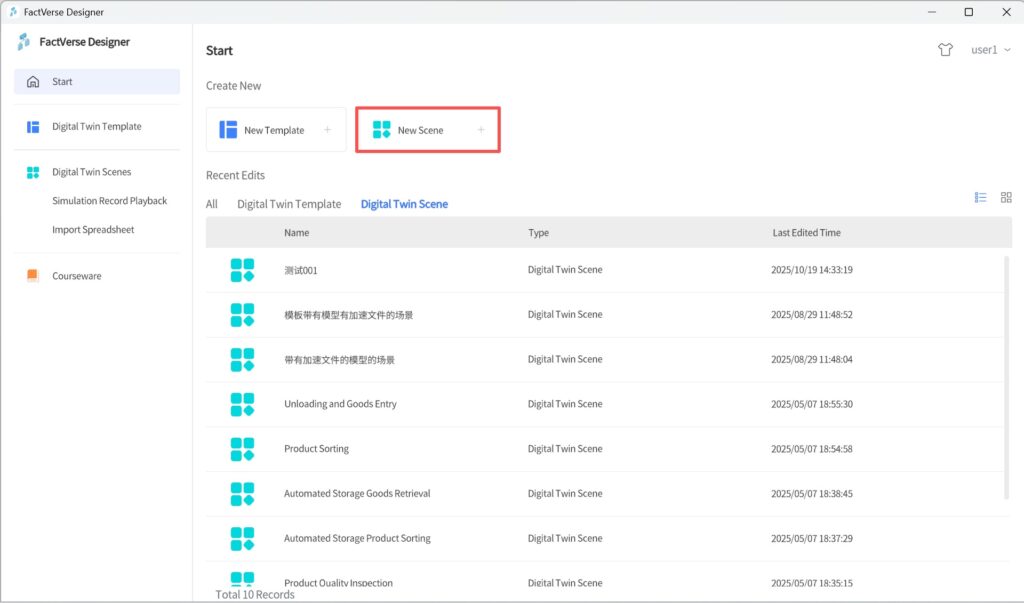
In FactVerse Designer, click New Scene on the Home Page to open a new scene in the Scene Editor.
2. Create a Flat Conveyor Belt
a) In Digital Twins Library > Digital Twin Template, expand the path /Public Directory/FactVerseDLC/ and click the Flat roller conveyor
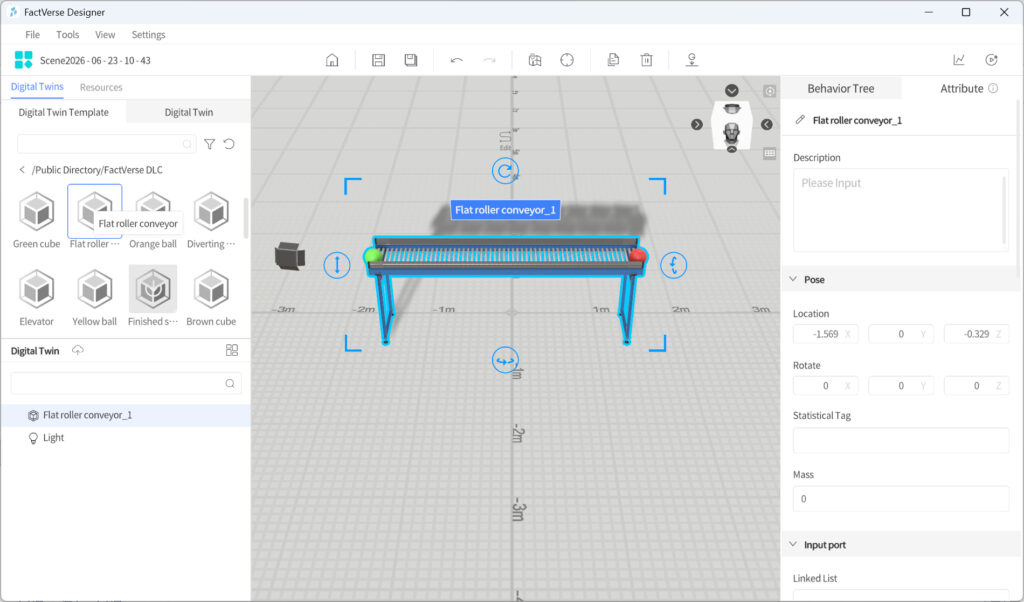
b) In the “Scene Area”, click the desired location to place the conveyor.
c) After placement, right-click to exit placement mode.
3. Create a source
a) In Digital Twins Library > Digital Twin Template, click the template /Public Directory/FactVerseDLC/Source
b) Click the target position in the scene to place the queue.
c) Right-click to exit placement mode after placement.
4. Create a queue
a) In Digital Twins Library > Digital Twin Template, click the template /Public Directory/FactVerseDLC/Queue
b) Click the target position in the scene to place the
c) Right-click to exit placement mode after placement.
5. Create an AGV
a) In Digital Twins Library > Digital Twin Template, click the template /Public Directory/FactVerseDLC/AGV
b) Click the target position in the scene to place the AGV.
c) Right-click to exit placement mode after placement.
6. Save the Scene
Click the Save button in the toolbar to save the scene and name it Simple Demo.
Scene Layout and Port Connections
This section provides examples to guide you in arranging digital twins within a scene and configuring port connections to simulate production workflows. You will also learn how to debug the setup to ensure that each twin’s logic runs correctly and that the overall process flows smoothly.
Layout Planning
Adjust the positions and dimensions of digital twins according to the actual production process so that the scene accurately reflects the business logic.
Configure Connections
This section uses a virtual factory scene as an example to explain how to connect digital twins with configured inputs and outputs, so that goods can be transferred between the raw material generator, conveyor, AGV, and buffer area according to the workflow.
Notes:
- One output can be connected to multiple inputs.
- An output and input of the same digital twin do not need to be connected.
This section will complete the following connections:
- Output port of the Source (
 ) → Input port of the Conveyor (
 )
) - Output port of the Conveyor () → Input port of the AGV ()
- Output port of the AGV ()→ Input port of the Queue ()
Note: There is no need to connect the output and input ports of the same digital twin.
Steps
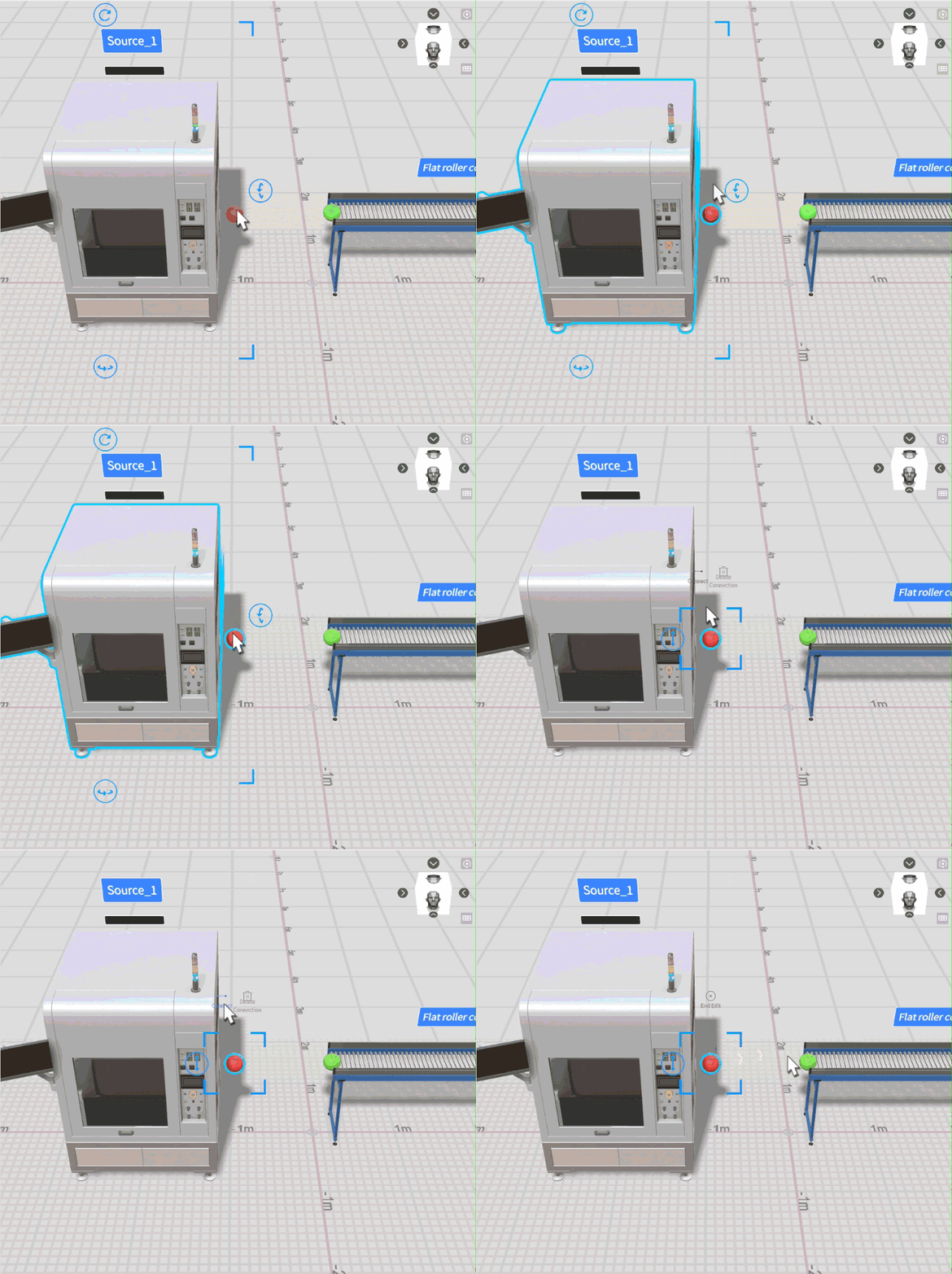
- Click on the output port of the Source () in the scene, then click on Connect.
- Move the mouse over the input port of the Conveyor () and left click to finish a connection between the output port of the Source () and the input port of the Conveyor ().
- Repeat the same process to connect the following input and output ports:
- Output port of the Conveyor () and input port of the AGV ()
- Output port of the AGV () and input port of the Queue ()
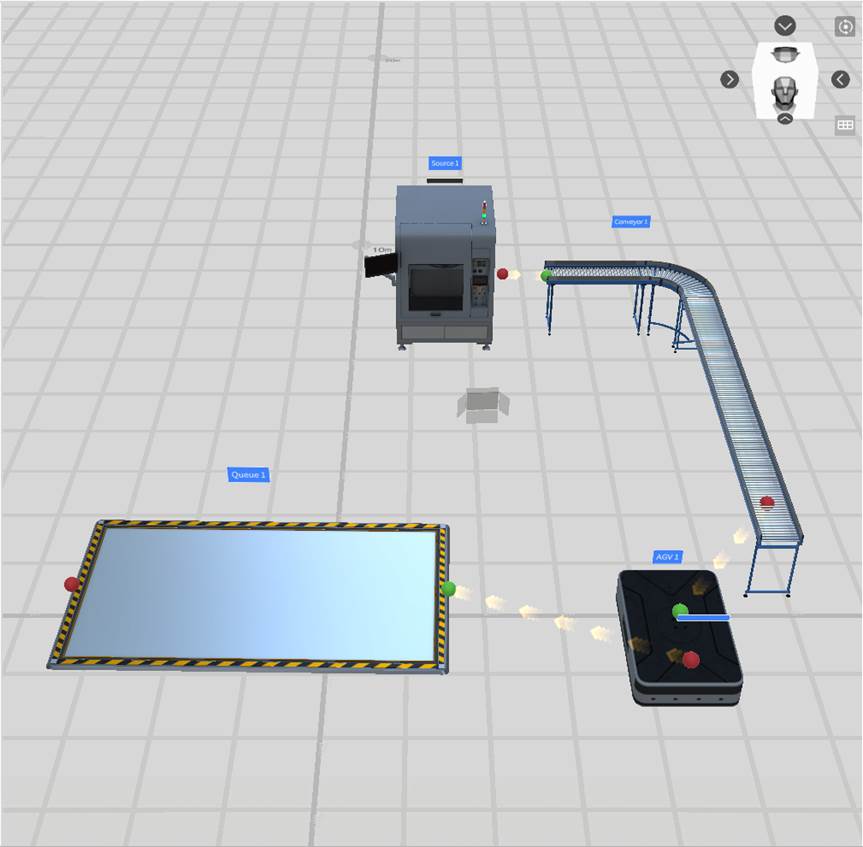
- Click the save button in the toolbar to save the scene.
Note: This section only describes the input/output connection operations in the example scene. To learn how to add inputs/outputs, adjust their positions, and configure connection rules, see Configure Template Inputs/Outputs and Adjust Digital Twin Inputs/Outputs.
Configure Operational Logic
Set the Main Function of the Source
This section describes how to configure the Main Function of the Source so that your Virtual Factory scene can simulate production according to your settings.
Steps
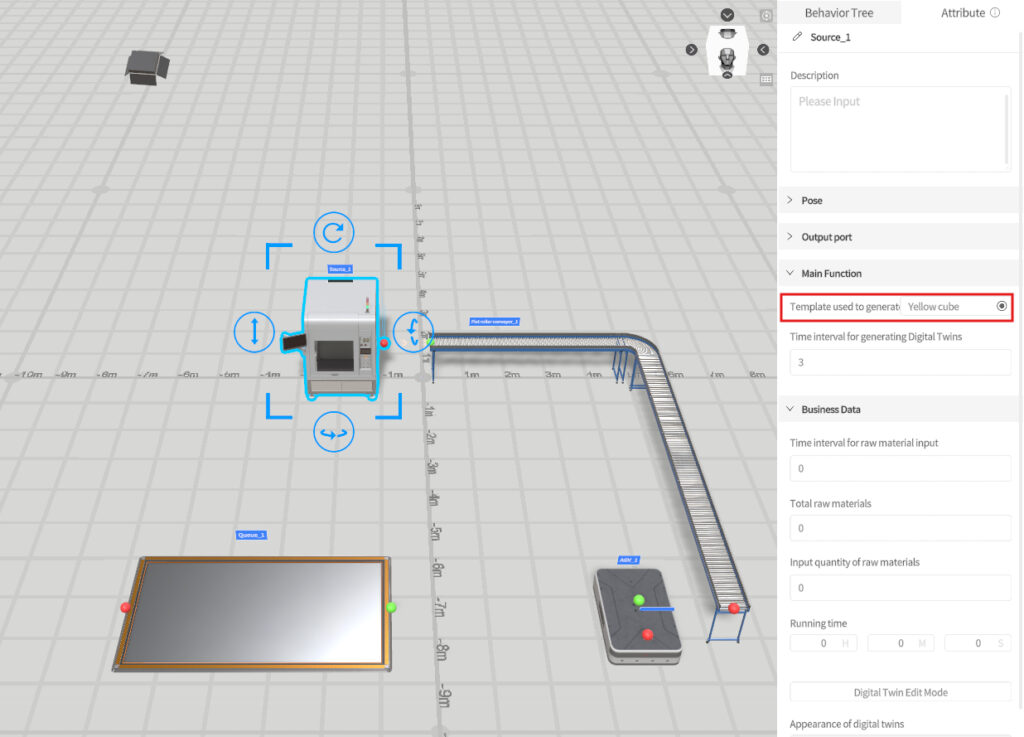
- In the scene area, select the Source.
- In the Attribute Pane, under the Attributes tab, locate the Main Function Next to Template used to generate digital twins, click the Edit button. In the template list that opens, choose a product-type template from the resource pack. The Source will then generate items according to this template.
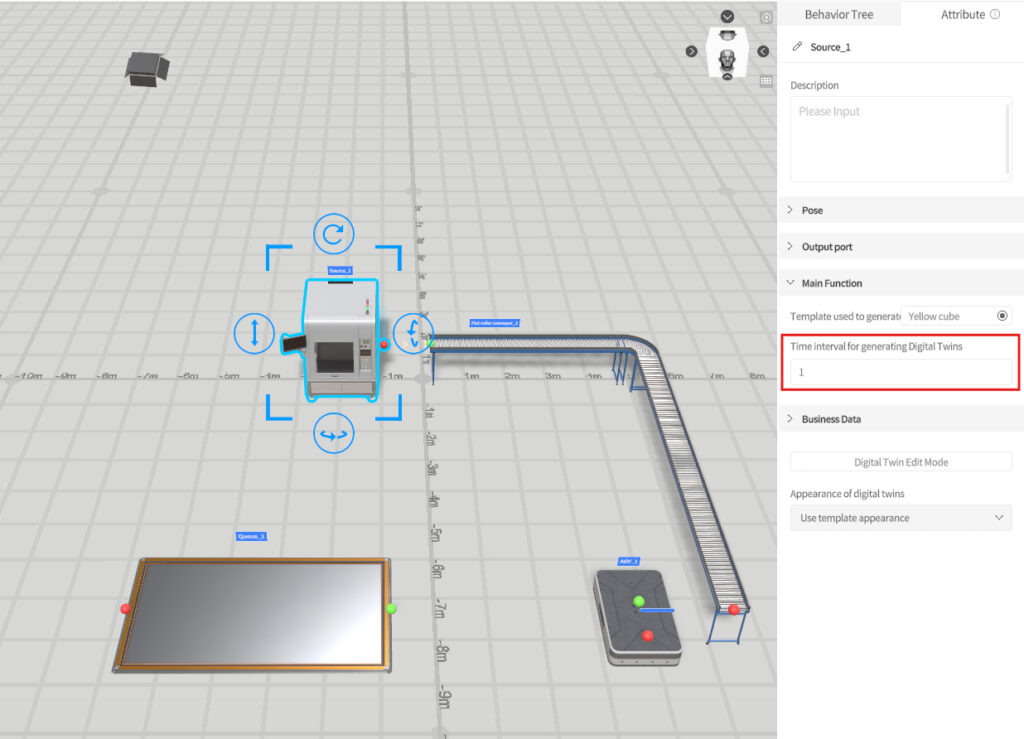
- Modify the Time interval for generating digital twins (i.e., the time interval at which the Source produces items). Set the interval to an appropriate value to simulate the production rhythm of a real factory.
- Click the save buttonin the toolbar to save the scene.
Modify Conveyor Speed
In this section, the conveyor speed will be adjusted to 5 m/s, allowing the conveyor to operate at a faster speed during the simulation.
- In the Scene Area, click to select the conveyor.
- In the Attribute Pane, modify the value of the Conveyor Speed to “5.”
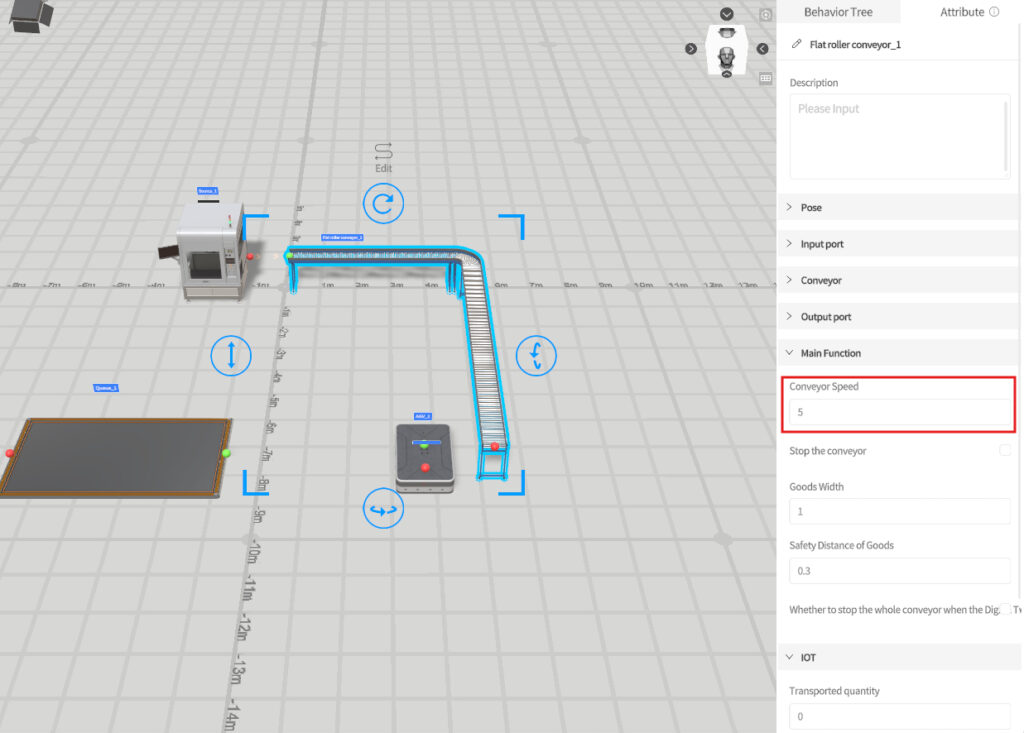
- Click the save button in the toolbar to save the scene.
Create a Driving Path for the AGV
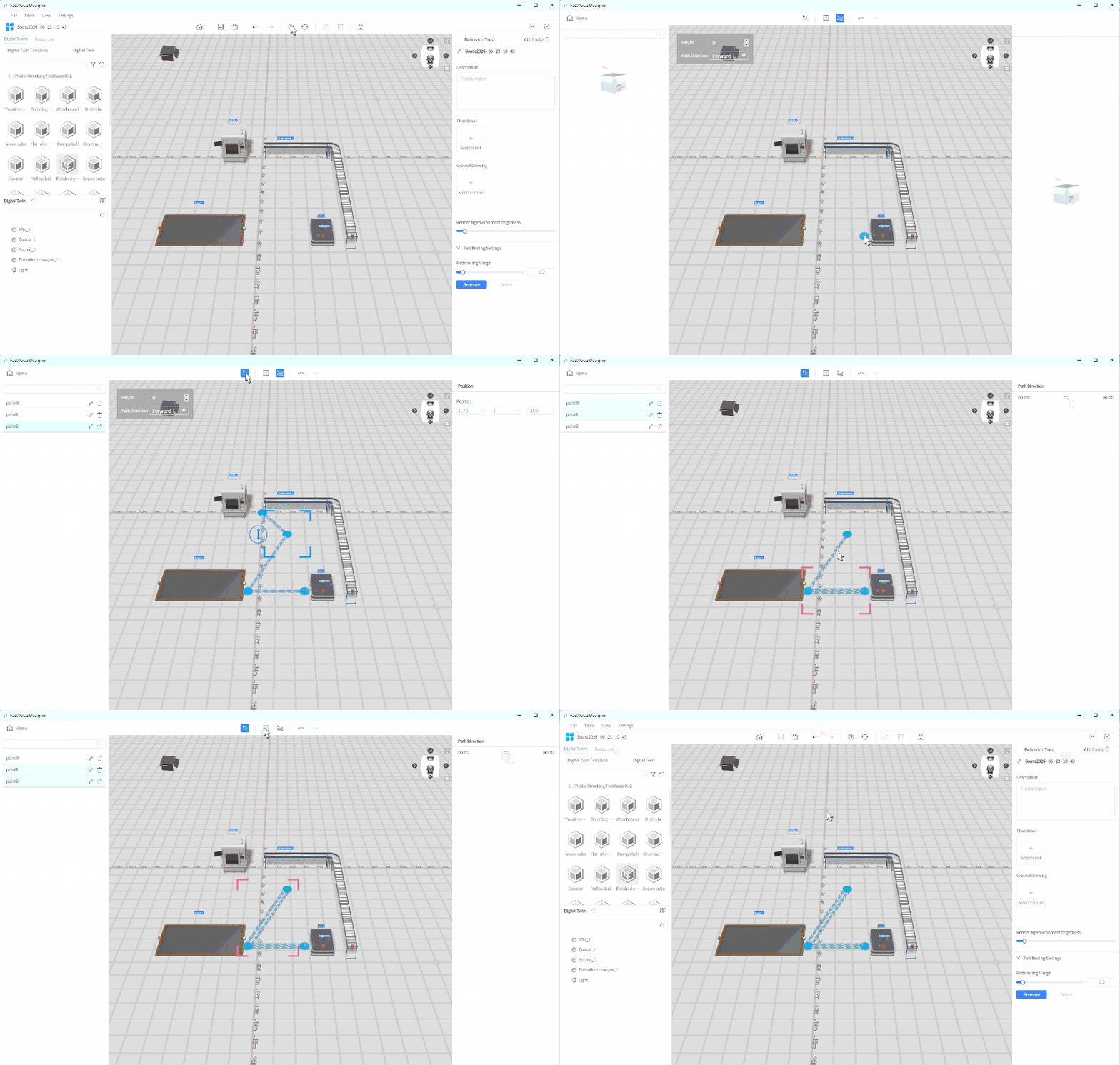
Creating a driving path for the AGV allows it to move along a predefined route. Follow these steps to create the AGV’s driving path:
- Click the Path Mode button
 in the toolbar to open the Path Mode interface.
 - Click the button
 in the toolbar to enter Construction Mode.
 - In the scene area, click three different locations to create three path points for the AGV’s driving route:
- point0: Pickup location
- point1: Delivery location
- point2: Charging location
- Click the Select button
 in the toolbar to enter Select Mode.
 - Select the connection line between point0 and point1, and set the connection direction to Bidirectional (↔).
- Select the connection line between point1 and point2, and set the connection direction to Bidirectional (↔).
- Click < Exit to close the Path Mode interface and return to the Scene Editor. A prompt window will appear to save the path.
- In the prompt window, click Yes to save the path.
- Click the save button in the toolbar to save the scene.
Configure the AGV
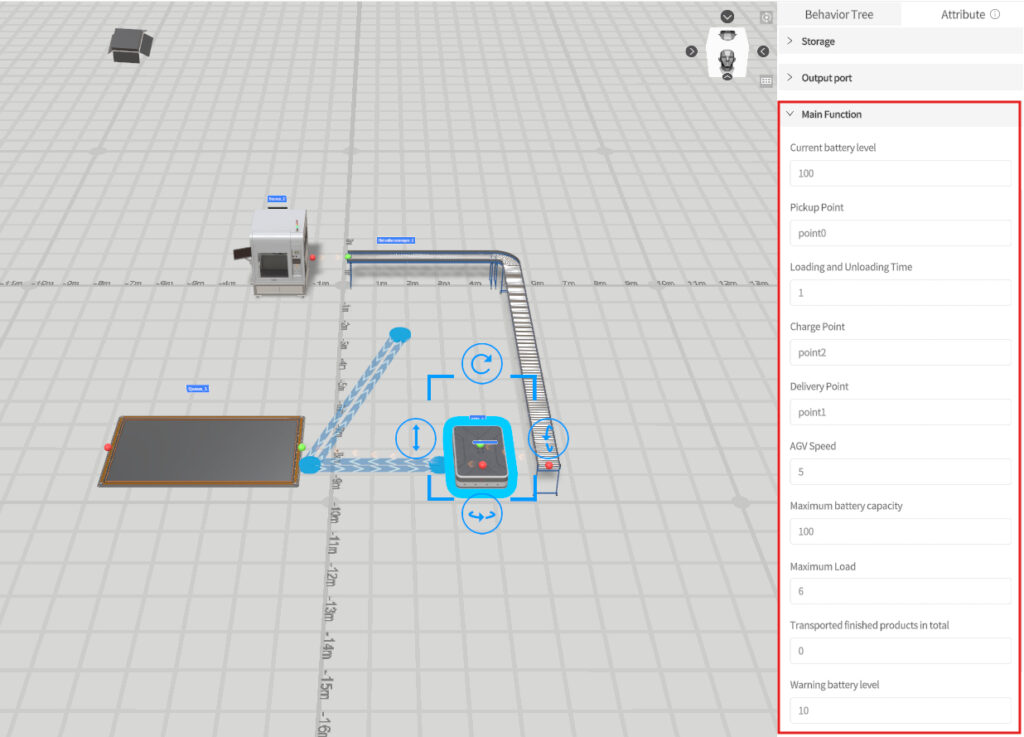
The AGV is used to transport goods on the production line. When configuring an AGV, you need to set its pickup, delivery, and charging path points, and configure movement speed, load capacity, and loading/unloading duration based on business requirements.
Steps
- In the Scene Area, select the AGV.
- Set the moving path of the AGV.
- Change PickUp Point to the previously set path point name, e.g., point0.
- Change Delivery Point to the previously set path point name, e.g., point1.
- Change Charge Point to the previously set path point name, e.g., point2.
- Set the AGV speed to “5.”
- Set the Maximum load to “6” (indicating that it can carry up to 6 items).
- Loading and Unloading Time to “1” (representing the time taken to load or unload goods, which is 1 second).
- Click the save button in the toolbar to save the scene
Configure the Queue
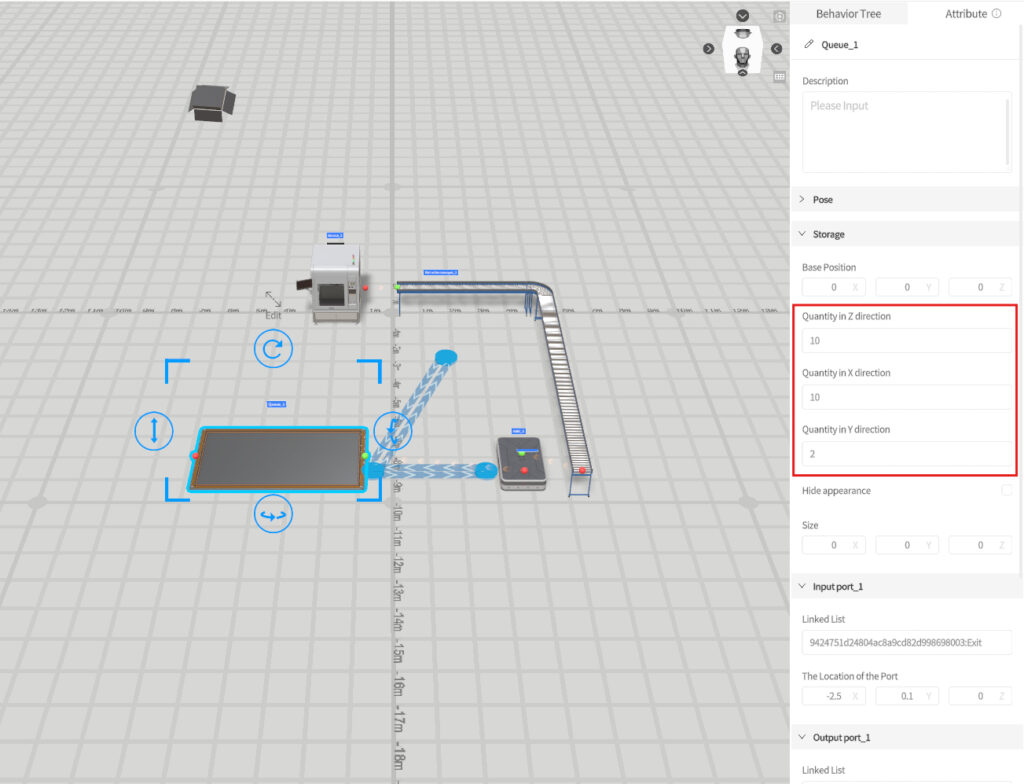
The Queue is used to hold goods, and its capacity and storage rules can be controlled through configuration settings.
Set the storage counts in the X, Y, and Z directions. For details about the properties, see Configure Digital Twin Storage Area.
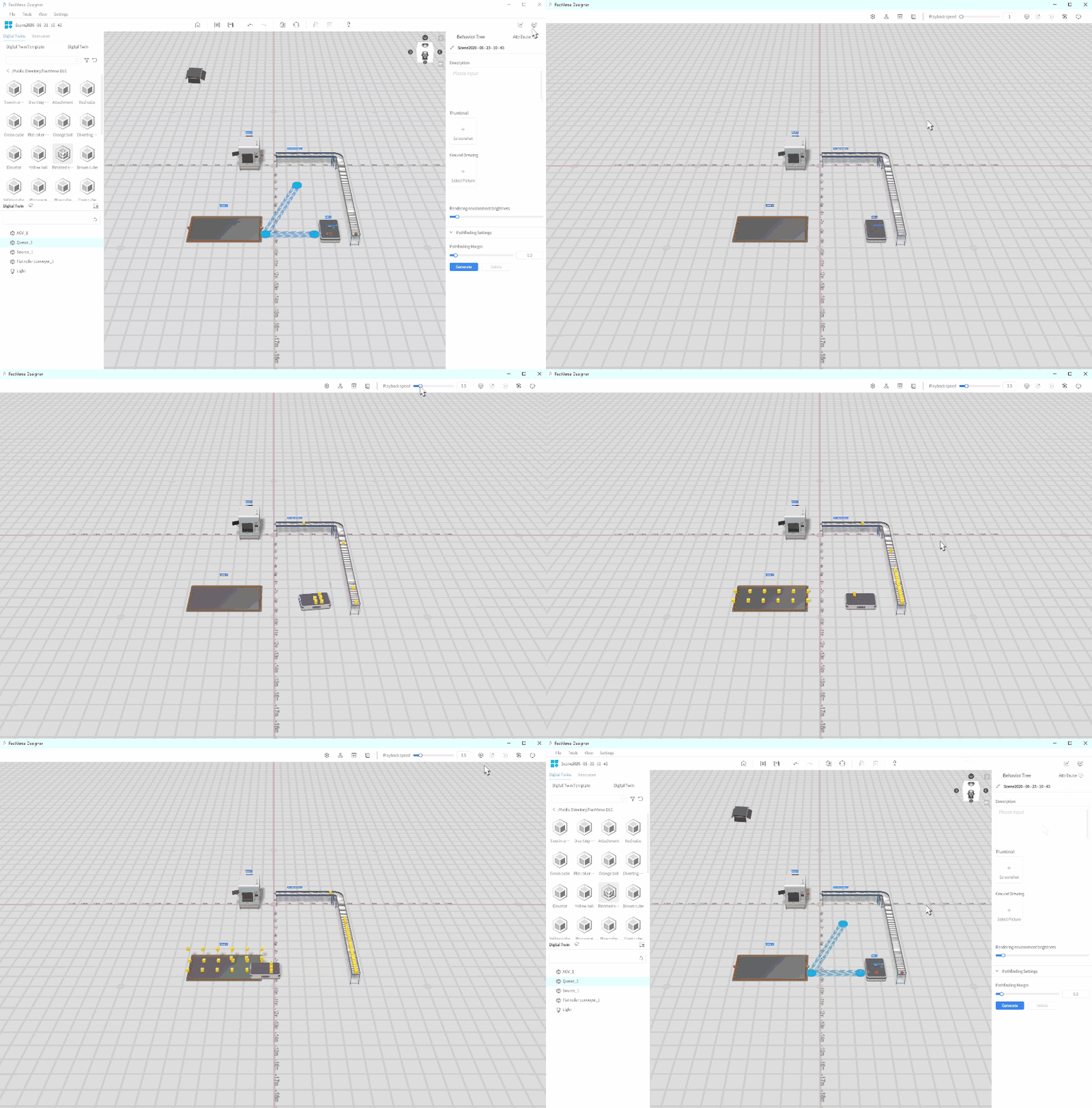
Preview the Scene Playback
You can preview the scene and adjust playback settings by following these steps:
- Click the Debug Playback button
 in the Scene Editor toolbar to start previewing the scene and view the overall effect.
 - During playback, use the playback progress bar to control the playback speed. To pause playback, click the Pause
- Click the Exit button
 to exit playback mode.