
How Can We Help?
Digital Assets
The module of digital assets covers Resources, Digital Twins, and BIM Data.
Directory management of digital assets
In the Digital Assets module, the directory is a key tool for managing digital twin assets and resources. The directory bar displays all the directories that users can access, making it convenient for users to manage digital twin assets, resources, etc.
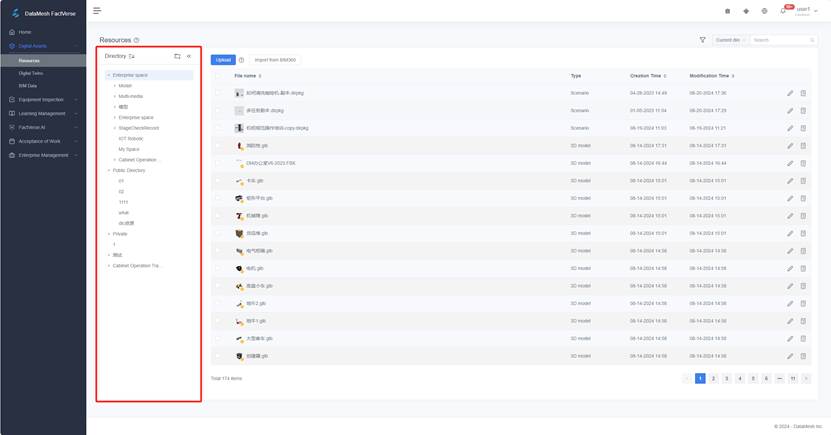
The directory provides rich management functions:
- Create a new directory: Users can create new directories as needed and define who is visible to these directories.
- Delete directories: Users who possess deletion permission can delete customized public directories to better organize and manage digital assets.
- Directory sorting: Provides sorting functions by modification date, creation date, name, etc., supporting both ascending and descending order.
Directory type
The digital asset directory is divided into the following four types:
|
Type |
Description |
|
Department directory |
With the creation of departments, the system will automatically establish corresponding directories for the unified organization and management of departmental data and resources. Department directories will be automatically deleted when departments are deleted. |
|
User personal directory |
Personal storage space, named “My Space”, accessible and viewable only by the user themselves. |
|
Public directories created by users |
They are established by users with the permission to create new primary directories and are suitable for resource sharing and collaboration. |
|
DLC resource directory |
Public Directory and its subdirectories store digital twin resources launched by DataMesh. In the Resources, the DLC resource directory contains DLC model resources; in the Digital Twins, the DLC resource directory contains digital twin templates, digital twins, scenes, and attribute groups. |
User permission
Explanation of permissions in the chart:
- ✅: Granted permission
- ❌: No permission
Department directory permission
|
Operation |
Regular User |
Administrator |
|
View directory |
✅ |
✅ |
|
Create subdirectories |
✅ |
✅ |
|
Resources management |
✅ (View, upload, download, edit, move) |
✅ (View, upload, download, edit, move) |
|
Create department directory |
❌ |
✅ (Automatically create via the creation of department) |
|
Delete department directory |
❌ |
✅ (Automatically delete via the deletion of department) |
DLC resource directory permission
|
Operation |
All users |
|
View directory and resources |
✅ |
|
Use resources (eg. Use models in the DLC to edit scenario) |
✅ |
|
Delete resources |
❌ |
|
Delete directories |
❌ |
User personal directory permission
|
Operation |
Individual users |
|
View directory and resources |
✅ |
|
Create subdirectories |
✅ |
|
Manage resources |
✅ |
Permission for public directories created by users
|
Operation |
Creator |
Users visible to the directory |
Company administrator |
|
View directories |
✅ |
✅ |
✅ |
|
Edit visibility |
✅ |
❌ |
✅ |
|
Add subdirectories |
✅ |
✅ |
✅ |
|
Delete directories |
✅ |
❌ |
✅ |
|
Manage resources |
✅ |
✅ |
✅ |
Note: Deleting a directory will automatically delete its subdirectories.
Resource locking mechanism
To maintain resource consistency and data security in a collaborative multi-user environment, the FactVerse platform supports a resource locking mechanism. The following types of resources can be locked:
- Scenario
- Scene
- Template
- Behavior tree
Locking rules:
- Exclusive editing on one device: Each resource type can only be edited by one user on a single device at a time. It cannot be accessed simultaneously by multiple users or devices.
- Lock status indicator: When a resource is in use, a lock icon
 will appear next to it, showing that it is currently being edited.
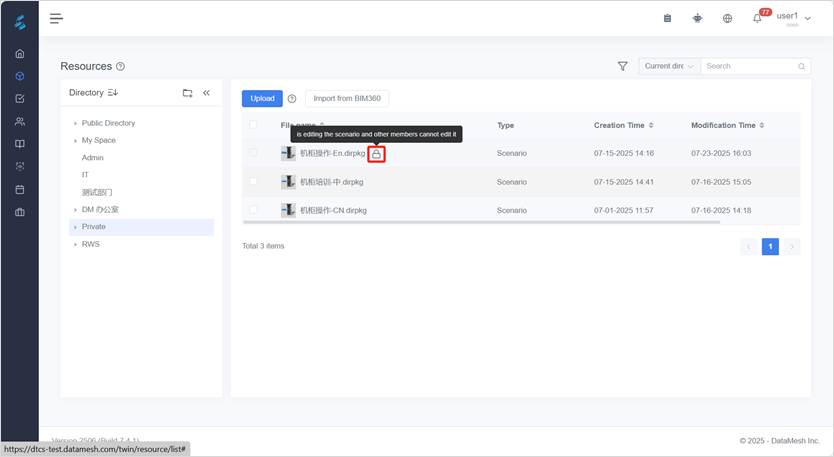
- Manual unlocking: If a resource remains locked for an extended period due to issues like network interruptions or program crashes, the creator or current editor can click the lock icon to manually unlock the resource, releasing it and restoring editing access.
Resources
The Resources includes documents, images, videos, audio files, models uploaded by users, as well as scenario files created by DataMesh Studio. Users can load and use files from the Resources in DataMesh client products.
You can select Digital Assets > Resources in the functional module navigation bar to enter the resources page. The resources page supports operations such as uploading and downloading resource files.
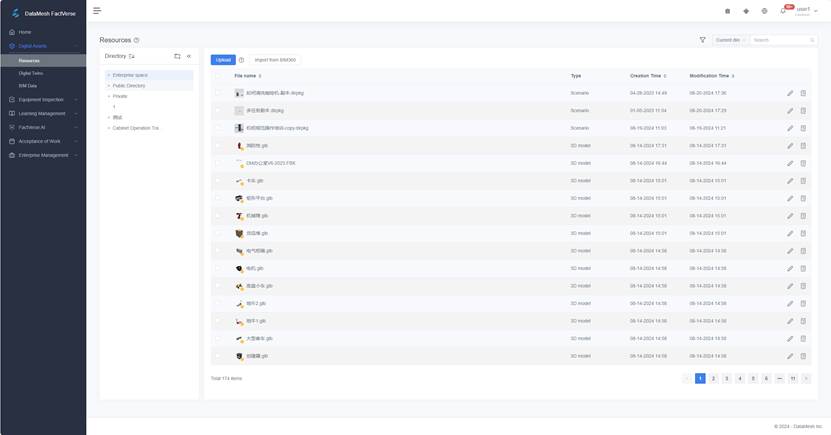
Below are the operation instructions for the Resources page:
- Upload resources: On the Resources page, you can click the upload button
 to upload your resource files. For more information about uploading resources, please refer to Upload Resources.
- Filter resources: Click
 to filter resources by tags and types.
- After selecting a tag, the resource list will display all resources with that tag.
- You can view resources by type, including scenario, model, and document.
- Resource search: You can use the search box to search for resources, and the search location option before the search box allows you to choose whether to conduct a global search or a search in the current directory.
- Resource operations: After selecting a resource file, you can choose to download, delete, or move the resource file. Note: When the user does not have operation permission, the operation option button is grayed out.
- View resource details: Click the resource details button
 to view resource file details.
 - Rename resource files: Click the resource’s edit button
 , you can rename the resource.
View resource details
To view a resource’s details, navigate to its directory on the Resources page and either click the resource name or the details icon. This opens the Resource Details page, which displays metadata, tags, and—for 3D models—additional compatibility information.
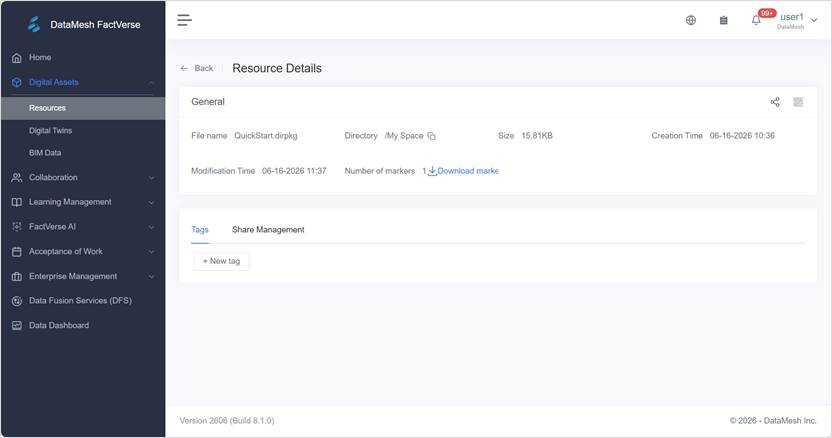
General information
|
Field |
Description |
|
File Name |
The name of the uploaded file. |
|
Directory |
Storage directory of resources on the platform. The directory can be copied and used for resource search queries. |
|
Size |
File size. |
|
Created Time |
When the resource was uploaded. |
|
Modification Time |
Most recent update time. |
|
Number of markers |
Number of locators used in the script (shown only for script-type files). |
|
Resource Code |
Click the QR Code icon to view the resource’s QR code. Users with access can scan it in DataMesh One to open the resource directly. |
Add tags to a resource
On the Tags tab of the resource details page, you can add tags to the current resource. Tags help categorize, search, and filter resources, making them easier to manage later.
Steps
- Open the resource details page and go to the Tags tab.
- Click New Tag to open the add tag window.
- Add tags.
Select one or more tags from the tag list.
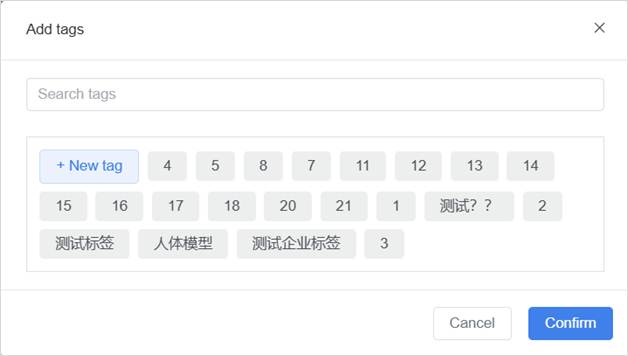
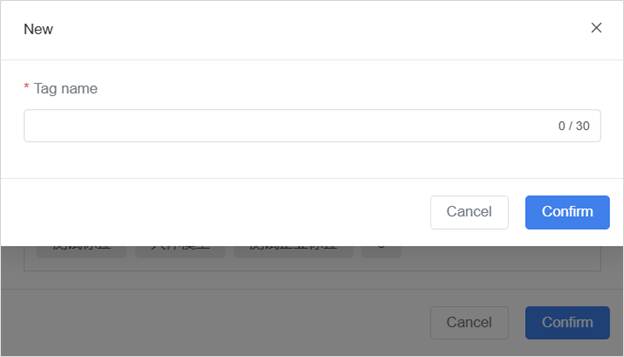
If the required tag is not available in the list, click Create Tag to create a new tag. Note: After a tag is created, regular users cannot modify or delete it directly. Only users with tag management permissions can edit or delete tags in Enterprise Management > Tag Management.
- Click Confirm to add the selected tags to the resource.
Share Management
The Share Management page is used to manage resource sharing. On this page, you can view the validity period, access count, and status of each share code. You can also download a share code or cancel sharing.
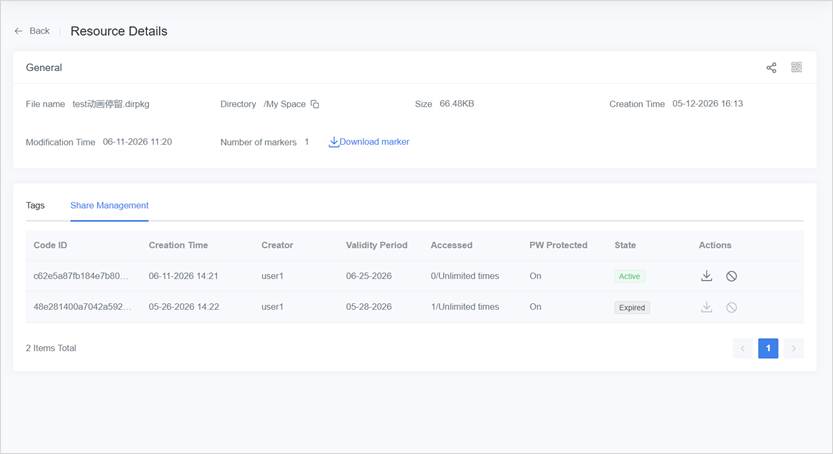
Field Descriptions
|
Field |
Descriptions |
|
Code ID |
The share code ID, used to distinguish different share codes. |
|
Creation Time |
The time when the share code was generated. |
|
Creator |
The person who generates the share code. |
|
Validity Period |
The expiration date of the share code. |
|
Accessed |
The number of visits used / the maximum number of visits allowed. |
|
PW Protected |
Indicates whether a password is required to access the shared resource: Enabled or Disabled. |
|
State |
The current status of the share code: Active or Expired. |
|
Actions |
|
 Cancel sharing
Share Resources (Scenarios and Storylines)
Scenario and storyline resources can be shared with others for viewing. Sharing is performed by generating a share code. You can configure the share code validity period, maximum number of visits, and password protection.
Steps
1. On the resource details page, click the Share button in the upper-right corner.
Note: If the scenario contains custom background images for text, tags, IoT, or buttons, tool extension resources, custom skyboxes, rendering environment files, or similar resources, the scenario must be saved in the new version of Studio before it can be shared.
2. Create a resource share
a) In the Create Resource Share window, configure the following settings:
- Expiry Date: The date on which the share code expires.
- Max Access: The maximum number of times the share code can be accessed. After this limit is reached, the share code can no longer be used.
- Password: Specify whether to enable password protection. When enabled, users must enter the password to access the shared resource.
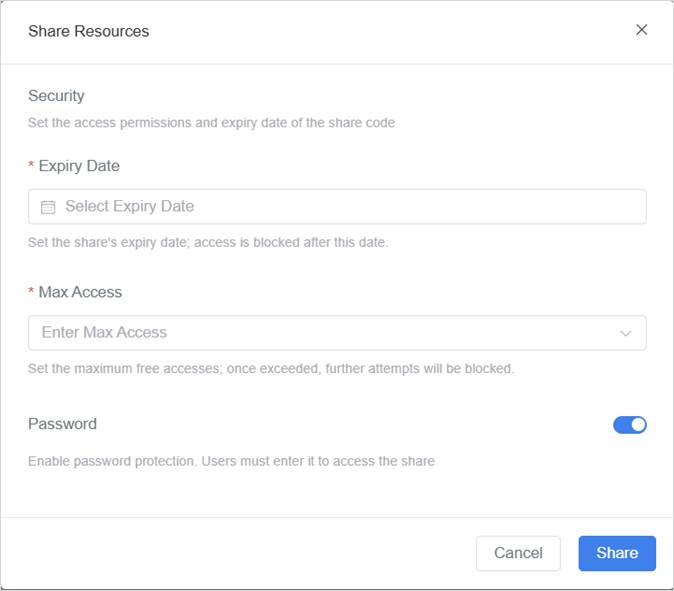
b)After completing the settings, click Share to generate the share code.
3. Download the share code.
a) Click Share Management to open the Share Management page.
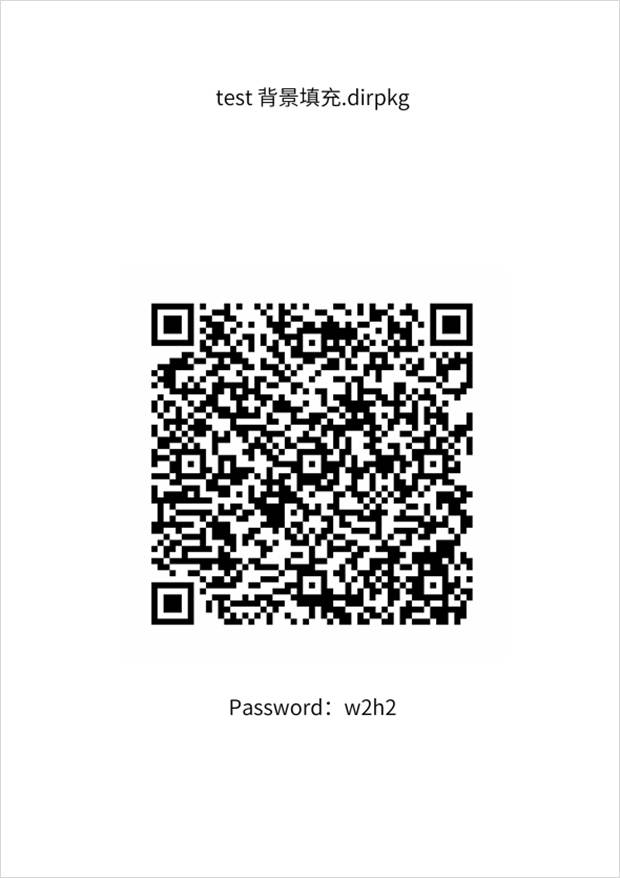
b) Click the Download button  to download the share code as a PDF file.
4. View the resource using the share code.
Users can scan the share code with DataMesh One to view the resource. Users who have obtained the share code can access the resource without logging in and can view it across servers.
Supported Platform
If the resource is one of the following model formats: .glb, .fbx, .3mf, .obj, .ply, or .stl, you’ll also see the following fields:
|
Field |
Description |
|
Omniverse Binding |
Use the Omniverse+ button to bind or replace a .usd / .usdp file for Omniverse collaboration. |
|
Accelerated Platforms |
Shows platforms (e.g. iOS, macOS) where acceleration attachments have been added. Visible only for older models or if attachments were manually uploaded. |
|
Upload Acceleration File |
Click the Upload icon |
 to manually add an .ab acceleration file to improve loading performance. Not available for models uploaded via Importer experimental mode.
Notes:
- Models in the Public Directory (DLC) are maintained by the official DataMesh account and cannot be modified by any user, including admins.
- Starting from FactVerse 7.4.2, automatic acceleration has been deprecated. Use the latest DataMesh Importer (with experimental features enabled) to upload models for auto-optimization.
- For older models, models imported from legacy projects, or uploads that load slowly, manual acceleration file upload is still supported.
Differences between Resource Code, Share Code, and Positioning Code
|
|
Resource Code |
Share Code |
Marker |
|
Format |
QR Code |
QR Code |
QR Code / Honeycomb Map |
|
Purpose |
Scan to view resources |
Scan to view resources |
Scan to locate resources |
|
Applicable Resources |
All resource |
Scenarios and storyline |
Scenarios |
|
Viewing Permissions |
Requires directory access |
No restrictions |
Requires directory access |
|
Validity Period |
None |
Can be set |
None |
|
Access Limit |
None |
Can be set |
None |
|
Download Method |
Click the QR code thumbnail |
Go to the Share Management tab, and click the Download button |
Click Download Marker, choose QR Code or Honeycomb Map in the popup, then click Download. |
 in the top-right corner of the resource details page, then click Download QR Code in the popup.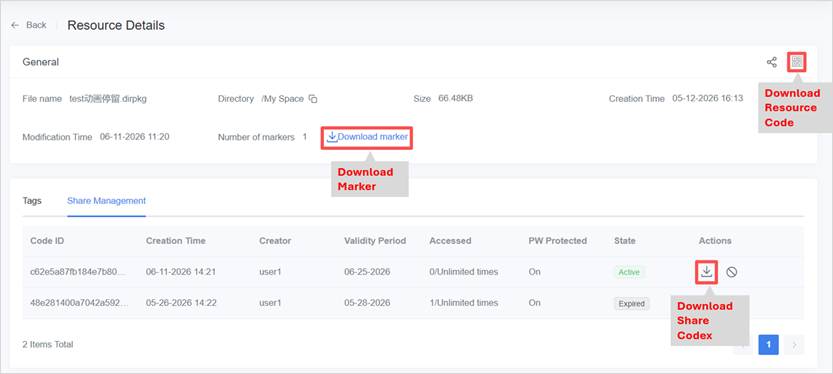
Upload resources
You can upload different types of files to the DataMesh FactVerse platform, each with its respective size limit.
|
File Type |
File Extension |
Size limit |
Note |
|
Document |
|
≤ 256MB |
– |
|
Video |
.mp4, .mov |
≤ 256MB |
– |
|
Audio |
.mp3, .ogg |
≤ 256MB |
– |
|
Image |
.png, .jpg |
≤ 128MB |
– |
|
3D model |
.glb, .fbx, .3mf, .obj, .ply, .stl, .rvt |
≤ 500MB |
– |
|
Simulation data script |
.iotsim |
≤ 128MB |
For simulating data-driven scripts |
|
Skybox file |
.dmcm |
≤ 256MB |
Skybox file for custom rendering environments (six-sided image pack) |
|
Resource Compressed Package |
.zip |
≤ 128MB |
User-defined generic compressed resource |
|
Extension tool resource |
.dmasset (automatically parsed and generated after uploading a .zip via the Importer) |
No limit |
Extension tool file exported by a Unity plugin, used as an extension tool in Studio / Designer |
|
Unity scene file |
.abscene (Automatically parsed and generated after uploading a .zip via the Importer) |
No limit |
Scene resources exported from Unity, used as custom rendering environments |
Upload customizable resources
Customizable resources include advanced resources, tools, and personalized scenes that typically require development support from DataMesh to achieve specific functions or effects.
Upload Method
Use DataMesh Importer to upload a ZIP package of the customized asset to the FactVerse platform:
- If experimental features are enabled: the ZIP will be automatically unpacked and displayed as a .dmasset file.
- If not enabled: the file remains in ZIP format after upload.
Upload documents, videos, audio, images, 3D models, data script files
You can upload various types of files—such as documents, videos, audio, images, 3D models, and data scripts—and store them in your designated directories as needed.
⚠️ Note: For 3D models, it is highly recommended to upload them using DataMesh Importer. This ensures better loading performance and allows you to adjust material properties, helping improve the model’s quality and future usability.
Steps
The steps for uploading resources are as follows:
1. Select the directory where you want to store the resource on the Resources page, and then click the Upload button.
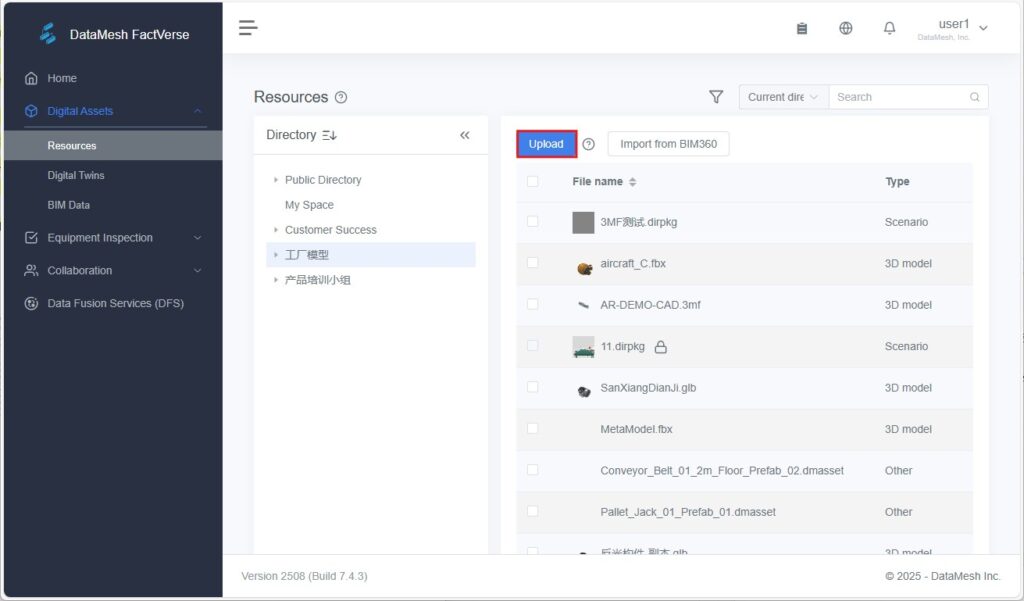
2. Click  or drag files to the upload window. You can upload up to 10 files at a time.
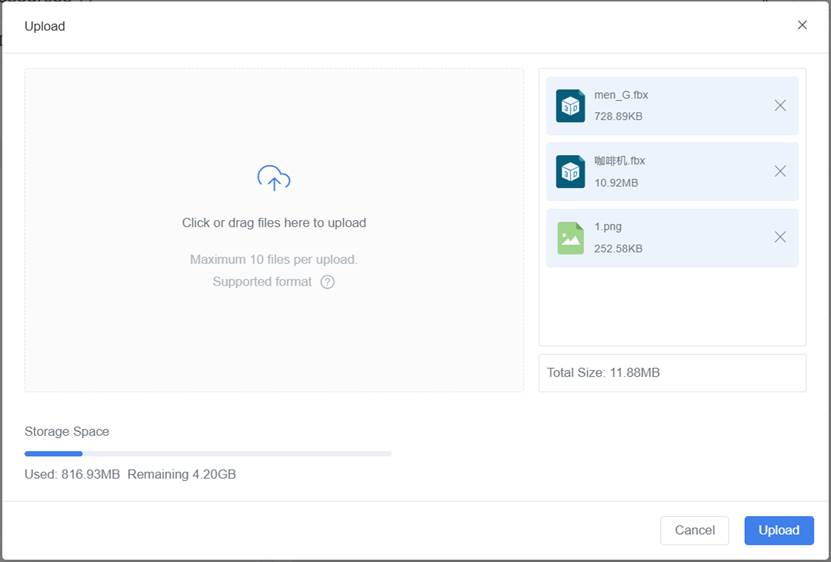
3. Click the Upload button to start uploading files.
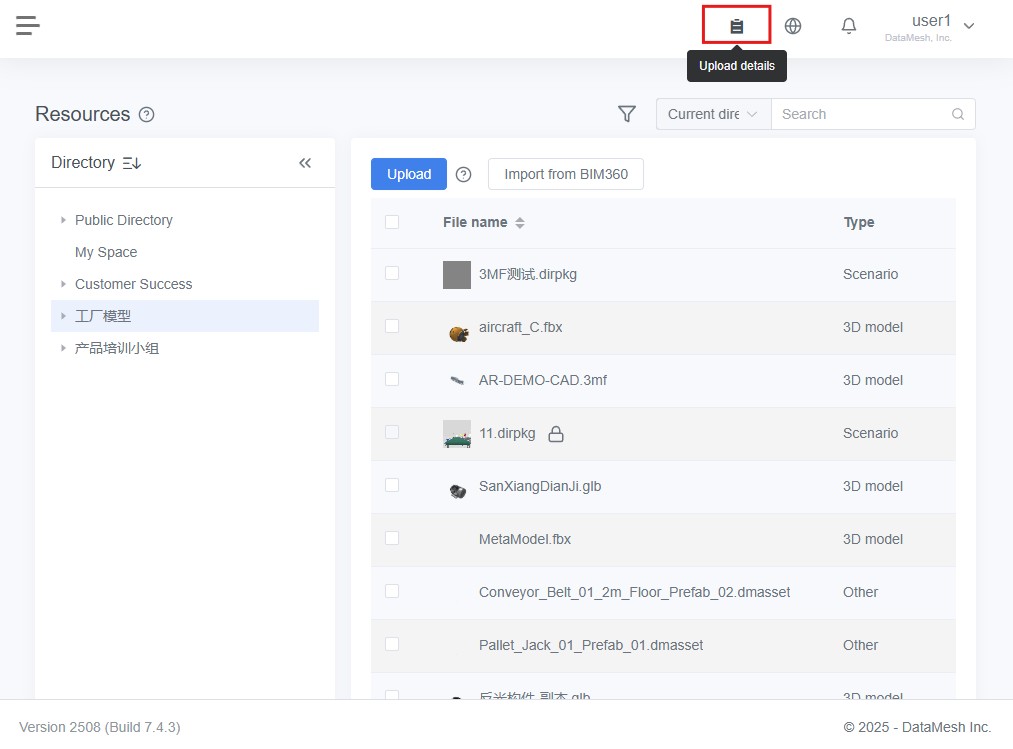
4. Click the Upload details button on the top navigation bar to view upload details of the files.
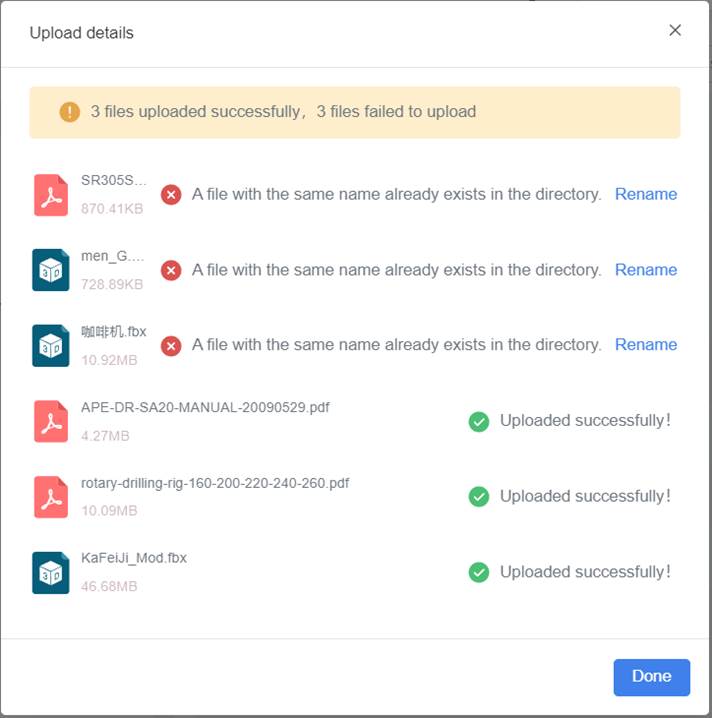
If a file being uploaded has the same name as a file in the directory, it will result in an upload failure. You can rename the file in the Upload details window and then upload it again.
5. Once the upload is complete, the file will appear in the designated folder within the Resources Library.
Import files from BIM 360
The DataMesh FactVerse platform supports importing files from Autodesk BIM 360.
Prerequisites: The administrator has configured the Autodesk BIM 360 account in the enterprise settings.
Steps for importing files from BIM360:
1. Select the directory in the Resources page to store the resources, then click the Import from BIM 360 button.
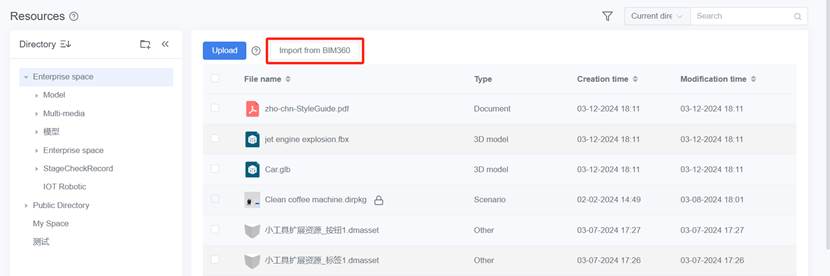
2. In the Hub window, select the BIM360 account, then click Confirm.
3. In the Project window, select the project and click Confirm.
4. In the Folder window, select the folder, then click Confirm.
5. In the project window, select the .rvt file to upload, then click Confirm to complete the file import.
Delete resources
You can delete one or more resource files at once. Here are the steps to delete a resource:
1. Select the directory where the resource is located on the Resources page, and then check the checkbox in front of the resource file you want to delete.
2. Click the delete button  .
.
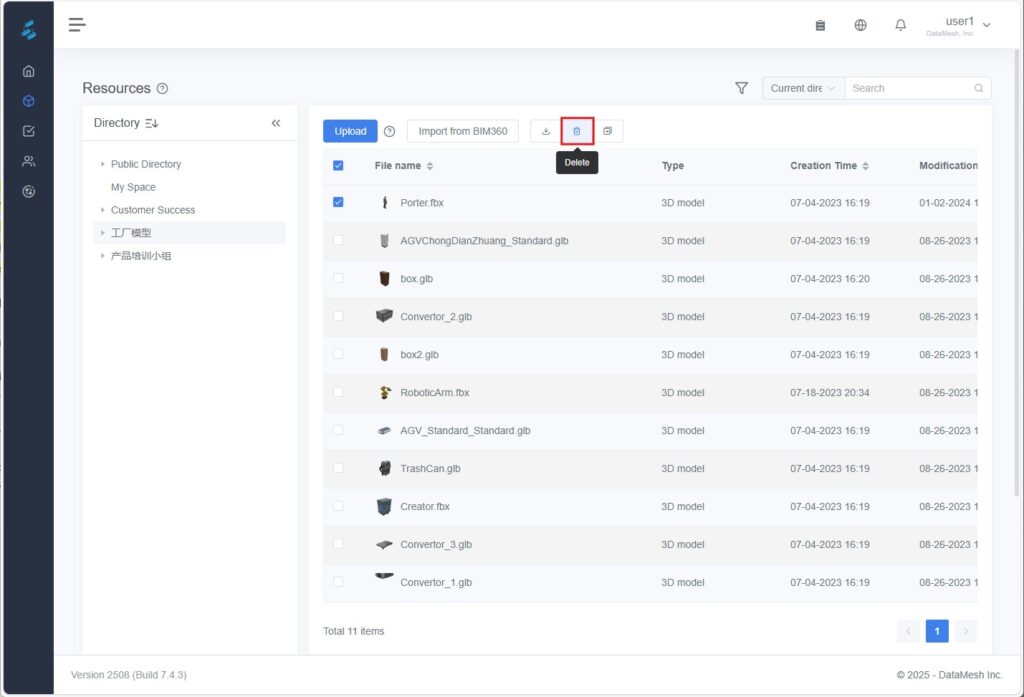
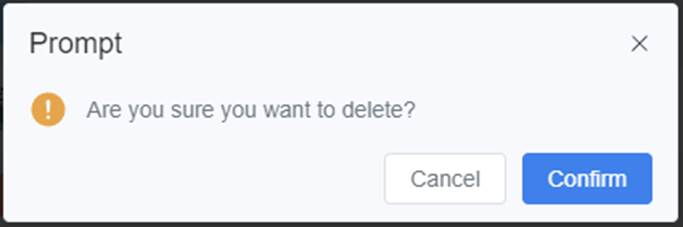
3. Click Confirm in the pop-up prompt window to complete the resource deletion.
Note: Deleted files cannot be recovered and will cause scenarios that use these files to be unable to play. Therefore, please make sure that you no longer need these resource files before deleting them.
Download resources
To download resources to your local device:
1. Select the directory where the resource is on the Resources page and check the checkbox in front of the resource file you want to download.
2. Click the Download button  .
.
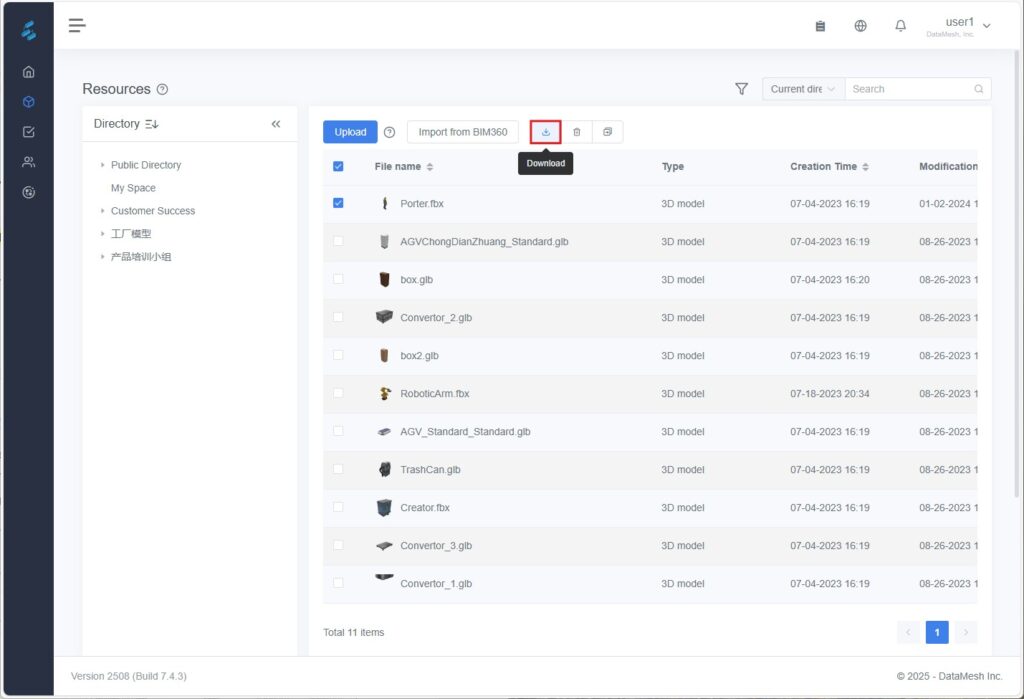
3. When the browser prompts you to download multiple files, you need to click Allow to complete the download of multiple resources.
Move resources
To move one or more resource files to another storage directory:
1. Select the directory where the resource is on the Resources page and check the checkbox in front of the resource file you want to move. If you want to move multiple files, you can select multiple checkboxes.
2. Click the Move button  .
.
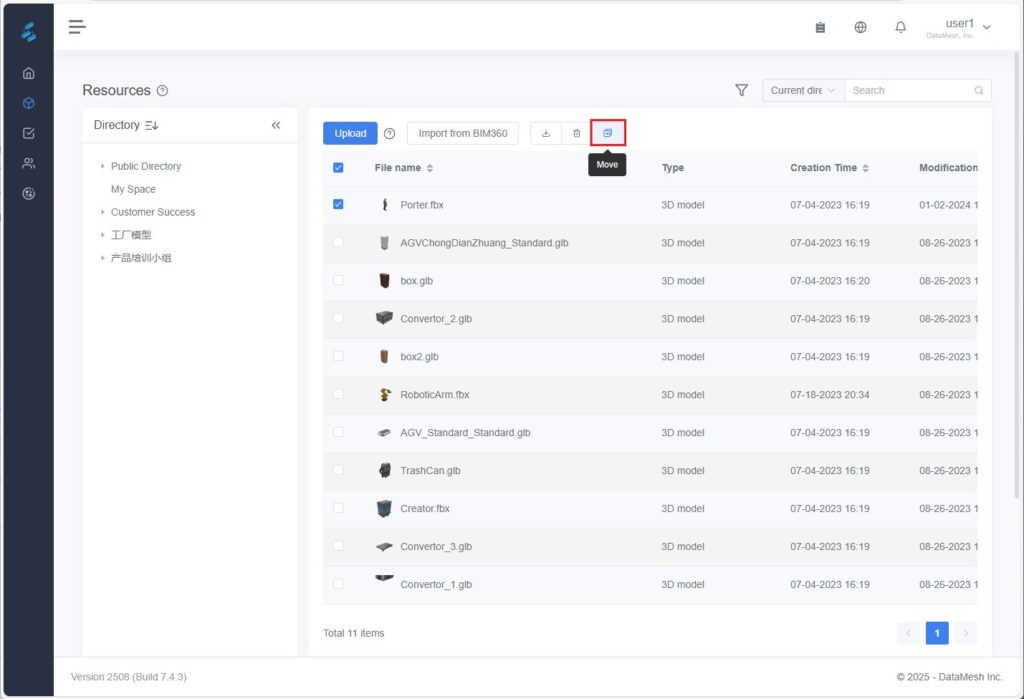
3. In the pop-up window for selecting the directory, select the target folder directory where you want to move the resource.
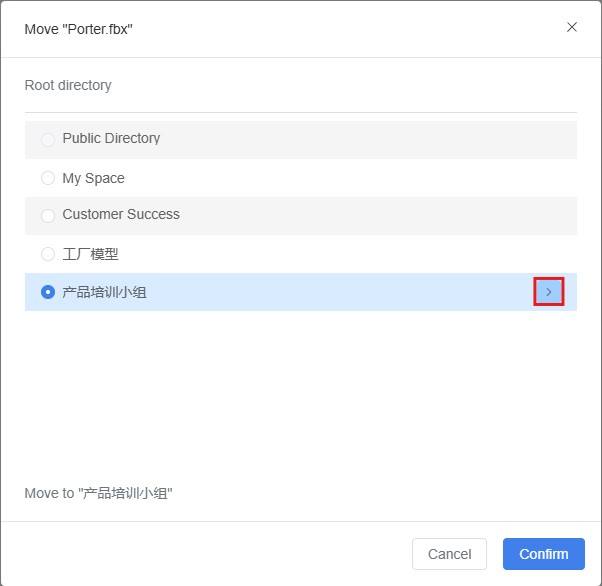
4. Click the Confirm button to confirm your selection, and the system will move the selected resource files to the target folder.
Rename resource files
To rename a resource file:
1. Select the directory where the resource is located on the Resources page.
2. Click the edit button of the resource.
3. Modify the resource name.

4. Click the Finish button  to complete the resource renaming.
Bind USD files (for Omniverse rendering)
To ensure 3D model resources in FactVerse are recognized and rendered by NVIDIA Omniverse, the model must be linked to a USD file (in .usdz or .usdp format), which is the standard format supported by Omniverse.
Supported Model Formats
|
File Format |
Extension |
Description |
|
GLB |
.glb |
A binary format widely used for real-time 3D rendering |
|
FBX |
.fbx |
Commonly used for animation and model exchange |
|
3MF |
.3mf |
A 3D printing format that supports color and material information |
|
OBJ |
.obj |
A generic 3D geometry format |
|
PLY |
.ply |
Used for 3D scan data with attribute support |
|
STL |
.stl |
A geometry-only format used for 3D printing |
Note: Binding USD files is not supported for models of downloadable content (DLC) provided by DataMesh.
Steps
1. Prepare the USD File: Choose the file format based on project requirements.
a) .usdz format: .usdz files can be generated by converting model formats such as GLB or FBX.
b) .usdp File: .usdp is DataMesh’s custom packaged format, supporting high-fidelity rendering and multi-attribute data-driven functionality, suitable for complex scenes.
For information on generating, usage specifications, and precautions for .usdz and .usdp files, please refer to the FactVerse Omniverse Adaptor User Guide.
2. Bind the .usdz file to the model resource
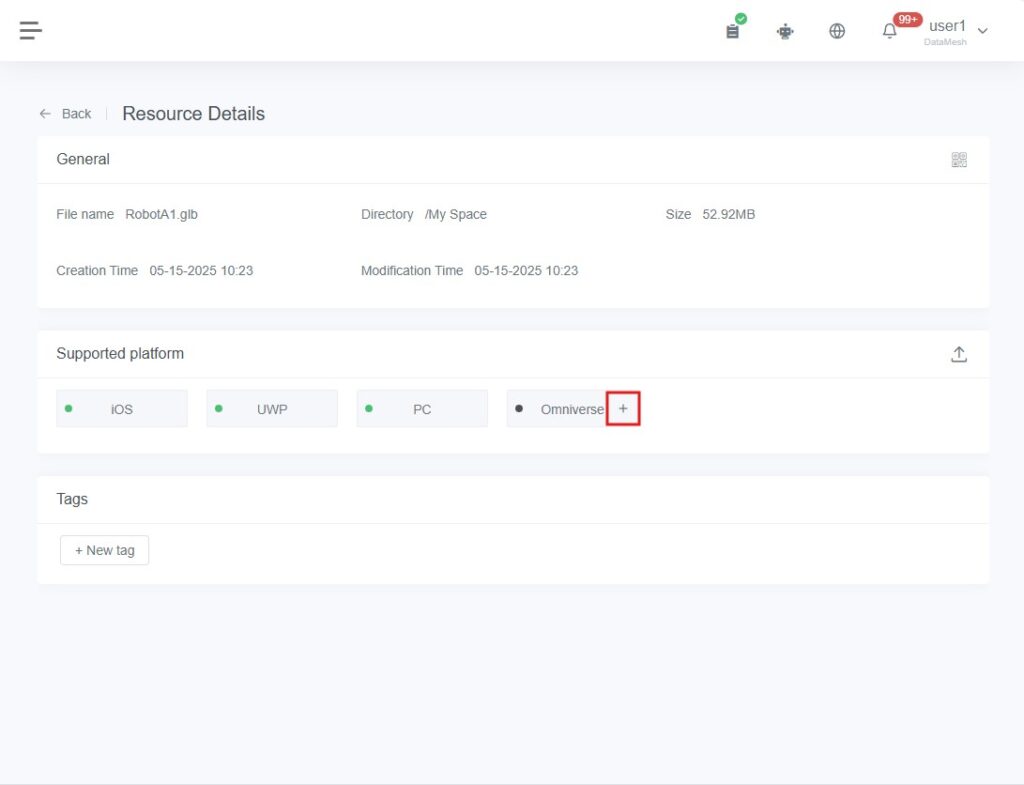
a) Go to the Resource Details page for your target asset.
b) In the Supported Platforms section, click the “+” icon next to the Omniverse.
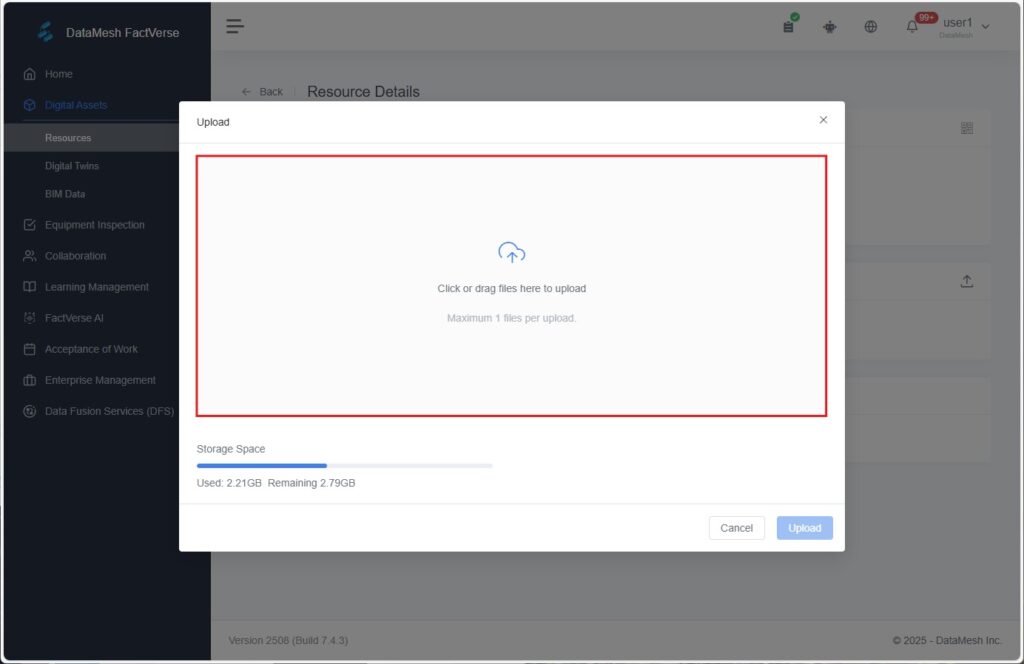
c) In the pop-up window, either open the resource folder or drag and drop the .usdz / .usdp file into the upload area. Each model can only have one USD file bound.
d) Click Upload to complete the binding.
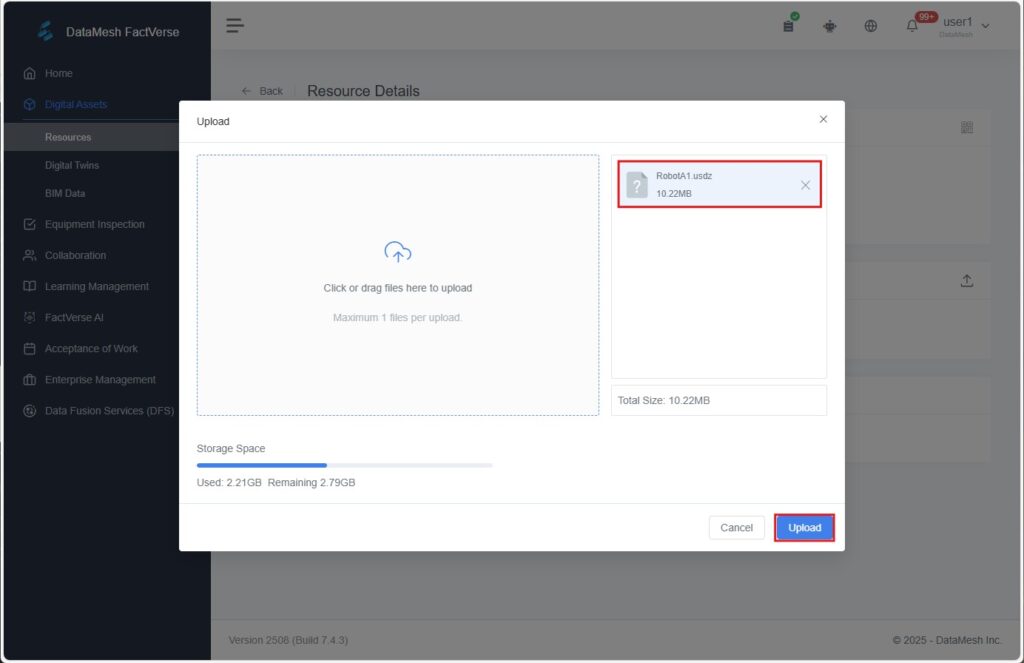
Once uploaded successfully, you’ll see a “Uploaded successfully” message, and the icon to the left of the Omniverse button will change to a green dot.
To update the file, simply click the refresh icon and re-upload a new .usdz file.
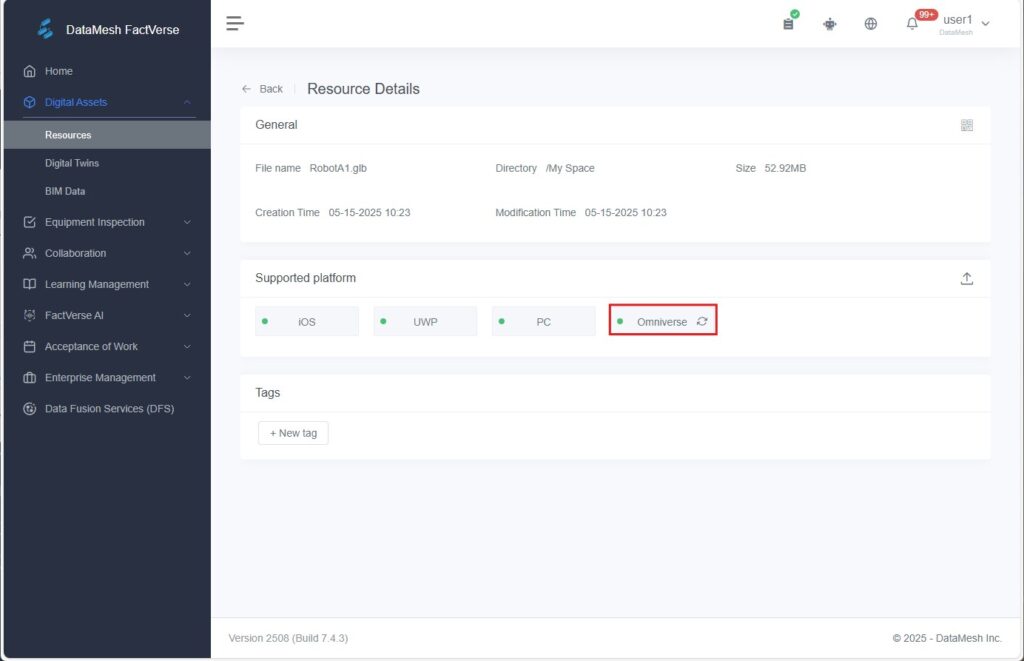
Before importing a digital twin scene via the FactVerse Omniverse Adaptor and enabling data-driven interactions, ensure all models are properly bound with .usdz files to guarantee correct rendering in Omniverse.
For more details, please refer to FactVerse Omniverse Adaptor User Guide.
Digital Twins
You can navigate to the Digital Assets > Digital Twins in the function module navigation bar to access the Digital Twins page.
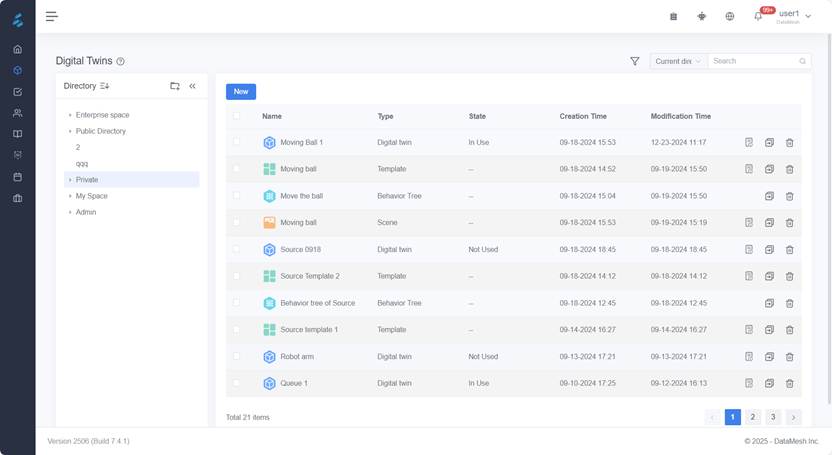
On the Digital Twins page, you can centrally manage all digital twin-related resources, including:
- Create resources: Click the New button to create a new template, digital twin, scene, or attribute group.
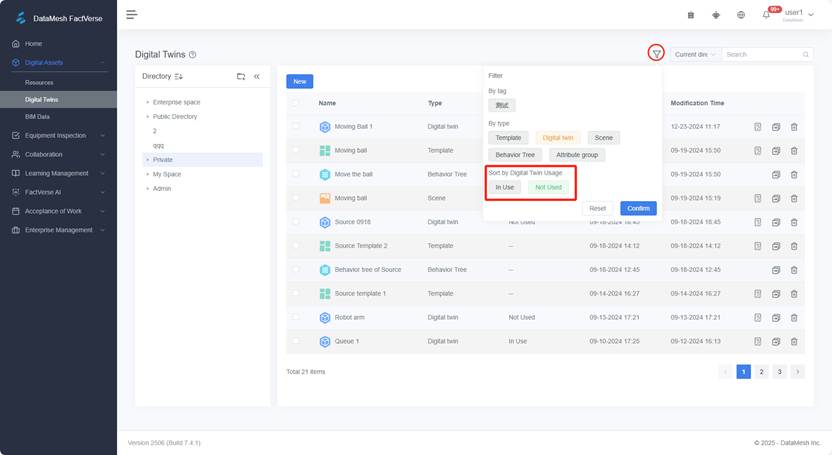
- Filter and sort: Click the Filter icon to narrow down your resources based on the following criteria:
- By Tag: Filter resources that contain specific tags.
- By type: Browse by types such as “Template,” “Digital Twin,” “Scene,” “Behavior Tree,” or “Attribute Group.”
In the Digital Twin type, you can also filter by usage status:
-
-
- In Use: The digital twin has been referenced in a scene.
- Not Used: The digital twin has not been referenced in any scene.
-
- Search resources: Enter keywords in the search box to find resources. You can toggle the search scope between global search and search within the current directory.
- Bulk actions: Check the boxes next to resources to perform bulk actions like Delete or Move.
- View details: Click on a resource name or the Details button to view more information about the resource.
Template
A digital twin template defines a category of digital twins, a template for describing a category of digital twins. Each template contains metadata, behavior trees, and models for a category of digital twins, supporting the creation of similar digital twins.
Create a new template
On the Digital Twins page, you can create a blank template to start defining your digital twin.
Steps
1. Select the storage directory for the template on the Digital Twins page.
2. Click the New button.
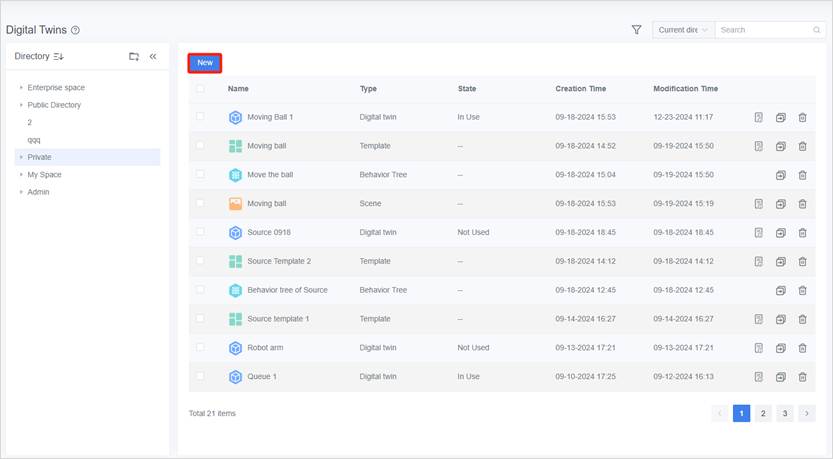
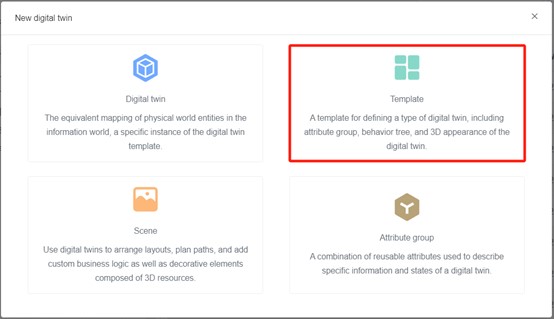
3. In the New digital twin window, select the Template section.
4. In the New Template window, fill in the template information.
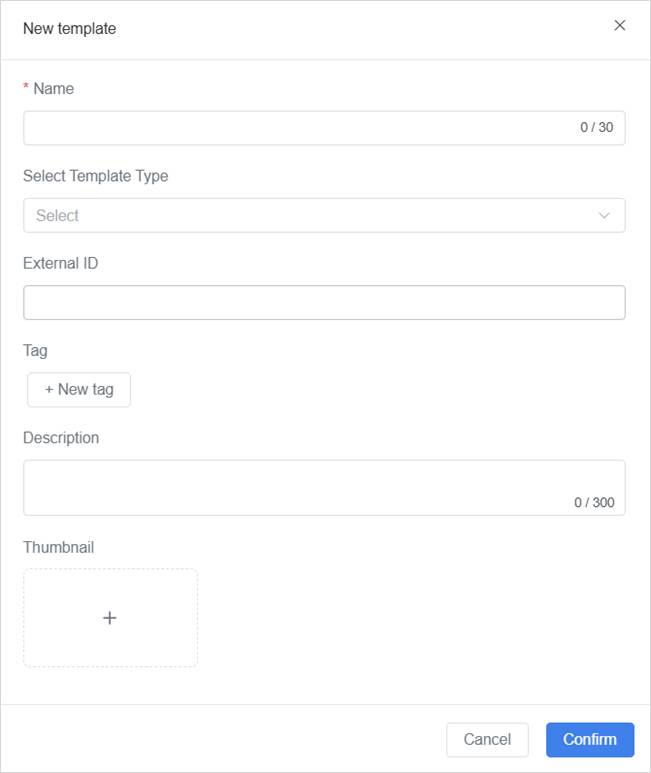
|
Field |
Required |
Description |
|
Name |
Yes |
Template Name |
|
Select Template Type |
No |
The template type is a system preset type that includes predefined attribute groups and default values. Attribute groups and attributes inherited from this type cannot be removed from the template. By selecting the template type, you can inherit the attribute groups and default values under that type to quickly create a template. Another use is the classification of “Space Class” and “Device Class” in the Inspector to perform space management and asset management. The template’s type setting cannot be changed after creation. |
|
Tag |
No |
Facilitates classification and filtering in the template list. |
|
Description |
No |
You can fill in the template’s purpose or definition. |
|
Thumbnail |
No |
You can upload a thumbnail for the template to aid identification. |
5. Select the type to which the template belongs:
a) Click the settings box to display a dropdown menu showing all available types.
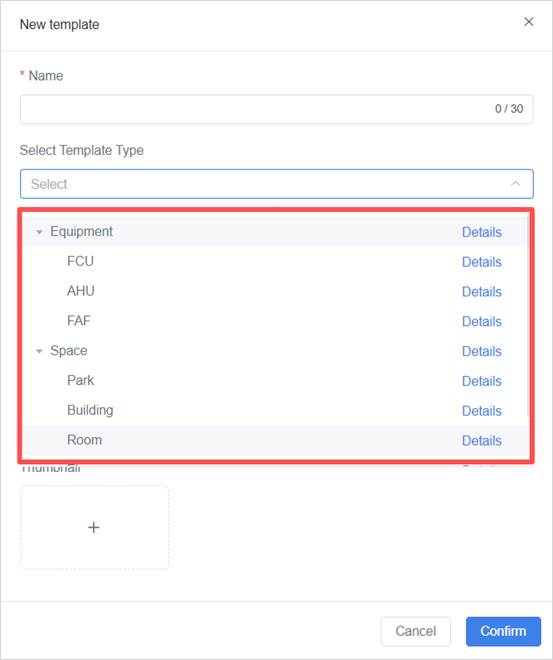
b) Click the “Details” button for a type to view the attribute details of the preset type.
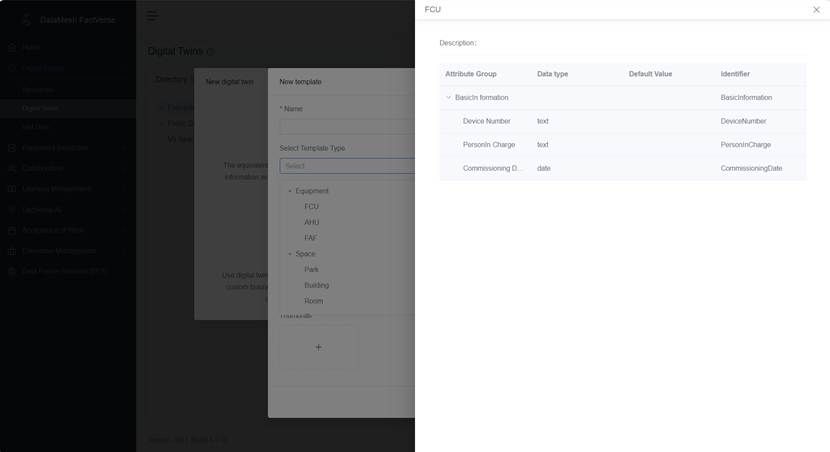
c) Select a type from the preset type list.
6. After completing the form, click Confirm. The system will create a new digital twin template.
View template details
On the template detail page, you can view and manage detailed information about the template, including attribute groups, behavior trees, resources, sub-templates, and the digital twins that reference the template.
Steps
1. Select the storage directory for the template on the Digital Twins page.
2. Click the template name or the Details icon on the right to enter the Template details page.
3. On the Template Details page, you can view template information and perform the following actions:
- View basic template information
- View the template type and inherited attribute groups (cannot be deleted or edited)
- Add/manage attribute groups (including private and public attribute groups)
- Add behavior trees, resources, or sub-templates
- View the digital twins created using this template
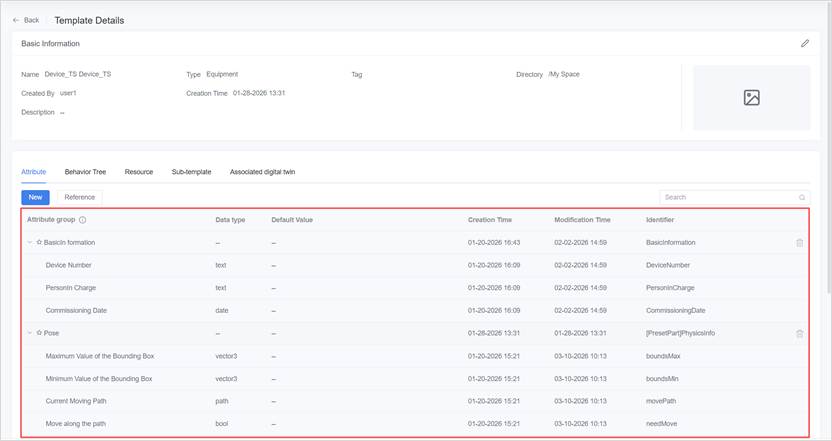
Add a private attribute group
Private attribute groups allow you to add a custom set of attributes to a template. These attributes apply only to the current template and enable personalized extensions.
Steps:
1. On the Template Details page, go to the Attributes tab and click the New button.
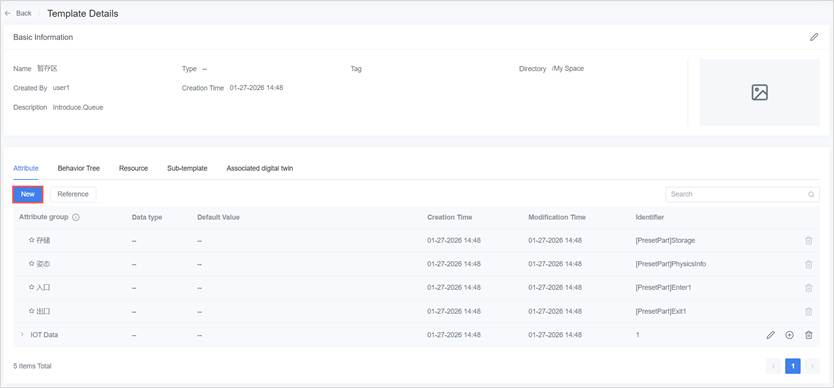
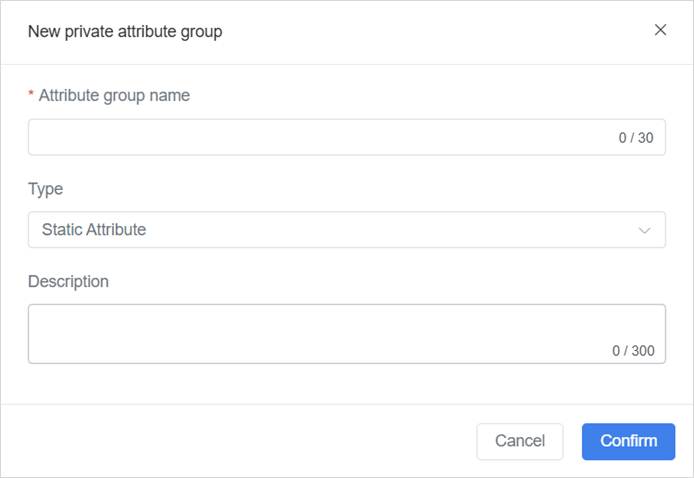
2. In the pop-up window, enter the attribute group details and click Confirm. The new attribute group will appear in the attribute group list.
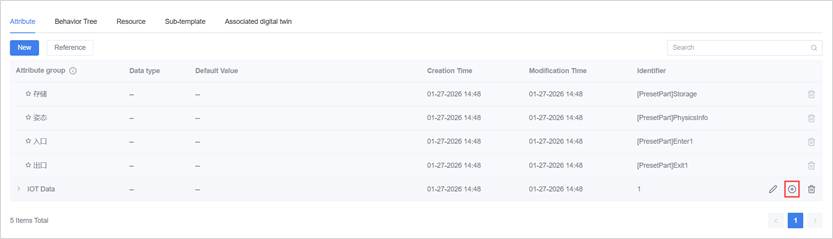
3. Click the add button  of the attribute group to add attributes.
4. Fill in the basic information for the attribute. For the data type, refer to the section Data types of attributes.
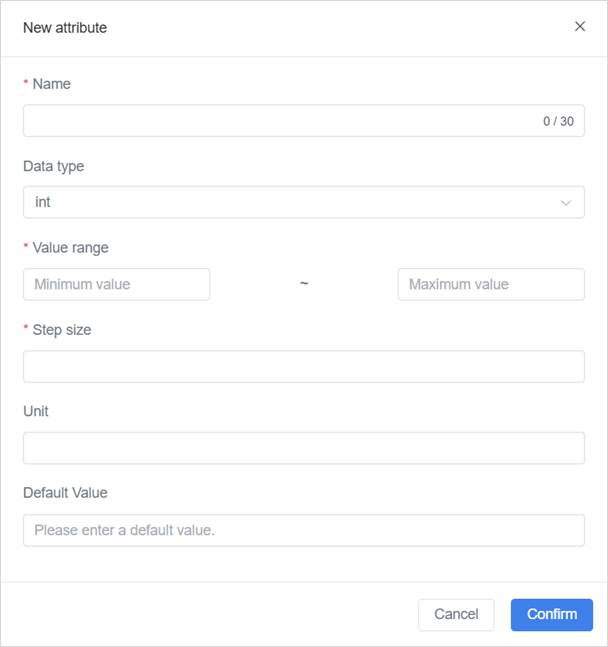
5. Click Confirm to complete the creation of the attribute.
6. You can repeat Step 3 to Step 5 to create more attributes.
Reference the public attribute group
Referencing an existing public attribute group allows you to quickly reuse standard attribute sets, streamlining the configuration process.
Prerequisites:
1. The required public attribute group has already been created (by the current user or another user with the appropriate permissions). For more information on creating public attribute groups, please refer to Create a public attribute group.
2. The current user has permission to access the directory where the attribute group is stored.
Steps:
1. On the Template Details page, go to the Attributes tab and click the Reference button.
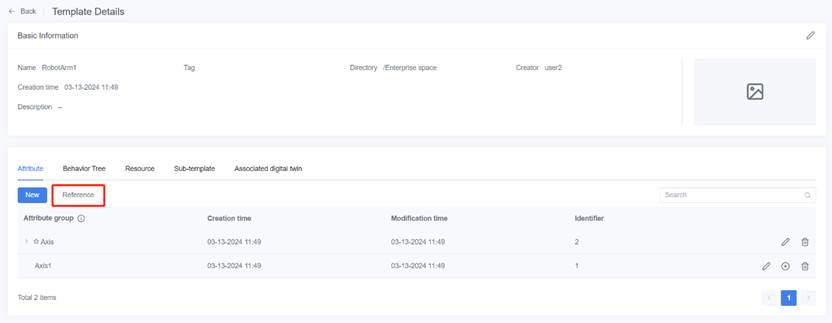
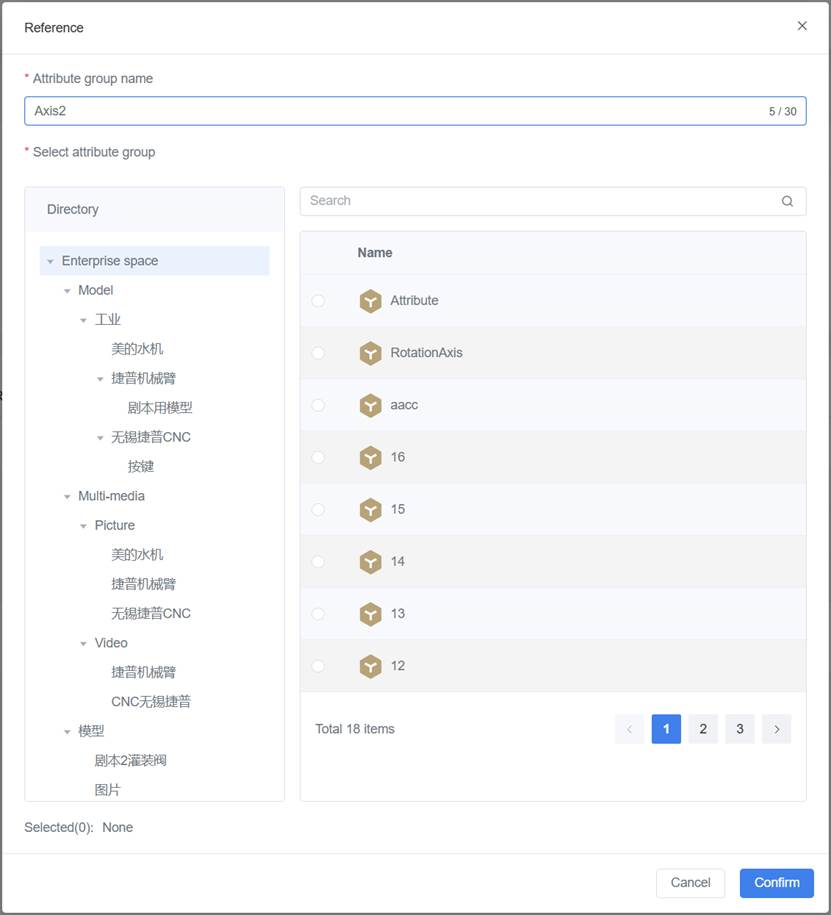
2. In the pop-up window, enter the Attribute group name, select the target directory, and select the public attribute groups you want to reference.
3. Click Confirm, and the referenced attribute group will appear in the list with the format “✩Attribute Group Name.”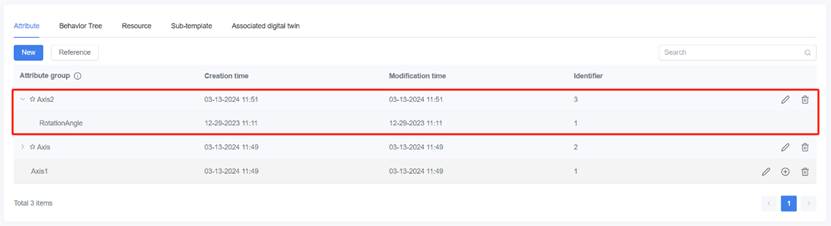
Add sub-templates
Sub-templates are used to build more complex template structures, such as adding a “Tire Template” as part of an “Autonomous Vehicle Template.”
Steps:
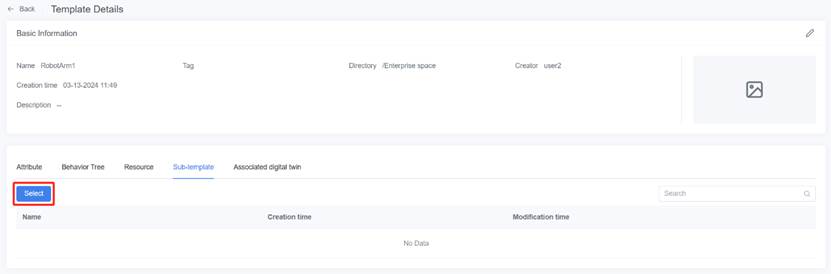
1. On the Template Details page, go to the Sub-template tab and click the Select.
2. In the pop-up window, check the sub-templates you want to add.
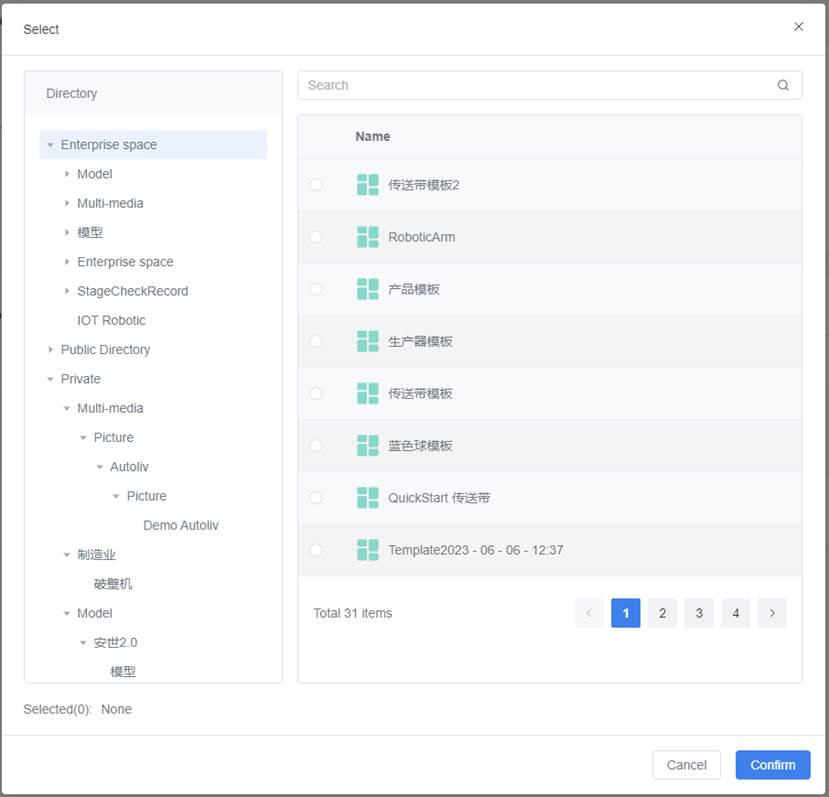
3. Click Confirm to complete the addition of the sub-template.
Delete a template
You can delete unnecessary templates by following these steps:
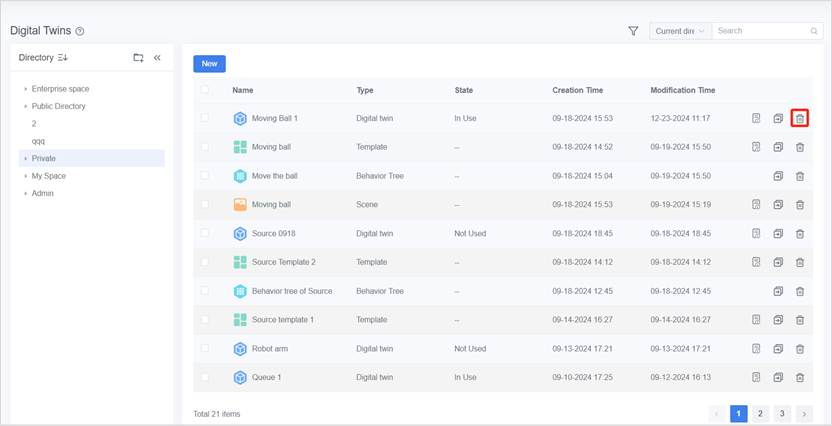
1. Select the storage directory for the template on the Digital Twins page.
2. Click the delete button of the template you want to delete.
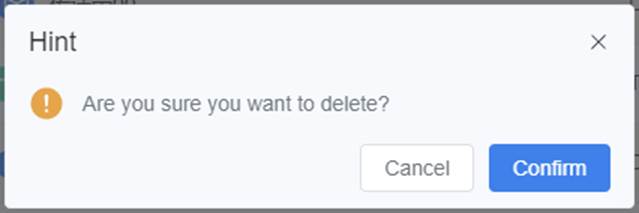
3. In the prompt window, click Confirm.
Attribute Groups
An attribute group is a collection of common attributes used to describe a digital twin, which usually correspond to the functionality, characteristics, or information of the digital twin.
You can manage public attribute groups in the Digital Twins page and reference these attribute groups in templates when needed to quickly add attribute groups and improve their reusability and maintainability.
Data types of attributes
Attributes are used to describe the properties or characteristics of a digital twin, which usually correspond to the functionality, characteristics, or information of the digital twin.
The following table shows the data types of attributes used in FactVerse:
|
Type |
Description |
Definable attributes |
|
Int |
Integer type, used to describe integer physical quantities, such as 1, 2, 5.
|
Quantity, frequency, speed, etc. |
|
Double |
Describes physical quantities in floating-point format, with 8-byte precision, such as 1.2, 2.5, 3.0. It can be used to represent attributes that require precise numerical representation, such as “time”, “percentage”, and “exchange rate”.
|
Temperature, humidity, power consumption, balance, mass, area, etc. |
|
String |
Also known as a text type, used to input text. Data length: The default set value is 10240 bytes. |
ID, model, etc. |
|
Bool |
Also known as the Boolean type, it is a judgment type used for logical judgment. The value of a bool type attribute is either true (1) or false (0). |
Operational status, check status, execution results, etc. |
|
Vector3 |
Used to describe physical quantities of three-dimensional space information, such as coordinates, rotation angles, scaling, and other attributes.
|
Placement position, placement angle, path positions, etc. |
|
Color |
Color format: The format is R, G, B, A. The first three numbers represent the RGB color values, and the fourth number represents the transparency value. |
Appearance colors, status colors, etc. |
|
Path |
0:x,y,z or 1:x,y,z, where 0 represents a straight line and 1 represents a curve. The coordinates of two points are separated by the “|” symbol. For example, 0:0,1,0|0:5,1,0 represents a straight path between the points (0,1,0) and (5,1,0). |
Moving paths, transfer paths, transport paths, etc. |
|
Date |
Date format: YYYY-MM-DD, for example, 2024-08-09 |
Production date, maintenance date, etc. |
|
Time |
Time format: HH:MM:SS, for example, 14:30:00 |
Start time, landing time, stop time, etc. |
|
Enum |
Enum type format: A predefined list of values, for example: [01, 02, 03]. |
Error codes and error types, product codes and product categories, etc. |
|
Vector2 |
Used for 2D coordinates or vectors (x, y) |
Example use cases: planar positions, UI element locations |
|
Object |
General-purpose object type for encapsulating complex data structures |
Example use cases: device configurations, grouped properties |
|
List |
Object array format: Used to store an ordered collection of elements, where each element can be of any type but must be of the same type. For example: [1, 2, 3], [“a”, “b”, “c”]. |
Suitable for storing ordered collections of elements, such as sensor lists, device lists, path points collection, etc. |
|
Dictionary |
Key-value pair collection format: {key: value}, where each element can be of any type but must be of the same type. For example: {“ID”: “123”, “Status”: “Normal”}. |
Suitable for storing data in a key-value pair structure, suitable for situations where quick lookup, addition, or modification of values based on unique keys is needed. Examples include usernames and their corresponding passwords, configuration options and their values, etc. |
Create a public attribute group
The following are the steps to create a new public attribute group:
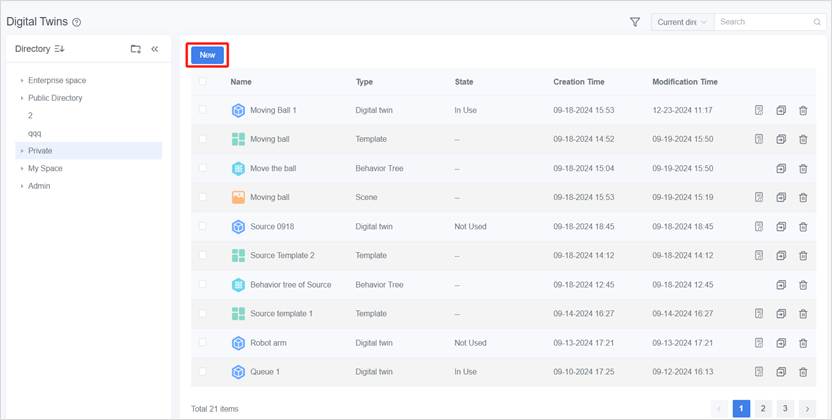
1. On the Digital Twins page, select the directory for the attribute group.
2. Click the New button.
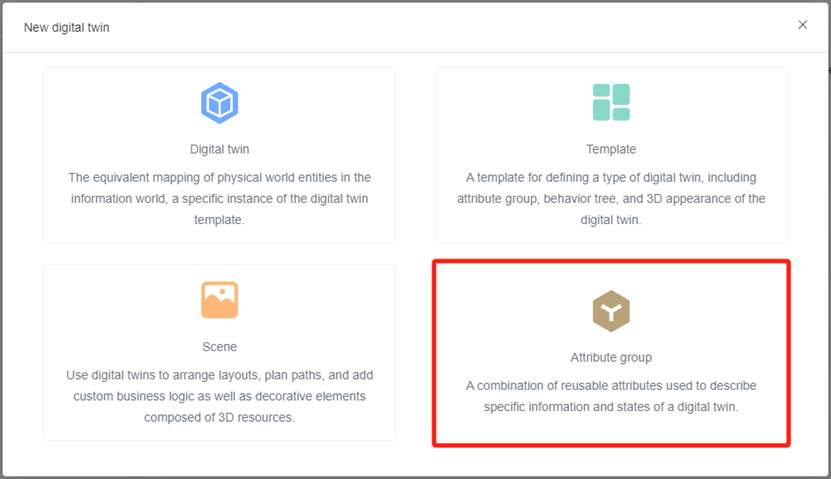
3. In the New digital twin window, click Attribute group section.
4. Fill in Attribute Group Name (required).
Note: The attribute group name must start with Chinese, Japanese, English or numbers, and does not support special characters.
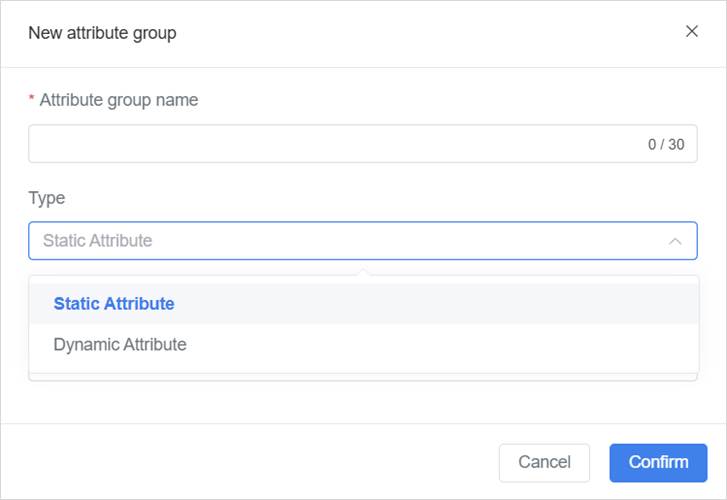
5. Select Attribute Group Type (optional): The type is used to support categorization of attributes displayed in the Inspector sandbox dashboard.
- Static Attributes: default. Information that hardly changes over time, such as device number, device type, commissioning/years in service, etc.
- Dynamic attributes: operational data that change over time, such as temperature, power, rotational speed, alarm status, etc.
6. Click the details button of attribute group to open attribute group details page.
7. Click the New button to add attributes for the attribute group.
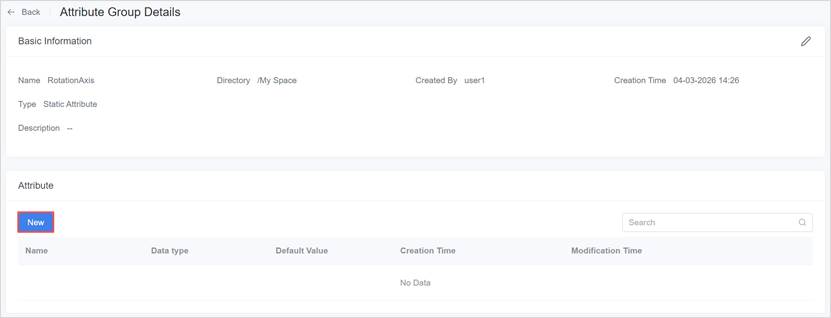
8. In the New Attribute window, fill in the attribute information. For example, you can create an attribute for rotation angle:
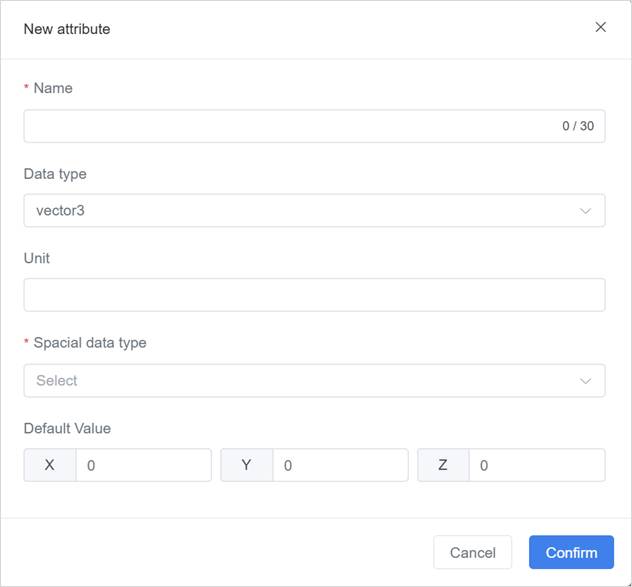
- Name (required): must start with Chinese, Japanese, English or numbers, and not exceed 30 characters.
- Data Type: The data type of the attribute. For the available options, please refer to Data types of attributes.
- Default Value: The initial value of the attribute. The default value must conform to the value rules of the selected data type. Please refer to Data types of attributes.
- Public Attribute: Its default value can be edited on the Public Attribute Group Details page.
- Private Attribute: Its default value can be edited on the Template Details page.
9. Click Confirm and the newly added attribute will be displayed in the attribute list of the Attribute group details page.
In the attribute list, you can:
- Click the delete button to remove an attribute.
- Click the edit button
 to edit attribute information.
10. You can repeat steps 7-9 to add multiple attributes to the attribute group.
By following the above steps, you can create a new public attribute group and add attributes to it. When creating a digital twin template, you can directly reference the public attribute group and use its attributes to describe the digital twin.
Public Attribute Group Management Instructions
- Delete a Public Attribute Group:
a) In the attribute group list, click the Delete button for the group you want to remove.
b) In the confirmation dialog, click Confirm to complete the deletion.
- Edit a Public Attribute Group Name
a) On the attribute group detail page, click the Edit button .
b) In the pop-up edit window, modify the group name.
c) Click Confirm to save the changes.
Digital twin
A digital twin is an equivalent mapping of a physical entity in the digital world. Each digital twin is a specific instance of a digital twin template.
You can create, edit, delete, or view digital twins on the digital twins page.
Create a digital twin
Creating a digital twin means creating a digital twin based on a digital twin template, which can inherit metadata attributes, behavior trees, resources, sub-templates, and associated digital twins from the template.
Steps
1. Select the storage directory for the digital twin on the Digital Twin page.
2. Click the New button.
3. In the New digital twin window, select the digital twin section.
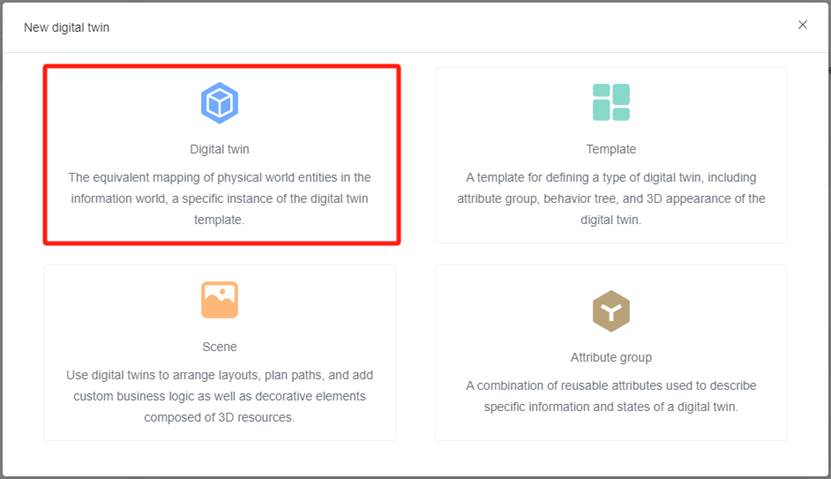
4. In the pop-up window, fill in the information for the digital twin.
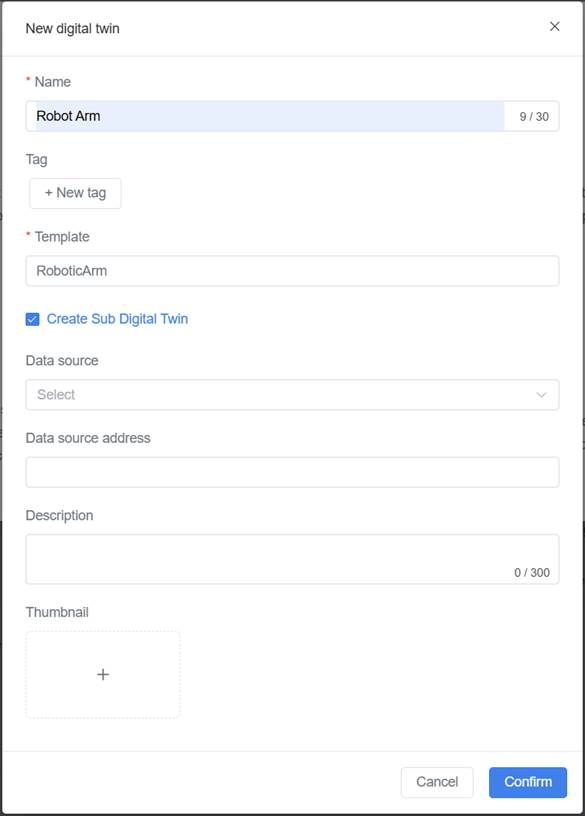
Name (required): The name of the digital twin.
Template (required): The digital twin template.
Create a Sub Digital Twin: When a template A contains a sub template B, if this configuration is selected when creating a digital twin using template A, the system will create two independent digital twins for template A and sub template B at the same time.
Data Source: The data source of the digital twin can be divided into three types: HTTP, HTTPS, and TCP.
Data Source Address: It can be a real data interface or a simulated data script.
- Real data interface: Fill in the IP address specified in the MQTT server access information.
- Simulated data script: The script needs to be uploaded to DataMesh FactVerse, and the storage path should be filled in the data source address. Format specification: SimulationFile:/storage path/filename.iotsim.
5. Click Confirm to complete the creation of the digital twin.
Behavior Tree
The behavior tree is a hierarchical node tree that controls the decision-making process of the digital twin, forming a series of decision logic to realize the operating mechanism of the digital twin. Note: you can create and edit the behavior tree in the FactVerse Designer and delete and move the behavior tree on FactVerse.
Scene
The Digital Twins page provides scene management functions that can be used in conjunction with FactVerse Designer.
The scene operation instructions are as follows:
- Create a new scene project: On the Digital Twins page, you can click the New button to create a new blank scene project. You can then open and edit the scene project using FactVerse Designer.
- Delete a scene project: Click the delete button corresponding to the scene project to delete it.
- View scene project details: Click the detail button corresponding to the scene project to open the Scene Details page and view the scene project details.
Creating a new scene
Steps
1. On the Digital Twins page, select the storage directory for the scene and click the New button.
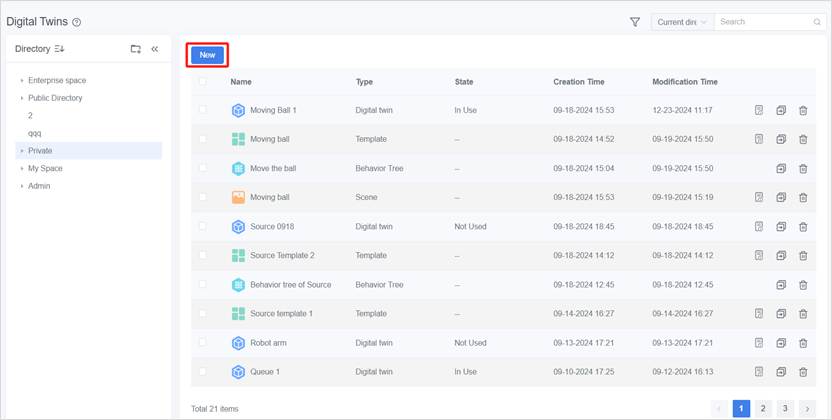
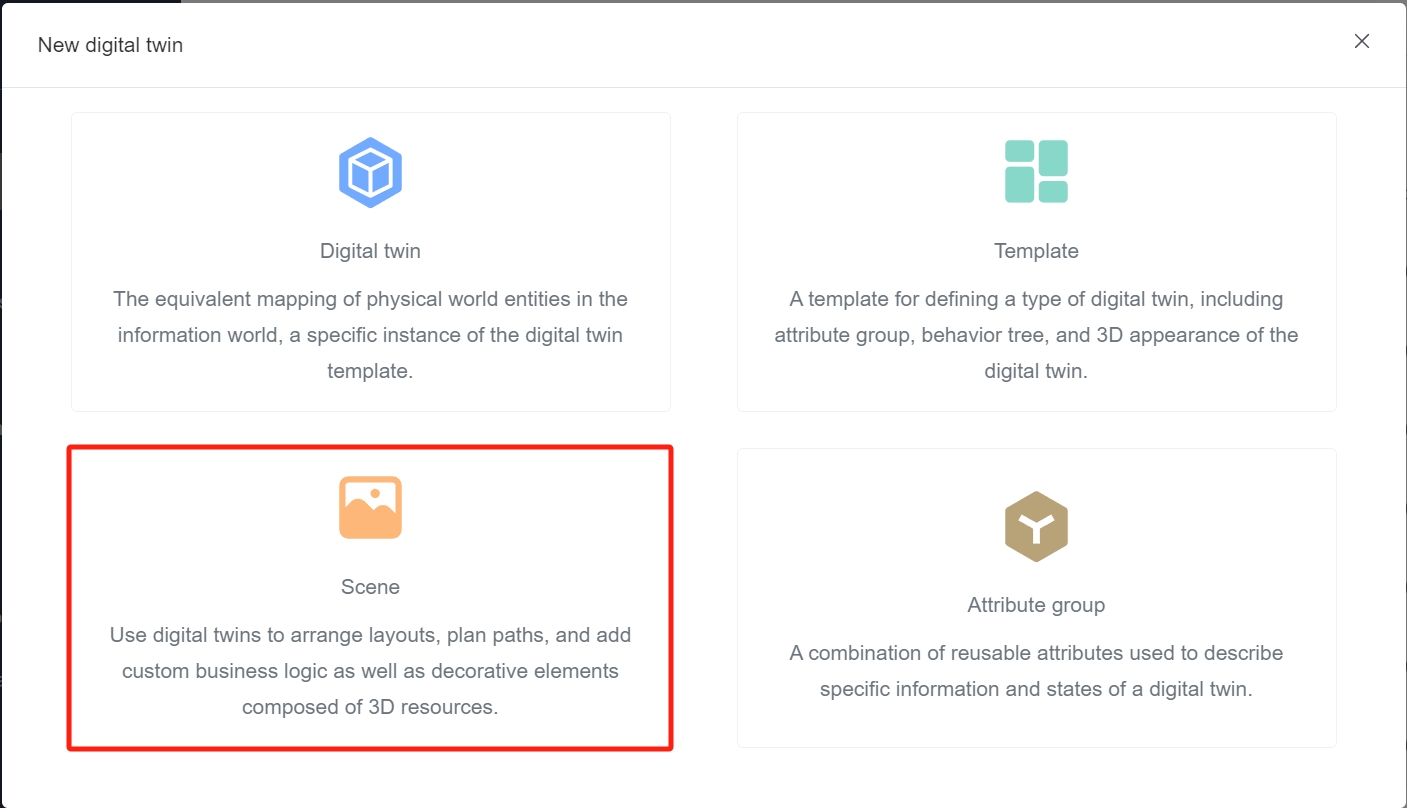
2. In the New digital twin window, select the Scene section.
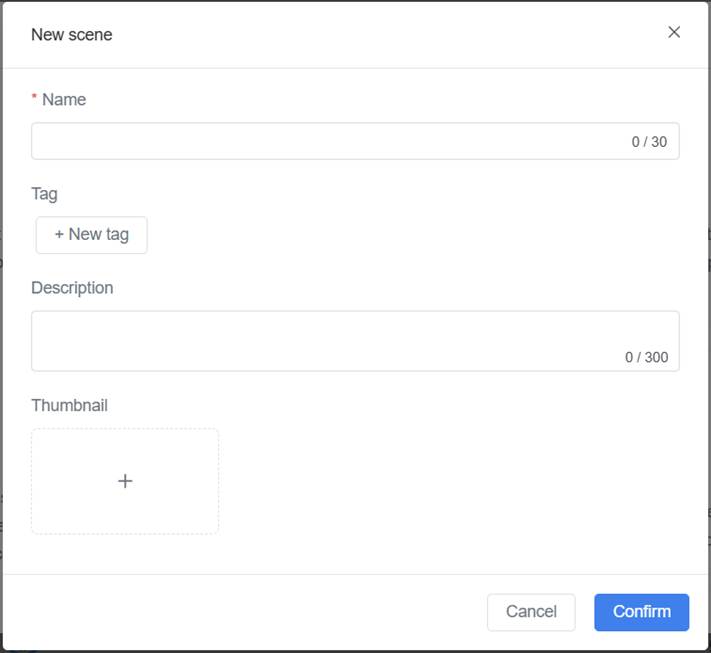
3. In the New Scene window, fill in the information for the scene project.
4. Click Confirm to complete the scene creation.
Viewing scene details
On the Digital Twins page, click the detail button corresponding to the scene you want to view to open the Scene Details page.
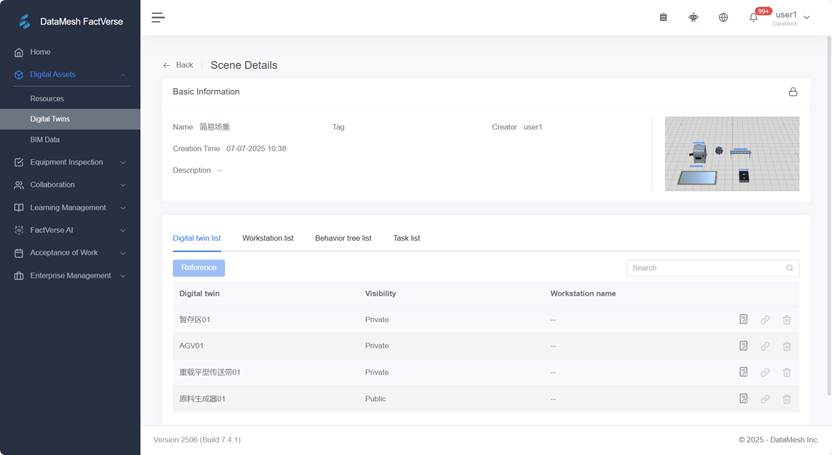
The Scene Details page displays basic information about the scene, including the scene name, tags, creator, creation time, and description. The bottom of the page includes the functions corresponding to the Digital twin list, Position list, Behavior tree list, and Task List.
Reference and manage digital twins
On the scene detail page, you can reference, configure, and manage digital twins through the Digital twin list.
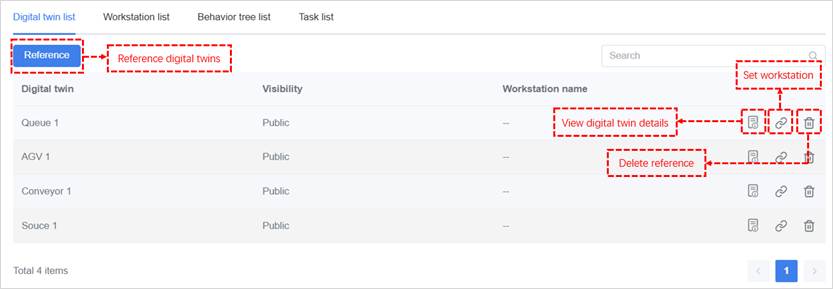
The Digital twin list displays the following information:
- Digital twin name: Shows the name of the digital twin. Click to view details.
- Visibility:
- Private: By default, newly created digital twins are set to private. They are only bound to the current scene and stored in a dedicated cloud location for that scene. These digital twins are not displayed in the resource directory, and only the creator can view and manage them within the scene. Other users cannot access them.
- Public: The creator can make the digital twin public, storing it in the cloud resource directory. Any user with access to the directory can view it.
- Workstation name: If the digital twin is bound to a workstation, the associated workstation name will be displayed.
Available operations:
|
Operation |
Description |
|
Reference digital twins |
Click the Reference button, select an unused public digital twin, and add it to the current scene. |
|
Delete reference |
Click the Delete icon |
|
Set workstation |
Click the Set Workstation icon ⚠️ Each digital twin can only be bound to one workstation. |
|
View digital twin details |
Click the twin name or Details icon |
 next to the digital twin to remove its reference from the scene.
 next to the digital twin to assign a workstation to it.
Reference rules:
- Unique reference limitation: A digital twin can only be referenced by one scene and cannot be reused in multiple scenes.
- Remove references:
- Once a digital twin is removed from a scene, it will reappear in the digital twin library and can be referenced again.
- If the scene containing the digital twin is deleted from the cloud, the system will automatically remove its reference, allowing the digital twin to be referenced once more.
BIM Data
The BIM data module is used in the FactVerse platform to manage equipment and space objects within buildings, as well as to configure their relationships and spatial ownership.
Through this module, you can:
- Create and manage digital twins of equipment and spaces.
- Configure relationships such as upstream and downstream links between equipment.
- Associate equipment digital twins with BIM components to achieve 3D positioning.
- Define ownership relationships between equipment and spaces, constructing spatial hierarchies such as parks, buildings, and floors.
Function overview and platform responsibilities
The BIM data module is used on the FactVerse platform to centrally configure equipment and spatial objects within buildings and to define how they are associated at the business and spatial levels, describing “what objects exist in the building and how they are organized and related.”
In a complete digital twin solution, the responsibilities of each platform are as follows:
|
Platform |
Job Description |
|
FactVerse platform (BIM Data) |
Configure equipment and spatial digital twins, and manage their relationships and spatial ownership relationships. |
|
FactVerse Designer |
Build digital twin scenes based on digital twins to achieve 3D visualization. |
|
DFS |
Bind data sources to equipment digital twins and configure data mappings. |
|
DataMesh Inspector |
Used for building situational display, equipment monitoring, inspections, alarms, and other operations and maintenance applications |
Preparation before use
Before starting to configure BIM data, please ensure the following preparations have been completed:
- The building hierarchy has been planned (e.g., park/building/floor).
- The required equipment and spatial digital twin templates have been created.
- If scene switching or hierarchical loading is needed, the corresponding digital twin scenes have been created in Designer.
Quick start: initial build of BIM Data
This section guides first-time users through the complete process of configuring building data, from creating a building scene to setting up equipment and space relationships.
Create a new BIM scene
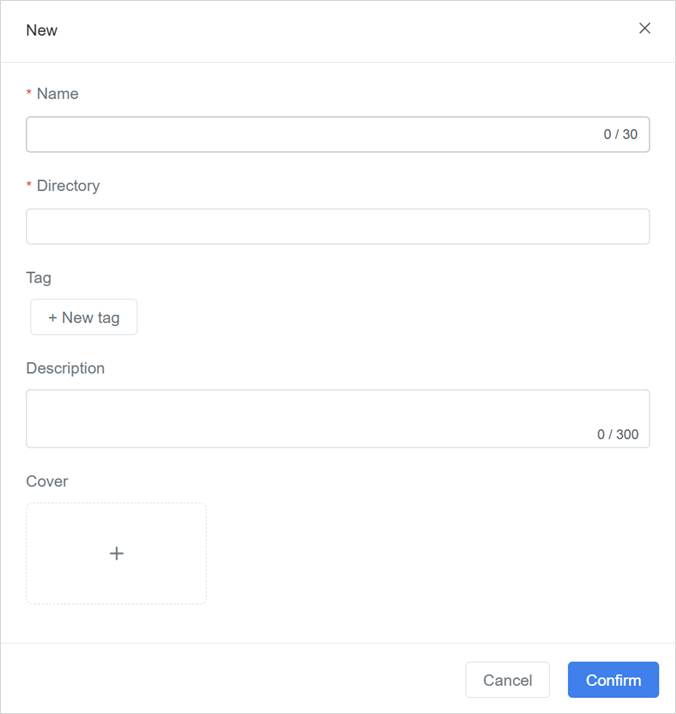
On the BIM Data page, click the Create button, fill in the following information, and confirm:
- Name (required): The name of the BIM scene.
- Directory (required): The storage directory for the BIM scene. After creation, the system will generate a hidden folder with the same name as the scene in this directory to store the scene files and digital twin data.
- Description: Supplementary notes for the BIM scene.
- Cover: The cover image used to identify the BIM scene.
Import and build scene resources
Scene resources are the base model files that make up a BIM scene, typically generated as a .zip archive after converting a Revit model.
Contents of the Scene Resource Package
A standard scene resource package typically contains the following files:
- Component FBX files: The 3D geometric data of the building model.
- Component attribute file (Excel): Records the component’s position information, rotation angles, and BIM attributes (Element ID, Name, etc.).
Note: Before importing scene resources, please ensure that the target BIM scene has been created (see Create a new BIM scene).
Steps
1. Convert model files: Use local tools or contact DataMesh to provide model conversion services to convert Revit files into .zip resource packages.
2. Upload resource package: Upload the generated .zip file to the resource repository.
3. Import resources into the BIM scene: On the BIM scene detail page, click Import, select the target resources, and confirm.
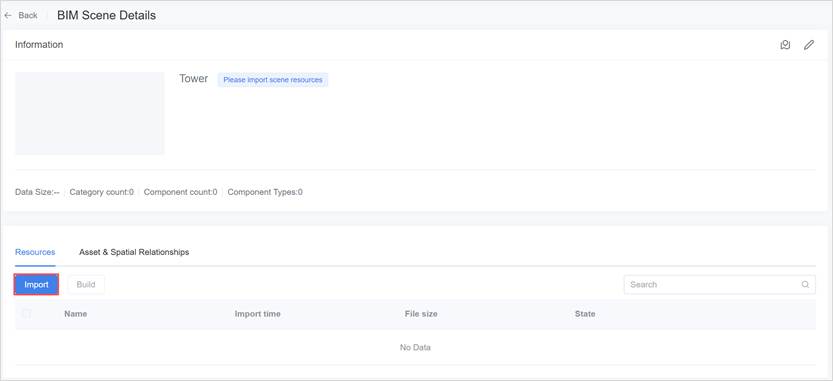
4. BIM scene: After the resource status displays “Import successful, waiting for building,” select the imported file and click Build to generate the complete BIM scene.
Note: In this version, you don’t need to worry about the consumption count and can confirm the processing directly.
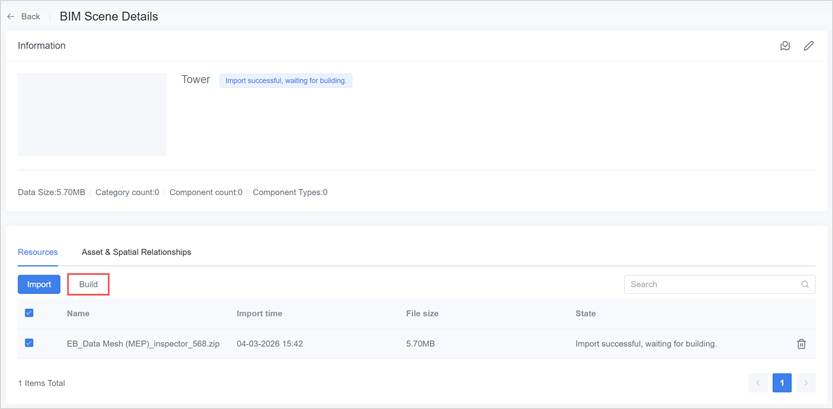
When the file status shows “Build successful,” the file has been successfully built. At this point, you can proceed with subsequent operations, such as importing other building models for incremental builds. If the file build fails, contact support@datamesh.com for technical support.
You can delete both built and unbuilt scene resources. Deleting a scene resource only removes it from the building project. After some scene resources are deleted, the system automatically rebuilds the remaining scene resources. After rebuilding is complete, the deleted scene resources will no longer be visible in Inspector.
Batch configuration of equipment and space relationships
After building the scene, you need to configure the equipment and spatial digital twins along with their relationship structure.
Recommended method
The Excel template import approach is suitable for initial configuration and subsequent batch modifications and adjustments, and can be used to create or update equipment and spatial digital twins and their relationships.
The primary configuration items include:
- Create or update equipment and spatial digital twins
- Establish relationships between equipment
- Build the hierarchical structure of spatial digital twins
- Bind BIM components to equipment
- Bind digital twin scenes to spaces (if needed)
Notes
- It is recommended to back up existing data before officially importing.
- If a digital twin name in the Excel template already exists, the system will update the corresponding information according to the template.
- After the import is completed, you can further review and adjust the relationship configurations on the current page.
Basic process:
1. Export the Excel template
- From any BIM scene detail page → the “Asset & Spatial Relationship” tab, export the template.
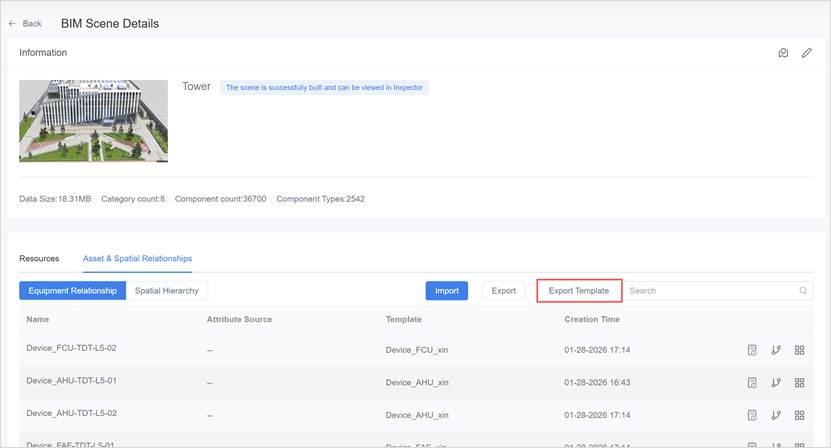
2. Fill out the template
- In the Equipment sheet, fill in the equipment digital twins and their relationships.
- In the Space sheet, fill in the spatial digital twins and their organizational relationships. Fill in BIM component or scene binding information (if needed).
For detailed descriptions of each field in the Excel template, filling rules, and examples, please refer to BIM Scene — Equipment and Space Relationship Excel Template Instructions.
3. Import spreadsheet
- Import the completed Excel spreadsheet on the “Asset & Spatial Relationships” tab.
- The system will automatically create or update digital twins and their relationships.
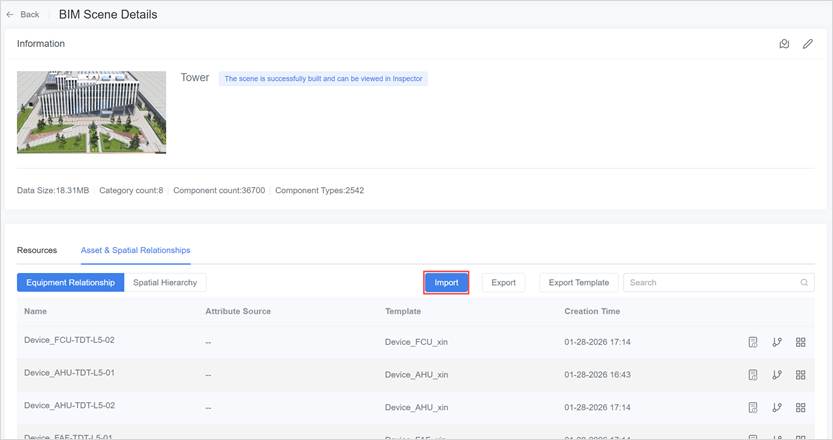
After importing, the system will automatically perform the following actions based on the spreadsheet content:
1. Equipment digital twins and relationships
- Automatically create or update equipment digital twins.
- Establish associations between equipment or between equipment and spaces according to the relationships specified in the spreadsheet.
- If BIM component information is provided, the system will also synchronize and complete the binding between the equipment digital twins and the BIM components.
The generated equipment digital twin will be displayed in the Equipment Relationship list, and the relationships can be viewed in two ways:
- Relationship Diagram (Structural Relationship Visualization)
- Relationship Table (Structured Data List)
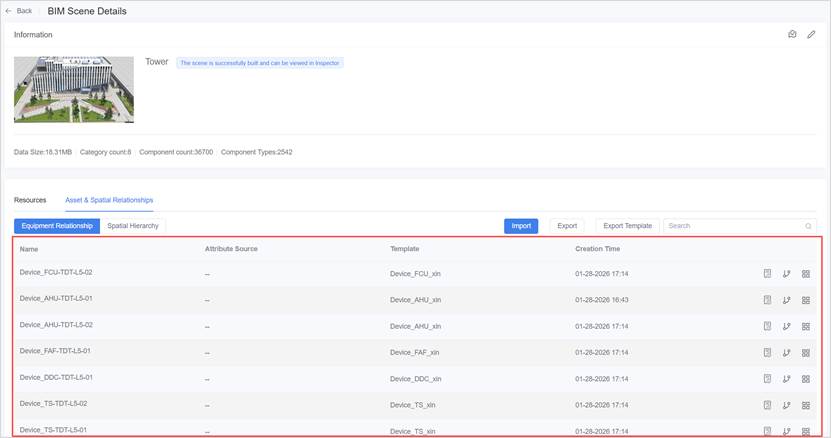
2. Spatial Digital Twin and Organizational Relationship
- The system will automatically create or update spatial digital twins based on the contents of the imported
- Based on the organizational relationships configured in the spreadsheet, build the spatial hierarchy, such as park, building, floor, and room.
- If a “Scene Name” is filled in the table, the system will automatically bind the spatial digital twin to the corresponding digital twin scene.
After configuration is complete, the generated spatial digital twins will be displayed in the Spatial Hierarchy list, and support viewing the spatial relationship and ownership using a tree structure.
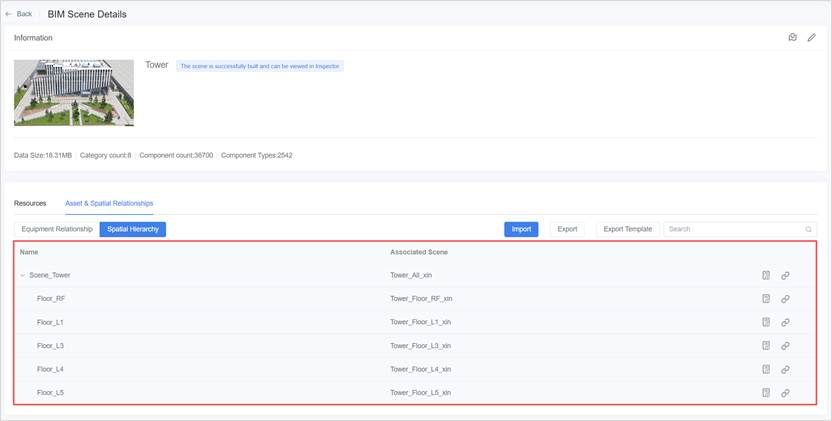
Post-build checklist
After completing the above steps, it is recommended to perform the following checks:
- Whether the BIM scene can be loaded normally in the Inspector.
- Whether the equipment and space hierarchical structure is complete.
- Whether critical equipment have been correctly bound to BIM components.
- Whether the spaces that need to be navigated to have been bound to digital twin scenes.
At this point, the initial build of the BIM data is complete.
You can further refine digital twin scenes in Designer, connect equipment data in DFS, and carry out operational applications in Inspector.
Maintenance of equipment and space relationships
This section’s operations are primarily for maintaining and adjusting relationships and do not affect the BIM scene structure or already built scene resources.
View equipment relationships
You can view the relationships between equipment digital twins using either a relationship diagram or a relationship table. This helps you understand the logical connections of equipment within the system.
Steps
1. Access the BIM Scene Details page.
2. Click the Equipment Relationship tab.
3. In the Equipment Relationship area, select the equipment digital twin you want to view.
Viewing Options
The system provides two ways to view equipment relationships:
- Relationship Diagram: Click the “Relationship Diagram” icon
 , and the system will display the connections between the selected digital twin and other digital twins in a graphical format. Through the graphical interface, you can intuitively understand the upstream and downstream relationships, control relationships, etc., between the equipment.
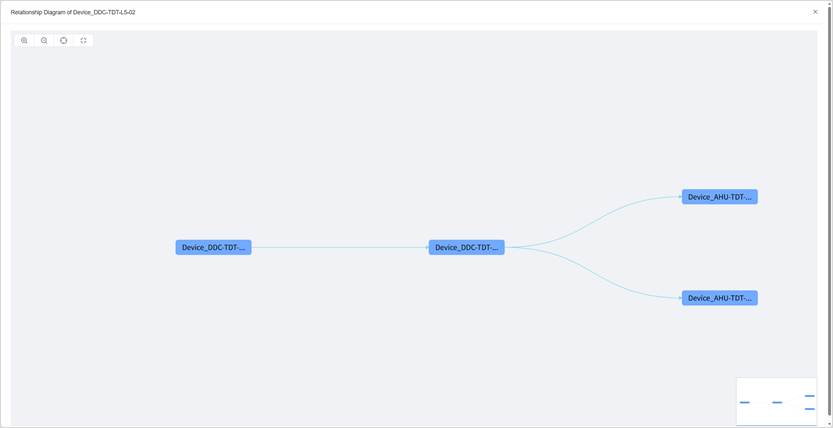
- Relationship Table: Click the “Relationship Table” icon
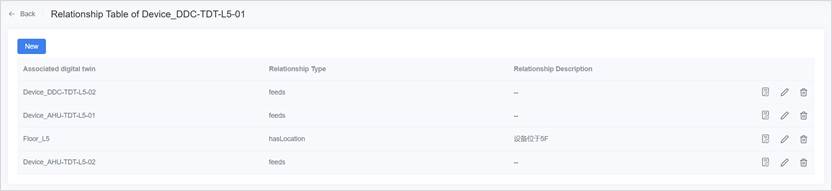
 , and the system will list detailed information about all relevant digital twins in a tabular format, including relationship types, target digital twins, relationship descriptions, etc.
Edit equipment relationships
You can add, modify, or delete relationships between equipment to adjust the actual business logic.
Steps
1. Access the BIM Scene Details page.
2. Click the Equipment Relationship tab.
3. 3. Click the “Relationship Table” icon to open the relationship table for the digital twins.
4. Edit equipment relationships:
- Add relationship:
a) On the equipment relationship list page for the BIM scene, click the New button to open the creation window.
b) Select the Target digital twins and Relationship type.
c) (Optional) Enter a description of the relationship.
d) Click Confirm to save the new relationship.
- Modify relationship:
a) Locate the relationship entry you want to modify in the relationship table.
b) Click the edit button to open the Edit window
c) Update the target digital twin, relationship type, or relationship description.
d) Click Confirm to save the changes.
- Delete relationship:
a) Find the relationship entry you want to delete in the relationship table.
b) Click the delete button , and the system will prompt you to confirm the deletion.
c) Upon confirmation, the relationship will be removed from the list, and the association will no longer be valid.
Edit equipment digital twins
You can modify the equipment digital twin’s name, identifier, data source, or description information, typically used for later maintenance.
1. Access the BIM Scene Details page.
2. Click the Equipment Relationship tab.
3. Open the digital twin details page for the target digital twin.
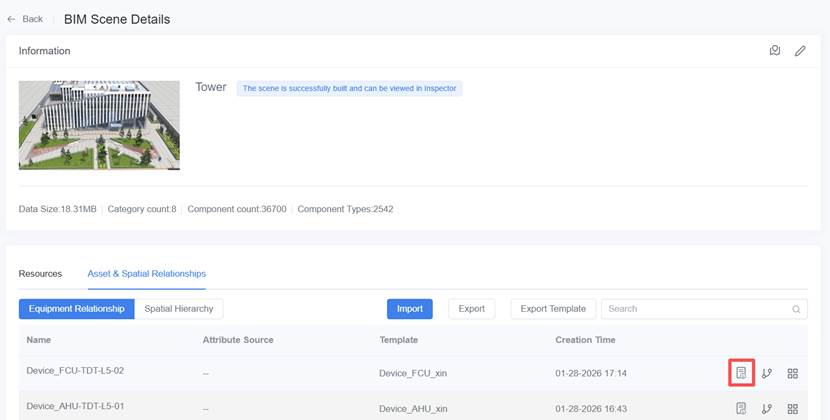
4. Click the edit button to modify the name, data source, identifier, or description.
5. After making the changes, click Confirm.
View and adjust spatial relationship
Displays the hierarchical relationships of spatial digital twins in a tree structure and supports viewing spatial digital twin details.
Viewing Methods
On the BIM Scene Details page → Asset & Spatial Relationships→ Spatial Hierarchy, you can view the spatial relationship:
- View Tree Structure
Display the hierarchical relationships of spatial digital twins in a tree structure (e.g., Park → Building → Floor → Room).
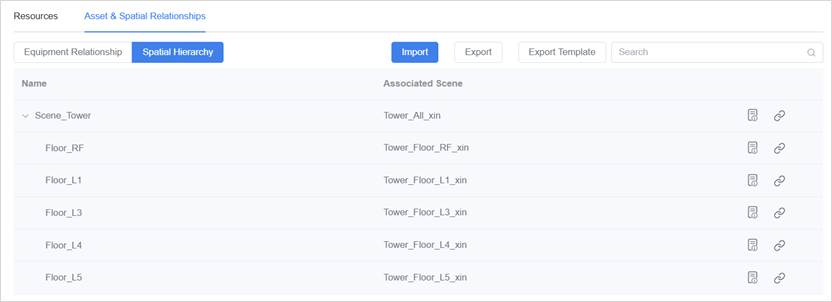
- View Digital Twin Details
Click the Details button on the right side of a spatial node to view the basic information of that spatial digital twin.
Bind or adjust the spatial digital twin with a digital twin scene (Optional)
Binding a digital twin to a scene allows clients like DataMesh Inspector to support scene navigation and hierarchical loading.
This operation is optional and should only be used when needed.
If a digital twin is not bound to a scene:
- It will still appear in the spatial hierarchy.
- Clicking the space node in Inspector or similar clients will not trigger scene navigation or load a new scene.
Binding Guidelines
A digital twin can act as an entry point for scene navigation. Use the following principles to decide whether to bind:
- Spaces that serve as entry points: bind a scene.
- Spaces that are only structural or hierarchical: binding is optional.
Example
Assume the spatial structure is as follows:
Park
├── Building A
│ ├── Floor 1
│ │ ├── Room 101
│ │ └── Room 102
│ └── Floor 2
└── Building B
Recommended binding method is as follows:
- Park
- Serves as the main entry → bind to the “Park Scene”
- Building (A/B)
- If the park scene already includes all buildings → separate binding is optional.
- Floor
- Usually displayed and loaded independently → bind each floor to its own scene.
- Room
- Typically displayed as part of the floor scene → binding individually is usually unnecessary
⚠️ Note:
Each digital twin can only be bound to one scene. Bind a scene only if scene navigation is required.
Binding Method
On the BIM Scene Details page → Asset & Spatial Relationships → Spatial Hierarchy tab, click the Bind button  on the right of the target space to complete the binding or adjustment of the digital twin scene.
Data Export and Delivery
Export BIM data
You can export the equipment relationships and spatial relationship of the current BIM scene into an Excel file. This can be used for:
- Data backup
- Batch editing and re-import
- Reusing BIM data structures across different projects or environments
Export instructions:
- The exported Excel file follows the same structure as the system import template.
- The exported data includes:
- The current top-level space (e.g., park/industrial area) and all its child spatial digital twins.
- Spatial relationship.
- All equipment digital twins and their relationships (e.g., upstream/downstream, location relationships)
- The exported file can be directly used for:
- Backup
- Batch editing and re-import
- Reusing BIM data structures across different projects or environments
Recommendation:
Export and keep a backup before performing large-scale edits or re-import operations.
Download scene markers
Scene markers are used in DataMesh Inspector (mobile) to enable MR scene alignment (overlay).
Prerequisites:
You must configure markers for the bound digital twin scenes in FactVerse Designer. If a scene does not have a marker configured, it cannot be downloaded from this page.
Steps
1. Open BIM Scene Details page
Go to the BIM Data page, select the target BIM scene, and open its details page.
2. Open the Download window
Click the “Download Marker” icon  in the top-right corner. The system will open the Download Marker window.
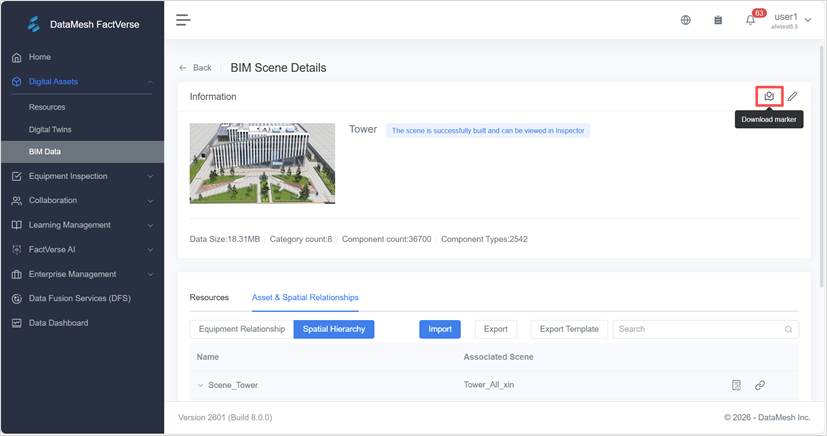
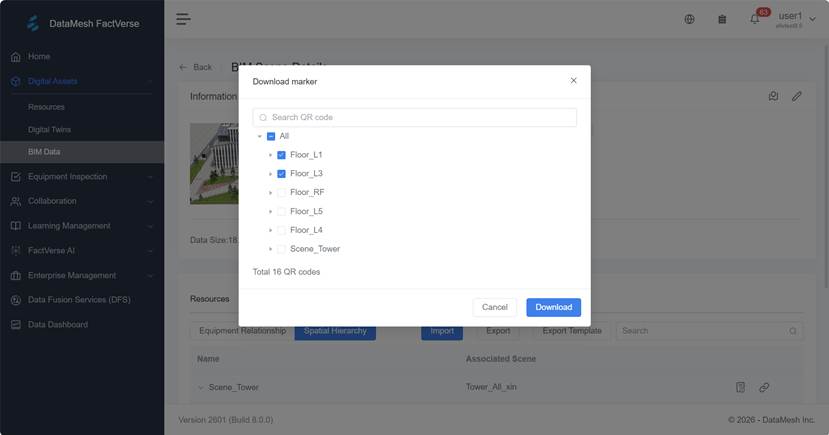
3. View marker list
The window displays markers for the current BIM scene and all its sub-scenes (e.g., park, building, floor).
- Supports keyword search by scene name.
- Supports multi-select and select-all for batch download.
4. Download Markers
Select the markers you want and click Download.
The system will generate files based on your selection:
|
Number of Files |
Result |
File Name |
|
1file |
Direct download as a PDF. |
“Spatial Digital Twin Name + Marker Name” |
|
Multiple files |
Packaged into a folder named Marker and downloaded as a ZIP file. |
Marker.zip |
The downloaded marker is a QR code image file that can be printed and affixed at the corresponding on-site location (such as a building entrance or a floor corridor). After scanning this QR code with DataMesh Inspector (mobile), the system will automatically locate and load the corresponding digital twin scene.
Recommendations
- Print and place markers in clearly visible locations.
- If the BIM scene is updated or rebuilt, re-download the markers to ensure they match the latest version.