
How Can We Help?
Getting Started
Preparation
System Requirements
System | Minimum Configuration | Recommended Configuration |
Windows PC | Software: • Windows 10 or later • Direct3D version 11.0 or later Hardware: • CPU: Intel i5-11400F • Memory: 16GB DDR4 · GPU: NVIDIA RTX 3060 | Software: • Windows 10 or later • Direct3D version 11.0 or later Hardware: • CPU: Intel i7-14700K • Memory: 64GB DDR5 · GPU: NVIDIA RTX 5070 Ti |
macOS | Software: · Monterey 12.7.6 Hardware: · CPU: Intel Core i5 · Memory: 8GB · GPU: Intel Iris Graphics 6100 | Software: · Monterey 14 Hardware: · Chip: Apple M1 · Memory: 16GB |
Download
- Windows: Microsoft Store
- Short link: datame.sh/designer
- macOS: Download via Apple Store
Permissions
Access requires authorization from your company’s admin. Admins assign user roles and access levels. Once authorized, users can log in and use FactVerse Designer.
Login
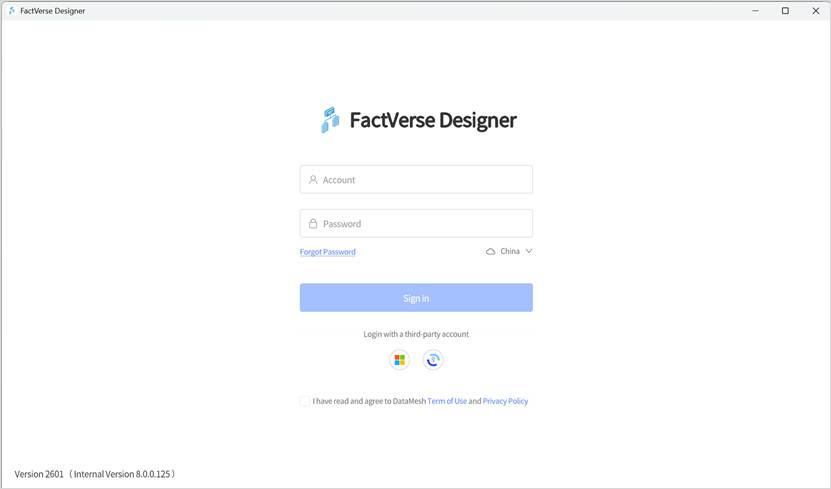
Standard Login
Steps:
- Open the login page.
- Set the server:
- Public deployment: Select your enterprise’s server from the list
- Private deployment: Click the private server icon
 to enter a custom code
- Enter username and password
- Accept the Terms of Use and Privacy Policy
- Click Login
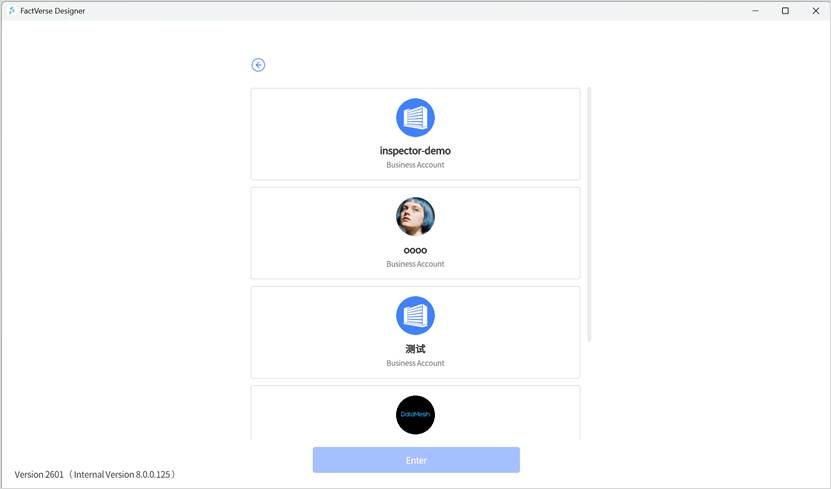
- If multiple enterprise accounts exist, select one
Microsoft Account Login
FactVerse Designer supports Microsoft Entra ID login:
- Open the login page
- Set the server (same as above)
- Accept Terms of Use and Privacy Policy
- Click the Microsoft icon
 and follow instructions
SSO Login
When SSO is enabled:
- Open the login page
- Set the server (same as above)
- Accept Terms of Use and Privacy Policy
- Click SSO Login icon

- Enter enterprise identifier (get from admin)
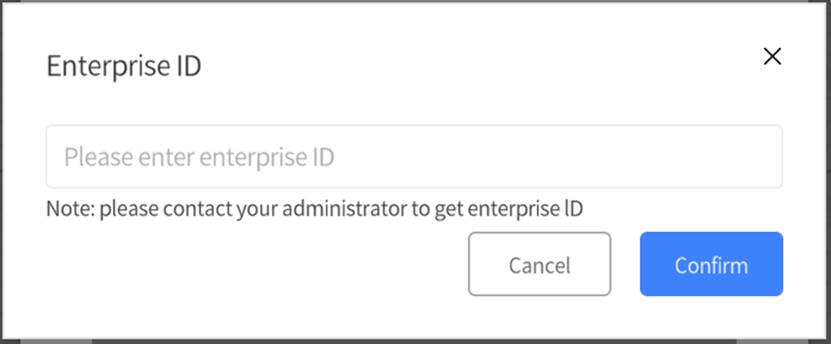
- If already signed in to the enterprise system, login is automatic
- Otherwise, complete SSO authentication manually.
User Interface
Home Page
After login, you arrive at the Home Page. It provides access to recent scenes/templates and the main editors.
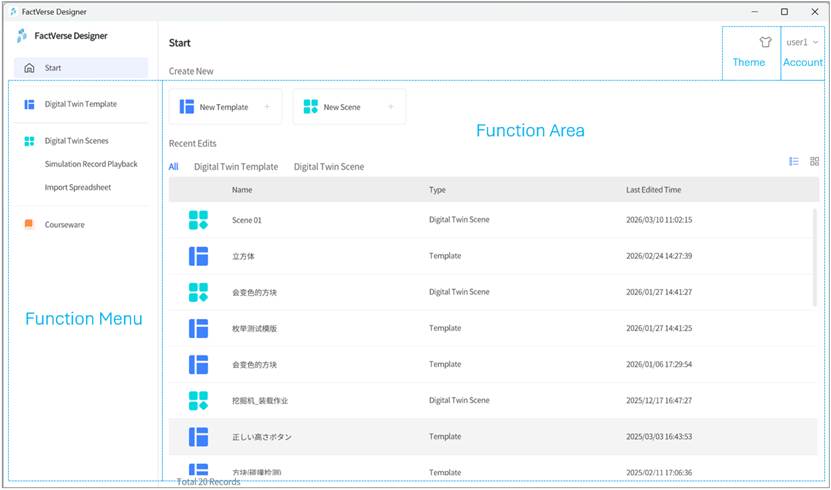
Main functions
Area | Description |
Function menu (left) | Displays the functional modules accessible to the current account, such as “Home” and “Digital Twin Templates”. Click to switch pages. |
Function area (right) | Shows the specific operations and resource list for the current module. |
Top toolbar | Includes theme toggle (light/dark) and current account information (supports logout). |
Function menu
The Designer left-side function menu displays the main functional modules accessible, supporting quick switching between pages. The menu items shown may vary slightly depending on the user’s role and the company’s license permissions.
Module | Function description |
Start | Quickly create a new template/scene and view recently edited content. |
Digital Twin Template | Used to browse, create, and manage digital twin template resources. |
Digital Twin Scenes | Used to browse, create, import, or export digital twin scenes. |
Simulation Record Playback | Review historical simulation data, supporting 3D playback, path analysis, collision analysis, etc. |
Import Spreadsheets | Bulk import Excel data to quickly create digital twins. |
Courseware | Visible only to users with teacher roles. Used to open and edit courseware resources created on the platform. |
Start
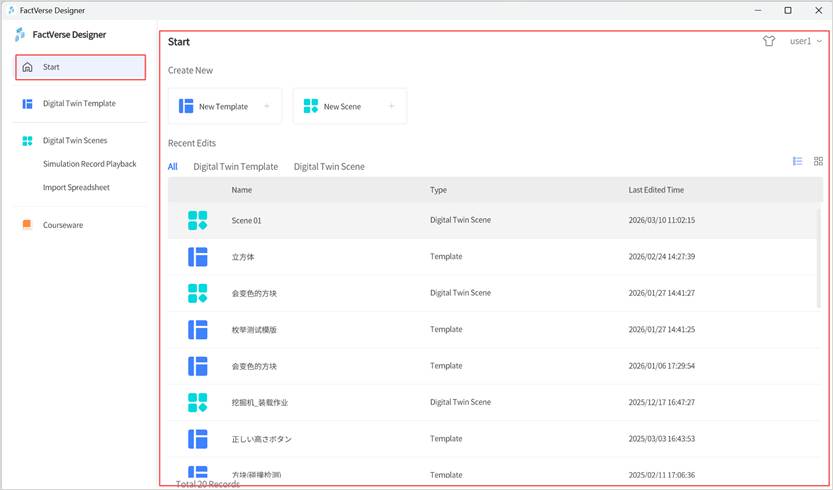
“Start” Ribbon used for quick operations and fast access to recently edited content:
- Quick Create: Buttons provided at the top:
- New Template
- New Scene
- Recent edits
- Displays recently opened Digital Twin Templates and Scenes.
- Supports filtering (All / Digital Twin Templates / Digital Twin Scenes).
- Supports two view modes: List /Grid.
- Click the name to open quickly.
Digital Twin Template
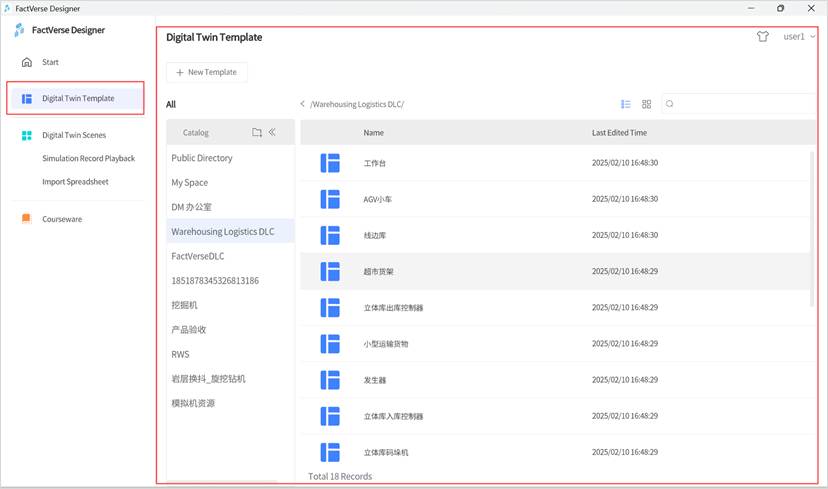
The “Digital Twin Template” section on the homepage is used to manage and view template resources on the platform and mainly includes the following functions:
- New Template
The button New Template at the top of the page allows you to create a new Digital Twin Template.
- Catalog
The left side displays the platform catalog structure and supports creating new folders for easier categorization and management.
- Content
The right side displays the folders and template files (icon:  ) in the current directory, and supports searching, switching views, and opening templates.
Digital Twin Scenes
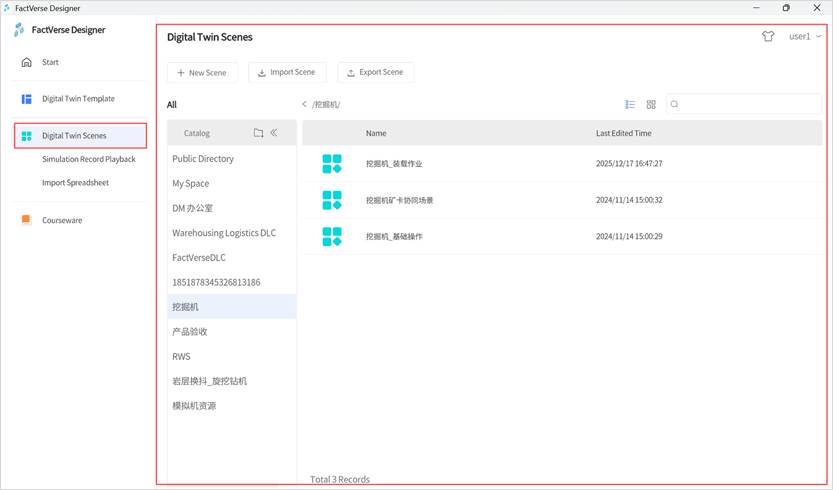
The “Digital Twin Scenes” area on the homepage is used to manage and view scene resources on the platform and mainly includes the following functions:
- New Scene
The New Scene button at the top of the page allows you to quickly create a new Digital Twin Scene.
- Import Scene
Use this to import scenes for the Hands-On Lab, so you can access and work with Hands-On Lab content. For detailed instructions on using the Hands-On Lab, please refer to FactVerseHands-On Lab.
- Export Scene
Supports exporting scene files for sharing and backup.
- Catalog
The left side displays the platform resource directory structure and supports creating new folders for easier categorization and management.
- Resource Content
The right-side displays folders and scene files(icon:  )under the current directory, supporting search, view switching, and opening scenes.
Courseware
Visible to users with teacher roles.
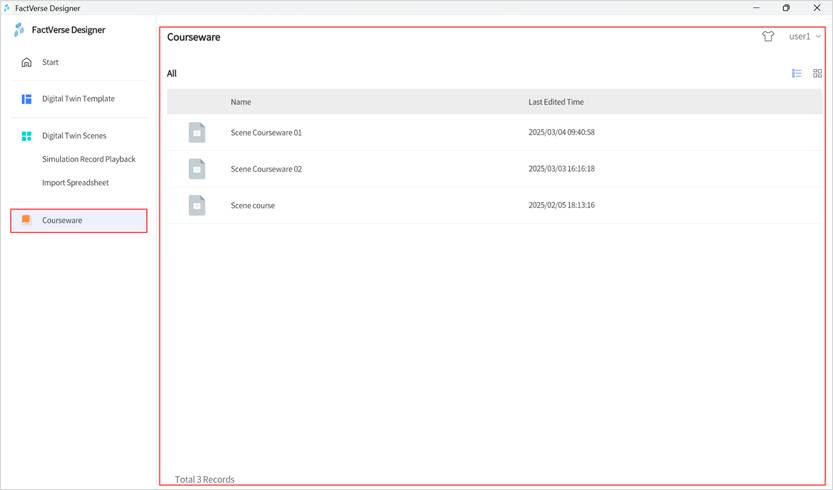
On the “Courseware” page, the system displays the list of courseware accessible to the current account.
- Click the name of a courseware that is already bound to a scene to open it for viewing or editing.
- Click the name of a courseware that is not yet bound to a scene, and after opening it, you can select and bind it to the appropriate scene.
Template Editor
In FactVerse Designer, by clicking the New Template button on the homepage or opening any digital twin template, you will enter the Template Editor interface. In the Template Editor, you can define a specific type of digital twin in detail, including metadata, behavior tree, resources, etc.
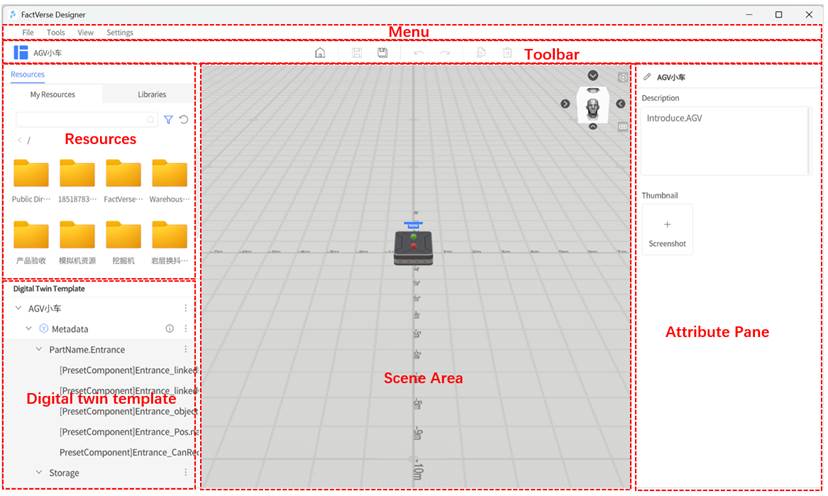
Menu
The Menu in the Template Editor contains commonly used tools and commands for building digital twin templates. The following menus are included:
Menu | Function |
File |
|
Tools |
|
View |
|
Settings |
|
Toolbar
In the Template Editor, the “Toolbar” contains commonly used commands as listed in the table below:
Icon | Description |
 | Home button: Clicking the home button will navigate to the main page. If there are unsaved modifications to the current template, it will prompt whether to save the current template. |
 | Save button: Save the newly created or modified template. |
 | Save as button: Clicking the “Save as” button allows you to save the current template as a new file. |
| Copy: Copy the selected resource and enter placement mode. |
 | Undo button: Undo the user’s previous action. |
 | Redo button: Restores the user’s previously undone action. |
 | Delete: Delete a resource. |

 Attributes and structures cannot be copied.
Resources
The Resources library is located on the left panel of the Template Editor, providing resource management and quick access. Users can drag resources from the library into the scene to build digital twin templates.
Resources Interface Description
The resources interface is divided into two tabs:
- My Resources: Displays all uploaded 2D/3D graphic assets.
- Libraries: Provides system-predefined device models and utility widgets.
1. My Resources
Users can browse and use uploaded 2D/3D resources from the FactVerse platform.
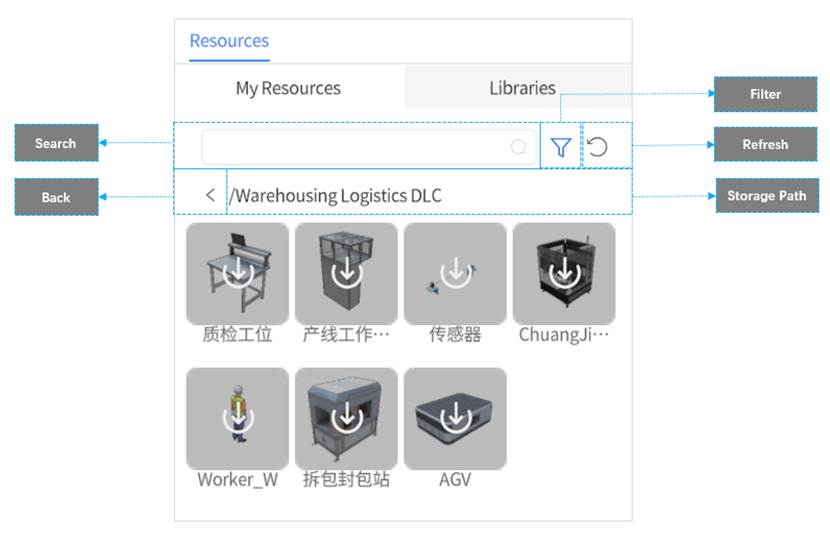
Function | Description |
Search | Enter keywords to search (fuzzy matching supported). |
Filter | Filter by tags, showing only matching results. |
Storage path | Shows the current resource directory. Click the Back button |
Refresh | Manually refresh to see newly uploaded assets. |


 to return to the previous level.
Resource Status:
- Not Cached: icon is gray, indicating the resource has not been downloaded.
- Downloading: Starts downloading when selected, with a progress indicator.
- Cached: icon is highlighted, indicating the resource is available.
2. Libraries
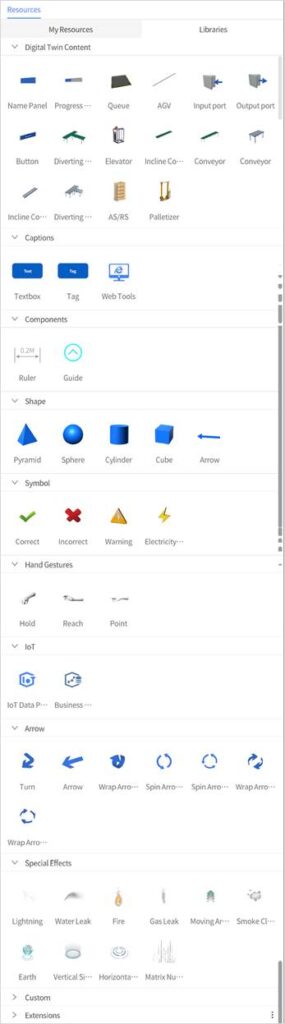
The Libraries tab contains system-built elements and user-defined utilities:
- Basic Equipment Models:g., material generators, conveyors, AGVs for building factory scenes.
- Functional Tools:g., captions, components, geometric shapes, effects for interactivity and visualization.
- Custom Tools: User-created tools stored under Custom, reusable across templates and scenes. For more details, refer to Custom Tools.
Digital Twin Template Pane
Located below the Resource Library, the Digital Twin Template pane displays the current template’s metadata, resources, and behavior tree. It provides a complete overview and management interface for the digital twin template.
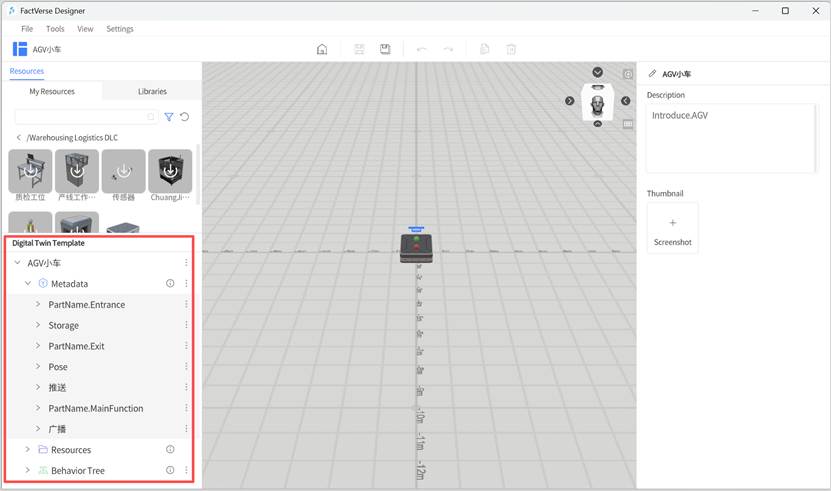
Scene Area
The Scene Area occupies the central workspace of the Template Editor. This is where you create and edit digital twin templates.
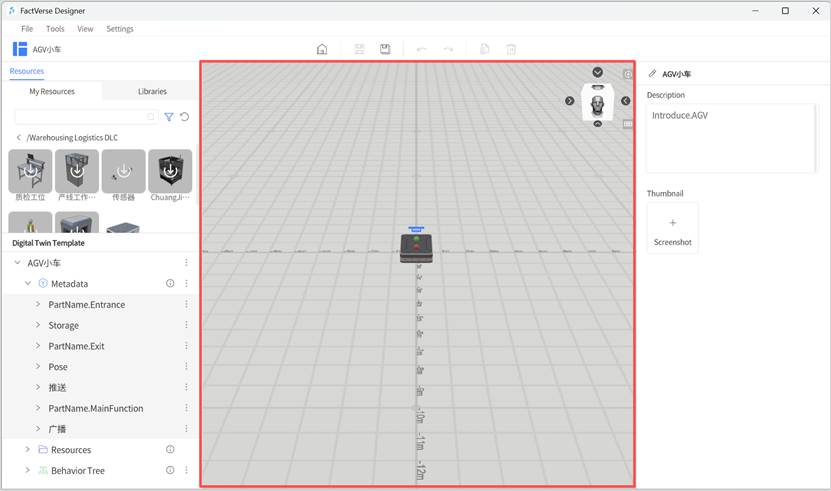
Features:
- Scene Resources: Add models, tools, and other resources from the Resource library.
- View Cube
 : Located at the top-right; click faces or arrows to switch between six views.
 - Reset View Button
 : Return to the default camera position.
 - Projection Switch
 : Toggle between perspective and orthographic projection.
Attribute Pane
The Attribute Pane is located on the right side of the template editor interface and is used to view and edit detailed attributes of the template itself and selected scene resources.
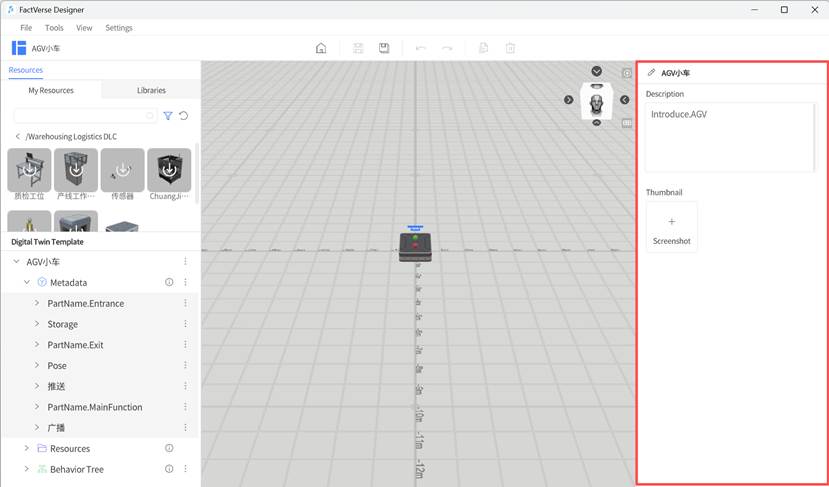
Depending on the selection, it displays:
- Template Attributes
- Template Name: Identifier of the template.
- Description: Explanation of functionality or usage.
- Thumbnail: Upload or change the preview image.
- Resource Properties For scene resources (e.g., models from My Resources):
- Resource Name
- Pose (Position/Rotation): Includes collision option (enables physical collision detection; see Collision Detection).
- Data Binding: Bind resource attributes to external data sources. Example: bind sensor data to rotation angle for real-time updates.
- Tool Resource Properties For tool-type resources (e.g., geometric shapes, effects, web tools):
- Resource Name
- Transform (Position/Rotation/Collision)
- Tool Properties:
- Specific parameters such as color, size, effect properties.
- Save Preset: Save the current settings as a Custom Tool, which will appear in Resource Library > Tools > Custom for reuse.
Depending on the selected object, the Attribute Pane is divided into three categories:
1. Template Properties
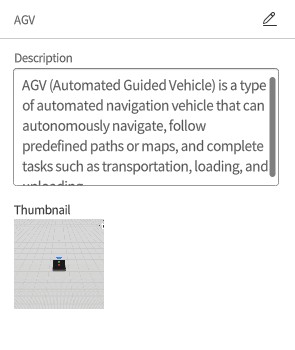
When clicking on a blank area of the scene, the Attribute Pane shows general information about the current template. You can configure the following:
- Template Name: Identifier for the current template.
- Description: Notes on the purpose or usage scenario of the template.
- Thumbnail: Upload or replace the preview image for quick identification in the Resource Library.
2. Resource Attributes
When a specific resource in the scene is selected (e.g., a model from My Resources), the Attribute Pane displays the relevant configuration options:
- Resource Name: The name of the selected resource.
- Pose: Position, rotation, and collision participation (enables physics-based collision detection).
- Data Binding: Allows linking resource attributes to external data sources for dynamic control. For example, binding a sensor’s data to the “Rotation Angle” enables the model to rotate in sync with real-time field data, delivering a more realistic digital twin effect.
3. Tool Resource Attributes
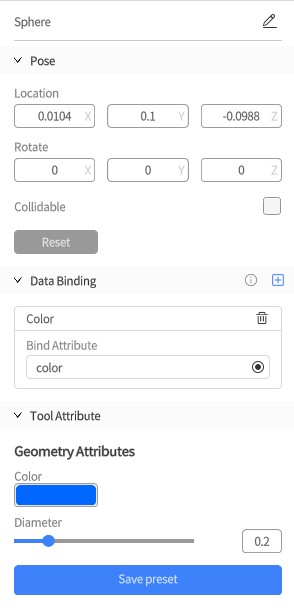
When a tool-type resource is added to the scene (e.g., geometric shapes, web tools, effects), the Attribute Pane shows tool-specific configuration options:
- Tool Resource Name: The name of the tool component.
- Pose: Position, rotation, and collision participation (same as above).
- Tool Attribute:
- Tool-specific parameter settings, such as color, size, or effect parameters.
- Save Preset: After configuration, click Save Preset to store the current settings as a Custom Tool. The custom tool will then appear under Resources > Libraries > Custom, making it easy to reuse in other templates or scenes.
Scene Editor
By clicking New Scene on the Home Page or opening an existing scene, you will enter the Scene Editor interface. In the Scene Editor, you can organize digital twins created from templates into a complete digital twin scene, including twin layout, entrance/exit connections, and more.
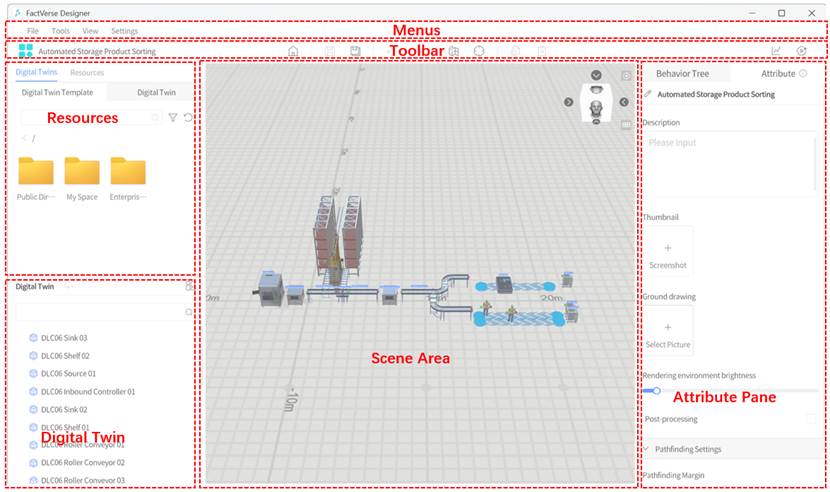
Menu
The Menu in the Scene Editor contains commonly used tools and commands for building digital twin scenes. Functions include:
Menu | Function |
File | • New: Create a new scene. If the current scene has not been saved yet, it will prompt you to save it. • Open: Open an existing scene from the cloud. If the current scene has not been saved yet, it will prompt you to save it. • Save: Save the current scene. • Save As: Choose a location in the cloud directory to save the scene and save the current scene as a different one. • Export Scene: Export the digital twin scene as a .digpkg format file and save it. • Export as Spreadsheet: Export the scene as an Excel spreadsheet. • Close: Close the current scene and return to the main page. If the current scene has not been saved yet, it will prompt you to save it. • Quit: Exit DataMesh FactVerse Designer. If the current template has not been saved yet, it will prompt you to save it. |
Tools | • Move: Used to enable or disable drag navigation, helping users to drag elements in a straight line in the scene. • Performance statistics: Displays key data such as memory, Draw Calls, Batches, FPS, and other valuable information. |
View | • Light: Show or hide lights in the scene. • Path: Show or hide paths in the scene. • Ground grid: Show or hide the grid for planes at a height of 0 in the scene. • Pathfinding Helper: Show or hide generated navigation meshes and safe bounding boxes for twins with the Autonomous Pathfinding preset attribute. • View cube: Show or hide the view cube, viewpoint reset button, and projection switch button in the scene area. • Port connections: Show or hide ports and port connections in the scene. |
Settings | • Language: Used to switch languages. Simplified Chinese, Traditional Chinese, English, and Japanese. • Account: o User Account: Displays the currently logged-in user account. o Logout: Logs out the current user account. • Upload Log: Allows you to upload the latest seven logs to the DataMesh FactVerse platform. • Change rendering environment: Modify the rendering environment of the digital twin scene. • About: View the current application’s version number. |
Toolbar
In the Scene Editor, the “Toolbar” contains the following commonly used commands as shown in the diagram below:
Icon | Description |
| Home button: Clicking the home button will navigate to the main page. If there are unsaved modifications to the current scene, it will prompt whether to save the current scene. |
| Save button: Save the newly created or modified scene. |
| Save as button: Clicking the “Save as” button allows you to save the current template as a new file. |
| Undo button: Undo the user’s previous action. |
| Redo button: Restores the user’s previously undone action. |
| Path mode: Enable Path Mode to view and manage paths. |
 | Positioning mode: Switch to Positioning Mode, allowing users to add, modify, or delete positioning codes, or use reference models to assist scene editing. |
| Copy: Copy the selected role or digital twin and enter placement mode. |
| Delete: Delete the selected role or digital twin. |
| Generate Simulation Record: Run a scene simulation at a set speed (normal or accelerated), record the process data and video, and upload it for later analysis and review. |
| Debug Playback: Enter Debug Playback mode to preview and debug scene execution, helping troubleshoot and optimize scene logic. |


Digital Twins
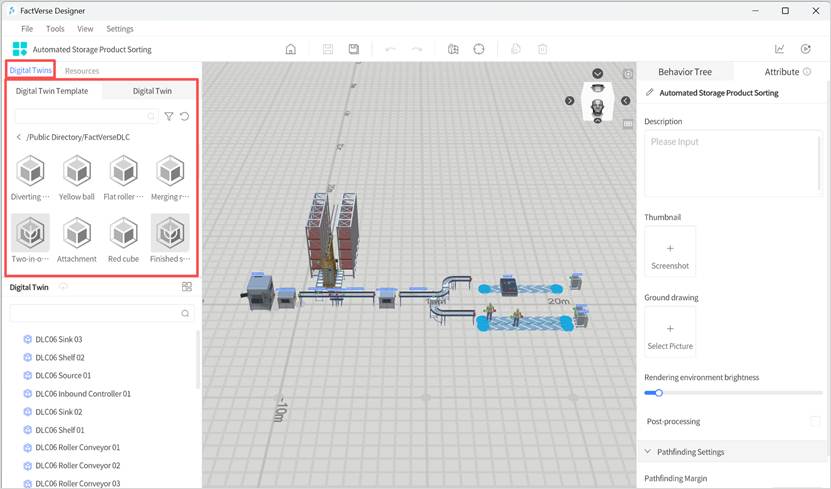
You can browse and use digital twin templates and digital twin resources in the Digital Twins tab to quickly build digital twin scenes.
Digital Twin Template Tab
Under the Digital Twin Template tab, you can view all templates uploaded to the platform.
- Load Template: Click on an unloaded twin template to start the loading process. The system will download and cache the template locally.
- Placement Mode: Click on a fully loaded template to enter Twin Placement Mode. In this mode, left-click anywhere in the scene to create a new twin instance at that position. Each click creates one instance, and multiple instances can be placed consecutively. Right-click to exit Placement Mode. For details on creating twins from templates, see the section Manually Creating Digital Twins.
Digital Twin Tab
Under the Digital Twin tab, you can view all publicly available cloud twins (excluding local digital twins). Unreferenced twins can be added directly to the scene.
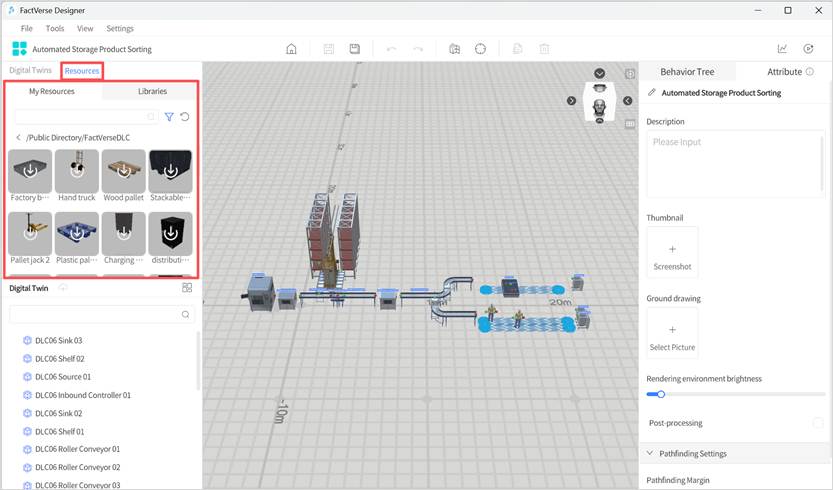
Resources
The Resource Library is located in the left pane of the Scene Editor, displayed alongside the Digital Twins Library. Its functions are consistent with the Resource Library in the Template Editor. Here, you can browse and use 2D/3D assets and tool components from the platform to quickly build and enrich scene content.
For detailed usage instructions, see: Template Editor > Resources.
Digital Twin Pane
The Digital Twin Pane is located at the lower left of the Scene Editor. It displays all elements in the current scene, including twins, models, tools, documents, lights, and other resources. This pane allows you to view and manage resources in the scene.
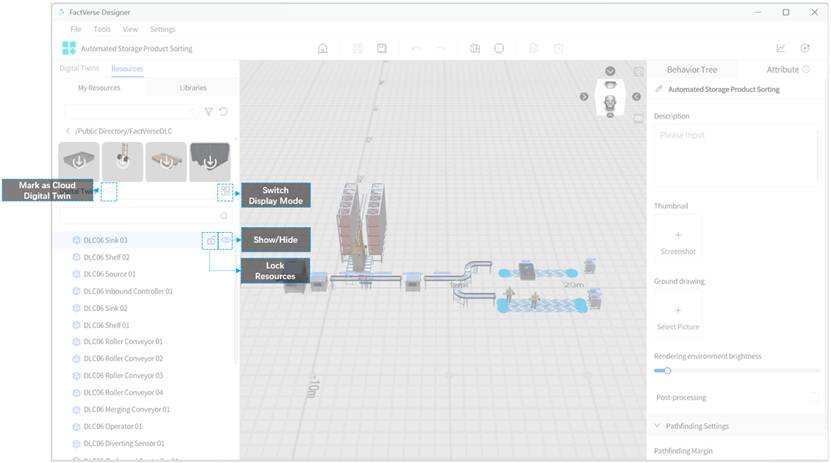
Functions
Function | Description |
Show/Hide Resources | Click the visibility icon to toggle resource visibility: – Visible – Hidden |
Select Resource | Click the resource name to select it. Once selected, you can adjust properties, poses, etc. |
Delete Resource | After selecting a resource, click the Delete icon |
Lock Resource | Click the Lock icon |
Switch Display Mode | Toggle between two modes:
|
Mark as Cloud Digital Twin | Mark the selected digital twin as Cloud Digital Twin. When unreferenced, it can be reused by other scenes via the Digital Twins Library. See Mark as Cloud Digital Twin for details. |
 : icon indicates the resource is shown; click to hide.
 : icon indicates the resource is hidden; click to show.
 in the toolbar to remove it from the scene.
 to prevent the resource’s position and pose from being modified. Useful for locking background elements to avoid accidental changes. Click again to unlock.
  :
: : Display all twins in a parent-child structure, useful for reviewing nesting and dependency relationships.
Scene Area
The Scene Area is in the central pane of the Scene Editor interface and serves as the primary workspace for editing digital twin scenes. In this area, you can layout, organize, and edit digital twins, models, and tools to create your desired digital twin scenes.
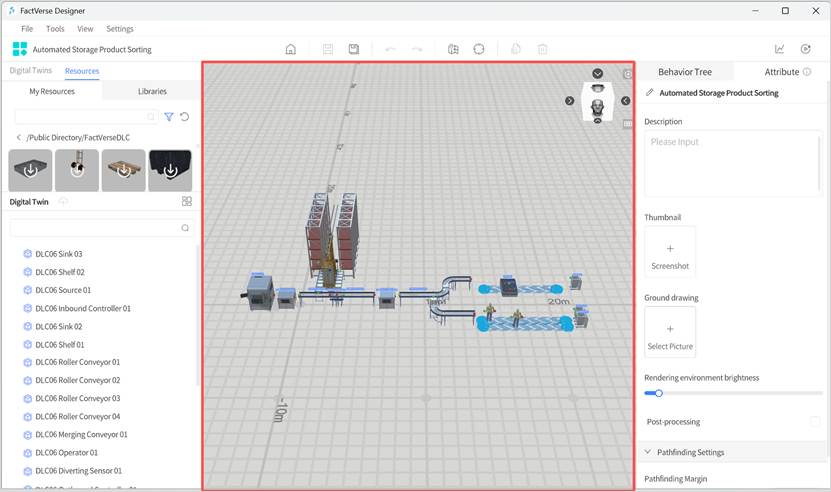
The main features of the Scene Area in the Scene Editor include:
- Resources layout: You can place digital twins, models, or tools into the scene area, adjust their positions as needed, and start building your digital twin scene.
- Editing and organizing: In the Scene Area, you can edit and organize the added digital twins and models, adjusting their positions, sizes, rotation angles, and more to achieve the desired scene effects.
- Multi-view Display: The scene area supports multi-view display. By clicking on the view cube in the top right corner of the scene area, you can quickly switch between six views (Front View, Back View, Left View, Right View, Top View, Bottom View). This allows you to better observe and edit the scene from different perspectives.
- Viewpoint reset: Clicking the viewpoint reset button in the Scene Area allows you to return to the initial view, making it convenient for you to adjust and perform operations during the editing process.
- Projection switching: You can switch between perspective projection and orthographic projection in the Scene Area to meet different scene requirements.
Attribute Pane
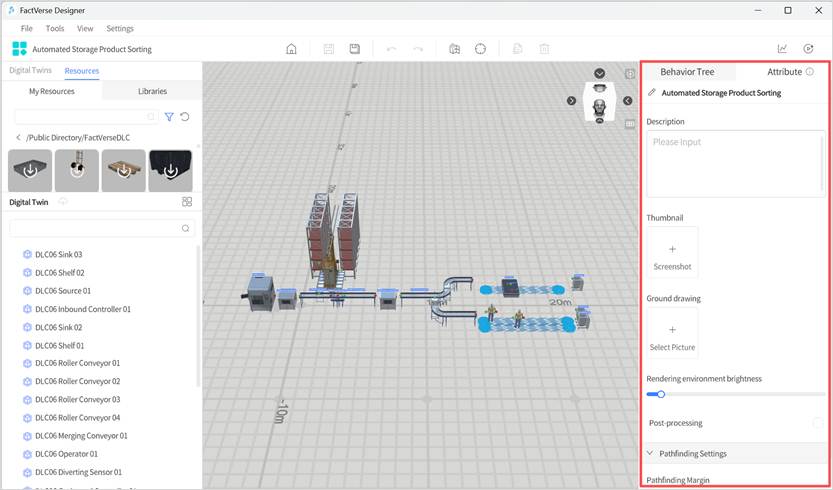
The Attribute Pane is located on the right side of the Scene Editor. It is used to view and edit the attributes, behavior logic, and layout settings of the currently selected object. The content displayed in the pane changes dynamically depending on the selected object.
Scene Attribute Editing
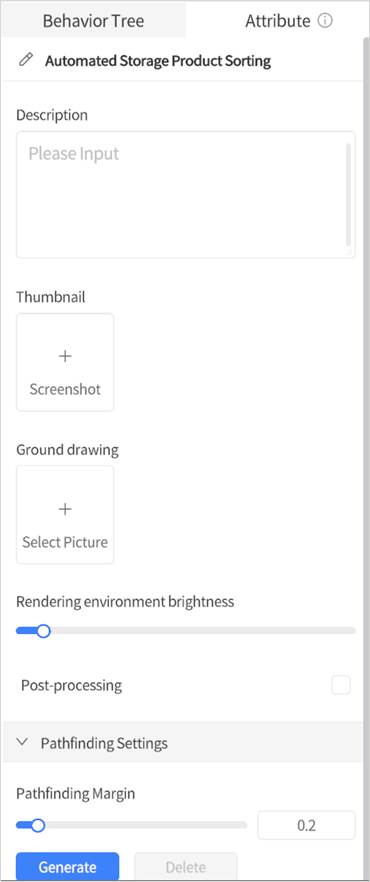
When you click on a blank area in the scene (no object selected), the Attribute Pane displays the basic information of the current scene. You can configure the following:
Attribute | Description |
Scene Name | Set the scene name for identification and management. |
Description | Provide a brief description of the scene’s content or purpose. |
Thumbnail | Upload and set a preview image for the scene. |
Ground Drawing | Import a PNG/JPG floorplan and adjust its position, scale, Y-axis rotation, and opacity. Useful for overlaying 2D designs to assist with scene layout. |
Rendering Environment Brightness | Adjust overall scene brightness with a slider. |
Camera Post-processing | When enabled, restores the camera post-processing effects configured during the scene art design phase. |
Pathfinding Settings | Set the expansion distance for the navigation mesh and generate/regenerate the navigation mesh. |
Digital Twin Attribute Editing
When you select a digital twin in the scene, the Attribute Pane will display the digital twin’s detailed attributes, such as position, main functions, input/output ports, etc., allowing precise editing and adjustment.
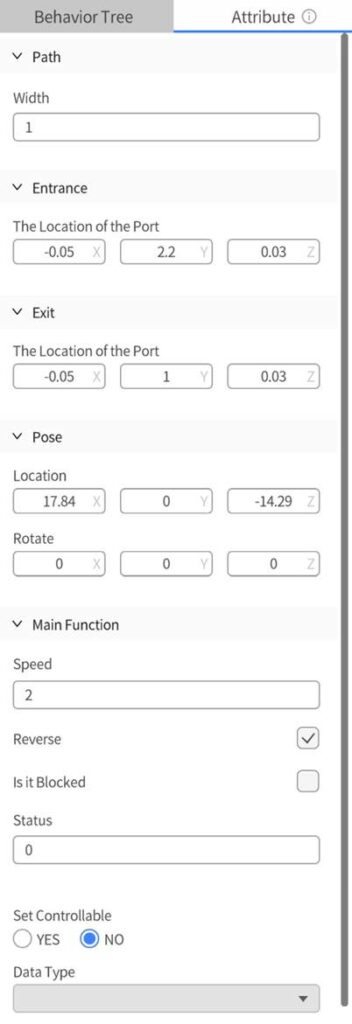
Model Resource Attribute Editing
When a model resource in the scene is selected, the Attribute Pane shows:
- Pose (Location, Rotation, Scale)
- Backface culling: When the selected model or its subcomponents are set to “Backface culling,” they will not be visible from the rear view. This feature is mainly used in scene models, such as when the outer walls of a virtual factory are set to “Backface culling,” showing only the internal structure from the outside perspective to enhance visibility of the interior facilities.
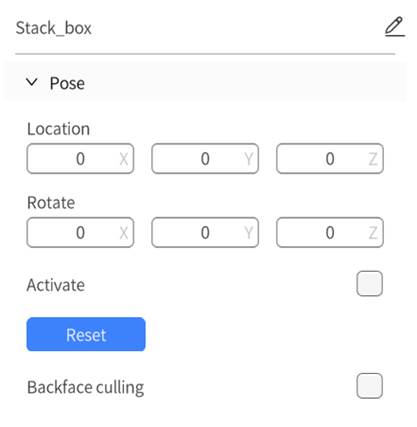
Tool Resource Attribute Editing
When a tool resource (such as geometry, captions, or charts) is selected, the Attribute Pane displays:
- Pose (Position, Rotation)
- Tool-Specific Properties (e.g., color, size, data binding for charts)
- Custom Preset Management (if applicable)
Behavior Tree Editing
Click the Behavior Tree tab at the top of the Attribute Pane to view the behavior tree bound to the current object (such as a scene or a twin). Click on any behavior tree to open it in the Behavior Tree Editor for adjustments. See Behavior Tree Editor for details.
Behavior Tree Editor
FactVerse Designer provides an intuitive visual Behavior Tree Editor, eliminating the need for coding to create complex behavior logic for digital twins.
The Behavior Tree Editor interface consists of the following main components: Toolbar, Node Menu, Behavior Tree Editing Area, and Attribute Pane. Through the combination of the Node Menu, Behavior Tree Editing Area, and Attribute Pane, the Behavior Tree Editor offers a visual and interactive interface, enabling users to easily create, edit, and adjust the structure and behavior logic of behavior trees.
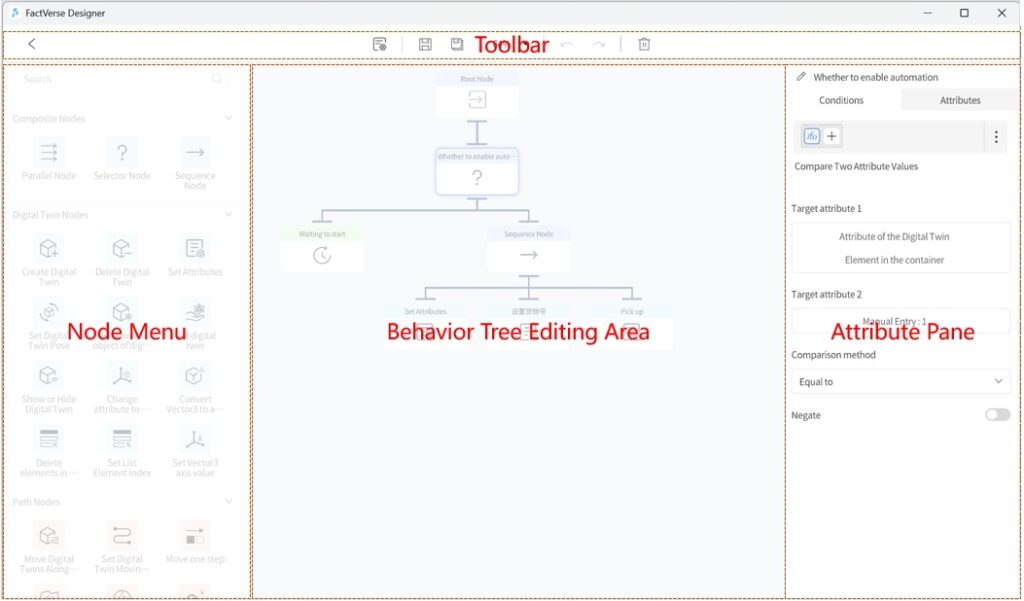
Toolbar

The Behavior Tree Editor’s toolbar contains a series of commonly used functional buttons for operating and managing the editor. Below are explanations of the toolbar buttons and their functions:
- Back: The “Back” button is used to close the current behavior tree editor and return to the template or scene editor interface. After clicking this button, the behavior tree editor will be closed, and there will be a prompt to save or save as before exiting.
- Behavior Tree Attributes: This button is used to open or access the settings for the behavior tree’s attributes.
- Save: The Save button is used to save the currently edited behavior tree to the FactVerse platform.
- Save As: The Save As button allows users to save the currently edited behavior tree with a different name or path.
- Zoom: The button allows users to adjust the zoom level of the behavior tree in the editor interface. By clicking the Zoom View button, users can zoom in or zoom out the view of the Behavior Tree Editor to better observe and edit the details of the behavior tree.
- Undo: Revert the last action.
- Redo: Restore the last action that was undone.
- Delete: The Delete nodes button is used to remove the selected node. When a user selects a node and clicks the Delete nodes button, the node will be removed from the behavior tree.
Node Menu
The “Node Menu” is located on the left side of the Behavior Tree Editor interface. From the Node Menu, you can select the appropriate nodes and then drag them into the Behavior Tree Editing Area to create and edit the structure of the behavior tree.
Behavior Tree Editing Area
The “Behavior Tree Editing Area” is the primary workspace for creating and editing the structure and logic of the behavior tree. Users can drag nodes into the editing area, organize them into a tree-like structure, and define the relationships and order between nodes. Users can adjust the positions of nodes and connect the lines between nodes. By working in the Behavior tree editing area, users can intuitively build and modify the structure of the behavior tree.
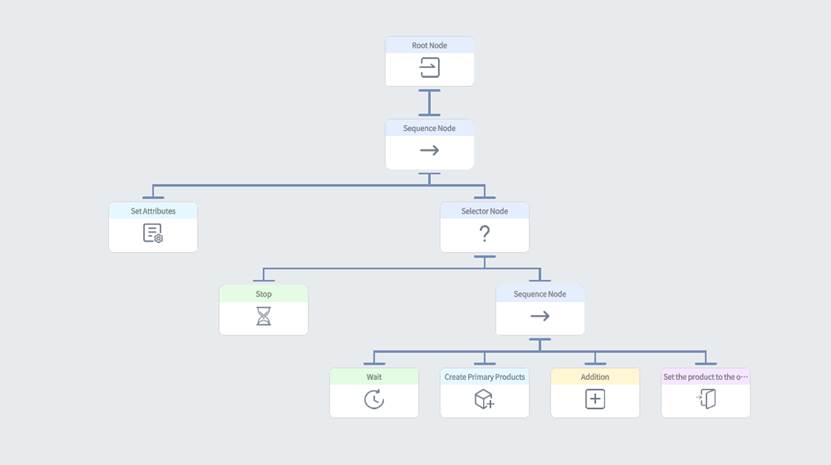
Attribute Pane
The Attribute Pane is located on the right side of the Behavior Tree Editor interface and is used to set the attributes and execution conditions of behavior tree nodes. When a user selects a node, the Attribute pane displays the relevant attributes and conditional parameters of that node, which the user can set and adjust. The Attribute Pane also allows users to define the execution conditions of nodes, i.e., under what circumstances the node should be executed or skipped. By setting the execution conditions of nodes, users can control the behavior and execution logic of nodes based on specific conditions.
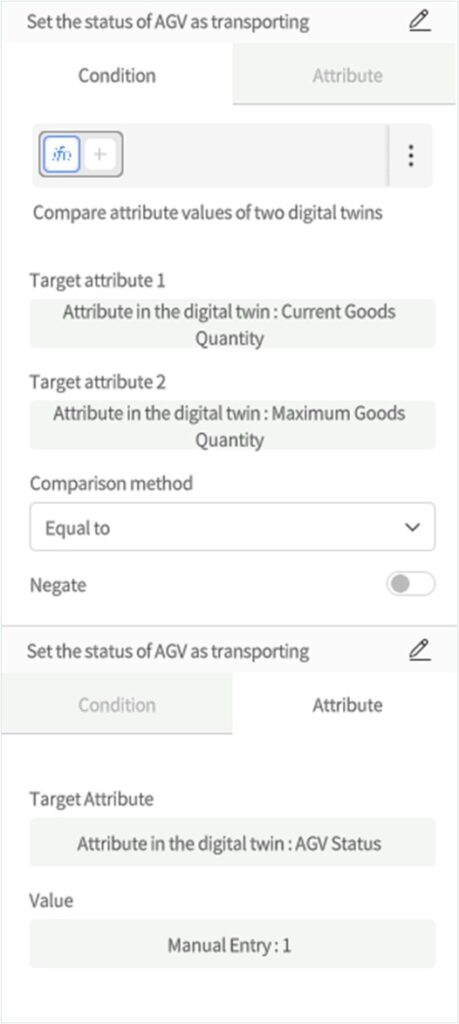
Additionally, users can edit the name of the behavior tree in the attribute area to better manage and identify different behavior trees.
FactVerse Downloadable Content
FactVerse DLCs (Downloadable Content) are digital twin expansion packs released by DataMesh, covering multiple industries. These include the Virtual Factory DLC (FactVerse DLC), the Warehousing Logistics DLC, and the Intelligent Data Center (IDC) DLC, among others.
Virtual Factory DLC
The Virtual Factory DLC is designed for discrete manufacturing plants. Leveraging digital twin technology, it helps factories optimize production planning, operational monitoring, and layout design, thereby improving efficiency and reducing operating costs.
This DLC provides a variety of commonly used factory elements. Users can directly use these preset elements when creating scenes or customizing them to meet specific requirements.
Models
The models in the Virtual Factory DLC serve as background and decorative elements in scenes, enhancing the realism of digital twin scenes. These models can also serve as the foundation for customized digital twin templates, allowing users to create specific types of digital twins, such as equipment and operators.
The Virtual Factory DLC includes several types of models:
- Background models: These three-dimensional models serve a decorative or background role in scenes or environments, enhancing the realism and visual appeal of the setting without serving as the primary interactive elements. Examples include factory backgrounds, storage boxes, stacks, and operating stations.
- Product models: Representing different types of products, each color and shape signifies a different product category. Examples include yellow balls, red cubes, and finished plastic boxes.
- Production equipment models: These models represent various production and transport equipment, including conveyor belts, robot, AGV, etc., used to simulate and display the actual equipment used in factories.
- Operator models: Used to simulate operators or personnel in a factory environment.
Digital Twin Templates
The Virtual Factory DLC provides various preset digital twin templates, including product templates and production equipment templates. These templates aim to simplify the process of creating virtual factory scenes for users and provide highly configurable simulation experiences.
- Product templates: These can be attached to production equipment to simulate the actual production of products in the factory. Examples include templates for yellow ball products, blue cube products, etc.
- Production equipment templates: These templates include robot, AGV, etc. Users can use these templates to create digital twins for various production equipment, allowing them to simulate the production processes in the factory, including automation, transportation, and material handling.
- Operator templates: Operator templates cover preset settings for appearance, clothing, and actions, making it easy for users to add and configure operators in their virtual factory scenes.
Digital Twin Scenes
The Virtual Factory DLC includes four digital twin scenes, allowing users to simulate and learn basic production line operations and management.
- Primary logistics line: This scene allows users to simulate and learn basic logistics line operations and management, including processes such as raw material generation and transport.
- Conditional sorting scene: This scene focuses on simulating the conditional sorting process, enabling users to understand and optimize material sorting operations under specific conditions. Users can configure the behavior tree of the sorting equipment through drag-and-drop, understanding the ability to sort based on the coordination of the behavior tree and digital twin attributes.
- Robot sorting scene: In this scene, users can delve into the operation of robot in the sorting process, including precise grasping and placing of materials. By dragging and dropping the behavior tree of the robot, users can understand the ability to express actual motion actions of the device through model animations.
- Transparent factory: A digital twin transparent factory refers to the real-time monitoring, analysis, and visual representation of a factory’s production process, equipment status, product quality, etc., through digital technology. This comprehensive transparency enables the entire factory’s production and operations to be visualized. The foundation of a digital twin transparent factory lies in digital twin technology, which precisely corresponds the physical factory to a digital model, allowing for comprehensive simulation and optimization of the factory’s production.
Use FactVerse DLCs
FactVerse DLCs are stored in the “Public Directory” folder. All users with FactVerse Designer permissions can access and use these DLCs.
Main Application Scenarios
- Search and View: Browse DLC content in the Digital Twin module of the FactVerse platform.
- Cross-Module Reference: Use scenes and digital twins from the DLC in other modules of the platform. For example, in DFS, bind digital twins in a scene to actual equipment to enable data-driven functionality.
- Designer Integration: View, save, and use DLC content in FactVerse Designer to create new scenes.
Supported DLC features:
Function | Template | Behavior Tree | Digital Twin | Scene | Model |
Save As | ✅ | ✅ | ✅ | ✅ | ❌ |
Export Independently | ✅(supports export as a table) | ❌ | ❌ | ❌ | ❌ |
Edit | ❌ | ❌ | ❌ | ❌ | ❌ |
Note:
- DLC content cannot be edited directly. To modify it, save a copy first and then edit it.
- Users without DLC access will not have DLC-related content included when importing scenes based on the DLC.
Edit Templates in FactVerse DLCs
If you need to edit templates from a FactVerse DLC and save your changes, follow these steps:
- Open the target template within DLC.
- In the Template Editor toolbar, click the Save As button
 to save this preset template to another directory.
 - Edit the template as needed, such as adding model resources or adjusting the position and rotation of model resources.
- After editing, click the Save button
 to apply and save your changes.
Edit Behavior Trees in FactVerse DLCs
When you need to edit preset behavior trees from a FactVerse DLC and save changes, you must first open the behavior tree in the Template Editor or Scene Editor, then save it as a new file before editing.
For editing a preset behavior tree in a newly created template, follow these steps:
- Click the “New Template” button on the home page to create a new template.
- In the Template Editor’s Digital Twin Template pane, click ︙ next to Behavior Tree, then select Add Behavior Tree to open the behavior tree list.
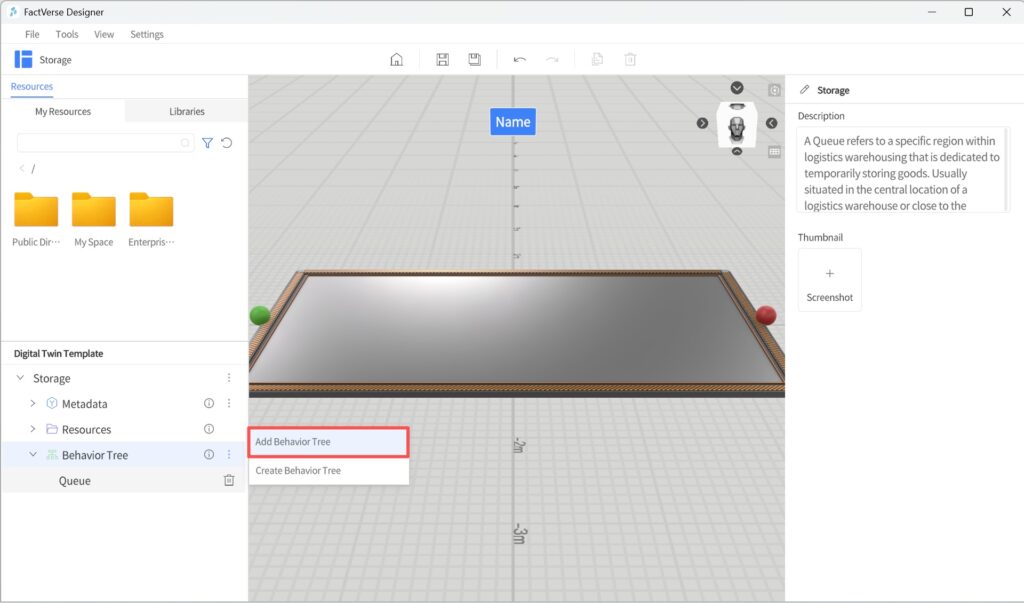
- In the behavior tree list, select the preset behavior tree from the DLC that you want to edit. The selected behavior tree will be added to the template.
- In the Digital Twin Template pane, double-click the behavior tree name to open it in the Behavior Tree Editor.
- In the Behavior Tree Editor’s toolbar, click the Save As button to save this preset behavior tree to another directory.
- Edit the behavior tree as needed, such as adding or removing nodes or modifying node attribute settings.
- After editing, click the Save button to save your changes.
Edit Scenes in FactVerse DLCs
When you wish to edit scenes from a FactVerse DLC and save changes, follow these steps:
- Open the scene from DLC.
- In the Scene Editor toolbar, click the Save As button to open the Save window.
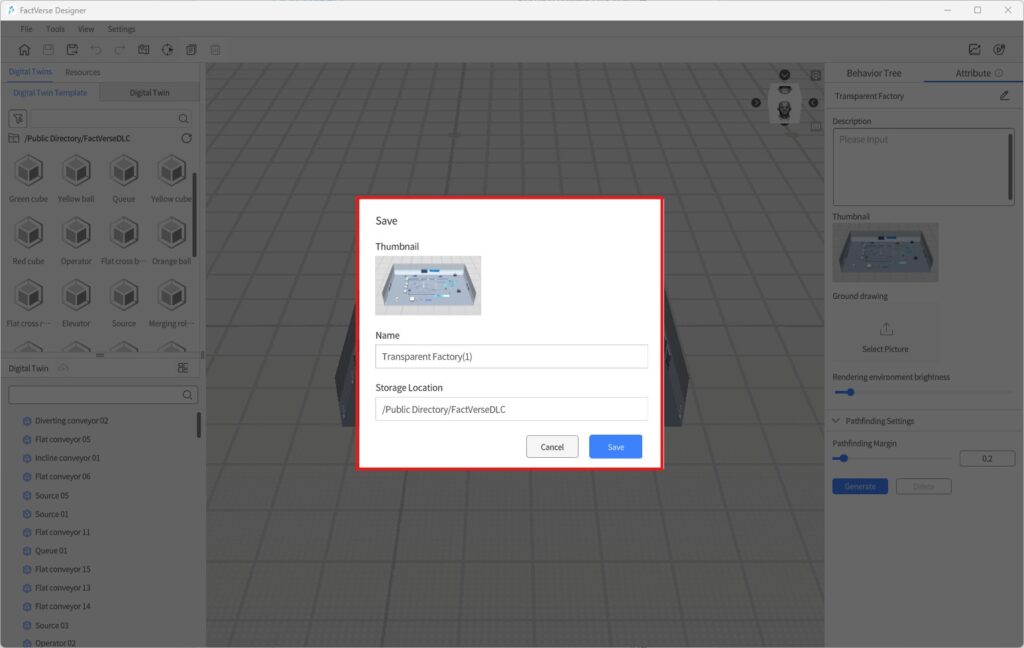
3. In the Save window, select a storage directory, enter a scene name, and then click Save to complete the process.
FactVerse Hands-on Lab
FactVerse Hands-on Lab is a training package created based on the content of FactVerse DLCs. It includes training videos and practical digital twin scene content. Through these training materials, you can gain a deep understanding of digital twin scene construction, experience rich materials and critical business instances to enhance your operational capabilities, and quickly optimize workflows.
Import Hands-on Lab Scenes
Using the import function of FactVerse Designer, you can import scene files (.digpkg files) from the Hands-On Lab. Note: Each import operation will overwrite the previous Hands-On Lab scene file.
- Download the Hands-on Lab package to a local folder.
- On the homepage, click the Import Scene
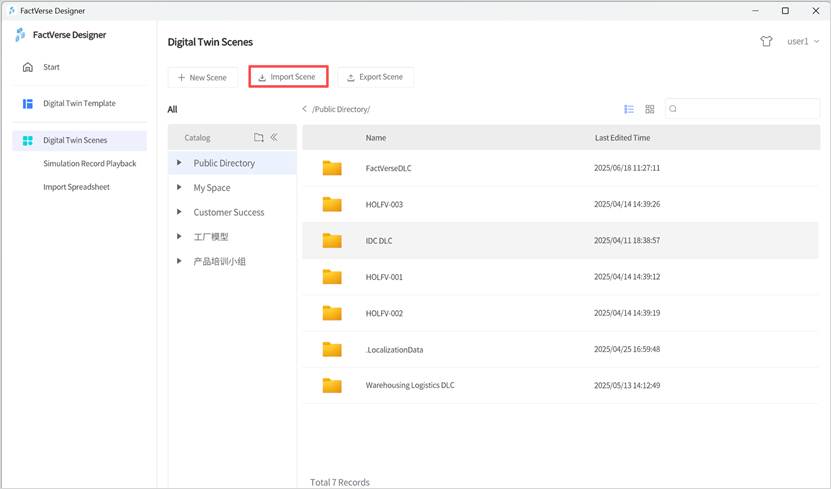
- In the Open Scene window, select the scene file to import and click Open.
- After importing successfully, the directory of the imported scene remains consistent with the original scene file’s directory, and all users under the tenant can see this directory and scene.
Edit Hands-on Lab scenes
The specific steps for editing Hands-on Lab scene files are as follows:
- Open the target scene you want to edit.
- In the toolbar, click the Save As button to save the scene as a separate copy.
- Following the Hands-On Lab instructional video, use models, digital twins, and other resources from the DLC to edit the scene and actively build your own production line.