
How Can We Help?
Basics
Installation
System requirement
To ensure the optimal performance of DataMesh Studio, here are the minimum and recommended system requirements.
System | Minimum Configuration | Recommended Configuration |
Windows PC | Software: • Window10 or later • Direct3D 11.0 or higher Hardware: • CPU: Intel i5-11400F • RAM: 16GB DDR4 • GPU: NVIDIA RTX 3060 | Software: • Window10 or later • Direct3D 11.0 or higher Hardware: • CPU: Intel i7-14700K • RAM: 64GB DDR5 • GPU: NVIDIA RTX 5070 Ti |
macOS | Software: • Monterey 12.7.6 Hardware: • CPU: Intel Core i5 • RAM: 8GB • GPU: Intel Iris Graphics 6100 | Software: • Monterey 14 Hardware: • Chip: Apple M1 • RAM: 16GB |
iPadOS | Software: • iPadOS 14.6 Hardware: • Chip:A12 • RAM:6GB | Software: • iPadOS 17 Hardware: • Chip:M1 or newer • RAM:8GB or more |
Note: The macOS platform supports Intel i7 and M1 chip, Intel i5 device is not supported anymore.
Download
Before installing DataMesh Studio, please make sure you have downloaded the installer.
DataMesh Studio Windows PC download link:datame.sh/Studio
Platform | App Store | URL |
Windows PC | Microsoft Store | https://apps.microsoft.com/store/detail/datamesh-studio/9N57Q5SL7XKX?hl=en-us&gl=us |
macOS | Apple Store | https://apps.apple.com/cn/app/datamesh-studio/id1525519778?l=en |
iPadOS | Apple Store | https://apps.apple.com/cn/app/datamesh-studio/id1525519778?l=en |
Account Permission
Before using DataMesh Studio, you’ll need to request access from your enterprise administrator. They will create a user account for you on the FactVerse platform and grant you permission to use DataMesh Studio and any other required features.
Login
The following picture shows the login interface:
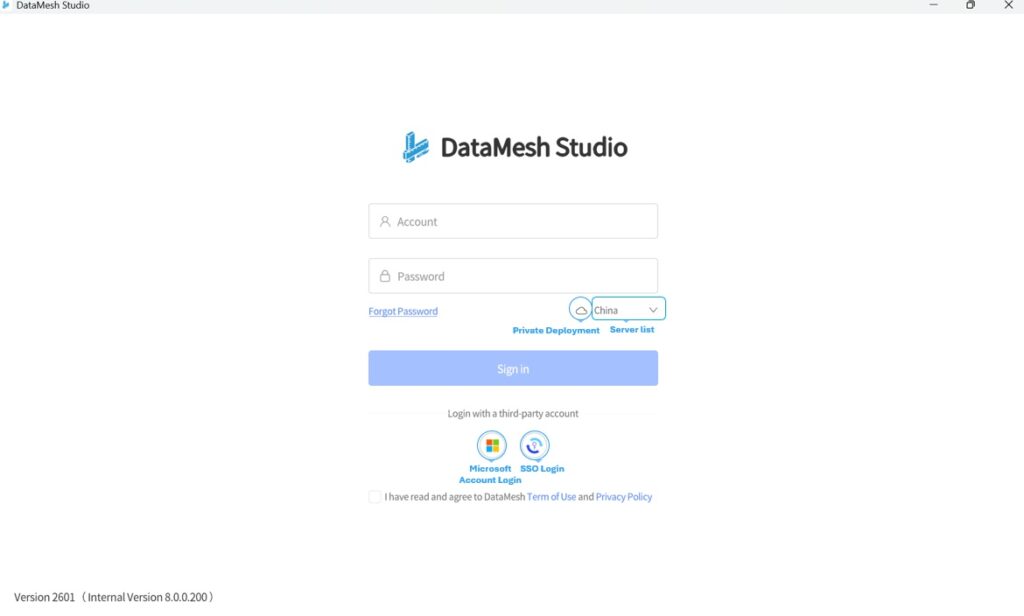
- Server list: You can switch servers to China, Japan, or Singapore.
- Private deployment: When an enterprise deploys a private server, users need to set a private deployment service code when logging in.
- Microsoft account login: For more information, please refer to Microsoft account login.
- SSO login: For more information, please refer to SSO login.
- Forgot Password: Click Forgot Password to open the server login page and reset your password.
Standard login
To log in to DataMesh Studio, use your FactVerse account and password on the login interface.
Steps
1. Open the login interface: Launch DataMesh Studio to access the login screen.
2. Configure server:
a) Select a public server: If your organization is hosted on a public server, select the relevant server from the list.
b) Configure a private deployment server: If your organization uses a private deployment server, click on the private deployment icon  to set up your service code.
3. Enter your account credentials: Input your FactVerse username and password.
4. Agree to the terms of service: Check the box that says, “I have read and agree to the DataMesh ‘Terms of Use’ and ‘Privacy Policy,’” then click the Login button.
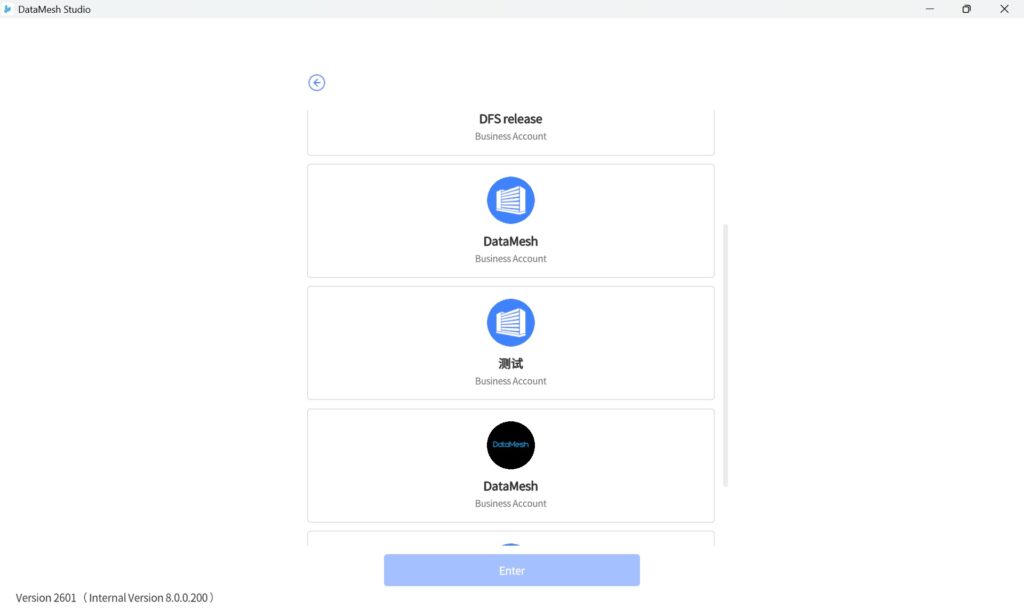
5. Select your organization (optional): If you have multiple organizational accounts, a list will appear for you to choose from. If you only belong to one organization, you’ll be taken directly to the homepage after a successful login.
Microsoft account login
Log in using the Microsoft account method, utilizing Microsoft’s identity and access management service, Microsoft Entra ID, to enhance security for users when accessing FactVerse services.
Steps
1. Open the login interface: Launch DataMesh Studio to access the login screen.
2. Configure server:
a) Select a public server: If your organization is hosted on a public server, select the relevant server from the list.
b) Configure a private deployment server: If your organization uses a private deployment server, click on the private deployment icon to set up your service code.
3. Agree to the terms of service: Check the box that says, “I have read and agree to the DataMesh ‘Terms of Use’ and ‘Privacy Policy,’” then click the Login button.
4. Log in using your Microsoft account credentials: Click the Microsoft account login icon  , then follow the prompts to enter your Microsoft account password to log in.
SMS verification login
When a company enables the dual authentication of account passwords and SMS in FactVerse, users are required to undergo an SMS verification process when logging into the DataMesh client and FactVerse platform. Upon the first login to DataMesh Importer, you will encounter a prompt asking you to bind your mobile number for login verification. You will need to log in to the FactVerse platform to complete the binding.
The steps for using SMS verification are as follows:
1. Open the DataMesh One login interface.
2. Configure server:
a) Select a public server: If your organization is hosted on a public server, select the relevant server from the list.
b) Configure a private deployment server: If your organization uses a private deployment server, click on the private deployment icon to set up your service code.
3. Enter your account credentials: Input your FactVerse username and password.
4. Agree to the terms of service: Check the box that says, “I have read and agree to the DataMesh ‘Terms of Use’ and ‘Privacy Policy,’” then click the Login button.
5. Select your organization (optional): If you have multiple organizational accounts, a list will appear for you to choose from. If you only belong to one organization, you’ll be taken directly to the homepage after a successful login.
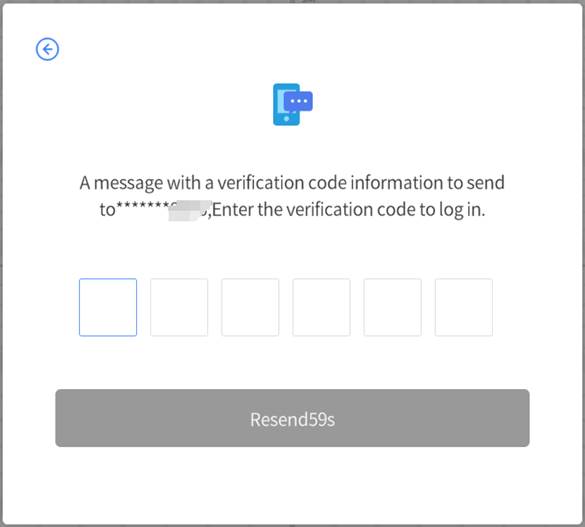
6. Enter the SMS verification code: If the selected company has enabled dual authentication with FactVerse account passwords and SMS, the mobile phone you bound will receive a login verification code, valid for 5 minutes. After entering the code, you will be directed to the homepage to complete the login.
SSO login
Once your company has enabled the SSO (Single Sign-On) feature, you can log into DataMesh Studio using the company’s unified identity authentication system, streamlining the login process and enhancing security. Follow the steps below to complete the SSO login:
1. Open the login interface: Launch DataMesh Studio to access the login screen.
2. Configure server:
a) Select a public server: If your organization is hosted on a public server, select the relevant server from the list.
b) Configure a private deployment server: If your organization uses a private deployment server, click on the private deployment icon to set up your service code
3. Agree to the terms of service: Check the box that says, “I have read and agree to the DataMesh ‘Terms of Use’ and ‘Privacy Policy,’” then click the Login button.
4. Select SSO Login: Click the “SSO Login” button  to open the Enterprise ID window.
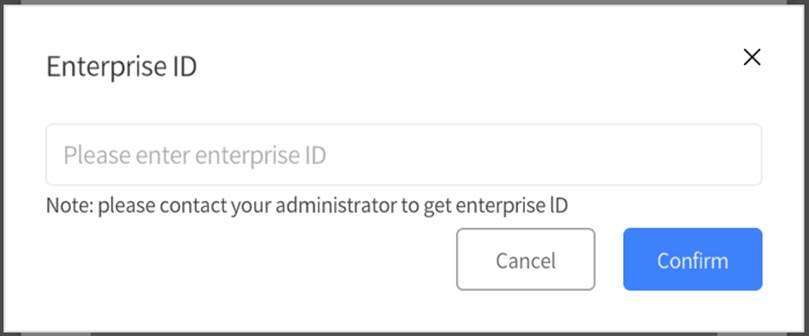
5. Enter enterprise ID: For your first login, you need to enter the enterprise ID (please contact your company administrator to obtain this ID), then click “OK”.
6. Proceed to the third-party login process:
a) If you’re logged into the company’s office system: The system will automatically redirect you, retrieving your authentication information from the office system and prompting you to select an account. After you make your selection, the system will log you into DataMesh Studio automatically, so you won’t need to manually enter your account details.
b) If you’re not logged into the company’s office system: The system will redirect you to the company’s SSO authentication page. Follow the prompts to enter your company account and password, or complete verification using methods like dual authentication.
Home
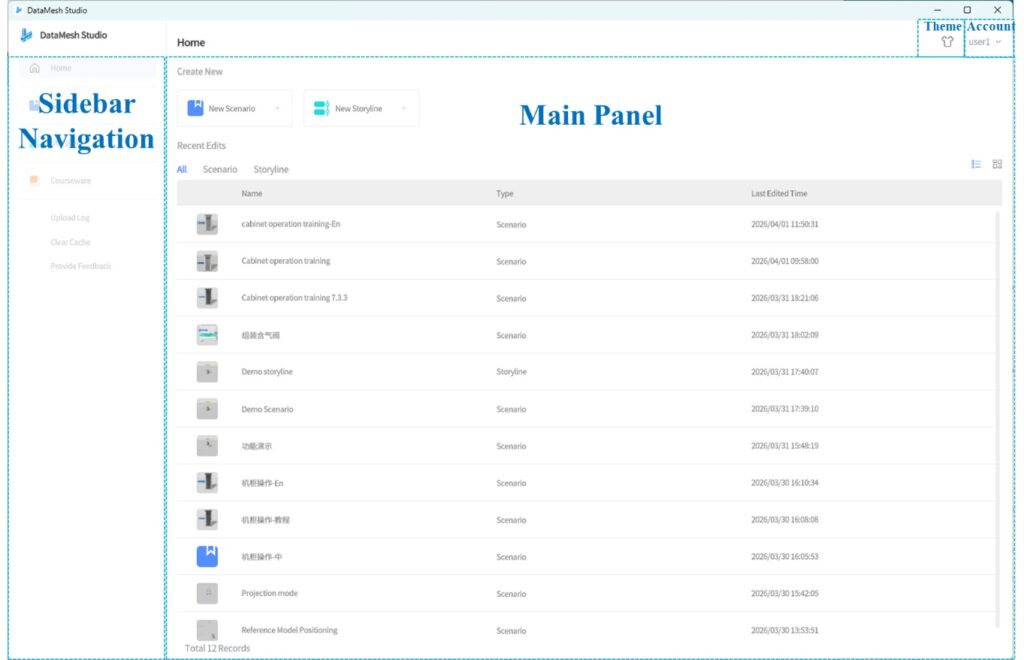
After launching DataMesh Studio, the system opens the Home page by default. The Home page is divided into the following areas:
Area | Description |
Sidebar Navigation | Displays the main functional modules, such as Home, Scenario, Storyline, and Courseware, and provides access to auxiliary tools such as log upload and cache management. |
Main Panel | Displays entry points and content lists for the selected module, such as New Scenario, New Storyline, and recently edited items. |
Top Right Corner Functions |
|
 : Switch between Light and Dark themes.
Sidebar Navigation
The Sidebar Navigation displays different entries based on the user’s role and permissions:
- Home: Available to all users. Used to quickly create new scenarios or storylines and access recently edited content.
- Scenario: Available to all users. Allows browsing, searching, opening, and importing scenario files accessible within the directory.
- Storyline: Available only when enabled by the enterprise license. Allows viewing and managing accessible storyline files.
- Courseware: Available only to users with the Teacher role. Used to open and manage courseware created on the platform.
- Upload Logs: Uploads the most recent 7 log files. After uploading, logs can be viewed and downloaded from FactVerse → My Logs.
- Clear Cache: Clears locally cached resources that are infrequently used.
- Provide feedback: Submit product suggestions or issue reports to service@datamesh.com.
Home
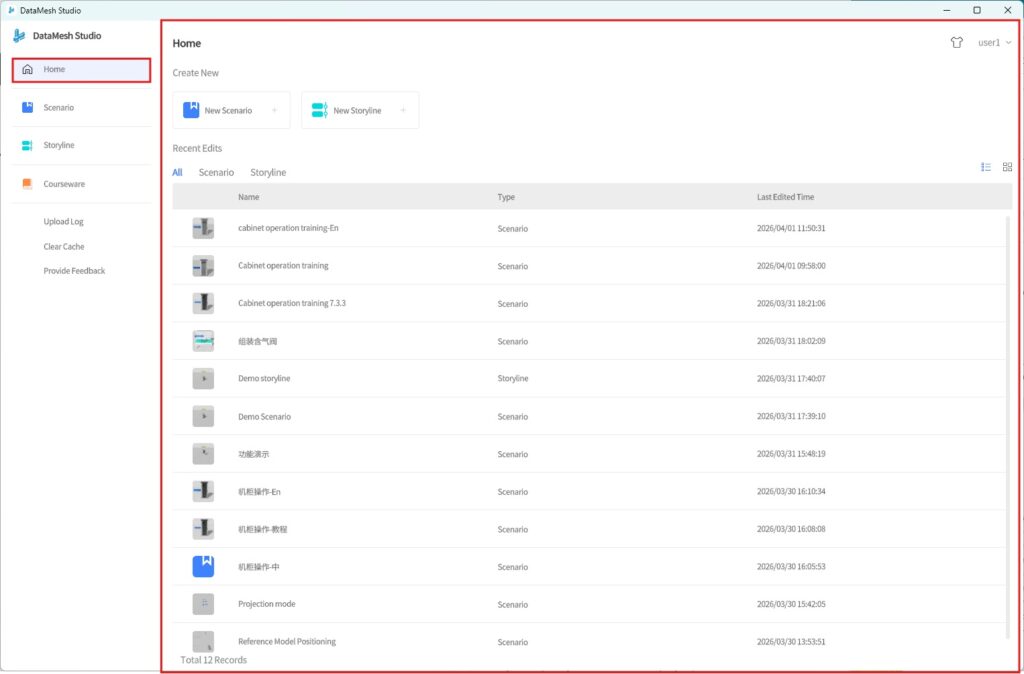
The Home page provides quick access to common actions and recently edited content:
Quick Creation
Provides shortcut buttons at the top of the page:
- New Scenario
- New Storyline
Recent Edits
- Displays recently opened scenarios and storylines
- Supports filtering: All / Scenario / Storyline
- Supports two view modes: List / Grid
- Click an item to open it directly
Scenario
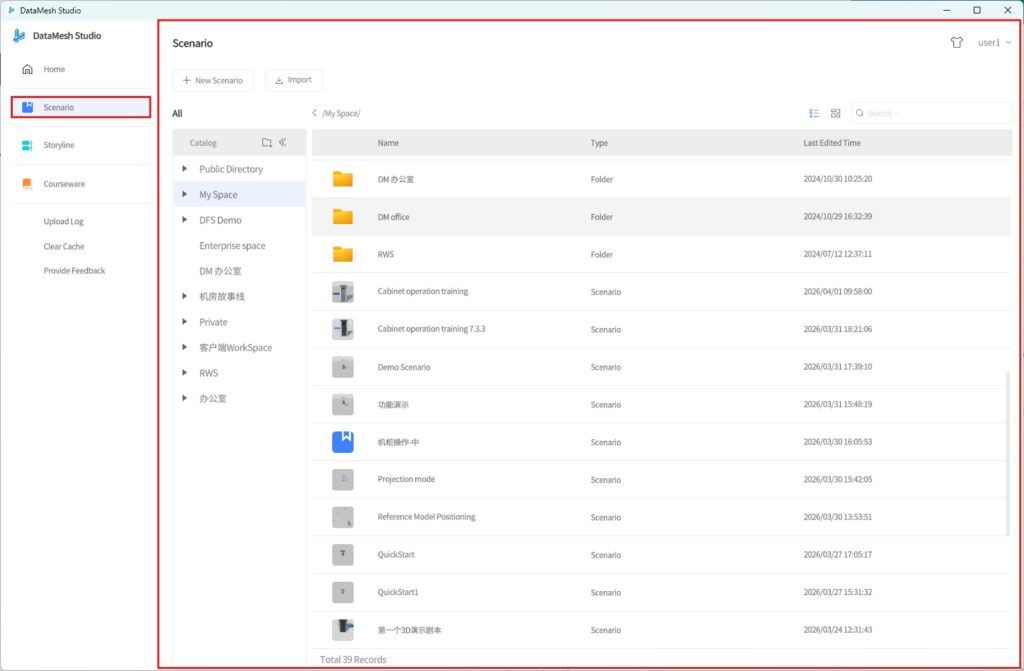
The Scenario area is used to manage and view scenario resources on the platform. It includes the following functions:
- Create New Scenario
Click New Scenario at the top of the page to create a new scenario file.
- Import Scenario
Click the  Import button to upload a local scenario file.
- Resource Directory
Displays the platform’s directory structure on the left and supports creating new folders for better organization.
- Resource Content
Displays folders and scenario files in the current directory on the right. Supports search, view switching, and opening scenarios.
Storyline
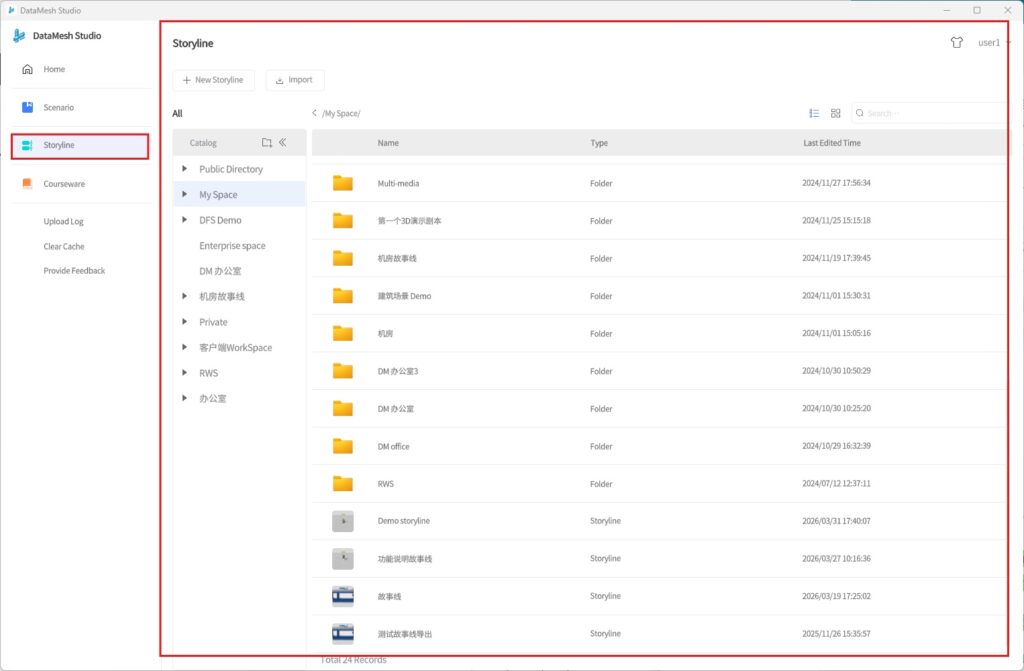
The Storyline feature is available only for enterprises with the required subscription and appropriate permissions.
Functions include:
- Create New Storyline
Click New Storyline at the top of the page to create a new storyline file.
- Resource Directory
Displays the platform directory on the left and supports folder creation.
- Resource Content
Displays folders and storyline files in the current directory on the right. Supports search, view switching, and opening storylines.
Courseware
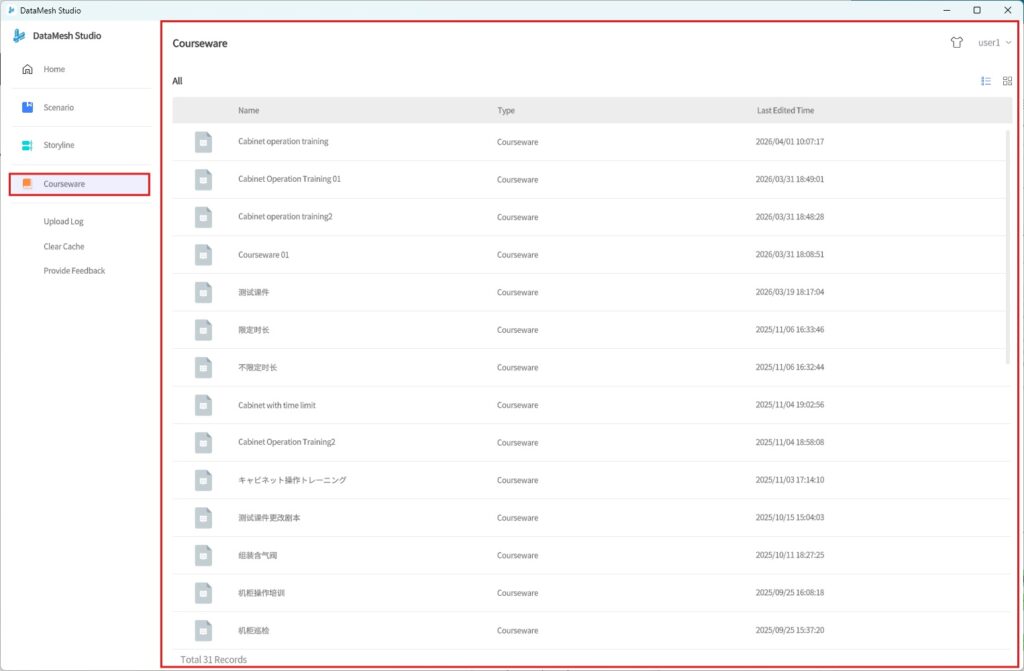
The Courseware feature is available only to users with the Teacher role.
Functions include:
- Courseware list
Displays courseware created on the platform:
- Supports switching between List and Grid view
- Click to open courseware for editing
- Courseware not bound to a scenario: When opened for the first time, you can choose to bind a scenario;
- Courseware bound to a scenario: Opens directly in the editing page.
Keyboard shortcuts
DataMesh Studio provides keyboard shortcuts to enhance user productivity. For example, using Ctrl + S allows you to quickly save their current project, while Ctrl + Z enables them to undo the most recent operation.
Operation | Windows | MacOS |
New | Ctrl+N | Command+N |
Open | Ctrl+O | Command+O |
Save | Ctrl+S | Command+S |
Save as | Ctrl+Shift+S | Command+Shift+S |
Close | Ctrl+W | Command+W |
Exit | Alt+F4/Ctrl+Q | Command+Q |
Paste | Ctrl+V | Command+V |
Delete | Delete | Delete |
Undo | Ctrl+Z | Command+Z |
Redo | Ctrl+R | Command+R |
Group | Ctrl+G | Command+G |
Ungroup | Ctrl+Shift+G | Command+Shift+G |
New scene | → | → |
Previous scene | ← | ← |
Drag the visual reference | Alt + Left Click | Alt + Left Click |
Element range selection | Shift+ left button multi-selection | Shift+ left button multi-selection |
Element disjointed selection | Ctrl+ left button | Command + left button |