
How Can We Help?
Actions
Actions are the basis of scenario expression and interactive capability.
Actions are the basis of scenario expression and interactive capability. After selecting an element, click the  button in the upper right corner of the attributes pane. An action menu for adding actions will appear. Clicking the action option in the menu to add the corresponding action to the element. Depending on the type of the element and its current state, the available action options may vary.
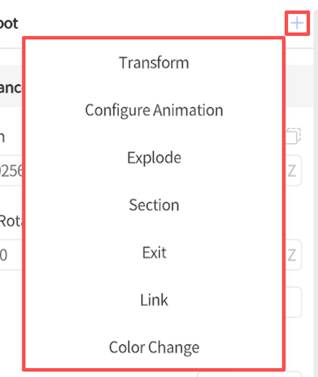
For models, typically you can add the following six types of actions:
- Trandform: Effects that alter the position, rotation, and size of the model or sub-elements.
- Explode: Action effects that disassemble or spread sub-elements within the model.
- Section: Create a section cut effect on the model to show its internal structure.
- Exit: Create an effect that makes the model disappear.
- Link: Link the model to another scene. Jump to the target scene by clicking the model.
- Color Change: Effects that change the color of the model or sub-elements.
If the model comes with built-in animations, you can also configure the animation. For attachment elements and tools, you can only add transform, exit, and link actions.
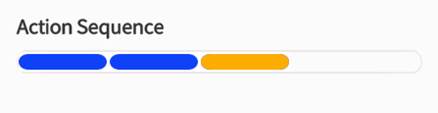
Action Sequence: Multiple actions can be added to an element in the same scene, and clicking on a bar in the action list provides easy access to them.
Entrance
Entrance is the initial configuration option of all elements, allowing you to define the position, rotation, and scale of an element when it appears in the scene, as well as the duration of the appearance.
When you add an element to the scene, you can drag and rotate it to adjust its position and rotation. Additionally, you can make precise parameter adjustments to the Entrance action properties of the element to further customize its appearance.
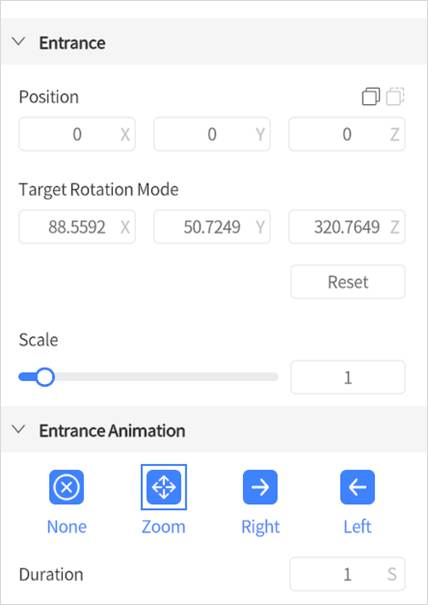
- You can use the Position and Rotation settings to adjust the initial pose of an element. The Position setting determines the location of the element’s center in the scene’s coordinate system. For more information on position coordinates, please refer to How to understand 3D coordinates in the scene.
- Reset: The Reset button allows you to restore the positions of all child objects of the model relative to the parent object.
- Scale: The Scale setting is used to adjust the size of the model in the scene. You can still modify this configuration by using the movement action in subsequent scenes.
- Entrance Animation: The default Entrance Animation setting is Zoom, which means that the model will appear by gradually scaling up from the center point during playback. If set to Left or Right, the model will move a short distance in the corresponding direction and then stop at the designated appearance position.
- Duration: The default duration is 1 second, which represents the length of time it takes for the Entrance action to complete, from the start to the end.
Transform
The Transform action can make the elements in the scene move along a straight or curved path, and change their position, rotation angle, and size through operations such as moving, rotating, and scaling. By adding transform actions, you can create various dynamic effects for elements, such as acceleration, deceleration, or uniform motion.
How to move an element in a straight path
The Transform action enables an element to move along a straight path.
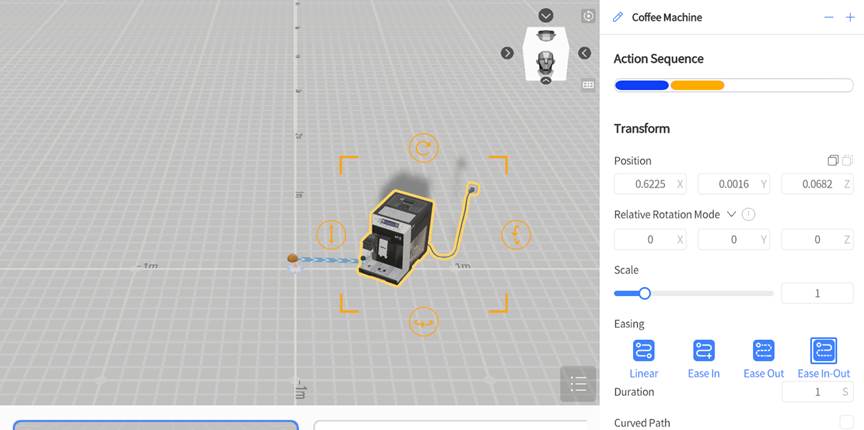
Here are the steps to add and set the Transform action for an element to move along a straight path:
- Select the element you would like to move during the scene.
- Click the button next to the element’s name in the attributes pane and select the Transform option from the drop-down menu.
- Move the element in the workspace to change its position or fine-tune the movement parameters in the attribute area, and then set the Duration of the movement action.
- By selecting the Easing, set the speed of the movement action.
- Linear: The role’s movement speed remains constant throughout the motion.
- Ease In: The movement gradually accelerates to full speed.
- Ease Out: The movement gradually decelerates from full speed.
- Ease In-out: The movement accelerates to full speed, maintains the speed, and then decelerates to rest.
How to move an element in a curved path
You can also use the Transform action to make an element move along a curved path.
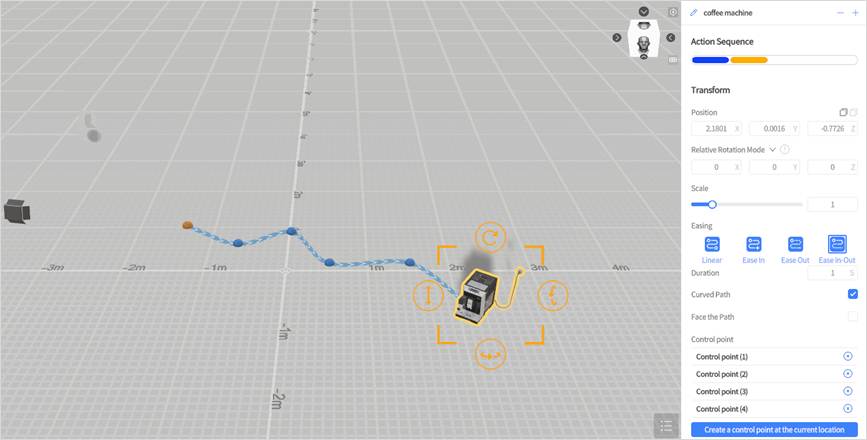
Here are some of the attributes that you will need to know to move an element in a curved path.
- Curved Path: This option is disabled by default. Enabling this option allows the role’s path to curve around control points.
- Face the Path: When this option is enabled, the element will always face the direction that it is moving.
- Control Point: These are points along the element’s path that guide the way that the path curves. You can set as many as you want, and setting multiple points along one curve allows for more gradual and smoother movements.
The following are steps to add and configure elements to move along a curved path in the movement action:
- Select the element you would like to move in the scene.
- Click the button next to the element name and select Transform.
- Check the Curved Path option.
- Adjust model position, rotation, and scale and click Create a control point at the current position.
- Repeat Step 4 to create other control points for the curved path.
- Adjust the position and curvature of the control point to make the curved path smoother.
- Configure Duration and Easing of the action.
- Click the Play button to preview the effect of the Transform action.
- Fine-tune the settings of the Transform action for the curved path as needed.
Configure Animation
Some models come with their own predefined animations, which can be configured in the Action. When a model contains animations, we can configure the animation of the model in DataMesh Studio, such as setting the playback mode and duration of the animation.
Here are the steps to configure the animation of a model:
1. Select the model in the Elements pane.
2. Click the button in the attributes pane and select the Configure Animation option.
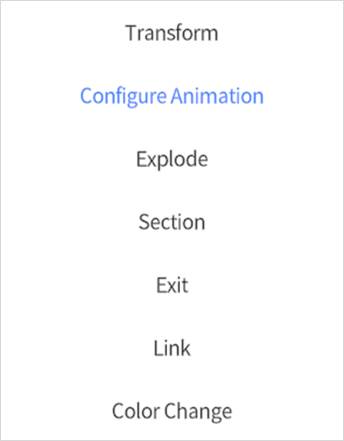
3. In the attributes pane, you can see all the animation names that the model contains.
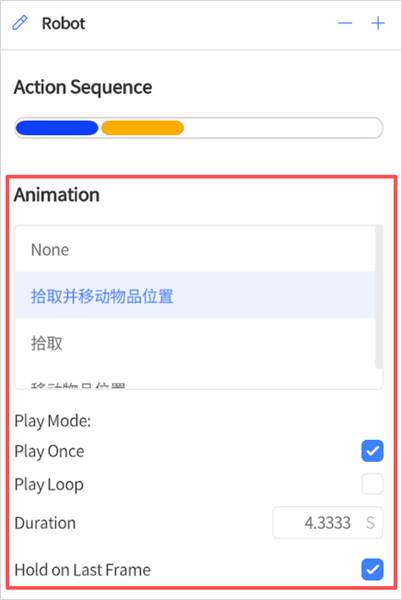
4. Select the animation you want to configure, and then set the following options.
|
Settings |
Description |
|
Play Mode |
Specifies how the animation is played. The available options are Play Once and Play Loop. |
|
Play Once |
Plays the animation once within the specified duration. |
|
Play Loop |
Loops the animation within the specified duration. |
|
Duration |
Specifies the total playback time of this animation action in the current scene. By default, this value is the time required to play the animation once. |
|
Hold on Last Frame |
Specifies whether the model should keep the pose it has at the end of the animation action in the current scene. |
Notes on “Hold on Last Frame”
- When this option is selected, the model keeps its pose at the moment when the Duration of the animation action in the current scene ends. When the next scene starts, the model uses this pose as its initial state, helping maintain visual continuity between scenes.
- When this option is not selected, the model returns to its default state when the next scene starts.
- In this context, “Last Frame” refers to the model pose at the end of the configured Duration for the current action. It is not necessarily the pose in the last frame of the original animation asset.
- If the scene containing the current animation is skipped and a later scene is entered directly, Hold on Last Frame does not take effect. The model uses its default initial state instead.
Explode
You can add an Explode action to any element that contains sub-elements. By default, the Explode action will expand all primary sub-elements under the element. You can set the Explode effect for all sub-elements in an Explode action, or you can continue to add Explode actions for sub-elements that contain lower-level sub-elements, thereby achieving an outward-to-inward sequential expansion effect.
Add an Explode action
To add an Explode action for a selected element or sub-element, click the button next to the element name in the attributes pane. Then, in the action menu, select Explode. This will add an Explode action to the element or sub-element.
In the Explode attributes pane, you can choose between two types of disassembly effects: Radial and Directional.
- Radial: This option separates sub-elements by pushing them outwards from the center of the parent element. By adjusting the Distance slider or value, you can modify the distance of the sub-element from the parent element.
- Directional: This option arranges sub-elements in a straight line along an axis.
- Distance: By adjusting the slider or value for spacing, you can modify the distance between elements. Larger values will increase the space between elements, while smaller values will decrease it.
- Direction: This refers to the direction in which elements are arranged. Since elements cannot unfold below the desktop, the “downward” direction cannot be selected for unfolding.
Exercise 1: Configuring the Explode Action for the Monster Model and Its Arm
This example shows how to configure different Explode effects for the monster model and its right arm within the same Explode action, creating a more natural disassembly or explosion animation.
1. Add an Explode action to the monster model:
a) Select the monster model in the scene that you want to apply the explode action to.
b) In the attribute panel, click the icon next to the model’s name, then choose “Explode” from the action menu.
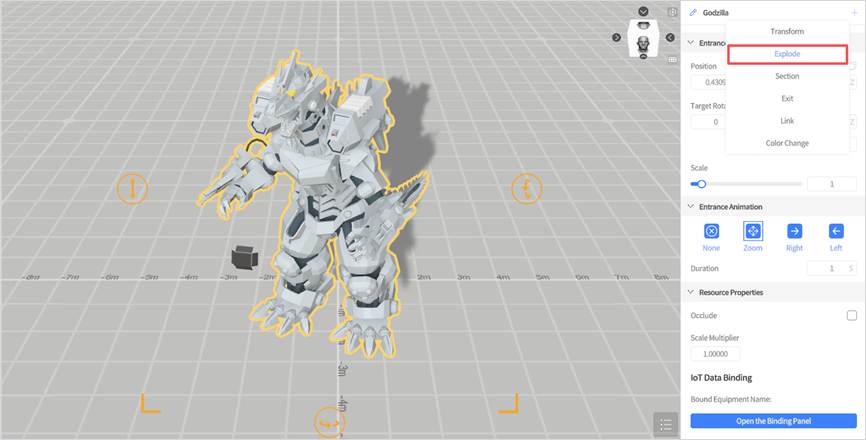
c) Set the explode action parameters for the model.
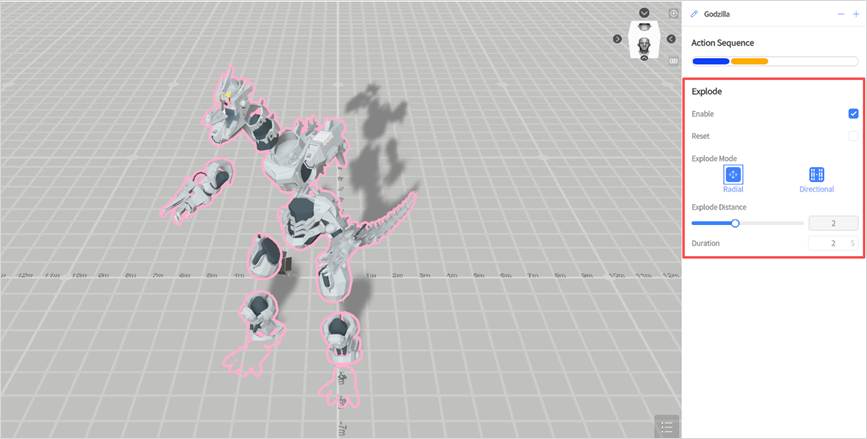
2. Configure the Explode action parameters for the right arm separately:
a) In the workspace, select the monster’s right arm.
b) In the attribute panel, enable the explode action for the arm.
c) Adjust the Explode Mode and Distance to make the arm’s effect different from the main model’s explode action.
d) Specify the exact position for the arm’s explode action.
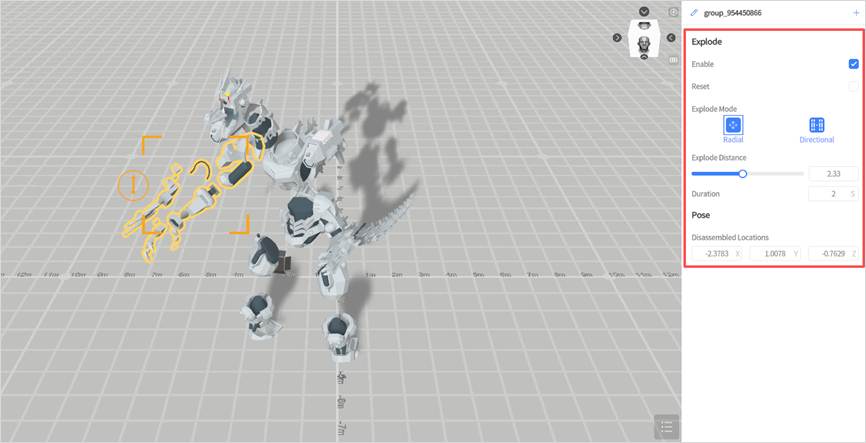
3. Check the action sequence: Select the monster model again in the workspace, and you can see there is only one Explode action in the action sequence.
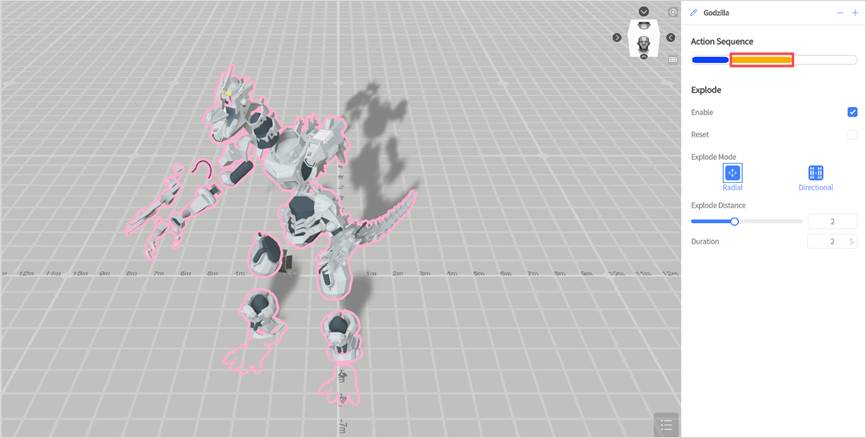
Exercise 2: Adding Separate Explode Actions for the Monster Model and Right Arm
This example demonstrates how to create independent explode actions for the monster model and its right arm, allowing them to explode in different sequences or ways.
1. Add an explode action to the monster model: Follow step 1 from Exercise 1. Select the monster model in the scene, add the explode action in the attribute panel, and set the explode parameters.
2. Add an independent explode action for the right arm:
a) In the scene, select the right arm of the monster model.
b) In the attribute panel, click the icon , then choose “Explode” from the action menu.
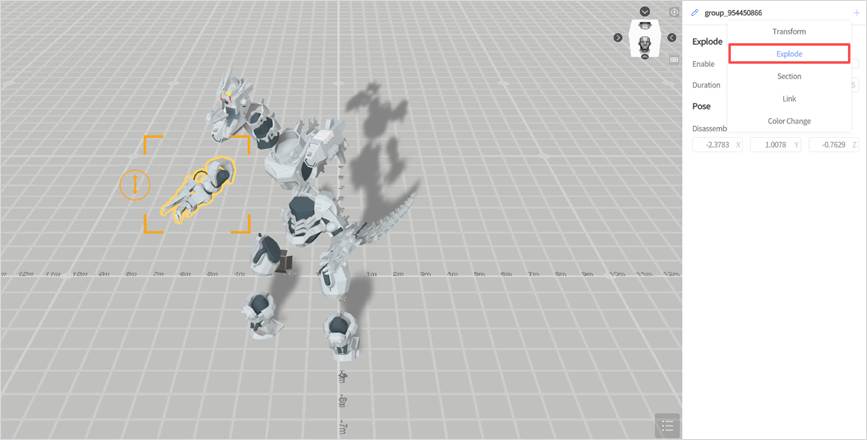
c) Set the Explode parameters.
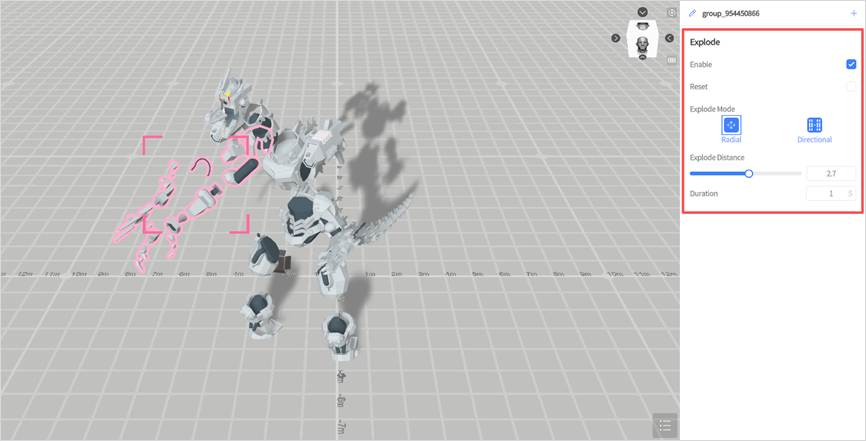
3. Check the action sequence: Reselect the monster model in the workspace, and you will notice that the action list in the attributes area now displays two Explode actions.
- The first Explode action applies to the entire monster model.
- The second Explode action applies to the right arm and is triggered after the monster model explodes.
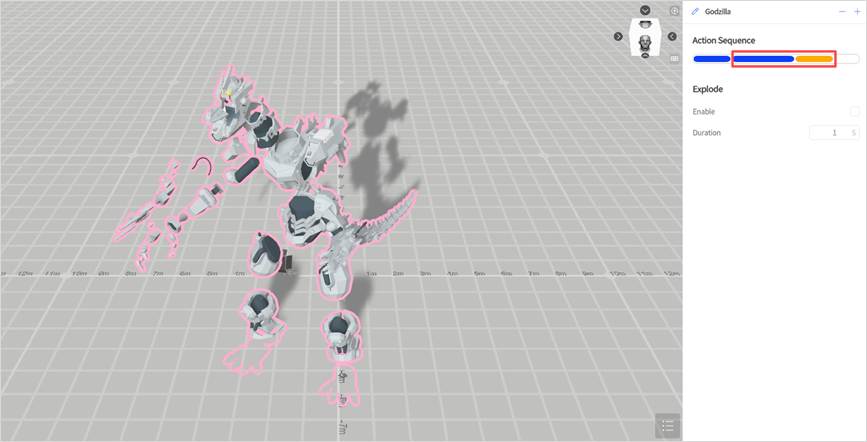
Remove the Explode action effect
Removing the Explode action effect means removing the Explode effect that has been applied to the model, thereby restoring it to its original state.
You can follow these steps to remove the Explode action effect:
1. Select the exploded model in the workspace.
2. In the attributes pane, click the button next to the model’s name and select Explode in the action menu.
3. Check the Reset option.
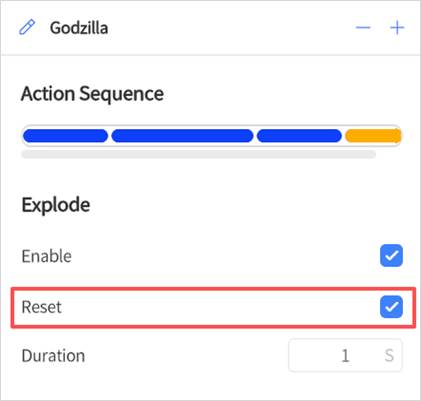
4. This will cause all the previously separated sub-elements to merge together to form the original model.
Section
This action allows you to show the interior of a model by ‘cutting’ into it, which is an effective way to show how a model’s physical counterpart might function. You can adjust which part of the model is removed, how long the section animation takes, and which direction the section is made in.
Add a section action
To add a section to a model, follow these steps:
1. Select the model that you want to add a section to.
2. Click the button near the element’s name in the attributes pane and select the Section option.
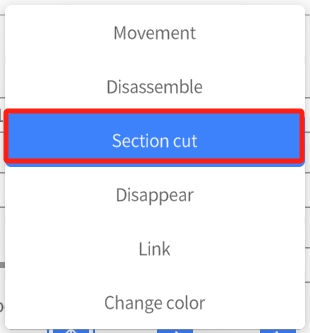
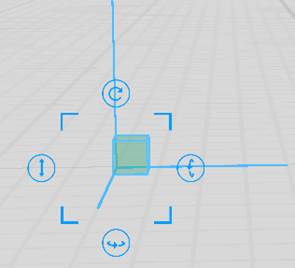
3. The Removal Cube will appear in the workspace, which is a transparent blue cube with three lines that represent each axis. This cube allows you to choose the section of the model that you want to remove. You can drag and rotate the Removal Cube in order to customize your desired section, and its position can change whether the model is cut in half or if a corner is removed.
4. Configure the section in the attributes pane.
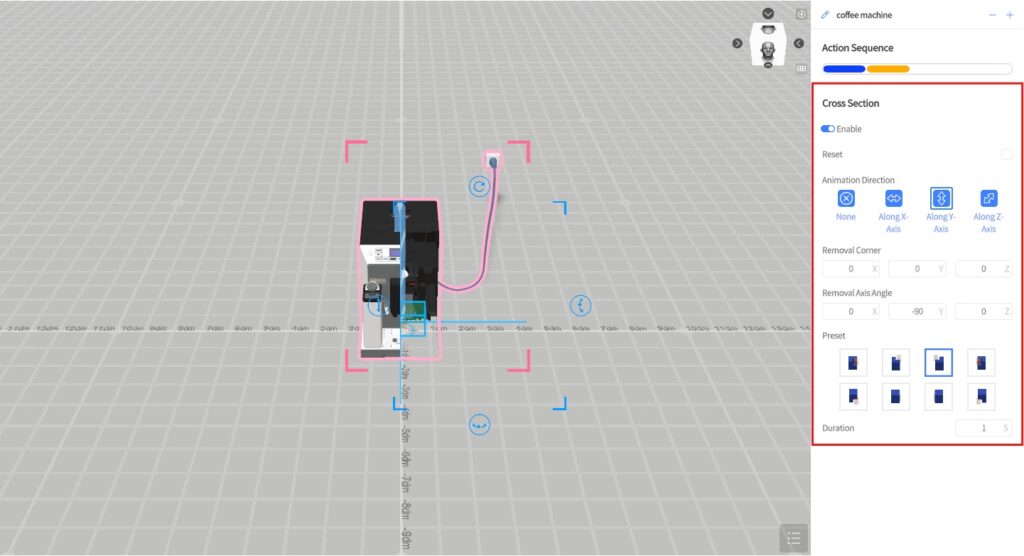
You can configure cross section action as follows:
- Animation Direction: The section animation consists of your chosen section fading out in an axis relative to the Removal Cube. This option allows you to choose which axis the fade occurs in.
- Removal Corner: The position of the point where the three faces of the section body intersect. This shows you the point where all three of the Removal Cube’s axes meet. You can also manually input the point’s coordinates for extra precision.
- Removal Axis Angle: Each field represents the angle of one axis of the removal cube. You can manually input the angle in order to change which direction the removal cube is facing.
- Preset: We provide a variety of presets that you might find helpful when choosing your cross section. Each preset has a corner of the model removed, along with a visual guide to help you choose the right one for you. In the visual guides, the blue cube represents your model, and the yellow cube represents the removed section. In addition, the visual guides rotate along with your perspective of the model in the workspace.
5. Click the Preview button to check the section action effect and adjust it according to the effect.
When sectioning an element, the default behavior is that all of its sub-elements inherit the cross-section effect. If you would like a specific sub-element not to be affected, follow these instructions below.
1. Select the sub-element that you would like to be exempt from the section cut effect.
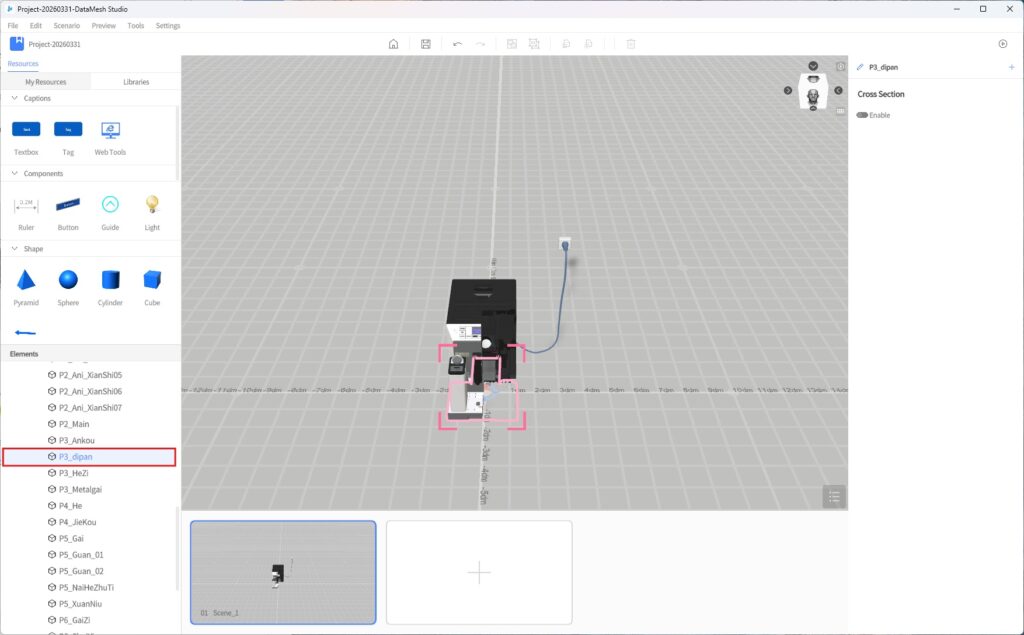
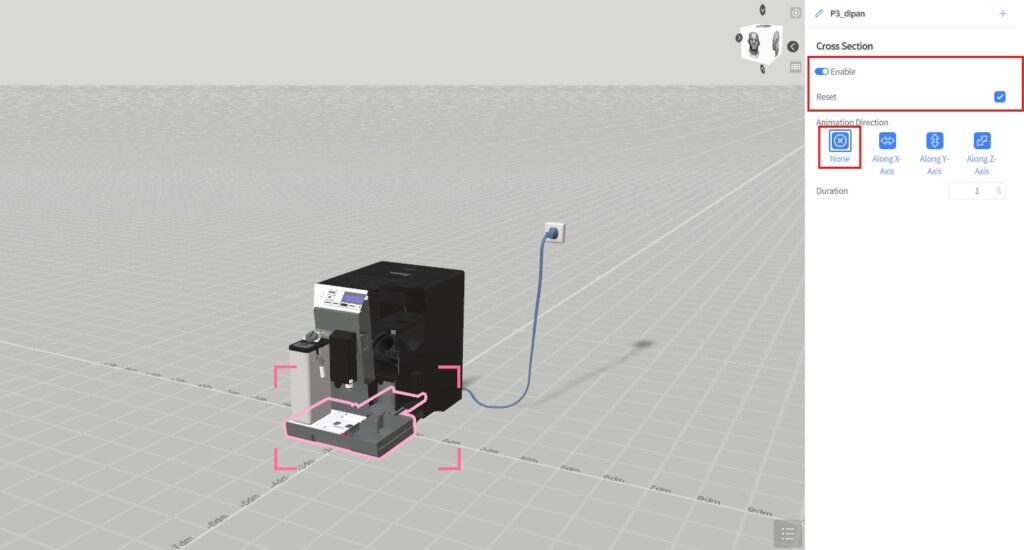
2. In the cross-section settings, toggle the Enable option so that it is active, select the Reset checkbox, and make sure the Animation Direction is set to None.
Remove a section action effect
After sectioning a model, you may want to reverse the process afterward. You can simply remove the section action effect, which will cause the model to suddenly be full again during the next scene, or you can repair it using the same animation for consistency. Here are the steps to do so.
1. Select the sectioned element that you want to repair.
2. Click the button next to the element’s name in the attributes pane and select Section from the action menu.
3. In the Section settings in the attributes pane, make sure that the Reset checkbox is checked.
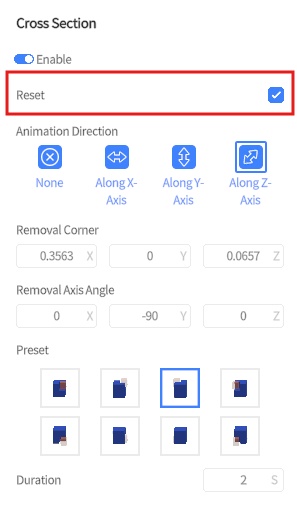
4. Configure the Section Cut action through the settings of Animation Direction, Removal Corner, Removal Axis Angle, Preset and Duration.
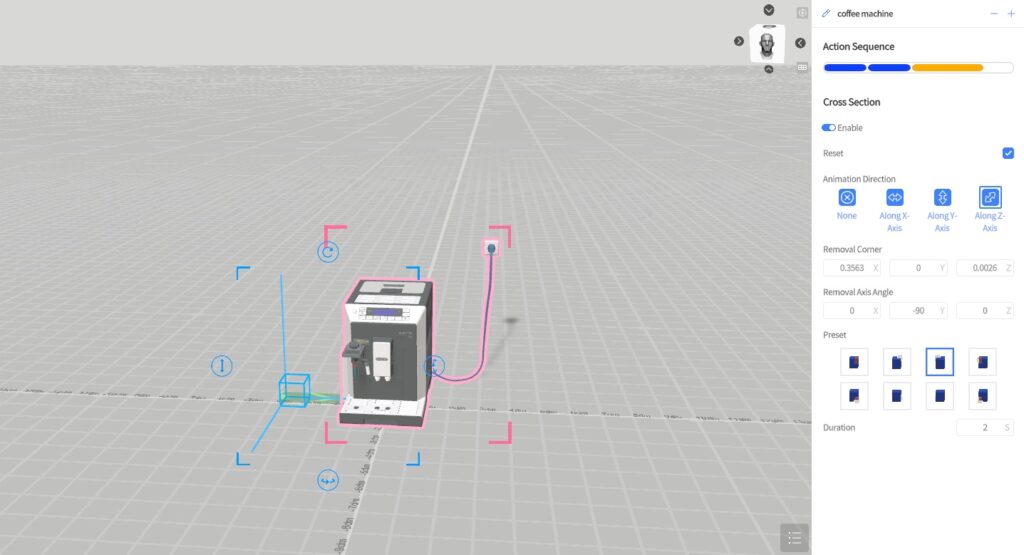
5. Click the play button to preview the effect of removing the section and make section adjustments as needed.
Link
When previewing a scenario or playing it in DataMesh One, you can easily navigate to the target scene by clicking on an image, a model or sub-object that has a Link action associated with it.
Note: If the target scene is deleted, the link will become inactive. Additionally, links are only active during the scene in which they first appear. To add another link to the model in a different scene, you must first remove the original link, then add the new link.
To add a Link action to a model or sub-object, follow these steps:
1. Select the element you would like to attach a link to.
2. Click the button next to the element’s name in the attributes pane and select the Link option.
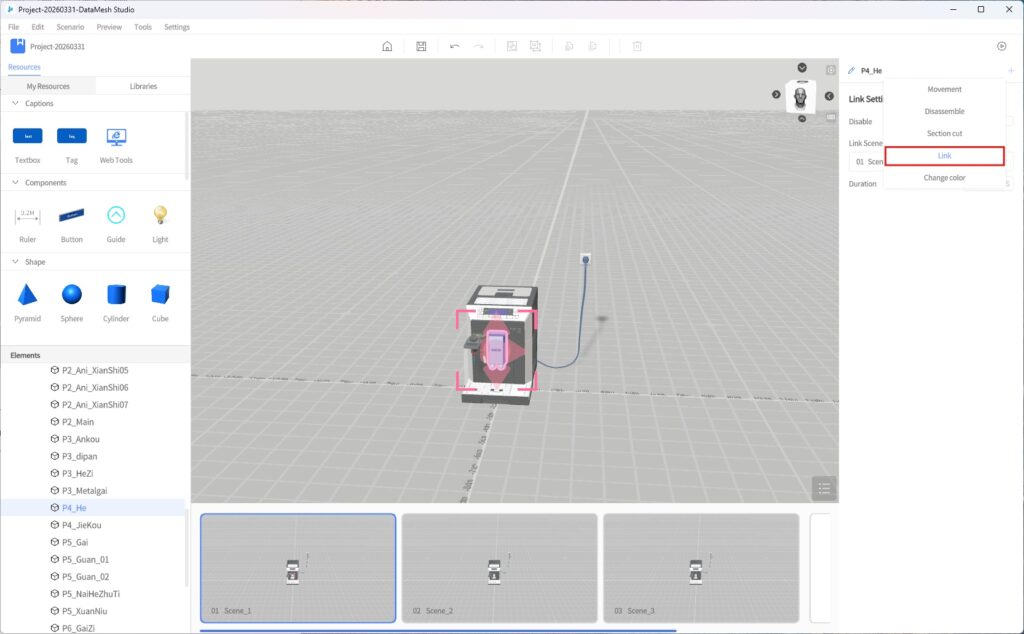
3. In the Link Settings in the attributes pane, make sure the Disable option is unchecked, and then select the scene you would like the model to be able to jump to using the Link Scene option.
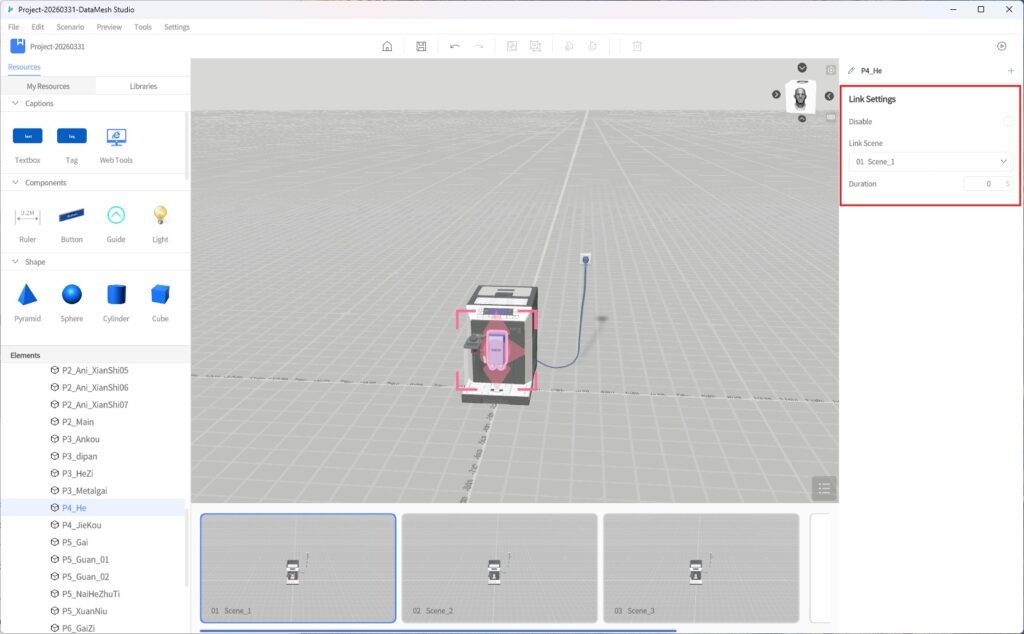
Disable setting explanation
When the ‘Disable’ option is checked, clicking the object will not trigger a scene transition. This setting is typically used in models with hierarchical structures, providing more granular control over transition behavior and improving the flexibility and accuracy of interaction logic.
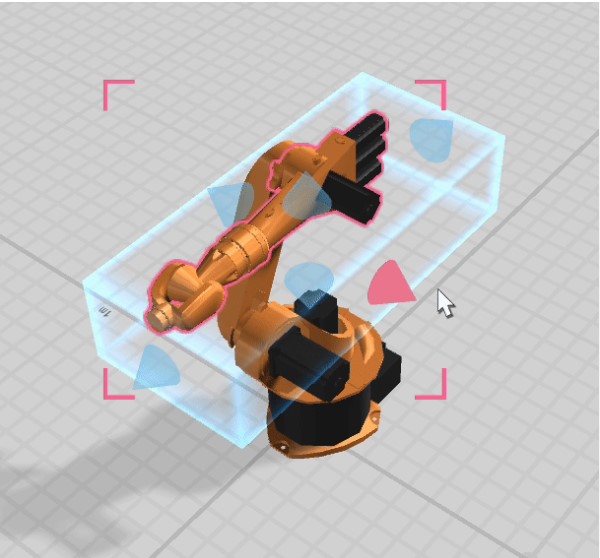
4. Once linked, the role will have a glowing blue box that signifies the link’s area. You can drag the surrounding blue cones in order to move this link area to your liking.
Exit
This action allows you to remove an element during any scene after the scene where it was first placed.
The steps to add an Exit action to an element are as follows:
1. Select the element that you would like to exit.
2. Click the button next to the element’s name in the attributes pane and select the Exit option.
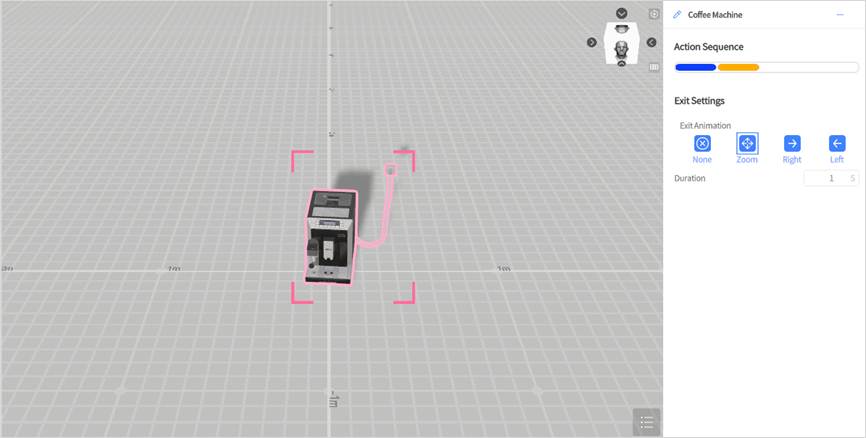
3. In the Exit settings in the attributes pane, select your preferred animation effect. The following four styles are available: None, Zoom, Left, and Right.
Color Change
The Color Change action is an animation effect that enables an element to change colors during the animation. It can be applied to any node of a model, whether it is the entire model or specific sub-objects. When you add the Color Change action to the entire model, the color changes will be applied to the currently selected model and all its sub-objects, allowing for dynamic and visually appealing color transformations.
Here are the steps to add a Color Change action:
1. Select the element that you want to change color during the scene.
2. Click the button next to the element’s name in the attributes pane and make sure that the Color Change action is enabled.
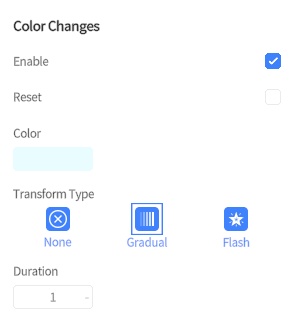
3. Then, set the color you would like the element to change to, the transform type, and the duration.
Transform Type
- None: The color of the element will directly change to the specified color without any animation effect.
- Gradual: The element’s color will transition into a new color over a period of time, creating a smooth and gradual change in color.
- Flash: The element will rapidly alternate between its original color and the new color within a certain time frame, creating a blinking or flashing effect.
After adding the Color Change action, during scenario playback, when the element performs the action, its color will change according to the settings.