
How Can We Help?
DataMesh Inspector (Mobile Application)
This chapter describes how to use DataMesh Inspector (Mobile Application) to view on-site alerts, locate devices, and overlay MR scenes.
The mobile app is primarily designed for frontline operations personnel to perform on-site inspections and troubleshooting, helping them quickly confirm device locations, assess issues, and record disposal results.
Typical operation flow: from alert detection to on-site handling
This section guides you through completing the full on-site process for an alert: View → Locate → Inspect → Record.
Application scenario description
When an alert is triggered by an equipment malfunction, the Operations Manager will confirm the alert remotely and assign you to inspect the device on site.
You need to use Inspector (Mobile Application) to quickly locate the device, perform checks, and record the on-site results.
Overview of the operation process
On-site handling is usually completed in the following order:
- Check the alerts that need to be handled.
- Locate the device corresponding to the alert.
- Locate and inspect the device on site.
- Record the inspection results and complete the on-site handling.
Note
Inspector is mainly used for on-site verification and recording, while alert confirmation and closure are performed by the operations manager on the monitoring system.
Step 1: View alert information
- Log in to Inspector and enter the Large-scale scene list.
- Select the park or building scene that needs to be handled.
- After entering the scene, the system by default displays the Alert Management page.
- View in the alert list:
- Alert name and severity
- Target device
- Alert location (building/floor)
Outcome:
✔ The specific alert and the target device that needs to be handled are identified.
Step 2: Locate the alert device
- Go to Asset Management based on the device name shown in the alert.
- Find the corresponding device in the device list.
- Open the device detail page and confirm:
- Whether the device name matches
- Device location in space
Outcome:
✔ The specific device that needs to be inspected is confirmed.
Step 3: On-site MR viewing and inspection
- On the Device Management page, click the top-right 3D Space.
- Scan the on-site positioning marker posted as prompted.
- After the system completes locating, enter the MR scene overlay view.
- View in the real environment:
- Actual device location
- Upstream and downstream pipelines or related components
- Whether there are concealed issues (e.g., inside walls or ceilings)
Outcome:
✔ The device has been located and inspected on-site.
Step 4: Record inspection results
- In the MR scene or device details page, use the Note function:
- Record issues found on site
- Describe the actions that have been completed
- Upload on-site photos if necessary
- If no anomalies are found, you may record a note stating, “The on-site inspection is normal.”
Outcome:
✔ On-site inspection results are recorded and can be reported back to the Operations Manager for follow-up action.
Notes after completing on-site handling
- Inspector (Mobile Application) does not support alert acknowledgment and closure.
- Please report the on-site inspection results to the Operations Manager via notes or offline methods.
- Subsequent alert closures will be completed by the Operations Manager on the monitoring system, forming a complete closed loop.
Login and home page
Launch and login
After launching Inspector (Mobile Application), you will enter the system login screen.
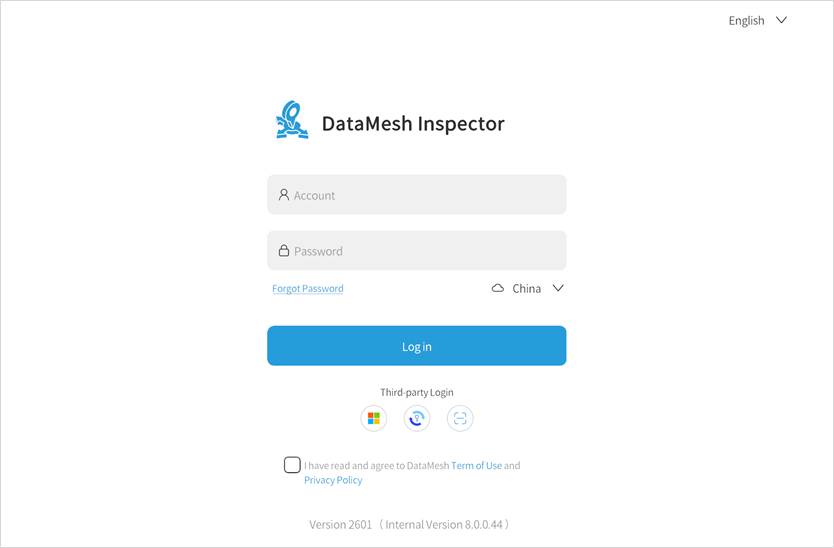
Follow the steps below to log in:
1. Select deployment environment
On the login page, first select the deployment environment for your user account.
- Public Cloud Deployment supports the following regions:
- China
- International (Singapore)
- Japan
- Private Cloud Deployment users need to click the private deployment icon , and enter the enterprise private deployment code to connect to their organization’s private deployment environment.
If you are unsure about your server region or the enterprise private deployment code, please contact your enterprise administrator for assistance.
2. Choose the login method and log in
After selecting the deployment environment, choose one of the following login methods:
- Username and password login
- Third-party account login (such as enterprise single sign-on)
- QR code login
Note: The login method depends on the enterprise deployment and account policy, and is typically informed by the enterprise administrator.
3. Enter the system
After successful login, the system will automatically open the Large-scale scene List page.
Home page after login (Large-scale scene list)
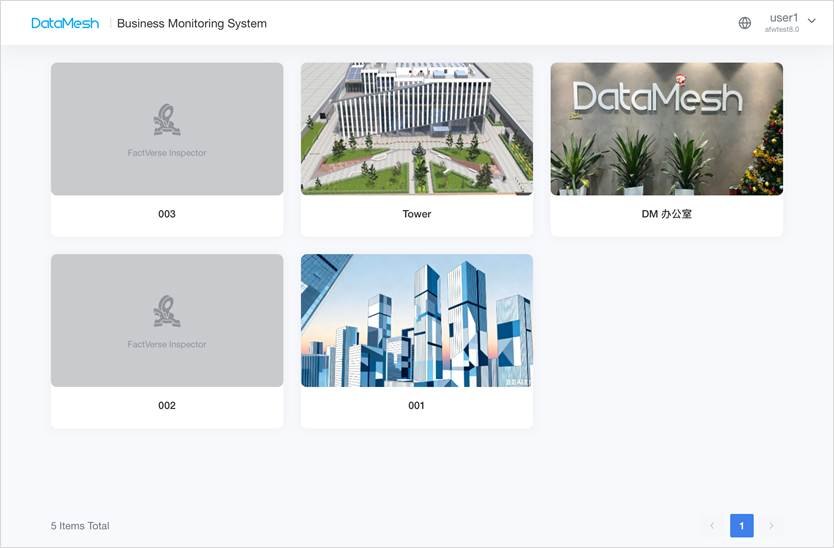
After logging in successfully, the system will first open the Large-scale scene List page.
This page displays all the large-scale scene projects under the current enterprise, allowing frontline operations personnel to view and select the park or building scenes they need to handle.
On the Large-scale scene List page, you can:
- Browse the list of accessible park/building scenes.
- View scene names and thumbnails (if configured).
- Click on any scene card to enter the corresponding business interface for that scene.
Alert management (On-site viewing and handling)
Alert management helps you quickly identify the alert to be handled in the field and find the corresponding device.
Function
In Inspector (Mobile Application), alert management is mainly used to:
- Viewing alerts that have already entered the handling process.
- Identifying the devices that currently need inspection.
- Assisting with on-site localization and problem investigation.
Note
Inspector (Mobile Application) does not support alert confirmation or closure operations.
Alert list overview
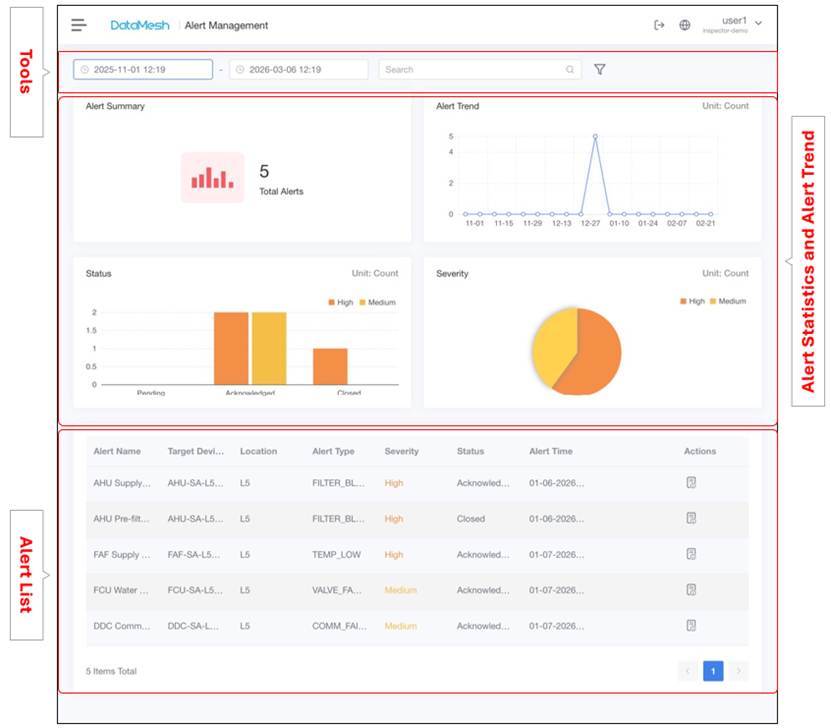
After entering a specific scene, the system by default displays the list of alerts within the current scene.
The alert list is used to answer the most critical on-site questions:
- Which alert needs to be handled now?
- Which alert is the most urgent?
- Which device do I need to inspect?
The alert list typically includes:
- Alert Name
- Target device
- Location (Space)
- Alert Level
- Status (e.g., Acknowledged)
Usage
In the alert management interface, you can:
- Browse the alert list to identify alerts that need to be handled today or currently.
- Click on an alert to view its details.
- Remember the device name associated with the alert.
- Go to Asset Management to continue with device localization and on-site inspection.
Usage Recommendations
- If you have just arrived on site and are unsure of the inspection target device: check the alert list first.
- If the device name is already known: go directly to Asset Management.
- If you need to quickly confirm the location: enter the MR scene via the device details to view it.
Asset Management (On-site location and device viewing)
Asset Management is used to quickly locate devices on-site, verify their identity, and enter the MR scene for inspection.
Function
When you need to confirm a device’s location, status, or basic information on-site, you can use Asset Management to complete the following tasks:
- Find the device that needs inspection.
- Confirm the device name, type, and the space in which it is located.
- Enter the MR scene from the device details to conduct an on-site inspection.
Asset Management is the starting point of the on-site inspection workflow and is the core entry that connects alert information with the MR scene.
Usage Recommendations
It is recommended to use Asset Management in the following situations:
- You only know the device name from the alert list, but do not know the exact location.
- After arriving on-site, you need to confirm whether this is the correct device.
- You need to enter the MR scene to inspect the device and its surrounding pipelines.
Asset management interface overview
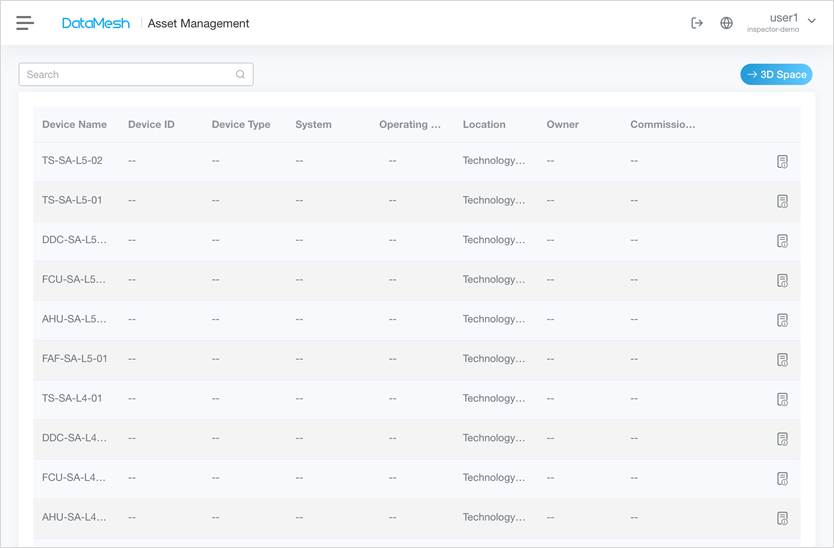
After entering the Asset Management module, the system will display the list of devices within the current scene.
In the device list, you can see:
- Device name
- Belonging space (e.g., building/floor)
- Device type.
The device list is used to help you quickly narrow the search range and find the target device.
Operation process: from device list to on-site inspection
Step 1: Search for and confirm the device
- Enter Asset Management.
- Browse or search for the target device in the device list.
- Click the device name to open the device details page and view the device name, ID, associated space, and alert information.
This step is crucial to confirm the correct device to avoid inspecting the wrong device.
Outcome:
✔ Confirmed the identity of the target device and its associated space.
Step 2: Enter the MR scene for on-site localization
- Return to the Asset Management page and click 3D Space.
- Scan the on-site positioning marker posted as prompted.
- Once the system locates the device, it will automatically enter the MR scene overlay view.
Outcome:
✔ Completed spatial alignment between the model and the real environment, and entered the MR scene overlay view.
Step 3: Locate and inspect the device in the MR scene
After entering the MR scene, combine the device information with the scene model to locate the target device in the MR view, and inspect it in the real environment:
- The device’s actual installation location.
- Pipelines, valves, or components related to the device.
- Concealed works (e.g., inside walls or ceilings)
Outcome:
✔ The device is located on-site and ready for inspection.
Notes
- Asset Management in Inspector (Mobile Application) is used for viewing and location only.
- It does not support adding, editing, or deleting device information.
MR scene overlay (on-site viewing)
MR Scene Overlay is used to align the digital twin model with the real environment on-site, helping you locate devices, view pipeline relationships, and check for concealed works.
The MR scene serves as an auxiliary tool for on-site verification and assessment, but is not required for every inspection.
Enter MR scene overlay
Steps
- Enter Asset Management in Inspector.
- On the Device Management page, click the top-right 3D Space button.
- Scan the on-site posted positioning marker as prompted.
- After the system completes localization, it automatically enters the MR scene overlay view.
Outcome:
✔ Model and real-world spatial alignment completed, entered the MR scene overlay view.
✔ The current location result is based on the spatial location corresponding to the scanned positioning marker, and the specific location of the target device can be further confirmed in the MR scene.
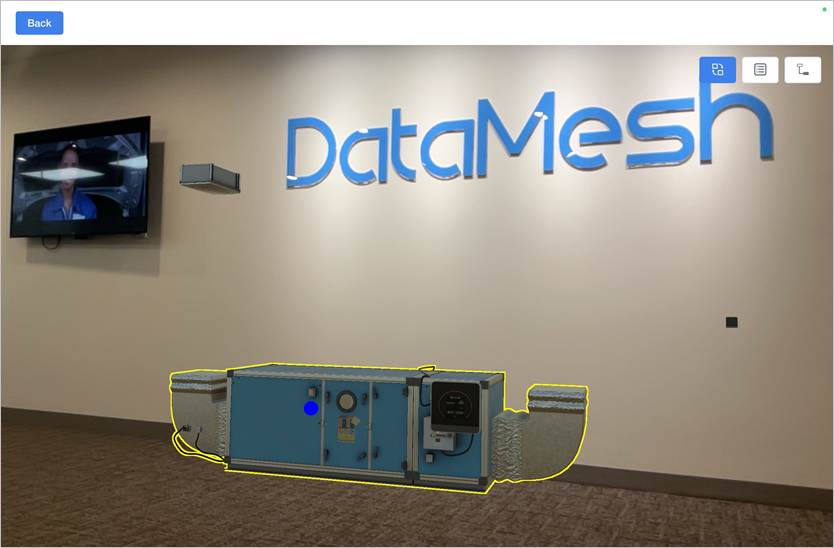
MR scene view instructions
After entering the MR scene, the system will overlay the 3D model related to the current device onto the real environment.
In MR mode:
- When the handheld device moves, the display will update in real time according to its position and orientation.
- Only display models and components related to the current device.
- Automatically load BIM components within a certain range around the device (approximately 25 meters).
Available operations in MR scene
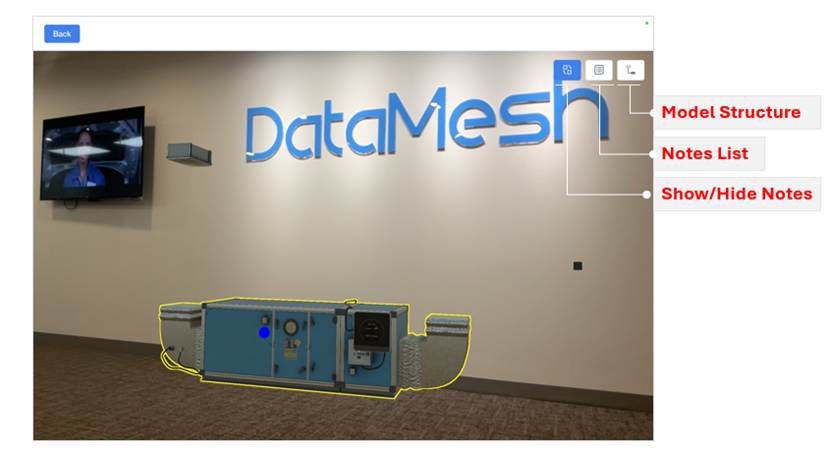
In the MR scene overlay view, an interaction operation menu is provided at the top right of the interface, supporting the following functions:
- Toggle note visibility
- Notes list (on-site records)
- Toggle component visibility
Toggle note visibility
Click “Show/Hide Notes” button  to show or hide on-site note labels. If there are many notes that obstruct the view, you can hide them temporarily.
Application scenarios:
To reduce visual distractions when inspecting the device location or pipeline structure.
Notes list (on-site records)
In the MR scene, when a device or component is clicked, the corresponding object will be highlighted. Click the notes list button  to expand the notes list for this device or component.
In the notes list, you can:
- View historical inspection or disposition records.
- Added a new comment, recording:
- On-site issues discovered
- Completed actions
- Inspection conclusions
- Mark handled issues as Resolved (only for notes).
Note: Marking notes as Resolved only indicates that the issue of the note has been handled, but it is not equivalent to closing the alert.
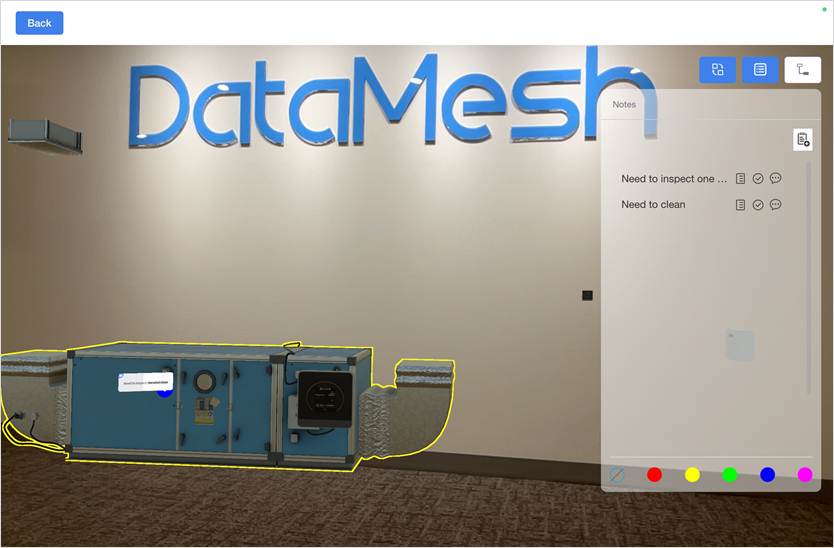
In the notes list, you can:
 : View existing notes and leave comments.
 : Add a new note record.
 : Confirm the issue has been resolved.
Note:
Marking notes as “Resolved” only indicates that the note issue has been handled, but it is not equivalent to closing the alert.
 : View note details
Notes can be used for inspection records, issue descriptions, or on-site notes during work order execution.
Toggle component visibility
Click Model Structure  to show or hide BIM model components, allowing clearer viewing of structural relationships and concealed works.
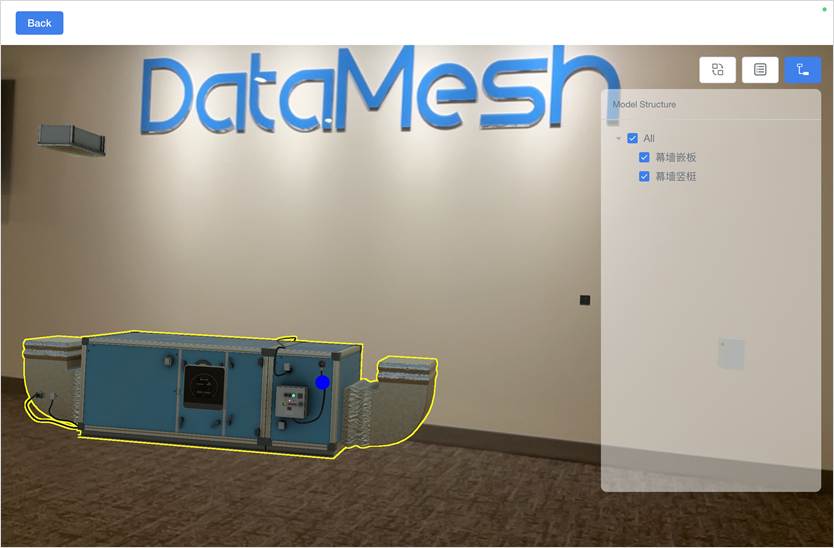
The component list displays the categories of BIM components loaded within the current field of view. Checking a category makes those components visible; unchecking hides them.
Example:
During maintenance, some walls might obstruct the passage. You can hide the relevant component category to better observe the device or pipeline structure.
MR Scene’s role in the alert handling process
The MR scene is primarily used to help you answer the following questions:
- Have you located the correct target device?
- Is there any abnormal relationship between the device and the pipelines?
- Are there any concealed issues that are difficult to observe with the naked eye?
After completing the inspection, please record the on-site handling results using the Note and report them to the operations manager for subsequent processing.