
How Can We Help?
DataMesh Inspector Command Center
This chapter introduces Command Center from a practical usage perspective. Based on the daily workflow of operations personnel, it explains the process in the following order:
Enter Scene → Browse and Analyze → Locate Device → View and Handle Alerts
In daily operations, an Operations Manager typically uses Command Center as follows:
- Enter the target park or building from the large-scale scene list.
- Browse the spatial structure and operational status in the 3D scene.
- Use spatial navigation, alert indicators, or asset information to locate devices or areas of interest.
- Review and evaluate alert information to determine whether further action or on-site intervention is required.
- Confirm the alert and decide whether to arrange on-site handling.
- After the issue is resolved, close the alert and track the overall handling result.
This chapter explains each functional module in Command Center based on the workflow above.
Alert handling workflow
DataMesh Inspector uses a collaborative alert-handling model:
Monitoring and management in Command Center + On-site verification and execution in Inspector (Mobile Application).
The process focuses on alert management and decision-making. The Operations Manager evaluates and manages alert status in Command Center, and arranges on-site verification by frontline personnel when necessary.
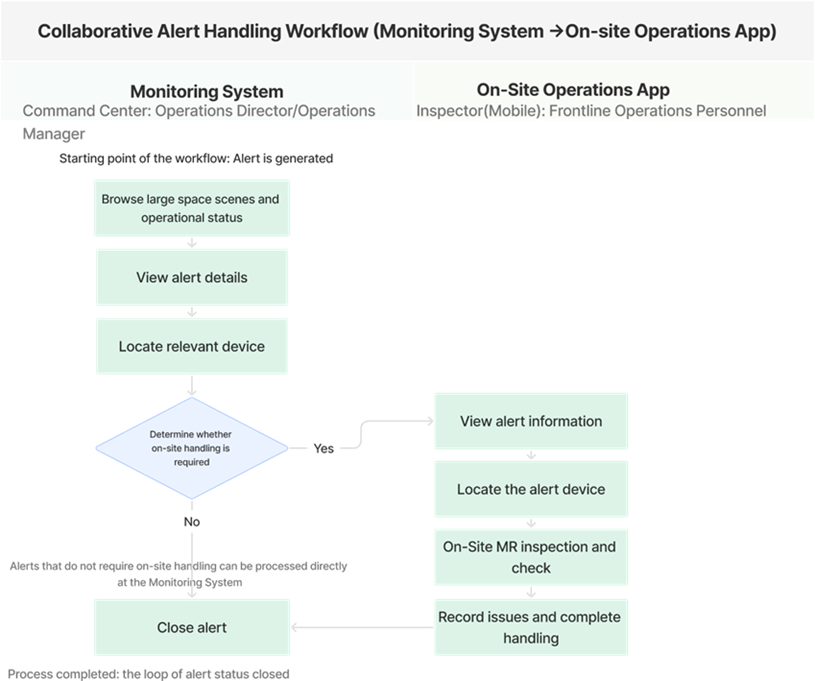
Typical alert handling workflow:
- Alert is generated
When the device operating data triggers the alert rules, the alert information is generated by DFS and synchronized to DataMesh Inspector.
The alert will be associated with a specific device and its respective spaces, serving as the starting point for subsequent analysis and management.
- Monitoring system discovers and analyzes alerts (Command Center)
In Command Center, the Operations Manager:
- Browses large-scale scenes and overall operational status.
- Views alert details in the Alert Management interface.
- Analyzes the alert based on:
- Alert level and type
- Associated device and spatial location
- Device operational status, historical records, and existing notes
The core objective of this stage is:
To determine whether the alert is real, whether it is important, and whether on-site intervention is needed.
- Confirm the alert and decide on-site handling
After completing the analysis, the Operations Manager makes a management decision:
- On-Site Handling Is Not Required
After confirming the cause, the alert can be directly closed in Command Center.
- On-Site Verification or Handling Is Required
The Operations Manager acknowledges the alert in Command Center, then notifies the frontline operations personnel to go to the site for handling through offline methods (for example, verbally, by phone, or through shift arrangements)
Note: Confirming an alert means it has entered the handling process. It does not mean the issue has been resolved.
- Perform on-site inspection and verification (Inspector Mobile Application)
Frontline operations personnel use Inspector (Mobile Application) to complete on-site verification and execution, including:
- Viewing the device information associated with confirmed alerts.
- Searching for the device in asset management, confirming device names and their respective spaces.
- Scanning the positioning marker to enter the corresponding space’s MR scene overlay view.
- In the MR scene, combining the model position with device information to locate the target device, and checking its position, pipeline relationships, and concealed engineering conditions.
- Using notes to record on-site findings and processing instructions.
Notes:
- Location markers are used for space-level location and are not mapped one-to-one to a specific device.
In some projects, location markers may be placed near the key device to improve convenience. After entering the MR scene, users must still confirm the exact device location using device information and the scene model. - Inspector is used for on-site verification and information recording. It does not support alert status management.
- Close the alert and complete the process (Command Center)
After the on-site issue is handled, the Operations Manager in the Command Center:
- Combine on-site feedback and note records
- Determine whether the issue has been resolved
- Execute the close operation on the alert.
Once the alert is closed, its lifecycle ends, forming a complete closed loop.
In subsequent versions:
- The on-site handling process will support management through work orders or tasks.
- The alert’s closed status can be associated with the work order completion status.
Login and homepage
Launch and login
After launching the Command Center, you will enter the system login interface.
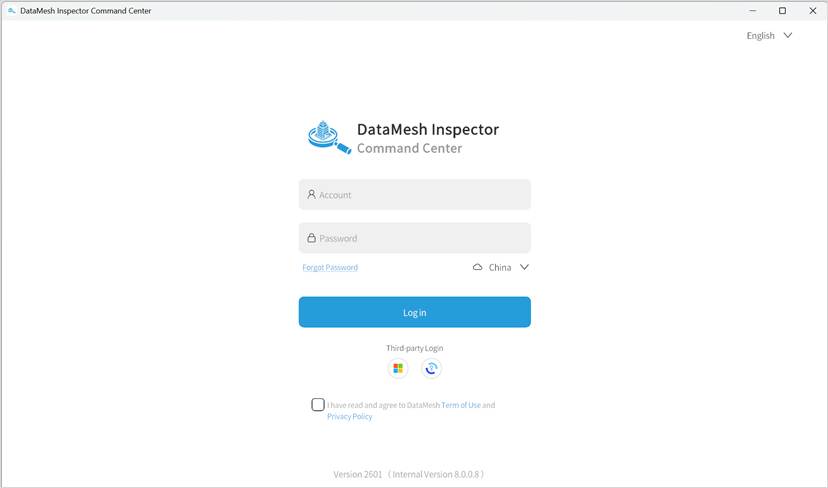
Please follow the steps below to complete the login operation:
- Select deployment environment
On the login page, first select the deployment environment for your user account.
- Public Cloud Deployment supports the following regions:
- China
- International (Singapore)
- Japan
- Private Cloud Deployment users need to click the private deployment icon
 , and enter the enterprise private deployment code to connect to their organization’s private deployment environment.
If you are unsure about your server region or the enterprise private deployment code, please contact your enterprise administrator for assistance.
- Choose the login method and log in
After selecting the deployment environment, choose one of the following login methods:- Login with username and password
- Login with a third-party account (e.g., enterprise single sign-on).
Note: The specific login method depends on the enterprise’s deployment configuration and account policies. Typically, your enterprise administrator will provide this information.
- Access the System
Once logged in successfully, the system will automatically navigate to the Large-scale scene List page.
Home (large-scale scene list)
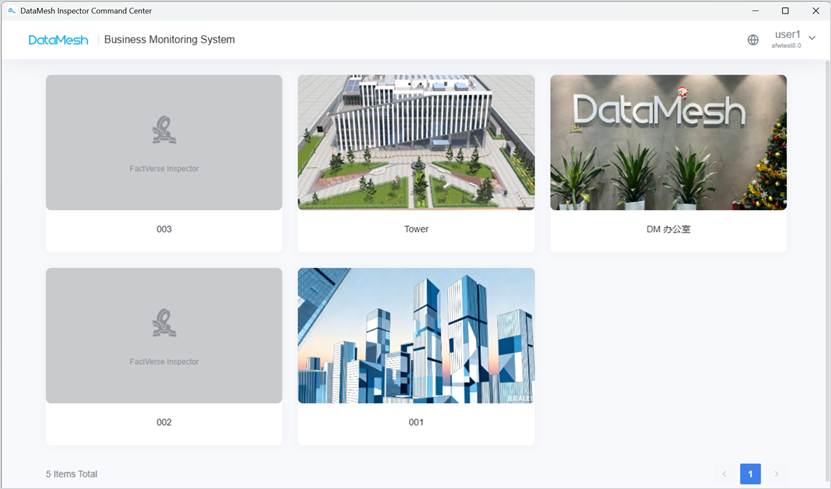
The large-scale scene list is used to display all parks or building scenes that the current user has permission to access.
On this page, you can:
- Browse the list of accessible parks/building scenes.
- View scene names and thumbnails through scene cards.
- Click on any scene card to enter the main interface of that scene.
This page is the starting point for entering specific business operations.
3D scene browsing and analysis
Applies to:
- Operations Manager (view and analysis)
- Operations Director (view only)
This section introduces how to browse, analyze, and assess the operational status of buildings or parks through a three-dimensional scene in the DataMesh Inspector Command Center, and how to assist operational decision-making by combining alerts and device information.
In the 3D scene of Command Center, there are two primary perspectives depending on your focus.
- Spatial Hierarchy View: Used to view the overall operational situation, alert distribution, and key indicators from spatial dimensions such as parks, buildings, or floors.
- Device View: Used to view the basic information, operational status, relationships, and notes of a device.
Spatial hierarchy view (Scene homepage and lower-level spaces)
After entering a large-scale scene, the system loads the root node of the spatial structure (such as a park or building) by default. The corresponding 3D scene and operational status information for that level are displayed.
The spatial hierarchical view is the main working interface for operation and maintenance personnel to observe the overall situation, discover alerts, and analyze problems. It is typically used for:
- Viewing the spatial structure of a park or building from a holistic perspective.
- Quickly understanding the current operational situation, key indicators, and alert distribution.
- Serving as the starting point for subsequent drill-down analysis, device location, and alert handling.
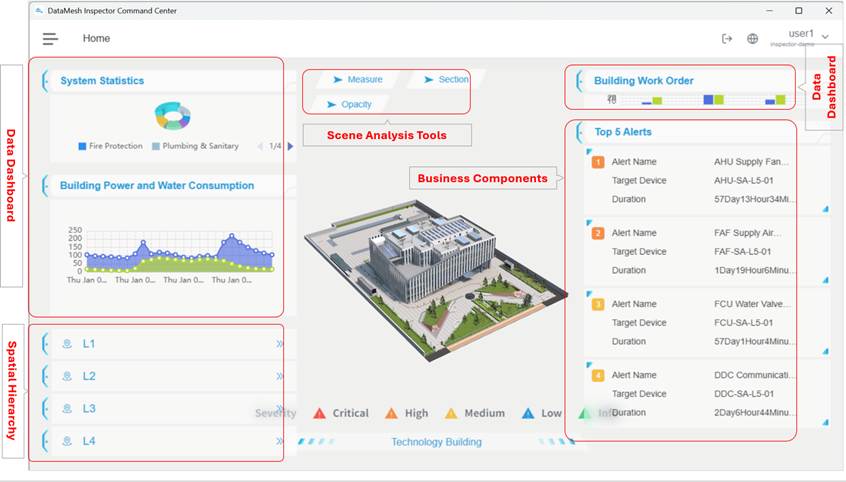
Interface Components
The Spatial Hierarchy View typically includes:
- 3D Scene Area
Located in the center of the interface, it is used to display the 3D digital twin scene of the building or park. Users can browse the spatial structure, observe device distribution, and conduct visual analysis using scene analysis tools in this area.
- Scene analysis tools
Located above the 3D scene. Includes measurement, section cut, transparency adjustment, and note tools.
These tools support analysis only and do not affect original data or device statuses.
- Spatial navigation and hierarchical switching
Displays the spatial hierarchy (for example, park, building, floor). Allows quick switching between spatial levels to narrow the scope of analysis.
- Data Dashboard (Configurable)
Displays business data and visual components associated with the current space level, such as operational metrics, energy consumption trends, alert overview, or Top 5 alerts, etc.
Instructions and notes
- The interface shown in this manual is for reference only.
- Dashboard content, layout, and components depend on project configuration.
- Different projects or space levels may display different chart types or layouts.
- Variations in dashboard configuration do not affect core workflows such as scene browsing, device location, or alert handling.
Usage Recommendations
- Operations Directors typically remain at the Spatial Hierarchy View to review overall operational status and key indicators.
- Operations Managers can drill down into buildings or floors when abnormal trends or critical alerts are identified.
Data Dashboard display rules
The Data Dashboard reflects the operational status and alert distribution within the current spatial scope.
Display rules:
- The dashboard is always associated with the current spatial level.
- When switching levels via Spatial Navigation, the dashboard updates accordingly.
- The root node may represent either a park or a building, depending on project configuration.
- Dashboard components and layout are project-specific.
- Dashboard differences do not affect core workflows.
Spatial navigation and hierarchical switching
The spatial hierarchy panel is used to display and switch the spatial hierarchy of buildings or parks and serves as the main entry point for hierarchical analysis and quick localization.
Spatial hierarchy typically includes:
- Park
- Building
- Floor
- Room
By clicking on a spatial node, you can:
- Focus on the corresponding space within the current 3D scene.
- or jump to the sub-scene bound to that space (for example, entering a floor from a building).
Usage Recommendations
- Space navigation is suitable for scenarios that analyze from the whole to the part by narrowing the scope layer by layer.
- When alerts or anomalies are concentrated in a particular area, it is recommended to drill down step by step via space navigation (for example: park → building → floor) to quickly pinpoint the spatial level where the issue occurs.
- Before locating a specific device, first clarify the analysis scope using space navigation to help reduce interference from unrelated devices.
Scene view controls
In the 3D scene, you can freely adjust the perspective using the mouse to observe the distribution of space and devices from different angles
- Pan: Drag with the left mouse button
- Rotate: Drag with the right mouse button
- Zoom: Scroll the mouse wheel
Usage Recommendations
- Scene-perspective operations are mainly used to observe the spatial structure, device distribution, and the relative positional relationships between devices.
- In scenes with complex building structures or densely distributed devices, it is recommended to combine rotation and scaling operations and view the device layout from side or top-down perspectives.
- Before performing device location or alert analysis, first adjust to an appropriate viewpoint to help improve operational efficiency and the accuracy of judgments.
Scene analysis tools
The scene analysis tools provided at the top of the 3D scene interface are used to assist operations personnel in spatial and device analysis within the three-dimensional scene, mainly serving scenarios such as alert assessment, device location, and impact scope analysis.
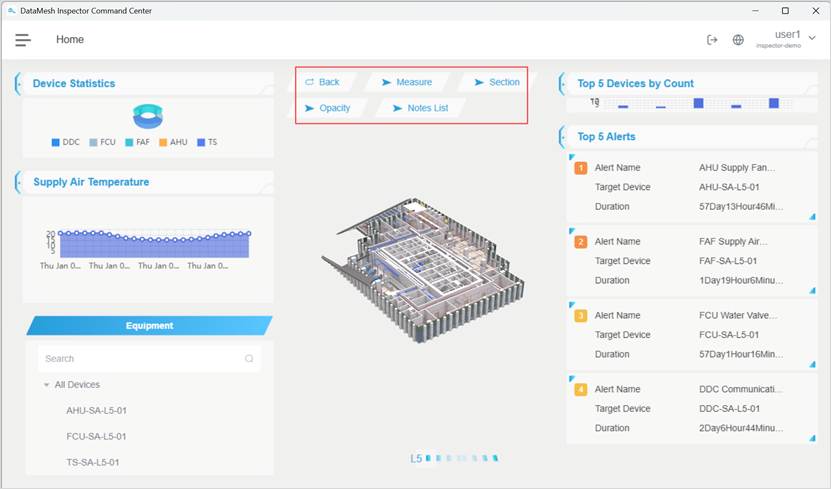
These tools are only for visual and analytical assistance and will not have any effect on scene data, device status, or alert rules.
Instructions
- The scene analysis tools are used to assist in the visual analysis of spaces and devices, primarily serving alert assessment, device location, and impact scope analysis.
- All analysis tools only affect the current view presentation and will not modify any original data, device status, or alert rules.
- The scene analysis tools are mainly used during the analysis and judgment phase and are not a required step in the alert handling process.
- Analytical results are normally used to support the following decisions:
- Whether further device location is required.
- Whether it is necessary to drill down to a smaller spatial level.
- Whether an on-site inspection needs to be arranged.
Measurement Tool
Measures the distance between two points in the 3D scene.
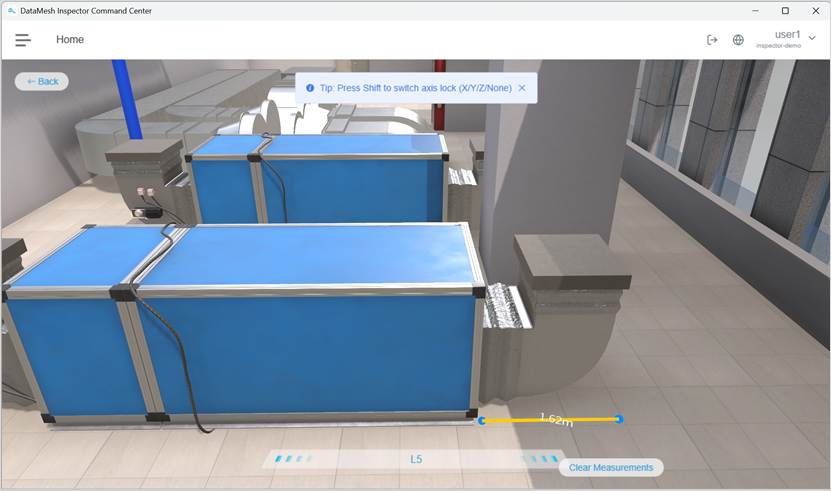
Typical application scenarios:
- Determining whether the spatial distance between devices meets installation or maintenance requirements.
- Assisting in the analysis of pipeline routing, device spacing, or the width of spatial passages.
- During alert analysis, assess the spatial relationships between the anomalous device and surrounding facilities.
Steps
- Click Measure to enter measurement mode.
- Click the first point in the scene as the measurement start point. By default, the measurement direction is arbitrary.
- Press Shift to toggle measurement direction:
- X-axis direction
- Y-axis direction
- Z-axis direction
- Any direction (not locked)
- After confirming the required measurement direction, click the second point in the scene to complete a measurement and display the measured distance.
- Repeat as needed for multiple measurements.
- Select a measurement line to delete it, or click Clear Measurements to remove all.
- Click Back to exit.
Note:
- Measurement points can snap to the model’s surface or edges to improve measurement accuracy.
- Measurement results are for the current analysis only and will not be saved.
Section tool
Cuts the model to reveal internal structures hidden by walls, floors, or ceilings.
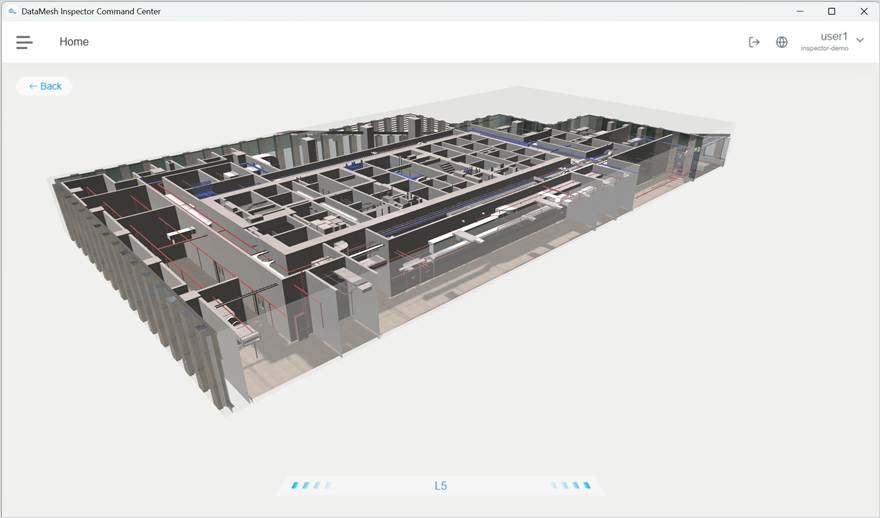
Typical application scenarios:
- View device or pipelines hidden by walls, floors, or ceilings.
- Analyze the spatial relationships between concealed works and the device.
- Assist in locating the true spatial position of the device in scenes with complex building structures.
Steps:
- Click Section in the spatial scene hierarchy to enter section mode.
- Drag the section plane within the scene to perform localized sectioning of the model.
- Sections can be made from different directions to view internal structures more clearly.
- Click Back to restore the scene model and return to the default view.
Note:
- Sectioning only affects the current view display and does not modify scene data.
- When the current scene is organized by floors, sectioning is mainly used to view the internal structures of floors.
Opacity adjustment
Reduces visual obstruction to highlight devices or structures.
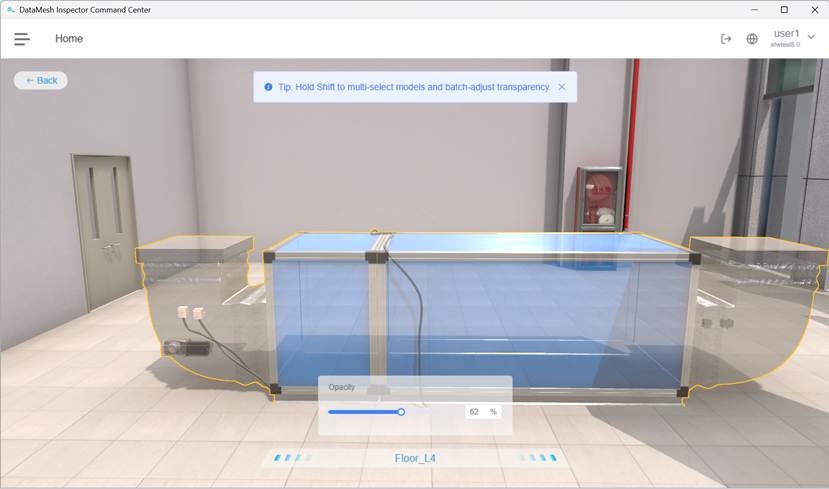
Typical application scenarios:
- Quickly identify the target device within multi-layer structures.
- View upstream and downstream relationships of the device in pipeline-dense areas.
Steps
- Click Opacity in the spatial scene hierarchy to enter opacity adjustment mode.
- Select the models to be adjusted in the scene. You can press Shift to multi-select.
- Use the slider or enter numeric values to uniformly adjust the opacity of the selected models.
- Click Back to exit opacity adjustment mode and restore the models’ display statuses.
Note:
- Supports selecting multiple models simultaneously for unified adjustment.
- Opacity adjustments affect only the current view and will not be saved.
Notes List (Analysis and Management Assistance)
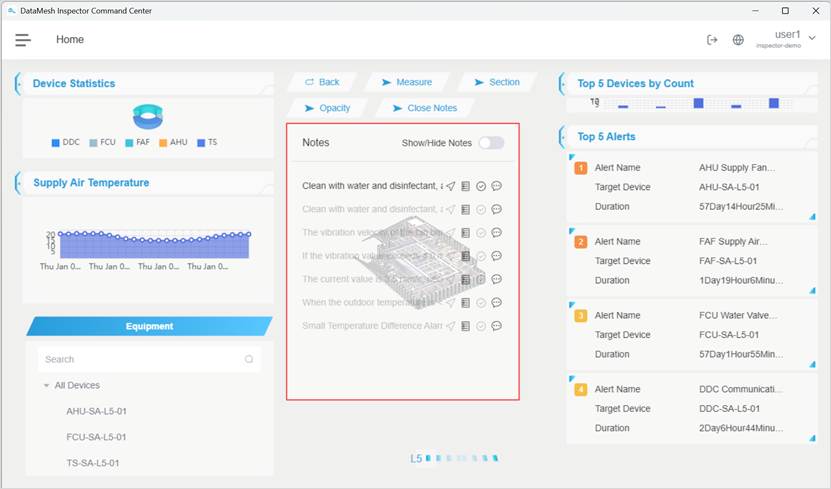
The notes list is used to centrally view and manage recorded notes within the 3D scene and serves as an important aid during the scene analysis phase.
In building-, floor-, or park-level 3D scenes, operations personnel can use the scene notes list to perform retrospective analysis and localization of devices or components within the current scene from the perspective of “issue records.”
Function Description
In the notes list, you can:
- View note records within the current scene.
- Quickly locate target devices or components in the 3D scene through the locate icon.
- View note details and comment records, and mark notes as resolved after the issue has been handled.
Instructions
- The scene-level notes list starts from “Issue / Record” and does not depend on pre-selecting a specific device.
- Notes are mainly used for analysis and management assistance and do not affect the device’s raw data, alert rules, or system runtime status.
- After locating a device through the notes list, you can further enter the device information interface for detailed viewing and management.
Note: Notes, as analysis and management records during operation, can be used for issue tracing and collaborative communication.
Locate the target device
In the Command Center’s 3D scene, you can quickly locate target device in multiple ways and view the device information or perform subsequent management operations within the scene context.
Different localization methods are suitable for different starting points of work, but all ultimately complete the device location and highlighting within the 3D scene.
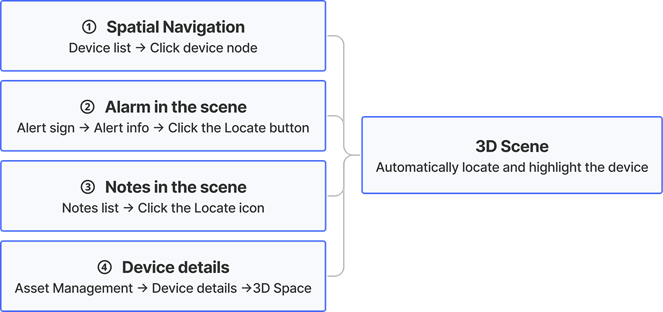
Method 1: Spatial Navigation
Suitable for scenarios where the device name is known or when you need to find the device from the spatial structure.
Commonly used for step-by-step device inspection by building or floor, or for analysis from a spatial perspective.
1. Enter the target building or floor scene through the spatial navigation bar.
2. In the device list of the spatial navigation bar, the system will display all devices within the current scene.
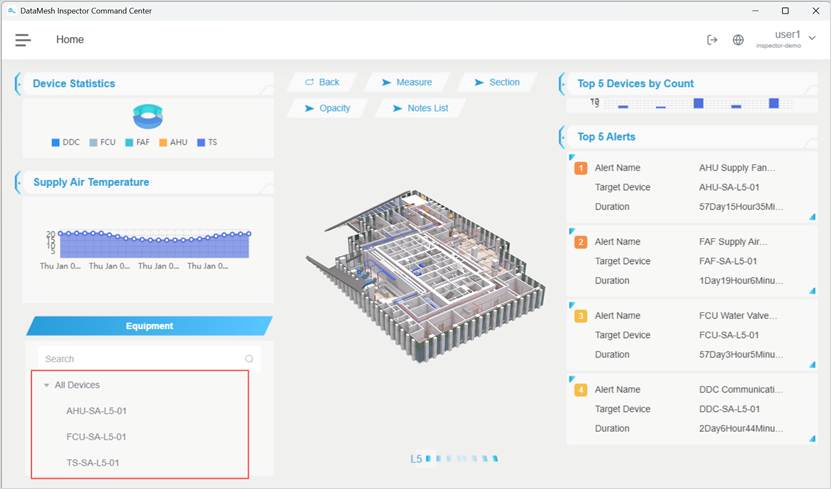
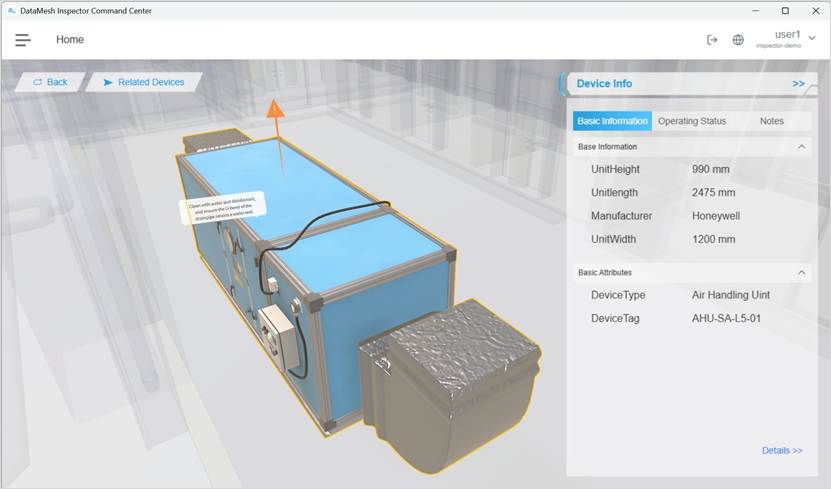
3. Click any device node, and the system will automatically locate and highlight that device in the 3D scene.
Method 2: From an Alert
Applicable to scenarios of quickly locating alerted devices starting from anomalies or operational issues.
Commonly used during operations monitoring to quickly jump from an alert indicator to the location of the problematic device.
1. In 3D map scenes at the park, building, or floor level, pay attention to alert indicators displayed in the scene.
2. Click the alert sign in the scene, and the system will open the corresponding alert information window.
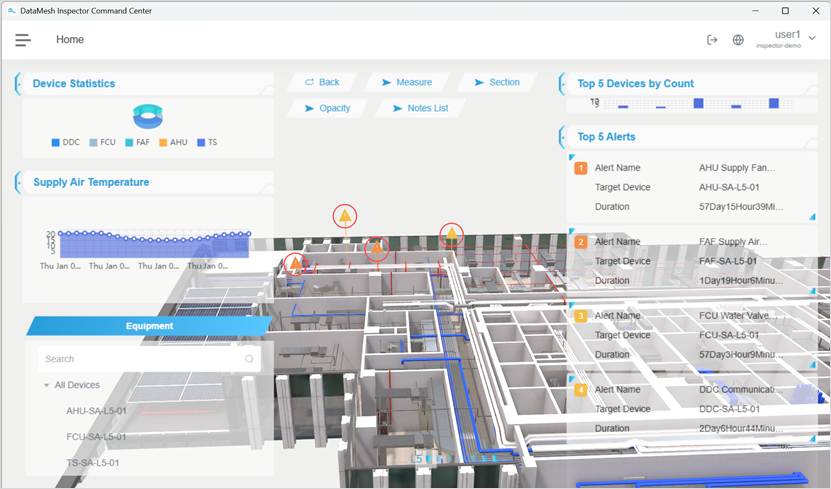
3. In the alert information window, click the “Locate” button.
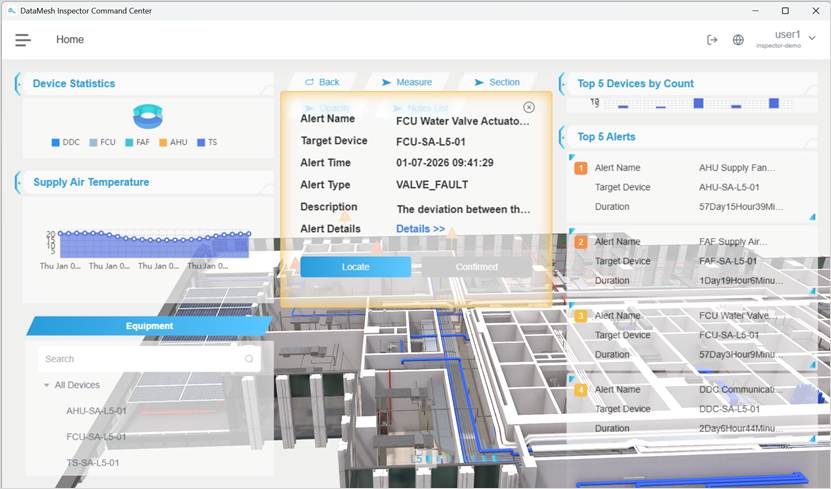
4. The system will automatically locate and highlight the device associated with that alert in the 3D scene.
Method 3: From Notes list
Applicable to scenarios involving retrospective analysis based on historical issues, inspection records, or note information.
Commonly used to review recorded issues and re-examine how they were handled.
1. In floor-, building-, or park-level 3D scenes.
2. Click the Notes List button on the scene analysis toolbar.
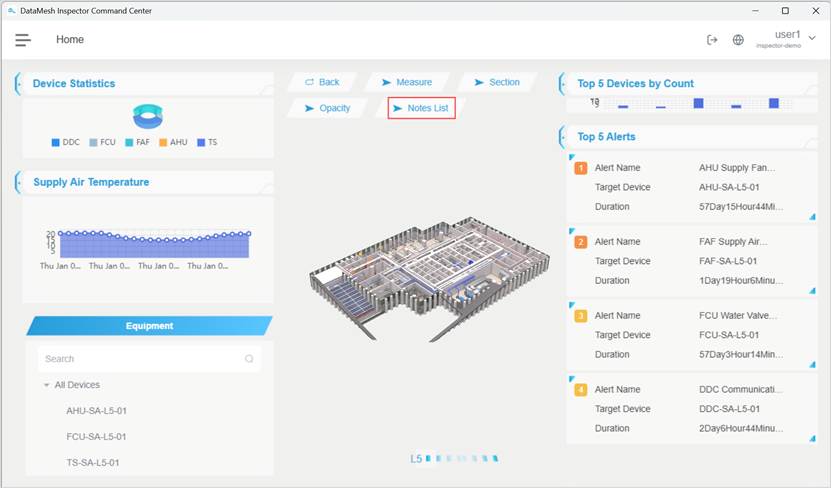
3. The system will open the notes list within the current scene.
4. In the notes list, click the locate button  , and the system will automatically locate and highlight the corresponding device or component in the 3D scene.
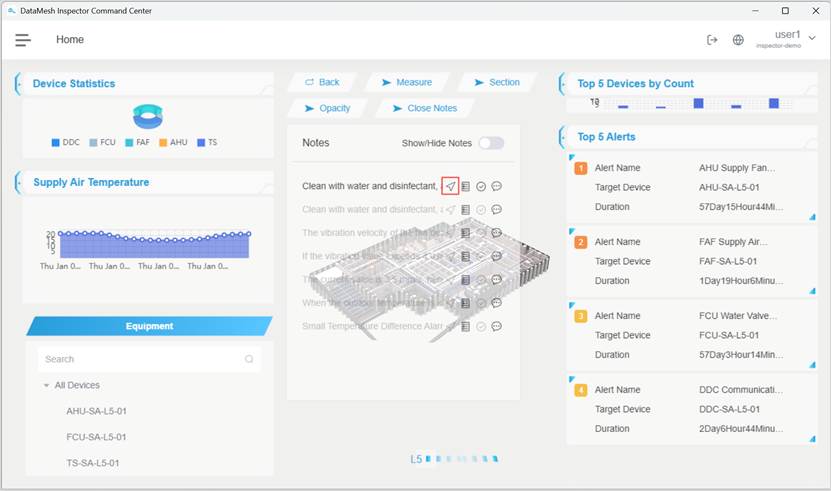
Method 4: From Asset Management
Applicable to scenarios where you start from device information, alert records, or device attributes and trace back to their spatial location for analysis.
Commonly used to further understand the physical environment of a device in 3D scenes after viewing its details.
1. Enter the Asset Management module in the Command Center.
2. Find and click the target device in the device list to open the Device Details page.
3. In the Device Information area of the Device Details page, click the 3D Space.
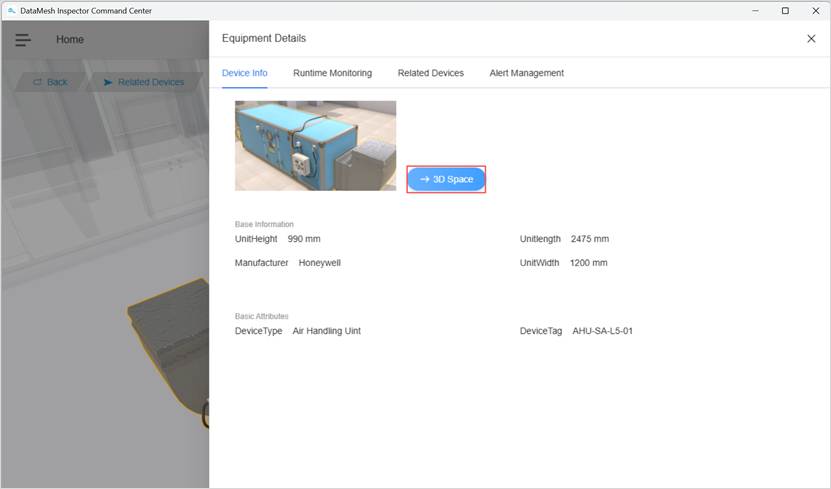
4. The system will automatically switch to the 3D scene and locate and highlight the device within the scene.
Usage Recommendations
- When inspecting the device layer by layer through the spatial structure, it is recommended to use Method 1 (Spatial Navigation).
- When quickly locating a device starting from an anomaly or alert, it is recommended to use Method 2 (From an alert).
- When conducting retrospective analysis based on historical issues, inspection records, or notes, it is recommended to use Method 3 (From the notes list).
- When returning to a device’s spatial position from device information or alert records, it is recommended to use Method 4 (From asset management).
Device view (analysis and management after device localization)
When a specific device is located via spatial navigation, alerts, notes, or asset management, the 3D scene will switch to the Device View.
The Device View is used to focus on a single device, centrally displaying its information, operating status, related devices, and note records, which serves as an important interface for problem analysis and handling.
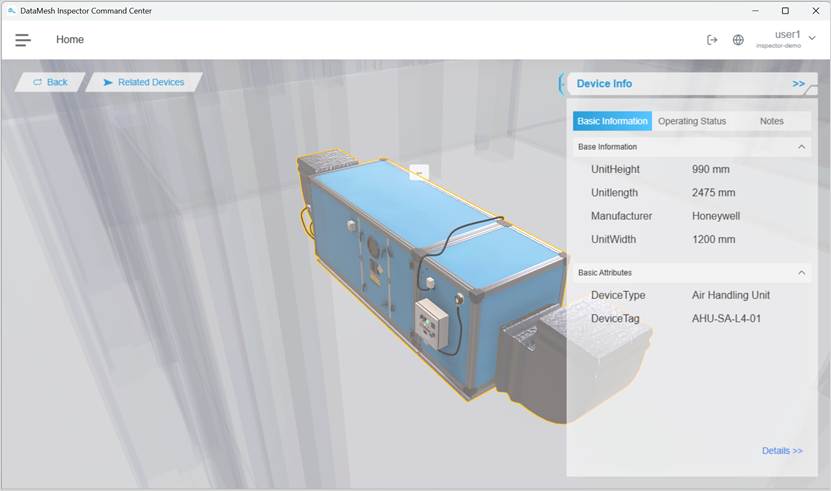
In the Device View, you can:
- View the device’s basic information and operational status.
- View the device’s upstream and downstream relationships.
- Apply color marking and manage notes for the device to record analysis conclusions or manage notes.
View device information
In the Device View, the right-side information panel displays the device’s basic information, operating status, and related note records, helping operations personnel understand the device from multiple dimensions.
The device information panel contains the following three tabs, with the Basic Information tab shown by default:
- Basic information: Used to describe the static attributes of the device, such as model, serial number, and affiliated system.
- Operating Status: Used to display the device’s current operational data or status changes.
- Notes: Used to record analysis conclusions, problem descriptions, or handling notes related to the device, serving as operational management records.
Steps
- On the Basic Info tab, view the device’s basic attribute information.
- Click Details to open this device’s detail page to view more device information.
- Switch to the Operating Status tab to view the device’s current operational status and related dynamic data.
- Switch to the Notes tab to view or manage the device’s note records.
Note:
The specific information that can be displayed for different devices may vary depending on project configuration.
View device relationships
Device relationships are used to display upstream/downstream or associations between the current device and other devices, helping operations personnel quickly assess the scope of impact.
Steps
- In the device view, click Related Devices to enter the related device mode.
- Relationship lines between the current device and its related devices will be displayed in the 3D scene.
- If the business relationship contains descriptive information, the corresponding explanatory text will be shown on the connecting line.
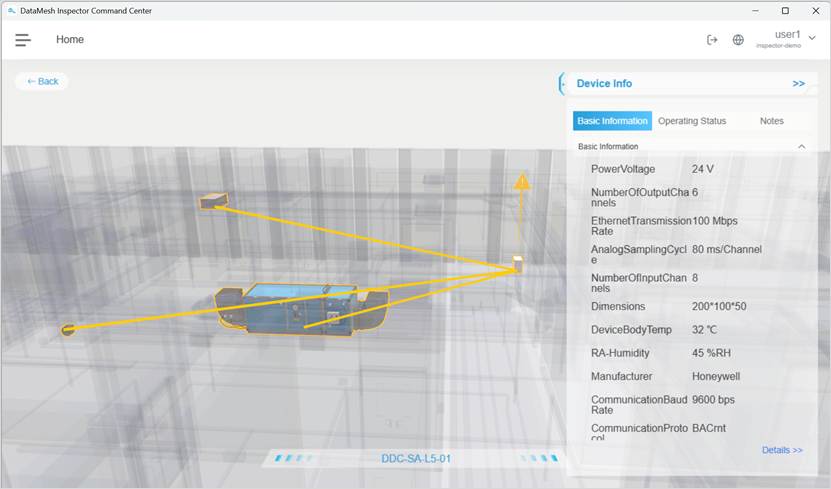
Display Rules:
- Related devices located within the current scene are shown with highlighted outlines.
- Related devices not in the current scene will be displayed as labels at their corresponding coordinates in the large space.
- Clicking any related device will directly navigate to that device’s information page.
Click Back to return to the current device view.
Color marking and note management
Color markers and notes are used to record operation and maintenance analysis conclusions, on-site findings, or management notes, serving as important auxiliary records during operation.
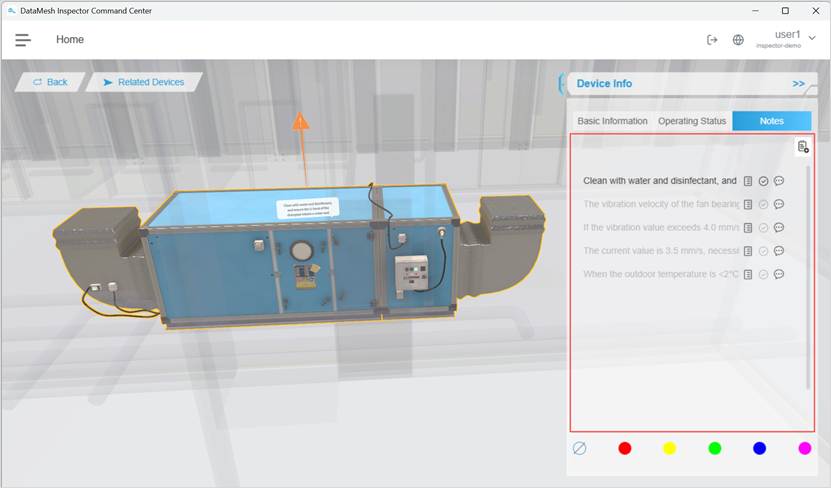
Supported Operations:
- Add note: Add a new note for a device or component.
- View details: View the full content of the note.
- Confirm resolution: Mark the corresponding note as resolved after the issue has been handled.
- View comments: View and reply to comments under the note.
Steps
- On the right side of the device view, in the Device Information panel, click Notes list to view all notes for that device.
- Click Details
 to view and edit the contents of unresolved notes.
 - Click Comment
 to expand the comment list and leave a comment.
 - Click Add Note
 in the 3D scene to select the device or component location, fill in the note description (images can be attached), and optionally apply a color marker to the device.
 - After the issue is resolved, click Confirm Resolution
 to close the note.
Note:
- Only unresolved notes support editing and commenting.
- After a note is confirmed as resolved, editing or commenting will no longer be supported.
- Comment content cannot be modified or deleted to preserve a complete record of the handling.
- Notes and color markings are only used for runtime records and do not affect the original device data.
- Note content is synchronized between the Command Center and Inspector (Mobile Application).
Alert management (viewing and handling)
This section explains how to centrally view and handle alerts in the Command Center (PC Application). Alert management helps operations personnel grasp system anomalies from an overall perspective and to assess, follow up on, and update the status of alerts.
The Command Center and Inspector use a unified alert management mechanism; this section serves as the complete description of alert management.
Applicable Roles:
- Operations Manager
After entering the large-scale scene, you can view the alert information within the current scene through the alert management interface.
Overview of the alert management interface
An alert management interface typically includes the following items:
- Alert statistics and trend information
Displays the total number of alerts, trend changes, and the distribution of alert severity levels within the selected time range, used for quickly understanding the overall alert situation.
- Alert list
Presents specific alert entries in a list format, including alert name, related device, alert location, alert type, alert severity, status, and occurrence time, among other information.
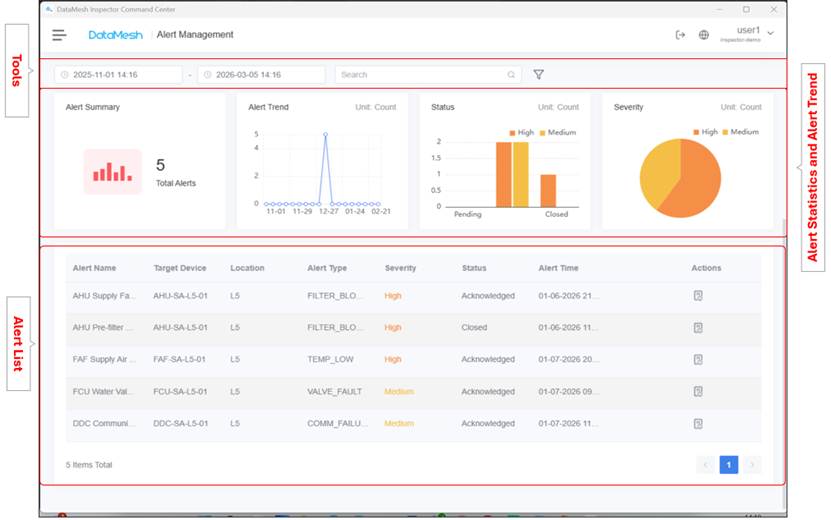
View alert list
In the alert list, you can:
- Browse current alert information to understand the distribution of alerts.
- Quickly identify alerts that require priority attention by alert severity and status.
- Sort or filter alerts as needed based on actual requirements.
The alert list is the primary entry point for alert analysis and subsequent handling.
View alert details
Click any alert entry in the alert list to enter the alert details page.
In the alert details, you can perform the following actions on an alert according to the actual situation:
- View the basic information of the alert.
- Understand the alert occurrence time and the record of status changes.
- Determine whether an alert requires further handling or on-site intervention.
Note:
The alert details page is used for viewing alert information and performing status actions. It does not support direct navigation to the target device. To locate the device associated with the alert, you can view the device details in Asset Management or use the alert location methods outlined in Section Locate the Target Device.
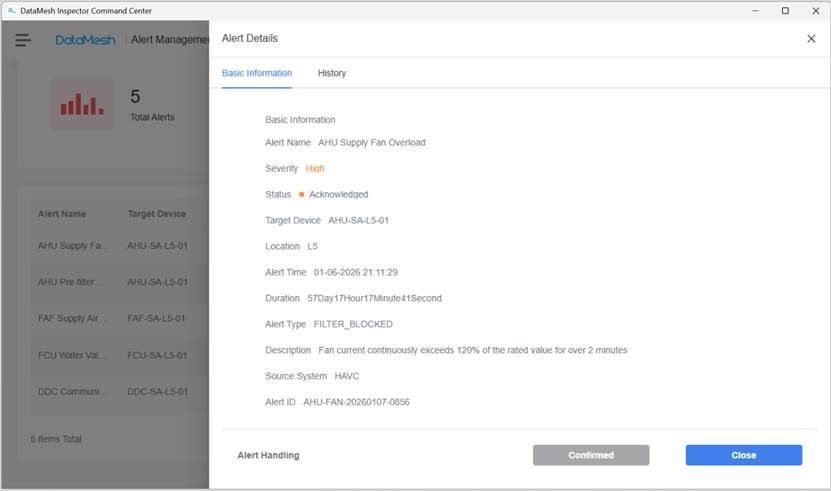
Alert handling operation
In the alert details page, you can perform the following actions based on the situation:
- Confirm Alert
Indicates that the alert has been confirmed and entered the processing workflow. It helps define alert responsibility and track follow-up status. - Close Alert
Indicates that the issue associated with the alert has been resolved or no further action is needed. The alert’s lifecycle ends.
Instructions for use
- The rules for generating alerts and the meaning of alert fields are defined and configured by the DFS platform. Command Center does not provide alert rule configuration capabilities.
- Alert handling is mainly used for monitoring and scheduling during the operation phase and does not indicate that on-site operations are completed.
- If an alert involves on-site device inspection, please carry out follow-up handling in conjunction with Asset Management and Inspector (Mobile / MR Applications).
The Operations Manager can determine whether on-site handling is needed based on alert severity, impact range, and device status.
For alerts that do not require on-site handling, they can be confirmed or closed directly in the Command Center.
Asset management
Asset Management is used to centrally view and analyze device status from the perspective of device lists and information, complementing device viewing in the 3D scene.
Applicable roles:
- Operations Manager
Asset Management serves as a key function for viewing devices within a building or park. It connects scene browsing with alert handling, allowing users to understand device operating status, historical data, and relationships between devices.
Accessing asset management
In the Command Center, you can access the Asset Management module by the following methods:
- Click the top menu icon
 to expand the side navigation menu, then select Asset Management.
- The system will display the device digital twins that have been created and are accessible in the current BIM scene.
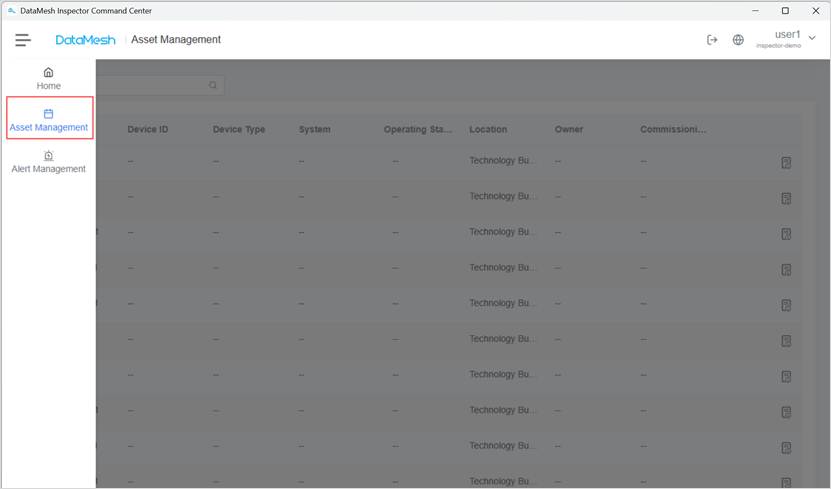
In the device list, you can:
- View the device name, its affiliated system, and status.
- Search for devices using keywords.
- Quickly locate devices that require attention.
The device list serves as the main entry point for accessing device details and further analysis.
Device details
Click on a device entry in the device list to enter the device details interface.
In the device details, you can:
- View the device’s basic information.
- View the device’s current operating status.
- View the alert records related to the device.
- View the relationships between the device and other devices.
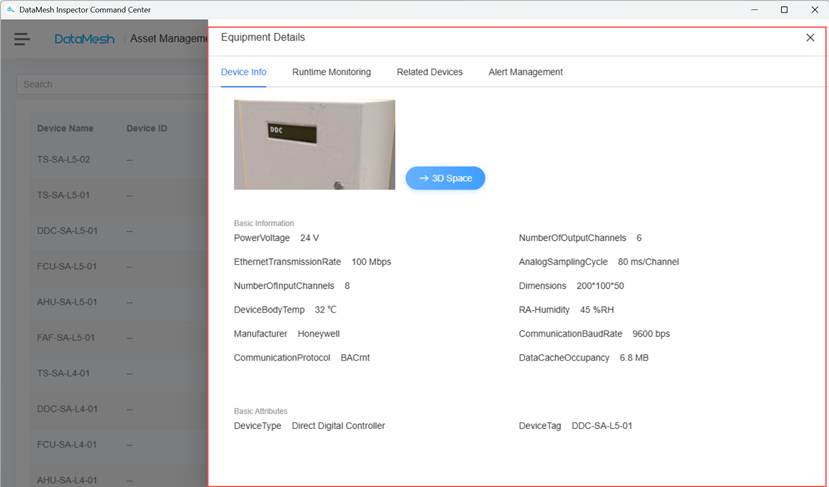
Viewing device and scene association
In the device details page, you can trace the device’s location in the scene from the device’s perspective.
By clicking the 3D Space button under Device Information in the device details:
- Locate the current device within the 3D scene.
- Understand the device’s physical location in the context of the spatial structure.
This feature helps users quickly switch from the device perspective to the spatial view for analysis.
Menu and general settings

Function menu
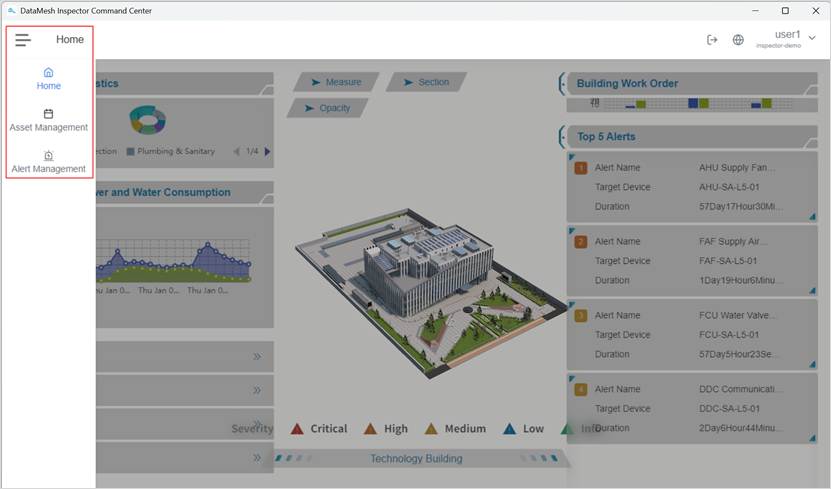
The Function Menu is in the upper-left corner of the interface. Click the menu icon (≡) to expand it.
In the function menu, you can switch between the following core functional modules:
- Home: Enter the 3D scene browsing and analysis interface for a building or park.
- Alert Management: View and handle alert information within the current scene.
- Asset management: View and manage device information from the device list dimension.
The Function Menu allows you to quickly switch between modules without affecting your current login session.
User menu and general settings
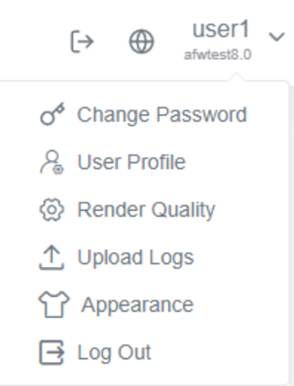
The entry to the user menu is located at the top right corner of the interface and is used to manage account information, runtime environment, and interface display options. It can be expanded by clicking the username.
The User Menu and general settings are divided into two parts:
- Shortcut buttons to the left of the username (such as language switching).
- The expanded user menu (after clicking the username) provides access to account and general settings.
 Language
Button near the user menu, which is used to switch the system display language.
 Switch Enterprise
If your account belongs to multiple enterprises, you can switch the active enterprise here.
If you are unsure which enterprises are available, contact your enterprise administrator.
 Change Password
Change the login password for the current account. User Profile
View basic information of the currently logged-in account. You can also edit your display name (account nickname).-
 Render Quality
Adjust the rendering quality of the 3D scene to match your device performance.
On devices with limited performance, selecting a lower rendering level is recommended to improve smoothness.
-
 Upload logs
Upload the most recent seven log files to the FactVerse platform to assist technical support with troubleshooting. -
 Appearance
Switch the interface theme (Light / Dark).  Log out
Log out of the current account and return to the login page.
Exit scene
After entering a specific large-scale scene, an Exit button  appears in the upper-right corner of the interface. This button allows you to leave the current scene and return to the Large-scale scene List page.
Note:
The Exit button only returns you to the scene list. It does not sign you out or clear your login session.