
How Can We Help?
DataMesh One Meta Quest 3 Quick Start Guide
About This Guide
This guide is a supplementary document to the DataMesh One User Manual. It provides instructions on the specific operations and usage of DataMesh One on the Meta Quest 3 device, including device setup, gesture controls, controller operations, and commonly used features.
For general features and detailed operation instructions for DataMesh One, see the DataMesh One User Manual.
Basic Quest 3 Operations
Meta Quest 3 hand tracking gestures
To select something: When the cursor appears, point your hand at what you want to select. Then, pinch your thumb and finger together to select.
Scrolling up, down, left, or right: Pinch your fingers inward. While still pinched inward, move your hand up, down, left or right to scroll. When you’re done scrolling, release.
Brings you back to your Meta Home menu: Look at your palm at eye level, then hold your thumb and index finger together until  fills, then release.
For detailed instructions on the Meta Quest hand tracking gestures, please refer to Getting started with Hand Tracking on Meta Quest headsets.
Use Meta Quest Touch Plus controllers
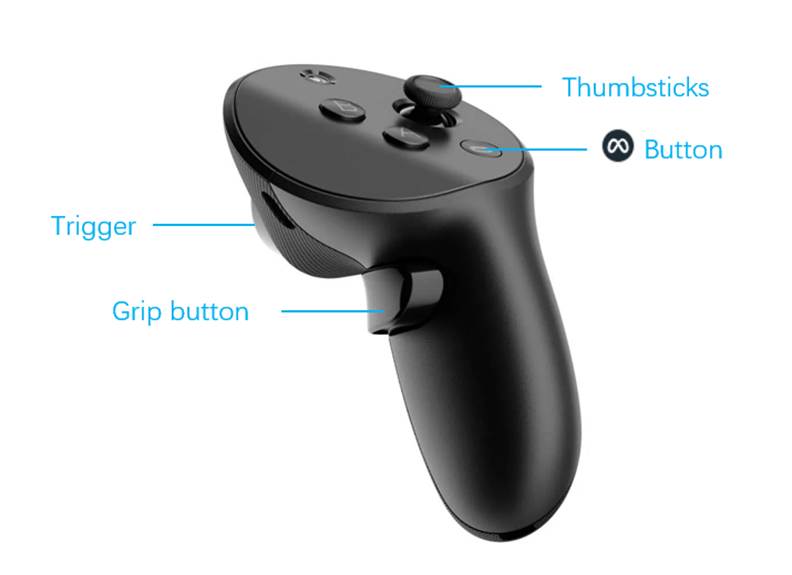
Trigger (on the front of the controller): Used for all click (confirm) interaction operations.
Grip button (on the side of the controller): In the scenario, used to bring up the menu bar.
Thumbsticks: Used to control scenario flipping; swipe left for the previous page, swipe right for the next page.
button: Abort program, enter the system main interface (where you can choose to continue or exit the program). For detailed instructions on the Meta Quest Touch Plus controller, please refer to Meta Quest Touch Plus controllers.
Mode Interface Overview
Standard mode
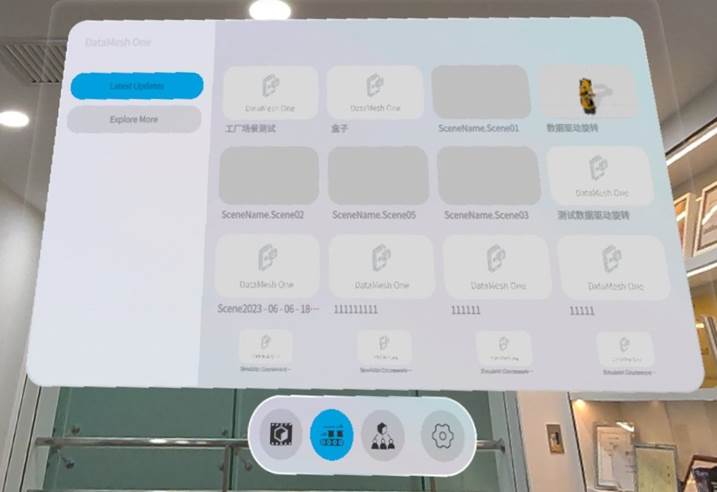
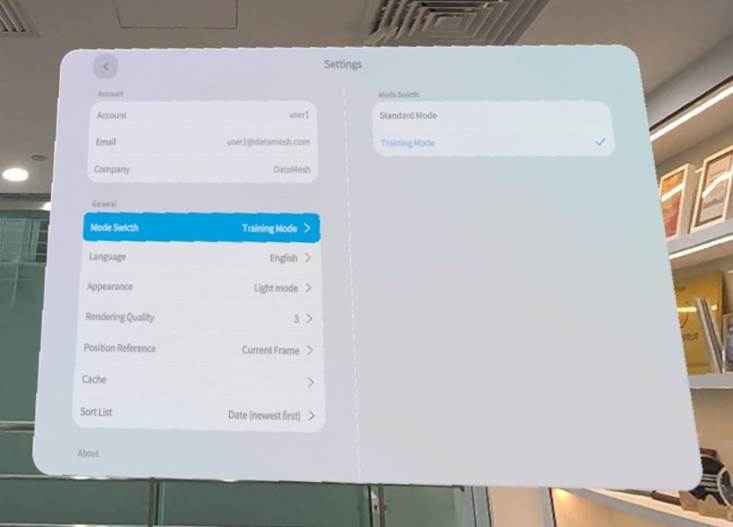
DataMesh One has two browsing modes: Standard Mode and Training Mode. In Standard Mode, users can freely browse various resources and scene contents while also participating in multi-user collaboration events. You can switch browsing modes on the settings page.
Navigation menu
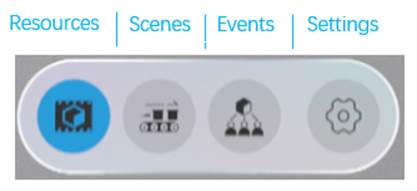
Resources
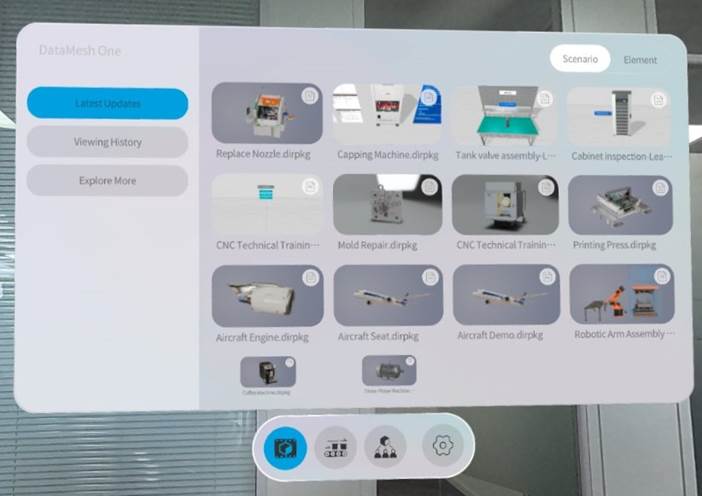
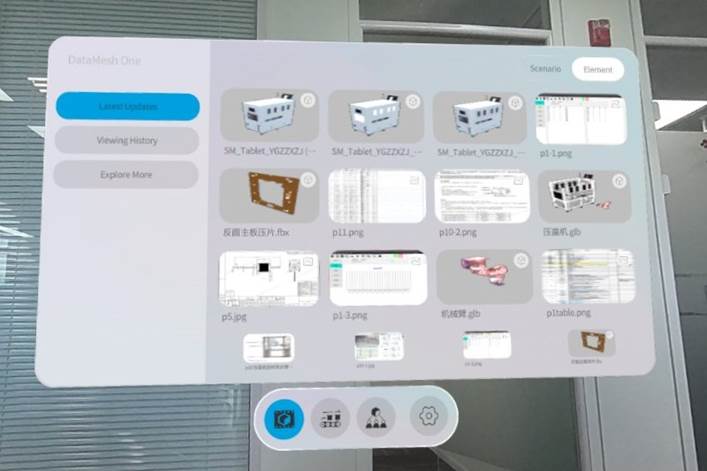
In Standard Mode, the “Resources” page contains all the folder directories and resource files accessible to the current account. You can switch between browsing scenario-type resources or other types of files, such as 3D models, images, and PDF files, by clicking on the Scenario or Element tab in the top right corner of the page.
Scenes
Events
Training mode
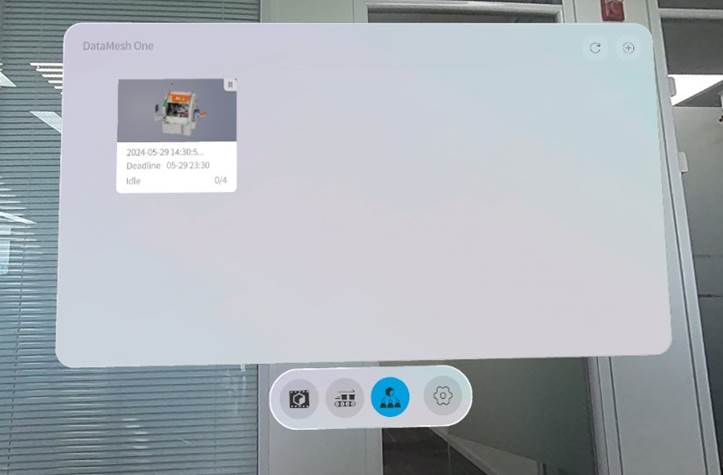
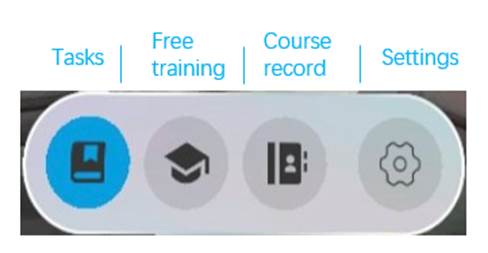
In Training Mode, you can complete learning tasks and exam tasks, experiencing a more immersive learning environment through XR-based technology.
Navigation menu
Group list
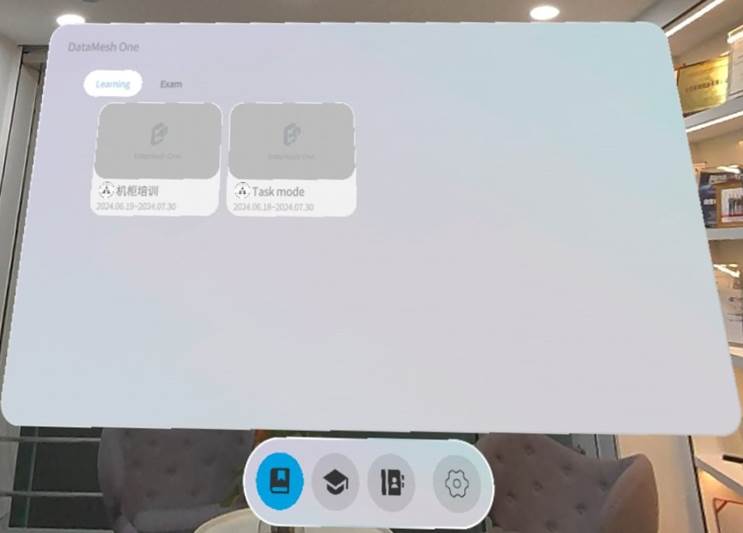
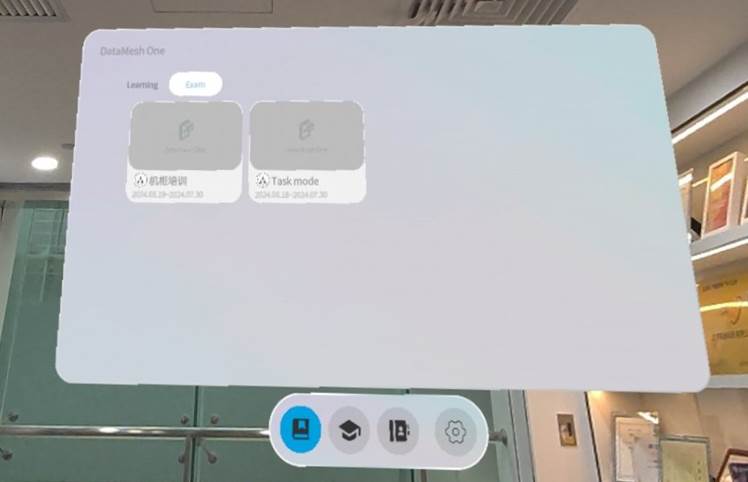
Coureseware list
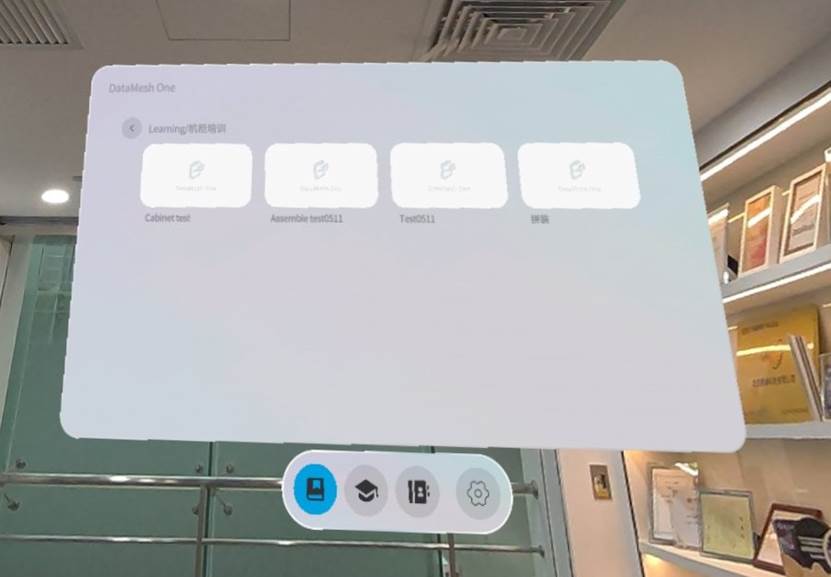
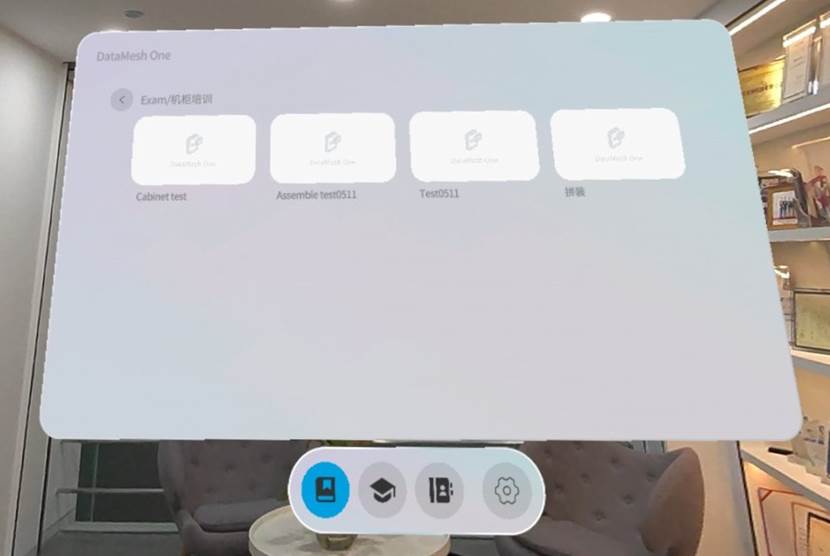
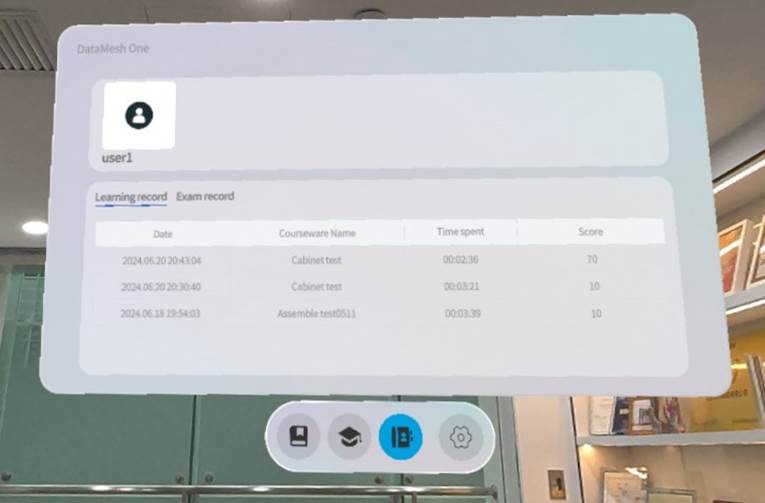
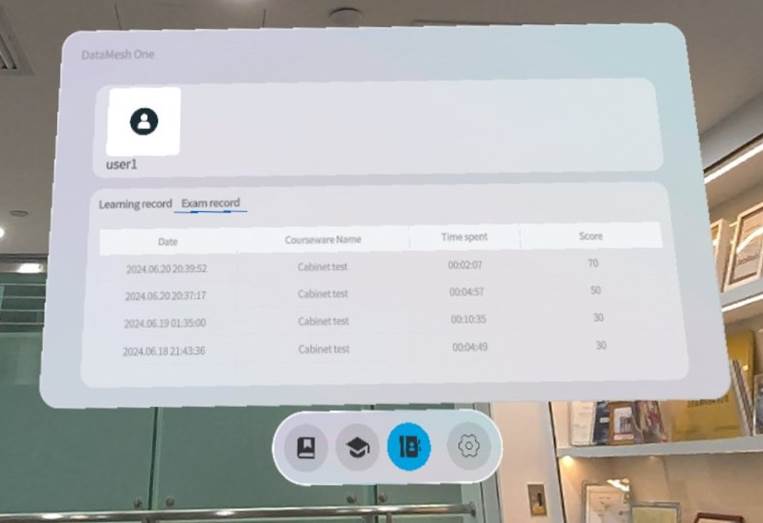
Course record interface
Quick start
Preparation
Connect Wi-Fi
Make sure the Meta Quest 3 device is connected to the internet.
1. Press on the right Touch controller to open the universal menu.
2. Hover over the clock on the left side of the universal menu. Once the Quick Settings appear, select it to open the Quick Settings window.
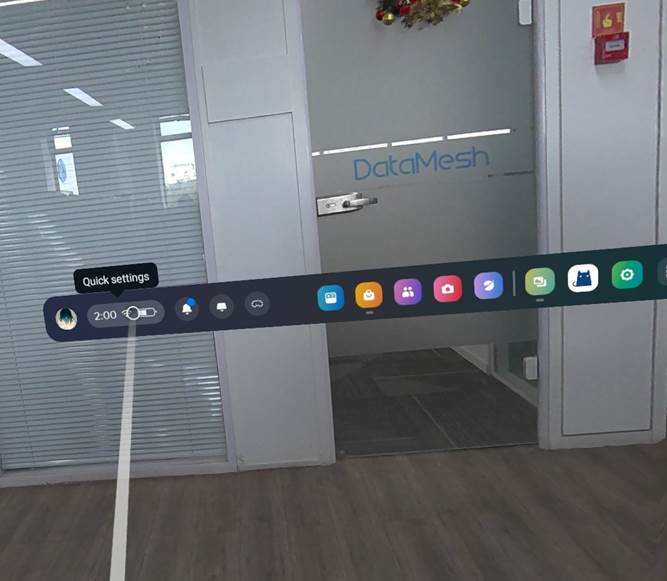
3. Choose Wi-Fi.
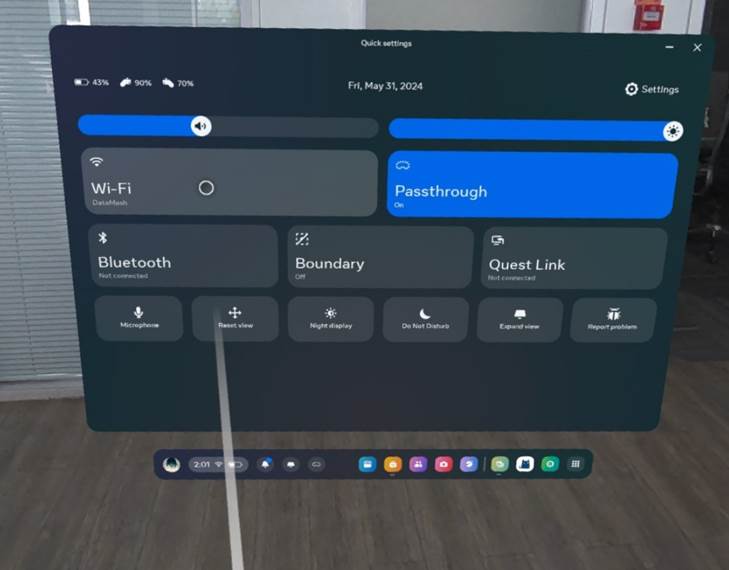
4. Turn on the Wi-Fi switch, then select the Wi-Fi network you want to connect to and enter the password.
Install DataMesh One
Three methods:
- Select the Store from the universal menu, and find and install DataMesh One in the Meta Quest store.
- Download and install DataMesh One via browser from the following address: https://www.meta.com/experiences/7770629926299654/
- Download and install DataMesh One via the short link: datame.sh/OneQuest3.
Set boundaries
Before starting to set boundaries, please make sure you have worn the Meta Quest device and ensure that the surrounding environment is open and free of obstacles that may threaten your safety.
Note that during the use of DataMesh One, when you step out of the boundary, you will not be able to view 3D models, files, and other resources, so please operate within the set boundaries.
The steps to set boundaries are as follows:
1. Press on your right Touch controller to pull up your universal menu.
2. Hover over the clock on the left side of the universal menu. When Quick Settings appears, select it to open the Quick Settings panel.
3. Select  Boundary.
4. Select Stationary or Roomscale, then follow the on-screen instructions to set up your boundary.
- Stationary: For using your headset while sitting or standing in place. Stationary Mode creates a default boundary area of 3 feet by 3 feet (1 meter by 1 meter) centered on yourself.
- Roomscale: For using your headset while moving around inside your play area. Roomscale allows you to draw your boundaries in your physical space using your Touch controller. We recommend a safe and unobstructed space measuring at least 6.5 feet by 6.5 feet (2 meters by 2 meters).
For more information on setting boundaries for Meta Quest, please refer to Set up your boundary for Meta Quest.
Enable Camera Permissions for QR Code Scanning
To use the QR code scanning feature, first grant DataMesh One the required camera permissions.
- Open the Quick Settings window and select
- In the Settings interface, select Privacy & Security.
- Select App Permissions.
- Select Headset Camera and Avatar Camera respectively, and enable camera access for DataMesh One.
Login
Click on the account input box, and a virtual keyboard will appear. Enter your account and password in sequence to log in.
Login interface
Click on the account input box, and a virtual keyboard will appear. Enter your account and password in sequence to log in.
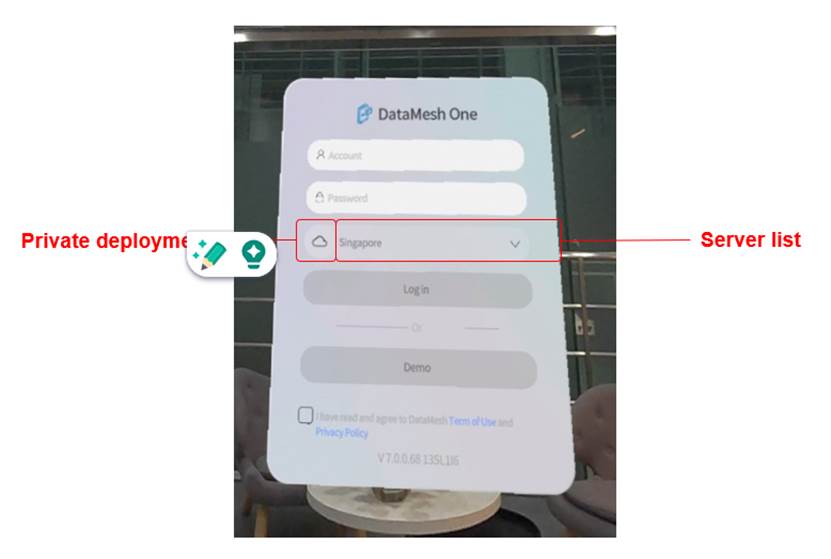
- Private Deployment
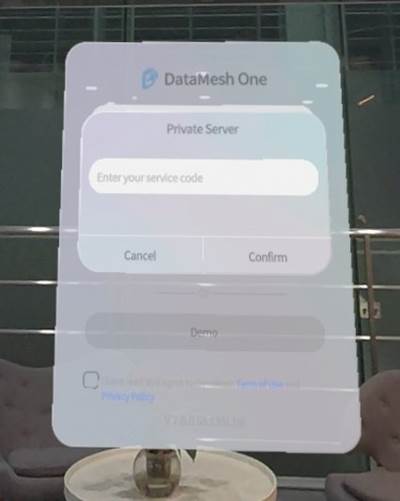
 : When logging in to an enterprise using a private deployment server, you need to set a private deployment service code. Users can click on this icon to set the private deployment service code.
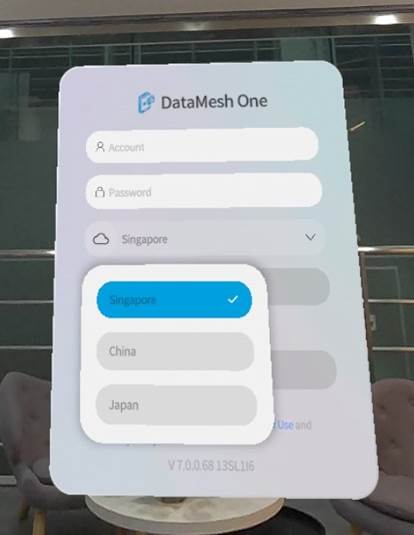
- Server List: Clicking on the server list allows you to switch server regions.
- Demo Mode: Clicking on it to enter DataMesh One in guest mode.
Log In with Account and Password
On the DataMesh One login page, sign in using your FactVerse account and password.
Steps
- Open the DataMesh One login page.
- Configure the server:
- Select a public server: If your enterprise is deployed on a public server, select the server associated with your enterprise account from the server list.
- Configure a private deployment server: If your enterprise uses a private deployment server, click the private deployment icon
 to set the dedicated service code.
- In the login window, enter your FactVerse account and password.
- Select the “I have read and agree to the DataMesh Terms of Use and Privacy Policy” checkbox, and then click the Log In button.
- Select the enterprise to log in to: If your account belongs to multiple enterprises, an enterprise list will be displayed for you to select an enterprise.
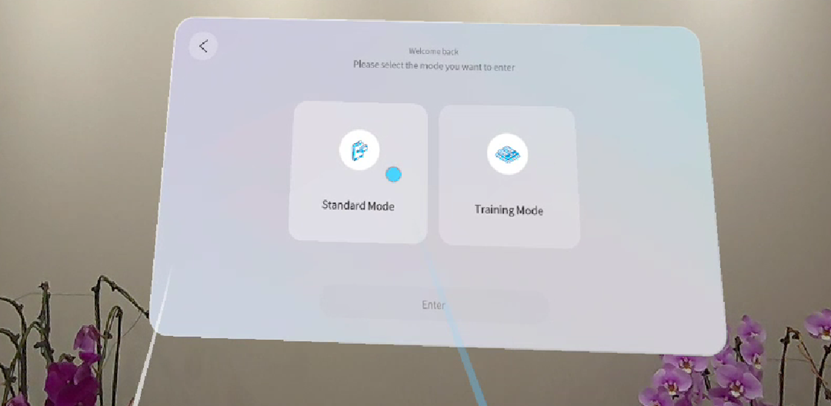
- Select a usage mode: If your account has Licenses for two different usage modes, the mode selection page will be displayed. Select a mode, and then click the Enter button to complete the login process.
Log in via QR code
Use cases
- FactVerse users: Log in by scanning the QR code generated from the platform account.
- Temporary training group members: Log in by scanning the QR code of the temporary training group.
Steps
1. Prepare the QR code
- FactVerse users: In the account menu at the upper-right corner of the platform, click Scan to Log In to open the QR code window. The system automatically generates a QR code that refreshes periodically.
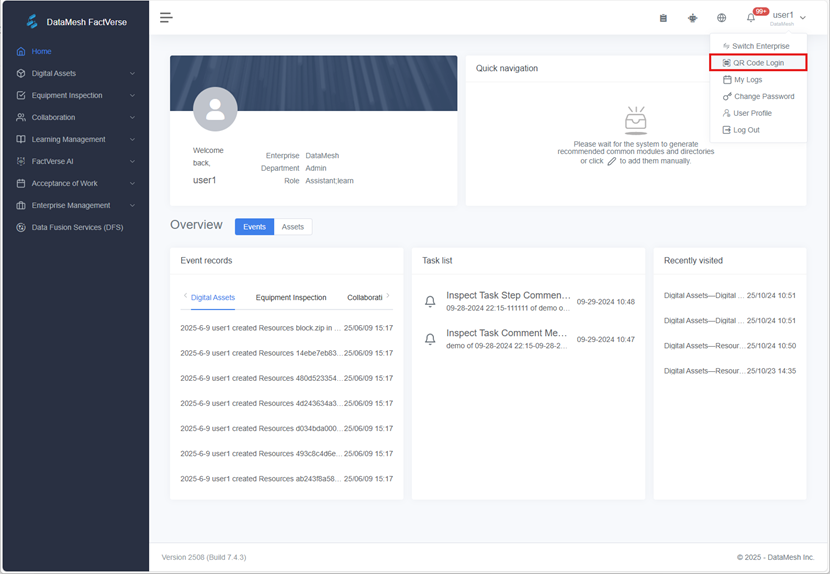
- Temporary training group members: The instructor obtains the training group QR code and distributes it to temporary training group members.
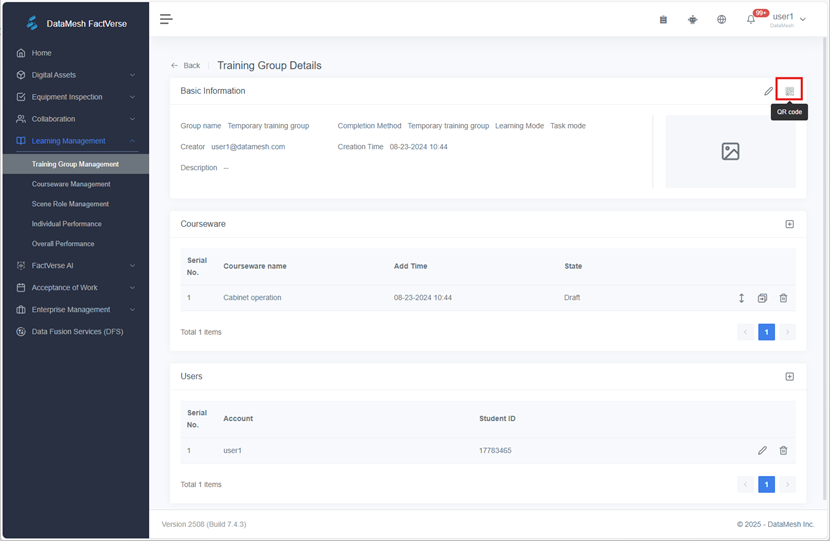
2. On the Quest device:
a) Open the DataMesh One login interface.
b) Configure the server.
Note: Make sure the selected server on the Quest matches the one used on the FactVerse platform. For example, if “China” is selected on Quest, you must log in via https://dcs.datamesh.com.cn on the platform for the QR code to be recognized correctly.
c) Click the scan icon image .
.
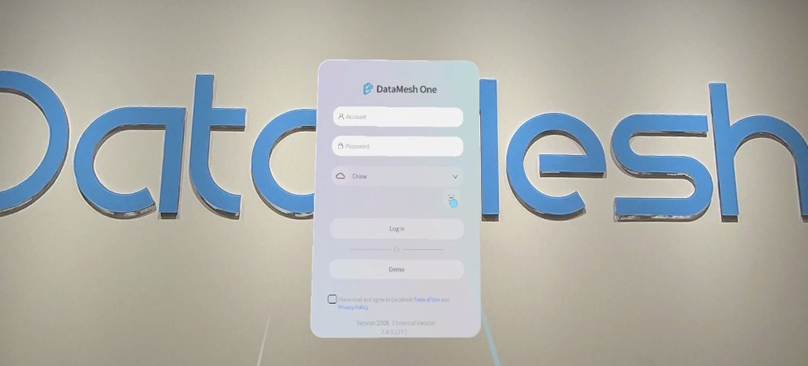
A scanning frame appears.
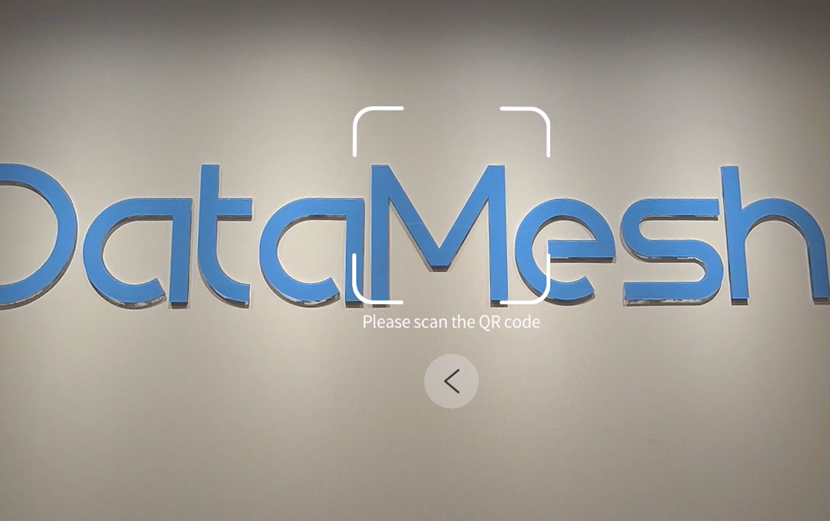
d) Scan the QR code generated on the FactVerse platform.
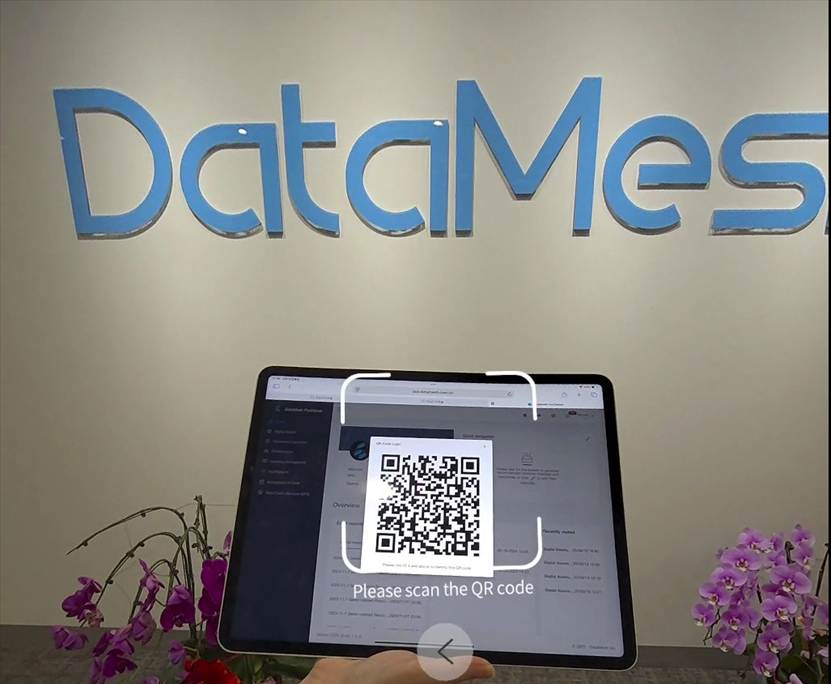
e) Once scanned successfully, a confirmation popup will appear.
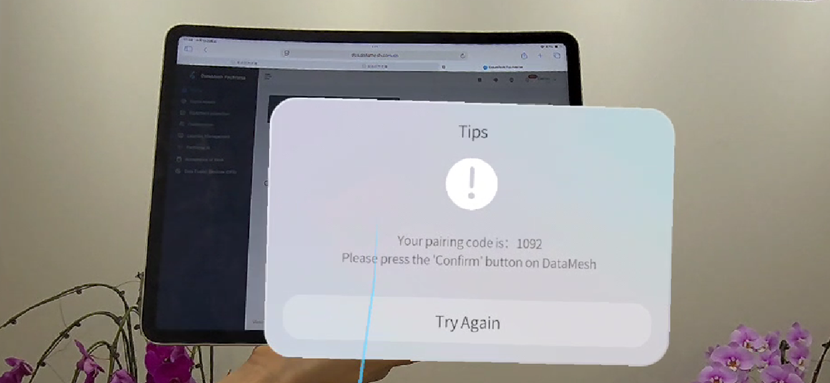
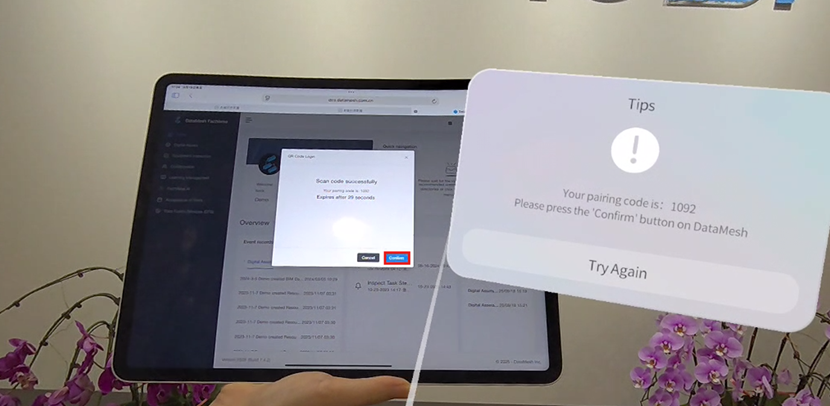
3. On the FactVerse platform, a confirmation dialog will appear. Click Confirm to proceed.
4. If your account supports both Standard Mode and Training Mode, you’ll be prompted to select a mode. Choose one and click Enter to complete the login process.
Play scenario
In the standard mode of DataMesh One, you can follow these steps to play the scenario:
1. In the resources page, select the scenario file you want to open, press the Trigger button at the front end of the right Touch controller, or open the scenario through gestures.
2. After the scenario is loaded, start playing the scenario.
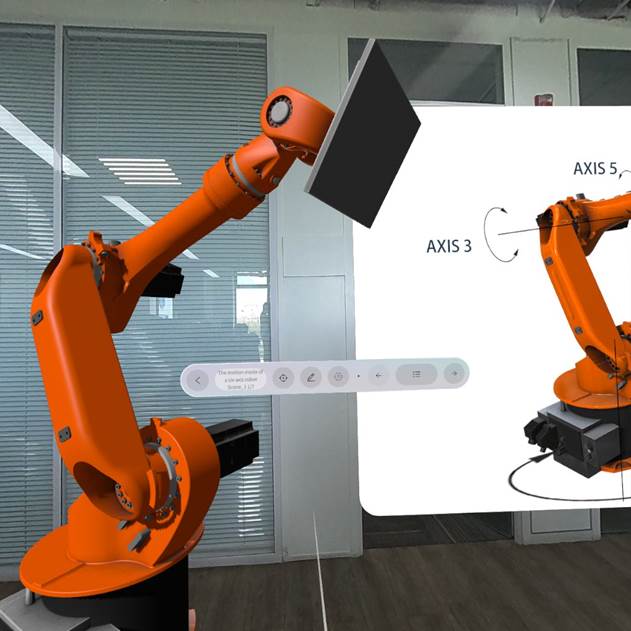
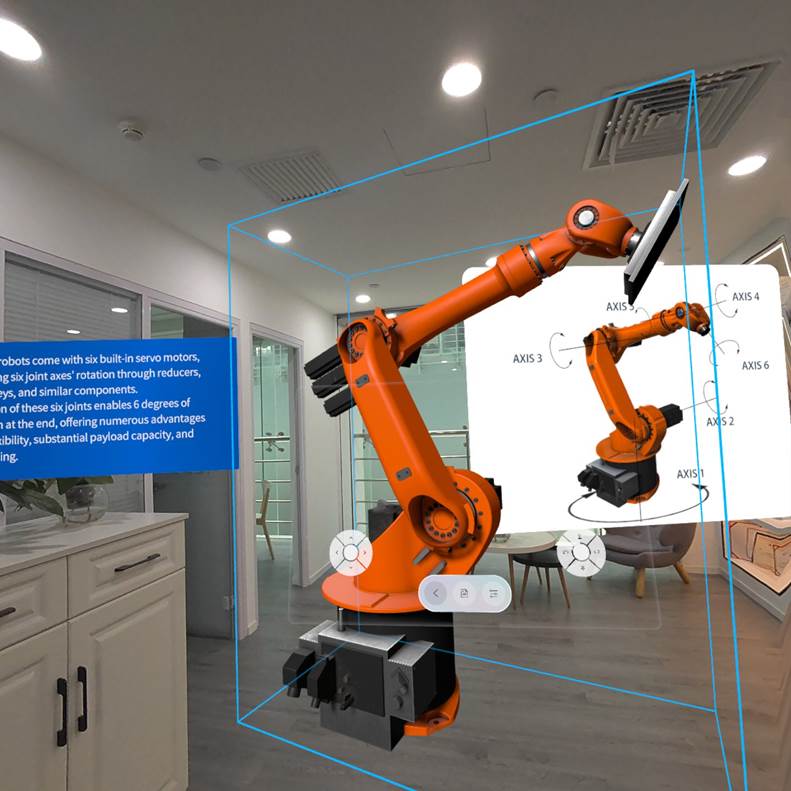
In the scenario playback interface, you can use the scenario operation menu to position and edit the scenario. The scenario operation menu is as follows:

- Position: Click to enter positioning mode.
- Edit: Drag, move, rotate, etc., the model as a whole or in parts through gestures.
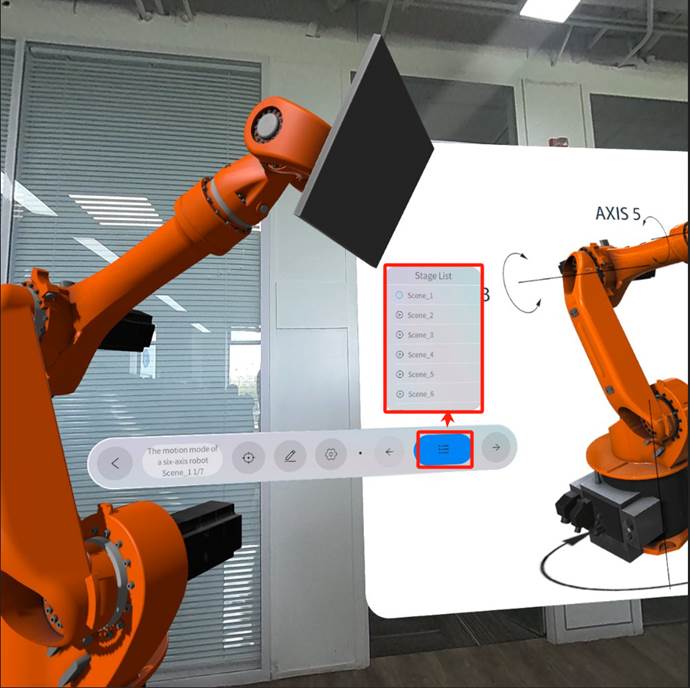
- Stage List: Click to display a list of scenario scene playback steps, and click on the scene name to jump to the specified scene
- Exit: Click to exit scenario playback
- Back/Next: Page-turning arrows.
Open Resources via QR Code
Use cases
Quickly load resources, such as models and scenarios, from the FactVerse platform by scanning a QR code.
Steps
1. Get the QR code
a) Go to FactVerse Platform → Digital Assets → Resources.
b) Locate the target resource file and open its Resource Details page.
c) Obtain the resource code or share code.
2. On the Quest device:
a) Log in to DataMesh One.
b) In Standard Mode, go to the Resources section (first icon in the bottom navigation bar).
c) Click the scan button  to open the QR code scanning interface.
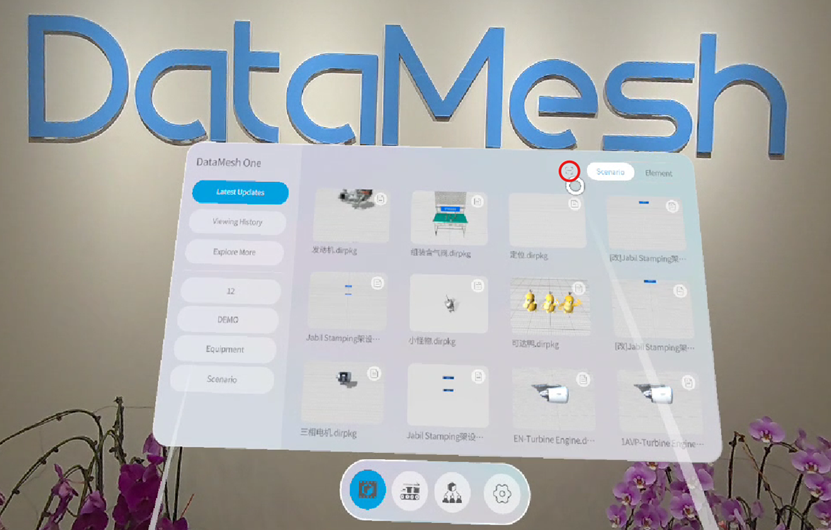
d) Scan the resource code or share code to load and open the corresponding model or scenario.
Note: Resource QR codes can be scanned from the Resources page after logging in. Share codes can be scanned from the login page or through the QR code scanning entry in Guest Mode to access the corresponding resources.
Locate resources via QR code
Use cases
Position resources in the physical space using printed QR codes. Supported use cases include:
- Standard Mode: Positioning for scenarios or storylines
- Training Mode:
- Learners: Positioning for study or exam materials
- Instructors: For exam supervision
Steps
1. Download and place the positioning code:
a) In FactVerse Platform → Digital Assets → Resources library, find the target scenario.
b) Open its Resource Details page and download the positioning QR code.
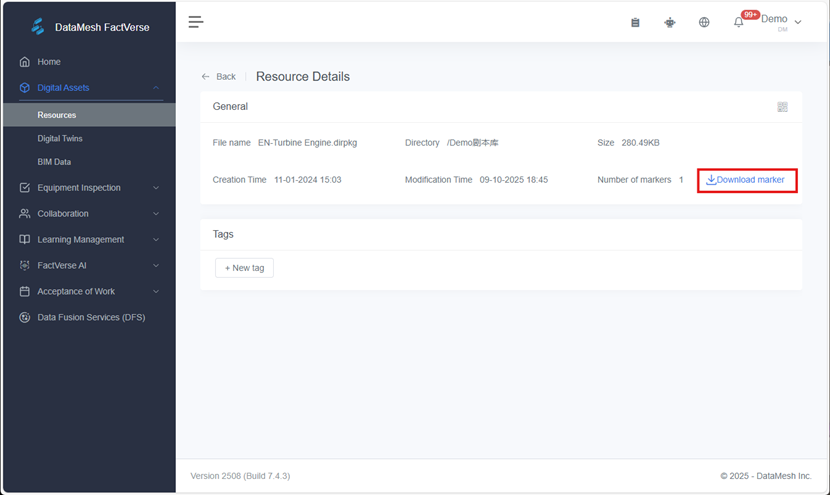
c) Print the code and place it at the intended physical location.
2. Operate on Meta Quest:
a) Log in to DataMesh One and open the relevant resource
- General users: Open the storyline or scenario in Standard Mode
- Learners: Access learning/exam content in Training Mode
- Instructors: Enter the Supervision section in Training Mode
b) Tap the Positioning icon in the bottom toolbar.
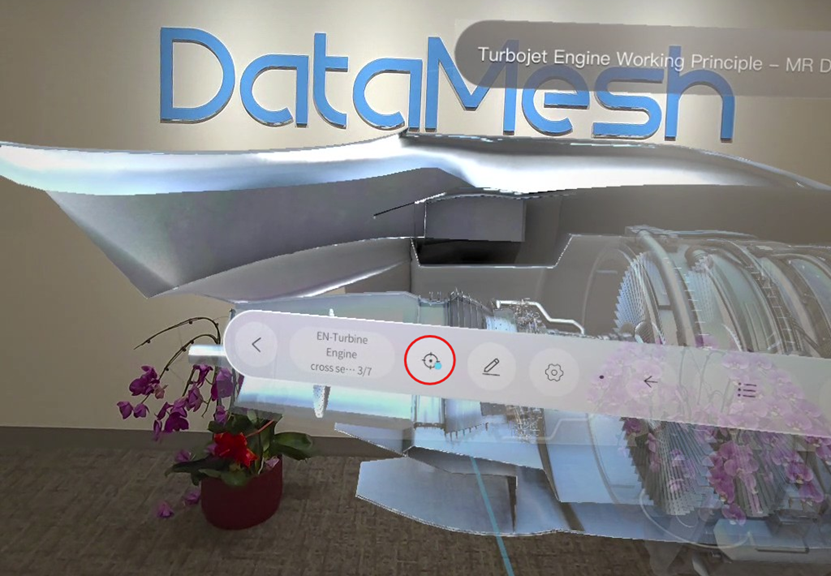
3. Click the Scan to Position button to open the scanning interface.
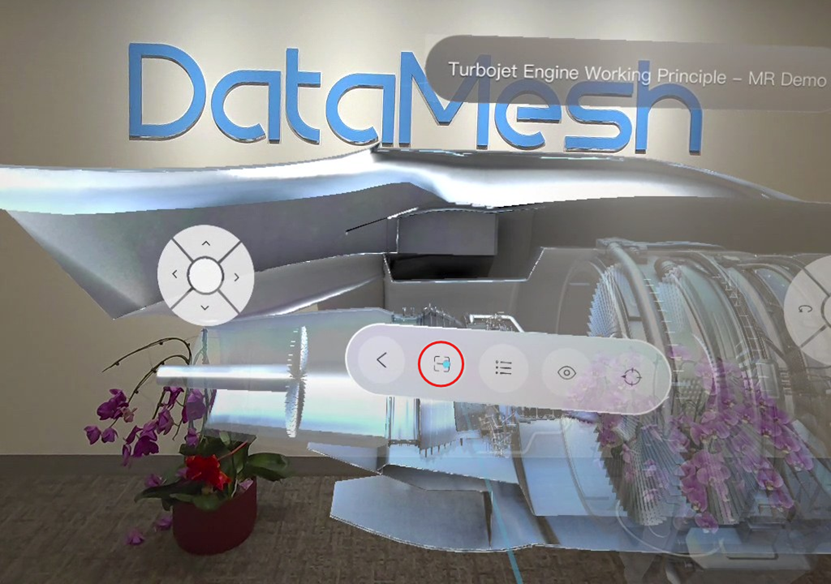
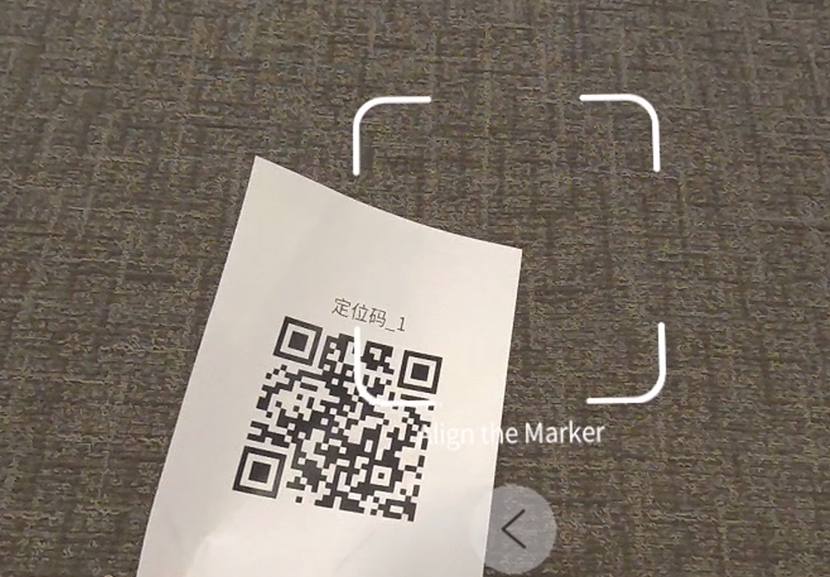
4. Scan the positioning code placed at the target location to complete resource positioning.
5. Tap < to exit resource positioning mode.
Take a capture
Shortcut
Press on your right Touch controller and press the trigger button once.
The other method
1. Press on your right Touch controller to suspend the app.
2. In the suspension window, tap the camera icon to take a capture.
Record video
Start recording
1. Press on your right Touch controller to pull up your universal menu.
2. Select Camera then select Record Video.
Note: A red dot will appear in VR to indicate that recording has started. This video capture indicator can be controlled from Settings.
Stop recording
1. Press on your right Touch controller to pull up your universal menu.
2. Select Camera then select Recording.
Collaboration
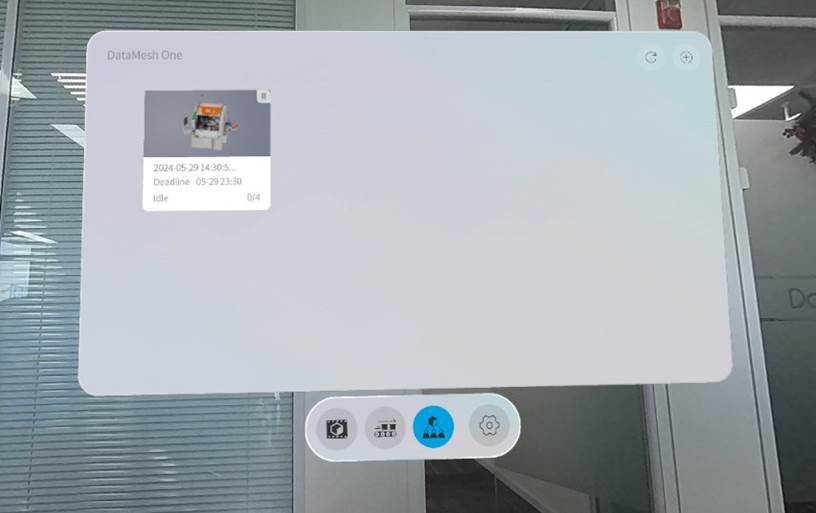
1. Click on the Events tab in the navigation menu to switch to the event list.
2. Click on the “+” button in the top right corner of the events page to enter the event creation interface.
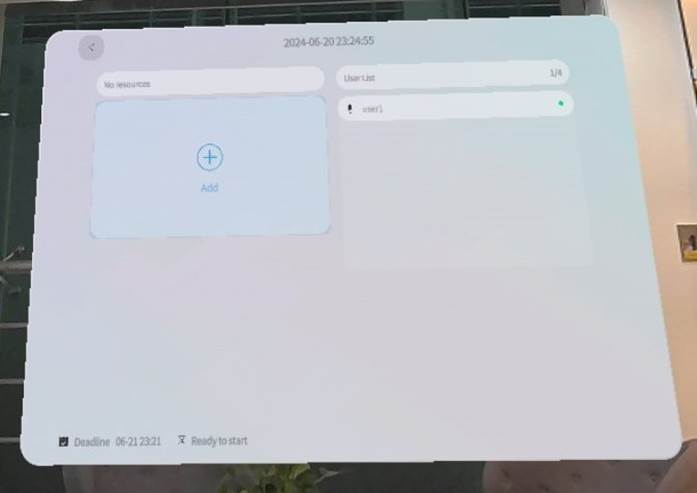
3. Click on the Add button to open the scenario list, select a scenario for the event, and save.
4. Click on the Play button to start the event.
The collaboration features on Meta Quest are the same as those on the iOS end. For more details, please refer to the Events section in the DataMesh One user manual.
Cast to a screen
Cast to a phone
1. Download the Meta Quest mobile app to your phone.
2. Make sure your phone and headset are on the same Wi-Fi network.
3. Turn on Bluetooth.
4. Make sure your headset is close to your phone.
5. Open and log in to the Meta Quest app and make sure the headset and your phone are logged into the same Meta account.
6. Tap Casting from the Meta Quest app.
Cast to a computer
1. Make sure your computer and headset are on the same Wi-Fi network.
2. Press Meta button on your right controller to open the universal menu.
3. Select Camera and select Cast.
4. Select Computer then select Next to connect.
5. Take off the headset.
6. On your computer, open your browser then go to oculus.com/casting and log in. Note: Make sure the headset and your computer are logged into the same Meta account.
For more information about casting settings, see Cast from Meta Quest to a screen | Quest Help (en-US)